display PEUGEOT 4008 2015 Workshop Manual
[x] Cancel search | Manufacturer: PEUGEOT, Model Year: 2015, Model line: 4008, Model: PEUGEOT 4008 2015Pages: 389, PDF Size: 15.89 MB
Page 270 of 389
04
268
4008_en_Chap10b_Mitsu6_ed01-2014
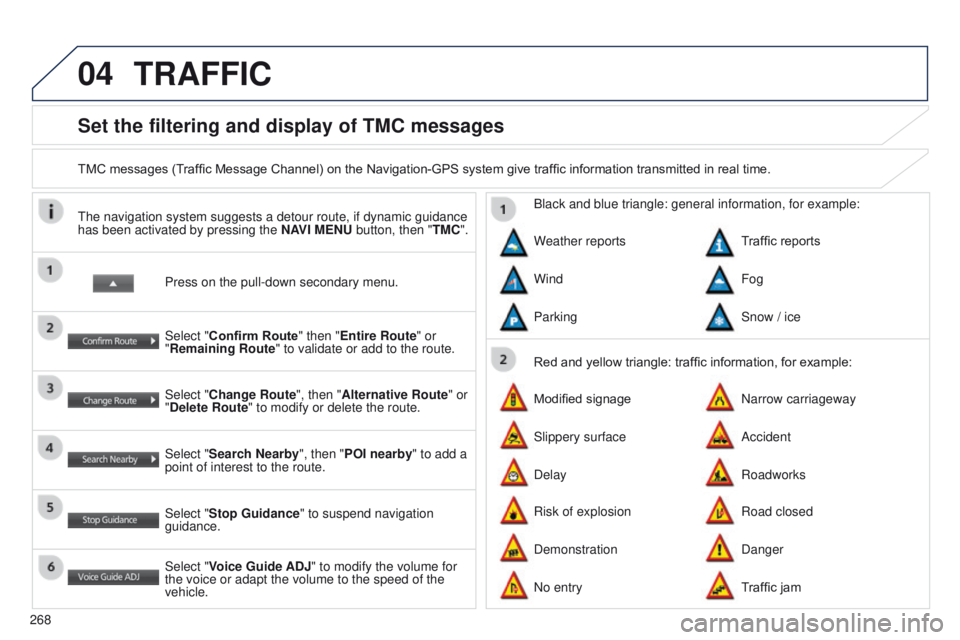
Set the filtering and display of TMC messages
TMC messages (Traffic Message Channel) on the Navigation-GPS system give traffic information transmitted in real time.Press on the pull-down secondary menu.
t
he navigation system suggests a detour route, if dynamic guidance
has been activated by pressing the NAVI MENU button, then "TMC".
Select "Confirm Route" then "Entire Route" or
"Remaining Route" to validate or add to the route.
Select "Change Route", then "Alternative Route" or
"Delete Route" to modify or delete the route.
Select "Search Nearby ", then "POI nearby" to add a
point of interest to the route.
Select "Stop Guidance " to suspend navigation
guidance.
Select "Voice Guide ADJ" to modify the volume for
the voice or adapt the volume to the speed of the
vehicle. Red and yellow triangle: traffic information, for example:
Black and blue triangle: general information, for example:
Weather reports
Modified signage
Risk of explosion Traffic reports
Narrow carriageway
Road closed
Wind
Slippery surface
Demonstration Fog
Accident
Danger
Parking
Delay
No entry Snow / ice
Roadworks
Traffic jam
TRAFFIC
Page 273 of 389
271
4008_en_Chap10b_Mitsu6_ed01-2014
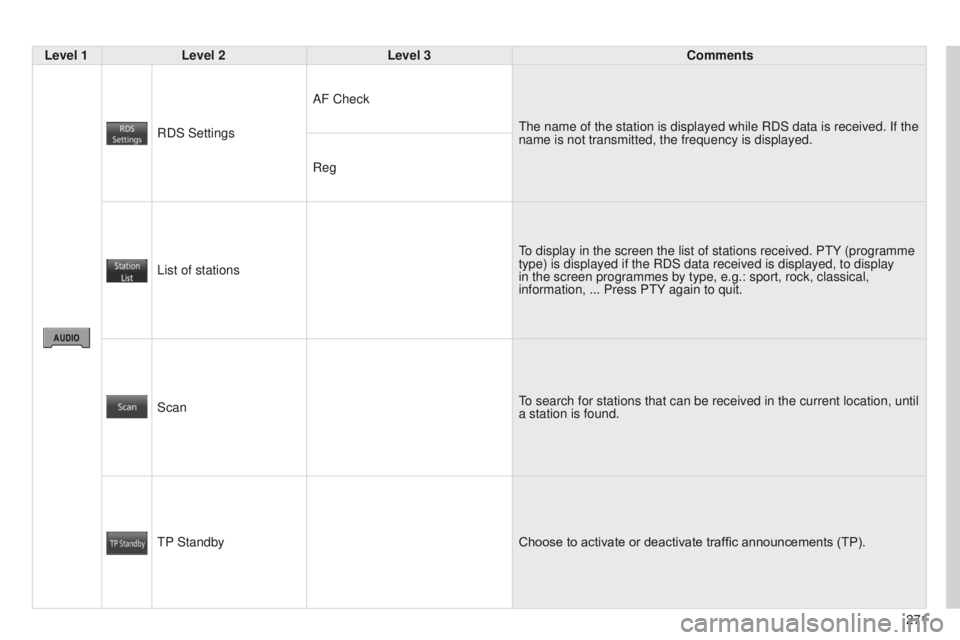
Level 1Level 2 Level 3 Comments
RDS Settings AF Check
t
he name of the station is displayed while RDS data is received. If the
name is not transmitted, the frequency is displayed.
Reg
List of stations
to display in the screen the list of stations received. P
t Y (programme
type) is displayed if the RDS data received is displayed, to display
in the screen programmes by type, e.g.: sport, rock, classical,
information,
... Press P t Y again to quit.
Scan
to search for stations that can be received in the current location, unti\
l
a station is found.
t
P Standby Choose to activate or deactivate traffic announcements (TP).
Page 276 of 389
05
274
4008_en_Chap10b_Mitsu6_ed01-2014
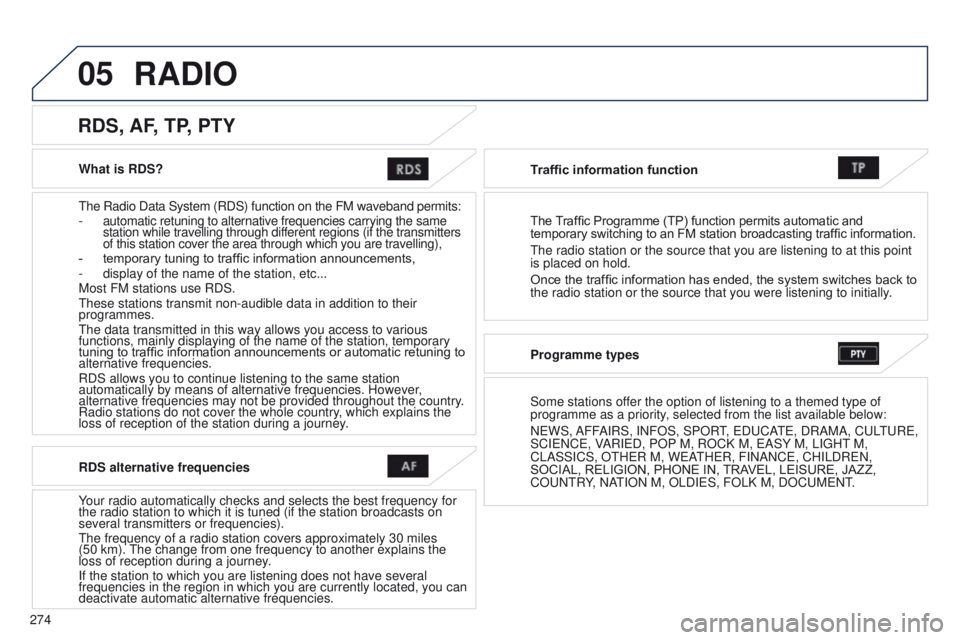
What is RDS?
t
he Radio Data System (RDS) function on the FM waveband permits:
-
automatic retuning to alternative frequencies carrying the same
station while travelling through different regions (if the transmitters
of this station cover the area through which you are travelling),
-
temporary tuning to traffic information announcements,
-
display of the name of the station, etc...
Most FM stations use RDS.
t
hese stations transmit non-audible data in addition to their
programmes.
t
he data transmitted in this way allows you access to various
functions, mainly displaying of the name of the station, temporary
tuning to traffic information announcements or automatic retuning to
alternative frequencies.
RDS allows you to continue listening to the same station
automatically by means of alternative frequencies. However,
alternative frequencies may not be provided throughout the country.
Radio stations do not cover the whole country, which explains the
loss of reception of the station during a journey.
RDS, AF, TP, PTY
RDS alternative frequencies
Your radio automatically checks and selects the best frequency for
the radio station to which it is tuned (if the station broadcasts on
several transmitters or frequencies).
t
he frequency of a radio station covers approximately 30 miles
(50
km).
t
he change from one frequency to another explains the
loss of reception during a journey.
If the station to which you are listening does not have several
frequencies in the region in which you are currently located, you can
deactivate automatic alternative frequencies. Traffic information function
The Traf
fi c Programme (TP) function permits automatic and
temporary switching to an FM station broadcasting traffic information.
t
he radio station or the source that you are listening to at this point
is placed on hold.
Once the traffic information has ended, the system switches back to
the radio station or the source that you were listening to initially.
Programme types
Some stations offer the option of listening to a themed type of
programme as a priority, selected from the list available below:
N e WS, AFFAIRS, INFOS, SPOR
t,
e D u CA
te
, DRAMA, C u L
tu
R e ,
SCI e NC e , VARI e D, POP M, ROCK M, e ASY M, LI g H t
M,
CLASSICS, O
t H e R M, W e At H e R, FINANC e , CHILDR e N,
SOCIAL, RELIGION, PHONE IN, TRAVEL, LEISURE, JAZZ,
CO
u N t RY, NAt ION M, OLDI e S, FOLK M, DOC u M e N t.
RADIO
Page 277 of 389
05
275
4008_en_Chap10b_Mitsu6_ed01-2014
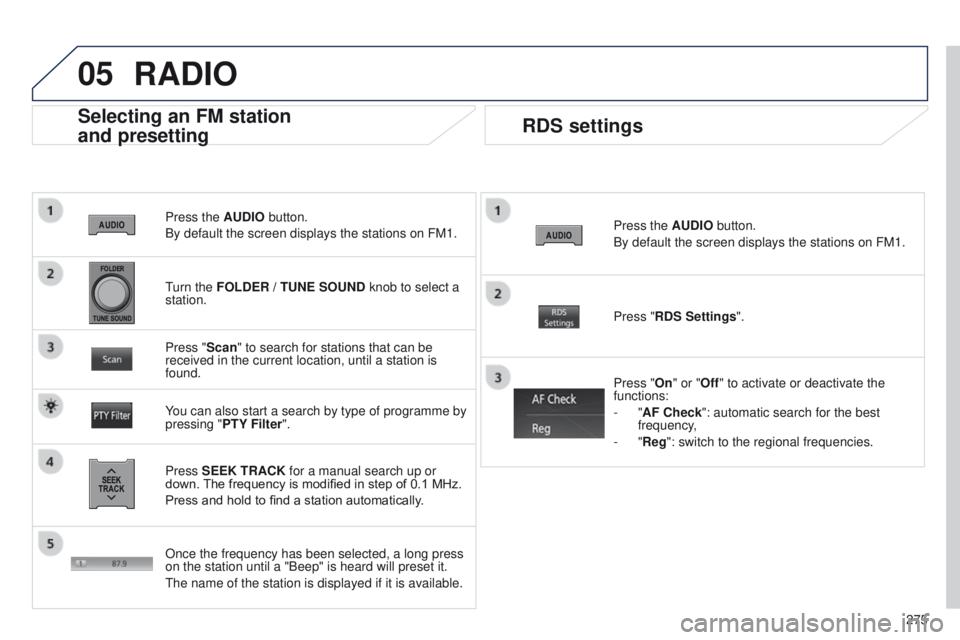
Press the AUDIO button.
By default the screen displays the stations on FM1.
Selecting an FM station
and presetting
Press SEEK TRACK for a manual search up or
down. The frequency is modified in step of 0.1 MHz.
Press and hold to find a station automatically. Press "Scan" to search for stations that can be
received in the current location, until a station is
found.
You can also start a search by type of programme by
pressing " PTY Filter". Press "RDS Settings".
Press "On" or "Off" to activate or deactivate the
functions:
-
"AF Check": automatic search for the best
frequency,
- "Reg": switch to the regional frequencies.
Once the frequency has been selected, a long press
on the station until a "Beep" is heard will preset it.
t
he name of the station is displayed if it is available.
RDS settings
Press the AUDIO button.
By default the screen displays the stations on FM1.
turn the
FOLDER / TUNE SOUND knob to select a
station.
RADIO
Page 278 of 389
05
276
4008_en_Chap10b_Mitsu6_ed01-2014
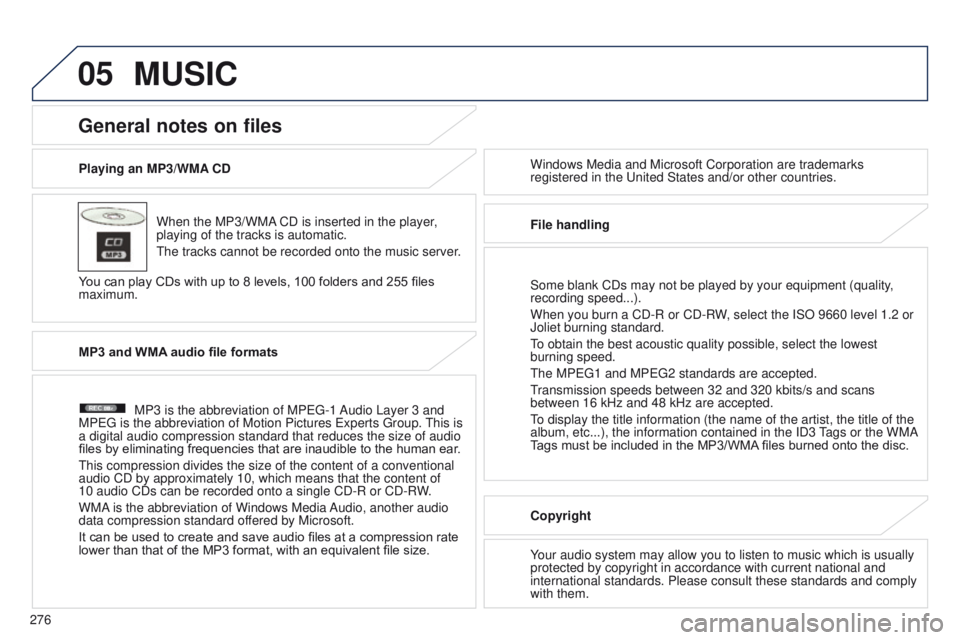
Playing an MP3/WMA CDWhen the MP3/WMA CD is inserted in the player,
playing of the tracks is automatic.
t
he tracks cannot be recorded onto the music server.
You can play CDs with up to 8 levels, 100 folders and 255 files
maximum. Windows Media and Microsoft Corporation are trademarks
registered in the
u nited States and/or other countries.
General notes on files
MP3 and WMA audio file formats
MP3 is the abbreviation of MP eg -1 Audio Layer 3 and
MP
eg is the abbreviation of Motion Pictures e xperts g roup.
t
his is
a digital audio compression standard that reduces the size of audio
files by eliminating frequencies that are inaudible to the human ear .
t
his compression divides the size of the content of a conventional
audio CD by approximately 10, which means that the content of
10 audio CDs can be recorded onto a single CD-R or CD-RW.
WMA is the abbreviation of Windows Media Audio, another audio
data compression standard offered by Microsoft.
It can be used to create and save audio files at a compression rate
lower than that of the MP3 format, with an equivalent file size.
File handling
Some blank CDs may not be played by your equipment (quality,
recording speed...).
When you burn a CD-R or CD-RW, select the ISO 9660 level 1.2 or
Joliet burning standard.to obtain the best acoustic quality possible, select the lowest
burning speed.
t
he MP eg 1 and MP eg 2 standards are accepted.
transmission speeds between 32 and 320 kbits/s and scans
between 16 kHz and 48 kHz are accepted.
to display the title information (the name of the artist, the title of t\
he
album, etc...), the information contained in the ID3 tags or the WMA
Tags must be included in the MP3/WMA files burned onto the disc.
Copyright
Your audio system may allow you to listen to music which is usually
protected by copyright in accordance with current national and
international standards. Please consult these standards and comply
with them.
MUSIC
Page 279 of 389
05
277
4008_en_Chap10b_Mitsu6_ed01-2014
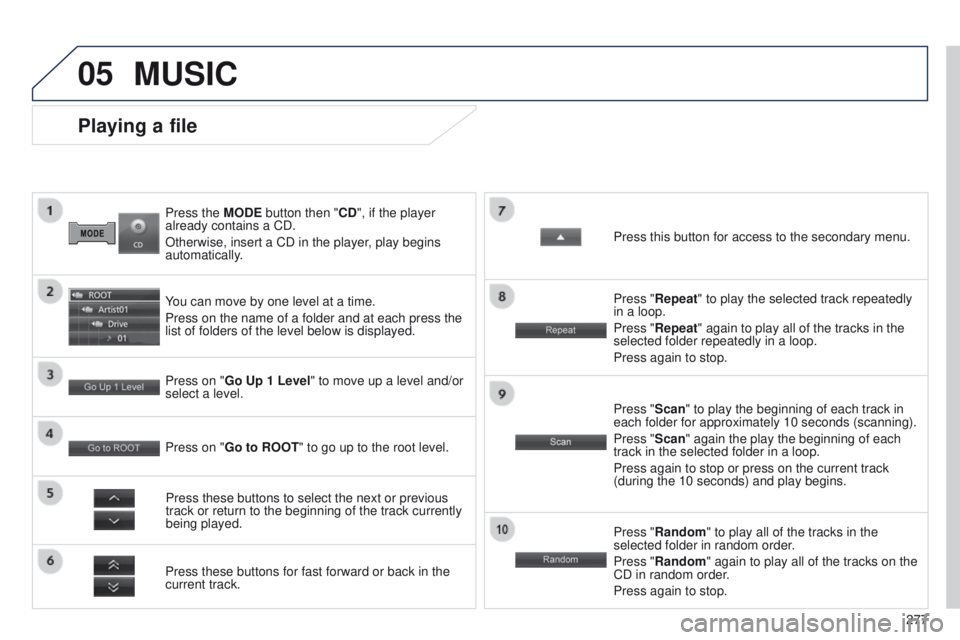
Press the MODE button then "CD", if the player
already contains a CD.
Otherwise, insert a CD in the player, play begins
automatically.
Playing a file
You can move by one level at a time.
Press on the name of a folder and at each press the
list of folders of the level below is displayed.
Press these buttons for fast forward or back in the
current track. Press on "Go Up 1 Level" to move up a level and/or
select a level.Press these buttons to select the next or previous
track or return to the beginning of the track currently
being played. Press "Random" to play all of the tracks in the
selected folder in random order.
Press "Random" again to play all of the tracks on the
CD in random order.
Press again to stop.
Press on "Go to ROOT
" to go up to the root level. Press "Scan" to play the beginning of each track in
each folder for approximately 10 seconds (scanning).
Press "Scan" again the play the beginning of each
track in the selected folder in a loop.
Press again to stop or press on the current track
(during the 10 seconds) and play begins. Press "Repeat" to play the selected track repeatedly
in a loop.
Press "Repeat" again to play all of the tracks in the
selected folder repeatedly in a loop.
Press again to stop. Press this button for access to the secondary menu.
MUSIC
Page 282 of 389
05
280
4008_en_Chap10b_Mitsu6_ed01-2014
USB, iPod and SD player - Playing a track
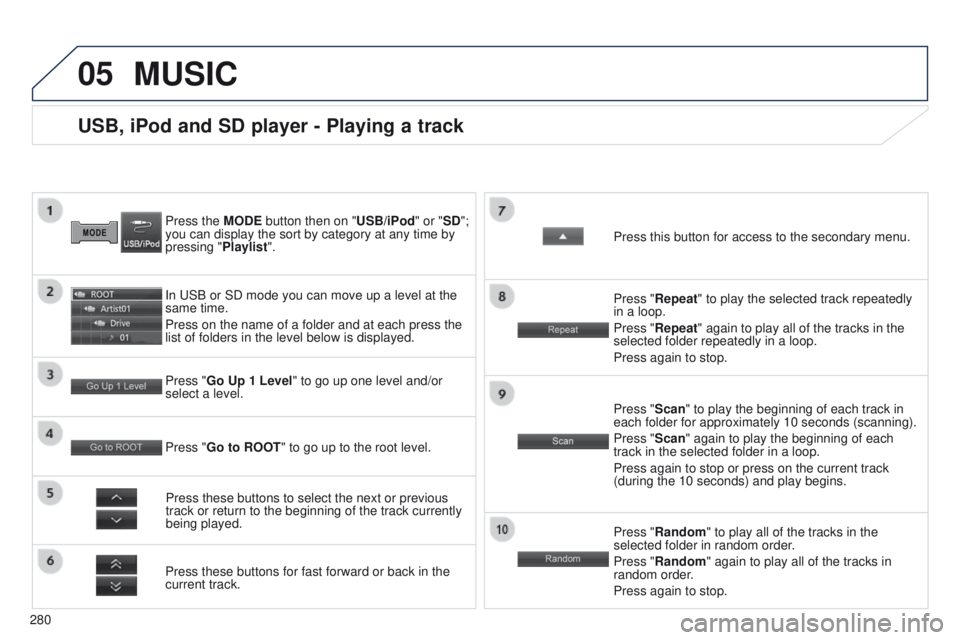
Press the MODE button then on "USB/iPod" or "SD";
you can display the sort by category at any time by
pressing "Playlist".
In
u SB or SD mode you can move up a level at the
same time.
Press on the name of a folder and at each press the
list of folders in the level below is displayed.
Press these buttons for fast forward or back in the
current track. Press "Go Up 1 Level " to go up one level and/or
select a level.
Press these buttons to select the next or previous
track or return to the beginning of the track currently
being played. Press "Random" to play all of the tracks in the
selected folder in random order.
Press "Random" again to play all of the tracks in
random order.
Press again to stop.
Press "Go to ROOT
" to go up to the root level. Press "Scan" to play the beginning of each track in
each folder for approximately 10 seconds (scanning).
Press "Scan" again to play the beginning of each
track in the selected folder in a loop.
Press again to stop or press on the current track
(during the 10 seconds) and play begins. Press "Repeat" to play the selected track repeatedly
in a loop.
Press "Repeat" again to play all of the tracks in the
selected folder repeatedly in a loop.
Press again to stop. Press this button for access to the secondary menu.
MUSIC
Page 285 of 389
283
4008_en_Chap10b_Mitsu6_ed01-2014
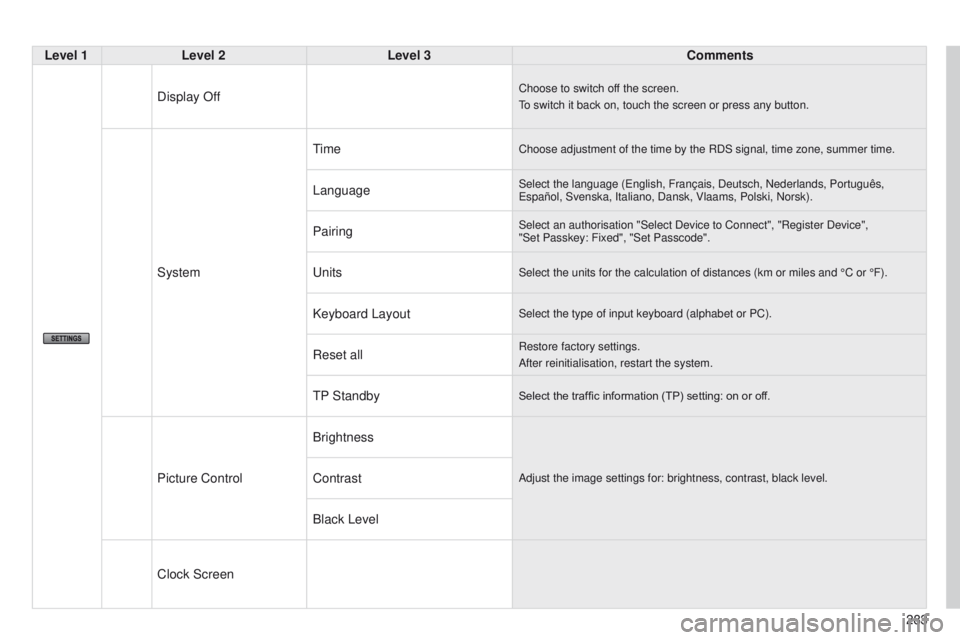
Level 1Level 2 Level 3 Comments
Display Off
Choose to switch off the screen.
to switch it back on, touch the screen or press any button.
System
timeChoose adjustment of the time by the RDS signal, time zone, summer time.\
LanguageSelect the language (english, Français, Deutsch, Nederlands, Português, e spañol, Svenska, Italiano, Dansk, Vlaams, Polski, Norsk).
PairingSelect an authorisation "Select Device to Connect", "Register Device",
"Set Passkey: Fixed", "Set Passcode".
unitsSelect the units for the calculation of distances (km or miles and °\
C or °F).
Keyboard LayoutSelect the type of input keyboard (alphabet or PC).
Reset allRestore factory settings.
After reinitialisation, restart the system.
tP StandbySelect the traffic information (TP) setting: on or off.
Picture Control BrightnessAdjust the image settings for: brightness, contrast, black level.Contrast
Black Level
Clock Screen
Page 289 of 389
287
4008_en_Chap10b_Mitsu6_ed01-2014
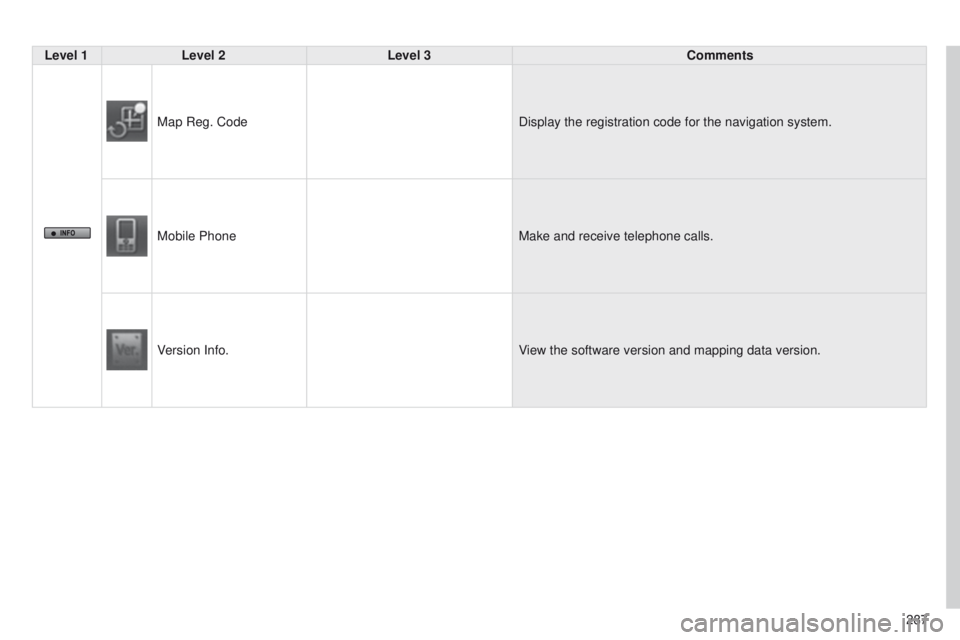
Level 1Level 2 Level 3 Comments
Map Reg. Code Display the registration code for the navigation system.
Mobile Phone Make and receive telephone calls.
Version Info. View the software version and mapping data version.
Page 290 of 389
08
288
4008_en_Chap10b_Mitsu6_ed01-2014
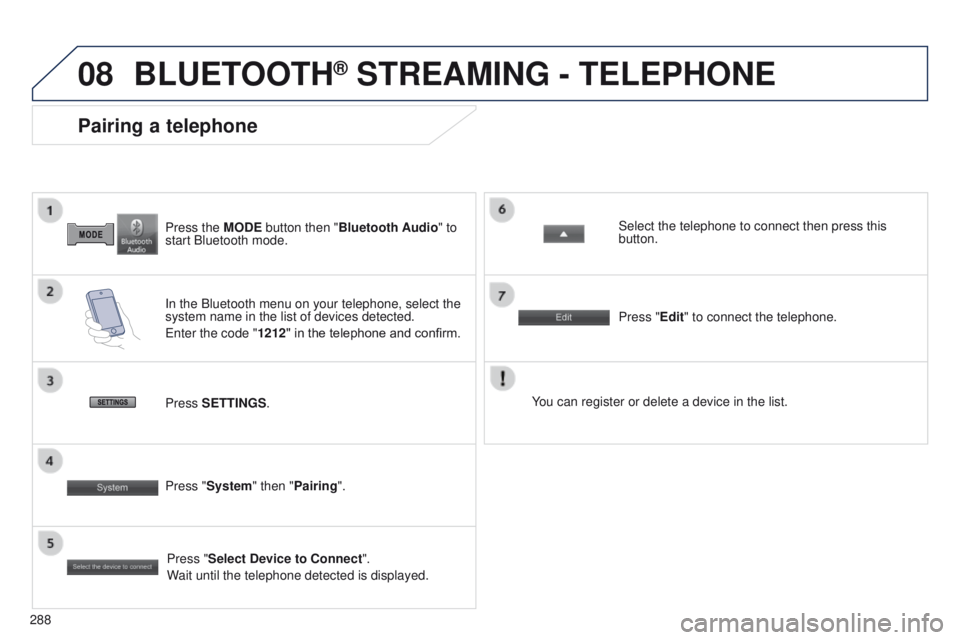
Press the MODE button then "Bluetooth Audio" to
start Bluetooth mode.
Pairing a telephone
In the Bluetooth menu on your telephone, select the
system name in the list of devices detected.
e
nter the code "1212 " in the telephone and confirm. Select the telephone to connect then press this
button.
Press "Select Device to Connect".
Wait until the telephone detected is displayed.
Press SETTINGS
. Press "Edit" to connect the telephone.
Press "System " then "Pairing". You can register or delete a device in the list.
BLUETOOTH® STREAMING - TELEPHONE