buttons PEUGEOT 5008 2013.5 User Guide
[x] Cancel search | Manufacturer: PEUGEOT, Model Year: 2013.5, Model line: 5008, Model: PEUGEOT 5008 2013.5Pages: 404, PDF Size: 23.45 MB
Page 88 of 404
Access
86
Lost keys
Go to a PEUGEOT dealer with the vehicle's registration document, your personal identification documents and if possible the key code label. The PEUGEOT dealer will be able to look up the key code and the transponder code required to order a new key.
Do not throw the remote control batteries away, they contain metals which are harmful to the environment. Take them to an approved collection point.
Remote control
The high frequency remote control is a sensitive system; do not operate it while it is in your
pocket as there is a possibility that it may unlock the vehicle, without you being aware of it. Do not repeatedly press the buttons of your remote control out of range and out of sight of your vehicle. You run the risk of stopping it from working and the remote control would have to be reinitialised. No remote control can operate when the key is in the ignition switch, even when the ignition is switched off, except for reinitialisation.
Locking the vehicle
Driving with the doors locked may make access to the passenger compartment by the emergency services more difficult in an emergency. As a safety precaution, never leave children alone in the vehicle, except for a very short period. In all cases, it is essential to remove the key from the ignition switch when leaving the vehicle.
Anti-theft protection
Do not make any modifications to the electronic engine immobiliser system; this could cause malfunctions.
When purchasing a second-hand vehicle
Have the pairing of all of the keys in your possession checked by a PEUGEOT dealer, to ensure that only your keys can be used to open and start the vehicle.
Page 125 of 404
6
Fittings123
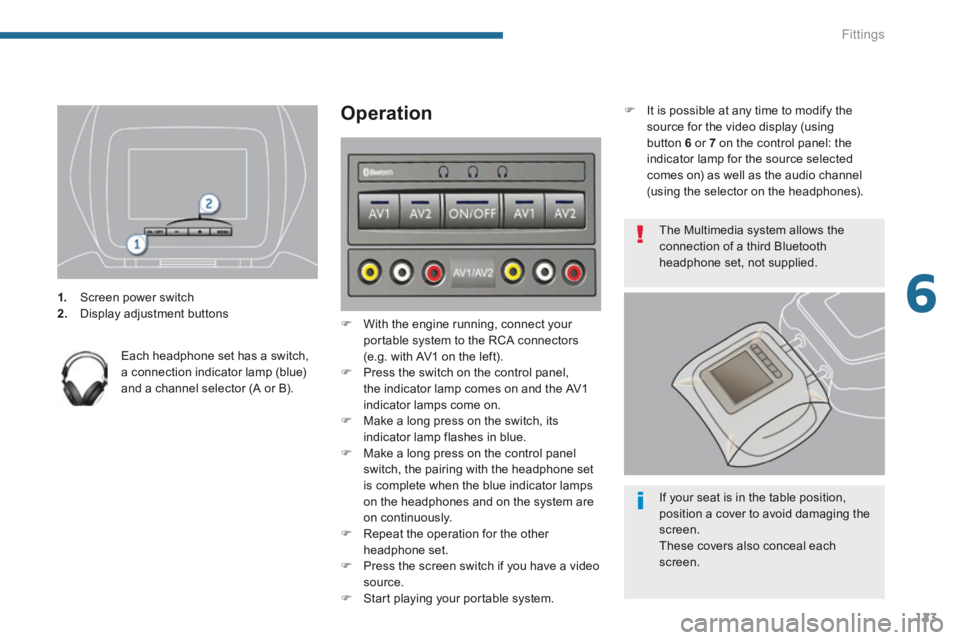
1. Screen power switch 2. Display adjustment buttons
Each headphone set has a switch, a connection indicator lamp (blue) and a channel selector (A or B).
Operation
With the engine running, connect your portable system to the RCA connectors (e.g. with AV1 on the left). Press the switch on the control panel, the indicator lamp comes on and the AV1 indicator lamps come on. Make a long press on the switch, its
indicator lamp flashes in blue. Make a long press on the control panel switch, the pairing with the headphone set is complete when the blue indicator lamps on the headphones and on the system are on continuously. Repeat the operation for the other headphone set. Press the screen switch if you have a video source. Start playing your portable system.
It is possible at any time to modify the source for the video display (using button 6 or 7 on the control panel: the indicator lamp for the source selected comes on) as well as the audio channel (using the selector on the headphones).
The Multimedia system allows the connection of a third Bluetooth headphone set, not supplied.
If your seat is in the table position, position a cover to avoid damaging the screen. These covers also conceal each screen.
Page 175 of 404
9
Driving173
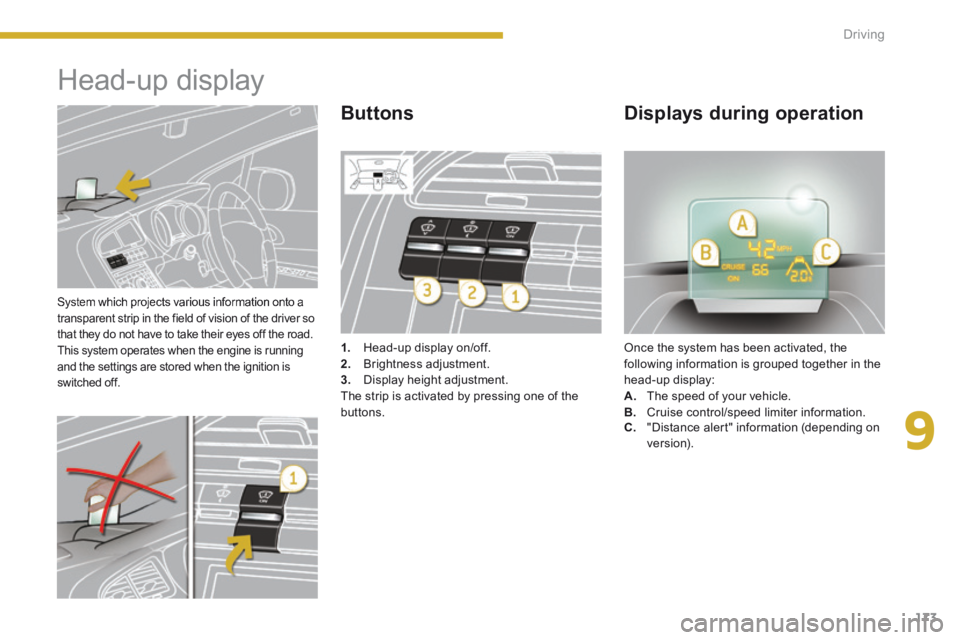
System which projects various information onto a transparent strip in the field of vision of the driver so that they do not have to take their eyes off the road. This system operates when the engine is running and the settings are stored when the ignition is switched off.
Head-up display
1. Head-up display on/off. 2. Brightness adjustment. 3. Display height adjustment. The strip is activated by pressing one of the buttons.
Once the system has been activated, the following information is grouped together in the head-up display: A. The speed of your vehicle. B. Cruise control/speed limiter information.
Buttons Displays during operation
C. "Distance alert" information (depending on ve r s i o n).
Page 176 of 404
Driving
174
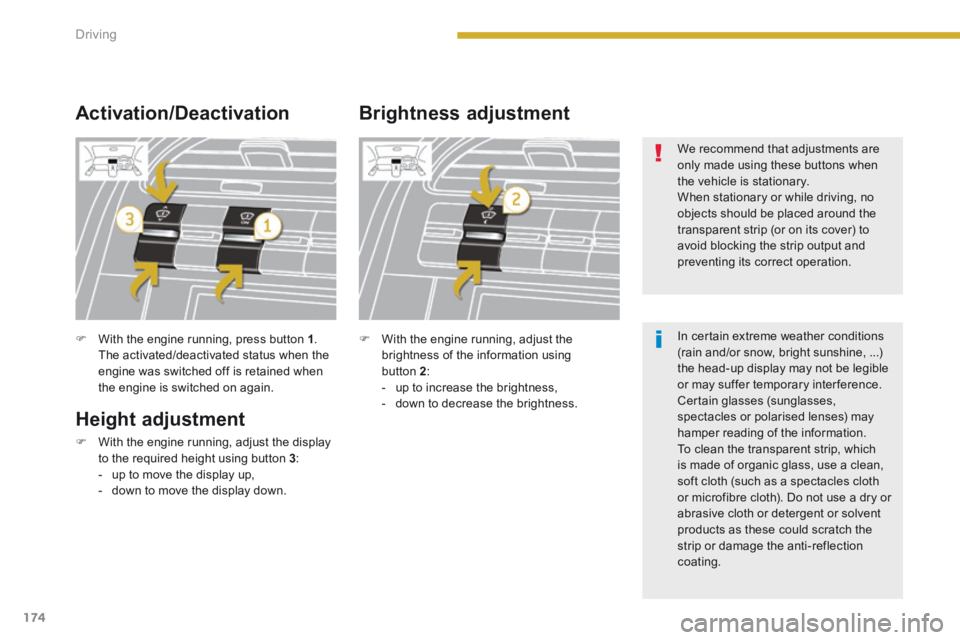
With the engine running, press button 1 . The activated/deactivated status when the engine was switched off is retained when the engine is switched on again.
Height adjustment
With the engine running, adjust the display to the required height using button 3 : - up to move the display up, - down to move the display down.
Activation/Deactivation Brightness adjustment
With the engine running, adjust the brightness of the information using button 2 : - up to increase the brightness, - down to decrease the brightness.
We recommend that adjustments are only made using these buttons when the vehicle is stationary. When stationary or while driving, no objects should be placed around the
transparent strip (or on its cover) to avoid blocking the strip output and preventing its correct operation.
In certain extreme weather conditions (rain and/or snow, bright sunshine, ...) the head-up display may not be legible or may suffer temporary interference. Certain glasses (sunglasses, spectacles or polarised lenses) may
hamper reading of the information. To clean the transparent strip, which is made of organic glass, use a clean, soft cloth (such as a spectacles cloth or microfibre cloth). Do not use a dry or abrasive cloth or detergent or solvent products as these could scratch the strip or damage the anti-reflection coating.
Page 177 of 404
9
Driving175
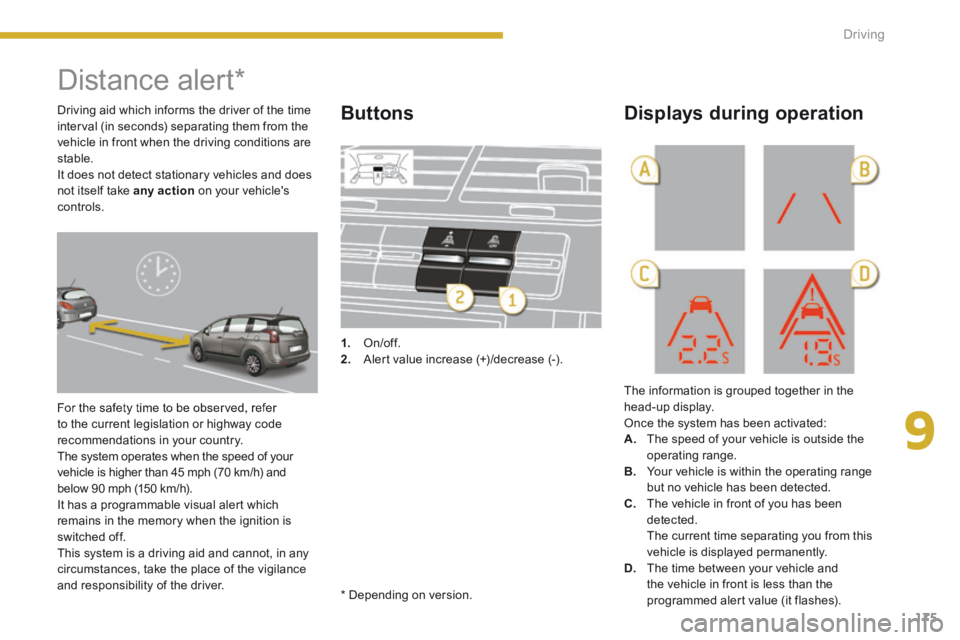
Distance alert *
For the safety time to be observed, refer to the current legislation or highway code recommendations in your country. The system operates when the speed of your vehicle is higher than 45 mph (70 km/h) and below 90 mph (150 km/h). It has a programmable visual alert which remains in the memory when the ignition is
switched off. This system is a driving aid and cannot, in any circumstances, take the place of the vigilance and responsibility of the driver.
1. On/off. 2. Alert value increase (+)/decrease (-).
The information is grouped together in the head-up display. Once the system has been activated:
A. The speed of your vehicle is outside the operating range. B. Your vehicle is within the operating range but no vehicle has been detected. C. The vehicle in front of you has been detected. The current time separating you from this vehicle is displayed permanently. D. The time between your vehicle and the vehicle in front is less than the programmed alert value (it flashes).
Buttons Displays during operation Driving aid which informs the driver of the time interval (in seconds) separating them from the vehicle in front when the driving conditions are stable. It does not detect stationary vehicles and does not itself take any action on your vehicle's controls.
* Depending on version.
Page 181 of 404
9
Driving179
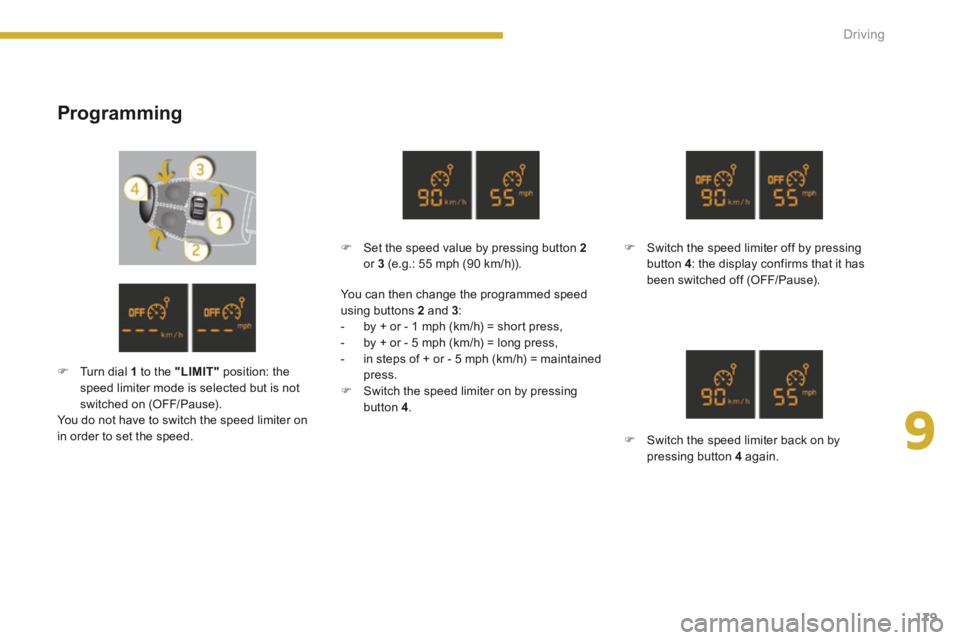
Programming
Switch the speed limiter off by pressing button 4 : the display confirms that it has been switched off (OFF/Pause).
Switch the speed limiter back on by pressing button 4 again.
Set the speed value by pressing button 2or 3 (e.g.: 55 mph (90 km/h)).
Turn dial 1 to the "LIMIT" position: the speed limiter mode is selected but is not switched on (OFF/Pause). You do not have to switch the speed limiter on
in order to set the speed.
You can then change the programmed speed using buttons 2 and 3 : - by + or - 1 mph (km/h) = short press, - by + or - 5 mph (km/h) = long press, - in steps of + or - 5 mph (km/h) = maintained press. Switch the speed limiter on by pressing button 4 .
Page 184 of 404
Driving
182
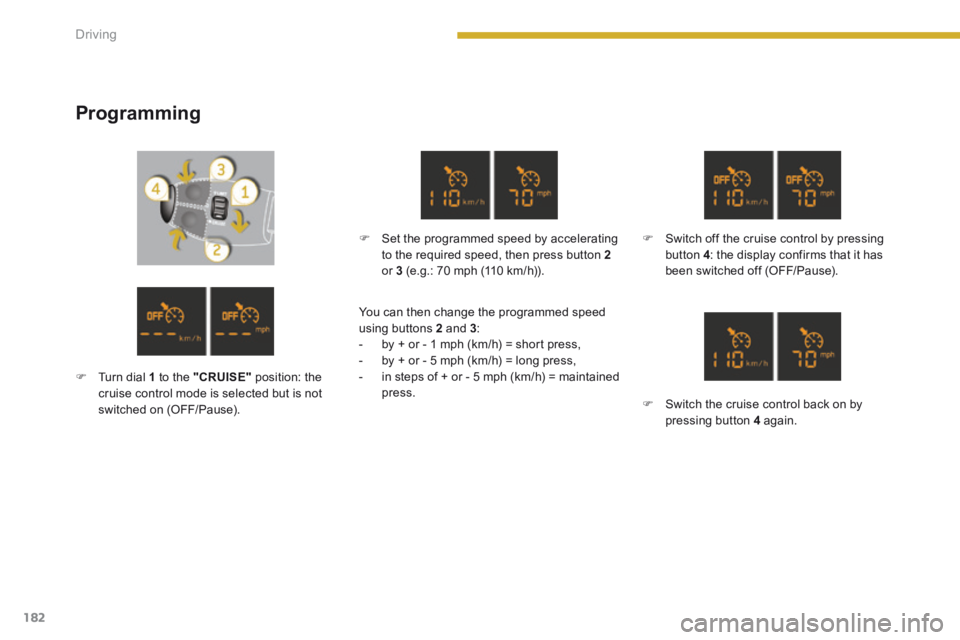
Programming
Set the programmed speed by accelerating to the required speed, then press button 2or 3 (e.g.: 70 mph (110 km/h)).
Switch off the cruise control by pressing button 4 : the display confirms that it has been switched off (OFF/Pause).
Switch the cruise control back on by pressing button 4 again.
You can then change the programmed speed using buttons 2 and 3 : - by + or - 1 mph (km/h) = short press, - by + or - 5 mph (km/h) = long press, - in steps of + or - 5 mph (km/h) = maintained press. Turn dial 1 to the "CRUISE" position: the cruise control mode is selected but is not switched on (OFF/Pause).
Page 185 of 404
9
Driving183
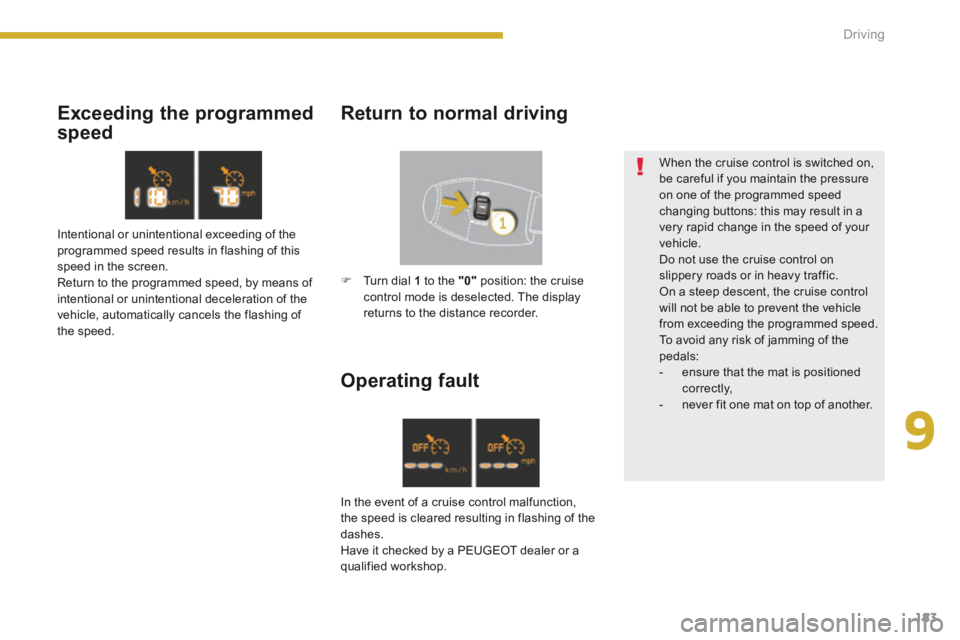
Operating fault
When the cruise control is switched on, be careful if you maintain the pressure on one of the programmed speed changing buttons: this may result in a very rapid change in the speed of your vehicle. Do not use the cruise control on slippery roads or in heavy traffic. On a steep descent, the cruise control will not be able to prevent the vehicle from exceeding the programmed speed. To avoid any risk of jamming of the pedals: - ensure that the mat is positioned c o r r e c t l y, - never fit one mat on top of another.
Return to normal driving Exceeding the programmed
speed
Intentional or unintentional exceeding of the programmed speed results in flashing of this speed in the screen. Return to the programmed speed, by means of intentional or unintentional deceleration of the vehicle, automatically cancels the flashing of the speed.
In the event of a cruise control malfunction, the speed is cleared resulting in flashing of the
dashes. Have it checked by a PEUGEOT dealer or a qualified workshop.
Turn dial 1 to the "0" position: the cruise control mode is deselected. The display returns to the distance recorder.
Page 276 of 404

274
02 VOICE COMMANDS AND STEERING MOUNTED CONTROLS
Steering mounted controls
Wiper stalk: display "RADIO" and "MEDIA".
Lighting stalk: activate voice commands with a short press; indication o\
f the current navigation instruction with a long press.
Change audio source.
Start a call from the contacts list
Call/hang up the telephone.
Confi rm a selection.
Press for more than 2 seconds: telephone menu.
Radio: automatic search for a lower frequency.
CD / SD CARD / JUKEBOX: select the previous track.
CD / SD CARD / JUKEBOX: continuous press: fast backwards.
Radio: select the previous/next pre-set station.
CD audio: select the previous/next track
If "MEDIA" is displayed in the screen:
MP3 CD / SD CARD / JUKEBOX: select the previous/next folder.
Select the previous/next item in the contacts list.
Radio: automatic search for a higher frequency.
CD / SD CARD / JUKEBOX: select the next track.
CD / SD CARD / JUKEBOX: continuous press: fast forwards.
Volume increase.
Volume decrease.
Mute: press the volume increase and decrease buttons simultaneously.
The sound is restored by pressing one of the two volume buttons.
Page 293 of 404
291
06
RADIO
2ABC3DEF5JKL4GHI6MNO8TUV7PQR S9WXYZ0*#
1RADIO MEDIA NA
V TRAFFIC
SETUPADDR
BOOK
2ABC3DEF5JKL4GHI6MNO8TUV7PQR S9WXYZ0*#
1RADIO MEDIA NA
V TRAFFIC
SETUPADDR
BOOK
2ABC3DEF5JKL4GHI6MNO8TUV7PQR S9WXYZ0*#
1RADIO MEDIA NA
V TRAFFIC
SETUPADDR
BOOK2ABC3DEF5JKL4GHI6MNO8TUV7PQR S9WXYZ0*#
1RADIO MEDIA NA
V TRAFFIC
SETUPADDR
BOOK
RADIO NA
V TRAFFICMEDIA
RADIO NA
V TRAFFICMEDIA
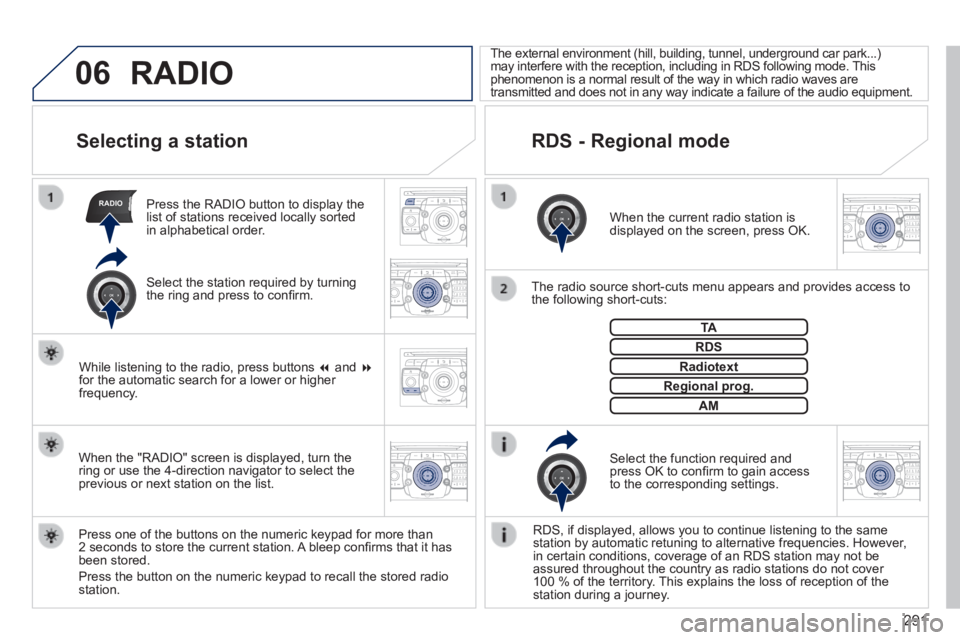
Selecting a station
When the current radio station is displayed on the screen, press OK.
The radio source short-cuts menu appears and provides access to the following short-cuts:
Select the function required and press OK to confi rm to gain access to the corresponding settings.
TA
RDS, if displayed, allows you to continue listening to the same station by automatic retuning to alternative frequencies. However, in certain conditions, coverage of an RDS station may not be assured throughout the country as radio stations do not cover 100 % of the territory. This explains the loss of reception of the station during a journey.
The external environment (hill, building, tunnel, underground car park.\
..) may interfere with the reception, including in RDS following mode. This phenomenon is a normal result of the way in which radio waves are transmitted and does not in any way indicate a failure of the audio equi\
pment.
RDS - Regional mode
Press the RADIO button to display the list of stations received locally sorted in alphabetical order.
Press one of the buttons on the numeric keypad for more than 2 seconds to store the current station. A bleep confi rms that it has been stored.
Press the button on the numeric keypad to recall the stored radio station.
RDS
Radiotext
Regional prog.Regional prog.
RADIO
When the "RADIO" screen is displayed, turn the ring or use the 4-direction navigator to select the previous or next station on the list.
While listening to the radio, press buttons and for the automatic search for a lower or higher frequency.
Select the station required by turning the ring and press to confi rm.
AM