radio PEUGEOT 5008 2013 Workshop Manual
[x] Cancel search | Manufacturer: PEUGEOT, Model Year: 2013, Model line: 5008, Model: PEUGEOT 5008 2013Pages: 364, PDF Size: 16.24 MB
Page 328 of 364
326
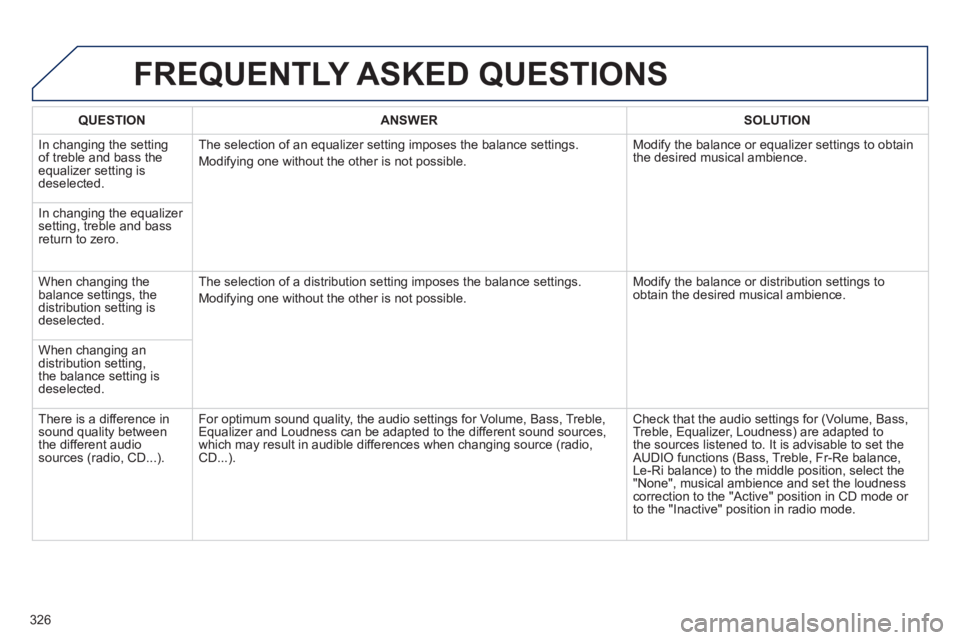
FREQUENTLY ASKED QUESTIONS
QUESTIONANSWERSOLUTION
In changing the settingof treble and bass theequalizer setting isdeselected. The selection of an equalizer settin
g imposes the balance settings.
Modif
ying one without the other is not possible. Modif
y the balance or equalizer settings to obtain
the desired musical ambience.
In changing the equalizer setting, treble and bassreturn to zero.
When chan
ging the balance settings, the distribution setting is deselected. The selection of a distribution settin
g imposes the balance settings.
Modif
ying one without the other is not possible. Modif
y the balance or distribution settings to obtain the desired musical ambience.
When chan
ging an
distribution setting,
the balance setting isdeselected.
Th
ere is a difference in sound quality between
the different audiosources (radio, CD...). For optimum sound qualit
y, the audio settings for Volume, Bass, Treble,
Equalizer and Loudness can be adapted to the different sound sources,
which may result in audible differences when changing source (radio,CD...). Check that the audio settin
gs for (Volume, Bass,
Treble, Equalizer, Loudness) are adapted to
the sources listened to. It is advisable to set theAUDIO functions (Bass, Treble, Fr-Re balance,
Le-Ri balance) to the middle position, select the "None", musical ambience and set the loudness correction to the "Active" position in CD mode or
to the "Inactive" position in radio mode.
Page 332 of 364
330
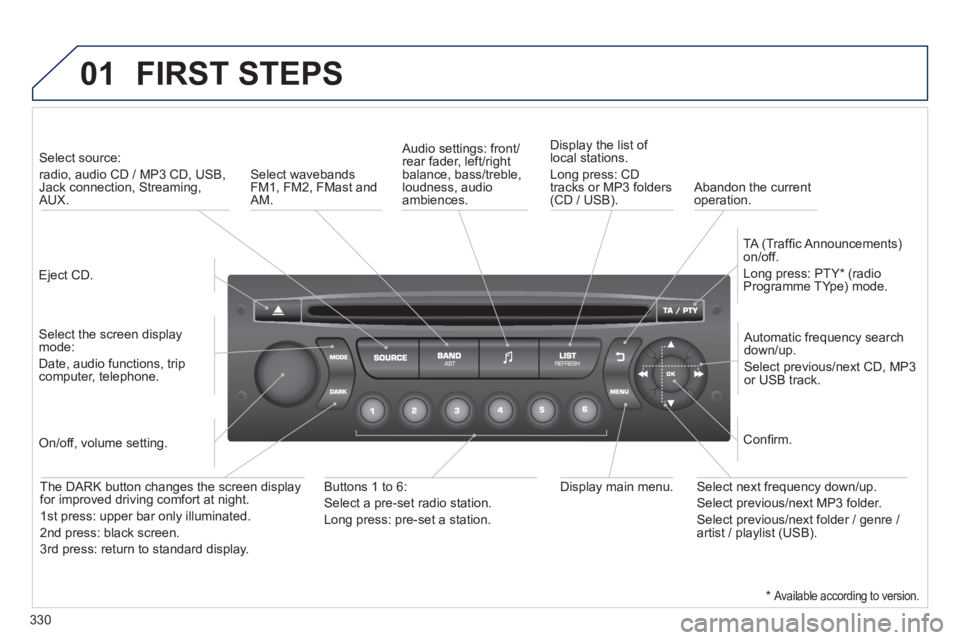
01 FIRST STEPS
Eject CD.
Select source:
radio, audio CD / MP3 CD, USB,Jack connection, Streaming,AUX.
Select the screen displaymode:
Date, audio functions, tripcomputer, telephone.
Automatic frequency search
down/up.
Select previous/next CD, MP3
or USB track.
Audio settings: front/rear fader, left/right
balance, bass/treble, loudness, audio ambiences. Displa
y the list of local stations.
Lon
g press: CD
tracks or MP3 folders(CD / USB).
TA
(Traffi c Announcements)
on/off.
Lon
g press: PTY * (radio
Programme TYpe) mode.
Display main menu. The DARK button changes the screen display
for improved driving comfort at night.
1stpress: upper bar only illuminated.
2ndpress: black screen.
3rdpress: return to standard display.
On/off, volume setting.
Buttons 1 to 6:
Select a pre-set radio station.
Lon
g press: pre-set a station.
Select next frequency down/up.
Select previous/next MP3 folder.
Select previous/next folder / genre /
artist / playlist (USB).
Confi rm.
Select wavebandsFM1, FM2, FMast and AM.
Abandon the current
operation.
*
Available according to version.
Page 333 of 364
331
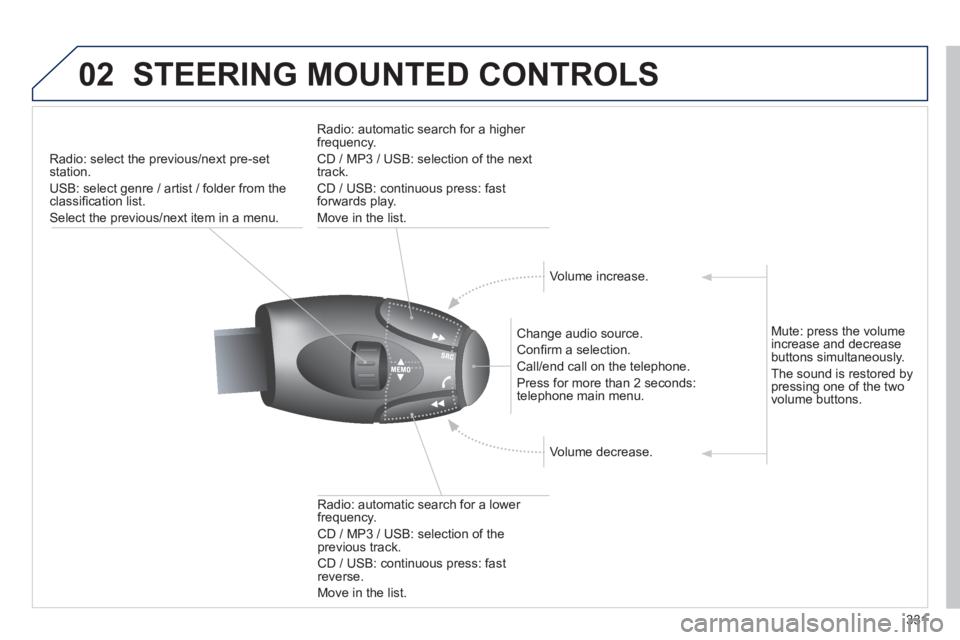
02STEERING MOUNTED CONTROLS
Radio: select the previous/next pre-setstation.
U
SB: select genre / artist / folder from the classifi cation list.
Select the previous/next item in a menu.
Chan
ge audio source.
Confi rm a selection.
Call/end call on the telephone.
Pr
ess for more than 2 seconds:
telephone main menu.
R
adio: automatic search for a lower
frequency.
CD / MP3 / USB: selection of theprevious track.
CD / USB: continuous press: fastreverse.
M
ove in the list.
Radio: automatic search for a hi
gher
frequency.
CD / MP3 / USB: selection of the next
track.
CD / USB: continuous press: fastforwards play.
M
ove in the list.
V
olume increase.
V
olume decrease.
Mute: press the volume increase and decrease buttons simultaneously.
The sound is restored by
pressing one of the two
volume buttons.
Page 334 of 364
332
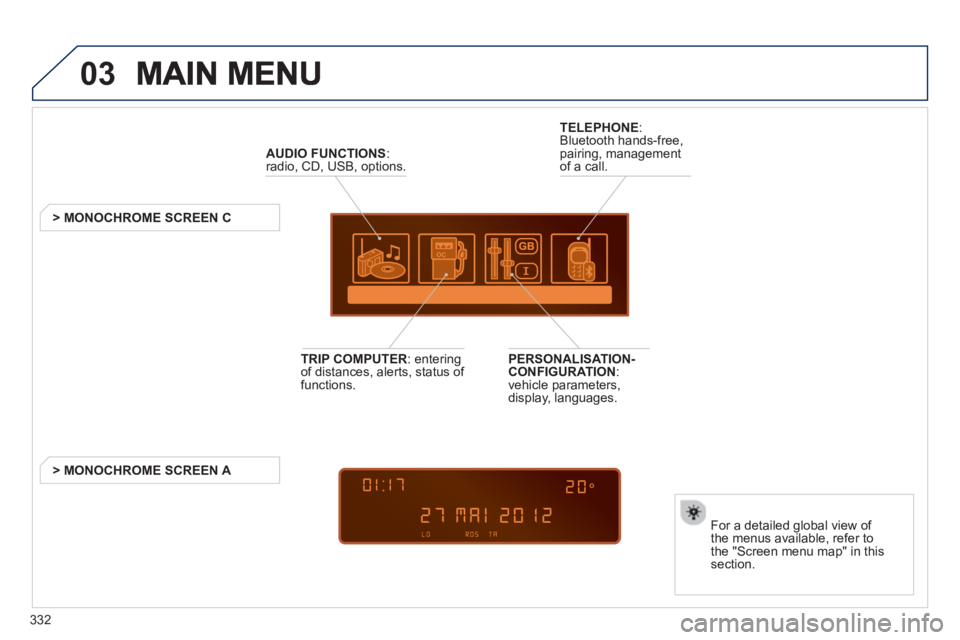
03
AUDIO FUNCTIONS :radio, CD, USB, options.
> MONOCHROME SCREEN C
For a detailed
global view of
the menus available, refer to
the "Screen menu map" in thissection.
TELEPHONE
:
Bluetooth hands-free,
pairing, managementof a call.
PERSONALISATION-
CONFIGURATION:
vehicle parameters,
display, languages.
TRIP COMPUTER
: enteringof distances, alerts, status of
functions.
> MONOCHROME
SCREEN A
Page 335 of 364
333
04 AUDIO
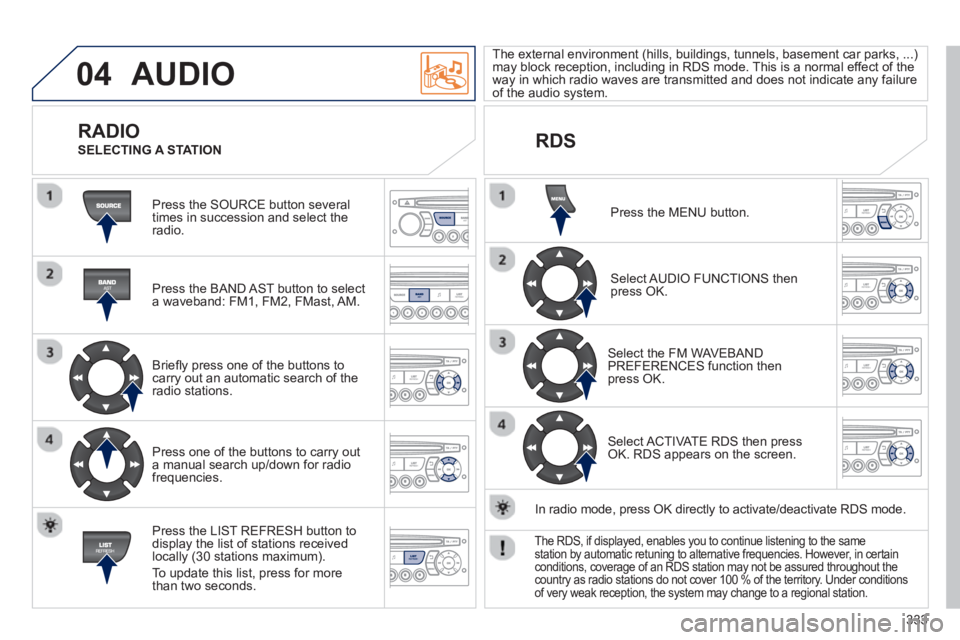
Press the SOURCE button several
times in succession and select theradio.
Press the BAND A
ST button to select
a waveband: FM1, FM2, FMast, AM.
Briefl
y press one of the buttons tocarry out an automatic search of theradio stations.
Press one o
f the buttons to carry out
a manual search up/down for radiofrequencies.
Press the LI
ST REFRESH button to
display the list of stations received
locally (30 stations maximum).
To update this list, press for more
t
han two seconds.
The external environment
(hills, buildings, tunnels, basement car parks, ...)may block reception, including in RDS mode. This is a normal effect of the
way in which radio waves are transmitted and does not indicate any failure of the audio system.
RDS
RADIO
SELECTING A STATION
Press the MENU button.
Select AUDIO FUNCTIONS thenpress OK.
Select the FM WAVEBANDPREFERENCES function thenpress OK.
Select ACTIVATE RDS then pressOK. RDS appears on the screen.
In radio mode, press
OK directly to activate/deactivate RDS mode.
The RDS, if displayed, enables you to continue listening to the samestation by automatic retuning to alternative frequencies. However, in certainconditions, coverage of an RDS station may not be assured throughout thecountry as radio stations do not cover 100 % of the territory. Under conditions
of very weak reception, the system may change to a regional station.
Page 336 of 364
334
04
Insert circular compact discs only.
Some anti-pirating systems, on original discs or CDs copied using a
personal recorder, may cause faults which are no refl ection on the quality of the original player.
Without pressin
g the EJECT button, insert a CD in the player, playbegins automatically.
CD
PLAYING A CD
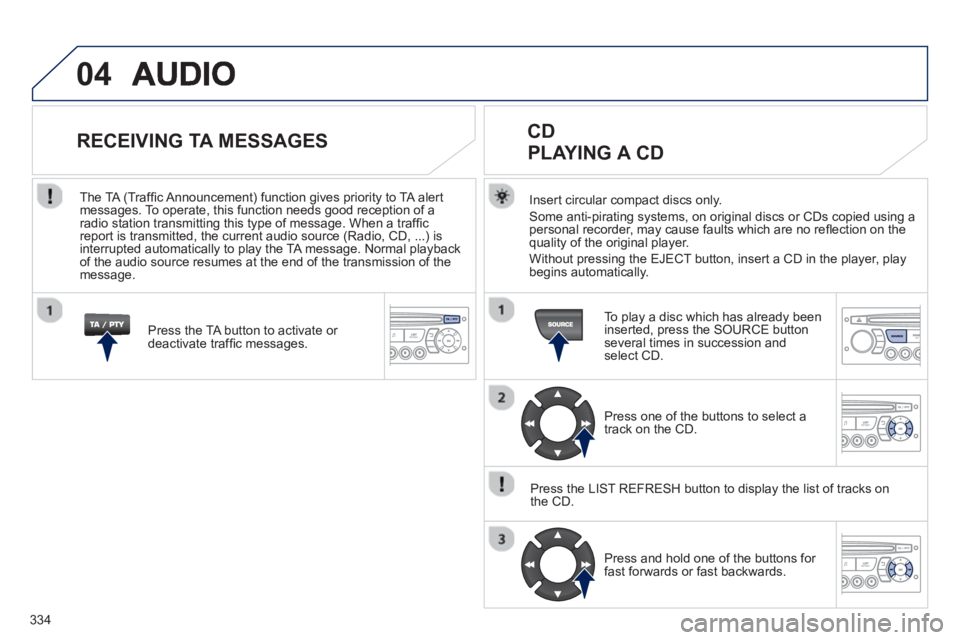
To play a disc which has already been
inserted, press the SOURCE buttonseveral times in succession andselect CD.
Pr
ess one of the buttons to select a
track on the CD.
Press the LI
ST REFRESH button to display the list of tracks on
the CD.
Pr
ess and hold one of the buttons for
fast forwards or fast backwards.
RECEIVING TA MESSAGES
Press the TA button to activate or
deactivate traffi c messages.
The TA
(Traffi c Announcement) function gives priority to TA alert messages. To operate, this function needs good reception of a
radio station transmitting this type of message. When a traffi c
report is transmitted, the current audio source (Radio, CD, ...) is
interrupted automatically to play the TA message. Normal playbackof the audio source resumes at the end of the transmission of themessage.
Page 344 of 364
342
07 SCREEN MENU MAP
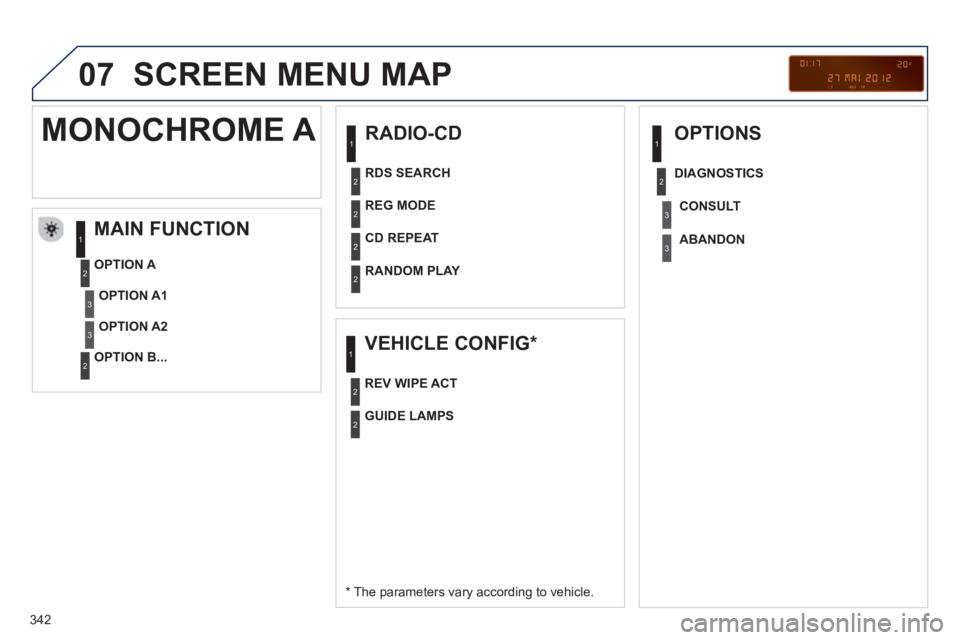
RADIO-CD
MAIN FUNCTION
*
The parameters vary according to vehicle.
OPTION
A
OPTION B...
MONOCHROME A
OPTION A1
OPTION A2
REG MODE
CD REPEAT
RANDOM PLAY
VEHICLE CONFIG *
REV WIPE ACT
OPTIONS
GUIDE LAMPS
DIAGNO
STICS
RDS SEARCH
CONSUL
T
ABANDON
1
2
3
3
1
2
2
2
21
2
3
2
3
1
2
2
Page 346 of 364
344
07SCREEN MENU MAP
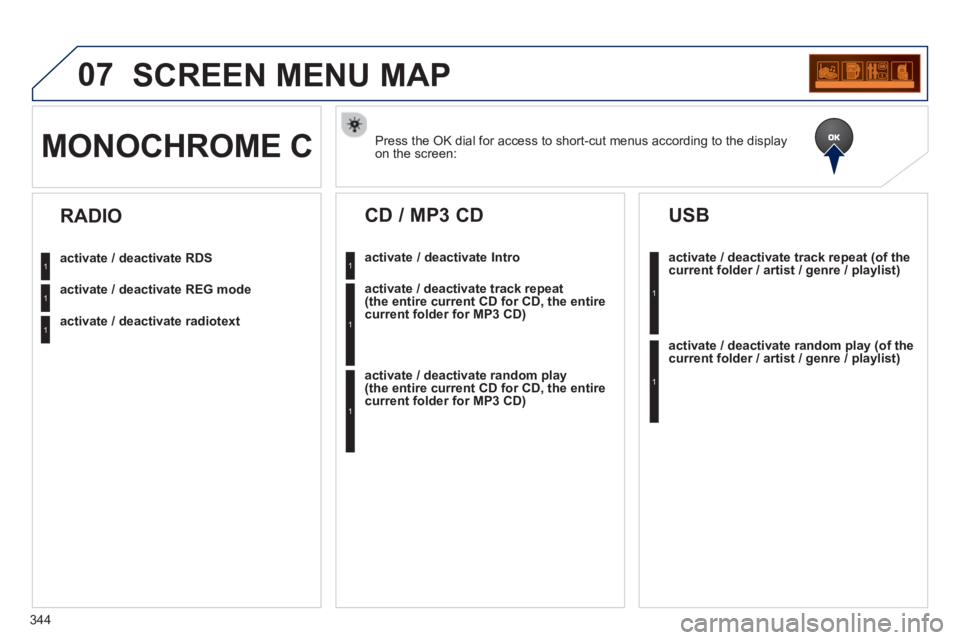
Press the OK dial for access to short-cut menus according to the displayon the screen: MONOCHROME C
activate / deactivate RDS
activate / deactivate REG mode
activate / deactivate radiotext
RADIO
activate / deactivate Intro
CD / MP3 CD
activate / deactivate track repeat (the entire current CD for CD, the entire current folder for MP3 CD)
activate / deactivate random play (the entire current CD for CD, the entire current folder for MP3 CD)
activate / deactivate track repeat (of the current folder / artist / genre / playlist)
USB
activate / deactivate random play(of thecurrent folder / artist / genre / playlist)
1
1
1
1
1
1
1
1
Page 347 of 364
345
07 SCREEN MENU MAP
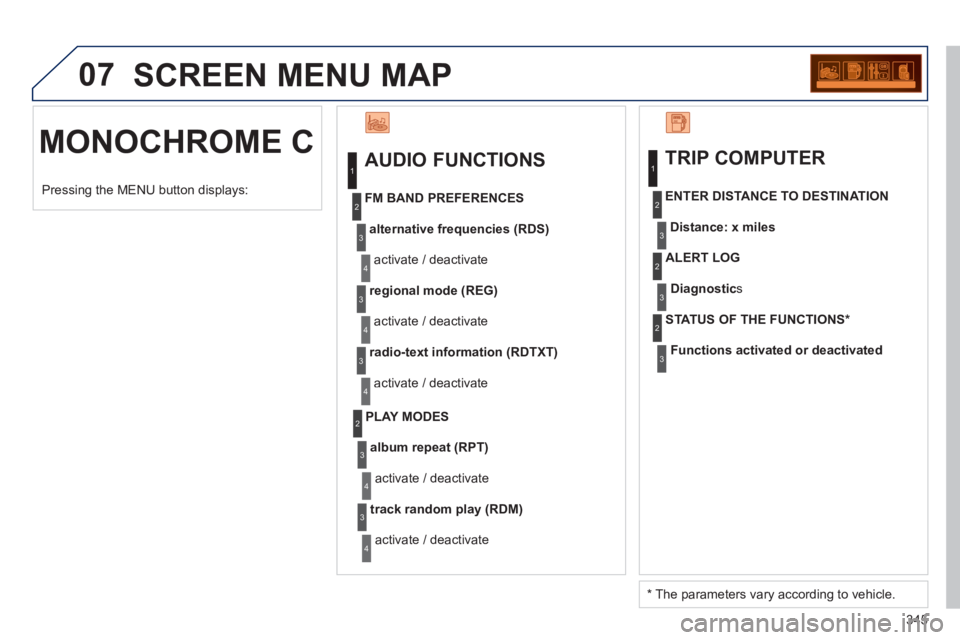
MONOCHROME C
AUDIO FUNCTIONS
alternative frequencies (RDS)
activate / deactivate
FM BAND PREFERENCES
regional mode (REG)
activate / deactivate
radio-text information (RDTXT)
activate / deactivate
1
2
3
4
3
4
3
4
PLAY MODES
album repeat (RPT)
activate / deactivate
track random pla
y (RDM)
activate / deactivate
2
3
4
3
4
TRIP COMPUTER
Distance: x miles ENTER DISTANCE TO DESTINATION
Diagnostic s
ALERT LOG
Functions activated or deactivated STATUS OF THE FUNCTIONS *
1
2
3
3
2
3
2
Pressing the MENU button displays:
*
The parameters vary according to vehicle.
Page 349 of 364
347
FREQUENTLY ASKED QUESTIONS
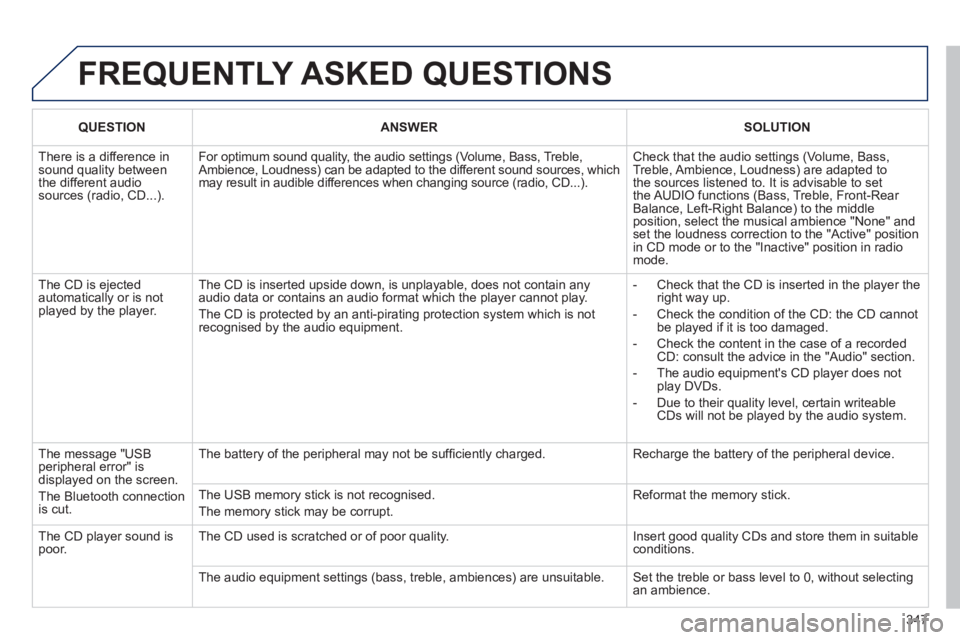
QUESTIONANSWERSOLUTION
There is a difference in sound quality betweenthe different audiosources (radio, CD...).
For optimum sound quality, the audio settings (Volume, Bass, Treble,Ambience, Loudness) can be adapted to the different sound sources, whichmay result in audible differences when changing source (radio, CD...).
Check that the audio settings (Volume, Bass, Treble, Ambience, Loudness) are adapted tothe sources listened to. It is advisable to setthe AUDIO functions (Bass, Treble, Front-Rear Balance, Left-Right Balance) to the middle position, select the musical ambience "None" and set the loudness correction to the "Active" position in CD mode or to the "Inactive" position in radio mode.
The CD is ejected automatically or is not played by the player.
The CD is inserted upside down, is unplayable, does not contain any audio data or contains an audio format which the player cannot play.
The CD is protected by an anti-pirating protection system which is not recognised by the audio equipment.
- Check that the CD is inserted in the player the right way up.
- Check the condition of the CD: the CD cannot be played if it is too damaged.
- Check the content in the case of a recordedCD: consult the advice in the "Audio" section.
- The audio equipment's CD player does notplay DVDs.
- Due to their quality level, certain writeableCDs will not be played by the audio system.
The message "USB peripheral error" isdisplayed on the screen.
The Bluetooth connectionis cut.
The battery of the peripheral may not be suffi ciently charged.
Recharge the battery of the peripheral device.
The USB memory stick is not recognised.
The memory stick may be corrupt.
Reformat the memory stick.
The CD player sound ispoor.The CD used is scratched or of poor quality.
Insert good quality CDs and store them in suitable conditions.
The audio equipment settings (bass, treble, ambiences) are unsuitable. Set the treble or bass level to 0, without selectingan ambience.