carplay PEUGEOT 5008 2017 Owners Manual
[x] Cancel search | Manufacturer: PEUGEOT, Model Year: 2017, Model line: 5008, Model: PEUGEOT 5008 2017Pages: 404, PDF Size: 15.31 MB
Page 114 of 404
112
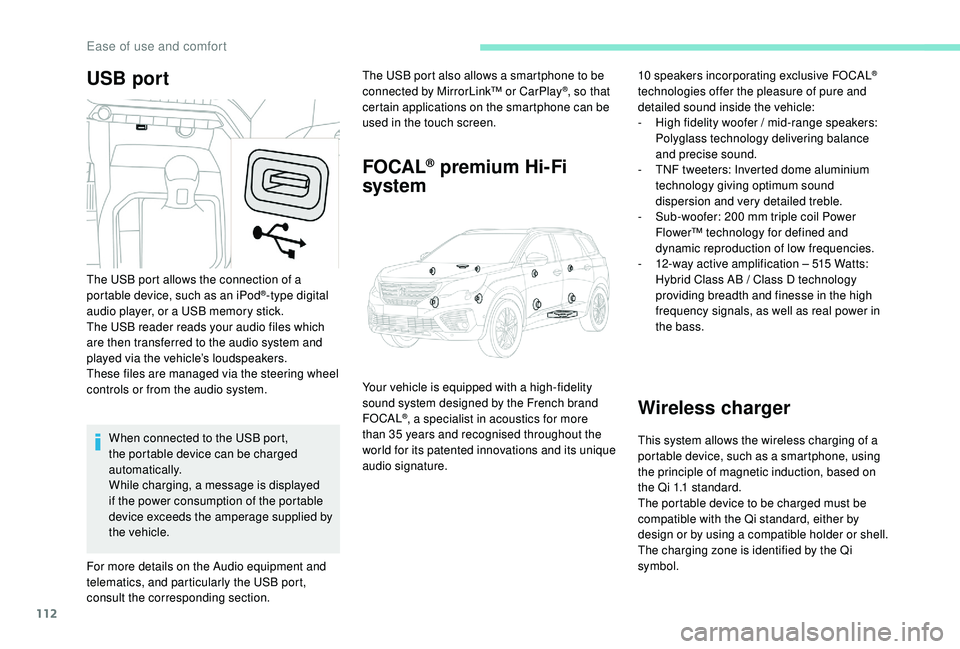
USB portThe USB port also allows a smartphone to be
connected by MirrorLink™ or CarPlay®, so that
certain applications on the smartphone can be
used in the touch screen.
FOCAL® premium Hi-Fi
system
10 speakers incorporating exclusive FOCAL®
technologies offer the pleasure of pure and
detailed sound inside the vehicle:
-
H
igh fidelity woofer / mid-range speakers:
Polyglass technology delivering balance
and precise sound.
-
T
NF tweeters: Inverted dome aluminium
technology giving optimum sound
dispersion and very detailed treble.
-
S
ub-woofer: 200
mm triple coil Power
Flower™ technology for defined and
dynamic reproduction of low frequencies.
-
1
2-way active amplification – 515
Watts:
Hybrid Class AB / Class D technology
providing breadth and finesse in the high
frequency signals, as well as real power in
the bass.
Wireless charger
This system allows the wireless charging of a
portable device, such as a smartphone, using
the principle of magnetic induction, based on
the Qi 1.1
standard.
The portable device to be charged must be
compatible with the Qi standard, either by
design or by using a compatible holder or shell.
The charging zone is identified by the Qi
symbol.
The USB port allows the connection of a
portable device, such as an iPod
®-type digital
audio player, or a USB memory stick.
The USB reader reads your audio files which
are then transferred to the audio system and
played via the vehicle’s loudspeakers.
These files are managed via the steering wheel
controls or from the audio system.
When connected to the USB port,
the portable device can be charged
automatically.
While charging, a message is displayed
if the power consumption of the portable
device exceeds the amperage supplied by
the vehicle.
For more details on the Audio equipment and
telematics, and particularly the USB port,
consult the corresponding section. Your vehicle is equipped with a high-fidelity
sound system designed by the French brand
FOCAL
®, a specialist in acoustics for more
than 35
years and recognised throughout the
world for its patented innovations and its unique
audio signature.
Ease of use and comfort
Page 302 of 404

4
FM/87.5 MHz
87.5MHz
12:13
18,5 21,5
23 °C
12:13
18,5 21,5
23 °C
12:13
18,5 21,5
23 °C
21,518,5
12:1323 °C
Menus
Depending on model / Depending on version
Air conditioning
Manage the different temperature
and air flow settings.
Connected navigation
or Enter navigation settings and
choose a destination.
Use ser vices available in real time,
depending on equipment.
Applications
or Operate certain applications on
a smartphone connected via
CarPlay
®, MirrorLinkTM or Android
Auto.
Check the state of the Bluetooth
®
and Wi-Fi connections.
Radio Media
or Select an audio source, a radio
station, display photographs.
PEUGEOT Connect Nav
Page 313 of 404
15
Connected navigation
According to version
Depending on the equipment level of the
vehicle
Network connection provided by
the vehicle
OR
Network connection provided by
the user
Connected navigation
connection
As a safety measure and because it
requires sustained attention by the driver,
using a smartphone when driving is
prohibited.
All operations must be done with the
vehicle stationary. For access to connected navigation, you
can use the connection provided by the
vehicle via the "Emergency or assistance
call" ser vices or use your smartphone as
a modem.
Activate and enter settings for sharing
the smartphone connection.
Network connection provided by
the vehicle
The system is automatically
connected to the modem included
for the "Emergency or assistance
calls" ser vices and does not require
a connection provided by the user
via their smartphone.
Network connection provided by
the user
Connect a USB cable.
The smartphone charges when
connected by a USB cable.
Activate the Bluetooth function on
the telephone and ensure that it is
visible to all (see the "Connect-App"
section).
Select a Wi-Fi network found by the
system and connect to it (see the
"Connect-App" section).
Restrictions of use:
-
W
ith CarPlay
®, connection sharing is
only with a Wi-Fi connection.
-
W
ith MirrorLink
TM, connection sharing
is only with a USB connection.
The quality of ser vices depends on the
quality of the network connection.
With the arrival of "TOMTOM
TR AFFIC", the ser vices are
available.
USB connection Bluetooth connection
Wi-Fi connection
.
PEUGEOT Connect Nav
Page 316 of 404
18
Applications
Internet Browser
or Press "Applications"
to display the
primary page.
Press " Connectivity " to go to the " Internet
Browser " function.
Press " Internet Browser " to display the
browser home page.
Select your country of residence.
Press "OK" to save and start the
browser.
Connection to the internet is via one of
the network connections provided by the
vehicle or the user.
Connectivity
or Press "Applications"
to display the
primary page.
Press " Connectivity " to go to the CarPlay
®,
MirrorLinkTM or Android Auto functions.
Applications
or Press "Applications"
to display the
primary page.
Press " Applications " to display the
applications home page.
CarPlay® smartphone
connection
As a safety measure and because it
requires sustained attention by the driver,
using a smartphone when driving is
prohibited.
All operations must be done with the
vehicle stationary .
The synchronisation of a personal
smartphone allows users to display
applications adapted for the smartphone's
CarPlay
® technology on the vehicle screen
when the smartphone's CarPlay® function
has been previously activated.
As the principles and standards are
constantly changing, it is recommended
that you keep your smar tphone's
operating system updated .
For the list of eligible smartphones, go
to the Brand's internet website in your
c o u nt r y.
Connect a USB cable. The
smartphone charges when
connected by a USB cable.
PEUGEOT Connect Nav
Page 317 of 404
19
or Press on "
Telephone " to display the
CarPlay
® inter face.
Or Connect a USB cable. The
smartphone charges when
connected by a USB cable.
or From the system, press
"
Applications " to display the
primary page.
Press " Connectivity " to go to the CarPlay
®
function.
Press on " CarPlay" to display the
CarPlay
® inter face.
On connecting the USB cable, the
CarPlay
® function deactivates the
system's Bluetooth® mode.
MirrorLinkTM smartphone
connection
As a safety measure and because it
requires sustained attention by the driver,
using a smartphone when driving is
prohibited.
All operations must be done with the
vehicle stationary .
The synchronisation of a personal
smartphone allows users to display
applications adapted for the smartphone's
MirrorLink
TM technology on the vehicle
screen.
The principles and standards
are constantly changing, for the
communication process between the
smartphone and the system to operate,
it is essential that the smartphone is
unlocked; update the operating system of
the smartphone as well as the date and
time of the smartphone and the system.
For the list of eligible smartphones, go
to the Brand's internet website in your
c o u nt r y. As a safety measure, applications can
only be viewed with the vehicle stationary;
display is interrupted once the vehicle is
moving.
The "
MirrorLink
TM" function requires
the use of a compatible smartphone and
applications.
When connecting a smartphone
to the system, it is recommended
that Bluetooth
® be started on the
smartphone
Connect a USB cable. The
smartphone charges when
connected by a USB cable.
or From the system, press
"
Applications " to display the
primary page.
Press " Connectivity " to go to the MirrorLink
TM
function.
Press "MirrorLink
TM" to start the
application in the system.
.
PEUGEOT Connect Nav
Page 349 of 404
5
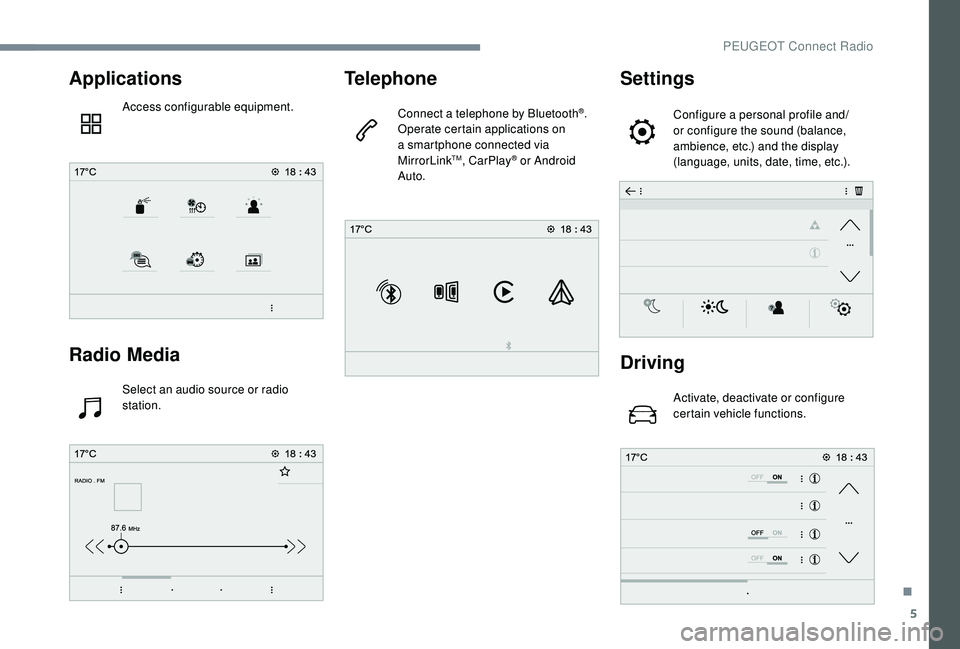
Applications
Access configurable equipment.
Radio Media
Select an audio source or radio
station.
Telephone
Connect a telephone by Bluetooth®.
Operate certain applications on
a smartphone connected via
MirrorLink
TM, CarPlay® or Android
Auto.
Settings
Configure a personal profile and/
or configure the sound (balance,
ambience, etc.) and the display
(language, units, date, time, etc.).
Driving
Activate, deactivate or configure
certain vehicle functions.
.
PEUGEOT Connect Radio
Page 350 of 404
6
Applications
Viewing photos
Insert a USB memory stick in the USB port.To protect the system, do not use a USB
hub.
The system can read folders and image files in
the formats: .tiff; .gif; .jpg/jpeg; .bmp; .png. Press "Applications" to display the
primary page.
Press " Photos ".
Select a folder.
Select an image to view.
Press this button to display the
details of the photo. Press the back arrow to go back a
level.Managing messages
Press "Applications"
to display the
primary page.
Press "SMS".
Select the "SMS" tab.
Press this button to select the
display settings for messages.
Press this button to search for a
contact.
Select the "Quick messages" tab.
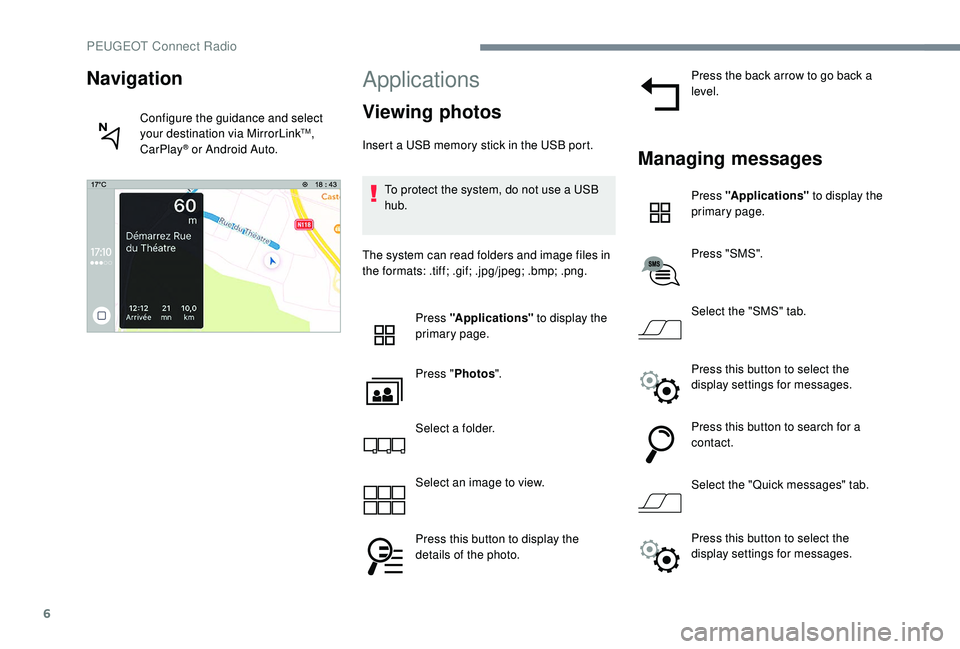
Navigation
Configure the guidance and select
your destination via MirrorLinkTM,
CarPlay® or Android Auto.
Press this button to select the
display settings for messages.
PEUGEOT Connect Radio
Page 357 of 404
13
During the procedure, several
screen pages relating to certain
functions are displayed.
Accept to start and complete the
connection.
When connecting a smartphone
to the system, it is recommended
that Bluetooth
® be started on the
smartphone.
Telephone connected by
Bluetooth®
From the system, press
" Telephone " to display the primary
page.
Press the " PHONE" button to display the
secondary page.
Press "MirrorLink
TM" to start the
application in the system.
Once the connection is established, a page
is displayed with the applications already
downloaded to your smartphone and adapted
to MirrorLink
TM technology. Access to the different audio sources remains
accessible in the margin of the MirrorLink
TM
display, using touch buttons in the upper bar.
Access to the menus for the system is possible
at any time using the dedicated buttons.
There may be a wait for the availability of
applications, depending on the quality of
your network.
CarPlay® smartphone
connection
As a safety measure and because it
requires sustained attention by the driver,
using a smartphone when driving is
prohibited.
All operations must be done with the
vehicle stationary . The synchronisation of a personal
smartphone allows users to display
applications adapted for the smartphone's
CarPlay
® technology on the vehicle screen
when the smartphone's CarPlay® function
has been previously activated.
As the principles and standards are
constantly changing, it is recommended
that you keep your smar tphone's
operating system updated .
For the list of eligible smartphones, go
to the Brand's internet website in your
c o u nt r y.
Connect a USB cable. The
smartphone charges when
connected by a USB cable.
From the system, press
"Telephone" to display the
CarPlay
® inter face.
Or If the smartphone is already
connected by Bluetooth
®.
.
PEUGEOT Connect Radio
Page 358 of 404
14
Connect a USB cable. The
smartphone charges when
connected by a USB cable.
From the system, press
"Telephone " to display the primary
page.
Press the " PHONE" button to go to the
secondary page.
Press on " CarPlay" to display the
CarPlay
® inter face.
On connecting the USB cable, the
CarPlay
® function deactivates the
system's Bluetooth® mode.
You can go to the CarPlay
®
navigation at any time by pressing
the system's Navigation button.
Android Auto smartphone
connection
As a safety measure and because it
requires sustained attention by the driver,
using a smartphone when driving is
prohibited.
All operations must be done with the
vehicle stationary.
On your smartphone, download the
Android Auto application.
The synchronisation of a personal
smartphone allows users to display
applications adapted for the smartphone's
Android Auto technology on the vehicle
screen.
The principles and standards
are constantly changing, for the
communication process between the
smartphone and the system to operate,
it is essential that the smartphone is
unlocked; update the operating system
of the smar tphone as well as the date
and time of the smar tphone and the
system.
For the list of eligible smartphones, go
to the Brand's internet website in your
c o u nt r y. As a safety measure, applications can
only be viewed with the vehicle stationary;
display is interrupted once the vehicle is
moving.
The "Android Auto" function requires the
use of a compatible smartphone and
applications.
Telephone not connected by
Bluetooth®
Connect a USB cable. The
smartphone charges when
connected by a USB cable.
From the system, press
"
Telephone " to display the primary
page.
Press " Android Auto " to start the
application in the system.
Depending on the smartphone, it may be
necessary to activate the " Android Auto"
function.
PEUGEOT Connect Radio
Page 395 of 404
297
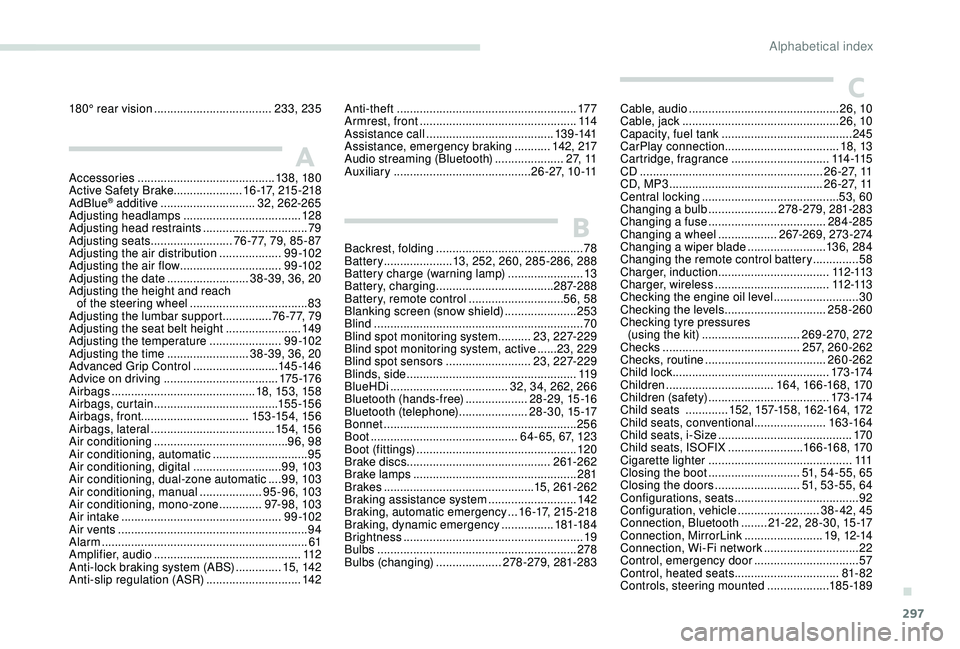
Accessories .......................................... 13 8, 18 0
Active Safety Brake..................... 1 6 -17, 215 -218
AdBlue
® additive ............................. 3 2, 262-265
Adjusting headlamps .................................... 128
Adjusting head restraints
................................ 79
Adjusting seats
......................... 7 6 - 7 7, 79, 85 - 87
Adjusting the air distribution
...................9 9 -10 2
Adjusting the air flow
............................... 9
9 -10 2
Adjusting the date
......................... 38-39, 36, 20
Adjusting the height and reach of the steering wheel
.................................... 83
Adjusting the lumbar support
............... 7
6 - 7 7, 79
Adjusting the seat belt height
....................... 14
9
Adjusting the temperature
......................9 9 -10 2
Adjusting the time
......................... 38-39, 36, 20
Advanced Grip Control
.......................... 145 -14 6
Advice on driving
................................... 175 -176
Airbags
...............................
.............18, 15 3, 15 8
Airbags, curtain
...................................... 15 5 -15 6
Airbags, front ................................. 15 3 -15 4, 15 6
Airbags, lateral
...................................... 15 4, 15 6
Air conditioning
......................................... 96, 98
Air conditioning, automatic
.............................95
Air conditioning, digital
........................... 99, 103
Air conditioning, dual-zone automatic
....99, 103
Air conditioning, manual
................... 9
5-96, 103
Air conditioning, mono-zone
.............97- 9 8 , 103
Air intake
................................................. 9 9 -10 2
Air vents
.......................................................... 94
Alarm
............................................................... 61
Amplifier, audio
...............................
..............112
Anti-lock braking system (ABS)
..............15, 142
Anti-slip regulation (ASR)
............................. 142Anti-theft
.......................................................
17 7
Armrest, front ................................................
114
Assistance call
...............................
........
13 9 -141
Assistance, emergency braking
...........
142, 217
Audio streaming (Bluetooth)
.....................
2 7, 11
Auxiliary
..........................................
2 6 - 2 7, 1 0 -11 Cable, audio
..............................................
26, 10
Cable, jack
................................................
26, 10
Capacity, fuel tank
........................................
245
CarPlay connection ................................... 18, 13
Cartridge, fragrance
.............................. 11
4 -115
CD
........................................................
2 6 - 2 7, 11
CD, MP3
...............................................
2 6 - 2 7, 11
Central locking .......................................... 5 3,
60
Changing a bulb ..................... 2
78-279, 281-283
Changing a fuse
.................................... 28
4-285
Changing a wheel
.................. 2
67-269, 273-274
Changing a wiper blade
........................ 13
6, 284
Changing the remote control battery
..............58
Charger, induction
..................................112 -113
Charger, wireless
................................... 11
2 -113
Checking the engine oil level
..........................30
Checking the levels
...............................258-260
Checking tyre pressures (using the kit)
..............................269-270, 272
Checks
..........................................2 5 7, 260-262
Checks, routine
.....................................260-262
Child lock
................................................173 -174
Children
.................................16 4, 166 -168, 170
Children (safety)
.....................................173 -174
Child seats
.............15
2, 157-15 8, 162-16 4, 172
Child seats, conventional
......................163 -16 4
Child seats, i-Size
.........................................170
Child seats, ISOFIX
.......................166 -168, 170
Cigarette lighter
............................................111
Closing the boot
............................51
, 54-55, 65
Closing the doors
..........................51, 53-55, 64
Configurations, seats
......................................92
Configuration, vehicle
......................... 3
8 - 42, 45
Connection, Bluetooth
........ 21
-22, 28-30, 15 -17
Connection, MirrorLink
........................19, 12-14
Connection, Wi-Fi network
.............................22
Control, emergency door
................................ 57
C
ontrol, heated seats
................................81- 82
Controls, steering mounted
...................185 -189
A
B
C
Backrest, folding ............................................. 78
B attery ..................... 13, 252, 260, 285-286, 288
Battery charge (warning lamp)
.......................13
Battery, charging
.................................... 287-288
Battery, remote control
.............................56, 58
Blanking screen (snow shield)
......................253
Blind
..............................
..................................70
Blind spot monitoring system
..........23, 227-229
Blind spot monitoring system, active
......23, 229
Blind spot sensors
..........................23, 227-229
Blinds, side
.................................................... 11 9
BlueHDi
.................................... 32, 34, 262, 266
Bluetooth (hands-free)
................... 2
8-29, 15 -16
Bluetooth (telephone)
..................... 2
8-30, 15 -17
Bonnet
........................................................... 256
Boot
............................................. 64-65, 6 7, 123
Boot (fittings)
................................................. 120
Brake discs
............................................ 261-262
Brake lamps
...............................
...................281
Brakes
.............................................. 15, 261-262
Braking assistance system
...........................142
Braking, automatic emergency
...1 6 -17, 215 -218
Braking, dynamic emergency
................181-18 4
Brightness
....................................................... 19
Bulbs
............................................................. 278
Bulbs (changing)
....................278-279, 281-283
180° rear vision
....................................
233, 235
.
Alphabetical index