phone PEUGEOT 5008 2018 Owner's Guide
[x] Cancel search | Manufacturer: PEUGEOT, Model Year: 2018, Model line: 5008, Model: PEUGEOT 5008 2018Pages: 364, PDF Size: 13.03 MB
Page 301 of 364
25
It is advisable to restrict file names to
20 characters, without using special characters
(e.g. " " ?.; ù) so as to avoid any reading or
display problems.
Use only USB keys in FAT32
format (File
Allocation Table).
It is recommended that the original USB
cable for the portable device be used.
In order to be able to play a
burned CDR or
CDRW, select standards ISO
9660 level 1, 2 or
Joliet if possible when burning the CD.
If the disc is burned in another format, it may
not be played correctly.
It is recommended that the same burning
standard be always used on an individual disc,
with the lowest speed possible (4x maximum)
for the best acoustic quality.
In the particular case of a
multi-session CD, the
Joliet standard is recommended.Telephone
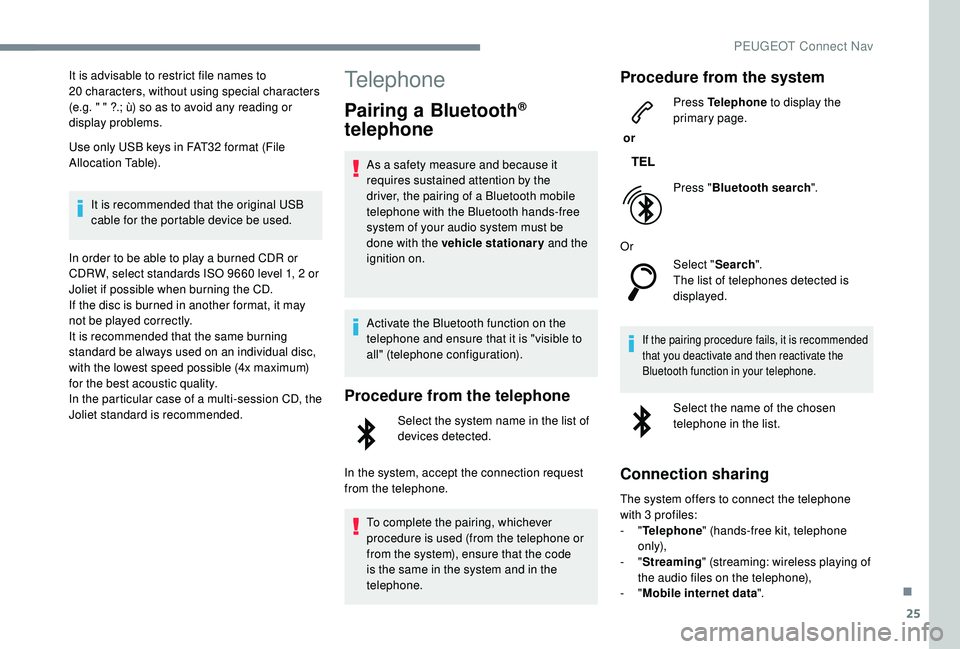
Pairing a Bluetooth®
telephone
As a safety measure and because it
r equires sustained attention by the
driver, the pairing of a
Bluetooth mobile
telephone with the Bluetooth hands-free
system of your audio system must be
done with the vehicle stationary and the
ignition on.
Activate the Bluetooth function on the
telephone and ensure that it is "visible to
all" (telephone configuration).
Procedure from the telephone
Select the system name in the list of
devices detected.
In the system, accept the connection request
from the telephone. To complete the pairing, whichever
procedure is used (from the telephone or
from the system), ensure that the code
is the same in the system and in the
telephone.
Procedure from the system
or Press Telephone
to display the
primary page.
Press " Bluetooth search ".
Or Select "Search".
The list of telephones detected is
displayed.
If the pairing procedure fails, it is recommended
that you deactivate and then reactivate the
Bluetooth function in your telephone.
Select the name of the chosen
telephone in the list.
Connection sharing
The system offers to connect the telephone
with 3 profiles:
-
"Telephone " (hands-free kit, telephone
only),
-
"Streaming " (streaming: wireless playing of
the audio files on the telephone),
-
"Mobile internet data ".
.
PEUGEOT Connect Nav
Page 302 of 364
26
Activation of the profile; "Mobile internet
data " is obligatory for connected
navigation having first activated sharing of
this connection on your smartphone.
Select one or more profiles.
Press " OK" to confirm.
Depending on the type of telephone, you
may be asked to accept or not the transfer
of your contacts and messages.
Automatic reconnection
On return to the vehicle, if the last
telephone connected is present again, it is
automatically recognised and within about
30 seconds of switching on the ignition,
the connection is established without any
action on your part (Bluetooth activated).
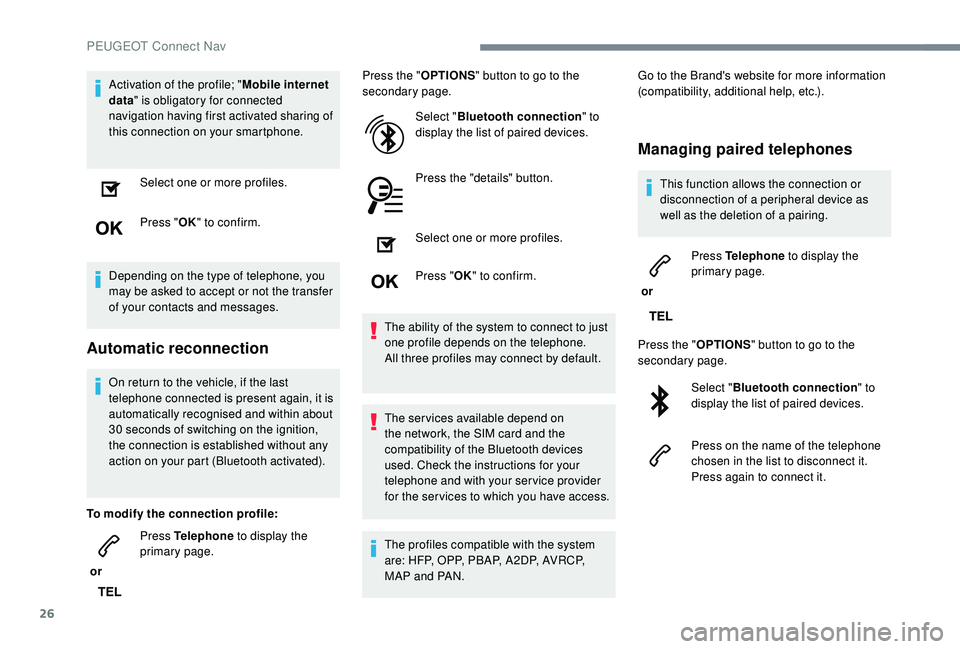
To modify the connection profile:
or Press Telephone
to display the
primary page. Press the "
OPTIONS" button to go to the
secondary page.
Select "Bluetooth connection " to
display the list of paired devices.
Press the "details" button.
Select one or more profiles.
Press " OK" to confirm.
The ability of the system to connect to just
one profile depends on the telephone.
All three profiles may connect by default.
The services available depend on
the network, the SIM card and the
compatibility of the Bluetooth devices
used. Check the instructions for your
telephone and with your service provider
for the ser vices to which you have access.
The profiles compatible with the system
are: HFP, OPP, PBAP, A 2DP, AVRCP,
MAP and PAN. Go to the Brand's website for more information
(compatibility, additional help, etc.).
Managing paired telephones
This function allows the connection or
disconnection of a
peripheral device as
well as the deletion of a
pairing.
or Press Telephone
to display the
primary page.
Press the " OPTIONS" button to go to the
secondary page.
Select "Bluetooth connection " to
display the list of paired devices.
Press on the name of the telephone
chosen in the list to disconnect it.
Press again to connect it.
PEUGEOT Connect Nav
Page 303 of 364
27
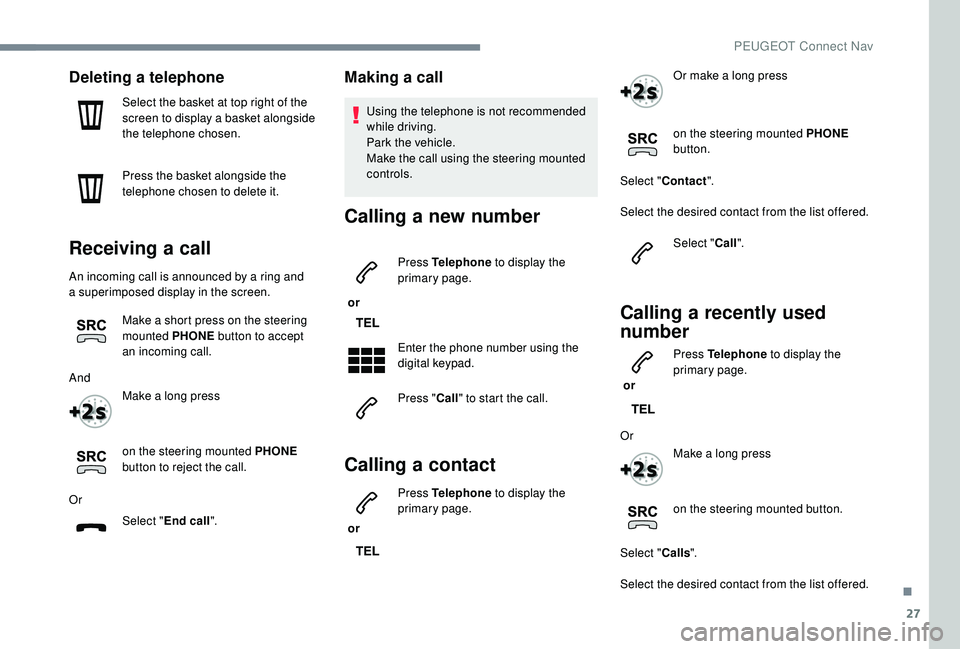
Deleting a telephone
Select the basket at top right of the
screen to display a
basket alongside
the telephone chosen.
Press the basket alongside the
telephone chosen to delete it.
Receiving a call
An incoming call is announced by a ring and
a superimposed display in the screen.
Make a
short press on the steering
mounted PHONE button to accept
an incoming call.
And Make a
long press
on the steering mounted PHONE
button to reject the call.
Or Select "End call".
Making a call
Using the telephone is not recommended
while driving.
Park the vehicle.
Make the call using the steering mounted
controls.
Calling a new number
or Press Telephone
to display the
primary page.
Enter the phone number using the
digital keypad.
Press " Call" to start the call.
Calling a contact
or Press Telephone
to display the
primary page. Or make a long press
on the steering mounted PHONE
button.
Select " Contact ".
Select the desired contact from the list offered. Select "Call".
Calling a recently used
n umber
or Press Telephone
to display the
primary page.
Or Make a
long press
on the steering mounted button.
Select " Calls".
Select the desired contact from the list offered.
.
PEUGEOT Connect Nav
Page 304 of 364
28
It is always possible to make a call directly
f rom the telephone; as a safety measure,
first park the vehicle.
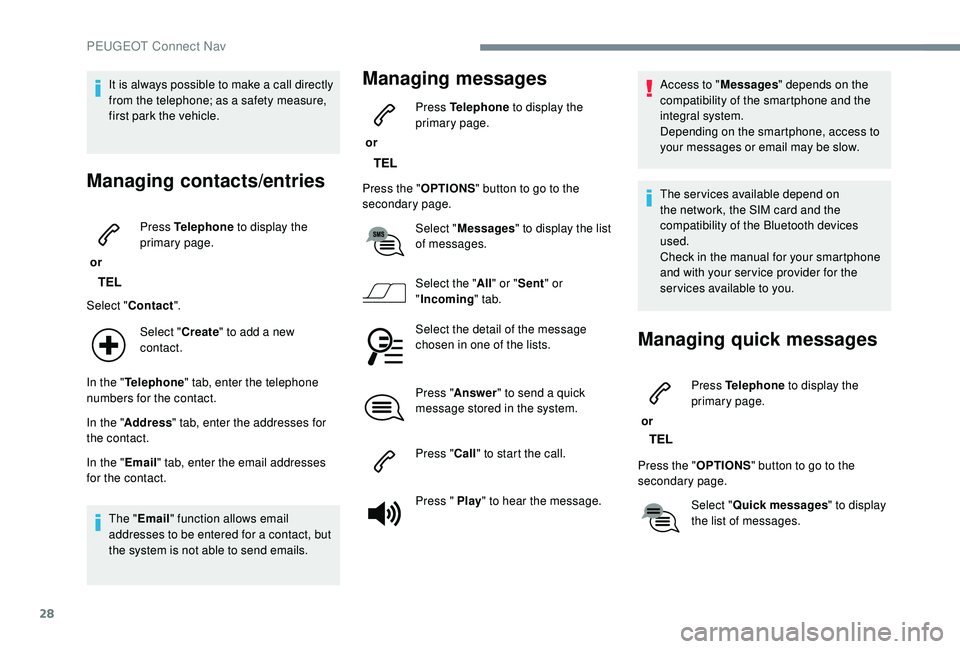
Managing contacts/entries
or Press Telephone
to display the
primary page.
Select " Contact ".
Select " Create" to add a
new
contact.
In the " Telephone " tab, enter the telephone
numbers for the contact.
In the " Address " tab, enter the addresses for
the contact.
In the " Email" tab, enter the email addresses
for the contact.
The " Email " function allows email
addresses to be entered for a
contact, but
the system is not able to send emails.
Managing messages
or Press Telephone
to display the
primary page.
Press the " OPTIONS" button to go to the
secondary page.
Select "Messages " to display the list
of messages.
Select the " All" or " Sent " or
" Incoming " tab.
Select the detail of the message
chosen in one of the lists.
Press " Answer " to send a
quick
message stored in the system.
Press " Call" to start the call.
Press " Play " to hear the message. Access to "
Messages" depends on the
compatibility of the smartphone and the
integral system.
Depending on the smartphone, access to
your messages or email may be slow.
The services available depend on
the network, the SIM card and the
compatibility of the Bluetooth devices
used.
Check in the manual for your smartphone
and with your ser vice provider for the
services available to you.
Managing quick messages
or Press Telephone
to display the
primary page.
Press the " OPTIONS" button to go to the
secondary page.
Select "Quick messages " to display
the list of messages.
PEUGEOT Connect Nav
Page 305 of 364
29
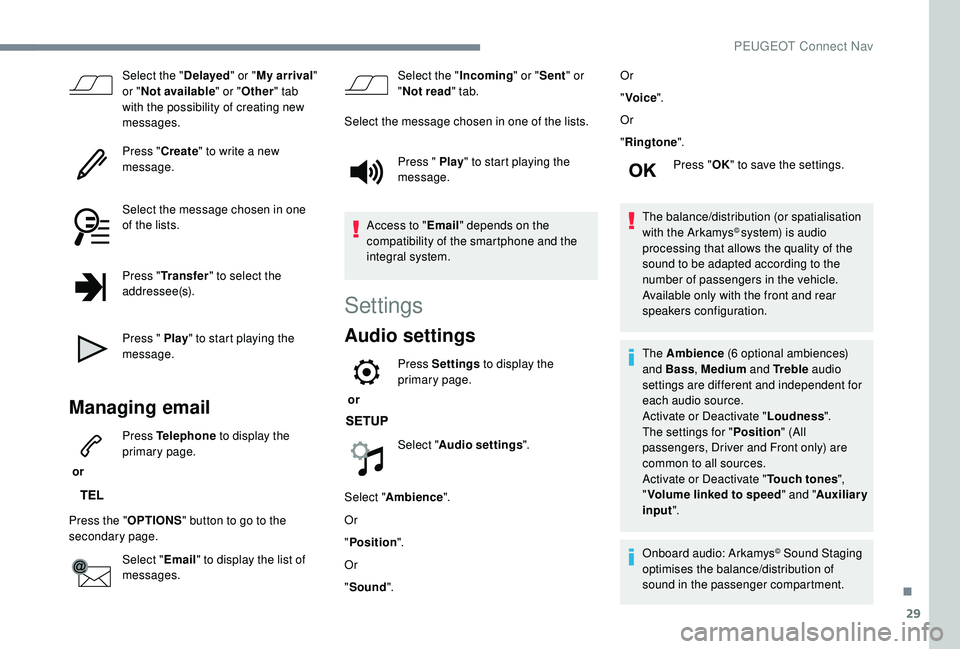
Select the "Delayed" or "My arrival "
or " Not available " or "Other " tab
with the possibility of creating new
messages.
Press " Create" to write a
new
message.
Select the message chosen in one
of the lists.
Press " Transfer " to select the
addressee(s).
Press " Play " to start playing the
message.
Managing email
or Press Telephone
to display the
primary page.
Press the " OPTIONS" button to go to the
secondary page.
Select "Email" to display the list of
messages. Select the "
Incoming" or "Sent " or
" Not read " tab.
Select the message chosen in one of the lists.
Press " Play " to start playing the
message.
Access to " Email" depends on the
compatibility of the smartphone and the
integral system.
Settings
Audio settings
or Press Settings
to display the
primary page.
Select " Audio settings ".
Select " Ambience ".
Or
" Position ".
Or
" Sound ". Or
"
Voice ".
Or
" Ringtone ".
Press " OK" to save the settings.
The balance/distribution (or spatialisation
with the Arkamys
© system) is audio
processing that allows the quality of the
sound to be adapted according to the
number of passengers in the vehicle.
Available only with the front and rear
speakers configuration.
The Ambience (6
optional ambiences)
and Bass , Medium and Tr e b l e audio
settings are different and independent for
each audio source.
Activate or Deactivate " Loudness".
The settings for " Position" (All
passengers, Driver and Front only) are
common to all sources.
Activate or Deactivate " Touch tones",
" Volume linked to speed " and "Auxiliary
input ".
Onboard audio: Arkamys
© Sound Staging
optimises the balance/distribution of
sound in the passenger compartment.
.
PEUGEOT Connect Nav
Page 313 of 364
37
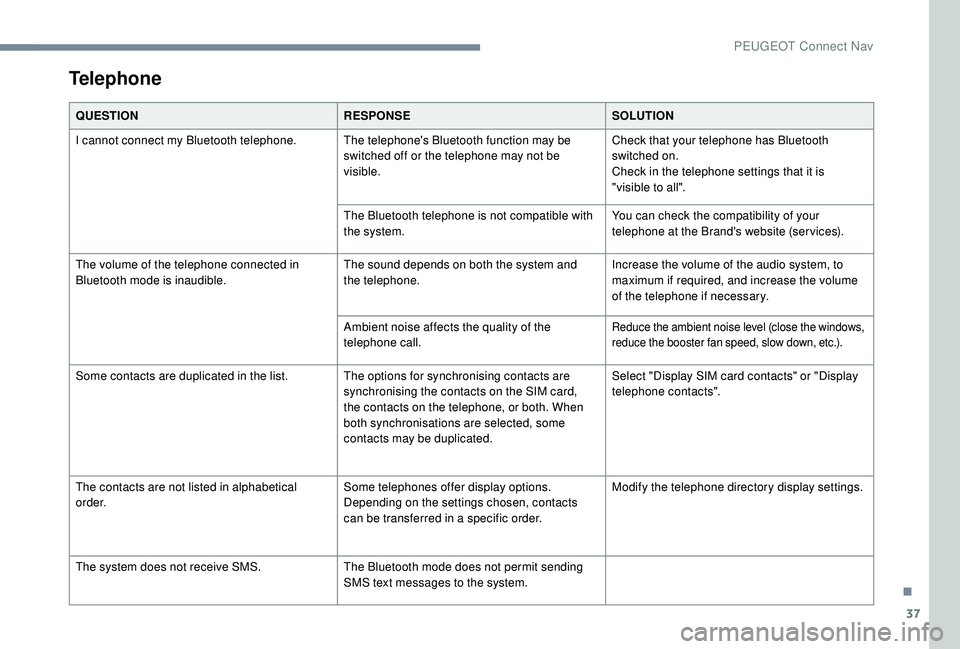
Telephone
QUESTIONRESPONSESOLUTION
I cannot connect my Bluetooth telephone. The telephone's Bluetooth function may be switched off or the telephone may not be
visible.Check that your telephone has Bluetooth
switched on.
Check in the telephone settings that it is
"visible to all".
The Bluetooth telephone is not compatible with
the system. You can check the compatibility of your
telephone at the Brand's website (services).
The volume of the telephone connected in
Bluetooth mode is inaudible. The sound depends on both the system and
the telephone.Increase the volume of the audio system, to
maximum if required, and increase the volume
of the telephone if necessary.
Ambient noise affects the quality of the
telephone call.
Reduce the ambient noise level (close the windows,
reduce the booster fan speed, slow down, etc.).
Some contacts are duplicated in the list. The options for synchronising contacts are synchronising the contacts on the SIM card,
the contacts on the telephone, or both. When
both synchronisations are selected, some
contacts may be duplicated.Select "Display SIM card contacts" or "Display
telephone contacts".
The contacts are not listed in alphabetical
o r d e r. Some telephones offer display options.
Depending on the settings chosen, contacts
can be transferred in a
specific order.Modify the telephone directory display settings.
The system does not receive SMS. The Bluetooth mode does not permit sending
SMS text messages to the system.
.
PEUGEOT Connect Nav
Page 315 of 364
1
PEUGEOT Connect Radio
Multimedia audio system –
Applications – Bluetooth®
telephone
Contents
First steps
2
S
teering mounted controls
3
M
enus
4
A
pplications
5
R
adio
6
D
AB radio (Digital Audio Broadcasting)
8
M
edia
9
T
elephone
1
1
Settings
1
6
Frequently asked questions
1
8The different functions and settings
described vary according to the version
and configuration of your vehicle.
As a
safety measure and because it
requires sustained attention by the
driver, the pairing of a Bluetooth mobile
telephone with the Bluetooth hands-free
system of your audio system must be
done with the vehicle stationary and the
ignition on.
The system is protected in such a way that
it will only operate in your vehicle.
The display of the message Energy
Economy Mode signals that a change to
standby is imminent.
The link below gives access to OSS (Open
Source Software) codes for the system.
https://www.groupe-psa.com/fr/oss/
https://www.groupe-psa.com/en/oss/
.
PEUGEOT Connect Radio
Page 316 of 364
2
First steps
With the engine running, a press
mutes the sound.
With the ignition off, a press turns
the system on.
Adjustment of the volume.
Use the buttons on either side of or below the
touch screen for access to the menus, then
press the virtual buttons in the touch screen.
Depending on the model, use the "Source" or
"Menu" buttons on the left-hand side of the
touch screen for access to the menus, then
press the virtual buttons in the touch screen.
You can display the menus at any time by
pressing the screen briefly with three fingers.
All of the touch areas of the screen are white.
Press in the grey zone to go back a
level or
confirm.
Press the back arrow to go back a
level or
confirm. The touch screen is of the "capacitive"
type.
To clean the screen, use a
soft, non-
abrasive cloth (e.g. spectacles cloth) with
no additional product.
Do not use sharp objects on the screen.
Do not touch the screen with wet hands.
*
D
epending on equipment.
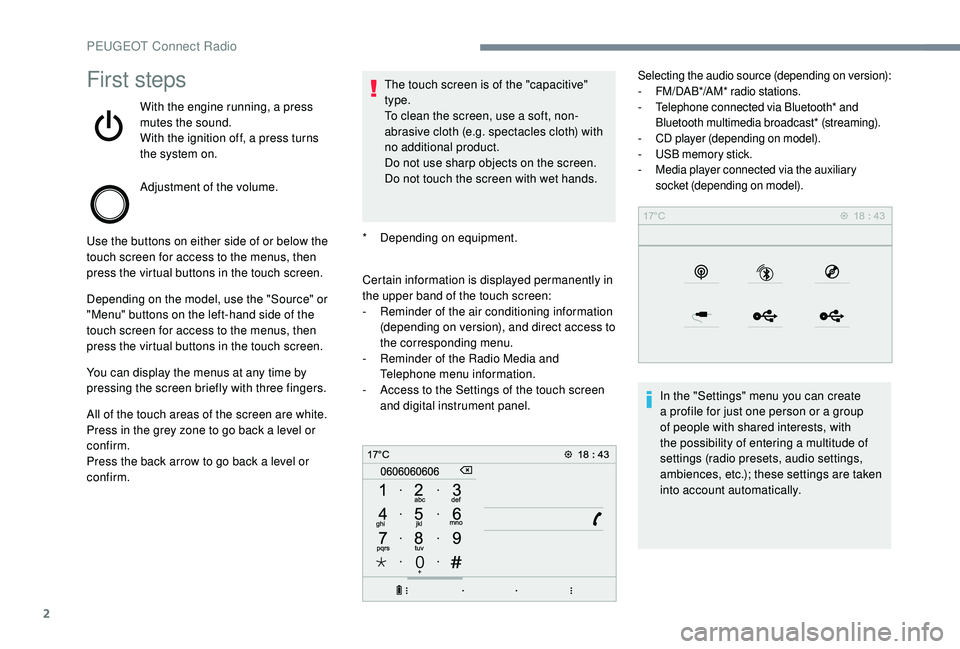
Certain information is displayed permanently in
the upper band of the touch screen:
-
R
eminder of the air conditioning information
(depending on version), and direct access to
the corresponding menu.
-
R
eminder of the Radio Media and
Telephone menu information.
-
A
ccess to the Settings of the touch screen
and digital instrument panel.
Selecting the audio source (depending on version):
- F M/DAB*/AM* radio stations.
-
T
elephone connected via Bluetooth* and
Bluetooth multimedia broadcast* (streaming).
-
C
D player (depending on model).
-
U
SB memory stick.
-
M
edia player connected via the auxiliary
socket (depending on model).
In the "Settings" menu you can create
a profile for just one person or a group
of people with shared interests, with
the possibility of entering a
multitude of
settings (radio presets, audio settings,
ambiences, etc.); these settings are taken
into account automatically.
PEUGEOT Connect Radio
Page 317 of 364
3
In very hot conditions, the volume may
be limited to protect the system. It may go
into standby (screen and sound off) for at
least 5 minutes
The return to normal takes place when
the temperature in the passenger
compartment has dropped.
Steering mounted controls
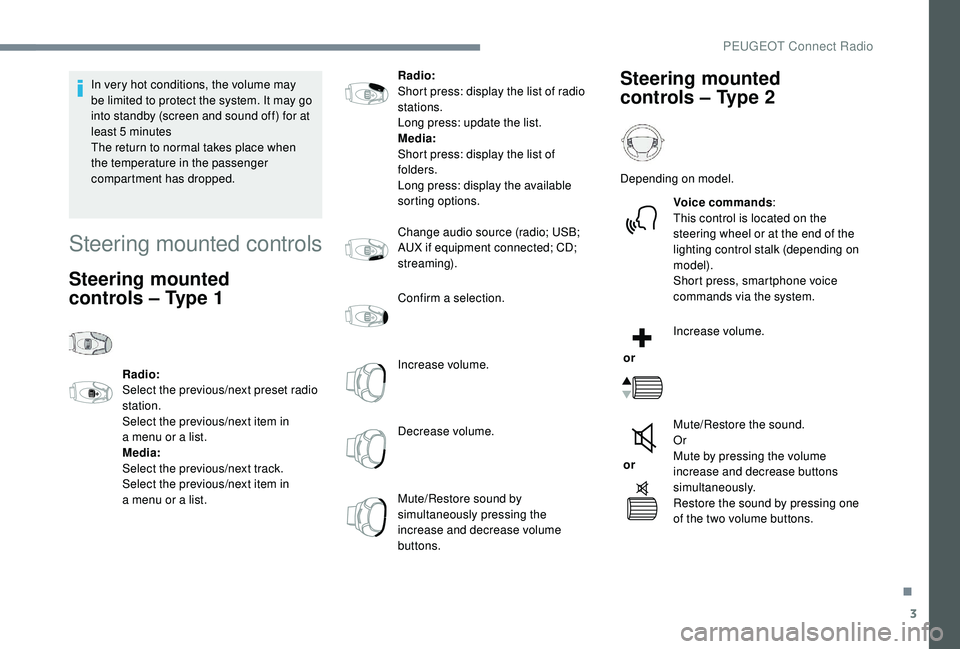
Steering mounted
controls – Type 1
Radio:
Select the previous/next preset radio
station.
Select the previous/next item in
a
menu or a list.
Media:
Select the previous/next track.
Select the previous/next item in
a
menu or a list. Radio:
Short press: display the list of radio
stations.
Long press: update the list.
Media:
Short press: display the list of
folders.
Long press: display the available
sorting options.
Change audio source (radio; USB;
AUX if equipment connected; CD;
streaming).
Confirm a
selection.
Increase volume.
Decrease volume.
Mute/Restore sound by
simultaneously pressing the
increase and decrease volume
buttons.
Steering mounted
controls – Type 2
Depending on model. Voice commands :
This control is located on the
steering wheel or at the end of the
lighting control stalk (depending on
model).
Short press, smartphone voice
commands via the system.
or Increase volume.
or Mute/Restore the sound.
Or
Mute by pressing the volume
increase and decrease buttons
simultaneously.
Restore the sound by pressing one
of the two volume buttons.
.
PEUGEOT Connect Radio
Page 318 of 364
4
21,518,5
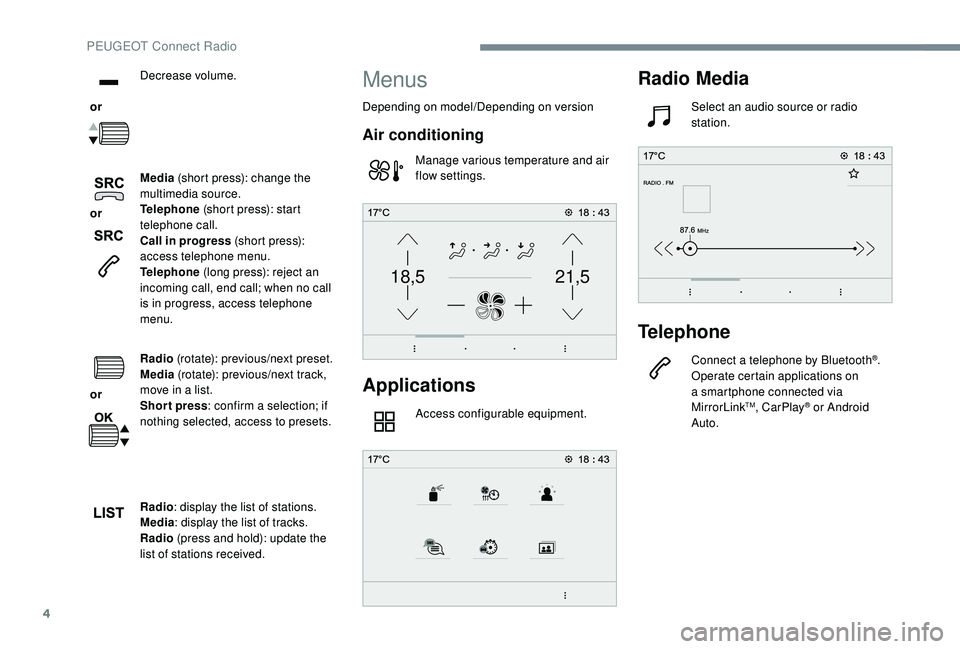
or Decrease volume.
or Media
(short press): change the
multimedia source.
Telephone (short press): start
telephone call.
Call in progress (short press):
access telephone menu.
Telephone (long press): reject an
incoming call, end call; when no call
is in progress, access telephone
menu.
or Radio
(rotate): previous/next preset.
Media (rotate): previous/next track,
move in a
list.
Short press : confirm a
selection; if
nothing selected, access to presets.
Radio : display the list of stations.
Media : display the list of tracks.
Radio (press and hold): update the
list of stations received.
Menus
Depending on model/Depending on version
Air conditioning
Manage various temperature and air
flow settings.
Applications
Access configurable equipment.
Radio Media
Select an audio source or radio
station.
Telephone
Connect a telephone by Bluetooth®.
Operate certain applications on
a
smartphone connected via
MirrorLink
TM, CarPlay® or Android
Auto.
PEUGEOT Connect Radio