key PEUGEOT 5008 2020 Workshop Manual
[x] Cancel search | Manufacturer: PEUGEOT, Model Year: 2020, Model line: 5008, Model: PEUGEOT 5008 2020Pages: 308, PDF Size: 10.1 MB
Page 266 of 308
264
PEUGEOT Connect Nav
Press "Private mode".
THEN
Activate or deactivate:
–
"No sharing (data, vehicle position) ".
–
“Only data sharing "
–
"Sharing data and vehicle position "
Settings specific to
connected navigation
Press Navigation to display the main
page.
Press the "MENU" button to access the
secondary page.
Select "Settings".
Select the "Map” tab.
Activate or deactivate: – "Allow declaration of danger zones ".
–
"Guidance to final destination on foot ".
These settings must be configured for each
profile.
Press “OK” to confirm your selection.
Select the "Alerts” tab.
Activate or deactivate:
–
"Advise of car park nearby ".
–
"Filling station alert ".
– “Risk areas alert" then press the warning icon
(triangle) to configure alerts.
–
"Give an audible warning ".
–
"Advise proximity of POI 1 ".
–
"Advise proximity of POI 2 ".
Press “OK” to confirm your selection.
The "Notifications", in the upper bar, can
be accessed at any time.
Danger zone alerts may or may not be
displayed, depending on the applicable
legislation and subscription to the
corresponding service.
When "TOMTOM TRAFFIC” appears, the
services are available.
The services offered with connected navigation are as follows.
A Connected Services pack:
–
Weather,
–
Filling stations,
–
Car park,
–
T
raffic,
–
POI local search.
A
Danger area pack (optional).
Declaration: "Risk areas
alert"
To send information about danger zones, select the option:Allow declaration of
danger zones
Press Navigation to display the main
page.
Press the "Declare a new danger zone"
button located in the side bars or the
upper bar of the touch screen (depending on
equipment).
Select the "Type” option to select the type
of "Danger area".
Select the ""Speed" option and enter it
using the virtual keypad.
Press "OK" to save and send the
information.
Displaying fuel information
Press Navigation to display the main
page.
Press this button to display the list of
services.
Press "POI on map" to display the list
of points of interest.
Press one of the buttons to search for
"Stations".
Activate/deactivate "Stations".
Press this button to display a secondary
page.
Select the "Settings” tab.
Select the desired fuel.
Press "OK" to save.
Displaying charging station
details
Press Navigation to display the main
page.
Press this button to display the list of
services.
Press "POI on map" to display the list
of points of interest.
Press one of the buttons to search for
"Stations".
Activate/deactivate "Stations".
Press this button to display a secondary
page.
Select the "Settings” tab.
Select the desired connector type.
Press "OK" to save.
Displaying weather
information
Press Navigation to display the main
page.
Page 269 of 308
267
PEUGEOT Connect Nav
12Internet Browser
Press Applications to display the main
page.
Press "Connectivity" to access the "Connected
Apps” function.
Press "Connected Apps" to display the browser
home page.
Select the country of residence.
Press "OK" to save and start the browser.
Connection to the internet is via one of
the network connections provided by the
vehicle or the user.
Bluetooth connection®
The services available depend on the network, the SIM card and the
compatibility of the Bluetooth devices used.
Consult the smartphone user guide and the
service provider to check which services are
available.
The Bluetooth function must be activated and the smartphone configured as
"Visible to all".
To complete the pairing, whichever procedure is
used (from the smartphone or from the system),
ensure that the code is the same in the system
and in the smartphone.
If the pairing procedure fails, we
recommend deactivating and then
reactivating the Bluetooth function on the
smartphone.
Procedure from the smartphone
Select the name of the system in the list
of detected devices.
In the system, accept the connection request
from the smartphone.
Procedure from the system
Press Connect-App to display the main
page.
Press the "OPTIONS " button to access the
secondary page.
Press "Bluetooth connection".
Select "Search".
The list of detected smartphones is
displayed.
Select the name of the chosen
smartphone in the list.
Depending on the type of smartphone,
you may by prompted to accept the
transfer of contacts and messages.
Connection sharing
The system offers to connect the smartphone
with 3 profiles:
–
"Telephone" (hands-free kit, telephone only),
– “Streaming" (streaming: wireless playing of
audio files on the smartphone),
–
"Mobile internet data ".
The "Mobile internet data " profile must
be activated for connected navigation (if
the vehicle does not have "Emergency and
assistance call" services), after first activating
smartphone connection sharing.
Select one or more profiles.
Press "OK" to confirm.
Wi-Fi connection
Network connection via the smartphone's Wi-Fi.Press Connect-App to display the main
page.
Press the "OPTIONS " button to access the
secondary page.
Select "Wi-Fi network connection".
Select the "Secured", "Not secured" or
"Stored” tab.
Select a network.
Using the virtual keypad , enter the Wi-Fi
network "Key" and "Password".
Press "OK" to establish the connection.
The Wi-Fi connection and Wi-Fi connection sharing are exclusive.
Page 270 of 308
268
PEUGEOT Connect Nav
Wi-Fi connection sharing
Depending on equipment.
Creation of a local Wi-Fi network by the system.
Press Connect-App to display the main
page.
Press the "OPTIONS " button to access the
secondary page.
Select "Share Wi-Fi connection".
Select the "Activation" tab to activate or
deactivate Wi-Fi connection sharing.
And/or
Select the "Settings" tab to change the system’s
network name and password.
Press "OK" to confirm.
To protect against unauthorised access and to make all systems as secure as
possible, the use of a security code or a
complex password is recommended.
Managing connections
Press Connect-App to display the main
page.
Press the "OPTIONS " button to access the
secondary page.
Select "Manage connection".
With this function, you can view the access to
connected services, the availability of connected
services and modify the connection mode.
Radio
Selecting a station
Press Radio Media to display the main
page.
Press "Frequency".
Press one of the buttons to perform an
automatic search for radio stations.
Or
Move the slider to manually search for
frequencies up or down.
Or
Press Radio Media to display the main
page.
Press the "OPTIONS " button to access the
secondary page.
Select "Radio stations" on the secondary
page.
Press "Frequency".
Enter the values using the virtual keypad.
First enter the units then click on the
decimals field to enter the figures after the
decimal point.
Press "OK" to confirm.
Radio reception may be affected by the
use of electrical equipment not approved
by the Brand, such as a USB charger
connected to the 12 V socket.
The exterior environment (hills, buildings,
tunnels, basement car parks, etc.) may
block reception, including in RDS mode.
This phenomenon is perfectly normal in the
context of radio wave transmission, and
in no way indicative of an audio system
malfunction.
Presetting a station
Select a radio station or frequency.
(refer to the corresponding section)
Press "Presets ".
Make a long press on one of the buttons
to preset the station.
Changing the waveband
Press Radio Media to display the main
page.
To change the waveband, press "Band…",
displayed at the top right of the screen.
Activating/Deactivating RDS
RDS, if activated, allows you to continue
listening to the same station by automatic
retuning to alternative frequencies.
Press Radio Media to display the main
page.
Press the "OPTIONS " button to access the
secondary page.
Select "Radio settings".
Select "General".
Activate/deactivate "Station follow ".
Press "OK" to confirm.
RDS station tracking may not be
available nationwide, as many radio
stations do not cover 100 % of the country.
This explains the loss of reception of the
station during a journey.
Displaying text information
The "Radio Text" function displays information
transmitted by the radio station relating to the
station or the currently playing song.
Press Radio Media to display the main
page.
Press the "OPTIONS " button to access the
secondary page.
Select "Radio settings".
Select "General".
Activate/deactivate "Display radio text".
Press "OK" to confirm.
Playing TA messages
The TA (Traffic Announcement) function gives
priority to TA alert messages. To operate, this
function needs good reception of a radio station
that carries this type of message. While traffic
information is being broadcast, the current
media is automatically interrupted so that the
Page 274 of 308
272
PEUGEOT Connect Nav
The ability of the system to connect just one profile depends on the telephone.
All three profiles may connect by default.
The profiles compatible with the system are: HFP, OPP, PBAP, A2DP, AVRCP,
MAP and PAN.
Visit the Brand's website for more information
(compatibility, additional help, etc.).
Automatic reconnection
On returning to the vehicle, if the last telephone
connected is present again, it is automatically
recognised and within about 30 seconds
after switching on the ignition, the pairing is
established automatically (Bluetooth activated).
To modify the connection profile:
Press Telephone to display the main
page.
Press the "OPTIONS " button to access the
secondary page.
Select "Bluetooth connection" to display
the list of paired devices.
Press the "Details" button.
Select one or more profiles.
Press "OK" to confirm.
Managing paired telephones
This function lets you connect or disconnect a
device or delete a pairing.
Press Telephone to display the main
page.
Press the "OPTIONS " button to access the
secondary page.
Select "Bluetooth connection" to display
the list of paired devices.
Press on the name of the telephone
selected in the list to disconnect it.
Press again to connect it.
Deleting a telephone
Select the basket at top right of the
screen to display a basket alongside the
telephone chosen.
Press the basket alongside the telephone
chosen to delete it.
Receiving a call
An incoming call is announced by a ring and a
superimposed display in the screen.
Make a short press on the steering
mounted telephone button to accept an
incoming call.
And
Make a long press
on the steering mounted telephone button
to reject the call.
Or
Select "End call" on the touch screen.
Making a call
Using the telephone is not recommended
while driving.
Park the vehicle.
Make the call using the steering mounted
controls.
Calling a new number
Press Telephone to display the main
page.
Enter the phone number using the digital
keypad.
Press "Call" to start the call.
Calling a contact
Press Telephone to display the main
page.
Or press and hold
the steering mounted telephone button.
Select "Contact".
Select the desired contact from the displayed list.
Select "Call".
Calling a recently used
number
Press Telephone to display the main
page.
Or
Press and hold
the steering mounted telephone button.
Select "Calls".
Select the desired contact from the displayed list.
It is always possible to make a call
directly from the telephone; as a safety
measure, first park the vehicle.
Managing contacts/entries
Press Telephone to display the main
page.
Select "Contact".
Select "Create" to add a new contact.
Press the "Telephone " tab to enter the
contact’s telephone number(s).
Press the "Address" tab to enter the
contact’s address(es).
Press the "Email" tab to enter the
contact’s email address(es).
Press "OK" to save.
Page 276 of 308
274
PEUGEOT Connect Nav
Access to email messages depends on the compatibility between the
smartphone and the onboard system.
Settings
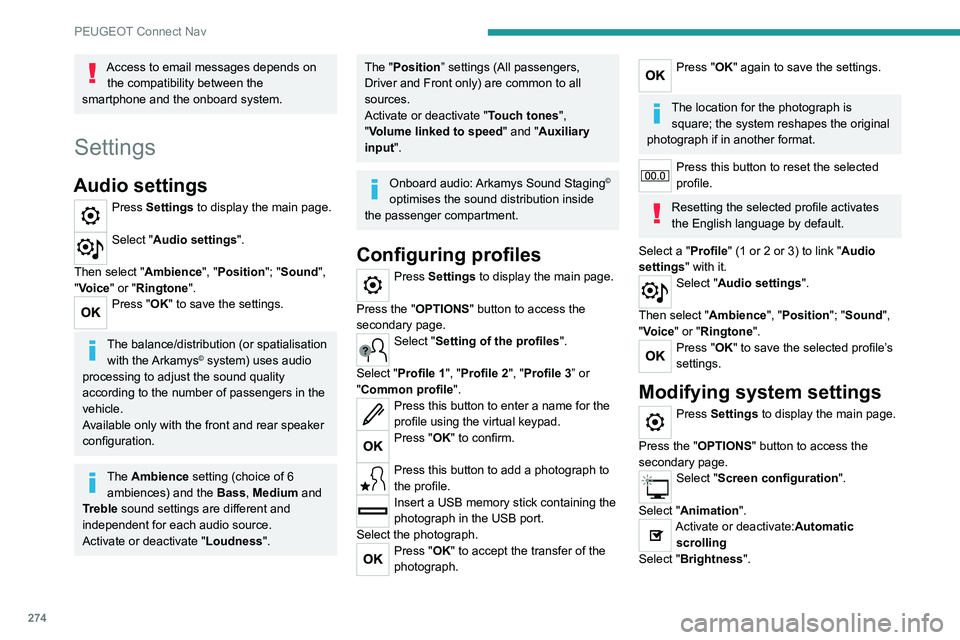
Audio settings
Press Settings to display the main page.
Select "Audio settings".
Then select "Ambience", "Position"; "Sound ",
"Voice" or "Ringtone ".
Press "OK" to save the settings.
The balance/distribution (or spatialisation
with the Arkamys© system) uses audio
processing to adjust the sound quality
according to the number of passengers in the
vehicle.
Available only with the front and rear speaker
configuration.
The Ambience setting (choice of 6 ambiences) and the Bass, Medium and
Treble sound settings are different and
independent for each audio source.
Activate or deactivate "Loudness".
The "Position ” settings (All passengers,
Driver and Front only) are common to all
sources.
Activate or deactivate "Touch tones ",
"Volume linked to speed " and "Auxiliary
input ".
Onboard audio: Arkamys Sound Staging©
optimises the sound distribution inside
the passenger compartment.
Configuring profiles
Press Settings to display the main page.
Press the "OPTIONS " button to access the
secondary page.
Select "Setting of the profiles".
Select "Profile 1", "Profile 2", "Profile 3” or
"Common profile ".
Press this button to enter a name for the
profile using the virtual keypad.
Press "OK" to confirm.
Press this button to add a photograph to
the profile.
Insert a USB memory stick containing the
photograph in the USB port.
Select the photograph.
Press "OK" to accept the transfer of the
photograph.
Press "OK" again to save the settings.
The location for the photograph is square; the system reshapes the original
photograph if in another format.
Press this button to reset the selected
profile.
Resetting the selected profile activates
the English language by default.
Select a "Profile" (1 or 2 or 3) to link "Audio
settings" with it.
Select "Audio settings".
Then select "Ambience", "Position"; "Sound ",
"Voice" or "Ringtone ".
Press "OK" to save the selected profile’s
settings.
Modifying system settings
Press Settings to display the main page.
Press the "OPTIONS " button to access the
secondary page.
Select "Screen configuration".
Select "Animation".
Activate or deactivate:Automatic scrolling
Select "Brightness".
Move the slider to adjust the brightness of
the screen and/or the instrument panel.
Press Settings to display the main page.
Press the "OPTIONS " button to access the
secondary page.
Select "System settings".
Select "Units" to change the units of distance,
fuel consumption and temperature.
Select "Factory settings" to restore the initial
settings.
Resetting the system to "Factory
settings" activates English and degrees
Fahrenheit and deactivates summer time.
Select "System info" to display the versions of
the various modules installed in the system.
Selecting the language
Press Settings to display the main page.
Press the "OPTIONS " button to access the
secondary page.
Select "Languages" to change the
language.
Setting the date
Press Settings to display the main page.
Press the "OPTIONS " button to access the
secondary page.
Page 277 of 308
275
PEUGEOT Connect Nav
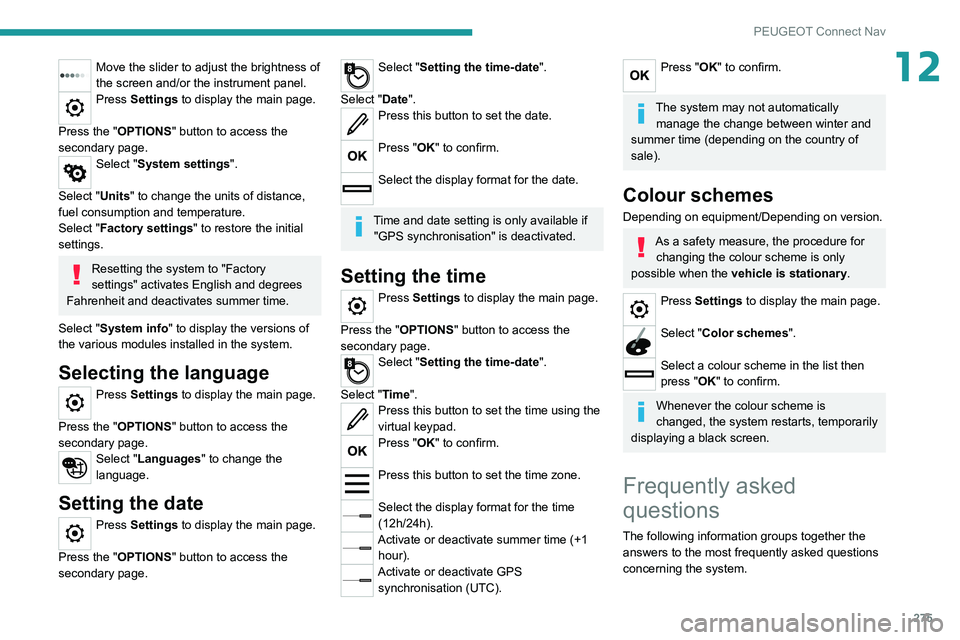
12Move the slider to adjust the brightness of
the screen and/or the instrument panel.
Press Settings to display the main page.
Press the "OPTIONS " button to access the
secondary page.
Select "System settings".
Select "Units" to change the units of distance,
fuel consumption and temperature.
Select "Factory settings" to restore the initial
settings.
Resetting the system to "Factory
settings" activates English and degrees
Fahrenheit and deactivates summer time.
Select "System info" to display the versions of
the various modules installed in the system.
Selecting the language
Press Settings to display the main page.
Press the "OPTIONS " button to access the
secondary page.
Select "Languages" to change the
language.
Setting the date
Press Settings to display the main page.
Press the "OPTIONS " button to access the
secondary page.
Select "Setting the time-date".
Select "Date".
Press this button to set the date.
Press "OK" to confirm.
Select the display format for the date.
Time and date setting is only available if "GPS synchronisation" is deactivated.
Setting the time
Press Settings to display the main page.
Press the "OPTIONS " button to access the
secondary page.
Select "Setting the time-date".
Select "Time".
Press this button to set the time using the
virtual keypad.
Press "OK" to confirm.
Press this button to set the time zone.
Select the display format for the time
(12h/24h).
Activate or deactivate summer time (+1 hour).
Activate or deactivate GPS synchronisation (UTC).
Press "OK" to confirm.
The system may not automatically manage the change between winter and
summer time (depending on the country of
sale).
Colour schemes
Depending on equipment/Depending on version.
As a safety measure, the procedure for changing the colour scheme is only
possible when the vehicle is stationary.
Press Settings to display the main page.
Select "Color schemes ".
Select a colour scheme in the list then
press "OK" to confirm.
Whenever the colour scheme is
changed, the system restarts, temporarily
displaying a black screen.
Frequently asked
questions
The following information groups together the answers to the most frequently asked questions
concerning the system.
Page 284 of 308
282
Alphabetical index
I
i-Cockpit® amplify function 48, 125–126
Ignition
117, 273
Ignition on
11 7
Ignition switch
114, 116
Immobiliser, electronic
11 4
Indicator, AdBlue® range
18
Indicator, coolant temperature
18
Indicator, engine oil level
17, 20
Indicators, direction
79, 203
Inflating tyres
184, 227
Inflating tyres and accessories
(using the kit)
193, 195
Infrared camera
131
Instrument panel
9–10, 20–22, 132
Instrument panel (Hybrid)
9
Intelligent Traction Control
90
Internet browser
263, 267
ISOFIX mountings
105
J
Jack 193, 196–198, 270
Jump starting
210
K
Key 28–29, 32–33
Key, electronic
30–31
Keyless Entry and Starting 30–31, 116–117
Key not recognised
117–118
Key with remote control
28, 114
Kit, hands-free
234–235, 248–249, 271–272
Kit, puncture repair
191–192
Kit, temporary puncture repair
191–195
L
Labels, identification 227
Lamp, boot
77
Lamps, parking
79
Lamps, rear
204
Lams with Full LED technology
80, 82
Lane assist
139, 143–144, 146
Lane departure warning active
150, 155
Lane Departure Warning System (LDWS)
150
Leather (care)
189
LEDs - Light-emitting diodes
79, 202, 204
Level, AdBlue®
182
Level, brake fluid
182
Level, Diesel additive
182–183
Level, engine coolant
18, 182
Level, engine oil
17, 181
Levels and checks
180–182
Level, screenwash fluid
84, 182
Light-emitting diodes - LEDs
79, 202, 204
Lighting, cornering
82
Lighting dimmer
21
Lighting, exterior
78
Lighting, guide-me home
29, 81
Lighting, interior 69–70
Lighting, mood
21, 70
Lighting, welcome
81
Loading
75–76, 176–177
Load reduction mode
179
Locating your vehicle
29
Locking
29, 31
Locking from the inside
32
Locking the doors
32
Long objects, transporting
71
Low fuel level
166
M
Mains socket (domestic network) 169, 173
Maintenance (advice)
168, 187
Maintenance, routine
131, 183
Manoeuvring aids (recommendations)
130
Map reading lamps
69
Markings, identification
227
Massage function
48
Massage, multi-point
48
Mat
69, 132
Memorising a speed
132
Menu
247
Menu, main
25, 229
Menus (audio)
242–243, 255–256
Menu short cuts
25
Messages
273
Messages, quick
273
Mirror, rear view
50
Page 285 of 308
283
Alphabetical index
Mirrors, door 49–50, 65, 154
Mirror, vanity
66
Misfuel prevention
167
Modularity, seats
57
Motor, electric
126, 167, 225
Motorised tailgate
37–38, 40
Mountings, ISOFIX
105
MP3 CD
233
N
Navigation 260–262
Navigation, connected
263–265
Net
73–74
Net, high load retaining
75–76
Number plate lamps
205
O
Obstacle detection 155
Oil change
181
Oil consumption
181
OIl, engine
181
On-board tools
76, 191–193
Opening the bonnet
179–180
Opening the boot
30, 36
Opening the doors
30, 36
Opening the windows
28
P
Pads, brake 184
Paint
188, 227
Paint colour code
227
Paint, matt
188
Parcel shelf, rear
71, 73
Park Assist
161–162
Parking brake, electric
118–120, 184
Parking sensors, audible and visual
155
Parking sensors, front
156
Parking sensors, rear
155
Personalisation
10
Plates, identification
227
Player, Apple®
234, 246, 270
Player, MP3 CD
233
Player, USB
232, 245, 270
Port, USB
67, 232, 245, 265, 270
Power
20
Power indicator
20
Pressures, tyres
184, 196, 227
Pre-tensioning seat belts
97
Priming pump
191
Priming the fuel system
190
Profiles
250, 274
Protecting children
98, 100–103,
105, 107, 110–111
Puncture
193–194, 196
Q
Quiet vehicle warning sound 88
R
Radar (warnings) 131
Radio
230–231, 243–244, 246, 268
Radio, digital (Digital Audio
Broadcasting - DAB)
231, 245, 269
Range, AdBlue®
18, 182
RDS
244, 268–269
READY lamp
179
Rear air blower
63
Rear screen, demisting
65
Rechargeable hybrid system
5, 26, 116, 126,
167
Recharging the battery
211, 214
Recirculation, air
62, 64
Recorder, total distance
20
Recovery
215–218
Recovery of the vehicle
216
Reduction of electrical load
179
Regeneration of the particle filter
183
Regenerative braking (deceleration
by engine braking)
125
Reinitialisation of the under-inflation
detection system
130
Reinitialising the remote control
34
Reminder, key in ignition
11 6
Reminder, lighting on
79