date and time Peugeot 508 2013 Owner's Manual - RHD (UK, Australia)
[x] Cancel search | Manufacturer: PEUGEOT, Model Year: 2013, Model line: 508, Model: Peugeot 508 2013Pages: 340, PDF Size: 14.59 MB
Page 4 of 340
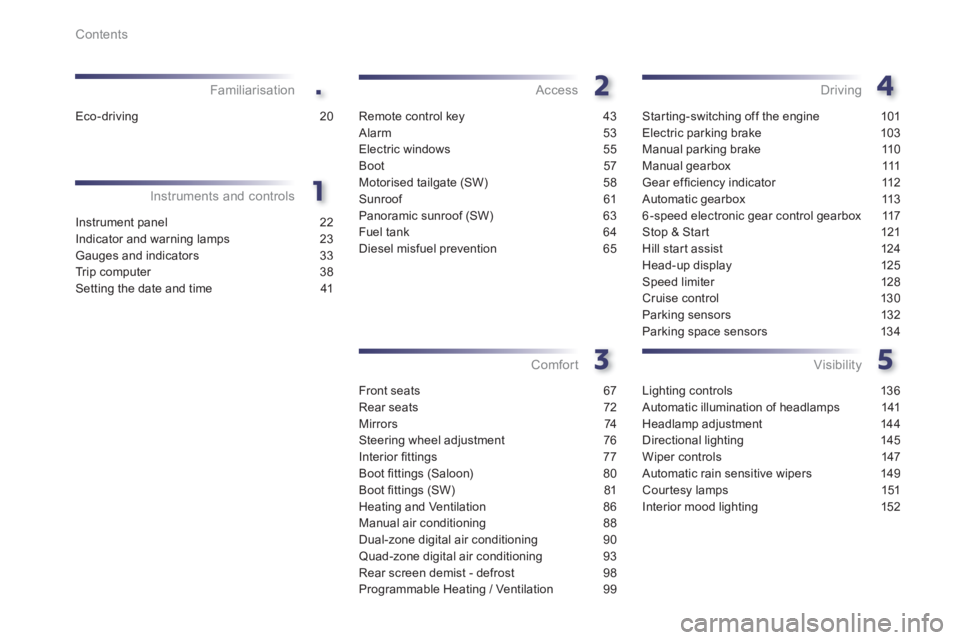
.
Contents
Instrument panel 22
Indicator and warning lamps 23
Gauges and indicators 33
Tr ip computer 38
Setting the date and time 41
Instruments and controlsFamiliarisation
Remote control key 43
Alarm 53
Electric windows 55
Boot 57
Motorised tailgate (SW) 58
Sunroof 61
Panoramic sunroof (SW) 63
Fuel tank 64
Diesel misfuel prevention 65
Access
Front seats 67
Rear seats 72
Mirrors 74
Steering wheel adjustment 76
Interior fi ttings 77
Boot fi ttings (Saloon) 80
Boot fi ttings (SW) 81
Heating and Ventilation 86
Manual air conditioning 88
Dual-zone digital air conditioning 90
Quad-zone digital air conditioning 93
Rear screen demist - defrost 98
Programmable Heating / Ventilation 99
Comfort
Starting-switching off the engine 101
Electric parking brake 103
Manual parking brake 110
Manual gearbox 111
Gear effi ciency indicator 112
Automatic gearbox 113
6-speed electronic gear control gearbox 117
Stop & Star t 121
Hill start assist 124
Head-up display 125
Speed limiter 128
Cruise control 130
Parking sensors 132
Parking space sensors 134
Driving
Lighting controls 136
Automatic illumination of headlamps 141
Headlamp adjustment 144
Directional lighting 145
Wiper controls 147
Automatic rain sensitive wipers 149
Cour tesy lamps 151
Interior mood lighting 152
Visibility
Eco-driving 20
Page 43 of 340
1
41
Instruments and controls
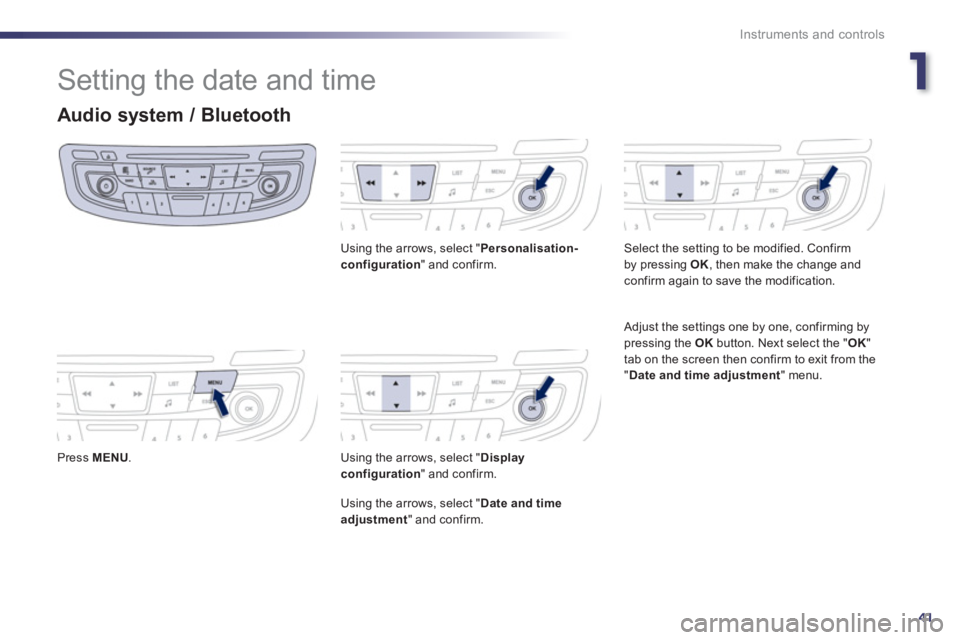
Setting the date and time
Audio system / Bluetooth
Press MENU.
Using the arrows, select " Personalisation-configuration
" and confirm.
Using the arrows, select " Display configuration
" and confirm.
Usin
g the arrows, select " Date and timeadjustment " and confirm.
Select the settin
g to be modified. Confirm
by pressing OK, then make the change andconfirm again to save the modification.
Adjust the settings one by one, confirming by
pressing the OK
button. Next select the " OK"
tab on the screen then confirm to exit from the"Date and time adjustment" menu.
Page 44 of 340
42
Instruments and controls
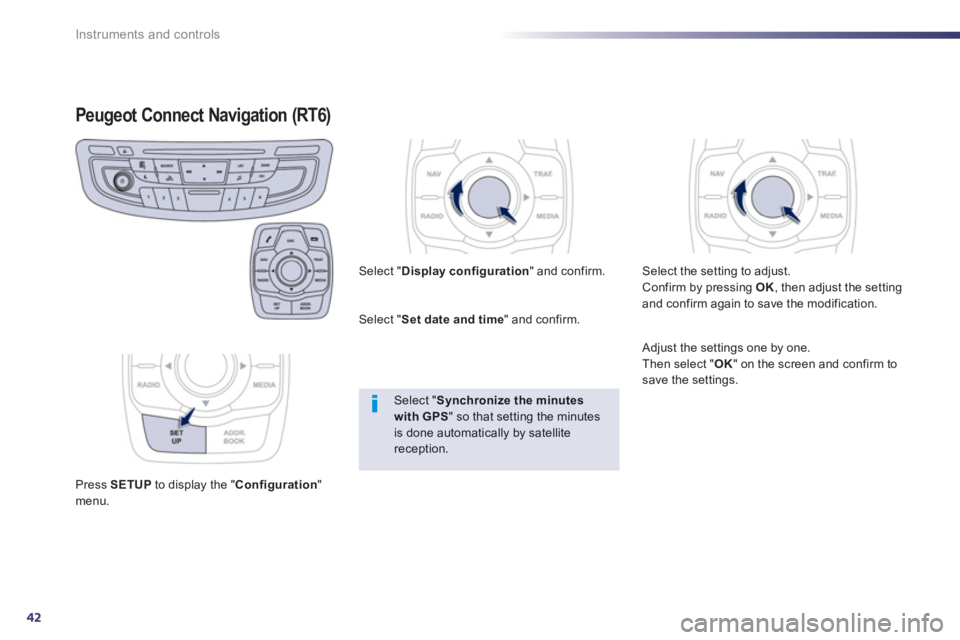
Peugeot Connect Navigation (RT6)
Press SETUPto display the "Configuration
"menu.
Select "Display configuration
" and confirm.
Select " Set date and time" and confirm.
Select " Synchronize the minutes with GPS
" so that setting the minutesis done automatically by satellite reception.
Select the setting to adjust.
Confirm by pressing OK, then adjust the setting
and confirm again to save the modification.
Adjust the settings one by one.
Then select "OK
" on the screen and confirm tosave the settings.
Page 249 of 340
247
03
For a detailed global view of the menus available, refer to the
"Screen menu map" section.
For cleaning the screen, the use of a soft, non-abrasive cloth (spectacles cloth) is recommended, with no additional product.
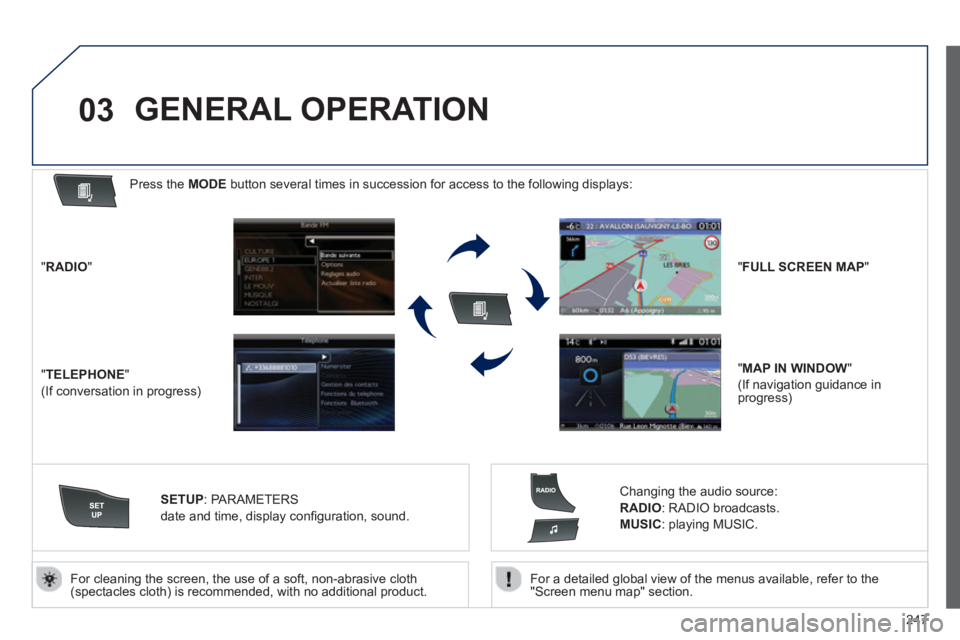
"RADIO"
"TELEPHONE"
(If conversation in progress)
SETUP: PARAMETERS
date and time, displa
y confi guration, sound.
Changing the audio source:
RADIO:
RADIO broadcasts.
MUSIC: playing MUSIC.
Press the MODE button several times in succession for access to the following displays:
GENERAL OPERATION
"FULL SCREEN MAP"
"MAP IN WINDOW"
(If navigation guidance in
progress)
Page 284 of 340
282
09MUSIC MEDIA PLAYERS
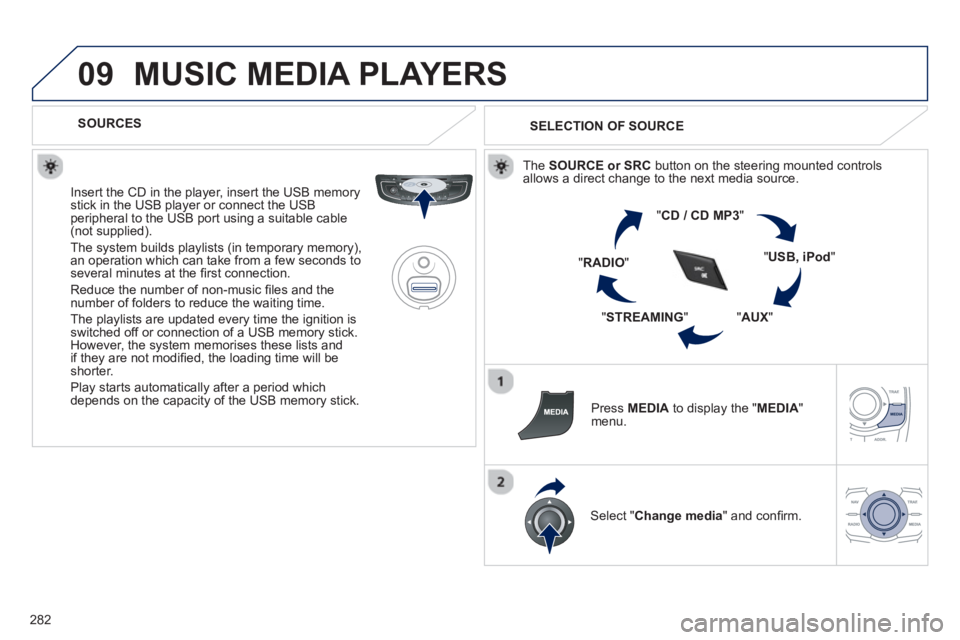
SOURCES
Insert the
CD in the player, insert the USB memorystick in the USB player or connect the USBperipheral to the USB port using a suitable cable (not supplied) .
The s
ystem builds playlists (in temporary memory),
an operation which can take from a few seconds to several minutes at the fi rst connection.
R
educe the number of non-music fi les and the number of folders to reduce the waiting time.
The playlists are updated every time the ignition isswitched off or connection of a USB memory stick. However, the system memorises these lists and
if they are not modifi ed, the loading time will be shorter.
Pla
y starts automatically after a period which
depends on the capacity of the USB memory stick. SELECTION OF SOURCE
Th
e SOURCE or SRCbutton on the steering mounted controlsallows a direct change to the next media source.
" CD / CD MP
3 "
"
USB, iPod "
" AUX "
"
STREAMING "
"
RADIO "
Pr
ess MEDIAto display the " MEDIA " menu.
Select " Change media" and confi rm.
Page 292 of 340
290
12 SCREEN MENU MAP
2
3
3
1
4
2
2
1
4
4
2
2
1
1
1
2
1
1
2
2
2
2
2
2
2
3
3
2
2
2
1
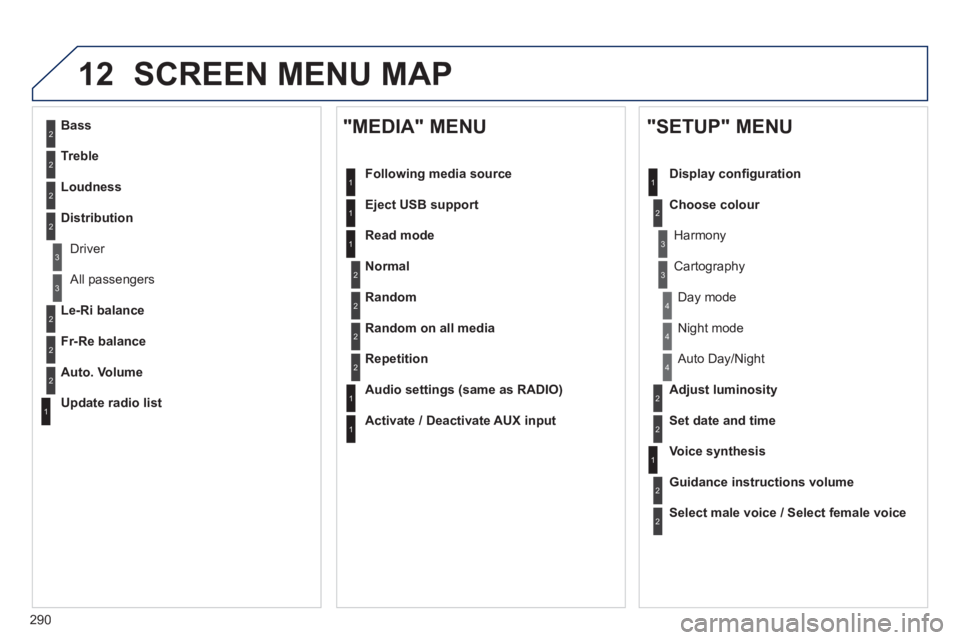
Random on all media
Repetition
Audio settin
gs (same as RADIO)
Activate / Deactivate AUX input
"MEDIA" MENU
Following media source
E
ject USB support
Read mode
Norma
l
Random
All passengers
Le-Ri balance
Fr-Re balance
Auto. Volume
Update radio list
Bass
Treble
Loudness
Distribution
Driv
er
Ni
ght mode
Auto Day/Night
Ad
just luminosity
Set date and time
"SETUP" MENU
Display con fi guration
Choose colou
r
Harmony
Cartography
Da
y mode
Voice synthesis
Guidance instructions volume
Select male voice / Select female voice
Page 300 of 340
298
01 FIRST STEPS
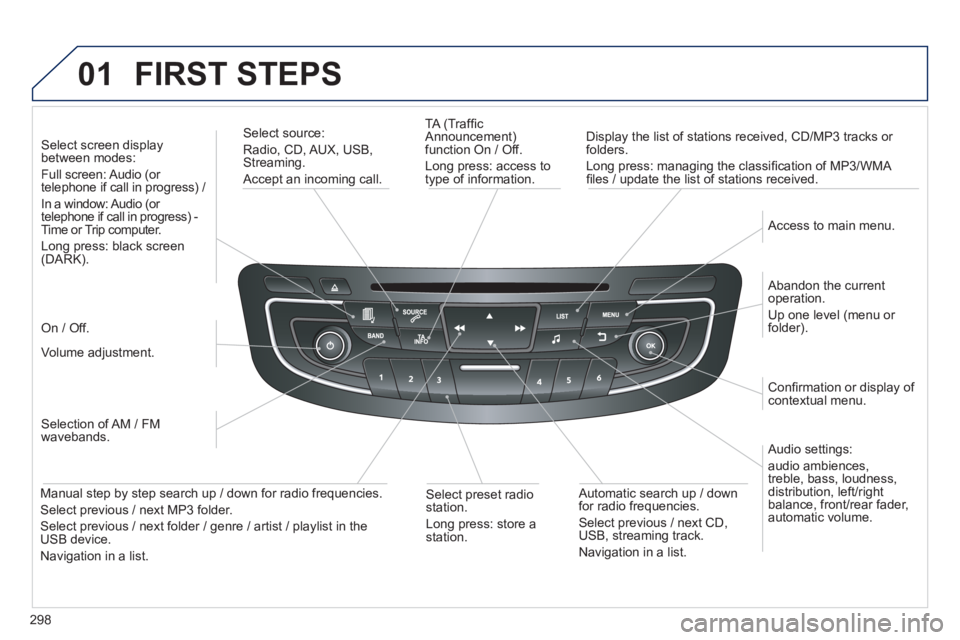
TA (Traffi c
Announcement)
function On / Off.
Long press: access to
type of information.
Displa
y the list of stations received, CD/MP3 tracks or
folders.
Lon
g press: managing the classifi cation of MP3/WMA fi les / update the list of stations received.
Select source:
Radio, CD, AUX, USB, Streaming.
Accept an incoming call.
Audio settings:
audio ambiences,
treble, bass, loudness,
distribution, left/ri
ght
balance, front/rear fader, automatic volume.
Abandon the current
operation.
Up one level (menu or folder).
Access to main menu.
Selection of AM / FM
wavebands.
Select screen displa
y between modes:
Full screen: Audio (or
telephone if call in progress) /
In a window: Audio
(or
telephone if call in progress) -
Time or Trip computer.
Long press: black screen (DARK).
Volume adjustment.
Select preset radio
station.
Long press: store astation.
Automatic search up / down
for radio frequencies.
Select previous / next CD, USB, streaming track.
Navigation in a list.
Manual step b
y step search up / down for radio frequencies.
Select previous / next MP3 folder.
Select previous / next folder / genre / artist / playlist in the USB device.
Navigation in a list.
On / Off.
Confi rmation or displa
y of contextual menu.
Page 303 of 340
301
04AUDIO
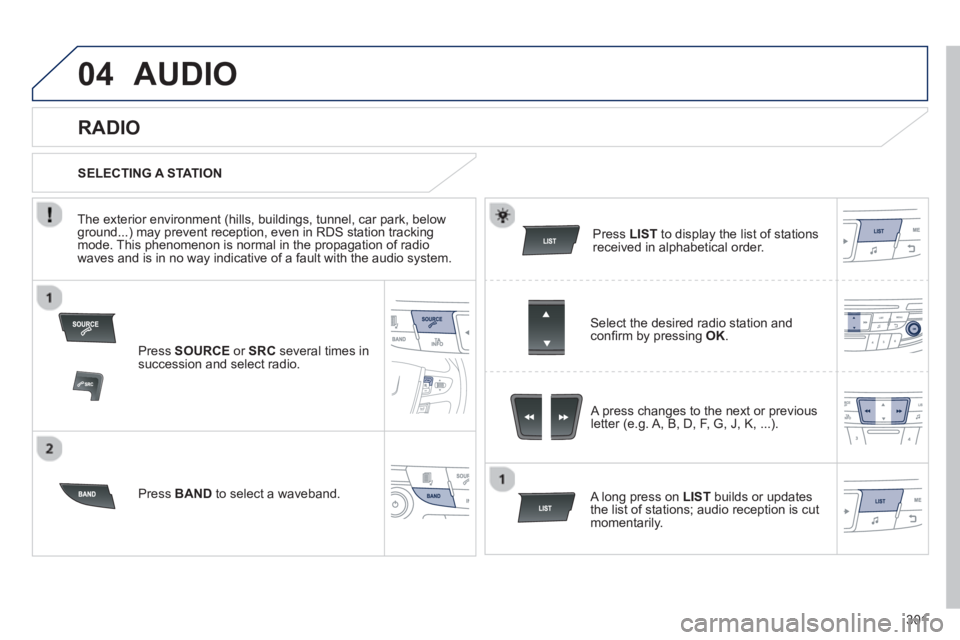
Press SOURCEor SRCseveral times in succession and select radio.
Press BAND
to select a waveband. Pr
ess LISTto display the list of stationsreceived in alphabetical order.
A press chan
ges to the next or previous letter (e.g. A, B, D, F, G, J, K, ...).
RADIO
Select the desired radio station andconfi rm by pressing OK.
SELECTING A STATION
A lon
g press on LIST
builds or updates
the list of stations; audio reception is cut
momentar
ily.
The exterior environment
(hills, buildings, tunnel, car park, belowground...) may prevent reception, even in RDS station tracking mode. This phenomenon is normal in the propagation of radio
waves and is in no way indicative of a fault with the audio system.
Page 308 of 340
306
04
CD, USB
AUDIO
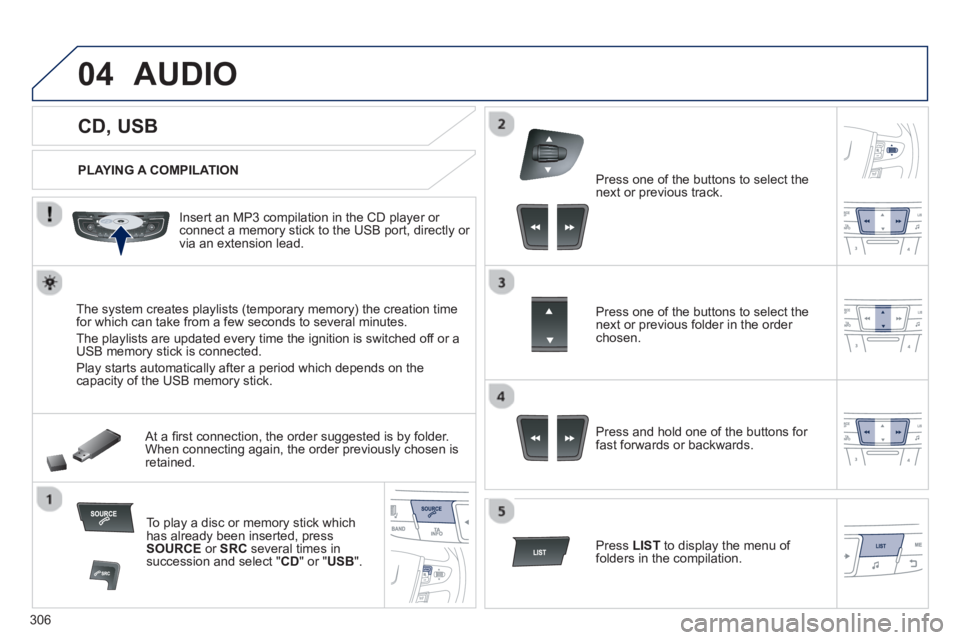
PLAYING A COMPILATION
Insert an MP3 compilation in the
CD player or connect a memory stick to the USB port, directly or
via an extension lead.
The s
ystem creates playlists (temporary memory) the creation time
for which can take from a few seconds to several minutes.
The pla
ylists are updated every time the ignition is switched off or aUSB memory stick is connected.
Pla
y starts automatically after a period which depends on the capacity of the USB memory stick.
At a fi rst connection, the order suggested is by folder.When connecting again, the order previously chosen is retained.
To play a disc or memory stick whichhas already been inserted, press
SOURCE
or SRC
several times insuccession and select " CD" or "USB".
Pr
ess one of the buttons to select the next or previous track.
Pr
ess one of the buttons to select the next or previous folder in the order chosen.
Pr
ess and hold one of the buttons for
fast forwards or backwards.
Press LISTto display the menu of folders in the compilation.
Page 323 of 340
321
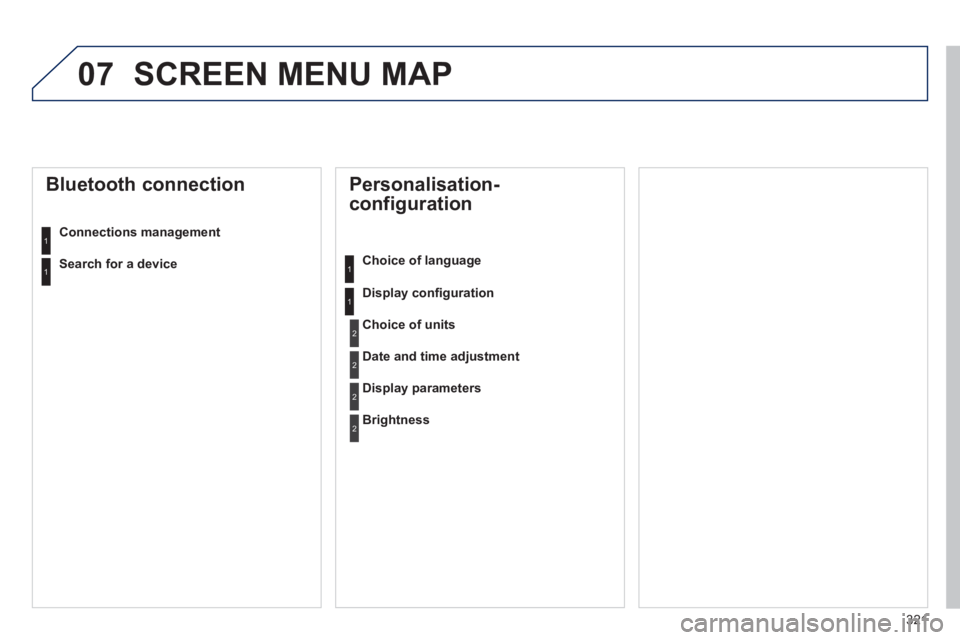
07 SCREEN MENU MAP
Personalisation-
configuration
Choice of language
Displa
y confi guration
Bluetooth connection
Connections management
Choice of units
Date and time adjustment
Display parameters
Brightness
1
1
2
2
2
2
1
1Search for a device