steering PEUGEOT 508 2021 Workshop Manual
[x] Cancel search | Manufacturer: PEUGEOT, Model Year: 2021, Model line: 508, Model: PEUGEOT 508 2021Pages: 292, PDF Size: 8.61 MB
Page 222 of 292
220
PEUGEOT Connect Radio
Settings
Configuring profiles
Press Settings to display the main page.
Press "Profiles".
Select "Profile 1", "Profile 2", "Profile 3” or
"Common profile ".
Press this button to enter a name for the
profile using the virtual keypad.
Press "OK" to save.
Press the back arrow to confirm.
Press this button to activate the profile.
Press the back arrow again to confirm.
Press this button to reset the selected
profile.
Adjusting the brightness
Press Settings to display the main page.
Press Brightness.
Move the slider to adjust the brightness of
the screen and/or the instrument panel
(depending on version).
Press in the shaded area to confirm.
Press "OK" to confirm.
Managing paired telephones
This function lets you connect or disconnect a
device or delete a pairing.
Press Telephone to display the main
page.
Press the "PHONE" button to access the
secondary page.
Press "Bluetooth connection" to
display the list of paired devices.
Press on the name of the telephone
selected in the list to disconnect it.
Press again to connect it.
Deleting a telephone
Press the basket at the top right of the
screen to display a basket alongside the
telephone chosen.
Press the basket alongside the telephone
chosen to delete it.
Receiving a call
An incoming call is announced by a ring and a
superimposed display in the screen.
Make a short press on the steering
mounted PHONE button to accept an
incoming call.
And
Make a long press
on the steering mounted PHONE button
to reject the call.
Or
Press "End call".
Making a call
Using the telephone is not recommended
while driving.
Parking the vehicle.
Make the call using the steering mounted
controls.
Calling a new number
Press Telephone to display the main
page.
Enter the phone number using the digital
keypad.
Press "Call" to start the call.
Calling a contact
Press Telephone to display the main
page.
Or press and hold
the steering mounted PHONE button.
Press "Contacts".
Select the desired contact from the displayed list.
Press "Call".
Calling a recently used
number
Press Telephone to display the main
page.
Or
Press and hold
the steering mounted button.
Press "Recent calls".
Select the desired contact from the displayed list.
It is always possible to make a call
directly from the telephone; as a safety
measure, first park the vehicle.
Setting the ringtone
Press Telephone to display the main
page.
Press the "OPTIONS " button to access the
secondary page.
Press "Ring volume" to display the
volume bar.
Press the arrows or move the slider to set
the ring volume.
Page 227 of 292
225
PEUGEOT Connect Nav
11– Go to the "Notifications" of messages, emails,
map updates and, depending on the services,
the navigation notifications.
–
Go to the settings for the touch screen and the
digital instrument panel.
Audio source selection (depending on
equipment):
–
FM/DAB/AM radio stations (depending on
equipment).
–
T
elephone connected via Bluetooth and
Bluetooth multimedia broadcast (streaming).
–
USB memory stick.
–
Media player connected via the auxiliary
socket (depending on equipment).
–
V
ideo (depending on equipment).
In the "Settings" menu, it is possible to
create a profile for an individual or for a
group of people with shared interests, and
configure a wide range of settings (radio
presets, audio settings, navigation history,
favourite contacts, etc.). Settings are applied
automatically.
In very hot conditions, the volume may
be limited to protect the system. It may
enter standby mode (with the screen and
sound off) for 5 minutes or more.
The system will resume normal operation
when the temperature in the passenger
compartment has dropped.
Steering mounted controls
Voice control:
This control is located on the steering
wheel or at the end of the lighting control stalk
(depending on equipment).
Short press, system voice control.
Long press, voice commands from smartphone
or CarPlay
®, Android Auto via the system.Increase volume.
Decrease volume.
Mute by pressing the volume increase
and decrease buttons simultaneously
(depending on equipment).
Restore the sound by pressing one of the two
volume buttons.
Media (short press): change the
multimedia source.
Telephone (short press): start telephone
call.
Call in progress (short press): access
telephone menu. Telephone (long press): reject an incoming call,
end call; when no call is in progress, access
telephone menu.
Radio (rotate): automatic search for the
previous/next station.
Media (rotate): previous/next track, move
through a list.
Short press: confirm a selection; if nothing
selected, access presets.
Radio: display the list of stations.
Media: display the list of tracks.
Radio (press and hold): update the list of
detected stations.
Menus
Connected navigation
Enter navigation settings and choose a
destination.
Use real-time services, depending on equipment.
Page 228 of 292
226
PEUGEOT Connect Nav
Applications
Run certain applications from a
smartphone connected via CarPlay® or
Android Auto.
Check the status of the
Bluetooth
® and Wi-Fi
connections.
Radio Media
FM 87.5 MHz
Select an audio source or radio station, or
display photographs.
Telephone
Connect a telephone via Bluetooth®, read
messages and emails and send quick
messages.
Settings
Configure a personal profile and/or
configure the sound (balance, ambience,
etc.) and the display (language, units, date, time,
etc.).
Vehicle
Activate, deactivate or configure certain vehicle functions.
Air conditioning
21,518,5
Manage various temperature and air flow
settings.
Voice commands
Steering wheel-mounted
controls
Voice commands:
Voice commands can be issued from any
screen page after a short press on the "Voice
commands" button located on the steering
wheel or at the end of the lighting control stalk
(depending on equipment), as long as there is no
telephone call in progress.
To ensure that voice commands are always recognised by the system, please
follow these recommendations:
– use natural language in a normal tone
without breaking up words or raising your
voice.
– always wait for the "beep" (audible signal)
before speaking.
– for best results, closing the windows and
sunroof is recommended, to avoid extraneous
interference (depending on version).
– before issuing a voice command, ask any
other passengers to refrain from speaking.
First steps
Example of a "voice command" for
navigation:
"Navigate to address 11 regent street,
London"
Page 229 of 292
227
PEUGEOT Connect Nav
11Voice commands
Steering wheel-mounted
controls
Voice commands:
Voice commands can be issued from any
screen page after a short press on the "Voice
commands" button located on the steering
wheel or at the end of the lighting control stalk
(depending on equipment), as long as there is no
telephone call in progress.
To ensure that voice commands are always recognised by the system, please
follow these recommendations:
–
use natural language in a normal tone
without breaking up words or raising your
voice.
–
always wait for the "beep" (audible signal)
before speaking.
–
for best results, closing the windows and
sunroof is recommended, to avoid extraneous
interference (depending on version).
–
before issuing a voice command, ask any
other passengers to refrain from speaking.
First steps
Example of a "voice command" for
navigation:
"Navigate to address 11 regent street,
London"
Example of a "voice command" for the radio and
media:
"Play artist Madonna"
Example of a "voice command" for the
telephone:
"Call David Miller"
The voice commands, with a choice of 17 languages (Arabic, Brazilian, Czech,
Danish, Dutch, English, Farsi, French,
German, Italian, Norwegian, Polish,
Portuguese, Russian, Spanish, Swedish,
Turkish), are made using the language
previously chosen and set in the system.
For some voice commands, there are
alternative synonyms.
Example: Guide to / Navigate to / Go to / ...
The voice commands in Arabic for: "Navigate
to address" and "Display POI in the city", are
not available.
Information - Using the
system
When voice commands are activated, by
briefly pressing the button, help is
displayed on the touch screen, offering various
menus and enabling voice-based interaction with
the system.
A number of commands are available when a
menu is selected.
Press the Push To Talk button and tell me
what you'd like after the tone. Remember
you can interrupt me at any time by pressing this
button. If you press it again while I'm waiting for
you to speak, it'll end the conversation. If you
need to start over, say "cancel". If you want to
undo something, say "undo". And to get
information and tips at any time, just say "help".
If you ask to me do something and there's some
information missing that I need, I'll give you
some examples or take you through it step by
Page 244 of 292
242
PEUGEOT Connect Nav
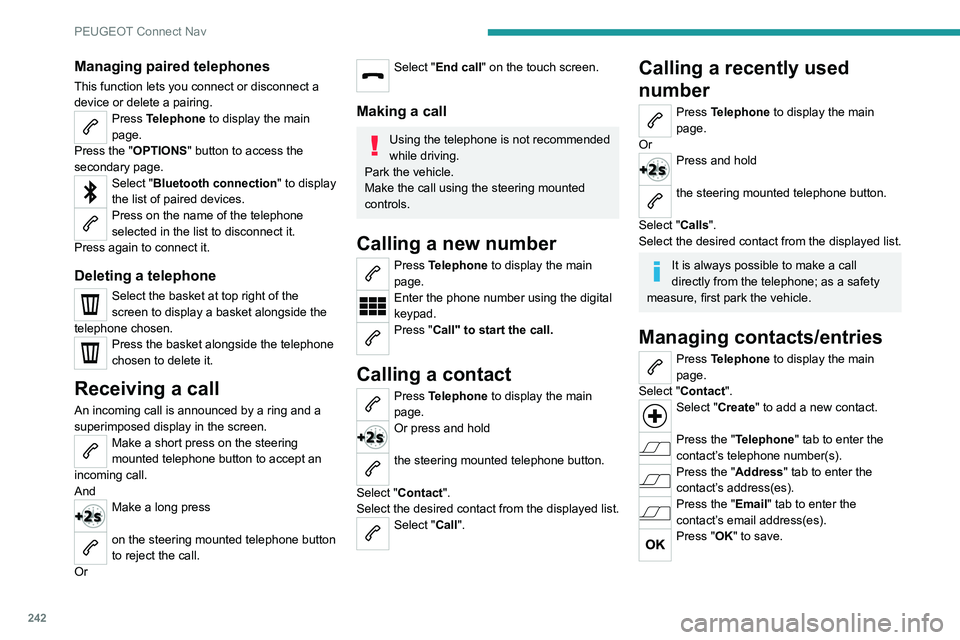
Managing paired telephones
This function lets you connect or disconnect a
device or delete a pairing.
Press Telephone to display the main
page.
Press the "OPTIONS " button to access the
secondary page.
Select "Bluetooth connection" to display
the list of paired devices.
Press on the name of the telephone
selected in the list to disconnect it.
Press again to connect it.
Deleting a telephone
Select the basket at top right of the
screen to display a basket alongside the
telephone chosen.
Press the basket alongside the telephone
chosen to delete it.
Receiving a call
An incoming call is announced by a ring and a
superimposed display in the screen.
Make a short press on the steering
mounted telephone button to accept an
incoming call.
And
Make a long press
on the steering mounted telephone button
to reject the call.
Or
Select "End call" on the touch screen.
Making a call
Using the telephone is not recommended
while driving.
Park the vehicle.
Make the call using the steering mounted
controls.
Calling a new number
Press Telephone to display the main
page.
Enter the phone number using the digital
keypad.
Press "Call" to start the call.
Calling a contact
Press Telephone to display the main
page.
Or press and hold
the steering mounted telephone button.
Select "Contact".
Select the desired contact from the displayed list.
Select "Call".
Calling a recently used
number
Press Telephone to display the main
page.
Or
Press and hold
the steering mounted telephone button.
Select "Calls".
Select the desired contact from the displayed list.
It is always possible to make a call
directly from the telephone; as a safety
measure, first park the vehicle.
Managing contacts/entries
Press Telephone to display the main
page.
Select "Contact".
Select "Create" to add a new contact.
Press the "Telephone " tab to enter the
contact’s telephone number(s).
Press the "Address" tab to enter the
contact’s address(es).
Press the "Email" tab to enter the
contact’s email address(es).
Press "OK" to save.
Press this button to sort contacts by
Surname+first name or by First
name+surname.
The "Email" function allows email addresses to be entered for a contact,
but the system is not able to send emails.
Managing messages
Press Telephone to display the main
page.
Press the "OPTIONS " button to access the
secondary page.
Select "Messages" to display the list of
messages.
Select the "All", "Incoming " or "Sent”
tab.
Select the details of the message chosen
in one of the lists.
Press "Answer" to send a quick message
stored in the system.
Press "Call" to start the call.
Press "Play" to listen to the message.
Access to "Messages " depends on the
compatibility between the smartphone
and the onboard system.
Some smartphones retrieve messages or
email messages more slowly than others.
Page 251 of 292
249
Event data recorders
12Event data recorders
Electronic control units are installed in your
vehicle. Control units process data which is
received by vehicle sensors, for example, or
which they generate themselves or exchange
amongst themselves. Some control units are
necessary for the safe functioning of your
vehicle, others assist you while you drive (driver
assistance systems), while others provide
comfort or infotainment functions.
The following contains general information about
data processing in the vehicle. You will find
additional information as to which specific data is
uploaded, stored and passed on to third parties
and for what purpose in your vehicle under
the key word Data Protection closely linked
to the references for the affected functional
characteristics in the relevant owner's manual
or in the general terms of sale. These are also
available online.
Operating data in the
vehicle
Control units process data for operation of the
vehicle.
This data includes, for example:
–
vehicle status information (e.g. speed,
movement delay
, lateral acceleration, wheel
rotation rate, "seat belts fastened" display)
–
ambient conditions (e.g. temperature, rain
sensor
, distance sensor) As a rule such data is transient and is not stored
for longer than an operational cycle, and only
processed on board the vehicle itself. Often
control units include data storage (including the
vehicle key). This is used to allow information
to be documented temporarily or permanently
on vehicle condition, component stress,
maintenance requirements and technical events
and errors.
Depending on technical equipment levels, the
data stored is as follows:
–
system component operating states (e.g. fill
level, tyre pressure, battery status)
–
faults and defects in important system
components (e.g. lights, brakes)
–
system reactions in special driving situations
(e.g. triggering of an airbag, actuation of the
stability control systems)
–
information on events damaging the vehicle
–
for electric vehicles the amount of charge in
the high-voltage battery
, estimated range
In special cases (e.g. if the vehicle has detected
a malfunction), it may be necessary to save data
that would otherwise just be volatile.
When you use services (e.g. repairs,
maintenance), the operating data saved can
be read together with the vehicle identification
number and used where necessary. Staff
working for the service network (e.g. garages,
manufacturers) or third parties (e.g. breakdown
services) can read the data from the vehicle.
The same applies to warranty work and quality
assurance measures. Data is generally read via the OBD (On-Board
Diagnostics) port prescribed by law in the
vehicle. The operating data read documents the
technical condition of the vehicle or individual
components and assists with fault diagnosis,
compliance with warranty obligations and quality
improvement. This data, in particular information
on component stress, technical events, operator
errors and other faults, is transmitted to the
manufacturer where appropriate, together
with the vehicle identification number. The
manufacturer is also subject to product liability.
The manufacturer potentially also uses operating
data from vehicles for product recalls. This data
can also be used to check customer warranty
and guarantee claims.
Fault memories in the vehicle can be reset by a
service company when carrying out servicing or
repairs or at your request.
Comfort and infotainment
functions
Comfort settings and custom settings can be
stored in the vehicle and changed or reset at any
time.
Depending on the equipment level in question,
these include
–
seat and steering wheel position settings
–
chassis and air conditioning settings
–
custom settings such as interior lighting
Y
ou can input your own data in the infotainment
functions for your vehicle as part of the selected
features.
Page 253 of 292
251
Alphabetical index
180° rear vision 147
A
ABS 82
Accelerated charging unit (Wallbox)
161–162
Accessories
79, 172
Active Safety Brake
133–135
Active suspension
111
Active Suspension Control
111
Adaptive LED Technology
30, 69
Adaptive rear lighting
69
AdBlue®
20, 178
AdBlue® tank
179
Additive, Diesel
176–177
Adjusting headlamps
71
Adjusting head restraints
45
Adjusting seat
45–46
Adjusting the air distribution
53–54
Adjusting the air flow
53–54
Adjusting the date
222, 244
Adjusting the height and reach of
the steering wheel
48
Adjusting the lumbar support
45–46
Adjusting the seat angle
45
Adjusting the temperature
53
Adjusting the time
221, 245
Advice on care and maintenance
160, 181
Advice on driving
8, 100
Airbags
86–88, 90
Airbags, curtain
87–88
Airbags, front 86–87, 91
Airbags, lateral
87–88
Air conditioning
52, 55
Air conditioning, automatic
55
Air conditioning, digital
53
Air conditioning, dual-zone automatic
53
Air intake
54–55
Air vents
51
Alarm
33–34
Amplifier, audio
61
Android Auto connection
236
Anti-lock braking system (ABS)
82
Antitheft / Immobiliser
28
Apple CarPlay connection
218, 235
Applications
236
Armrest, front
61–62
Armrest, rear
63
Assistance call
80–81
Assistance, emergency braking
82, 135
Audible warning
80
Audio streaming (Bluetooth)
217, 240
B
Battery, 12 V 173, 177, 194–199
Battery, ancillaries
197
Battery, charging
196, 198–199
Battery, remote control
32, 57
Bicycle carrier
172
Blanking screen (snow shield)
172
Blind
42–43
Blind spot monitoring system, active 142
Blind spot sensors
140, 142
BlueHDi
20, 176, 183
Bluetooth (hands-free)
219, 241
Bluetooth (telephone)
219–220, 241–242
Bodywork
181
Bonnet
173–174
Bonnet, active
88
Boot
36–38, 68
Brake discs
178
Brake lamps
193–194
Brakes
177–178
Braking
109
Braking assistance system
82
Braking, automatic emergency
133–135
Braking, dynamic emergency
104–105
Brightness
221
Bulbs
192
Bulbs (changing)
191–194
C
Cable, audio 239
Cable, Jack
239
Capacity, fuel tank
157
Care of the bodywork
181
Central locking
30, 33
Changing a bulb
191–194
Changing a fuse
194
Changing a wheel
184, 188
Changing a wiper blade
77
Page 254 of 292
252
Alphabetical index
Changing the remote control battery 32
Charge level indicator (Rechargeable
hybrid)
21
Charger, induction
60
Charger, wireless
60
Charging cable
163
Charging cable (Rechargeable
hybrid)
161–162, 167
Charging connector (Rechargeable
hybrid)
160, 166–168
Charging flap (Rechargeable hybrid)
160,
166–168
Charging the traction battery
(Rechargeable hybrid)
21, 159, 166–168
CHECK
22
Checking the engine oil level
19
Checking the levels
175–176
Checking tyre pressures (using
the kit)
185, 187
Checks
175, 176–178
Checks, routine
176–178
Child lock
98–99
Children
85, 92–97
Children (safety)
98
Child seats
85, 89–92
Child seats, conventional
91–92
Child seats, i-Size
97
Child seats, ISOFIX
93–96
Cigar lighter
59
Cleaning (advice)
160, 181–182
Closing the boot
30, 37
Closing the doors
30, 35Collision Risk Alert 133–134
Comfort mode
11 3
Configuration, vehicle
24
Connected applications
236
Connection, Bluetooth
219–220,
236–237, 241–242
Connection, MirrorLink
218
Connection, Wi-Fi network
237
Connectivity
235
Consumption figures
25
Container, AdBlue®
179
Control, emergency boot release
37
Control, emergency door
31
Control, heated seats
47
Controls, steering mounted
106–108
Control stalk, lighting
69–70
Control stalk, wipers
75–78
Control unit
161–163, 167
Courtesy lamp, front
63
Courtesy lamps
63–64
Cover, load space
65
Cruise control
120, 123–125
Cruise control, adaptive
125–126
Cruise control by speed limit recognition
120
Cruise control, dynamic with Stop function
120
Cup holder
59
D
DAB (Digital Audio Broadcasting) -
Digital radio
216, 239
Date (setting) 222, 244
Daytime running lamps
70, 192
Deactivating the passenger airbag
86, 90–91
Deadlocking
28, 30
Deferred charging
25, 168
Deferred charging (Rechargeable
hybrid)
25–26, 160, 166
Defrosting
48, 55
Defrosting, front
55
Demisting
48, 55
Demisting, front
55
Demisting, rear
56
Demisting, rear screen
56
Dials and gauges
10
Digital instrument panel
10–11
Dimensions
209
Dipstick
19, 175
Direction indicators
70, 192–194
Domestic charging
163
Domestic charging (Rechargeable
hybrid)
167–168
Door pockets
59
Doors
35
Drive Assist Plus
125
Driver’s attention warning
136
Driving
44, 100
Driving aids camera (warnings)
11 7
Driving aids (recommendations)
11 6
Driving economically
8
Driving modes
111
Driving positions (storing)
47
Dynamic stability control (DSC)
82–83
Page 258 of 292
256
Alphabetical index
Reminder, lighting on 69
Remote control
27–31
Remote functions
168
Remotely operable functions
(Rechargeable hybrid)
26, 58
Removing a wheel
189–190
Removing the mat
62
Replacing bulbs
191–194
Replacing fuses
194
Replacing the air filter
177
Replacing the oil filter
177
Replacing the passenger compartment
filter
177
Reservoir, screenwash
176
Reset trip
23
Rev counter
10
Reversing camera
117, 144–146
Reversing lamps
193–194
Roof bars
170–171
Running out of fuel (Diesel)
183
S
Safety, children 86, 89–97
Saturation of the particle filter (Diesel)
177
Screen, cold climate
172
Screen menu map
218
Screenwash
76
Screenwash, front
76
Screenwash, rear
76
SCR (Selective Catalytic Reduction)
20, 178
Seat angle
45
Seat belts 84–85, 91
Seat belts, rear
84
Seat, rear bench
50
Seats, electric
46–47
Seats, front
45–47
Seats, heated
47
Seats, rear
50–51, 89
Selector, gear
106–109
Sensors (warnings)
11 7
Serial number, vehicle
210
Service indicator
18, 22
Servicing
18, 176, 178
Settings, equipment
24
Settings, system
221, 244
Shield, snow
172
Sidelamps
70, 192–194
Side parking sensors
143
Silent vehicle warning sound (Rechargeable
hybrid)
80
Ski flap
64
Smartphone
26, 60
Snow chains
115, 172
Snow screen
172
Socket, 12 V accessory
59, 63, 67
Socket, auxiliary
217, 239
Socket, Jack
239
Speakers
61
Speed limiter
120–123, 125
Speed limit recognition
118–119
Speedometer
10, 118
Sport mode
111 – 11 2
Spotlamps, side
72
Stability control (ESC)
82–83Starting a Diesel engine 157
Starting/Stopping the vehicle
101
Starting the engine
101–102
Starting the vehicle
102, 106–109
Starting using another battery
103, 195
State of charge, battery
25
Station, radio
214–215, 238
Steering mounted controls, audio
212, 225
Steering wheel, adjustment
48
Stickers, customising ~ Stickers,
expressive
181
Stopping the vehicle
102, 106–109
Stop & Start
23, 52, 55, 113–115, 157, 173, 177, 197
Storage
59, 61–64
Storage box
68
Storage compartments
59
Storage wells
64, 68
Storing driving positions
47
Stowing rings
64, 67
Sunroof, panoramic
42–43
Sunshine sensor
52
Sun visor
59
Suspension
178
Suspension with variable vibration
reduction
111
Switching off the engine
101
Synchronising the remote control
33
T
Tables of engines 208