trip computer PEUGEOT 607 2003 Owners Manual
[x] Cancel search | Manufacturer: PEUGEOT, Model Year: 2003, Model line: 607, Model: PEUGEOT 607 2003Pages: 183, PDF Size: 2.66 MB
Page 3 of 183
10-02-2003
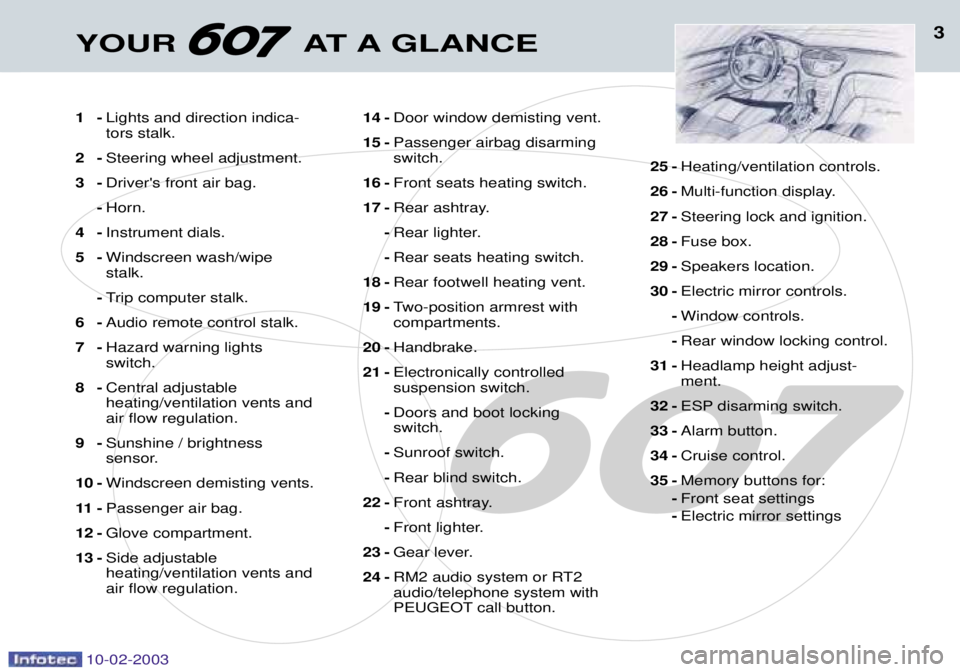
3YOUR AT A GLANCE
1-Lights and direction indica- tors stalk.
2- Steering wheel adjustment.
3- Driver's front air bag.
- Horn.
4- Instrument dials.
5- Windscreen wash/wipestalk.
- Trip computer stalk.
6- Audio remote control stalk.
7- Hazard warning lightsswitch.
8- Central adjustableheating/ventilation vents andair flow regulation.
9- Sunshine / brightness
sensor.
10 - Windscreen demisting vents.
11 - Passenger air bag.
12 - Glove compartment.
13 - Side adjustableheating/ventilation vents andair flow regulation. 14 -
Door window demisting vent.
15 - Passenger airbag disarmingswitch.
16 - Front seats heating switch.
17 - Rear ashtray.
- Rear lighter.
- Rear seats heating switch.
18 - Rear footwell heating vent.
19 - Two-position armrest withcompartments.
20 - Handbrake.
21 - Electronically controlledsuspension switch.
- Doors and boot lockingswitch.
- Sunroof switch.
- Rear blind switch.
22 - Front ashtray.
- Front lighter.
23 - Gear lever.
24 - RM2 audio system or RT2audio/telephone system with
PEUGEOT call button. 25 -
Heating/ventilation controls.
26 - Multi-function display.
27 - Steering lock and ignition.
28 - Fuse box.
29 - Speakers location.
30 - Electric mirror controls.
- Window controls.
- Rear window locking control.
31 - Headlamp height adjust-ment.
32 - ESP disarming switch.
33 - Alarm button.
34 - Cruise control.
35 - Memory buttons for:
- Front seat settings
- Electric mirror settings
Page 38 of 183
10-02-2003
INSTRUMENTS AND CONTROLS
42
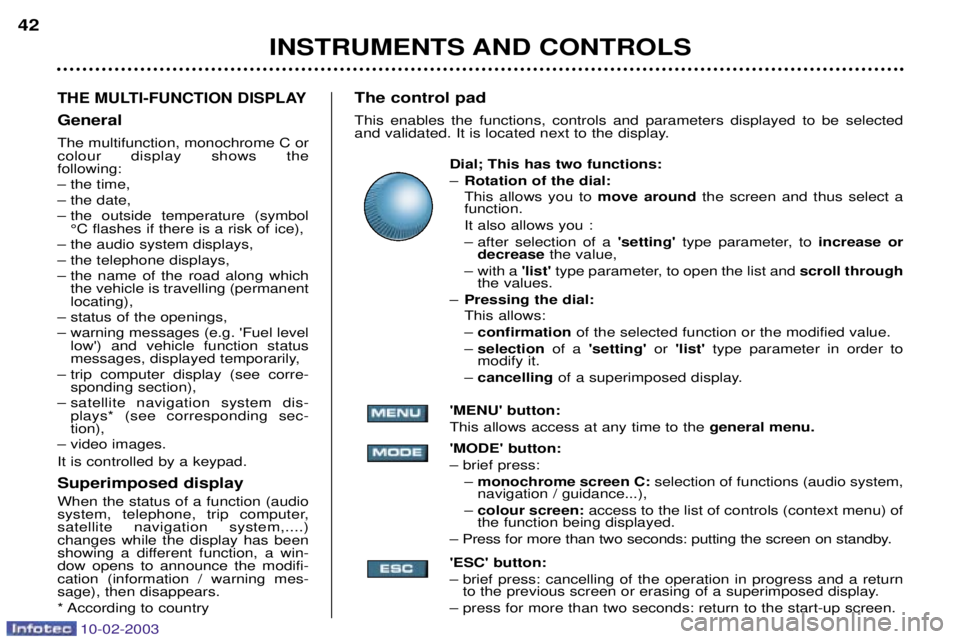
THE MULTI-FUNCTION DISPLAY
General The multifunction, monochrome C or colour display shows the following:
Ð the time,
Ð the date,
Ð the outside temperature (symbol
¡C flashes if there is a risk of ice),
Ð the audio system displays,
Ð the telephone displays,
Ð the name of the road along which the vehicle is travelling (permanent locating),
Ð status of the openings,
Ð warning messages (e.g. 'Fuel level low') and vehicle function status
messages, displayed temporarily,
Ð trip computer display (see corre- sponding section),
Ð satellite navigation system dis- plays* (see corresponding sec-tion),
Ð video images. It is controlled by a keypad. Superimposed display When the status of a function (audio
system, telephone, trip computer,satellite navigation system,....)changes while the display has been
showing a different function, a win-dow opens to announce the modifi-cation (information / warning mes-sage), then disappears.
* According to country The control pad This enables the functions, controls and parameters displayed to be selected
and validated. It is located next to the display.
Dial; This has two functions: ÐRotation of the dial: This allows you to move around the screen and thus select a
function.
It also allows you :
Ð after selection of a 'setting' type parameter, to increase or
decrease the value,
Ð with a 'list'type parameter, to open the list and scroll through
the values.
Ð Pressing the dial: This allows: Ð confirmation of the selected function or the modified value.
Ð selection of a 'setting' or 'list' type parameter in order to
modify it.
Ð cancelling of a superimposed display.
'MENU' button:This allows access at any time to the general menu.
'MODE' button:Ð brief press: Ð monochrome screen C: selection of functions (audio system,
navigation / guidance...),
Ð colour screen: access to the list of controls (context menu) of
the function being displayed.
Ð Press for more than two seconds: putting the screen on standby. 'ESC' button:
Ð brief press: cancelling of the operation in progress and a return to the previous screen or erasing of a superimposed display.
Ð press for more than two seconds: return to the start-up screen.
Page 40 of 183
10-02-2003
INSTRUMENTS AND CONTROLS
42
THE MULTI-FUNCTION DISPLAY
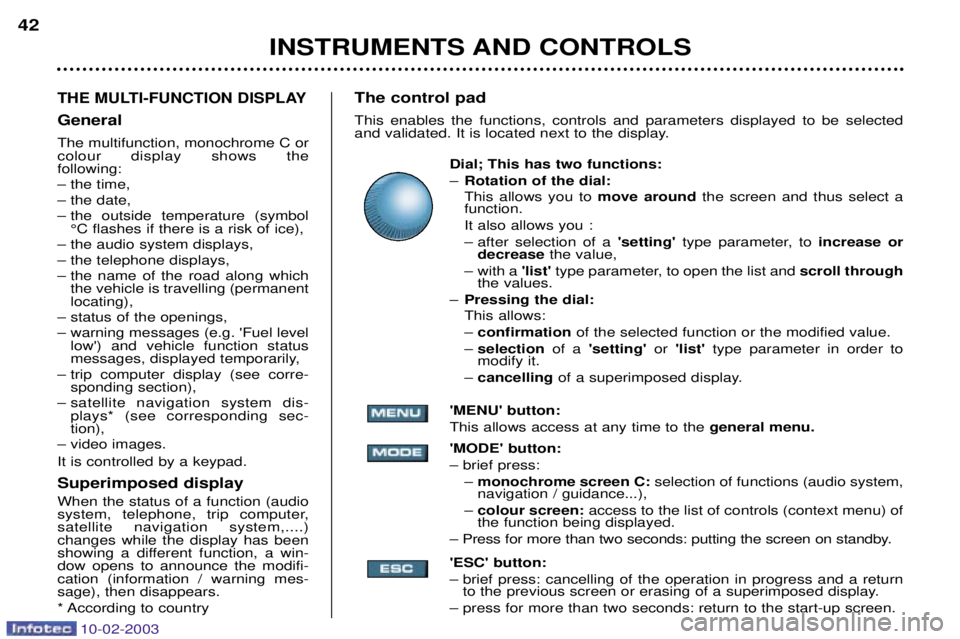
General The multifunction, monochrome C or colour display shows the following:
Ð the time,
Ð the date,
Ð the outside temperature (symbol
¡C flashes if there is a risk of ice),
Ð the audio system displays,
Ð the telephone displays,
Ð the name of the road along which the vehicle is travelling (permanent locating),
Ð status of the openings,
Ð warning messages (e.g. 'Fuel level low') and vehicle function status
messages, displayed temporarily,
Ð trip computer display (see corre- sponding section),
Ð satellite navigation system dis- plays* (see corresponding sec-tion),
Ð video images. It is controlled by a keypad. Superimposed display When the status of a function (audio
system, telephone, trip computer,satellite navigation system,....)changes while the display has been
showing a different function, a win-dow opens to announce the modifi-cation (information / warning mes-sage), then disappears.
* According to country The control pad This enables the functions, controls and parameters displayed to be selected
and validated. It is located next to the display.
Dial; This has two functions: ÐRotation of the dial: This allows you to move around the screen and thus select a
function.
It also allows you :
Ð after selection of a 'setting' type parameter, to increase or
decrease the value,
Ð with a 'list'type parameter, to open the list and scroll through
the values.
Ð Pressing the dial: This allows: Ð confirmation of the selected function or the modified value.
Ð selection of a 'setting' or 'list' type parameter in order to
modify it.
Ð cancelling of a superimposed display.
'MENU' button:This allows access at any time to the general menu.
'MODE' button:Ð brief press: Ð monochrome screen C: selection of functions (audio system,
navigation / guidance...),
Ð colour screen: access to the list of controls (context menu) of
the function being displayed.
Ð Press for more than two seconds: putting the screen on standby. 'ESC' button:
Ð brief press: cancelling of the operation in progress and a return to the previous screen or erasing of a superimposed display.
Ð press for more than two seconds: return to the start-up screen.
Page 42 of 183
10-02-2003
INSTRUMENTS AND CONTROLS
44
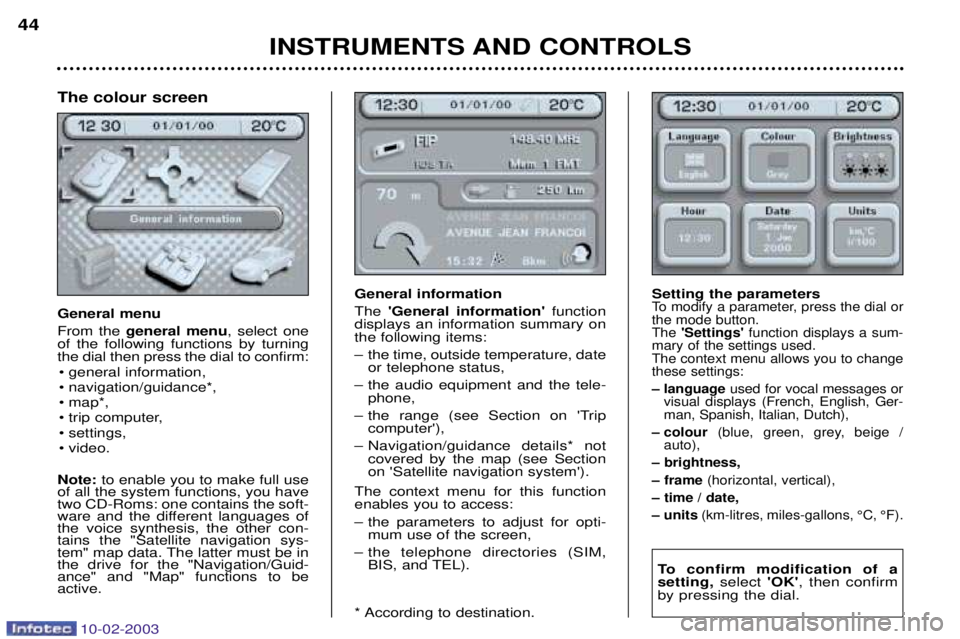
General information The
'General information' function
displays an information summary on the following items:
Ð the time, outside temperature, date or telephone status,
Ð the audio equipment and the tele- phone,
Ð the range (see Section on 'Trip computer'),
Ð Navigation/guidance details* not covered by the map (see Section on 'Satellite navigation system').
The context menu for this functionenables you to access:
Ð the parameters to adjust for opti- mum use of the screen,
Ð the telephone directories (SIM, BIS, and TEL).
* According to destination. Setting the parametersTo modify a parameter, press the dial or the mode button.The
'Settings' function displays a sum-
mary of the settings used.The context menu allows you to changethese settings:
Ð language used for vocal messages or
visual displays (French, English, Ger- man, Spanish, Italian, Dutch),
Ð colour (blue, green, grey, beige /
auto),
Ð brightness,
Ð frame (horizontal, vertical),
Ð time / date,
Ð units (km-litres, miles-gallons, ¡C, ¡F).
To confirm modification of a setting, select 'OK', then confirm
by pressing the dial.
The colour screen General menu From the general menu , select one
of the following functions by turning the dial then press the dial to confirm:
¥ general information,
¥ navigation/guidance*,
¥ map*,
¥ trip computer,
¥ settings,
¥ video.
Note: to enable you to make full use
of all the system functions, you have two CD-Roms: one contains the soft-
ware and the different languages ofthe voice synthesis, the other con-tains the "Satellite navigation sys-
tem" map data. The latter must be inthe drive for the "Navigation/Guid-ance" and "Map" functions to beactive.
Page 128 of 183
10-02-2003
121
YOUR 607 IN DETAIL
THE TRIP COMPUTER
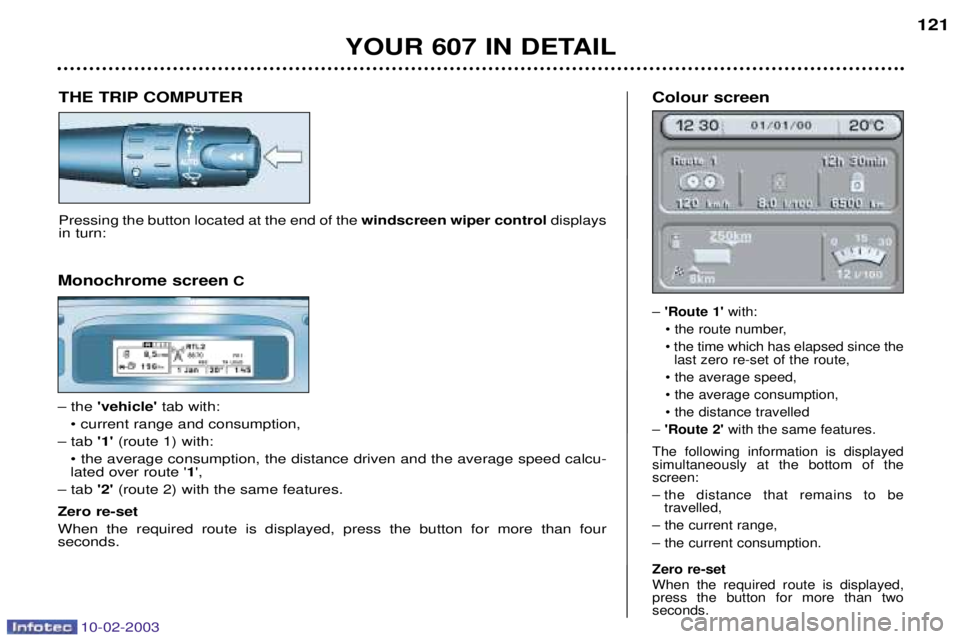
Pressing the button located at the end of the windscreen wiper controldisplays
in turn: Colour screen
Ð
'Route 1' with:
¥ the route number, ¥ the time which has elapsed since the last zero re-set of the route,
¥ the average speed, ¥ the average consumption,¥ the distance travelled
Ð 'Route 2' with the same features.
The following information is displayed simultaneously at the bottom of thescreen:
Ð the distance that remains to be travelled,
Ð the current range,Ð the current consumption. Zero re-set When the required route is displayed, press the button for more than twoseconds.
Monochrome screen C
Ð the 'vehicle' tab with:
¥ current range and consumption,
Ð tab '1' (route 1) with:
¥ the average consumption, the distance driven and the average speed calcu- lated over route ' 1',
Ð tab '2' (route 2) with the same features.
Zero re-set When the required route is displayed, press the button for more than four seconds.
Page 129 of 183
10-02-2003
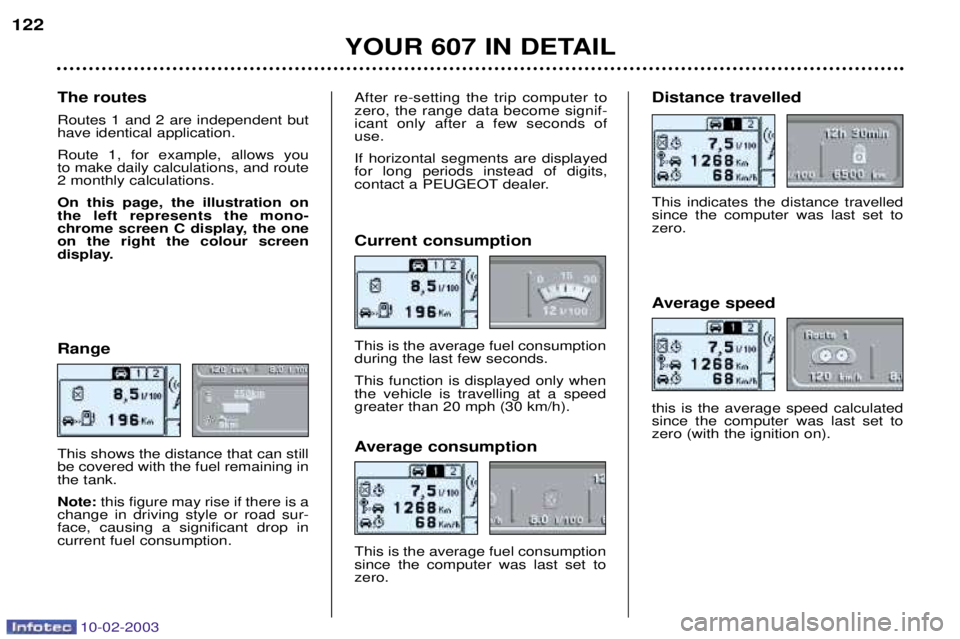
122Range This shows the distance that can still be covered with the fuel remaining inthe tank. Note: this figure may rise if there is a
change in driving style or road sur- face, causing a significant drop incurrent fuel consumption. Average consumption This is the average fuel consumption since the computer was last set tozero.Distance travelled This indicates the distance travelled since the computer was last set tozero.
YOUR 607 IN DETAIL
Current consumption This is the average fuel consumption during the last few seconds. This function is displayed only when the vehicle is travelling at a speedgreater than 20 mph (30 km/h).
Average speed this is the average speed calculated since the computer was last set tozero (with the ignition on).
The routes Routes 1 and 2 are independent but have identical application. Route 1, for example, allows you to make daily calculations, and route2 monthly calculations. On this page, the illustration on the left represents the mono-
chrome screen C display, the oneon the right the colour screen
display.
After re-setting the trip computer to zero, the range data become signif-icant only after a few seconds ofuse. If horizontal segments are displayed for long periods instead of digits,
contact a PEUGEOT dealer.
Page 130 of 183
10-02-2003
121
YOUR 607 IN DETAIL
THE TRIP COMPUTER
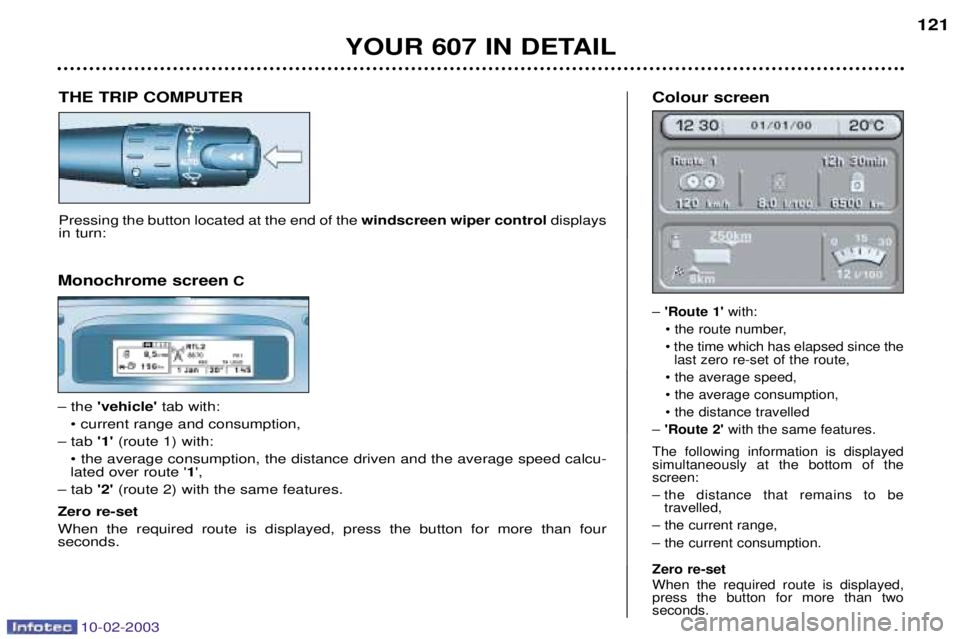
Pressing the button located at the end of the windscreen wiper controldisplays
in turn: Colour screen
Ð
'Route 1' with:
¥ the route number, ¥ the time which has elapsed since the last zero re-set of the route,
¥ the average speed, ¥ the average consumption,¥ the distance travelled
Ð 'Route 2' with the same features.
The following information is displayed simultaneously at the bottom of thescreen:
Ð the distance that remains to be travelled,
Ð the current range,Ð the current consumption. Zero re-set When the required route is displayed, press the button for more than twoseconds.
Monochrome screen C
Ð the 'vehicle' tab with:
¥ current range and consumption,
Ð tab '1' (route 1) with:
¥ the average consumption, the distance driven and the average speed calcu- lated over route ' 1',
Ð tab '2' (route 2) with the same features.
Zero re-set When the required route is displayed, press the button for more than four seconds.
Page 131 of 183
10-02-2003
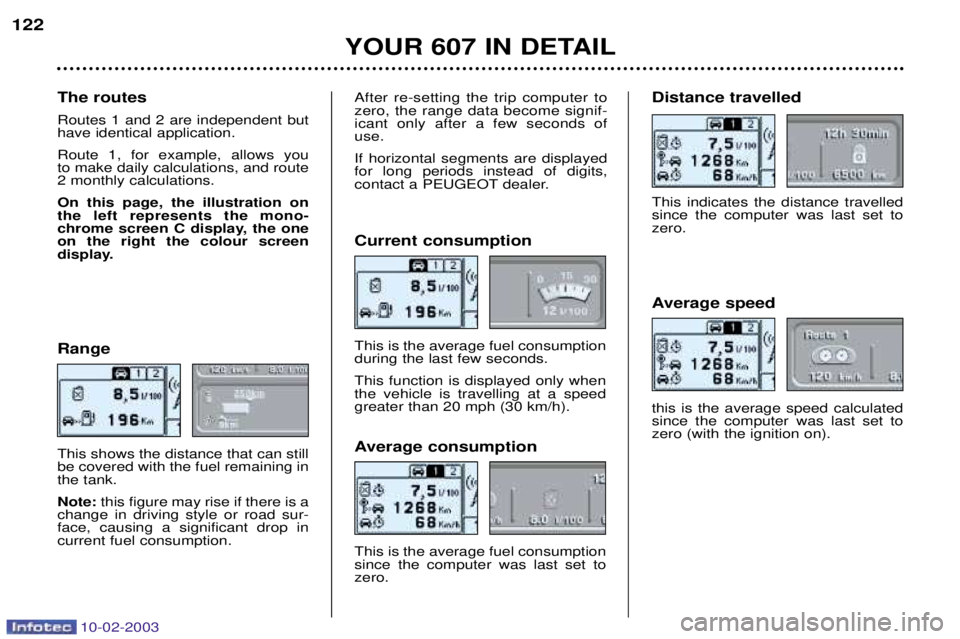
122Range This shows the distance that can still be covered with the fuel remaining inthe tank. Note: this figure may rise if there is a
change in driving style or road sur- face, causing a significant drop incurrent fuel consumption. Average consumption This is the average fuel consumption since the computer was last set tozero.Distance travelled This indicates the distance travelled since the computer was last set tozero.
YOUR 607 IN DETAIL
Current consumption This is the average fuel consumption during the last few seconds. This function is displayed only when the vehicle is travelling at a speedgreater than 20 mph (30 km/h).
Average speed this is the average speed calculated since the computer was last set tozero (with the ignition on).
The routes Routes 1 and 2 are independent but have identical application. Route 1, for example, allows you to make daily calculations, and route2 monthly calculations. On this page, the illustration on the left represents the mono-
chrome screen C display, the oneon the right the colour screen
display.
After re-setting the trip computer to zero, the range data become signif-icant only after a few seconds ofuse. If horizontal segments are displayed for long periods instead of digits,
contact a PEUGEOT dealer.
Page 132 of 183
10-02-2003
Specific features of the colour screen
'Trip computer' context menu Briefly press the 'MODE' button to
select one of the following functions:Ð Route 1,Ð Route 2,
Ð Enter the distance to the destina- tion (when guidance is not activat- ed; otherwise the information isgiven by the navigation),
Ð Change the units (¡C or ¡F, km andlitres or miles and gallons).
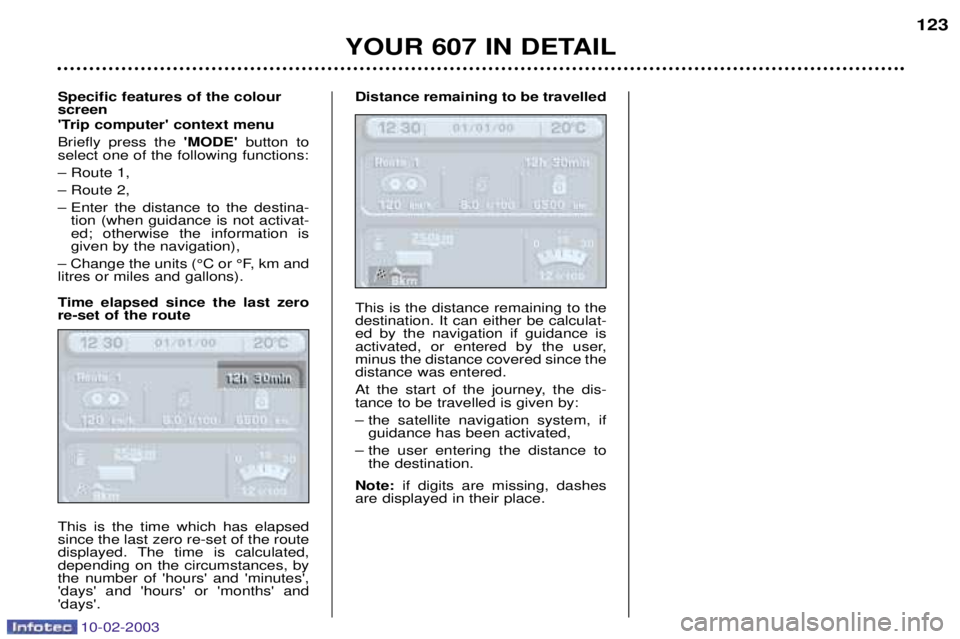
Time elapsed since the last zero re-set of the route This is the time which has elapsed since the last zero re-set of the route
displayed. The time is calculated,depending on the circumstances, bythe number of 'hours' and 'minutes','days' and 'hours' or 'months' and'days'. Distance remaining to be travelled This is the distance remaining to the destination. It can either be calculat-ed by the navigation if guidance is
activated, or entered by the user,minus the distance covered since thedistance was entered.
At the start of the journey, the dis- tance to be travelled is given by:
Ð the satellite navigation system, if
guidance has been activated,
Ð the user entering the distance to the destination.
Note: if digits are missing, dashes
are displayed in their place.
YOUR 607 IN DETAIL 123