service PEUGEOT 607 2004 User Guide
[x] Cancel search | Manufacturer: PEUGEOT, Model Year: 2004, Model line: 607, Model: PEUGEOT 607 2004Pages: 173, PDF Size: 1.99 MB
Page 56 of 173
02-02-2004
YOUR 607 IN DETAIL59
Sending a text message Note: Before typing your first message, check that your SMS service centre number is correctly stored in the sub-menu 'SMS
parameters' .
If it is not correctly stored, any message you have typed before inputting this number will be deleted and not sent.In the 'SMS' menu, confirm the 'Send new message' function with the 'OK' button.
Input your message with the alphanumerical keypad and confirm it with the 'OK' button, then enter the number of the recipient
or select it from the list and confirm with the ' OK' button.
Then confirm the 'Send message' or'Store message' function with the 'OK' button.
For sending multiple messages, the 'Store message' function allows you to re-use an existing message, to delay sending a mes-
sage, to modify a message and to send it with the 'Send the message' function.
Description of menus'PHONEBOOK'Find by name: gives you access to a stored name, a telephone number and allows you to erase information. The search
may be carried out either by scrolling through the list or by inputting the first letter of the name being searched for and confirming it. Find by address: enables you to erase information and gives you access to a stored name and number by inputting the
memory number and confirming it.New entry: this allows you to add a name and telephone number to the directory.
'SMS'Received messages: allows you to access the old messages received.
Sending a message: allows you to key in and send short messages.
Stored messages: allows you to access and send old messages.
SMS setting: allows you to allocate to a message the service centre number (supplied by the network operator), an 'E Mail,
fax or messenger' (network service) type detail, duration of validity, etc.
Page 61 of 173
02-02-2004
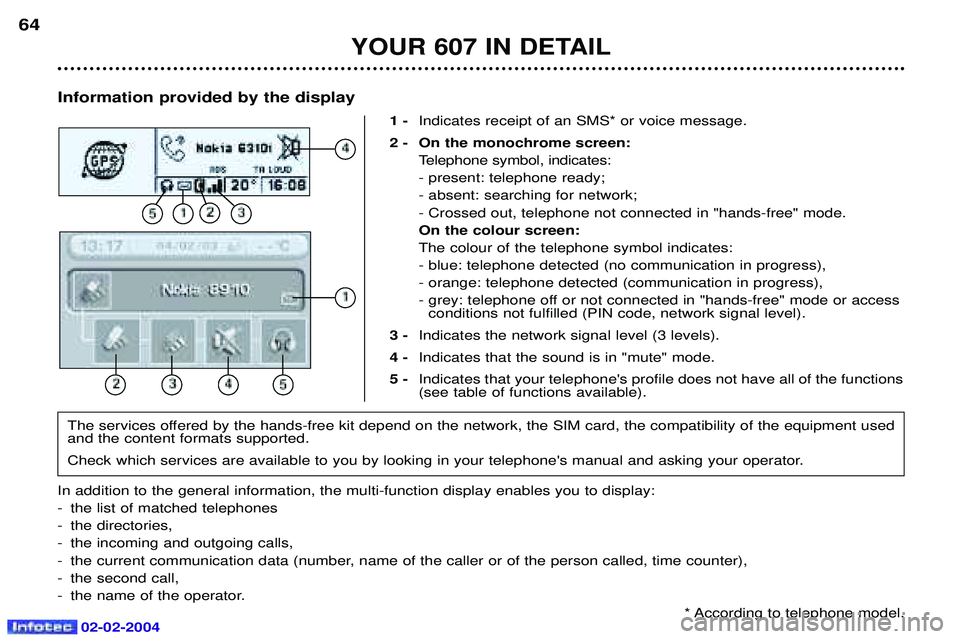
Information provided by the display1 -Indicates receipt of an SMS* or voice message.
2 - On the monochrome screen: Telephone symbol, indicates: - present: telephone ready;- absent: searching for network;- Crossed out, telephone not connected in "hands-free" mode.On the colour screen:The colour of the telephone symbol indicates:- blue: telephone detected (no communication in progress),- orange: telephone detected (communication in progress),
- grey: telephone off or not connected in "hands-free" mode or accessconditions not fulfilled (PIN code, network signal level).
3 - Indicates the network signal level (3 levels).
4 - Indicates that the sound is in "mute" mode.
5 - Indicates that your telephone's profile does not have all of the functions (see table of functions available).
YOUR 607 IN DETAIL
64
The services offered by the hands-free kit depend on the network, the SIM card, the compatibility of the equipment used and the content formats supported.
Check which services are available to you by looking in your telephone's manual and asking your operator.
In addition to the general information, the multi-function display enables you to display:
- the list of matched telephones
- the directories,
- the incoming and outgoing calls,
- the current communication data (number, name of the caller or of the person called, time counter),
- the second call,
- the name of the operator. * According to telephone model.
Page 65 of 173
02-02-2004
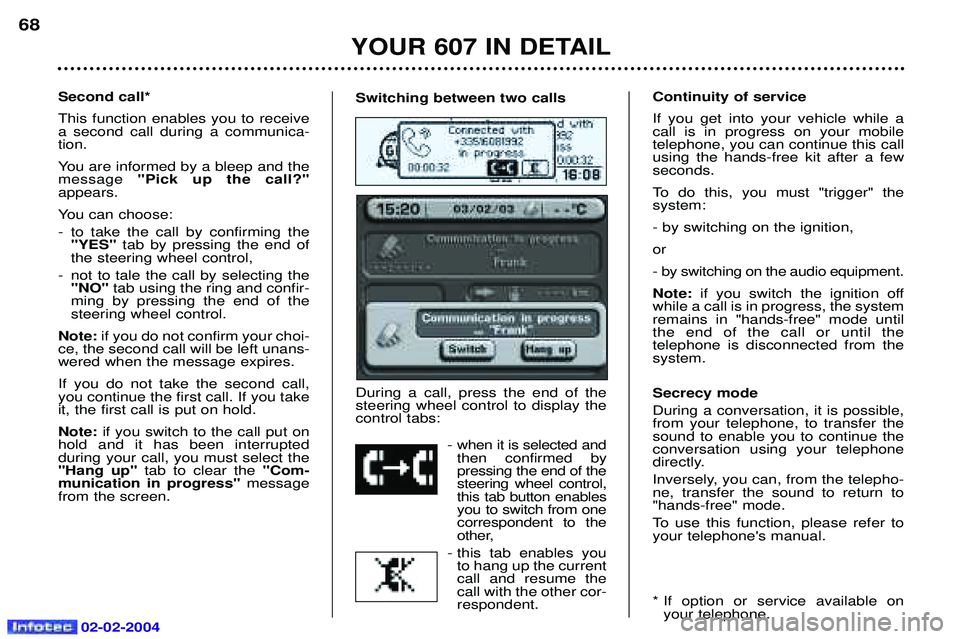
Switching between two calls During a call, press the end of the steering wheel control to display thecontrol tabs:- when it is selected andthen confirmed bypressing the end of thesteering wheel control,this tab button enablesyou to switch from onecorrespondent to the
other,
- this tab enables you to hang up the currentcall and resume thecall with the other cor-respondent.Second call* This function enables you to receive a second call during a communica-tion.
You are informed by a bleep and the message "Pick up the call?"
appears.
You can choose:
- to take the call by confirming the "YES" tab by pressing the end of
the steering wheel control,
- not to tale the call by selecting the "NO" tab using the ring and confir-
ming by pressing the end of the steering wheel control.
Note: if you do not confirm your choi-
ce, the second call will be left unans-wered when the message expires. If you do not take the second call, you continue the first call. If you takeit, the first call is put on hold. Note: if you switch to the call put on
hold and it has been interrupted during your call, you must select the"Hang up" tab to clear the "Com-
munication in progress" message
from the screen. Continuity of service If you get into your vehicle while a call is in progress on your mobiletelephone, you can continue this callusing the hands-free kit after a fewseconds.
To do this, you must "trigger" the system: - by switching on the ignition,or
- by switching on the audio equipment.Note:
if you switch the ignition off
while a call is in progress, the system remains in "hands-free" mode untilthe end of the call or until the telephone is disconnected from thesystem. Secrecy mode During a conversation, it is possible, from your telephone, to transfer thesound to enable you to continue theconversation using your telephone
directly.
Inversely, you can, from the telepho- ne, transfer the sound to return to"hands-free" mode.
To use this function, please refer to your telephone's manual.
* If option or service available on your telephone.
YOUR 607 IN DETAIL
68
Page 66 of 173
02-02-2004
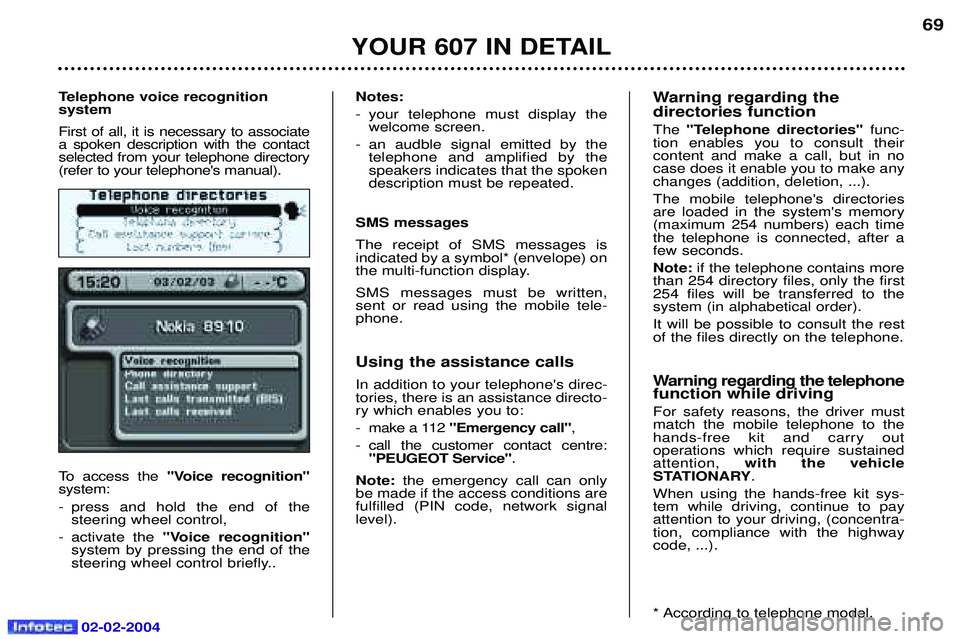
Telephone voice recognition system First of all, it is necessary to associate a spoken description with the contactselected from your telephone directory(refer to your telephone's manual).
To access the "Voice recognition"
system:
- press and hold the end of the steering wheel control,
- activate the "Voice recognition"
system by pressing the end of the
steering wheel control briefly.. Notes:
- your telephone must display the
welcome screen.
- an audble signal emitted by the telephone and amplified by the speakers indicates that the spokendescription must be repeated.
SMS messages The receipt of SMS messages is indicated by a symbol* (envelope) on
the multi-function display. SMS messages must be written, sent or read using the mobile tele-phone.
Using the assistance calls In addition to your telephone's direc- tories, there is an assistance directo-ry which enables you to:
- make a 112 "Emergency call" ,
- call the customer contact centre: "PEUGEOT Service" .
Note: the emergency call can only
be made if the access conditions are fulfilled (PIN code, network signallevel). Warning regarding the directories function The
"Telephone directories" func-
tion enables you to consult their content and make a call, but in nocase does it enable you to make anychanges (addition, deletion, ...). The mobile telephone's directories are loaded in the system's memory(maximum 254 numbers) each timethe telephone is connected, after afew seconds. Note: if the telephone contains more
than 254 directory files, only the first 254 files will be transferred to thesystem (in alphabetical order). It will be possible to consult the rest of the files directly on the telephone.
Warning regarding the telephone function while driving For safety reasons, the driver must match the mobile telephone to thehands-free kit and carry out operations which require sustainedattention, with the vehicle
STATIONARY .
When using the hands-free kit sys-tem while driving, continue to payattention to your driving, (concentra-tion, compliance with the highwaycode, ...).
* According to telephone model.
YOUR 607 IN DETAIL
69
Page 67 of 173
02-02-2004
YOUR 607 IN DETAIL
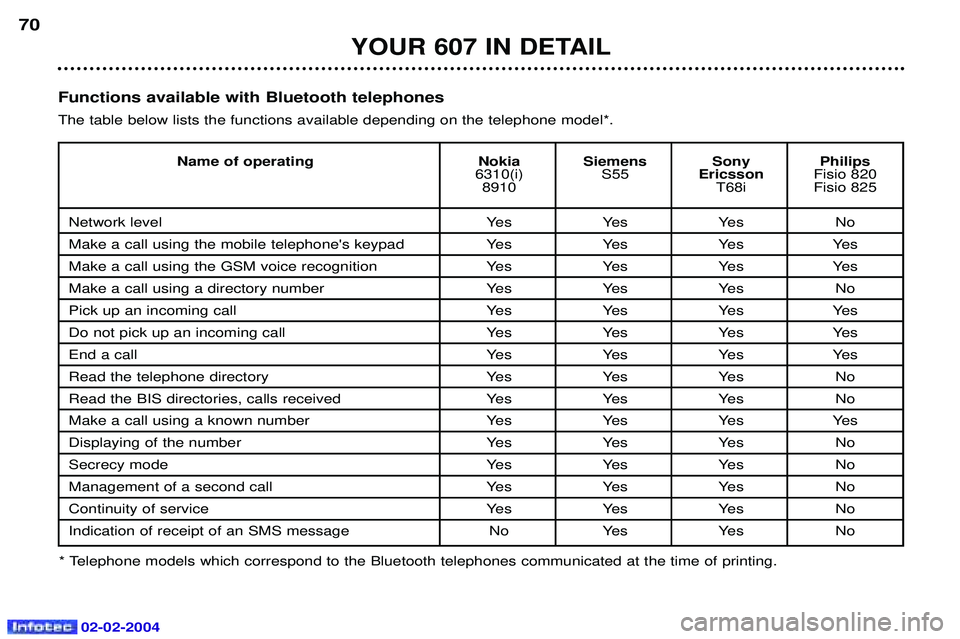
70Functions available with Bluetooth telephones The table below lists the functions available depending on the telephone model*.
* Telephone models which correspond to the Bluetooth telephones communicated at the time of printing. Name of operating Nokia Siemens Sony Philips
6310(i) S55EricssonFisio 820
8910 T68i Fisio 825
Network level Yes Yes Yes No
Make a call using the mobile telephone's keypad Yes Yes Yes Yes
Make a call using the GSM voice recognition Yes Yes Yes Yes
Make a call using a directory number Yes Yes Yes No
Pick up an incoming call Yes Yes Yes Yes
Do not pick up an incoming call Yes Yes Yes Yes
End a callYes Yes Yes Yes
Read the telephone directory Yes Yes Yes No
Read the BIS directories, calls received Yes Yes Yes No
Make a call using a known number Yes Yes Yes Yes
Displaying of the number Yes Yes Yes No
Secrecy modeYes Yes Yes No
Management of a second call Yes Yes Yes No
Continuity of service Yes Yes Yes No
Indication of receipt of an SMS message No Yes Yes No
Page 68 of 173
02-02-2004
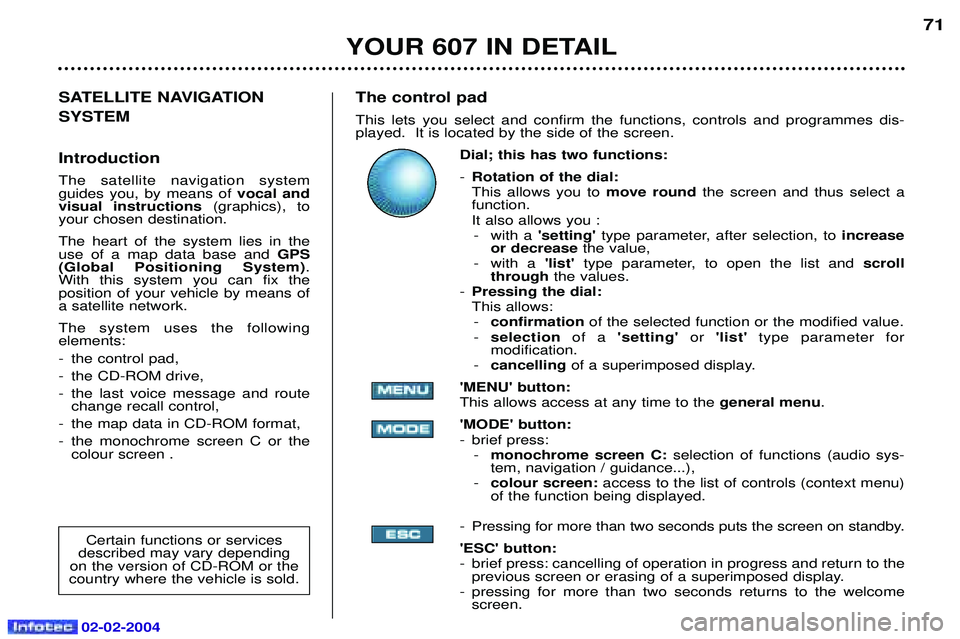
The control pad This lets you select and confirm the functions, controls and programmes dis- played. It is located by the side of the screen.Dial; this has two functions: -Rotation of the dial: This allows you to move roundthe screen and thus select a
function.
It also allows you : - with a 'setting'type parameter, after selection, to increase
or decrease the value,
- with a 'list' type parameter, to open the list and scroll
through the values.
- Pressing the dial:This allows:
- confirmation of the selected function or the modified value.
- selection of a 'setting' or'list' type parameter for
modification.
- cancelling of a superimposed display.
'MENU' button:This allows access at any time to the general menu.
'MODE' button:
- brief press: - monochrome screen C: selection of functions (audio sys-
tem, navigation / guidance...),
- colour screen: access to the list of controls (context menu)
of the function being displayed.
- Pressing for more than two seconds puts the screen on standby. 'ESC' button:
- brief press: cancelling of operation in progress and return to the previous screen or erasing of a superimposed display.
- pressing for more than two seconds returns to the welcome screen. 71
SATELLITE NAVIGATION SYSTEM Introduction The satellite navigation system guides you, by means of vocal and
visual instructions (graphics), to
your chosen destination. The heart of the system lies in the use of a map data base and GPS
(Global Positioning System) .
With this system you can fix the position of your vehicle by means ofa satellite network. The system uses the following elements:
- the control pad,
- the CD-ROM drive,
- the last voice message and route change recall control,
- the map data in CD-ROM format,
- the monochrome screen C or the colour screen .
Certain functions or services
described may vary depending
on the version of CD-ROM or the
country where the vehicle is sold.
YOUR 607 IN DETAIL
Page 71 of 173
02-02-2004
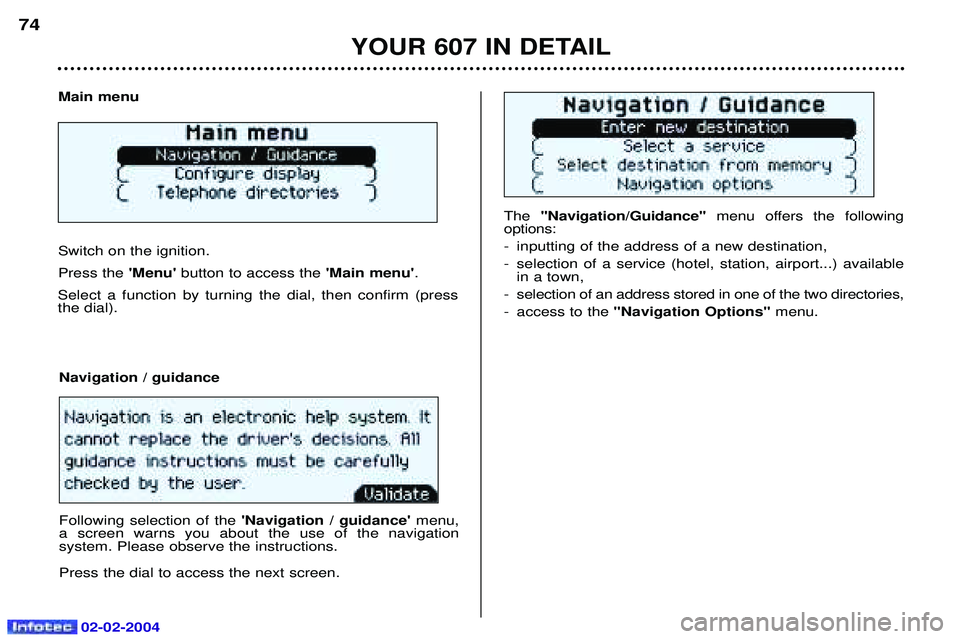
The ''Navigation/Guidance'' menu offers the following
options:
- inputting of the address of a new destination,
- selection of a service (hotel, station, airport...) available in a town,
- selection of an address stored in one of the two directories,
- access to the "Navigation Options" menu.
Main menu Switch on the ignition. Press the
'Menu' button to access the 'Main menu'.
Select a function by turning the dial, then confirm (press the dial).
Navigation / guidance Following selection of the 'Navigation / guidance' menu,
a screen warns you about the use of the navigation system. Please observe the instructions. Press the dial to access the next screen.
YOUR 607 IN DETAIL
74
Page 74 of 173
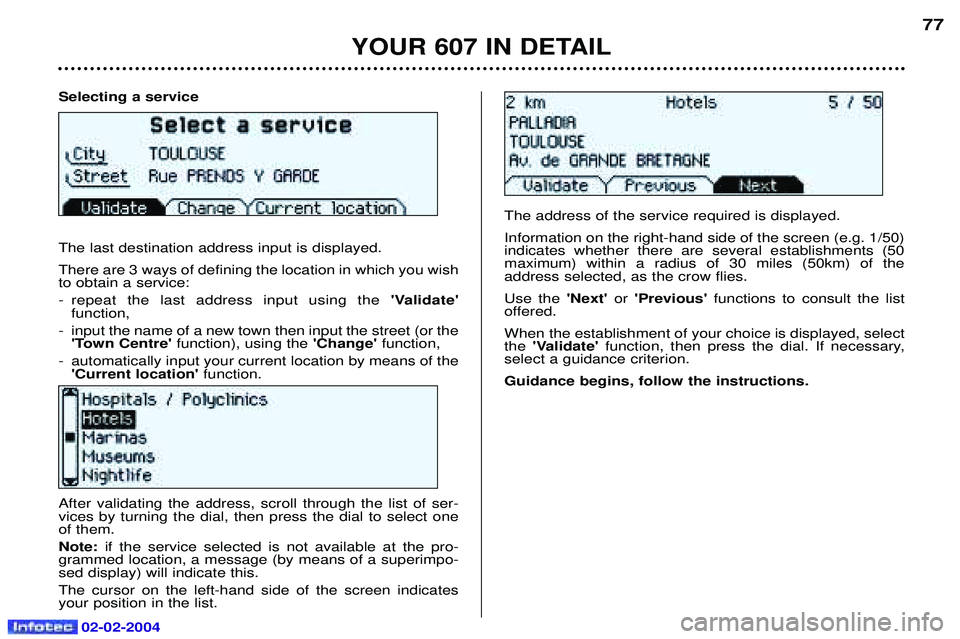
Selecting a service The last destination address input is displayed. There are 3 ways of defining the location in which you wish to obtain a service:
- repeat the last address input using the'Validate'
function,
- input the name of a new town then input the street (or the 'Town Centre' function), using the 'Change' function,
- automatically input your current location by means of the 'Current location' function.
YOUR 607 IN DETAIL
77
After validating the address, scroll through the list of ser- vices by turning the dial, then press the dial to select oneof them. Note: if the service selected is not available at the pro-
grammed location, a message (by means of a superimpo- sed display) will indicate this. The cursor on the left-hand side of the screen indicates your position in the list. The address of the service required is displayed. Information on the right-hand side of the screen (e.g. 1/50) indicates whether there are several establishments (50maximum) within a radius of 30 miles (50km) of theaddress selected, as the crow flies. Use the
'Next'or'Previous' functions to consult the list
offered.When the establishment of your choice is displayed, select the 'Validate' function, then press the dial. If necessary,
select a guidance criterion. Guidance begins, follow the instructions.
02-02-2004
Page 79 of 173
02-02-2004
Access a list by selecting the "List"
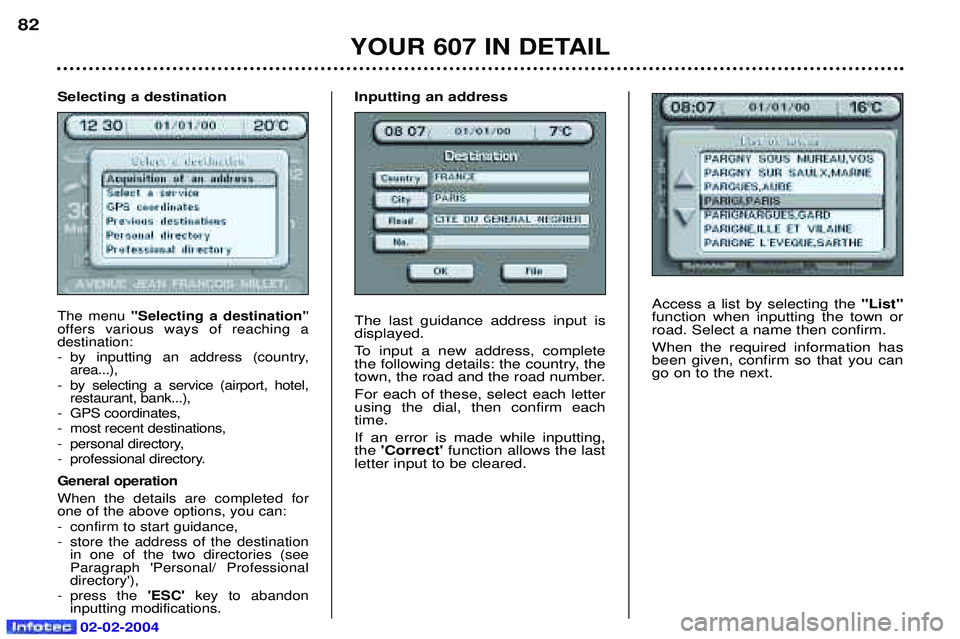
function when inputting the town or road. Select a name then confirm. When the required information has been given, confirm so that you cango on to the next.
YOUR 607 IN DETAIL
82
Selecting a destination
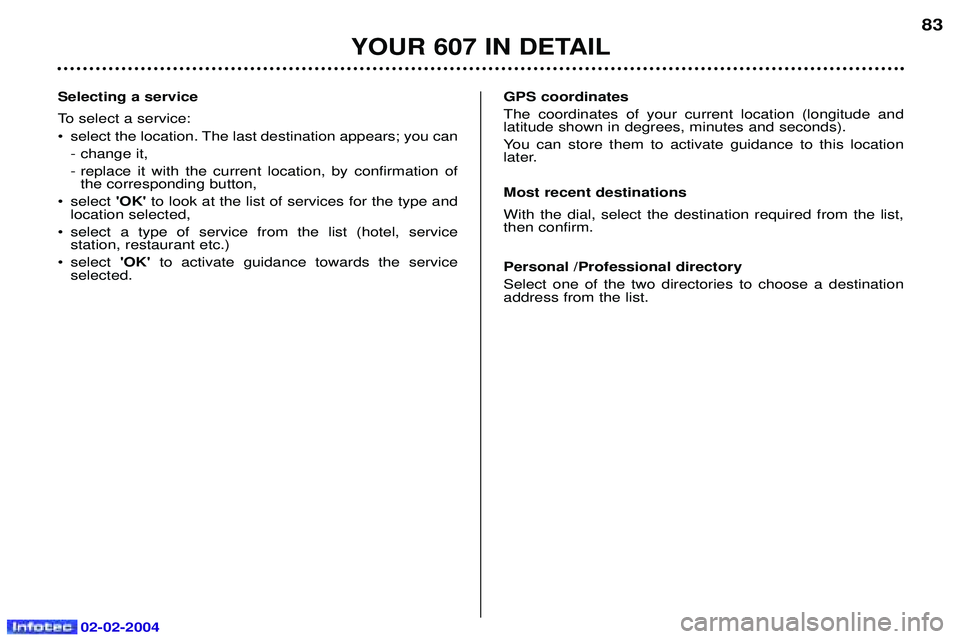
The menu ''Selecting a destination' '
offers various ways of reaching a destination:
- by inputting an address (country, area...),
- by selecting a service (airport, hotel, restaurant, bank...),
- GPS coordinates,
- most recent destinations,
- personal directory,
- professional directory. General operation When the details are completed for one of the above options, you can:
- confirm to start guidance,
- store the address of the destination in one of the two directories (see Paragraph 'Personal/ Professionaldirectory'),
- press the 'ESC' key to abandon
inputting modifications.
Inputting an address The last guidance address input is displayed.
To input a new address, complete
the following details: the country, the
town, the road and the road number. For each of these, select each letter using the dial, then confirm eachtime. If an error is made while inputting, the 'Correct' function allows the last
letter input to be cleared.
Page 80 of 173
02-02-2004
YOUR 607 IN DETAIL
83
Selecting a service
To select a service:
¥ select the location. The last destination appears; you can - change it,
- replace it with the current location, by confirmation ofthe corresponding button,
¥ select 'OK'to look at the list of services for the type and
location selected,
¥ select a type of service from the list (hotel, service station, restaurant etc.)
¥ select 'OK'to activate guidance towards the service
selected. GPS coordinatesThe coordinates of your current location (longitude and latitude shown in degrees, minutes and seconds).
You can store them to activate guidance to this location
later. Most recent destinations With the dial, select the destination required from the list, then confirm. Personal /Professional directory Select one of the two directories to choose a destination address from the list.