phone PEUGEOT 607 2004 Owners Manual
[x] Cancel search | Manufacturer: PEUGEOT, Model Year: 2004, Model line: 607, Model: PEUGEOT 607 2004Pages: 173, PDF Size: 1.99 MB
Page 2 of 173
02-02-2004
3YOUR AT A GLANCE
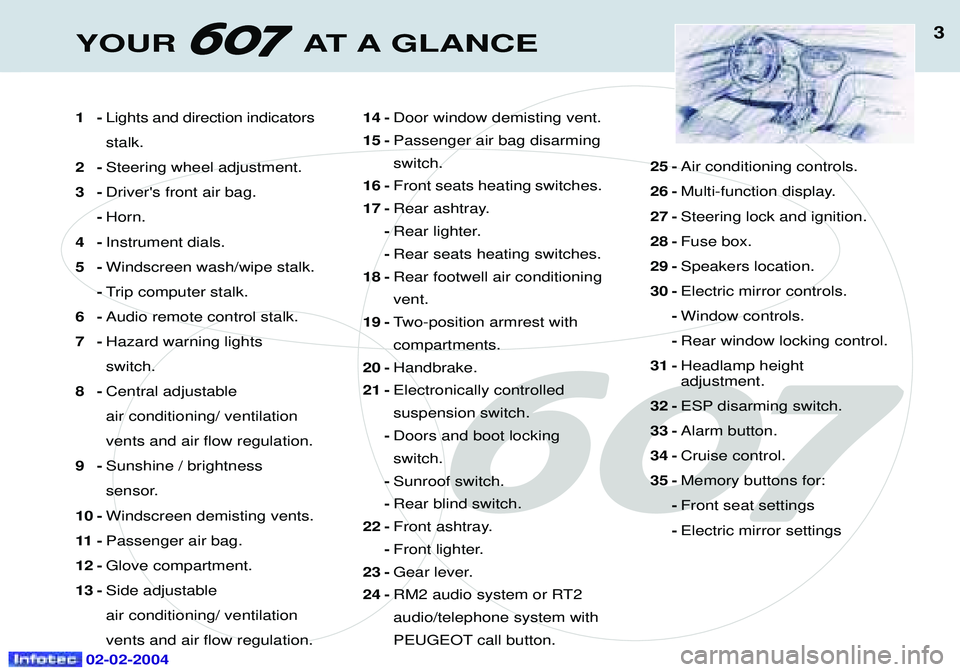
1-Lights and direction indicators stalk.
2- Steering wheel adjustment.
3 - Driver's front air bag.
- Horn.
4- Instrument dials.
5- Windscreen wash/wipe stalk.
- Trip computer stalk.
6- Audio remote control stalk.
7- Hazard warning lightsswitch.
8- Central adjustable air conditioning/ ventilationvents and air flow regulation.
9- Sunshine / brightness
sensor.
10 - Windscreen demisting vents.
11 - Passenger air bag.
12 - Glove compartment.
13 - Side adjustable air conditioning/ ventilationvents and air flow regulation. 14 -
Door window demisting vent.
15 - Passenger air bag disarming switch.
16 - Front seats heating switches.
17 - Rear ashtray.
- Rear lighter.
- Rear seats heating switches.
18 - Rear footwell air conditioningvent.
19 - Two-position armrest with compartments.
20 - Handbrake.
21 - Electronically controlled suspension switch.
- Doors and boot lockingswitch.
- Sunroof switch.
- Rear blind switch.
22 - Front ashtray.
- Front lighter.
23 - Gear lever.
24 - RM2 audio system or RT2audio/telephone system with
PEUGEOT call button. 25 -
Air conditioning controls.
26 - Multi-function display.
27 - Steering lock and ignition.
28 - Fuse box.
29 - Speakers location.
30 - Electric mirror controls.
- Window controls.
- Rear window locking control.
31 - Headlamp height adjustment.
32 - ESP disarming switch.
33 - Alarm button.
34 - Cruise control.
35 - Memory buttons for:
- Front seat settings
- Electric mirror settings
Page 13 of 173
13YOUR AT A GLANCE
02-02-2004
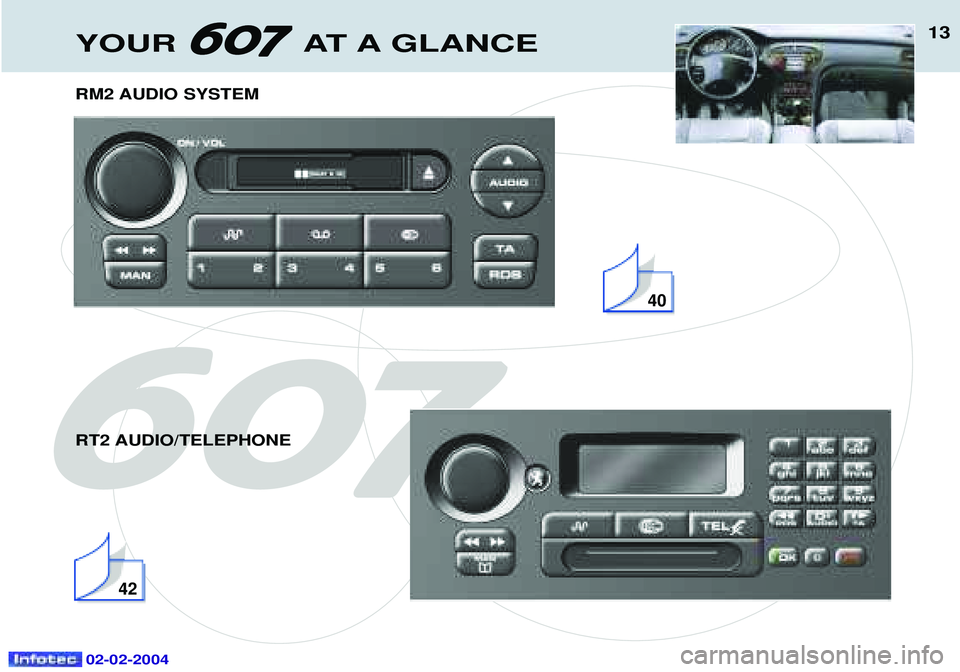
RM2 AUDIO SYSTEM RT2 AUDIO/TELEPHONE
40
42
Page 29 of 173
YOUR 607 IN DETAIL
34
THE MULTI-FUNCTION DISPLAY General The multifunction, monochrome C or colour display shows the following:
- the time,
- the date,
- the outside temperature (symbol¡C flashes if there is a risk of ice),
- the audio system displays,
- the telephone displays,
- the name of the road along which the vehicle is travelling (permanent locating),
- status of the openings,
- warning messages (e.g. 'Fuel level low') and vehicle function status
messages, displayed temporarily,
- trip computer display (see corresponding section),
- satellite navigation system displays* (see corresponding section),
- video images. It is controlled by a keypad. Superimposed display When the status of a function (audio
system, telephone, trip computer,satellite navigation system,....)changes while the display has been
showing a different function, a window opens to announce themodification (information / warningmessage), then disappears.
* According to country The control pad This enables the functions, controls and parameters displayed to be selected
and validated. It is located next to the display.
Dial; this has two functions: -Rotation of the dial:
This allows you to move aroundthe screen and thus select a
function.
It also allows you :
- after selection of a 'setting'type parameter, to increase or
decrease the value,
- with a 'list'type parameter, to open the list and scroll through
the values.
- Pressing the dial:This allows:- confirmation of the selected function or the modified value.
- selection of a 'setting' or'list' type parameter in order to
modify it.
- cancelling of a superimposed display.
'MENU' button:This allows access at any time to the general menu.
'MODE' button:
- brief press: - monochrome screen C: selection of functions (audio system,
navigation / guidance...),
- colour screen: access to the list of controls (context menu) of
the function being displayed.
- Press for more than two seconds: putting the screen on standby. 'ESC' button:
- brief press: cancelling of the operation in progress and a return to the previous screen or erasing of a superimposed display.
- press for more than two seconds: return to the start-up screen.
02-02-2004
Page 30 of 173
YOUR 607 IN DETAIL35
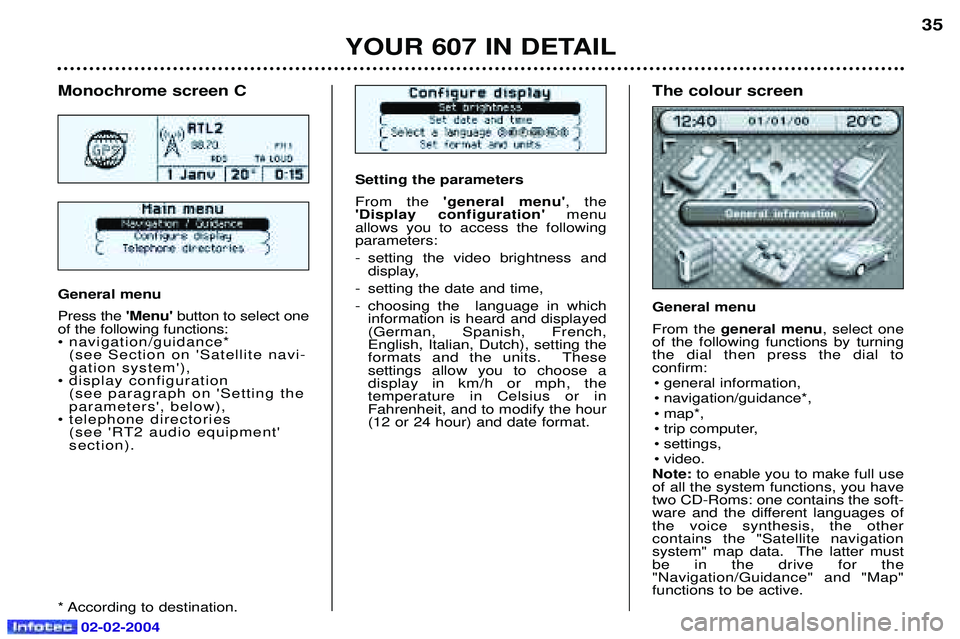
Setting the parameters From the
'general menu' , the
'Display configuration' menu
allows you to access the following parameters:
- setting the video brightness and display,
- setting the date and time,
- choosing the language in which information is heard and displayed (German, Spanish, French, English, Italian, Dutch), setting the
formats and the units. These settings allow you to choose a display in km/h or mph, the temperature in Celsius or in Fahrenheit, and to modify the hour(12 or 24 hour) and date format.
Monochrome screen C General menu Press the 'Menu' button to select one
of the following functions:
¥ navigation/guidance* (see Section on 'Satellite navi-gation system'),
¥ display configuration (see paragraph on 'Setting theparameters', below),
¥ telephone directories (see 'RT2 audio equipment'section).
* According to destination. The colour screen General menu From the general menu , select one
of the following functions by turning the dial then press the dial toconfirm:
¥ general information,
¥ navigation/guidance*,
¥ map*,
¥ trip computer,
¥ settings,
¥ video.
Note: to enable you to make full use
of all the system functions, you have two CD-Roms: one contains the soft-
ware and the different languages ofthe voice synthesis, the othercontains the "Satellite navigation
system" map data. The latter mustbe in the drive for the"Navigation/Guidance" and "Map"functions to be active.
02-02-2004
Page 31 of 173
YOUR 607 IN DETAIL35
Setting the parameters From the
'general menu' , the
'Display configuration' menu
allows you to access the following parameters:
- setting the video brightness and display,
- setting the date and time,
- choosing the language in which information is heard and displayed (German, Spanish, French, English, Italian, Dutch), setting the
formats and the units. These settings allow you to choose a display in km/h or mph, the temperature in Celsius or in Fahrenheit, and to modify the hour(12 or 24 hour) and date format.
Monochrome screen C General menu Press the 'Menu' button to select one
of the following functions:
¥ navigation/guidance* (see Section on 'Satellite navi-gation system'),
¥ display configuration (see paragraph on 'Setting theparameters', below),
¥ telephone directories (see 'RT2 audio equipment'section).
* According to destination. The colour screen General menu From the general menu , select one
of the following functions by turning the dial then press the dial toconfirm:
¥ general information,
¥ navigation/guidance*,
¥ map*,
¥ trip computer,
¥ settings,
¥ video.
Note: to enable you to make full use
of all the system functions, you have two CD-Roms: one contains the soft-
ware and the different languages ofthe voice synthesis, the othercontains the "Satellite navigation
system" map data. The latter mustbe in the drive for the"Navigation/Guidance" and "Map"functions to be active.
02-02-2004
Page 32 of 173
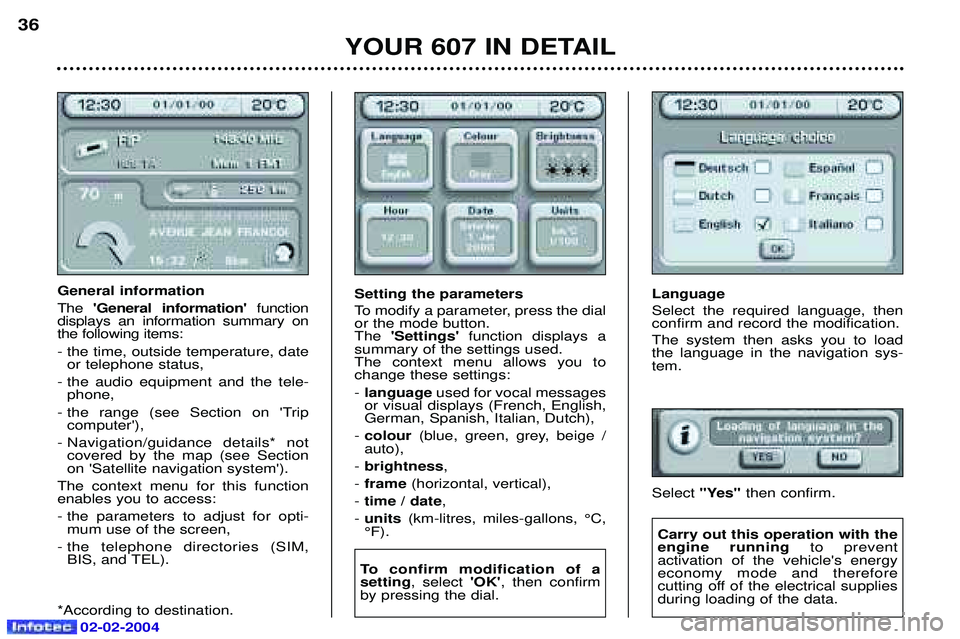
Language Select the required language, then confirm and record the modification. The system then asks you to load the language in the navigation sys-tem. Select "Yes" then confirm.
YOUR 607 IN DETAIL
36
General information The
'General information' function
displays an information summary on the following items: - the time, outside temperature, date or telephone status,
- the audio equipment and the tele- phone,
- the range (see Section on 'Trip computer'),
- Navigation/guidance details* not covered by the map (see Section on 'Satellite navigation system').
The context menu for this functionenables you to access:
- the parameters to adjust for opti- mum use of the screen,
- the telephone directories (SIM, BIS, and TEL).
*According to destination. Setting the parameters
To modify a parameter, press the dial or the mode button.The
'Settings' function displays a
summary of the settings used.The context menu allows you tochange these settings: - language used for vocal messages
or visual displays (French, English, German, Spanish, Italian, Dutch),
- colour (blue, green, grey, beige /
auto),
- brightness ,
- frame (horizontal, vertical),
- time / date ,
- units (km-litres, miles-gallons, ¡C,
¡F).
To confirm modification of a setting , select 'OK', then confirm
by pressing the dial.
Carry out this operation with the engine running to prevent
activation of the vehicle's energyeconomy mode and therefore
cutting off of the electrical suppliesduring loading of the data.
02-02-2004
Page 49 of 173
02-02-2004
42
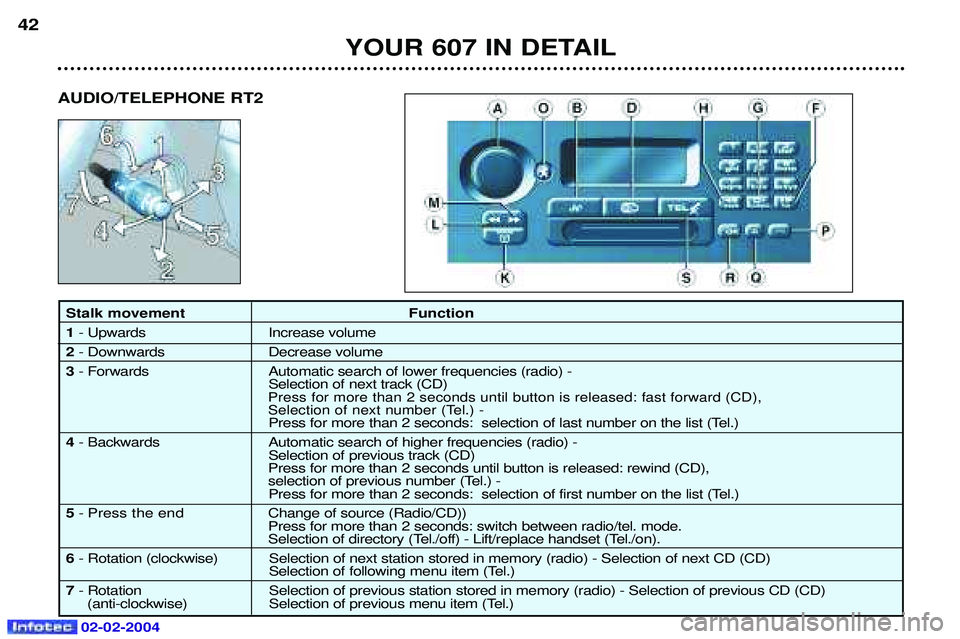
Stalk movement Function 1- Upwards Increase volume
2 - Downwards Decrease volume
3 - Forwards Automatic search of lower frequencies (radio) -
Selection of next track (CD)
Press for more than 2 seconds until button is released: fast forward (CD),
Selection of next number (Tel.) -
Press for more than 2 seconds: selection of last number on the list (Tel.)
4 - Backwards Automatic search of higher frequencies (radio) -
Selection of previous track (CD)
Press for more than 2 seconds until button is released: rewind (CD),
selection of previous number (Tel.) - Press for more than 2 seconds: selection of first number on the list (Tel.)
5 - Press the end C hange of source (Radio/CD))
Press for more than 2 seconds: switch between radio/tel. mode.
Selection of directory (Tel./off) - Lift/replace handset (Tel./on).
6 - Rotation (clockwise) Selection of next station stored in memory (radio) - Selection of next CD (CD)
Selection of following menu item (Tel.)
7 - Rotation Selection of previous station stored in memory (radio) - Selection of previous CD (CD)
(anti-clockwise) Selection of previous menu item (Tel.) YOUR 607 IN DETAIL
AUDIO/TELEPHONE RT2
Page 50 of 173
02-02-2004
ButtonFunction
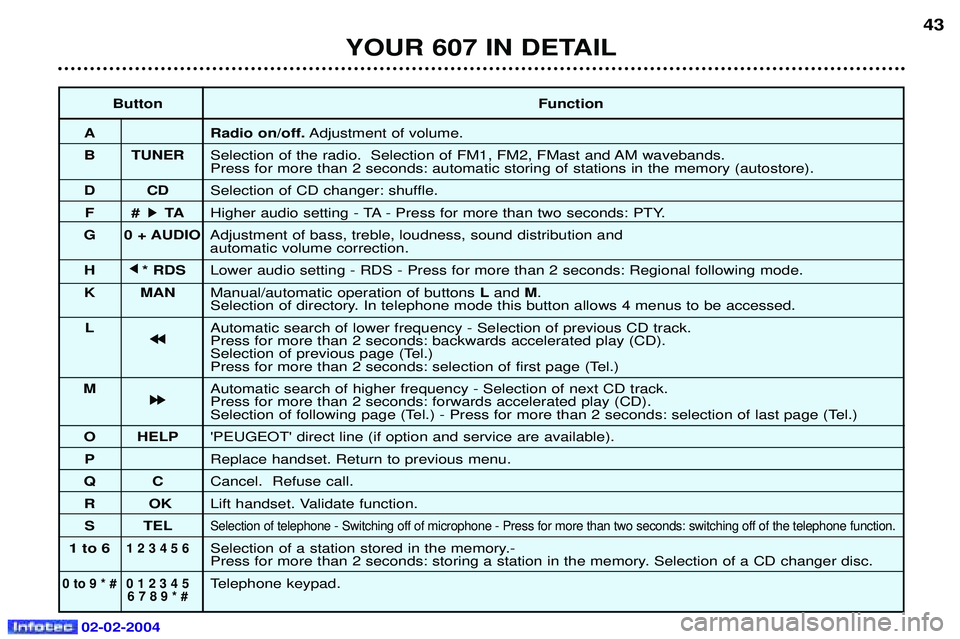
A Radio on/off. Adjustment of volume.
B TUNER Selection of the radio. Selection of FM1, FM2, FMast and AM wavebands. Press for more than 2 seconds: automatic storing of stations in the memory (autostore).
DC DSelection of CD changer: shuffle.
F# k
k TA
Higher audio setting - TA - Press for more than two seconds: PTY.
G 0 + AUDIO Adjustment of bass, treble, loudness, sound distribution and automatic volume correction.
H j
j
* RDS Lower audio setting - RDS - Press for more than 2 seconds: Regional following mode.
K MAN Manual/automatic operation of buttons Land M.
Selection of directory. In telephone mode this button allows 4 menus to be accessed.
L Automatic search of lower frequency - Selection of previous CD track.
j
j j
j
Press for more than 2 seconds: backwards accelerated play (CD).
Selection of previous page (Tel.)
Press for more than 2 seconds: selection of first page (Tel.)
M Automatic search of higher frequency - Selection of next CD track.
k
k k
k
Press for more than 2 seconds: forwards accelerated play (CD).
Selection of following page (Tel.) - Press for more than 2 seconds: selection of last page (Tel.)
O HELP 'PEUGEOT' direct line (if option and service are available).
P Replace handset. Return to previous menu.
QC Cancel. Refuse call.
RO KLift handset. Validate function.
S TEL
Selection of telephone - Switching off of microphone - Press for more than two seconds: switching off of the telephone function .
1 to 61 2 3 4 5 6Selection of a station stored in the memory.-
Press for more than 2 seconds: storing a station in the memory. Selection of a CD changer disc.
0 to 9 * # 0 1 2 3 4 5Telephone keypad.6 7 8 9 * #
43
YOUR 607 IN DETAIL
Page 51 of 173
02-02-2004
TELEPHONE: Audio/Telephone RT2 This function is a GSM 900 MHZ telephone incorporated in the audio system. It possesses a'hands free'function, provided by a microphone located in the front courtesy light and a steering column
remote control which allows access to most of the functions.It also possesses a 'confidential'function, provided by the instrument panel located in the upper casing of the centre front
armrest. Note: An echo may be heard for a few seconds at the beginning of the call.
The principal 'mobile'type functions are shown on the display incorporated in the audio system; the menu lists can be referr-
red to on the multi-function display.This function is active when the ignition key is in the accessories position (1st notch), the ignition is switched on (2nd
notch), the engine is running or the vehicle is being driven.Note: when the ignition key is in the accessories position (1st notch) or the ignition is switched on (2nd notch), this function
will be interrupted after thirty minutes, when the message 'Economy mode active' appears on the multi-function display. If
you are using the telephone at that time, you will be able to finish your call.
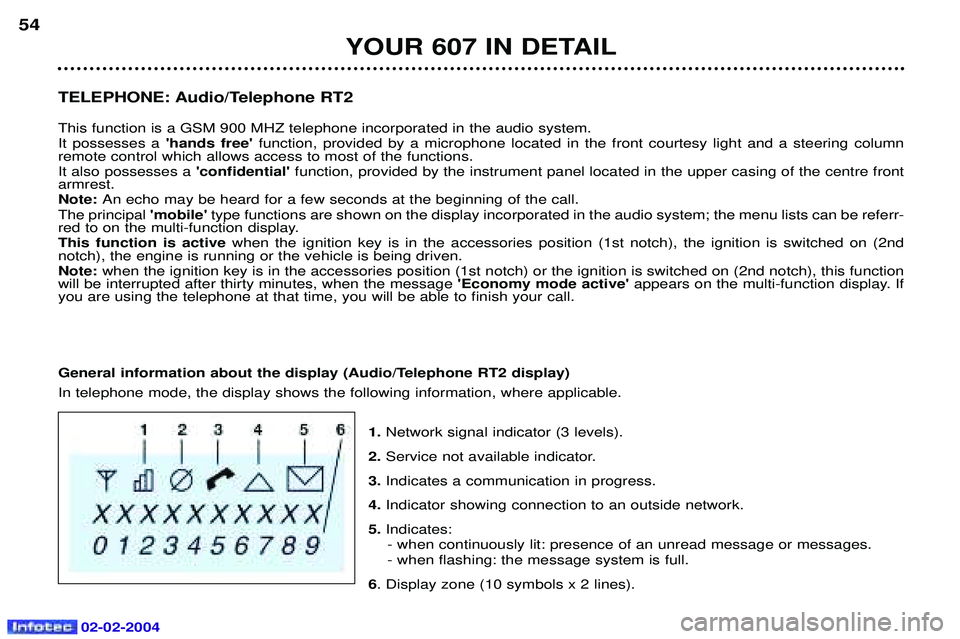
General information about the display (Audio/Telephone RT2 display) In telephone mode, the display shows the following information, where applicable.
1.Network signal indicator (3 levels).
2. Service not available indicator.
3. Indicates a communication in progress.
4. Indicator showing connection to an outside network.
5. Indicates:
- when continuously lit: presence of an unread message or messages. - when flashing: the message system is full.
6 . Display zone (10 symbols x 2 lines).
YOUR 607 IN DETAIL
54
Page 52 of 173
02-02-2004
Selecting telephone mode / Entering a number / Switching off the microphoneTo change to telephone mode, press the 'TEL'button or for more than 2 seconds on the steering column
remote control. Insert your bank card format SIM card fully into the slot at the front (use the 2nd generation SIM card only).
Note: the SIM card must not be taken out while the audio/telephone system is still in use. If you forget this, an audible signal
will sound for a few seconds after the ignition is switched off.
Enter your PIN number and confirm with the 'OK' button in order to access the network. The welcome screen is
displayed.Note: the PIN code is erased each time the ignition is switched off, but the ''PIN code protection'' function may be
cancelled.
Enter the number of the person you wish to speak to on the digital keypad and press the 'OK' button to make the call.
To switch off the microphone mid-communication, press the 'TEL' button.
Cancelling the PIN code request
To cancel the PIN code request, select 'PIN code protection' in the 'Telephone parameters' menu and confirm; select 'OFF' and confirm, then input your PIN code and confirm. Receiving / Ending a call When a ringing sounds to let you know that a call is waiting, you can choose either to accept it by pressing the 'OK' button or not to accept it by pressing button Por by selecting 'Refuse call'using the steering
column remote control, pressing the end to confirm. If you do not accept it, the call is diverted to your voice mail (if this service is available and active).
To end the call, press button Por the end of the steering wheel remote control.
Note: Not accepting or ending a call by means of the steering wheel control returns the system to radio mode.
Receiving two incoming calls
During a call, when there is another incoming call, you are informed of this by a ring and a message. You may choose:
- to accept the call by pressing button 2then "OK" ; the first caller is put on hold and you are in contact with the second.
However, pressing button 2again allows you to return to the first caller,
- to finish the call you are on and talk to the second caller by pressing button 1then "OK" ,
- not to accept the new call by pressing button "C".
YOUR 607 IN DETAIL 55