sat nav PEUGEOT 607 2004 Owners Manual
[x] Cancel search | Manufacturer: PEUGEOT, Model Year: 2004, Model line: 607, Model: PEUGEOT 607 2004Pages: 173, PDF Size: 1.99 MB
Page 29 of 173
YOUR 607 IN DETAIL
34
THE MULTI-FUNCTION DISPLAY General The multifunction, monochrome C or colour display shows the following:
- the time,
- the date,
- the outside temperature (symbol¡C flashes if there is a risk of ice),
- the audio system displays,
- the telephone displays,
- the name of the road along which the vehicle is travelling (permanent locating),
- status of the openings,
- warning messages (e.g. 'Fuel level low') and vehicle function status
messages, displayed temporarily,
- trip computer display (see corresponding section),
- satellite navigation system displays* (see corresponding section),
- video images. It is controlled by a keypad. Superimposed display When the status of a function (audio
system, telephone, trip computer,satellite navigation system,....)changes while the display has been
showing a different function, a window opens to announce themodification (information / warningmessage), then disappears.
* According to country The control pad This enables the functions, controls and parameters displayed to be selected
and validated. It is located next to the display.
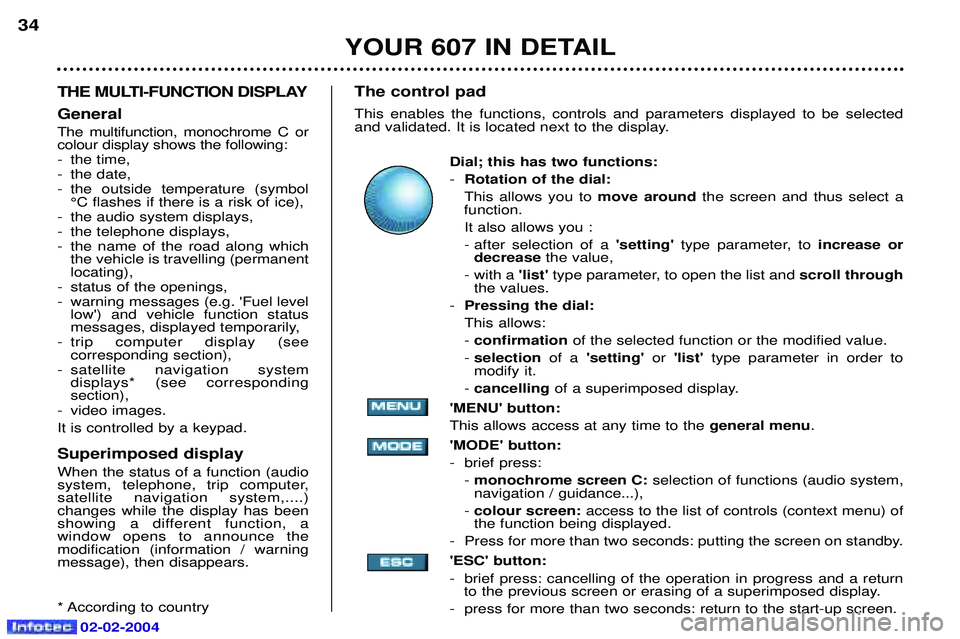
Dial; this has two functions: -Rotation of the dial:
This allows you to move aroundthe screen and thus select a
function.
It also allows you :
- after selection of a 'setting'type parameter, to increase or
decrease the value,
- with a 'list'type parameter, to open the list and scroll through
the values.
- Pressing the dial:This allows:- confirmation of the selected function or the modified value.
- selection of a 'setting' or'list' type parameter in order to
modify it.
- cancelling of a superimposed display.
'MENU' button:This allows access at any time to the general menu.
'MODE' button:
- brief press: - monochrome screen C: selection of functions (audio system,
navigation / guidance...),
- colour screen: access to the list of controls (context menu) of
the function being displayed.
- Press for more than two seconds: putting the screen on standby. 'ESC' button:
- brief press: cancelling of the operation in progress and a return to the previous screen or erasing of a superimposed display.
- press for more than two seconds: return to the start-up screen.
02-02-2004
Page 30 of 173
YOUR 607 IN DETAIL35
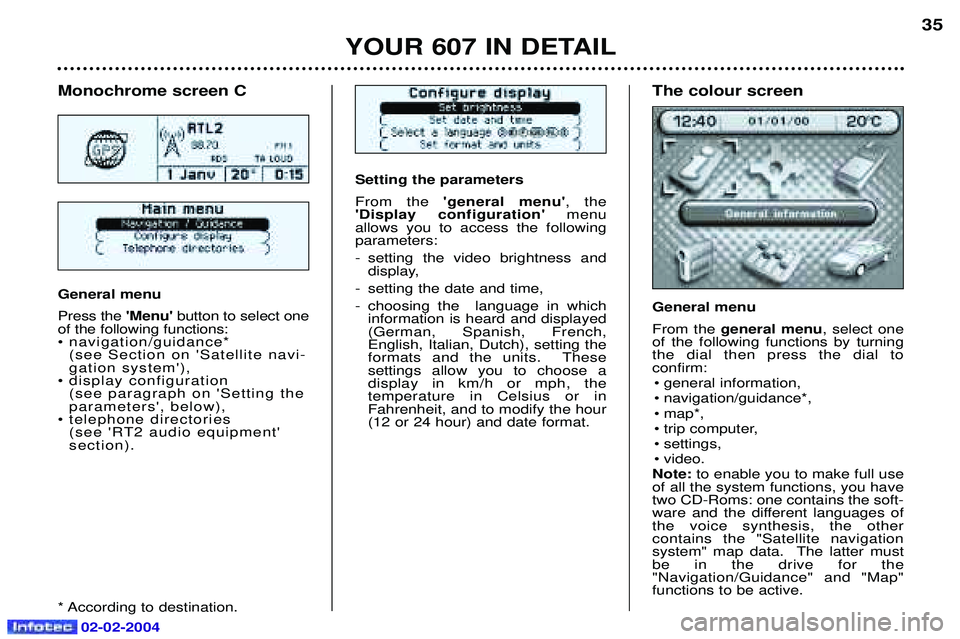
Setting the parameters From the
'general menu' , the
'Display configuration' menu
allows you to access the following parameters:
- setting the video brightness and display,
- setting the date and time,
- choosing the language in which information is heard and displayed (German, Spanish, French, English, Italian, Dutch), setting the
formats and the units. These settings allow you to choose a display in km/h or mph, the temperature in Celsius or in Fahrenheit, and to modify the hour(12 or 24 hour) and date format.
Monochrome screen C General menu Press the 'Menu' button to select one
of the following functions:
¥ navigation/guidance* (see Section on 'Satellite navi-gation system'),
¥ display configuration (see paragraph on 'Setting theparameters', below),
¥ telephone directories (see 'RT2 audio equipment'section).
* According to destination. The colour screen General menu From the general menu , select one
of the following functions by turning the dial then press the dial toconfirm:
¥ general information,
¥ navigation/guidance*,
¥ map*,
¥ trip computer,
¥ settings,
¥ video.
Note: to enable you to make full use
of all the system functions, you have two CD-Roms: one contains the soft-
ware and the different languages ofthe voice synthesis, the othercontains the "Satellite navigation
system" map data. The latter mustbe in the drive for the"Navigation/Guidance" and "Map"functions to be active.
02-02-2004
Page 31 of 173
YOUR 607 IN DETAIL35
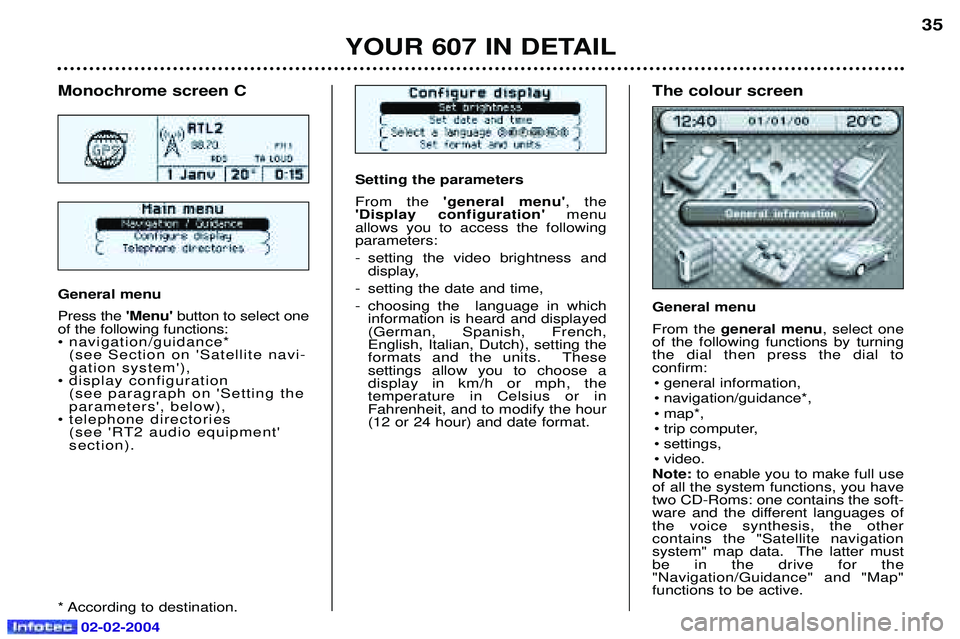
Setting the parameters From the
'general menu' , the
'Display configuration' menu
allows you to access the following parameters:
- setting the video brightness and display,
- setting the date and time,
- choosing the language in which information is heard and displayed (German, Spanish, French, English, Italian, Dutch), setting the
formats and the units. These settings allow you to choose a display in km/h or mph, the temperature in Celsius or in Fahrenheit, and to modify the hour(12 or 24 hour) and date format.
Monochrome screen C General menu Press the 'Menu' button to select one
of the following functions:
¥ navigation/guidance* (see Section on 'Satellite navi-gation system'),
¥ display configuration (see paragraph on 'Setting theparameters', below),
¥ telephone directories (see 'RT2 audio equipment'section).
* According to destination. The colour screen General menu From the general menu , select one
of the following functions by turning the dial then press the dial toconfirm:
¥ general information,
¥ navigation/guidance*,
¥ map*,
¥ trip computer,
¥ settings,
¥ video.
Note: to enable you to make full use
of all the system functions, you have two CD-Roms: one contains the soft-
ware and the different languages ofthe voice synthesis, the othercontains the "Satellite navigation
system" map data. The latter mustbe in the drive for the"Navigation/Guidance" and "Map"functions to be active.
02-02-2004
Page 32 of 173
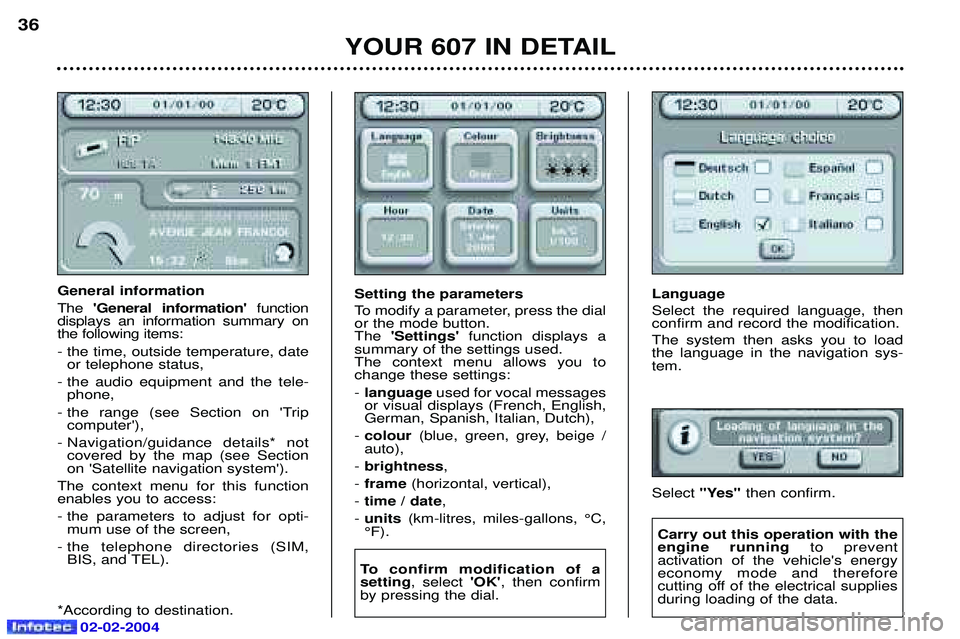
Language Select the required language, then confirm and record the modification. The system then asks you to load the language in the navigation sys-tem. Select "Yes" then confirm.
YOUR 607 IN DETAIL
36
General information The
'General information' function
displays an information summary on the following items: - the time, outside temperature, date or telephone status,
- the audio equipment and the tele- phone,
- the range (see Section on 'Trip computer'),
- Navigation/guidance details* not covered by the map (see Section on 'Satellite navigation system').
The context menu for this functionenables you to access:
- the parameters to adjust for opti- mum use of the screen,
- the telephone directories (SIM, BIS, and TEL).
*According to destination. Setting the parameters
To modify a parameter, press the dial or the mode button.The
'Settings' function displays a
summary of the settings used.The context menu allows you tochange these settings: - language used for vocal messages
or visual displays (French, English, German, Spanish, Italian, Dutch),
- colour (blue, green, grey, beige /
auto),
- brightness ,
- frame (horizontal, vertical),
- time / date ,
- units (km-litres, miles-gallons, ¡C,
¡F).
To confirm modification of a setting , select 'OK', then confirm
by pressing the dial.
Carry out this operation with the engine running to prevent
activation of the vehicle's energyeconomy mode and therefore
cutting off of the electrical suppliesduring loading of the data.
02-02-2004
Page 33 of 173
02-02-2004
YOUR 607 IN DETAIL37
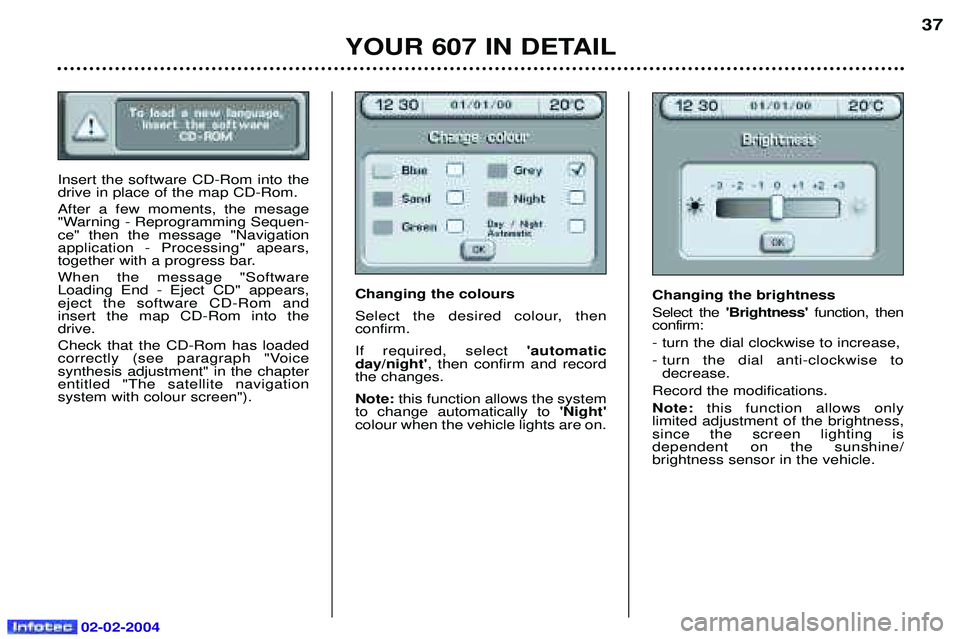
Insert the software CD-Rom into the drive in place of the map CD-Rom. After a few moments, the mesage
"Warning - Reprogramming Sequen-ce" then the message "Navigationapplication - Processing" apears,
together with a progress bar. When the message "Software Loading End - Eject CD" appears,eject the software CD-Rom andinsert the map CD-Rom into thedrive. Check that the CD-Rom has loaded
correctly (see paragraph "Voice synthesis adjustment" in the chapterentitled "The satellite navigation system with colour screen").Changing the colours
Select the desired colour, then confirm. If required, select
'automatic
day/night' , then confirm and record
the changes.Note: this function allows the system
to change automatically to 'Night'
colour when the vehicle lights are on.
Changing the brightness Select the 'Brightness' function, then
confirm:- turn the dial clockwise to increase,
- turn the dial anti-clockwise to decrease.
Record the modifications.Note: this function allows only
limited adjustment of the brightness, since the screen lighting is dependent on the sunshine/brightness sensor in the vehicle.
Page 63 of 173
02-02-2004
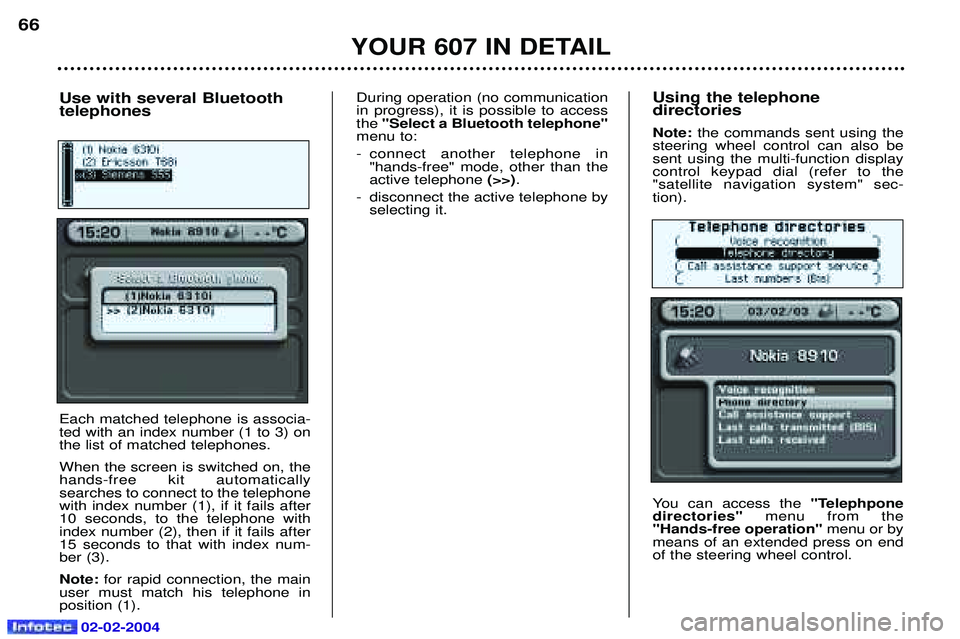
Using the telephone directories Note: the commands sent using the
steering wheel control can also be sent using the multi-function displaycontrol keypad dial (refer to the"satellite navigation system" sec-tion).
You can access the "Telephpone
directories" menu from the
"Hands-free operation" menu or by
means of an extended press on end of the steering wheel control.
YOUR 607 IN DETAIL
66
Use with several Bluetooth telephones Each matched telephone is associa- ted with an index number (1 to 3) onthe list of matched telephones. When the screen is switched on, the hands-free kit automaticallysearches to connect to the telephonewith index number (1), if it fails after10 seconds, to the telephone withindex number (2), then if it fails after15 seconds to that with index num-ber (3). Note: for rapid connection, the main
user must match his telephone in position (1). During operation (no communicationin progress), it is possible to accessthe
"Select a Bluetooth telephone"
menu to:
- connect another telephone in "hands-free" mode, other than the active telephone (>>).
- disconnect the active telephone by selecting it.
Page 68 of 173
02-02-2004
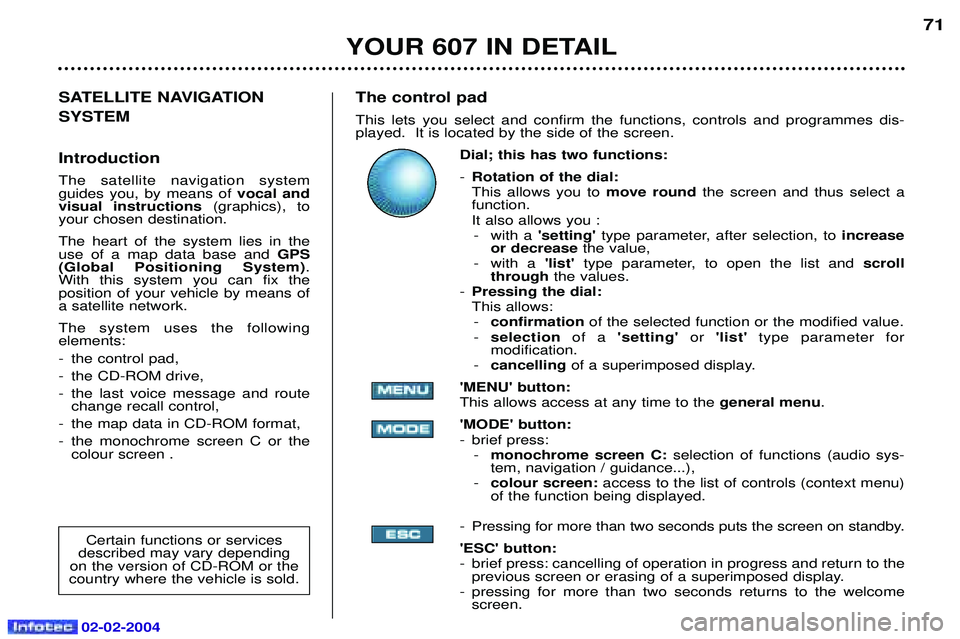
The control pad This lets you select and confirm the functions, controls and programmes dis- played. It is located by the side of the screen.Dial; this has two functions: -Rotation of the dial: This allows you to move roundthe screen and thus select a
function.
It also allows you : - with a 'setting'type parameter, after selection, to increase
or decrease the value,
- with a 'list' type parameter, to open the list and scroll
through the values.
- Pressing the dial:This allows:
- confirmation of the selected function or the modified value.
- selection of a 'setting' or'list' type parameter for
modification.
- cancelling of a superimposed display.
'MENU' button:This allows access at any time to the general menu.
'MODE' button:
- brief press: - monochrome screen C: selection of functions (audio sys-
tem, navigation / guidance...),
- colour screen: access to the list of controls (context menu)
of the function being displayed.
- Pressing for more than two seconds puts the screen on standby. 'ESC' button:
- brief press: cancelling of operation in progress and return to the previous screen or erasing of a superimposed display.
- pressing for more than two seconds returns to the welcome screen. 71
SATELLITE NAVIGATION SYSTEM Introduction The satellite navigation system guides you, by means of vocal and
visual instructions (graphics), to
your chosen destination. The heart of the system lies in the use of a map data base and GPS
(Global Positioning System) .
With this system you can fix the position of your vehicle by means ofa satellite network. The system uses the following elements:
- the control pad,
- the CD-ROM drive,
- the last voice message and route change recall control,
- the map data in CD-ROM format,
- the monochrome screen C or the colour screen .
Certain functions or services
described may vary depending
on the version of CD-ROM or the
country where the vehicle is sold.
YOUR 607 IN DETAIL
Page 70 of 173
02-02-2004
YOUR 607 IN DETAIL73
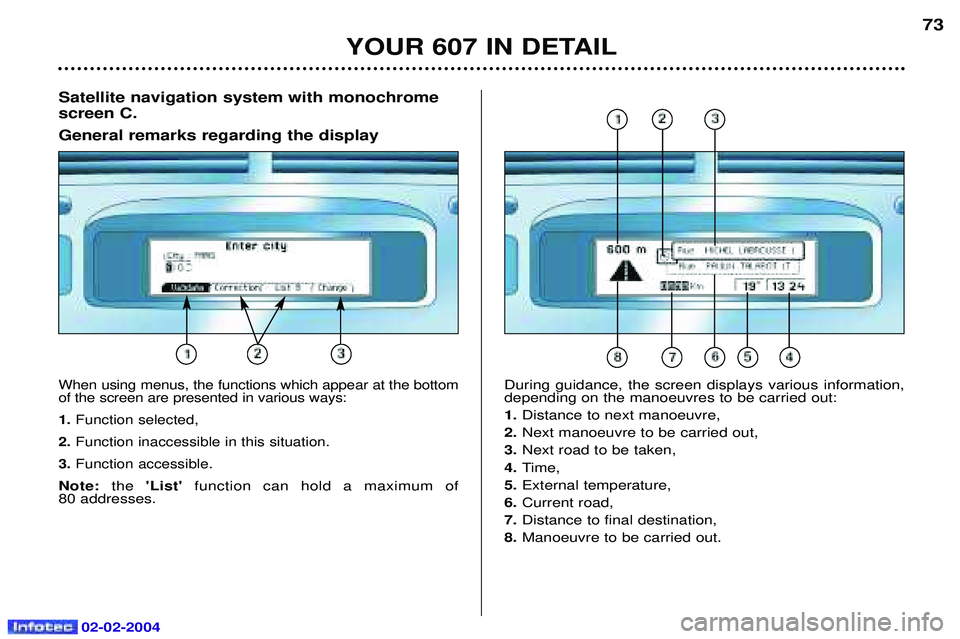
Satellite navigation system with monochrome screen C. General remarks regarding the display
When using menus, the functions which appear at the bottom of the screen are presented in various ways: 1. Function selected,
2. Function inaccessible in this situation.
3. Function accessible.
Note: the 'List' function can hold a maximum of
80 addresses.
During guidance, the screen displays various information, depending on the manoeuvres to be carried out: 1. Distance to next manoeuvre,
2. Next manoeuvre to be carried out,
3. Next road to be taken,
4. Time,
5. External temperature,
6. Current road,
7. Distance to final destination,
8. Manoeuvre to be carried out.
Page 77 of 173
02-02-2004
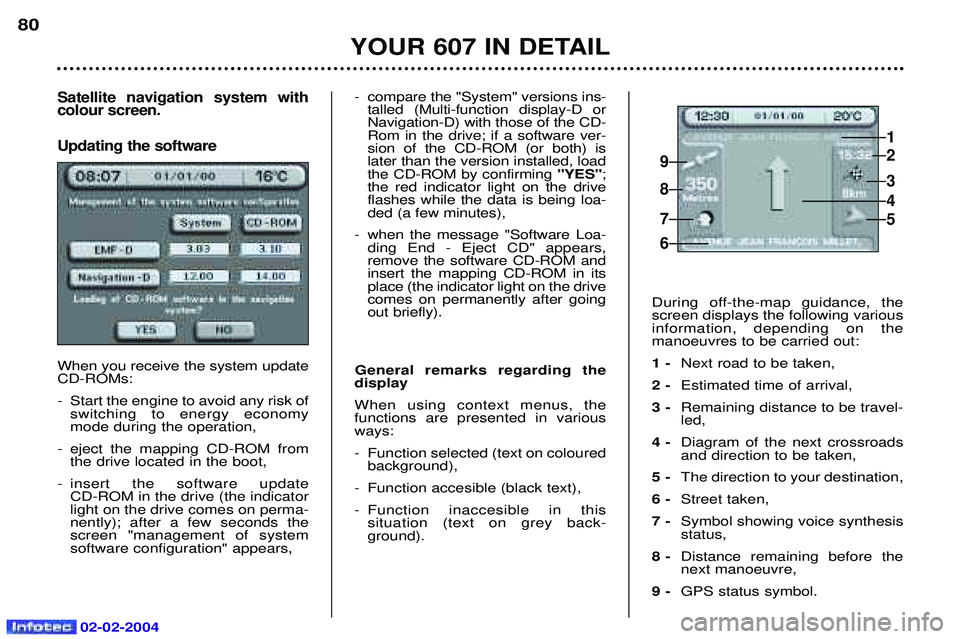
Satellite navigation system with colour screen. Updating the software
When you receive the system update CD-ROMs:
- Start the engine to avoid any risk ofswitching to energy economy mode during the operation,
- eject the mapping CD-ROM from the drive located in the boot,
- insert the software update CD-ROM in the drive (the indicatorlight on the drive comes on perma-nently); after a few seconds thescreen "management of systemsoftware configuration" appears,
YOUR 607 IN DETAIL
80
- compare the "System" versions ins-talled (Multi-function display-D or Navigation-D) with those of the CD-Rom in the drive; if a software ver-sion of the CD-ROM (or both) islater than the version installed, loadthe CD-ROM by confirming "YES";
the red indicator light on the driveflashes while the data is being loa-ded (a few minutes),
- when the message "Software Loa- ding End - Eject CD" appears,remove the software CD-ROM andinsert the mapping CD-ROM in itsplace (the indicator light on the drivecomes on permanently after goingout briefly).
General remarks regarding the
display When using context menus, the functions are presented in variousways:
- Function selected (text on coloured background),
- Function accesible (black text),
- Function inaccesible in this situation (text on grey back- ground). During off-the-map guidance, thescreen displays the following variousinformation, depending on themanoeuvres to be carried out: 1 -
Next road to be taken,
2 - Estimated time of arrival,
3 - Remaining distance to be travel- led,
4 - Diagram of the next crossroadsand direction to be taken,
5 - The direction to your destination,
6 - Street taken,
7 - Symbol showing voice synthesisstatus,
8 - Distance remaining before thenext manoeuvre,
9 - GPS status symbol.
1
2
3
5
4
9
8
7
6
Page 123 of 173
02-02-2004
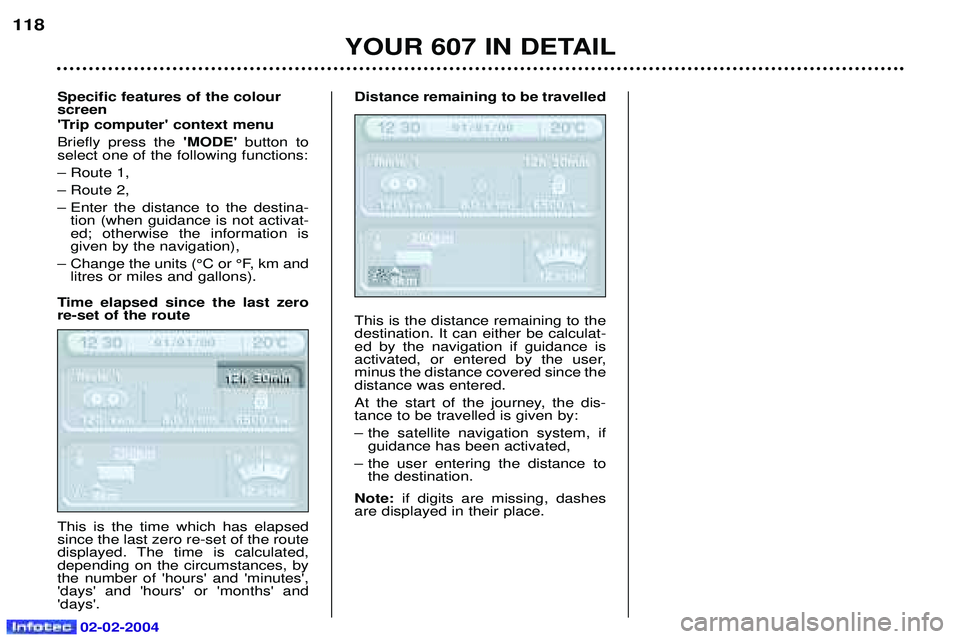
Specific features of the colour screen
'Trip computer' context menu Briefly press the 'MODE' button to
select one of the following functions:Ð Route 1,Ð Route 2,
Ð Enter the distance to the destina- tion (when guidance is not activat- ed; otherwise the information isgiven by the navigation),
Ð Change the units (¡C or ¡F, km and litres or miles and gallons).
Time elapsed since the last zerore-set of the route This is the time which has elapsed since the last zero re-set of the route
displayed. The time is calculated,depending on the circumstances, bythe number of 'hours' and 'minutes','days' and 'hours' or 'months' and'days'. Distance remaining to be travelled This is the distance remaining to the destination. It can either be calculat-ed by the navigation if guidance is
activated, or entered by the user,minus the distance covered since thedistance was entered.
At the start of the journey, the dis- tance to be travelled is given by:
Ð the satellite navigation system, if
guidance has been activated,
Ð the user entering the distance to the destination.
Note: if digits are missing, dashes
are displayed in their place.
YOUR 607 IN DETAIL
118