service PEUGEOT BOXER 2003 Owner's Manual
[x] Cancel search | Manufacturer: PEUGEOT, Model Year: 2003, Model line: Boxer, Model: Peugeot Boxer 2003Pages: 180, PDF Size: 1.86 MB
Page 76 of 180
05-05-2003
YOUR BOXER IN DETAIL
78
SATELLITE NAVIGATION SYSTEM Introduction The satellite navigation system guides you, by means of vocal and
visual instructions (graphics), to
your chosen destination. The heart of the system lies in the use of a map data base and GPS
(Global Positioning System) . With
this system you can fix the positionof your vehicle by means of a satel-lite network. The system uses the following ele- ments: - the CD-Rom drive,
- the configuration CD-Rom,
- the navigation CD-Rom,
- the last voice message recall con- trol,
- the control keypad,
- the monochrome screen or thecolour screen.
Certain functions or servicesdescribed may vary depending onthe version of the CD-Rom or thecountry where the vehicle is sold.
For safety reasons, the inputting of navigation information by the drivermust be carried out when the vehicle
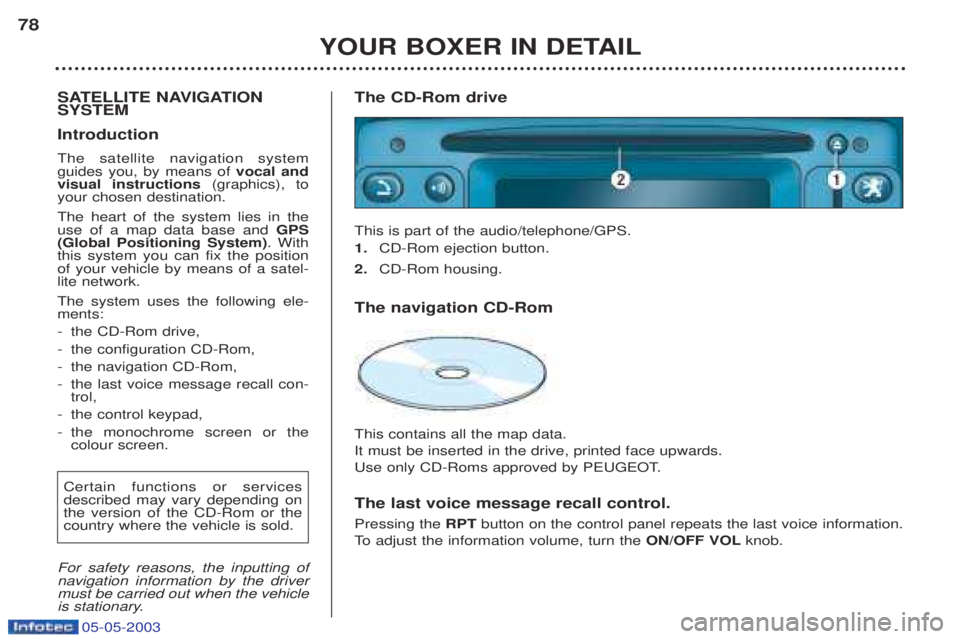
is stationary. The CD-Rom drive This is part of the audio/telephone/GPS. 1.
CD-Rom ejection button.
2. CD-Rom housing.
The navigation CD-Rom This contains all the map data. It must be inserted in the drive, printed face upwards.
Use only CD-Roms approved by PEUGEOT. The last voice message recall control. Pressing the RPTbutton on the control panel repeats the last voice information.
To adjust the information volume, turn the ON/OFF VOLknob.
Page 81 of 180
05-05-2003
YOUR BOXER IN DETAIL83
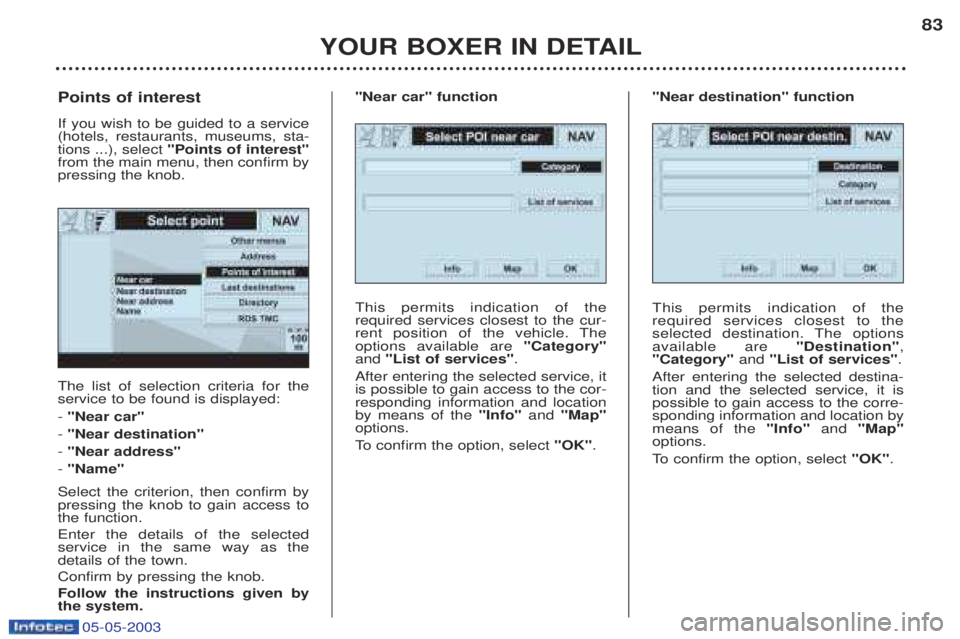
The list of selection criteria for the service to be found is displayed: -
"Near car"
- "Near destination"
- "Near address"
- "Name"
Select the criterion, then confirm by pressing the knob to gain access tothe function. Enter the details of the selected service in the same way as thedetails of the town. Confirm by pressing the knob.Follow the instructions given by the system.
Points of interest If you wish to be guided to a service (hotels, restaurants, museums, sta-tions ...), select
"Points of interest"
from the main menu, then confirm bypressing the knob.
This permits indication of therequired services closest to the cur-
rent position of the vehicle. Theoptions available are "Category"
and "List of services" .
After entering the selected service, itis possible to gain access to the cor-responding information and locationby means of the "Info"and "Map"
options.
To confirm the option, select "OK".
"Near car" function
This permits indication of the required services closest to the
selected destination. The optionsavailable are "Destination",
"Category" and "List of services" .
After entering the selected destina-tion and the selected service, it ispossible to gain access to the corre-sponding information and location bymeans of the "Info"and "Map"
options.
To confirm the option, select "OK".
"Near destination" function
Page 82 of 180
05-05-2003
YOUR BOXER IN DETAIL
84
This enables you to enter a known
service. The options available are"Category"
, "Town" and "Service
name" .
After entering the selected service, itis possible to gain access to the cor-responding information and locationby means of the "Info"and "Map"
options.
To confirm the option, select "OK".
"Name" function
This permits locating of the required services closest to the defined
address. The options available are"Category" , "City" , "Street" ,
"Number" and "List of services" .
After entering the selected service, itis possible to gain access to the cor-responding information and locationby means of the "Info"and "Map"
options.
To confirm the option, select "OK".
"Near address" function
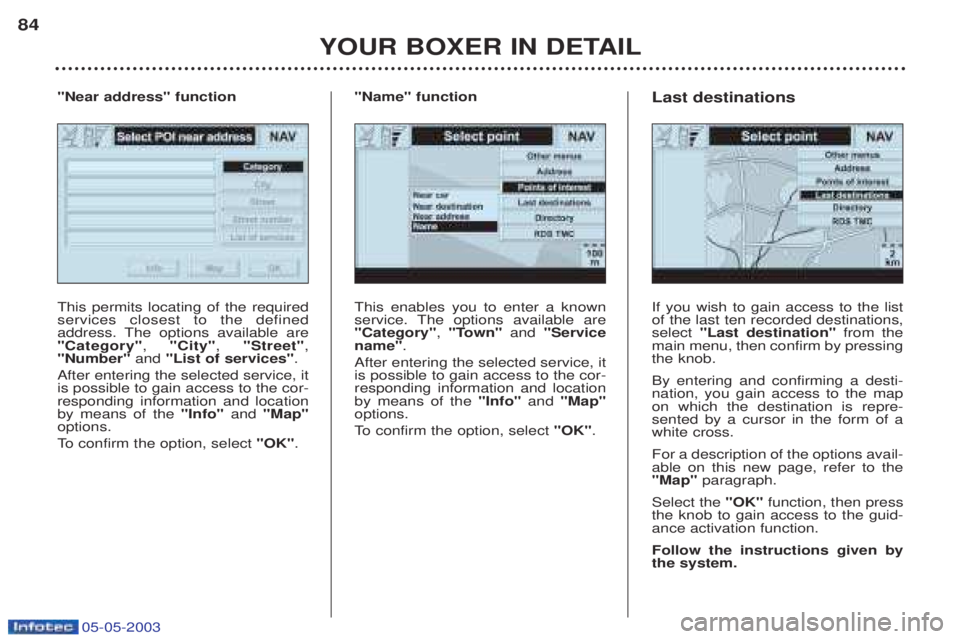
If you wish to gain access to the list of the last ten recorded destinations,select "Last destination" from the
main menu, then confirm by pressingthe knob. By entering and confirming a desti- nation, you gain access to the mapon which the destination is repre-sented by a cursor in the form of awhite cross. For a description of the options avail- able on this new page, refer to the"Map" paragraph.
Select the "OK"function, then press
the knob to gain access to the guid-ance activation function. Follow the instructions given by the system.
Last destinations
Page 84 of 180
05-05-2003
YOUR BOXER IN DETAIL
86
This permits locating of the required events closest to the defined
address. The options available are"Category"
, "City" , "Street" ,
"Number" and "List of events" .
After confirming the chosen events, itis possible to gain access to the cor-responding information and locationby means of the "Info"and "Map"
options.
To confirm the option, select "OK".
"Near address" function
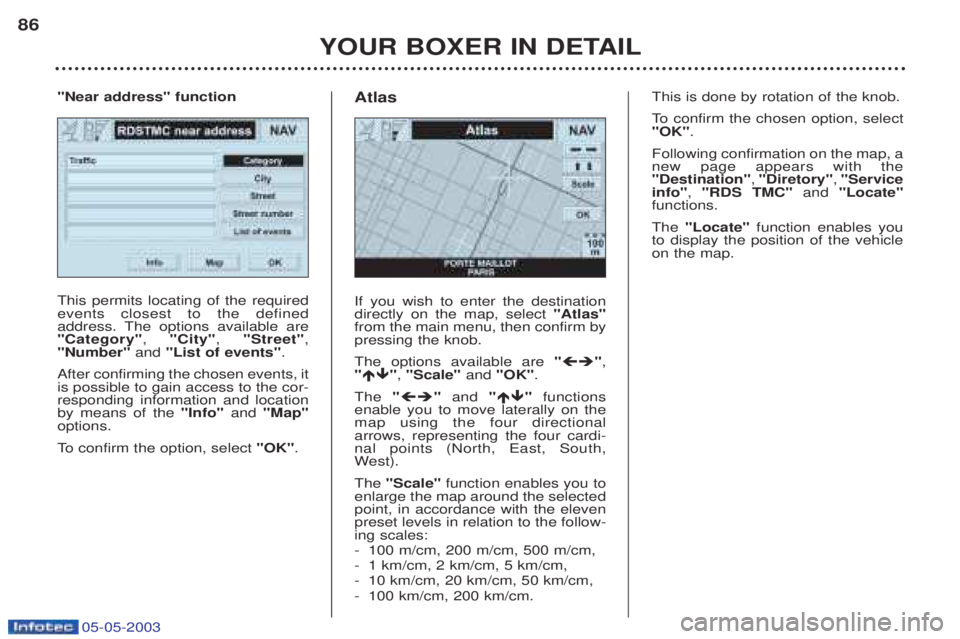
If you wish to enter the destination directly on the map, select "Atlas"
from the main menu, then confirm bypressing the knob. The options available are " ",
" ", "Scale" and "OK" .
The " "and " "functions
enable you to move laterally on the map using the four directionalarrows, representing the four cardi-nal points (North, East, South,W est).
The "Scale" function enables you to
enlarge the map around the selectedpoint, in accordance with the elevenpreset levels in relation to the follow-ing scales: - 100 m/cm, 200 m/cm, 500 m/cm,
-1 km/cm, 2 km/cm, 5 km/cm,
- 10 km/cm, 20 km/cm, 50 km/cm,
- 100 km/cm, 200 km/cm.
Atlas
This is done by rotation of the knob.
To
confirm the chosen option, select
"OK" .
Following confirmation on the map, a new page appears with the"Destination" , "Diretory" , "Service
info" , "RDS TMC" and "Locate"
functions. The "Locate" function enables you
to display the position of the vehicle on the map.
Page 85 of 180
05-05-2003
YOUR BOXER IN DETAIL87
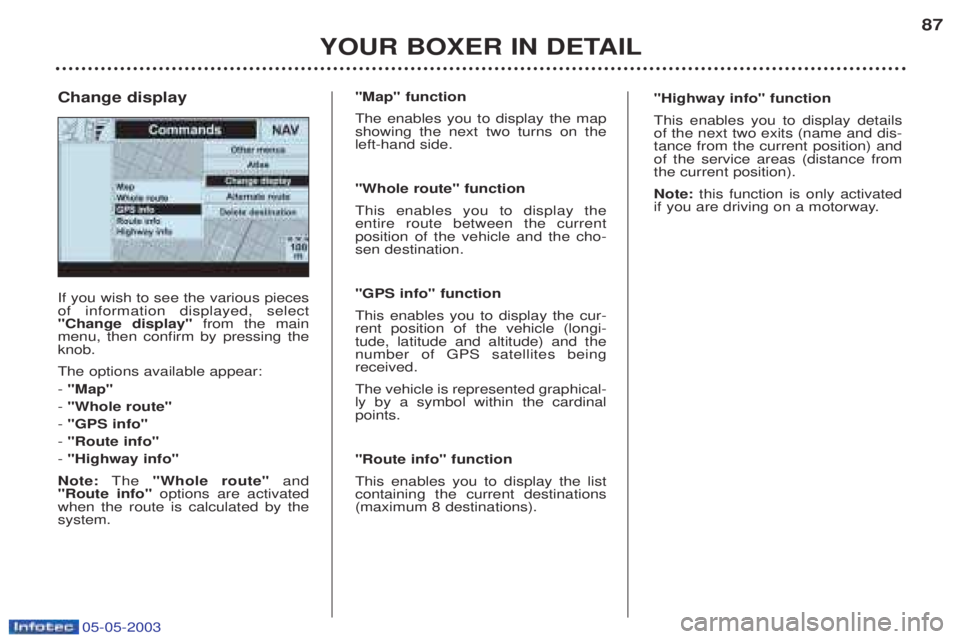
If you wish to see the various pieces of information displayed, select"Change display"
from the main
menu, then confirm by pressing theknob. The options available appear: - "Map"
- "Whole route"
- "GPS info"
- "Route info"
- "Highway info"
Note: The "Whole route" and
"Route info" options are activated
when the route is calculated by the system.
Change display
"Map" function The enables you to display the map showing the next two turns on theleft-hand side. "Whole route" function This enables you to display the entire route between the currentposition of the vehicle and the cho-sen destination. "GPS info" function This enables you to display the cur- rent position of the vehicle (longi-tude, latitude and altitude) and thenumber of GPS satellites beingreceived. The vehicle is represented graphical- ly by a symbol within the cardinalpoints. "Route info" function This enables you to display the list containing the current destinations(maximum 8 destinations). "Highway info" function This enables you to display details of the next two exits (name and dis-tance from the current position) andof the service areas (distance fromthe current position). Note:
this function is only activated
if you are driving on a motorway.
Page 87 of 180
05-05-2003
YOUR BOXER IN DETAIL89
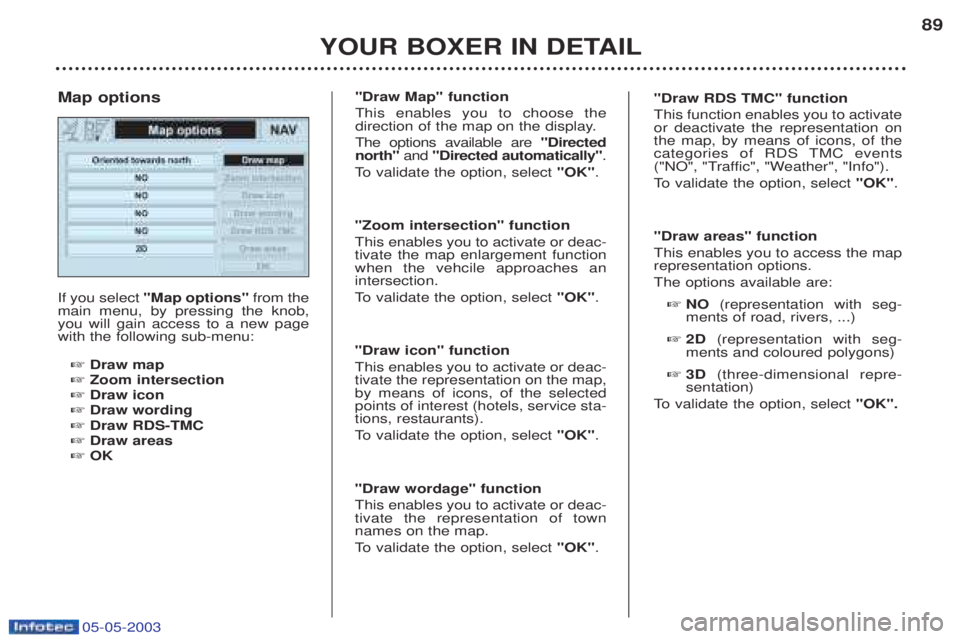
If you select
"Map options" from the
main menu, by pressing the knob, you will gain access to a new pagewith the following sub-menu:
☞ Draw map
☞ Zoom intersection
☞ Draw icon
☞ Draw wording
☞ Draw RDS-TMC
☞ Draw areas
☞ OK
Map options
"Draw Map" function This enables you to choose the
direction of the map on the display. The options available are
"Directed
north" and "Directed automatically" .
To validate the option, select "OK".
"Zoom intersection" functionThis enables you to activate or deac- tivate the map enlargement functionwhen the vehcile approaches anintersection.
To validate the option, select "OK".
"Draw icon" functionThis enables you to activate or deac- tivate the representation on the map,by means of icons, of the selectedpoints of interest (hotels, service sta-tions, restaurants).
To validate the option, select "OK".
"Draw wordage" functionThis enables you to activate or deac- tivate the representation of townnames on the map.
To validate the option, select "OK".
"Draw RDS TMC" function This function enables you to activate or deactivate the representation onthe map, by means of icons, of the
categories of RDS TMC events
("NO", "Traffic", "Weather", "Info").
To validate the option, select "OK".
"Draw areas" functionThis enables you to access the map representation options. The options available are: ☞ NO (representation with seg-
ments of road, rivers, ...)
☞ 2D (representation with seg-
ments and coloured polygons)
☞ 3D (three-dimensional repre-
sentation)
To validate the option, select "OK".
Page 143 of 180

05-05-2003
Only use products recom-
mended by PEUGEOT.
To ensure best perfor-
mance from components as important as the power
steering and the braking system,PEUGEOT selects and offers quitespecific products.
CHECKS Battery
At the start of winter, have your bat-
tery checked by a PEUGEOT dealer. Air filter and passenger compartment filter Have the filter elements replaced
regularly. If you drive in dusty
conditions, change them twice asoften. Brake pads Brake pad wear depends on the style of driving, in particular forvehicles which are used in town,over short distances. It may be necessary to check the thickness of the pads, even betweenservices. Handbrake Where the handbrake travel is too great or there is a reduction in theperformance of the system, thehandbrake should be adjusted, evenbetween services. Have the system checked by a
PEUGEOT dealer. Manual gearbox This does not need an oil change. Check the level, according to themanufacturer's servicing schedule. Automatic gearbox This does not need an oil change. Have the level checked by a
PEUGEOT dealer, according to themanufacturer's servicing schedule. Oil filter
Change the filter regularly, in accor- dance with the servicing schedule.
Fuel supply cut-off In a serious collision, a system pre- vents fuel from reaching the engine.
To
re-establish the fuel supply, press
the switch on the angle of the front
left-hand suspension assembly,under the bonnet.
PRACTICAL INFORMATION 135