ESP PEUGEOT BOXER DAG 2003 User Guide
[x] Cancel search | Manufacturer: PEUGEOT, Model Year: 2003, Model line: BOXER DAG, Model: PEUGEOT BOXER DAG 2003Pages: 181, PDF Size: 2.06 MB
Page 45 of 181
17-11-2003
YOUR BOXER IN DETAIL47
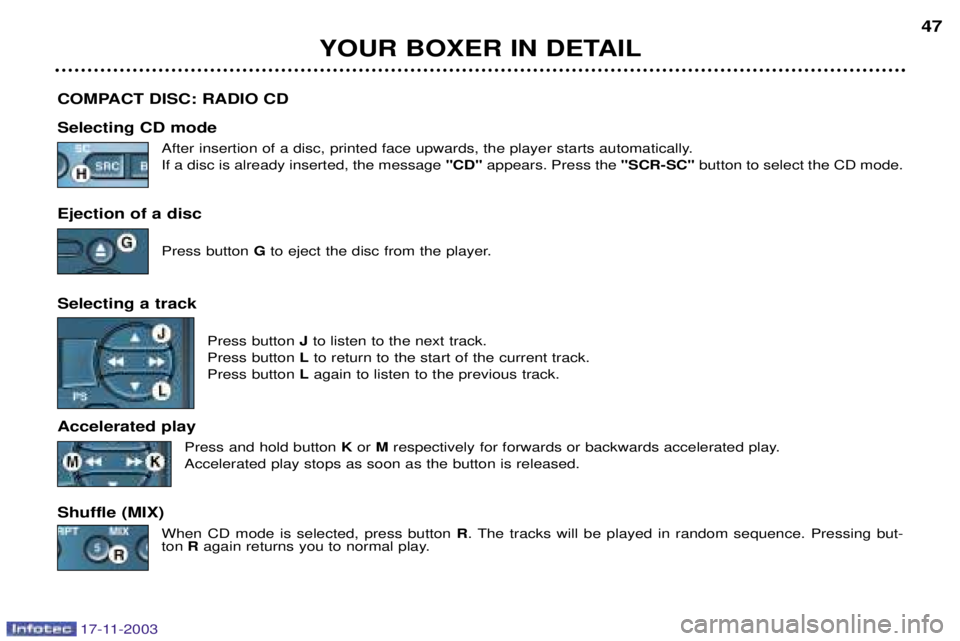
COMPACT DISC: RADIO CD Selecting CD mode After insertion of a disc, printed face upwards, the player starts automatically. If a disc is already inserted, the message "CD" appears. Press the "SCR-SC" button to select the CD mode.
Ejection of a disc Press button Gto eject the disc from the player.
Selecting a track Press button Jto listen to the next track.
Press button Lto return to the start of the current track.
Press button Lagain to listen to the previous track.
Accelerated play Press and hold button K or Mrespectively for forwards or backwards accelerated play.
Accelerated play stops as soon as the button is released.
Shuffle (MIX) When CD mode is selected, press button R. The tracks will be played in random sequence. Pressing but-
ton Ragain returns you to normal play.
Page 48 of 181
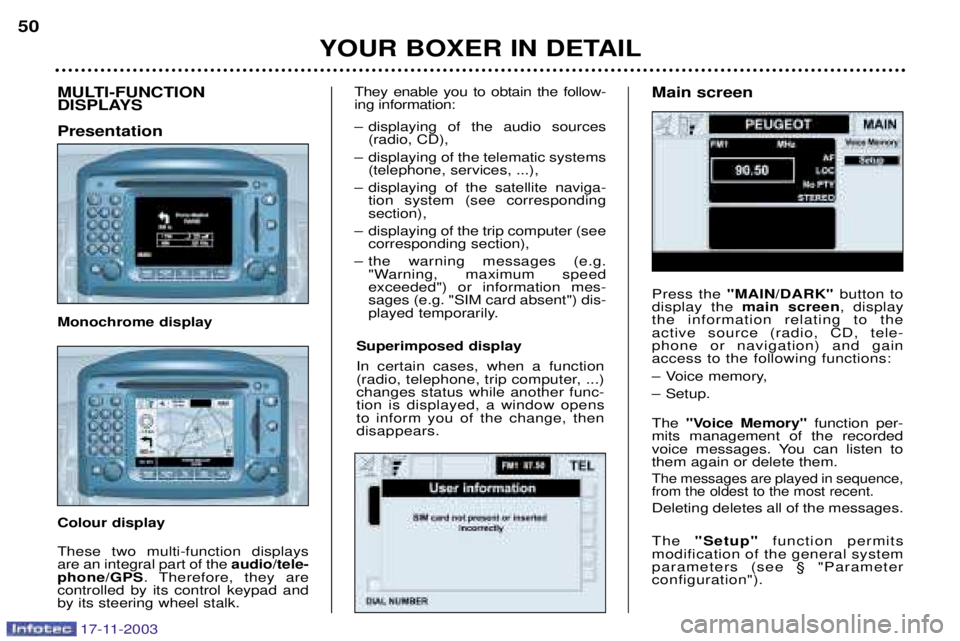
Superimposed display In certain cases, when a function
(radio, telephone, trip computer, ...)changes status while another func-tion is displayed, a window opensto inform you of the change, thendisappears.
MULTI-FUNCTION
DISPLAYS Presentation Monochrome display Colour display These two multi-function displays are an integral part of the audio/tele-
phone/GPS . Therefore, they are
controlled by its control keypad andby its steering wheel stalk. They enable you to obtain the follow-ing information:
Ð displaying of the audio sources
(radio, CD),
Ð displaying of the telematic systems (telephone, services, ...),
Ð displaying of the satellite naviga- tion system (see corresponding section),
Ð displaying of the trip computer (see corresponding section),
Ð the warning messages (e.g. "Warning, maximum speedexceeded") or information mes-sages (e.g. "SIM card absent") dis-
played temporarily.
YOUR BOXER IN DETAIL
50
Main screen Press the
"MAIN/DARK" button to
display the main screen , display
the information relating to the active source (radio, CD, tele-phone or navigation) and gainaccess to the following functions:
Ð Voice memory,
Ð Setup. The "Voice Memory" function per-
mits management of the recorded
voice messages. You can listen tothem again or delete them.
The messages are played in sequence,from the oldest to the most recent.
Deleting deletes all of the messages. The "Setup" function permits
modification of the general system parameters (see ¤ "Parameterconfiguration").
17-11-2003
Page 49 of 181
17-11-2003
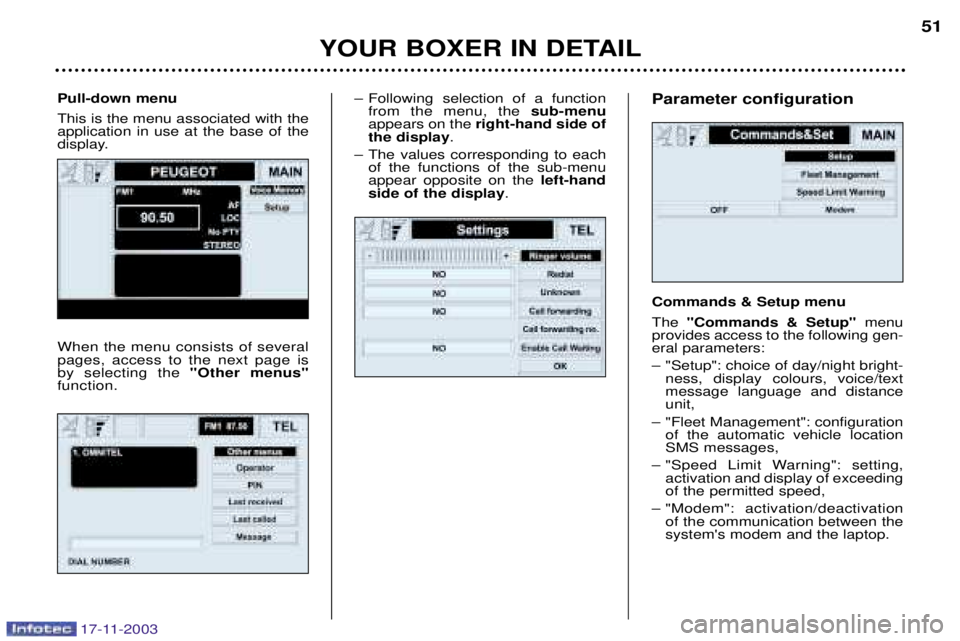
Ð Following selection of a functionfrom the menu, the sub-menu
appears on the right-hand side of
the display .
Ð The values corresponding to each of the functions of the sub-menu appear opposite on the left-hand
side of the display .
YOUR BOXER IN DETAIL 51
Pull-down menu This is the menu associated with the application in use at the base of the
display. When the menu consists of several pages, access to the next page isby selecting the "Other menus"
function.
Parameter configuration Commands & Setup menu The "Commands & Setup" menu
provides access to the following gen- eral parameters:
Ð "Setup": choice of day/night bright- ness, display colours, voice/text message language and distanceunit,
Ð "Fleet Management": configuration of the automatic vehicle locationSMS messages,
Ð "Speed Limit Warning": setting, activation and display of exceedingof the permitted speed,
Ð "Modem": activation/deactivation of the communication between thesystem's modem and the laptop.
Page 59 of 181

17-11-2003
YOUR BOXER IN DETAIL
60
RADIO MODE Radio mode and waveband selection Press the "SRC"button repeatedly to select the required waveband; FM1, FM2, FM3, LW and MW.
The corresponding symbol appears on the display. Manual station search Select the "Frequency" function from the "Radio" audio source menu by turning knob H, then press this knob to confirm.
Turn knob Hto the right to search for a higher frequency or to the left to search for a lower frequency.
Automatic station search Select the "Frequency" function from the "Radio" audio source menu by turning knob H, then press this knob to confirm.
Press respectively button Rto search for a lower frequency or button Tto search for a higher frequency.
The message "SEEK"appears during the search, then scanning stops when the first station is found.
If the traffic information programme TAor the PTYfunction is active, only stations which broadcast this type of programme
are selected. The station search is carried out first with "LOC"sensitivity (selection of the most powerful transmitters) for one scan of the
waveband, then with "DX"sensitivity (selection of the weakest and most distant transmitters).
To carry out a "DX"sensitivity search straight away, select the "LOC/DX"function from the "Radio" source menu by turning
knob H, then press this knob repeatedly to change the sensitivity. The corresponding symbol appears on the display.
Page 60 of 181

17-11-2003
YOUR BOXER IN DETAIL61
Manual station storing Select the required station. Press and hold one of the buttons "1"to "6" for more than one second.
A bleep is heard, confirming that the station has been stored in the memory.
Automatic station storing (Autostore) Select the "Autostore" function from the "Radio" source menu by turning knob H, then press this knob to begin storing.
Your audio/telephone/GPS automatically stores the 6 best transmitters received on the waveband selected. If it was not possible to find 6 transmitters, the remaining memories are not changed. Recalling stored stations On each waveband, a brief press of one of the buttons "1"to "6" recalls the corresponding stored station.
Stereo/Mono receptionSelect the "St/Mono" function from the "Radio" source menu by turning knob H, then press this knob repeatedly to change the
type of reception. The corresponding symbol appears on the screen.
Page 61 of 181

17-11-2003
YOUR BOXER IN DETAIL
62
RDS SYSTEM Using the RDS function on the FM waveband The RDS (Radio Data System) enables you to continue listening to the same station, whatever frequency it is using for the
region you are going through. Select the "TA/AF"function from the "Radio" source menu by turning knob H, then press this knob repeatedly to activate
the AFfunction.
The corresponding symbol appears on the screen.
RDS station following
The display indicates the name of the station selected. The audio/telephone/GPS continuously searches for the transmitter which broadcasts the same programme with the best reception.
Traffic information programme Select the "TA/AF"function from the "Radio" source menu by turning knob H, then press the knob repeatedly to activate the
TA function.
The corresponding symbol appears on the display.
If the station is able to transmit traffic information, the symbol "TP"is displayed following activation of the TAfunction.
All traffic information bulletins will be given priority irrespective of the audio source in use (radio or CD).If you wish to interrupt a message, select the "TA/AF"function by turning knob H, then press this knob repeatedly to deactivate
the TAfunction.
The corresponding symbol appears on the display.Note: the traffic information volume is independent of the normal audio/telephone/GPS volume. You can set it during a mes-
sage by means of knob B.
Page 62 of 181

17-11-2003
YOUR BOXER IN DETAIL63
PTY function This enables you to listen to stations which transmit a themed programme (Info, Culture, Sport, Rock...). When FM is selected, select the "TA/AF"function by turning knob H, then press this knob repeatedly to activate the PTY
function.The list of programme types appears on the screen.
To search for a PTYprogramme:
Ð activate the PTYfunction,
Ð turn knob Hto scroll through the list of programme types offered,
Ð when the programme of your choice is displayed, press the knob, Ð press button Ror Tto carry out an automatic search for the type of programme selected.
In PTY mode, the programme types can be stored. To do this, press and hold the preselection button "1"to "6" for more
than one second. The stored programme type is recalled by a shorter press of the corresponding button.
EON system
This system links stations belonging to the same network. It enables you to listen to traffic information or a PTYprogramme,
transmitted by a station belonging to the same network as the station to which you are listening. The "EON"symbol appears
on the display.
To take advantage of it, select the traffic information programme TAor the PTYfunction.
Page 63 of 181

17-11-2003
YOUR BOXER IN DETAIL
64
COMPACT DISC SOURCE Selecting CD mode
When a disc is inserted, printed face upwards, play begins automatically. If the player already contains a disc, press the "SRC"button repeatedly to select CD mode.
Ejecting a disc Press button Mto eject the disc from the player.
Selecting a track on a discPress button Tto listen to the next track.
Press button Rto return to the beginning of the current track.
Press button Ragain to listen to the previous track.
ShuffleSelect the "Shuffle"function from the "CD" source menu by turning knob H, then press this knob repeatedly to activate the
Shuffle function.
The corresponding symbol appears on the display.
The tracks on the disc will be played in a random order.
Pause/Resume play Press button Sfor more than one second to pause the CD.
Press button Sagain for more than one second to resume playing of the current track.
Page 64 of 181
YOUR BOXER IN DETAIL65
Disc track scan Select the "Scan"function from the "CD" source menu by turning knob H, then press this knob repeatedly to activate the
Scan function.
The corresponding symbol appears on the display.
You will then hear approximately ten seconds of each track on the CD. Repetition of a track or of the disc Select the "CD Setup" function from the "CD" source menu by turning knob H, then press this knob to confirm.
Select the "Repeat"function from the "CD Setup"menu by turning knob H, then press this knob to confirm.
Select the "Single"option for repetition of the current track.
Select the "Complete" option for repetition of the whole disc.
Select "OK"to apply the setting.
Displaying CD information Select the "CD Setup" function from the "CD" source menu by turning knob H, then press this knob to confirm.
Select the "Time display" function from the "CD Setup"menu by turning knob H, then press this knob to confirm.
Select the "Track time elapsed" option to display the time elapsed since the beginning of the track.
Select the "Total time elapsed" option to display the time elapsed since the beginning of the disc.
Select the "Total time remaining" option to display the time remaining to the end of the disc.
Select "OK"to apply the setting.
The use of recorded compact discs may cause malfunctions.
Insert circular compact discs only.
17-11-2003
Page 65 of 181
17-11-2003
YOUR BOXER IN DETAIL
66
TELEPHONE MODE This function is provided by a dual band GSM telephone (900 and 1 800 MHz) incorporated in the audio/telephone/GPS. It is a "hands free" telephone. This function is provided by a microphone located next to the front courtesy light, the spea-
kers and a steering wheel control which permits access to most of the functions (the buttons on the audio/telephone/GPS control panel provide access to all of the functions). Displaying of the main "mobile telephone"type functions as well as consultation of the directories is via the multi-function
display.This function is active, irrespective of the position of the key.
Note: with the key in the accessories position (1st notch) or with the ignition on (2nd notch), this function will be cut off after
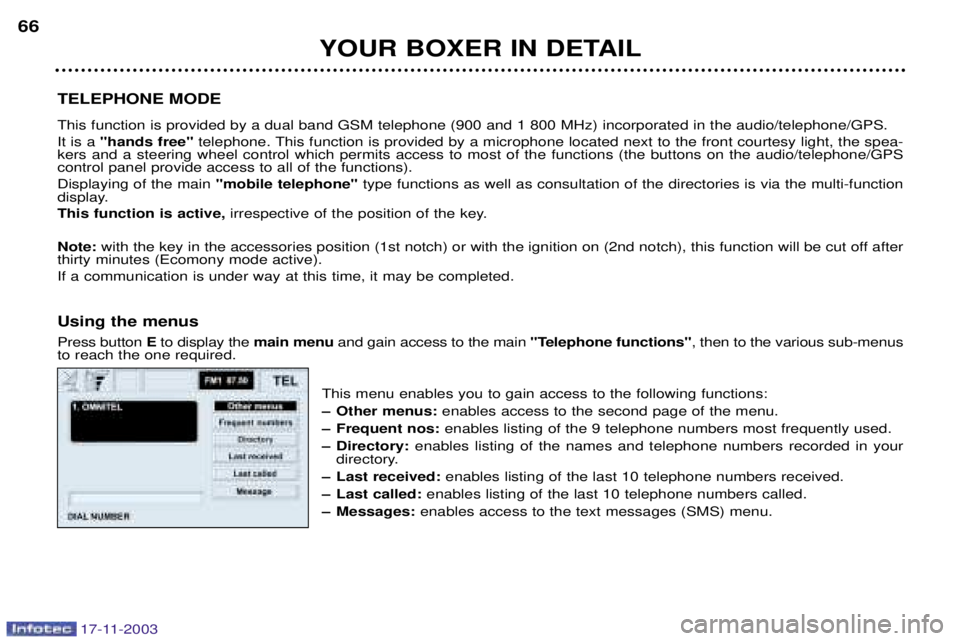
thirty minutes (Ecomony mode active).If a communication is under way at this time, it may be completed. Using the menus Press button Eto display the main menuand gain access to the main "Telephone functions", then to the various sub-menus
to reach the one required.
This menu enables you to gain access to the following functions:
Ð Other menus:enables access to the second page of the menu.
Ð Frequent nos: enables listing of the 9 telephone numbers most frequently used.
Ð Directory: enables listing of the names and telephone numbers recorded in your
directory.
Ð Last received: enables listing of the last 10 telephone numbers received.
Ð Last called: enables listing of the last 10 telephone numbers called.
Ð Messages: enables access to the text messages (SMS) menu.