key PEUGEOT EXPERT 2022 Workshop Manual
[x] Cancel search | Manufacturer: PEUGEOT, Model Year: 2022, Model line: EXPERT, Model: PEUGEOT EXPERT 2022Pages: 324, PDF Size: 10.39 MB
Page 275 of 324
273
3D Connected Navigation
12Procedure from the smartphone
Select the name of the system in the list
of detected devices.
In the system, accept the connection request
from the smartphone.
Procedure from the system
Press Connect-App to display the main
page.
Press the "OPTIONS " button to access the
secondary page.
Press "Bluetooth connection".
Select "Search".
The list of detected smartphones is
displayed.
Select the name of the chosen
smartphone in the list.
Depending on the type of smartphone,
you may by prompted to accept the
transfer of contacts and messages.
Connection sharing
The system offers to connect the smartphone
with 3 profiles:
–
"Telephone" (hands-free kit, telephone only),
–
“Streaming" (streaming: wireless playing of
audio files on the smartphone),
–
"Mobile internet data ".
The "Mobile internet data " profile must
be activated for connected navigation (if
the vehicle does not have "Emergency and
assistance call" services), after first activating
smartphone connection sharing.
Select one or more profiles.
Press "OK" to confirm.
Wi-Fi connection
Network connection via the smartphone's Wi-Fi.Press Connect-App to display the main
page.
Press the "OPTIONS " button to access the
secondary page.
Select "Wi-Fi network connection".
Select the "Secured", "Not secured" or
"Stored” tab.
Select a network.
Using the virtual keypad , enter the Wi-Fi
network "Key" and "Password".
Press "OK" to establish the connection.
The Wi-Fi connection and Wi-Fi connection sharing are exclusive.
Wi-Fi connection sharing
Depending on equipment.
Creation of a local Wi-Fi network by the system.
Press Connect-App to display the main
page.
Press the "OPTIONS " button to access the
secondary page.
Select "Share Wi-Fi connection".
Select the "Activation" tab to activate or
deactivate Wi-Fi connection sharing.
And/or
Select the "Settings" tab to change the system’s
network name and password.
Press "OK" to confirm.
To protect against unauthorised access and to make all systems as secure as
possible, the use of a security code or a
complex password is recommended.
Managing connections
Press Connect-App to display the main
page.
Press the "OPTIONS " button to access the
secondary page.
Select "Manage connection".
With this function, you can view the access to
connected services, the availability of connected
services and modify the connection mode.
Page 276 of 324
274
3D Connected Navigation
Radio
Selecting a station
Press Radio Media to display the main
page.
Press "Frequency".
Press one of the buttons to perform an
automatic search for radio stations.
Or
Move the slider to manually search for
frequencies up or down.
Or
Press Radio Media to display the main
page.
Press the "OPTIONS " button to access the
secondary page.
Select "Radio stations" on the secondary
page.
Press "Frequency".
Enter the values using the virtual keypad.
First enter the units then click on the
decimals field to enter the figures after the
decimal point.
Press "OK" to confirm.
Radio reception may be affected by the
use of electrical equipment not approved
by the Brand, such as a USB charger
connected to the 12 V socket.
The exterior environment (hills, buildings,
tunnels, basement car parks, etc.) may
block reception, including in RDS mode.
This phenomenon is perfectly normal in the
context of radio wave transmission, and
in no way indicative of an audio system
malfunction.
Presetting a station
Select a radio station or frequency.
(refer to the corresponding section)
Press "Presets ".
Make a long press on one of the buttons
to preset the station.
Changing the waveband
Press Radio Media to display the main
page.
To change the waveband, press "Band…",
displayed at the top right of the screen.
Activating/Deactivating RDS
RDS, if activated, allows you to continue
listening to the same station by automatic
retuning to alternative frequencies.
Press Radio Media to display the main
page.
Press the "OPTIONS " button to access the
secondary page.
Select "Radio settings".
Select "General".
Activate/deactivate "Station follow ".
Press "OK" to confirm.
RDS station tracking may not be
available nationwide, as many radio
stations do not cover 100
% of the country.
This explains the loss of reception of the
station during a journey.
Displaying text information
The "Radio Text" function displays information
transmitted by the radio station relating to the
station or the currently playing song.
Press Radio Media to display the main
page.
Press the "OPTIONS " button to access the
secondary page.
Select "Radio settings".
Select "General".
Activate/deactivate "Display radio text".
Press "OK" to confirm.
Playing TA messages
The TA (Traffic Announcement) function gives
priority to TA alert messages. To operate, this
function needs good reception of a radio station
that carries this type of message. While traffic
information is being broadcast, the current
media is automatically interrupted so that the
Page 280 of 324
278
3D Connected Navigation
Managing paired telephones
This function lets you connect or disconnect a
device or delete a pairing.
Press Telephone to display the main
page.
Press the "OPTIONS " button to access the
secondary page.
Select "Bluetooth connection" to display
the list of paired devices.
Press on the name of the telephone
selected in the list to disconnect it.
Press again to connect it.
Deleting a telephone
Select the basket at top right of the
screen to display a basket alongside the
telephone chosen.
Press the basket alongside the telephone
chosen to delete it.
Receiving a call
An incoming call is announced by a ring and a
superimposed display in the screen.
Make a short press on the steering
mounted telephone button to accept an
incoming call.
And
Make a long press
on the steering mounted telephone button
to reject the call.
Or
Select "End call" on the touch screen.
Making a call
Using the telephone is strongly
discouraged while driving.
Park the vehicle.
Make the call using the steering-mounted
controls.
Calling a new number
Press Telephone to display the main
page.
Enter the phone number using the digital
keypad.
Press "Call" to start the call.
Calling a contact
Press Telephone to display the main
page.
Or press and hold
the steering mounted telephone button.
Select "Contact".
Select the desired contact from the displayed list.
Select "Call".
Calling a recently used
number
Press Telephone to display the main
page.
Or
Press and hold
the steering mounted telephone button.
Select "Calls".
Select the desired contact from the displayed list.
It is always possible to make a call
directly from the telephone; as a safety
measure, first park the vehicle.
Managing contacts/entries
Press Telephone to display the main
page.
Select "Contact".
Select "Create" to add a new contact.
Press the "Telephone " tab to enter the
contact’s telephone number(s).
Press the "Address" tab to enter the
contact’s address(es).
Press the "Email" tab to enter the
contact’s email address(es).
Press "OK" to save.
Page 282 of 324
280
3D Connected Navigation
The "Position" settings (All passengers,
Driver and Front only) are common to all
sources.
Activate or deactivate "Touch tones ",
"Volume linked to speed " and "Auxiliary
input ".
Onboard audio: Arkamys Sound Staging©
optimises the sound distribution inside
the passenger compartment.
Configuring profiles
Press Settings to display the main page.
Press the "OPTIONS " button to access the
secondary page.
Select "Setting of the profiles".
Select "Profile 1", "Profile 2", "Profile 3” or
"Common profile ".
Press this button to enter a name for the
profile using the virtual keypad.
Press "OK" to confirm.
Press this button to add a photograph to
the profile.
Insert a USB memory stick containing the
photograph in the USB port.
Select the photograph.
Press "OK" to accept the transfer of the
photograph.
Press "OK" again to save the settings.
The location for the photograph is square; the system reshapes the original
photograph if in another format.
Press this button to reset the selected
profile.
Resetting the selected profile activates
the English language by default.
Select a "Profile" (1 or 2 or 3) to link "Audio
settings" with it.
Select "Audio settings".
Then select "Ambience", "Position"; "Sound ",
"Voice" or "Ringtone ".
Press "OK" to save the selected profile’s
settings.
Modifying system settings
Press Settings to display the main page.
Press the "OPTIONS " button to access the
secondary page.
Select "Screen configuration".
Select "Animation".
Activate or deactivate:Automatic scrolling
Select "Brightness".
Move the slider to adjust the brightness of
the screen and/or the instrument panel.
Press Settings to display the main page.
Press the "OPTIONS " button to access the
secondary page.
Select "System settings".
Select "Units" to change the units of distance,
fuel consumption and temperature.
Select "Factory settings" to restore the initial
settings.
Resetting the system to "Factory
settings" activates English and degrees
Fahrenheit and deactivates summer time.
Select "System info" to display the versions of
the various modules installed in the system.
Selecting the language
Press Settings to display the main page.
Press the "OPTIONS " button to access the
secondary page.
Select "Languages" to change the
language.
Setting the date
Press Settings to display the main page.
Press the "OPTIONS " button to access the
secondary page.
Page 283 of 324
281
3D Connected Navigation
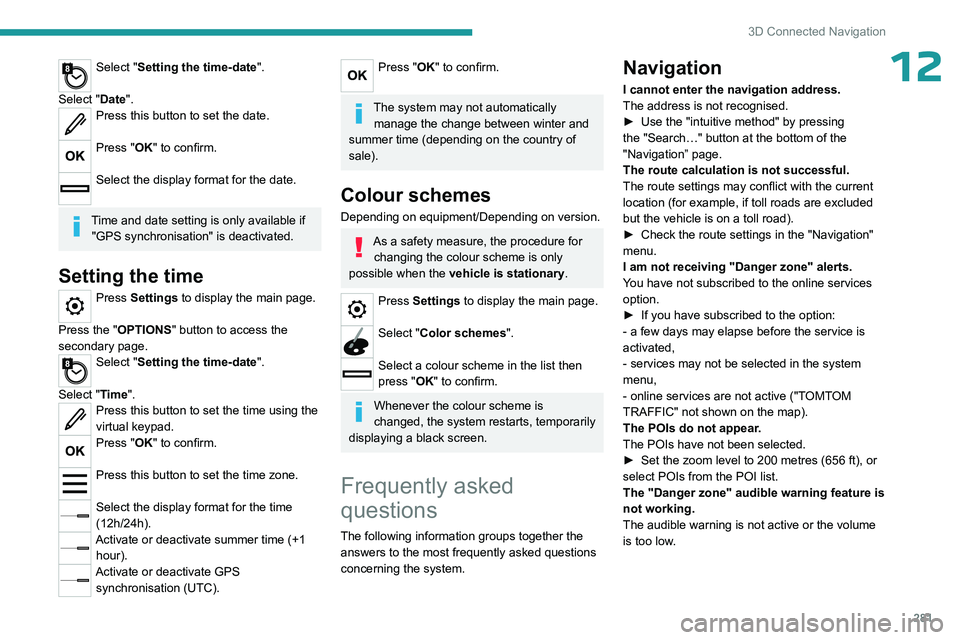
12Select "Setting the time-date".
Select "Date".
Press this button to set the date.
Press "OK" to confirm.
Select the display format for the date.
Time and date setting is only available if "GPS synchronisation" is deactivated.
Setting the time
Press Settings to display the main page.
Press the "OPTIONS " button to access the
secondary page.
Select "Setting the time-date".
Select "Time".
Press this button to set the time using the
virtual keypad.
Press "OK" to confirm.
Press this button to set the time zone.
Select the display format for the time
(12h/24h).
Activate or deactivate summer time (+1 hour).
Activate or deactivate GPS synchronisation (UTC).
Press "OK" to confirm.
The system may not automatically manage the change between winter and
summer time (depending on the country of
sale).
Colour schemes
Depending on equipment/Depending on version.
As a safety measure, the procedure for changing the colour scheme is only
possible when the vehicle is stationary.
Press Settings to display the main page.
Select "Color schemes ".
Select a colour scheme in the list then
press "OK" to confirm.
Whenever the colour scheme is
changed, the system restarts, temporarily
displaying a black screen.
Frequently asked
questions
The following information groups together the answers to the most frequently asked questions
concerning the system.
Navigation
I cannot enter the navigation address.
The address is not recognised.
►
Use the "intuitive method" by pressing
the "Search…" button at the bottom of the
"Navigation” page.
The route calculation is not successful.
The route settings may conflict with the current
location (for example, if toll roads are excluded
but the vehicle is on a toll road).
►
Check the route settings in the "Navigation"
menu.
I am not receiving "Danger zone" alerts.
Y
ou have not subscribed to the online services
option.
►
If you have subscribed to the option:
- a few days may elapse before the service is
activated,
- services may not be selected in the system
menu,
- online services are not active ("T
OMTOM
TRAFFIC" not shown on the map).
The POIs do not appear.
The POIs have not been selected.
►
Set the zoom level to 200 metres (656 ft), or
select POIs from the POI list.
The "Danger zone" audible warning feature is
not working.
The audible warning is not active or the volume
is too low
.
Page 287 of 324
285
Event data recorders
13Recording event data
Electronic control units are installed in your
vehicle. These control units process data
received from the vehicle's sensors, for example,
or data they generate themselves or exchange
with each other. Some of these control units are
required for the correct operation of your vehicle,
some others assist you while driving (driving or
manoeuvring aids), while others provide comfort
or infotainment functions.
The following contains general information about
how data is processed within the vehicle.
You will find additional information about the
specific data which is downloaded, stored
and transmitted to third parties and what it is
used for in your vehicle under the keyword
"Data protection". This information is directly
associated with the references for the functions
in question contained in the corresponding
vehicle handbook, or in the general terms and
conditions of sale.
This information is also available online.
Vehicle operating data
The control units process the data used for the
operation of the vehicle.
This data includes, for example:
–
Information about the state of the vehicle
(e.g.
speed, travel time, lateral acceleration,
wheel rotation rate, fastened seat belts display).
–
Environmental conditions (e.g.
temperature,
rain sensor, distance sensor). As a general rule, this data is temporary, is
not stored for longer than one operating cycle
and is only used within the vehicle itself. The
control units often record this data (including the
vehicle's key). This function allows either the
temporary or permanent storage of information
about the state of the vehicle, stresses on
components, servicing requirements, as well as
events and technical errors.
Depending on the vehicle's equipment level, the
data stored is as follows:
–
Operating state of system components
(e.g.
filling level, tyre pressures, battery charge
status).
–
Faults and malfunctions in important system
components (e.g.
lamps, brakes).
–
System reactions in specific driving situations
(e.g.
deployment of an airbag, triggering of
stability control and braking systems).
–
Information about events which have
damaged the vehicle.
–
For electric and rechargeable hybrid vehicles,
the traction battery charge level and the
estimated driving range.
In particular circumstances (e.g.
if the vehicle
has detected a malfunction), it may be necessary
to record data which would otherwise simply not
be stored.
When taking your vehicle in for servicing
(e.g.
repairs, maintenance), the stored operating
data may be read along with the vehicle's
identification number and used if necessary.
The personnel working for the servicing network (e.g.
garages, manufacturers) or third parties
(e.g. roadside assistance agents) may read
the vehicle's data. This also applies to work
carried out under warranty and quality assurance
measures.
This data is generally read via the OBD
(On-Board Diagnostics) port fitted by law to
the vehicle. It is used to report on the technical
state of the vehicle or its components and
facilitates the diagnosis of malfunctions, in
compliance with warranty obligations and for
quality improvement. This data, in particular the
information relating to stress on components,
technical events, operator errors and other
malfunctions, is sent to the Manufacturer, if
necessary, along with the vehicle's identification
number. The Manufacturer's liability may also be
engaged. The Manufacturer may also use the
operating data taken from the vehicle for product
recalls. This data may also be used to check the
customer's warranty and any claims made under
warranty.
Any malfunctions stored in the vehicle may be
reset by an after-sales service company during
servicing or repair work, or at your request.
Comfort and infotainment
functions
Comfort settings and personalised settings
may be saved in the vehicle and modified or
reinitialised at any time.
Page 293 of 324
291
Alphabetical index
Horn 99
I
Ignition 136–137, 278
Ignition on
137
Immobiliser, electronic
134
Indicator, AdBlue® range
18
Indicator, coolant temperature
17–18
Indicator, engine oil level
18
Indicator lamps, operation
88
Indicators, direction
89
Inflating tyres
62, 234
Inflating tyres and accessories
(using the kit)
204, 206–207
Information, vehicle
285
Infrared camera
151
Instrument panel
9, 151
Intelligent Traction Control
101
Internet browser
269, 272
ISOFIX
124, 127, 127–128
J
Jack 207–208, 275
Jump starting
217
K
Key 28–29, 31–35
Key, electronic
28, 137
Keyless Entry and Starting
28–34, 135–136
Key not recognised
137
Key with remote control
33, 134
Kit, hands-free
241–242, 255, 277
Kit, puncture repair
204–207
Kit, temporary puncture repair
204–207
L
Labels 5, 57
Labels, identification
233
Lane Departure Warning System
(LDWS)
166–167
Leather (care)
67
Level, AdBlue®
60
Level, brake fluid
59
Level, Diesel additive
194–195
Level, engine coolant
17–18, 59
Level, engine oil
18, 59
Level, headlamp wash
93
Level, power steering fluid
59
Levels and checks
192–194
Level, screenwash fluid
93, 60
Lighting
88
Lighting dimmer
22
Lighting, exterior
88
Lighting, guide-me home
90
Lighting, interior 86, 92
Lighting, mood
92
Lighting, welcome
90
Loading
72, 56
Loading area fittings
71
Load reduction mode
54
Load restraint
72
Locating your vehicle
29
Locking
28–29, 33
Locking from the inside
37–38
Locking the doors
37
Low fuel level
175–176
Lumbar
48, 51–52
M
Mains socket (domestic network) 46
Maintenance (advice)
44, 66
Maintenance, routine
151, 60, 62
Manoeuvring aids (recommendations)
150
Map reading lamps
86
Markings, identification
233
Massage function
51
Mat
68, 151
Memorising a speed
152–153
Menu
254
Menu, main
24, 236
Menus (audio)
249–250, 261–262
Menu short cuts
24
Messages
279
Messages, quick
279
Page 294 of 324
292
Alphabetical index
Minimum traction battery charge level
(Electric)
20
Mirror, rear view
53
Mirrors, door
52–53, 82, 168–169
Misfuel prevention
42
Mobile application
26, 86, 53
Moduwork
53–55
Motor, electric
136, 58, 229
Mountings,
ISOFIX
116, 124, 126, 127, 127–128
MP3 CD
240
N
Navigation 266–268
Navigation, connected
269–271
Net, cargo
53–55
Net, high load retaining
73
Number plate lamps
215
O
Obstacle detection 169
Oil change
59
Oil consumption
59
OIl, engine
59
On-board tools
203
Opening the bonnet
57
Opening the boot
28–29, 44
Opening the doors
28–29, 38–39
Opening to 180° 43–44
P
Pads, brake 62
Paint
66, 233
Paint colour code
233
Paint, matt
66
Panoramic glass sunroof
74
Parcel shelf, rear
69
Parking brake
138, 61
Parking brake, electric
138–140, 61
Parking sensors, audible and visual
169
Parking sensors, front
170
Parking sensors, rear
170
Passenger compartment temperature
pre-conditioning (Electric)
26, 86
Pedestrian horn (Electric)
99, 133
Plates, identification
233
Player, Apple®
241, 253, 276
Player, MP3 CD
240
Player, USB
239, 252, 275
Port, USB
70, 239, 252, 254, 271, 275
Power
20
Power indicator (Electric)
8, 20
Power mode
147
Pressures, tyres
62, 204, 207, 234
Pre-tensioning seat belts
105
Priming pump
202
Priming the fuel system
202
Profiles
257, 280
Protecting children 106, 108–112,
118–120, 126, 127, 127–128, 128
Public fast charging station
46, 52
Puncture
204–205, 207
R
Radar (warnings) 150
Radio
237–238, 250–251, 274
Radio, digital (Digital Audio
Broadcasting - DAB)
238, 252, 275
Range, AdBlue®
18, 60
RDS
251, 274
Rear screen, demisting
82
Recharging the battery
218–219
Recharging the traction battery
47
Recharging the traction battery
(Electric)
43, 50, 186–187
Recirculation, air
79–81
Recovery
220–222
Recovery of the vehicle
220–221
Reduction of electrical load
54
Regeneration of the particle filter
61
Regenerative braking
(deceleration by engine braking)
145–146
Reinitialisation of the under-inflation
detection system
149
Reinitialising the remote control
36
Reminder, key in ignition
136
Reminder, lighting on
89
Remote control
28–34, 134