Set time Peugeot Expert Tepee 2012 Owner's Guide
[x] Cancel search | Manufacturer: PEUGEOT, Model Year: 2012, Model line: Expert Tepee, Model: Peugeot Expert Tepee 2012Pages: 276, PDF Size: 10.01 MB
Page 215 of 276
9.57
04
1
2
3
5
6
4
NAVIGATION - GUIDANCE
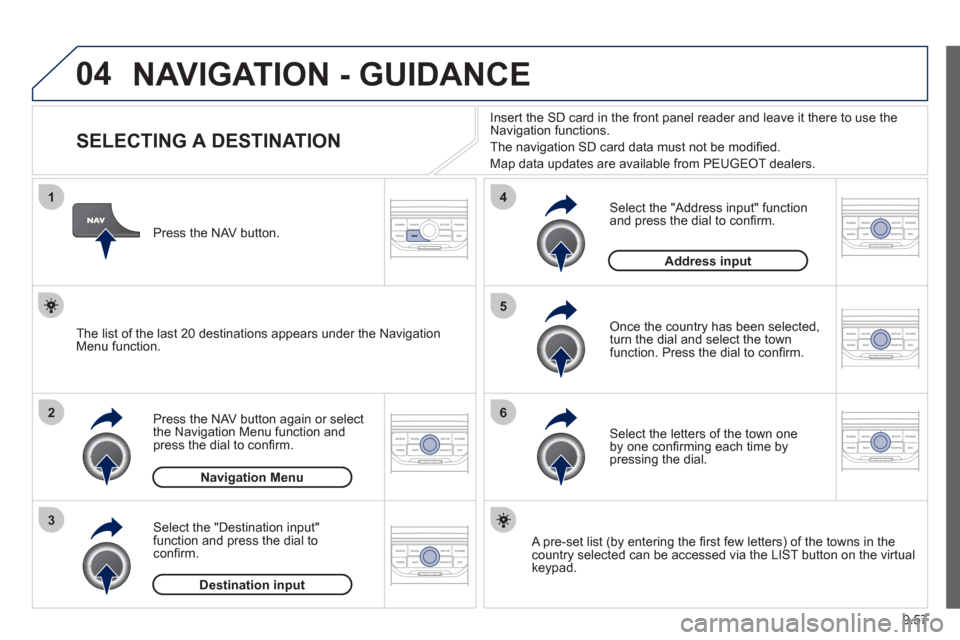
SELECTING A DESTINATION
Press the NAV button again or select
the Navigation Menu function and
press the dial to confi rm.
Select the "Destination in
put"
function and press the dial to
confi rm. Pr
ess the NAV button.
Select the letters of the town one
by one confi rming each time by pressing the dial.
Once the country has been selected,
turn the dial and select the townfunction. Press the dial to confi rm. Insert the
SD card in the front panel reader and leave it there to use the
Navigation functions.
The navi
gation SD card data must not be modifi ed.
Map data updates are available
from PEUGEOT dealers.
A pre-set list (by entering the fi rst few letters) of the towns in thecountry selected can be accessed via the LIST button on the virtual
keypad.
Select the "Address input" function
and press the dial to confi rm.
The list o
f the last 20 destinations appears under the NavigationMenu function.
Navigation Menu
Destination input
Address input
Page 232 of 276
9.74
09
4 3 2 1
65
CONFIGURATION
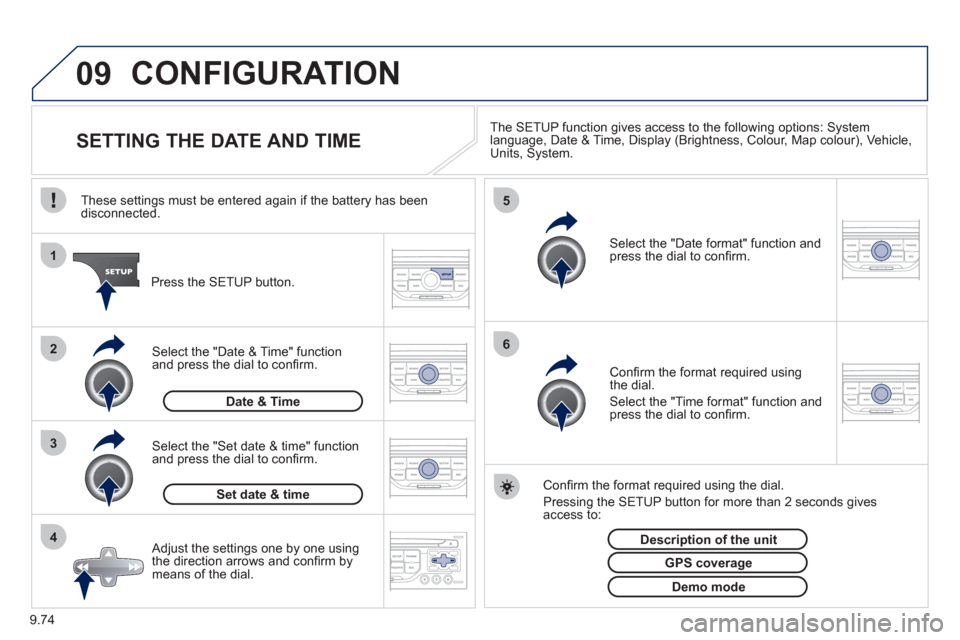
SETTING THE DATE AND TIME The SETUP function gives access to the following options: Systemlanguage, Date & Time, Display (Brightness, Colour, Map colour), Vehicle,Units, System.
Adjust the settings one by one usingthe direction arrows and confi rm bymeans of the dial.
Select the "Date format" function andpress the dial to confi rm.
Select the "Set date
& time" function
and press the dial to confi rm.
Confi rm the format required using the dial.
Pressing the
SETUP button for more than 2 seconds gives access to: These settin
gs must be entered again if the battery has been disconnected.
Pr
ess the SETUP button.
Confi rm the format required usingthe dial.
Select the "Time format" function and press the dial to confi rm.
Set date & tim
e
Select the "Date & Time" function
and press the dial to confi rm.
Demo mode
GPS coverage
Description of the unit
Date & Time
Page 233 of 276
9.75
10
1
TRIP COMPUTER
TRIP COMPUTER
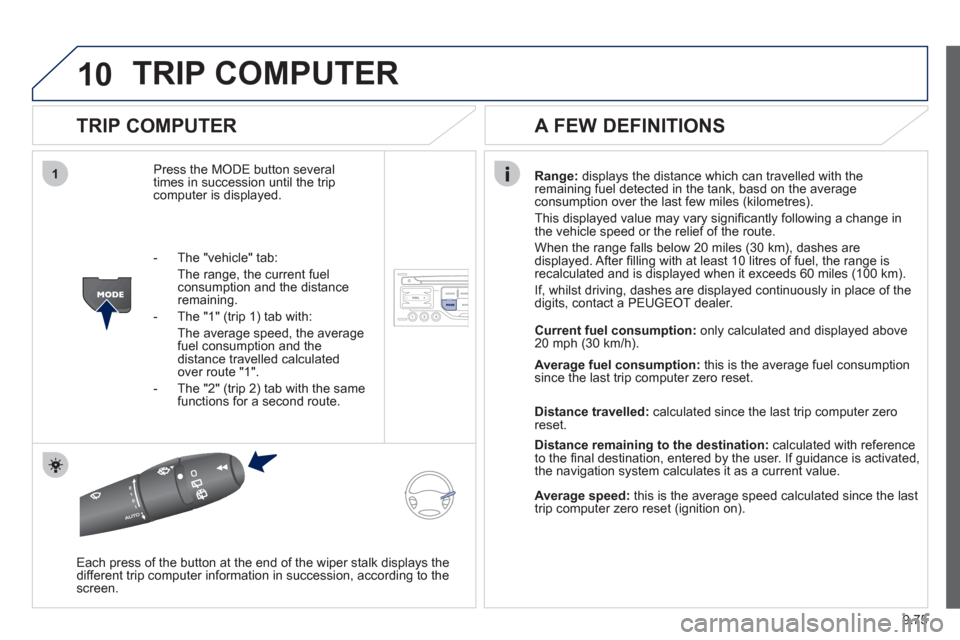
Press the MODE button several
times in succession until the tripcomputer is displayed.Ran
ge: displays the distance which can travelled with the
remaining fuel detected in the tank, basd on the averageconsumption over the last few miles (kilometres).
This displa
yed value may vary signifi cantly following a change in
the vehicle speed or the relief of the route.
When the ran
ge falls below 20 miles (30 km), dashes are
displayed. After fi lling with at least 10 litres of fuel, the range is
recalculated and is displayed when it exceeds 60 miles (100 km).
I
f, whilst driving, dashes are displayed continuously in place of the
digits, contact a PEUGEOT dealer.
Each press o
f the button at the end of the wiper stalk displays the
different trip computer information in succession, according to the screen.
A FEW DEFINITIONS
- The "vehicle" tab:
The ran
ge, the current fuelconsumption and the distance remaining.
- The "1"
(trip 1) tab with:
The average speed, the average fuel consumption and the distance travelled calculatedover route "1".
- The "2"
(trip 2) tab with the same functions for a second route. Current fuel consum
ption:only calculated and displayed above
20 mph (30 km/h).
Avera
ge fuel consumption:this is the average fuel consumption since the last trip computer zero reset.
Distance travelled:calculated since the last trip computer zero
reset.
Distance remaining to the destination:calculated with referenceto the fi nal destination, entered by the user. If guidance is activated,
the navigation system calculates it as a current value.
Average speed:this is the average speed calculated since the last
trip computer zero reset (ignition on).
Page 236 of 276
9.78
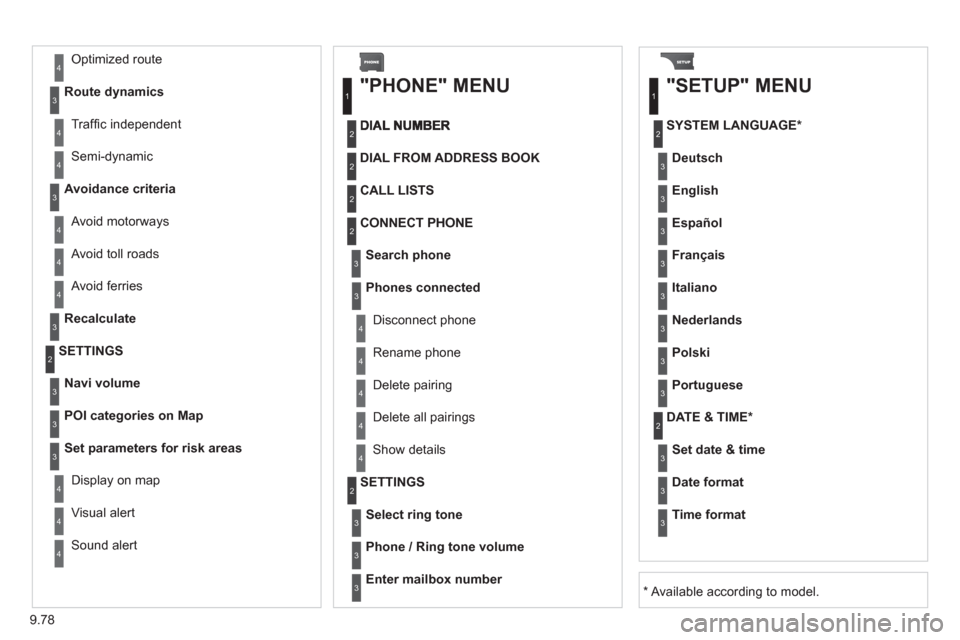
Avoid ferries
Recalculate
SETTINGS
Navi volum
e
POI categories on Map
Set
parameters for risk areas
Displa
y on map
Vi
sual alert
Sound alert
3
2
4
3
3
3
4
4
4
DIAL FROM ADDRESS BOOK
"PHONE" MENU
Search phone
CALL LISTS
CONNECT PHONE
Select rin
g tone
Phone / Ring tone volume
Phones connected
Enter mailbox number
SETTINGSDisconnect phone
Rename phone
Delete pairing
Delete all pairings
Show details
"SETUP" MENU
SYSTEM LANGUAGE *
English
Español
Deutsch
Italiano
Français
Nederlands
Polski
Portuguese
DATE & TIME *
Set date & tim
e
Date format
Time format
1
2
2
2
2
3
3
4
4
4
4
4
2
3
3
3
1
2
3
3
3
3
3
3
3
3
3
3
3
2
Avoid motorways Route d
ynamics
Traffi c inde
pendent
Semi-d
ynamic
Avoidance criteria
Avoid toll roads
Optimized route
3
3
4
4
4
4
4
*
Available according to model.
Page 240 of 276
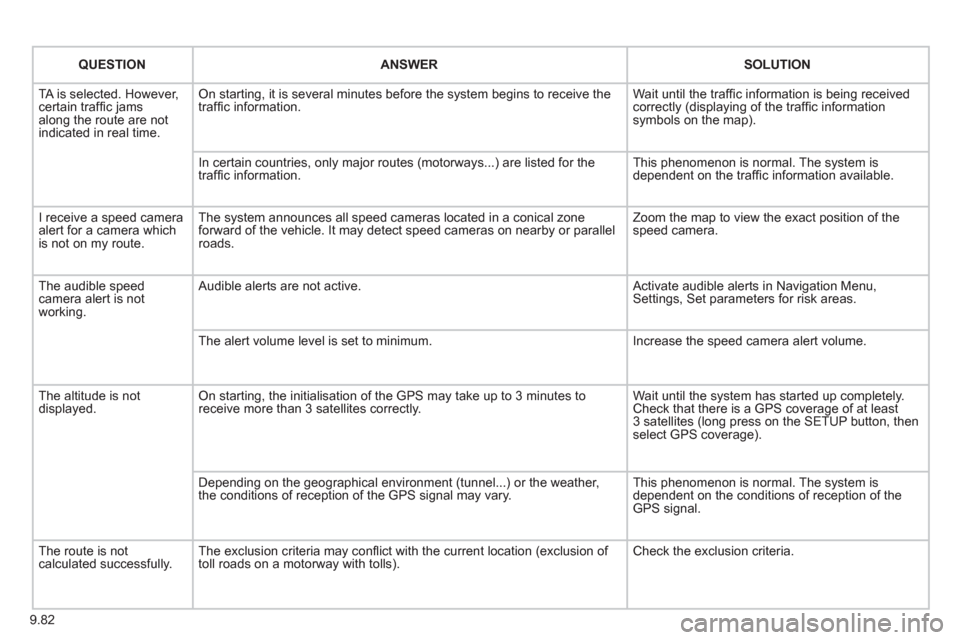
9.82
QUESTIONANSWER SOLUTION
TA is selected. However, certain traffi c jams
along the route are not
indicated in real time.
On starting, it is several minutes before the system begins to receive the
traffi c information. Wait until the traffi c information is being received correctly (displaying of the traffi c information symbols on the map).
In certain countries, onl
y major routes (motorways...) are listed for the
traffi c information. This phenomenon is normal. The system is
dependent on the traffi c information available.
I receive a speed camera
alert for a camera which
is not on my route.The system announces all speed cameras located in a conical zoneforward of the vehicle. It may detect speed cameras on nearby or parallel roads. Zoom the map to view the exact position o
f thespeed camera.
The audible speed
camera alert is not
working. A
udible alerts are not active. Activate audible alerts in Navigation Menu, Settings, Set parameters for risk areas.
Th
e alert volume level is set to minimum. Increase the speed camera alert volume.
Th
e altitude is not displayed. On starting, the initialisation of the GPS may take up to 3 minutes toreceive more than 3 satellites correctly. Wait until the system has started up completely.
Check that there is a GPS coverage of at least
3 satellites (long press on the SETUP button, then select GPS coverage).
Dependin
g on the geographical environment (tunnel...) or the weather,
the conditions of reception of the GPS signal may vary. This phenomenon is normal. The system is
dependent on the conditions of reception of the
GPS signal.
The route is notcalculated successfully.The exclusion criteria may confl ict with the current location (exclusion of
toll roads on a motorway with tolls). Check the exclusion criteria.
Page 241 of 276
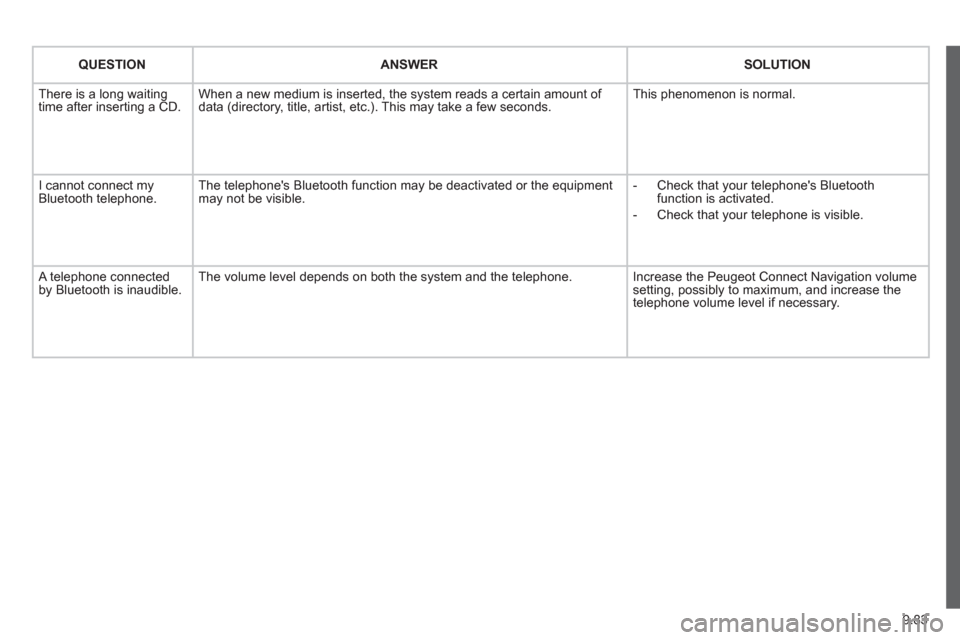
9.83
QUESTIONANSWER SOLUTION
There is a long waiting
time after inserting a CD. When a new medium is inserted, the system reads a certain amount of
data (directory, title, artist, etc.). This may take a few seconds. This phenomenon is normal.
I cannot connect myBluetooth telephone.The telephone's Bluetooth function may be deactivated or the equipment
may not be visible.
- Check that your telephone's Bluetoothfunction is activated.
-
Check that your telephone is visible.
A telephone connected by Bluetooth is inaudible.The volume level depends on both the system and the telephone. Increase the Peugeot Connect Navigation volume setting, possibly to maximum, and increase the
telephone volume level if necessary.
Page 256 of 276
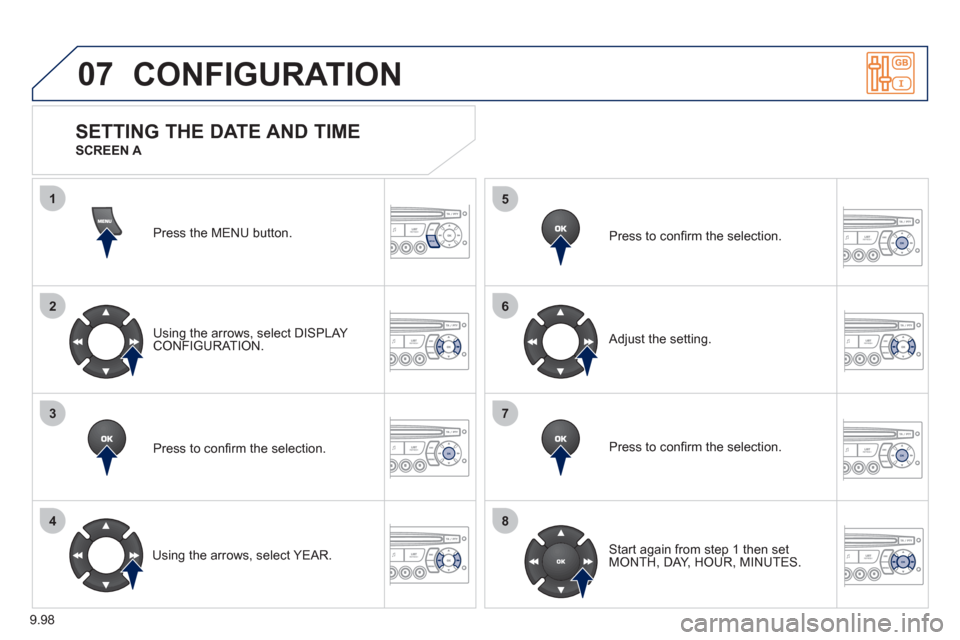
9.98
07
1
2
3
4
5
6
7
8
MENU
OK
OK
OK
OK
CONFIGURATION
Press the MENU button.
Usin
g the arrows, select DISPLAY CONFIGURATION.
Pr
ess to confi rm the selection.
Using the arrows, select YEAR. Pr
ess to confi rm the selection.
Pr
ess to confi rm the selection.
Ad
just the setting.
Start again from step 1 then set MONTH, DAY, HOUR, MINUTES.
SETTING THE DATE AND TIME
SCREEN A
Page 257 of 276
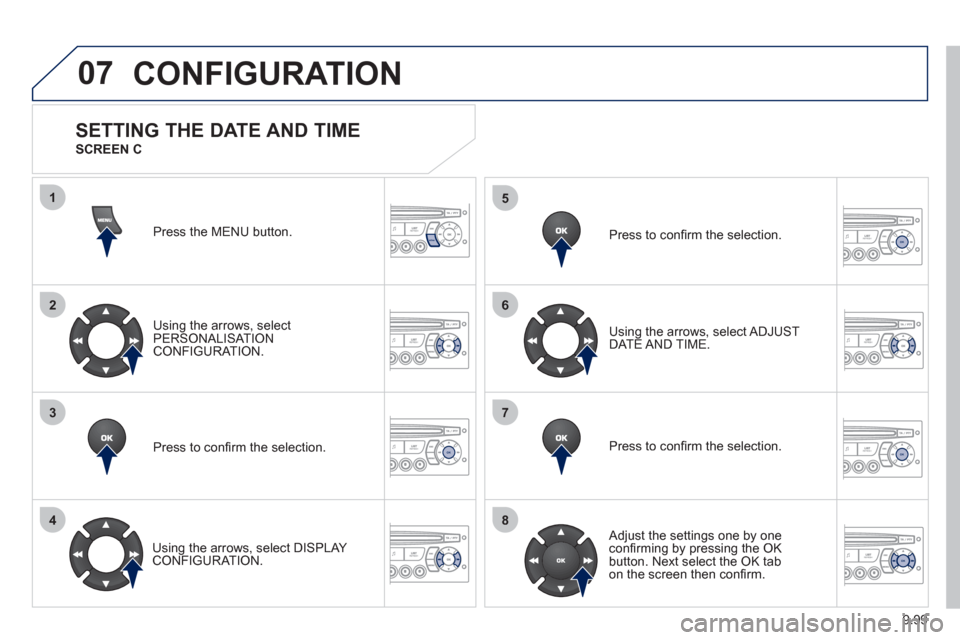
9.99
07
1
2
3
4
5
6
7
8
MENU
OK
OK
OK
OK
CONFIGURATION
Press the MENU button.
Usin
g the arrows, select
PERSONALISAT ION CONFIGURATION.
Pr
ess to confi rm the selection.
Using the arrows, select DI
SPLAY CONFIGURATION. Pr
ess to confi rm the selection.
Pr
ess to confi rm the selection. Usin
g the arrows, select ADJUST DATE AND TIME.
Adjust the settings one by one confi rming by pressing the OK
button. Next select the OK tabon the screen then confi rm.
SETTING THE DATE AND TIME
SCREEN C
Page 268 of 276
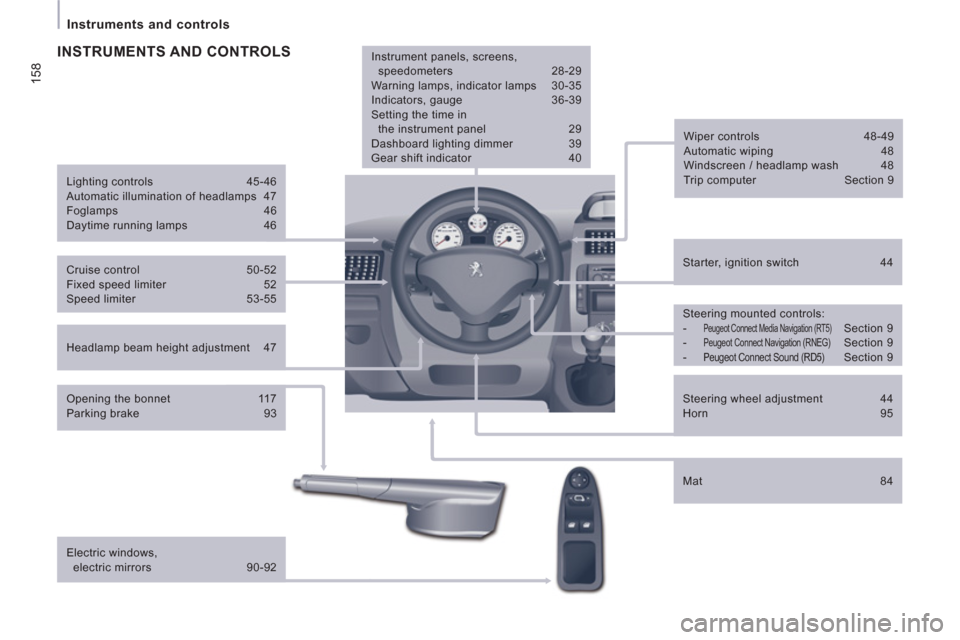
158
Instruments and controls
Headlamp beam height adjustment 47
Starter, ignition switch 44
Wiper controls 48-49
Automatic wiping 48
Windscreen / headlamp wash 48
Trip computer Section 9
Cruise control 50-52
Fixed speed limiter 52
Speed limiter 53-55
Steering mounted controls:
-
Peugeot Connect Media Navigation (RT5) Section 9
- Peugeot Connect Navigation (RNEG) Section 9
- Peugeot Connect Sound (RD5) Section 9
Lighting controls 45-46
Automatic illumination of headlamps 47
Foglamps 46
Daytime running lamps 46
INSTRUMENTS AND CONTROLS
Opening the bonnet 117
Parking brake 93
Electric windows,
electric mirrors 90-92
Instrument panels, screens,
speedometers 28-29
Warning lamps, indicator lamps 30-35
Indicators, gauge 36-39
Setting the time in
the instrument panel 29
Dashboard lighting dimmer 39
Gear shift indicator 40
Mat 84
Steering wheel adjustment 44
Horn 95
Page 269 of 276
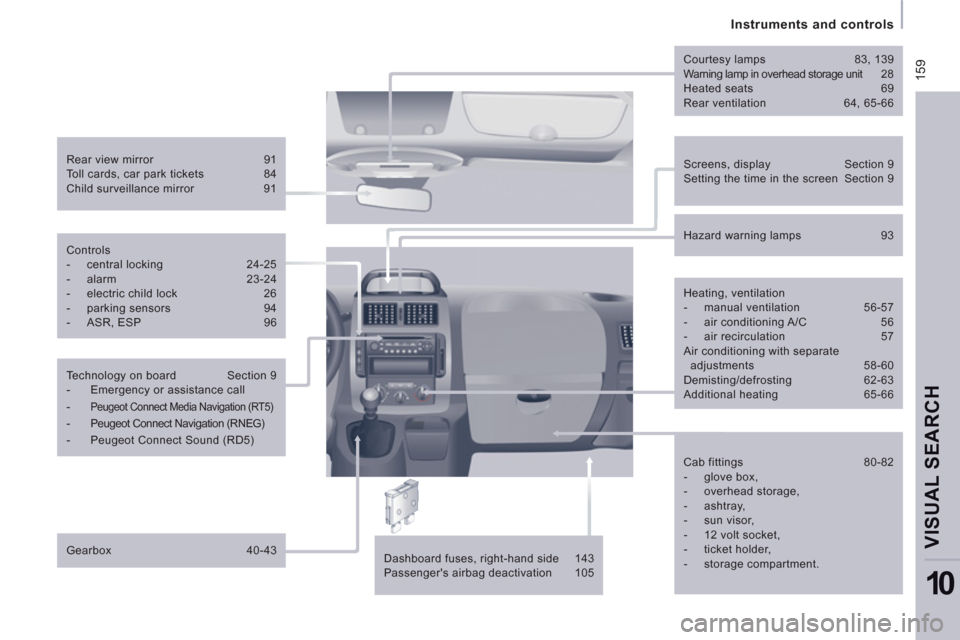
15
9
Instruments and controls
VISUAL SEARCH
10
Screens, display Section 9
Setting the time in the screen Section 9
Rear view mirror 91
Toll cards, car park tickets 84
Child surveillance mirror 91
Courtesy lamps 83, 139
Warning lamp in overhead storage unit 2 8
Heated seats 69
Rear ventilation 64, 65-66
Dashboard fuses, right-hand side 143
Passenger's airbag deactivation 105
Controls
- central locking 24-25
- alarm 23-24
- electric child lock 26
- parking sensors 94
- ASR, ESP 96
Technology on board Section 9
- Emergency or assistance call
-
Peugeot Connect Media Navigation (RT5)
- Peugeot Connect Navigation (RNEG)
- Peugeot Connect Sound (RD5)
Gearbox 40-43
Hazard warning lamps 93
Heating, ventilation
- manual ventilation 56-57
- air conditioning A/C 56
- air recirculation 57
Air conditioning with separate
adjustments 58-60
Demisting/defrosting 62-63
Additional heating 65-66
Cab fittings 80-82
- glove box,
- overhead storage,
- ashtray,
- sun visor,
- 12 volt socket,
- ticket holder,
- storage compartment.