service Peugeot Expert Tepee 2012 Owner's Guide
[x] Cancel search | Manufacturer: PEUGEOT, Model Year: 2012, Model line: Expert Tepee, Model: Peugeot Expert Tepee 2012Pages: 276, PDF Size: 10.01 MB
Page 172 of 276
9.14
04
9
10
11
12
13
14
15
NAVIGATION - GUIDANCE
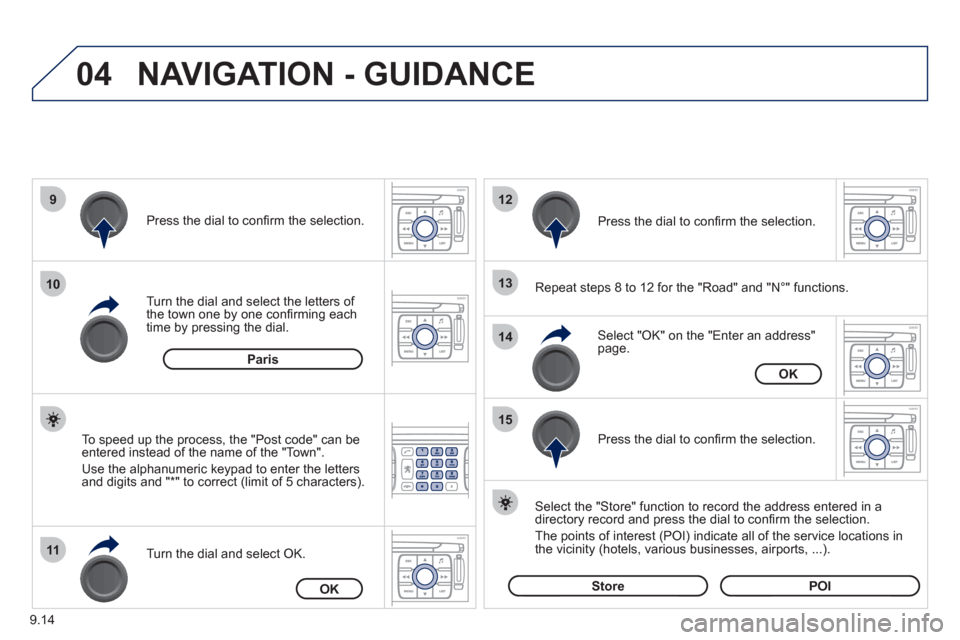
Repeat steps 8 to 12 for the "Road" and "N°" functions.
Turn the dial and select the letters of
the town one by one confi rming each
time by pressing the dial.
Select the "Store" function to record the address entered in a
directory record and press the dial to confi rm the selection.
The points o
f interest (POI) indicate all of the service locations in
the vicinity (hotels, various businesses, airports, ...).
Select "OK" on the "Enter an address" page. Pr
ess the dial to confi rm the selection.
Turn the dial and select
OK.
To speed up the process, the "Post code" can beentered instead of the name of the "Town".
Use the alphanumeric ke
ypad to enter the letters
and digits and "*" to correct (limit of 5 characters).
Pr
ess the dial to confi rm the selection.
Pr
ess the dial to confi rm the selection.
Paris
OK
OK
StorePOI
Page 176 of 276
9.18
04
1
2
3
5
4
1
2
3
NAVIGATION - GUIDANCE
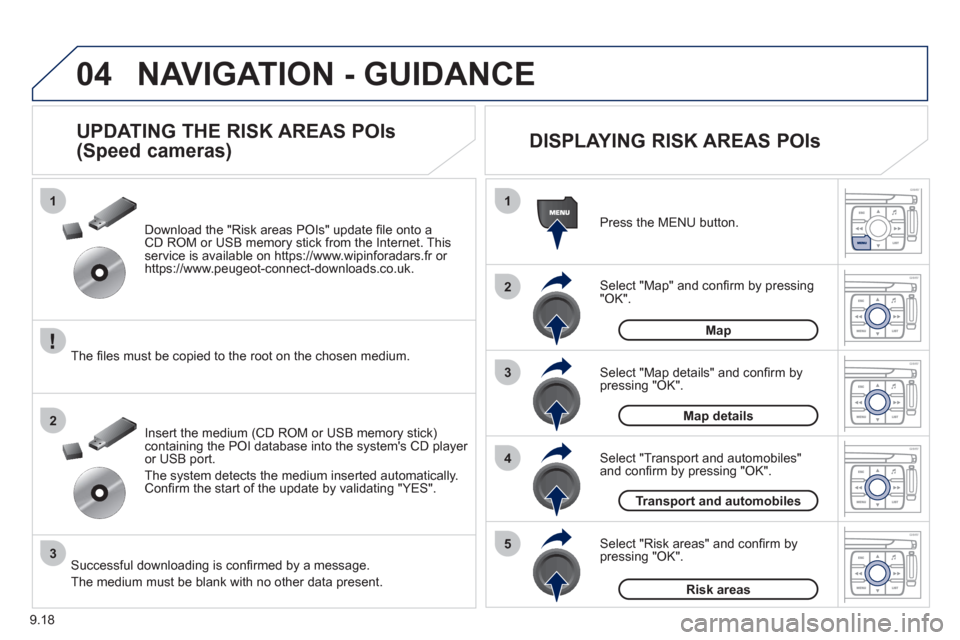
Select "Map" and confi rm by pressing"OK". Press the MEN
U button.
Select "Transport and automobiles"and confi rm by pressing "OK". Select "Map details" and confi rm b
y
pressing "OK". Download the "Risk areas P
OIs" update fi le onto aCD ROM or USB memory stick from the Internet. This service is available on https://www.wipinforadars.fr or
https://www.peugeot-connect-downloads.co.uk.
UPDATING THE RISK AREAS POIs
(Speed cameras)
DISPLAYING RISK AREAS POIs
Select "Risk areas" and confi rm by
pressing "OK".
Map
Map details
Transport and automobiles
Risk areas The fi les must be co
pied to the root on the chosen medium.
Insert the medium
(CD ROM or USB memory stick)containing the POI database into the system's CD player
or USB port.
The s
ystem detects the medium inserted automatically.Confi rm the start of the update by validating "YES".
Successful downloading is confi rmed by a message.
The medium must be blank with no other data present.
Page 179 of 276
9.21
04
1
2
3
4
4
5
6
7
NAVIGATION - GUIDANCE
ACTIONS ON THE MAP
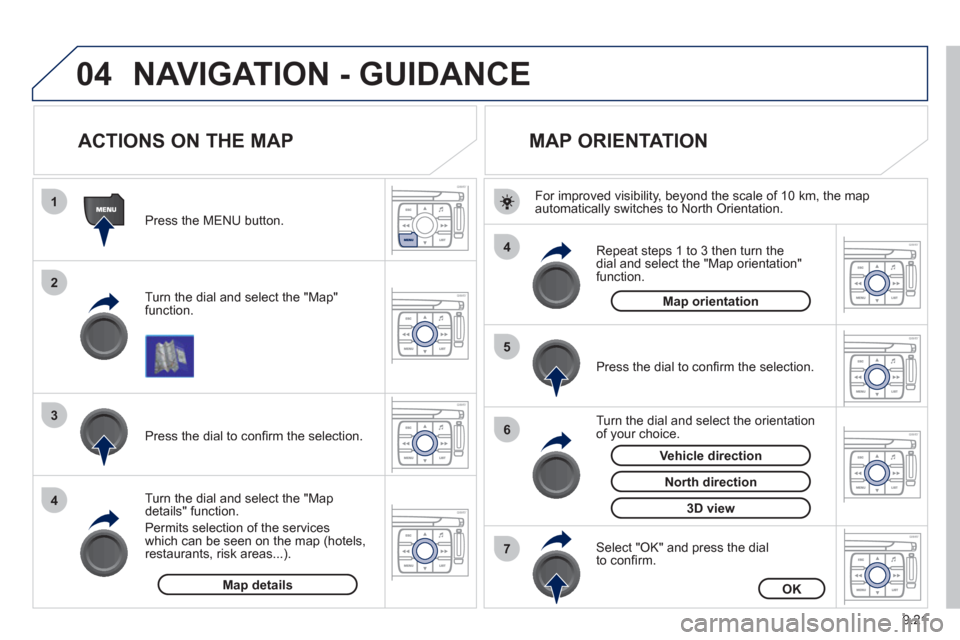
Turn the dial and select the "Map"function.
Press the MENU button.
Turn the dial and select the "Map details" function.
P
ermits selection of the services
which can be seen on the map (hotels,restaurants, risk areas...).
Pr
ess the dial to confi rm the selection.
MAP ORIENTATION
Press the dial to confi rm the selection.
Repeat steps
1 to 3 then turn the
dial and select the "Map orientation"
function.
Select "OK" and press the dial
to confi rm.
Turn the dial and select the orientation
of your choice.
For improved visibilit
y, beyond the scale of 10 km, the map
automatically switches to North Orientation.
Map detailsOK
Map orientation
3D view
North direction
Vehicle direction
Page 193 of 276
9.35
07
1
2
3
4
BLUETOOTH® TELEPHONE®
CONNECTING A BLUETOOTH
TELEPHONE
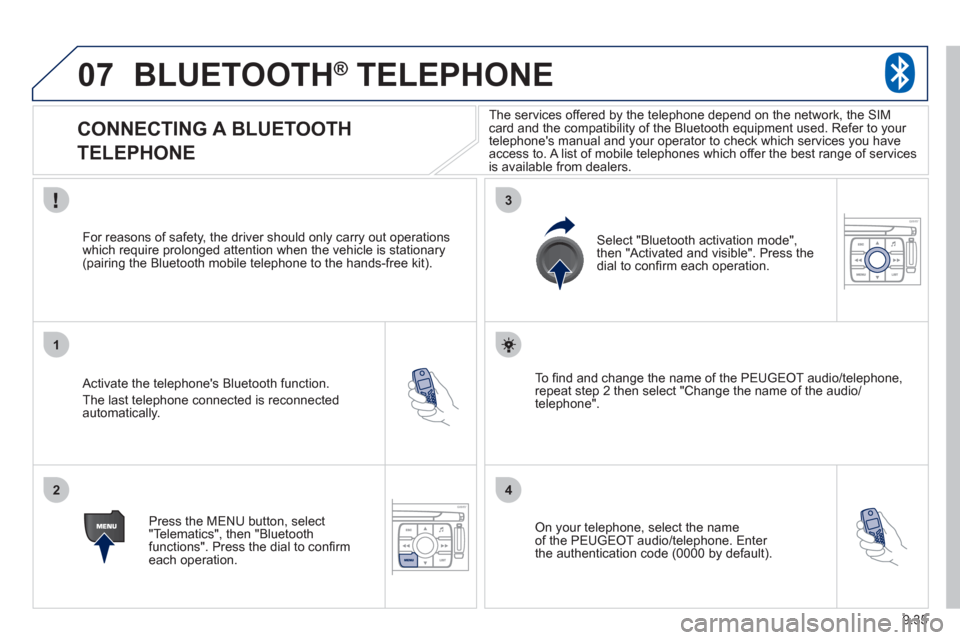
Activate the telephone's Bluetooth function.
The last telephone connected is reconnectedautomatically.
For reasons o
f safety, the driver should only carry out operations
which require prolonged attention when the vehicle is stationary (pairing the Bluetooth mobile telephone to the hands-free kit).
Press the MENU button, select
"Telematics", then "Bluetoothfunctions". Press the dial to confi rmeach operation.
To fi nd and chan
ge the name of the PEUGEOT audio/telephone,
repeat step 2 then select "Change the name of the audio/
telephone".
Select "Bluetooth activation mode"
,
then "Activated and visible". Press thedial to confi rm each operation.
On your telephone, select the nameof the PEUGEOT audio/telephone. Enter
the authentication code (0000 by default).
The services offered b
y the telephone depend on the network, the SIM card and the compatibility of the Bluetooth equipment used. Refer to your
telephone's manual and your operator to check which services you have
access to. A list of mobile telephones which offer the best range of services
is available from dealers.
Page 202 of 276
9.44
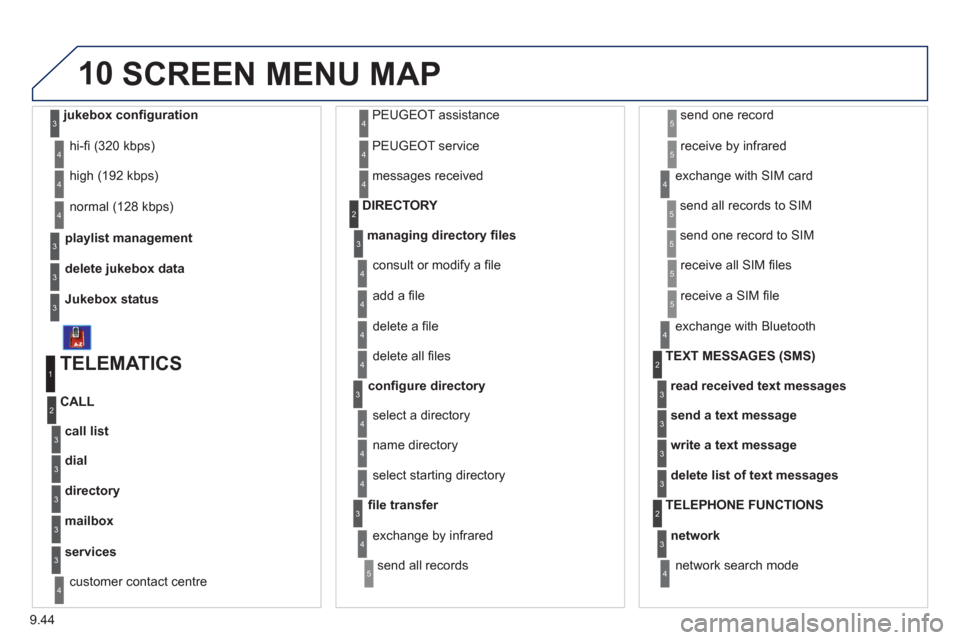
10
playlist management
hi-fi (320 kbps)
delete
jukebox data
Jukebox status
high (192 kbps)
normal
(128 kbps)
3
3
3
4
4
4
TELEMATICS
call list
CALL
1
2
3
dial3
directory3
mailbox3
services3
customer contact centre4
PEUGEOT assistance
PE
UGEOT service
messa
ges received
4
4
4
managing directory fi les3
DIRECTORY 2
consult or modify a fi le
add a fi le
delete a fi le
4
4
4
confi gure directory
delete all fi les
3
4
select a directory
name director
y 4
4
fi le transfer select startin
g directory
3
4
exchange by infrared
send all records
send one record
receive by infrared
5
5
5
4
exchange with SIM card
send all records to
SIM
send one record to SIM
5
5
4
receive all SIM fi les
receive a
SIM fi le
5
5
exchange with Bluetooth
4
read received text messages
TEXT MESSAGES
(SMS)2
3
send a text message3
write a text message3
delete list of text messages3
network
TELEPHONE FUNCTIONS 2
3
network search mode 4
SCREEN MENU MAP
jukebox confi guration3
Page 204 of 276
9.46
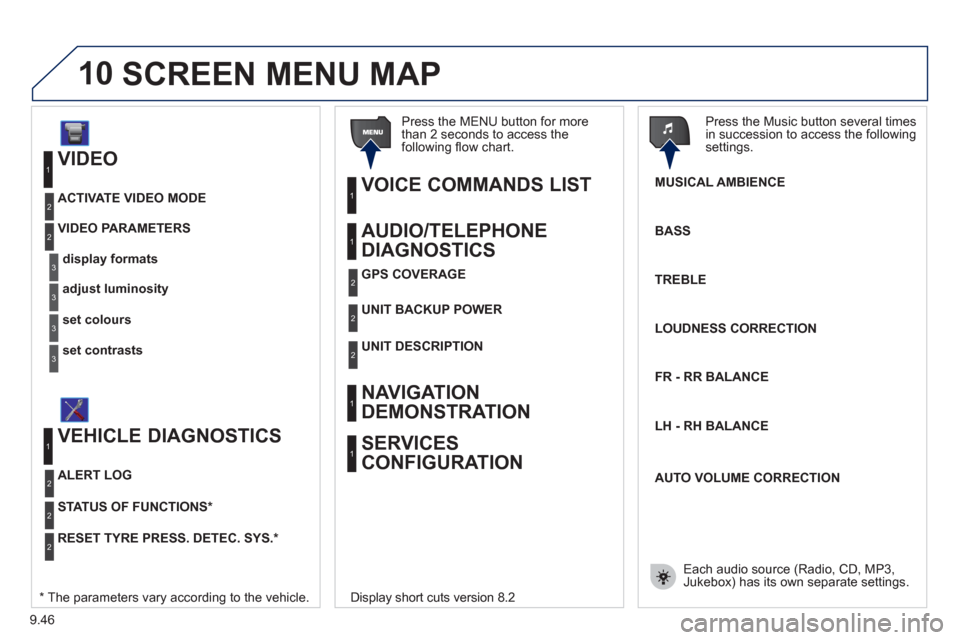
10
VIDEO
display formats
VIDEO PARAMETERS
1
2
3
adjust luminosity3
set colours3
set contrasts3
ACTIVATE VIDEO MODE 2
VEHICLE DIAGNOSTICS
STATUS OF FUNCTIONS *
1
2
ALERT LOG 2
RESET TYRE PRESS. DETEC. SYS. *2
AUDIO/TELEPHONE
DIAGNOSTICS
UNIT BACKUP POWE R
1
2
GPS COVERAGE2
UNIT DESCRIPTION2
VOICE COMMANDS LIST 1
SERVICES
CONFIGURATION 1
NAVIGATION
DEMONSTRATION
1
Press the MENU button for more
than 2 seconds to access the following fl ow chart.
Press the Music button several times
in succession to access the followingsettings.
MUSICAL AMBIENCE
SCREEN MENU MAP
BASS
TREBLE
LOUDNESS CORRECTION
FR - RR BALAN
CE
Displa
y short cuts version 8.2
LH - RH BALAN
CE
AUTO VOLUME CORRECTION
Each audio source
(Radio, CD, MP3,Jukebox) has its own separate settings.* The parameters vary according to the vehicle.
Page 220 of 276
9.62
04
8
6
7
4
3
5
2
1
NAVIGATION - GUIDANCE
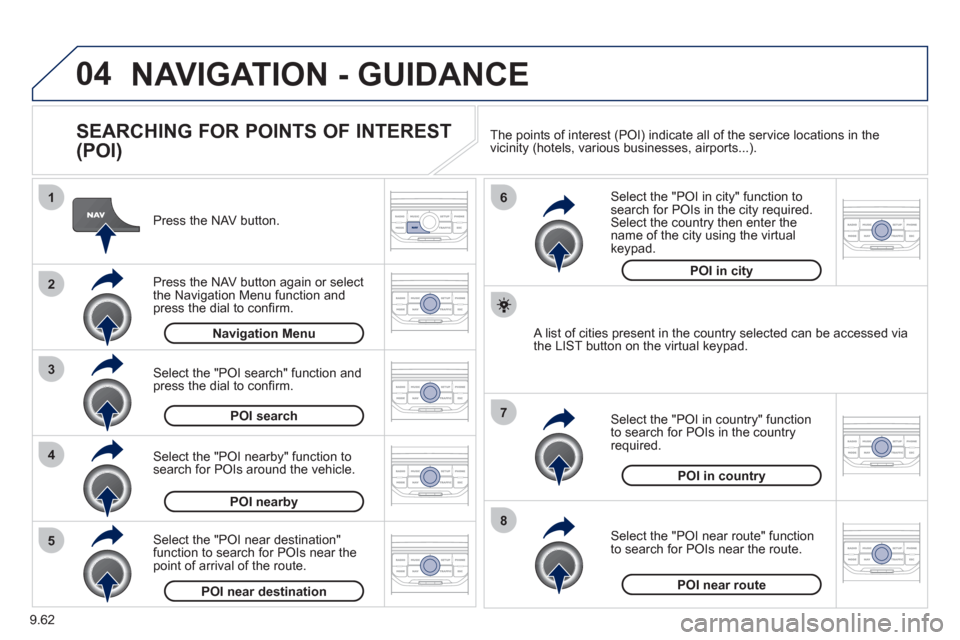
SEARCHING FOR POINTS OF INTEREST
(POI)
Press the NAV button.
Press the NAV button again or select
the Navigation Menu function and press the dial to confi rm.
Select the "POI nearby" function to search for POIs around the vehicle.
Select the "POI search" function and press the dial to confi rm. Navigation Menu
POI search
POI nearby
Select the "POI in city" function tosearch for POIs in the city required.Select the country then enter the name of the city using the virtual
keypad.
Select the "POI near route" function
to search for POIs near the route.
Select the "P
OI in country" function
to search for POIs in the country
required.
Select the "POI near destination"function to search for POIs near thepoint of arrival of the route.
POI near destinationPOI near route
POI in country
POI in city
A list of cities present in the country selected can be accessed via
the LIST button on the virtual keypad. The points o
f interest (POI) indicate all of the service locations in the
vicinity (hotels, various businesses, airports...).
Page 221 of 276
9.63
04NAVIGATION - GUIDANCE
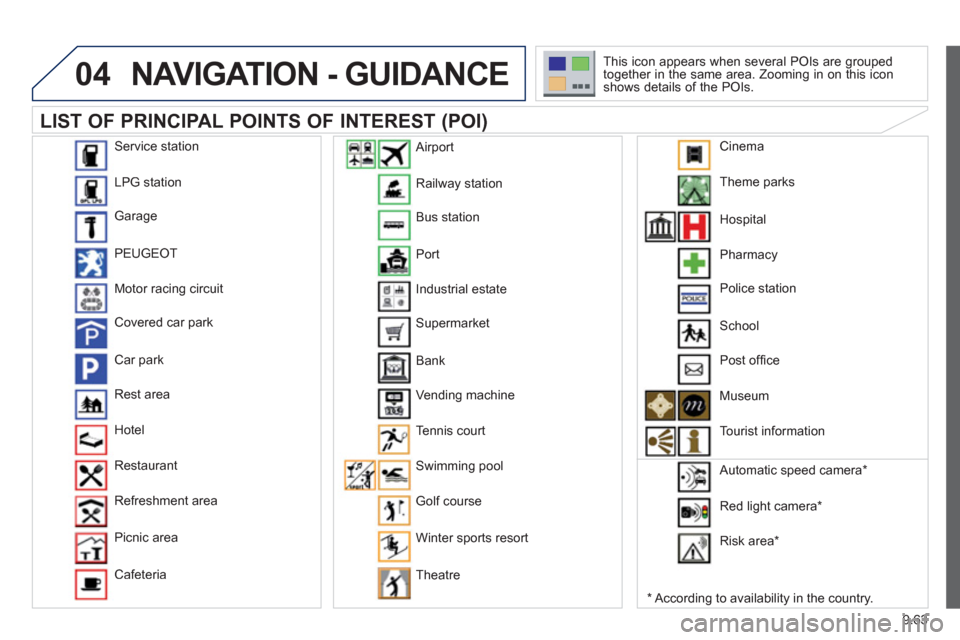
LIST OF PRINCIPAL POINTS OF INTEREST (POI)
*
According to availability in the country. This icon appears when several P
OIs are grouped
together in the same area. Zooming in on this icon
shows details of the POIs.
Service station
LP
G station
Garage
PEU
GEOT
Motor racin
g circuit
Covered car park
Car park
Rest area
H
otel
Restaurant
R
efreshment area
Pi
cnic area
Cafeteria
Railwa
y station
B
us station
Port
Industrial estate
Supermarket
B
ank
Vending machine
T
ennis court
Swimmin
g pool
Golf course
Winter sports resort
Th
eatre
Airport
Theme
parks
Hospital
Pharmac
y
Police station
School
P
ost offi ce
Museum
T
ourist information
Automatic speed camera
*
Red li
ght camera *
Ri
sk area *
Cinema
Page 229 of 276
9.71
08
1
2
3
4
BLUETOOTH® TELEPHONE®
*
The services available depend on the network, the SIM card and thecompatibility of the Bluetooth telephone used. Check the telephone
manual and with your network provider for details of the servicesavailable to you.
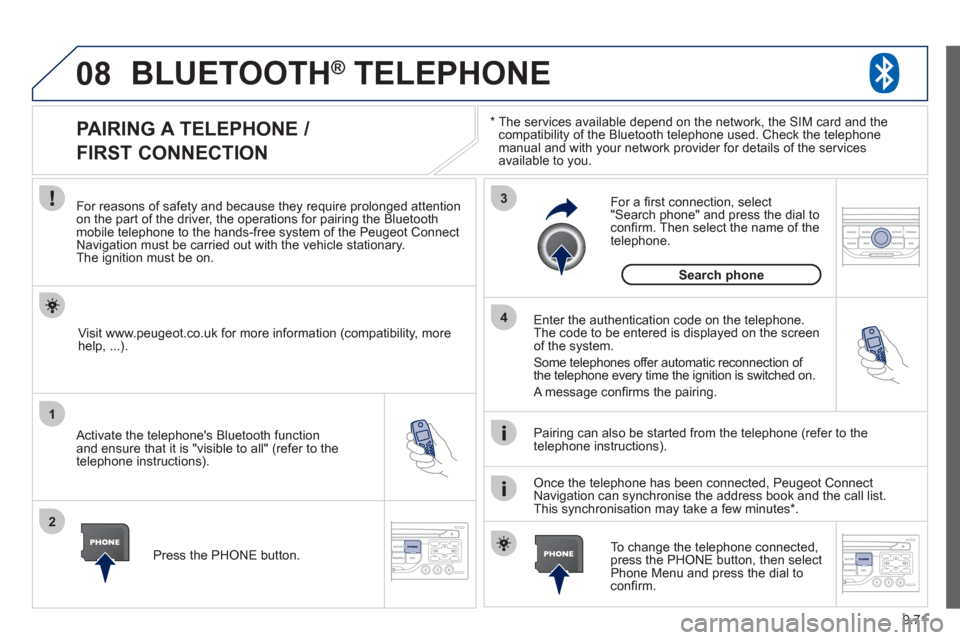
PAIRING A TELEPHONE /
FIRST CONNECTION
For reasons of safety and because they require prolonged attentionon the part of the driver, the operations for pairing the Bluetooth mobile telephone to the hands-free system of the Peugeot ConnectNavigation must be carried out with the vehicle stationary.The ignition must be on.
Activate the telephone's Bluetooth
function
and ensure that it is "visible to all" (refer to the
telephone instructions). Enter the authentication code on the tele
phone.
The code to be entered is displayed on the screen
of the system.
Some telephones offer automatic reconnection o
f
the telephone every time the ignition is switched on.
A messa
ge confi rms the pairing.
To change the telephone connected, press the PHONE button, then select Phone Menu and press the dial toconfi rm.
Once the telephone has been connected, Peugeot Connect
Navigation can synchronise the address book and the call list.
This synchronisation may take a few minutes * . Pairin
g can also be started from the telephone (refer to the
telephone instructions). Visit www.peu
geot.co.uk for more information (compatibility, more
help, ...).
Press the PH
ONE button.
For a
fi rst connection, select"Search phone" and press the dial to confi rm. Then select the name of thetelephone.
Search
phone
Page 230 of 276
9.72
08
1
2
2
1
*
The services available depend on the network, the SIM card and the compatibility of the Bluetooth telephone used. Check the telephone manual and with your network provider for details of the services
available to you.
BLUETOOTH ®TELEPHONE ®
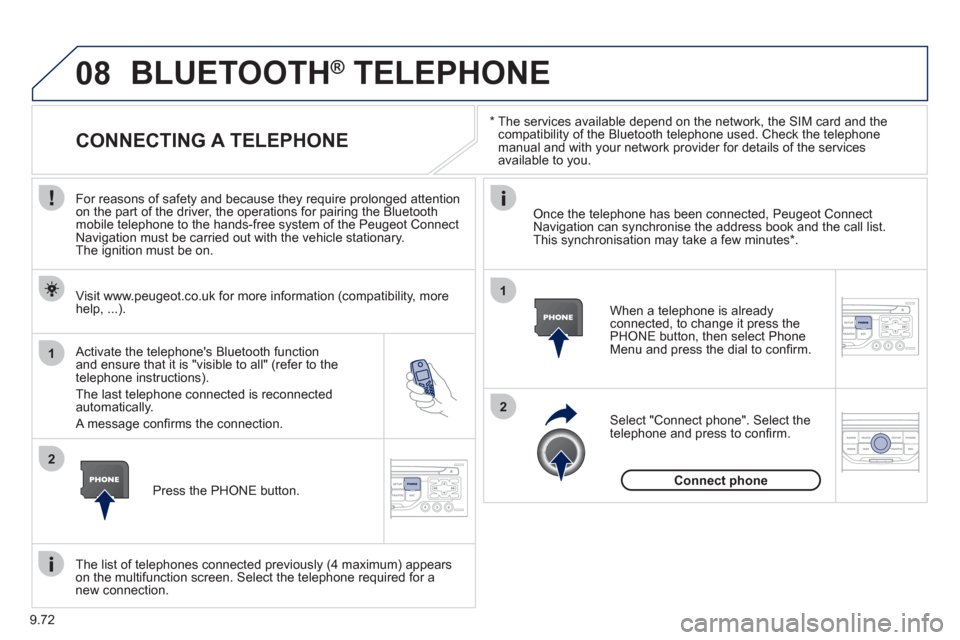
CONNECTING A TELEPHONE
For reasons of safety and because they require prolonged attention
on the part of the driver, the operations for pairing the Bluetooth
mobile telephone to the hands-free system of the Peugeot Connect
Navigation must be carried out with the vehicle stationary.
The ignition must be on.
Activate the tele
phone's Bluetooth function and ensure that it is "visible to all" (refer to the
telephone instructions).
The last telephone connected is reconnected automatically.
A messa
ge confi rms the connection. When a telephone is alread
yconnected, to change it press the
PHONE button, then select PhoneMenu and press the dial to confi rm.
Once the telephone has been connected, Peugeot Connect Navigation can synchronise the address book and the call list.This synchronisation may take a few minutes *
.
The list o
f telephones connected previously (4 maximum) appearson the multifunction screen. Select the telephone required for a
new connection. Visit www.peu
geot.co.uk for more information (compatibility, more
help, ...).
Pr
ess the PHONE button.Select "Connect
phone". Select the
telephone and press to confi rm.
Connect
phone