audio Peugeot Partner 2008.5 User Guide
[x] Cancel search | Manufacturer: PEUGEOT, Model Year: 2008.5, Model line: Partner, Model: Peugeot Partner 2008.5Pages: 153, PDF Size: 3.77 MB
Page 85 of 153
11
22
33
11
22
5511
04
85
HANDS-FREE KIT
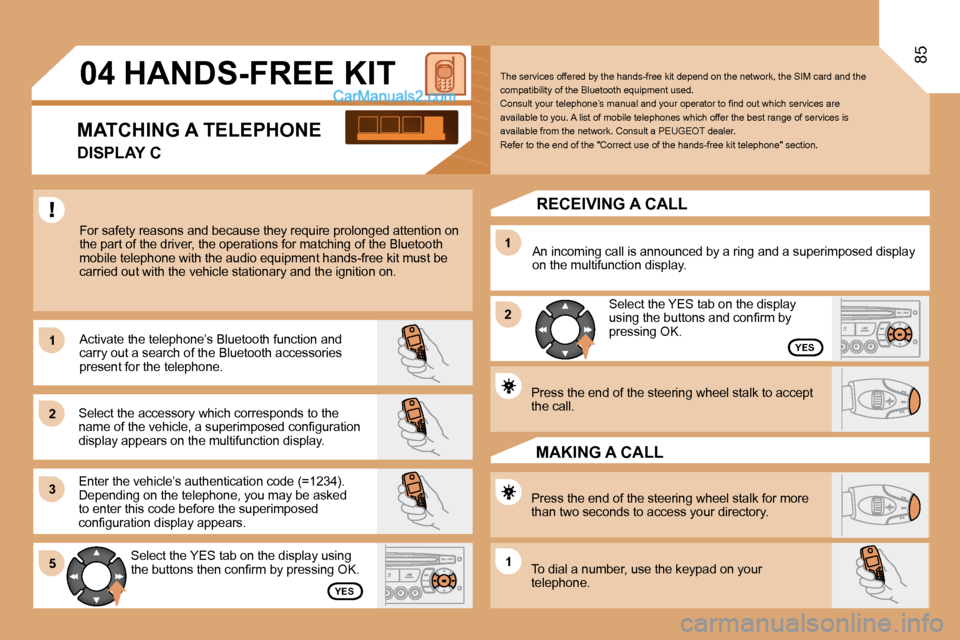
For safety reasons and because they require prolonged attention on the part of the driver, the operations for matching of the Bluetooth mobile telephone with the audio equipment hands-fre e kit must be carried out with the vehicle stationary and the ignition on.
Select the accessory which corresponds to the name of the vehicle, a superimposed confi guration display appears on the multifunction display.
Activate the telephone’s Bluetooth function and carry out a search of the Bluetooth accessories present for the telephone.
Select the YES tab on the display using the buttons then confi rm by pressing OK.
Enter the vehicle’s authentication code (=1234). Depending on the telephone, you may be asked to enter this code before the superimposed confi guration display appears.
YES
YES
The services offered by the hands-free kit depend on the network, the SIM card and the compatibility of the Bluetooth equipment used. Consult your telephone’s manual and your operator to fi nd out which services are available to you. A list of mobile telephones which offer the best range of services is available from the network. Consult a PEUGEOT deal er. Refer to the end of the "Correct use of the hands-free kit telephone" section.
RECEIVING A CALL
An incoming call is announced by a ring and a supe rimposed display on the multifunction display.
Select the YES tab on the display using the buttons and confi rm by pressing OK.
Press the end of the steering wheel stalk to accept the call.
Press the end of the steering wheel stalk for more than two seconds to access your directory.
To dial a number, use the keypad on your telephone.
MAKING A CALL
MATCHING A TELEPHONE
DISPLAY C
Page 86 of 153
86
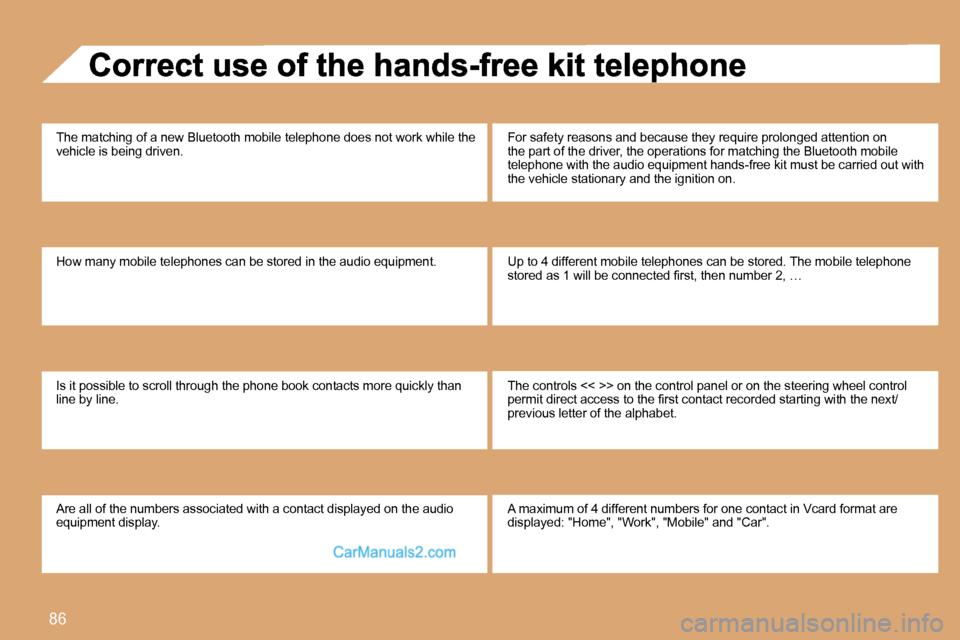
The matching of a new Bluetooth mobile telephone does not work while the vehicle is being driven.
How many mobile telephones can be stored in the au dio equipment.
Is it possible to scroll through the phone book contacts more quickly than line by line.
Are all of the numbers associated with a contact d isplayed on the audio equipment display.
For safety reasons and because they require prolon ged attention on the part of the driver, the operations for matching the Bluetooth mobile telephone with the audio equipment hands-free kit m ust be carried out with the vehicle stationary and the ignition on.
Up to 4 different mobile telephones can be stored. The mobile telephone stored as 1 will be connected fi rst, then number 2, …
The controls << >> on the control panel or on the steering wheel control permit direct access to the fi rst contact recorded starting with the next/previous letter of the alphabet.
A maximum of 4 different numbers for one contact i n Vcard format are displayed: "Home", "Work", "Mobile" and "Car".
Page 92 of 153
92
1
1
2
3
4
3
4
3
4
2
3
4
3
4
2
3
4
2
4
4
3
4
4
4
3
4
4
1
2
3
2
3
3
2
2
1
2
3
3
3
4
4
4
2
3
4
3
4
3
4
2
3
3
3
4
08
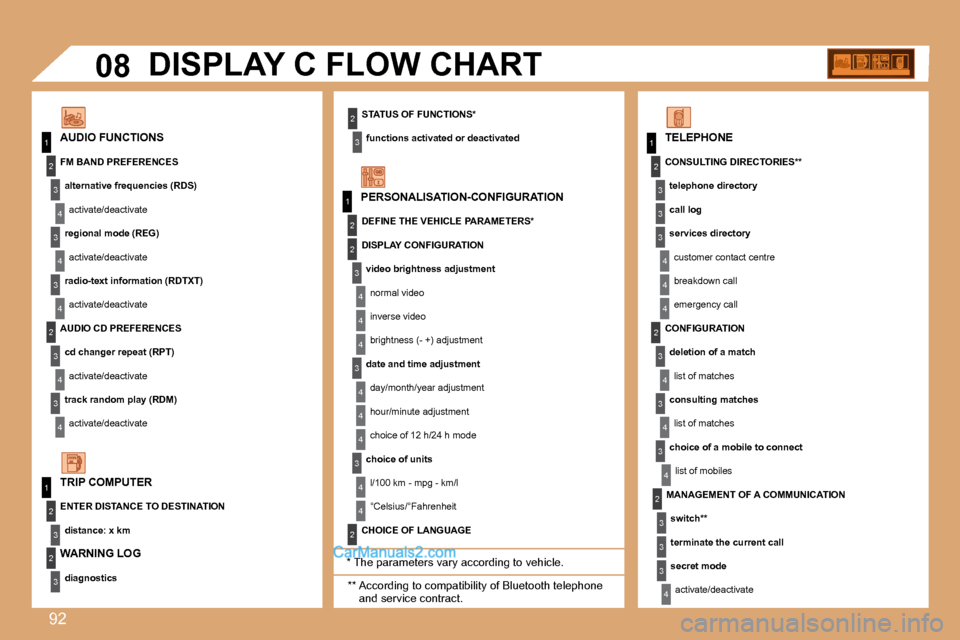
PERSONALISATION-CONFIGURATION
AUDIO FUNCTIONS
DISPLAY C FLOW CHART
* The parameters vary according to vehicle.
** According to compatibility of Bluetooth telephone and service contract.
TELEPHONE
STATUS OF FUNCTIONS *
functions activated or deactivated
TRIP COMPUTER
FM BAND PREFERENCES
alternative frequencies (RDS)
activate/deactivate
regional mode (REG)
activate/deactivate
radio-text information (RDTXT)
activate/deactivate
AUDIO CD PREFERENCES
cd changer repeat (RPT)
activate/deactivate
track random play (RDM)
activate/deactivate
ENTER DISTANCE TO DESTINATION
distance: x km
WARNING LOG
diagnostics
DEFINE THE VEHICLE PARAMETERS *
DISPLAY CONFIGURATION
video brightness adjustment
normal video
inverse video
brightness (- +) adjustment
date and time adjustment
day/month/year adjustment
hour/minute adjustment
choice of 12 h/24 h mode
choice of units
l/100 km - mpg - km/l
°Celsius/°Fahrenheit
CHOICE OF LANGUAGE
CONSULTING DIRECTORIES **
telephone directory
call log
services directory
customer contact centre
breakdown call
emergency call
CONFIGURATION
deletion of a match
list of matches
consulting matches
list of matches
choice of a mobile to connect
list of mobiles
MANAGEMENT OF A COMMUNICATION
switch**
terminate the current call
secret mode
activate/deactivate
Page 93 of 153
93 93
44
CD changer
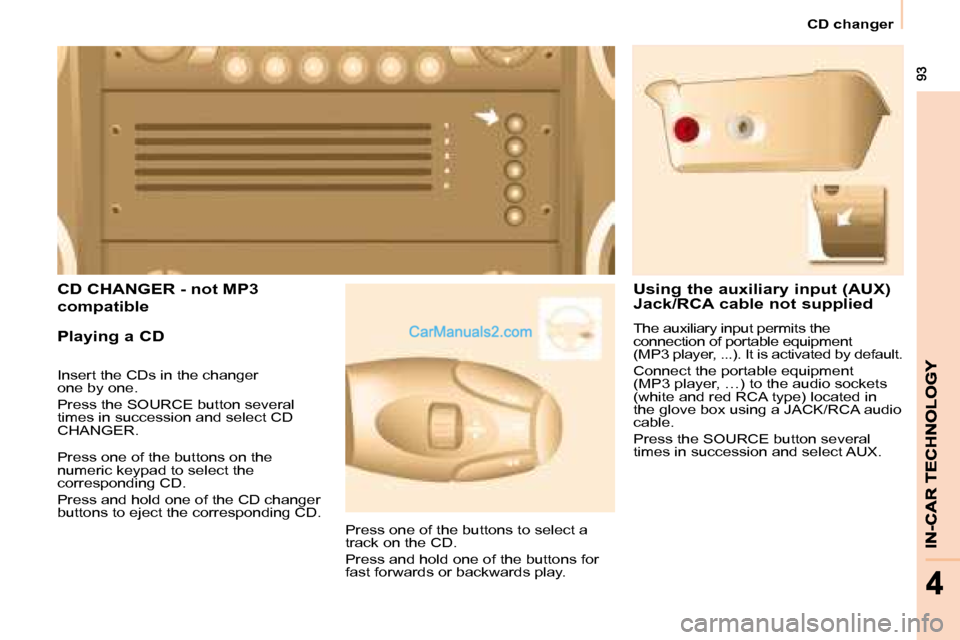
CD CHANGER - not MP3
compatible
Playing a CD
Press one of the buttons on the
numeric keypad to select the
corresponding CD.
Press and hold one of the CD changer
buttons to eject the corresponding CD. Press one of the buttons to select a
track on the CD.
Press and hold one of the buttons for
fast forwards or backwards play.
Insert the CDs in the changer
one by one.
Press the SOURCE button several
times in succession and select CD
CHANGER.
Using the auxiliary input (AUX)
Jack/RCA cable not supplied
The auxiliary input permits the
connection of portable equipment
(MP3 player, ...). It is activated by default.
Connect the portable equipment
(MP3 player, …) to the audio sockets
(white and red RCA type) located in
the glove box using a JACK/RCA audio
cable.
Press the SOURCE button several
times in succession and select AUX.
Page 117 of 153
111
ACCESSORIES
66
Equipment
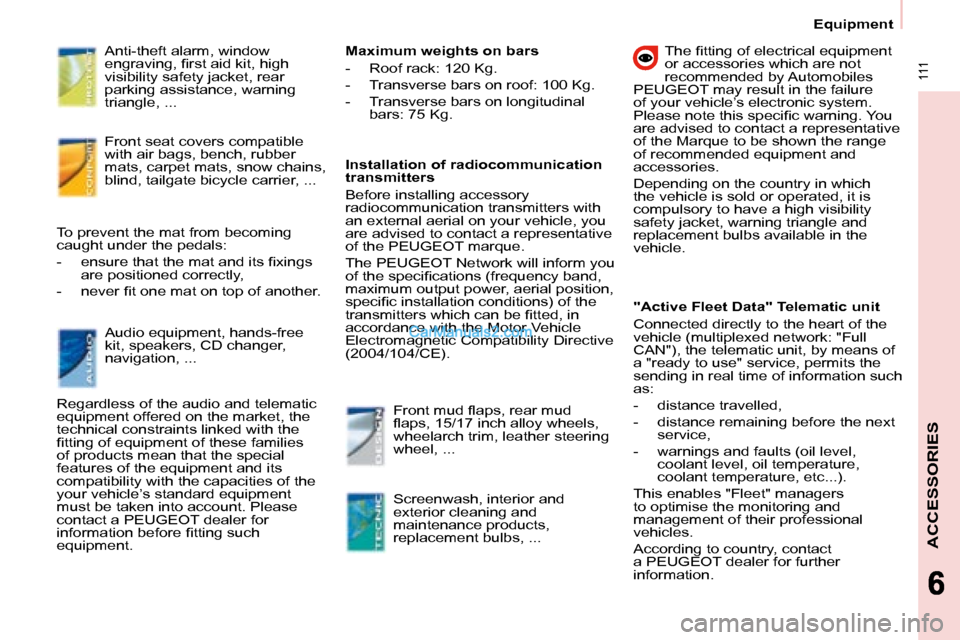
Anti-theft alarm, window
engraving, fi rst aid kit, high
visibility safety jacket, rear
parking assistance, warning
triangle, ...
Front seat covers compatible
with air bags, bench, rubber
mats, carpet mats, snow chains,
blind, tailgate bicycle carrier, ...
Audio equipment, hands-free
kit, speakers, CD changer,
navigation, ...
To prevent the mat from becoming
caught under the pedals:
- ensure that the mat and its fi xings
are positioned correctly,
- never fi t one mat on top of another.
Regardless of the audio and telematic
equipment offered on the market, the
technical constraints linked with the
fi tting of equipment of these families
of products mean that the special
features of the equipment and its
compatibility with the capacities of the
your vehicle’s standard equipment
must be taken into account. Please
contact a PEUGEOT dealer for
information before fi tting such
equipment. Maximum weights on bars
- Roof rack: 120 Kg.
- Transverse bars on roof: 100 Kg.
- Transverse bars on longitudinal
bars: 75 Kg.
Installation of radiocommunication
transmitters
Before installing accessory
radiocommunication transmitters with
an external aerial on your vehicle, you
are advised to contact a representative
of the PEUGEOT marque.
The PEUGEOT Network will inform you
of the specifi cations (frequency band,
maximum output power, aerial position,
specifi c installation conditions) of the
transmitters which can be fi tted, in
accordance with the Motor Vehicle
Electromagnetic Compatibility Directive
(2004/104/CE).
Front mud fl aps, rear mud
fl aps, 15/17 inch alloy wheels,
wheelarch trim, leather steering
wheel, ...
Screenwash, interior and
exterior cleaning and
maintenance products,
replacement bulbs, ... The fi tting of electrical equipment
or accessories which are not
recommended by Automobiles
PEUGEOT may result in the failure
of your vehicle’s electronic system.
Please note this specifi c warning. You
are advised to contact a representative
of the Marque to be shown the range
of recommended equipment and
accessories.
Depending on the country in which
the vehicle is sold or operated, it is
compulsory to have a high visibility
safety jacket, warning triangle and
replacement bulbs available in the
vehicle.
"Active Fleet Data" Telematic unit
Connected directly to the heart of the
vehicle (multiplexed network: "Full
CAN"), the telematic unit, by means of
a "ready to use" service, permits the
sending in real time of information such
as:
- distance travelled,
- distance remaining before the next service,
- warnings and faults (oil level, coolant level, oil temperature,
coolant temperature, etc...).
This enables "Fleet" managers
to optimise the monitoring and
management of their professional
vehicles.
According to country, contact
a PEUGEOT dealer for further
information.
Page 126 of 153
121
Battery
TROUBLESHOOTING
8
BATTERY
Before disconnecting the battery, you
must wait for 2 minutes after switching
off the ignition.
Never disconnect a terminal when the
engine is running.
Never charge a battery without fi rst
disconnecting the terminals.
After every reconnection of the battery,
switch on the ignition and wait 1 minute
before starting to allow the electronic
systems to be initialised. If slight
diffi culties are experienced after this,
please contact a PEUGEOT dealer.
After changing bulbs, wait
approximately 3 minutes before
reconnecting the battery. I
t is advisable to disconnect the
battery if the vehicle is not to be used
for a period of more than one month.
ECONOMY MODE
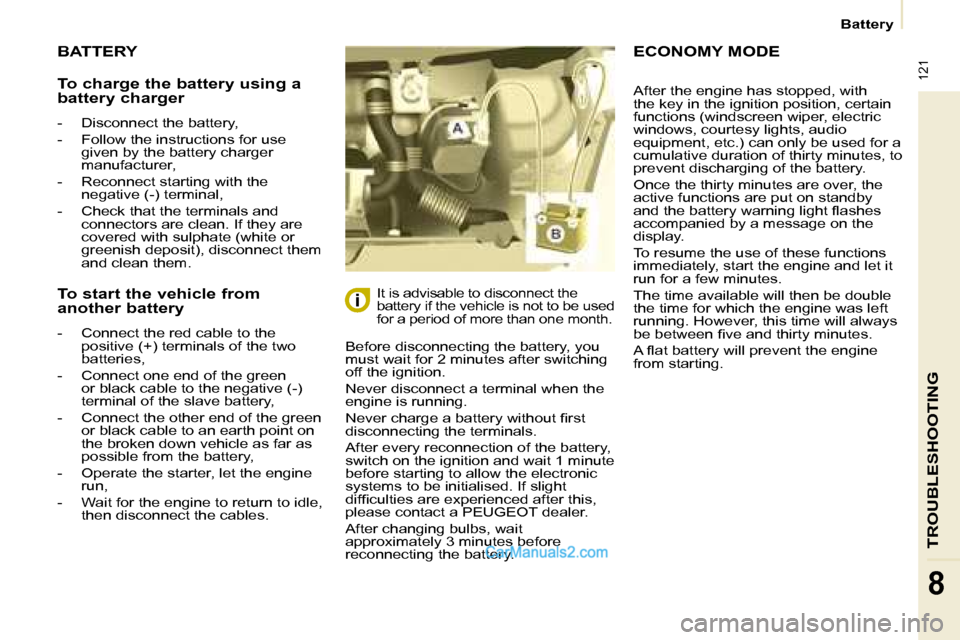
To charge the battery using a
battery charger
- Disconnect the battery,
- Follow the instructions for use given by the battery charger
manufacturer,
- Reconnect starting with the negative (-) terminal,
- Check that the terminals and connectors are clean. If they are
covered with sulphate (white or
greenish deposit), disconnect them
and clean them.
To start the vehicle from
another battery
- Connect the red cable to the positive (+) terminals of the two
batteries,
- Connect one end of the green or black cable to the negative (-)
terminal of the slave battery,
- Connect the other end of the green or black cable to an earth point on
the broken down vehicle as far as
possible from the battery,
- Operate the starter, let the engine run,
- Wait for the engine to return to idle, then disconnect the cables. After the engine has stopped, with
the key in the ignition position, certain
functions (windscreen wiper, electric
windows, courtesy lights, audio
equipment, etc.) can only be used for a
cumulative duration of thirty minutes, to
prevent discharging of the battery.
Once the thirty minutes are over, the
active functions are put on standby
and the battery warning light fl ashes
accompanied by a message on the
display.
To resume the use of these functions
immediately, start the engine and let it
run for a few minutes.
The time available will then be double
the time for which the engine was left
running. However, this time will always
be between fi ve and thirty minutes.
A fl at battery will prevent the engine
from starting.
Page 139 of 153
133
TROUBLESHOOTING
8
Changing a fuse
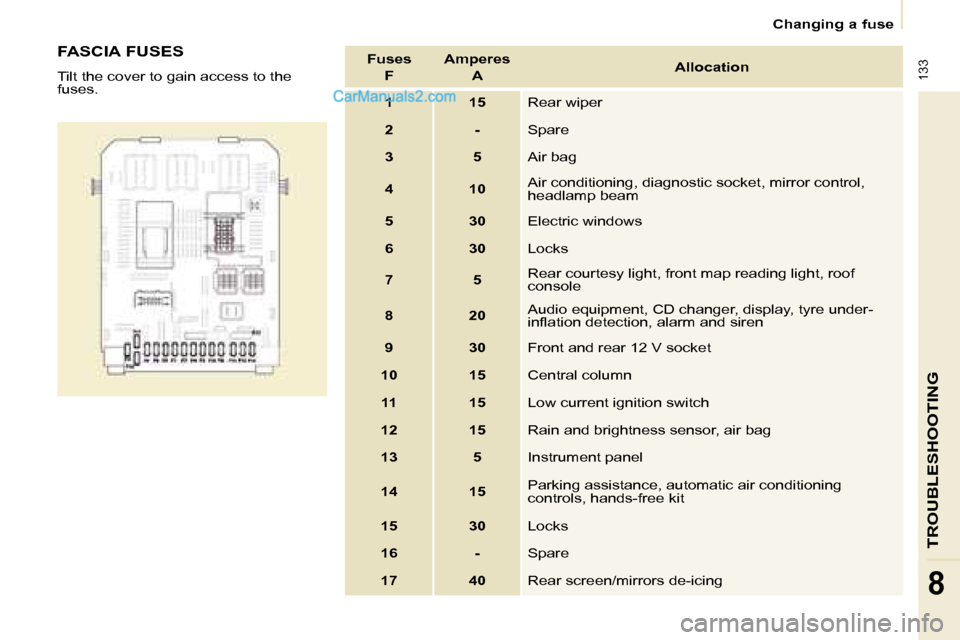
FASCIA FUSES
Tilt the cover to gain access to the
fuses. Fuses
F Amperes
A Allocation
1 15 Rear wiper
2 - Spare
3 5 Air bag
4 10 Air conditioning, diagnostic socket, mirror control,
headlamp beam
5 30 Electric windows
6 30 Locks
7 5 Rear courtesy light, front map reading light, roof
console
8 20 Audio equipment, CD changer, display, tyre under-
infl ation detection, alarm and siren
9 30 Front and rear 12 V socket
10 15 Central column
11 15 Low current ignition switch
12 15 Rain and brightness sensor, air bag
13 5 Instrument panel
14 15 Parking assistance, automatic air conditioning
controls, hands-free kit
15 30 Locks
16 - Spare
17 40 Rear screen/mirrors de-icing