phone Peugeot Partner 2013 User Guide
[x] Cancel search | Manufacturer: PEUGEOT, Model Year: 2013, Model line: Partner, Model: Peugeot Partner 2013Pages: 236, PDF Size: 9.04 MB
Page 172 of 236
9.30
07USING THE TELEPHONE
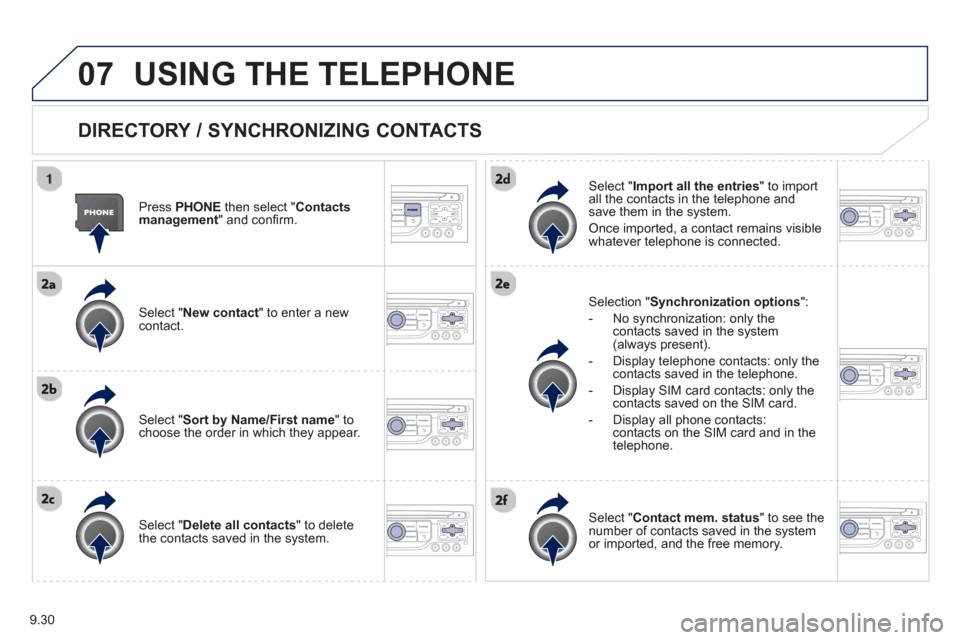
DIRECTORY / SYNCHRONIZING CONTACTS
Press PHONE then select "
Contacts
management " and confi rm.
Select "New contact
" to enter a new contact.
Select "Sort by Name/First name" tochoose the order in which they appear.
Select "Delete all contacts" to delete
the contacts saved in the system.
Selection "Synchronization options
":
- No synchronization: only the contacts saved in the system (always present).
- Display telephone contacts: only the
contacts saved in the telephone.
- Displa
y SIM card contacts: only thecontacts saved on the SIM card.
- Displa
y all phone contacts: contacts on the SIM card and in the
telephone.
Select "Import all the entries
" to import
all the contacts in the telephone and
save them in the system.
Once imported, a contact remains visible
whatever telephone is connected.
Select "Contact mem. status" to see thenumber of contacts saved in the systemor imported, and the free memory.
Page 173 of 236
9.31
07
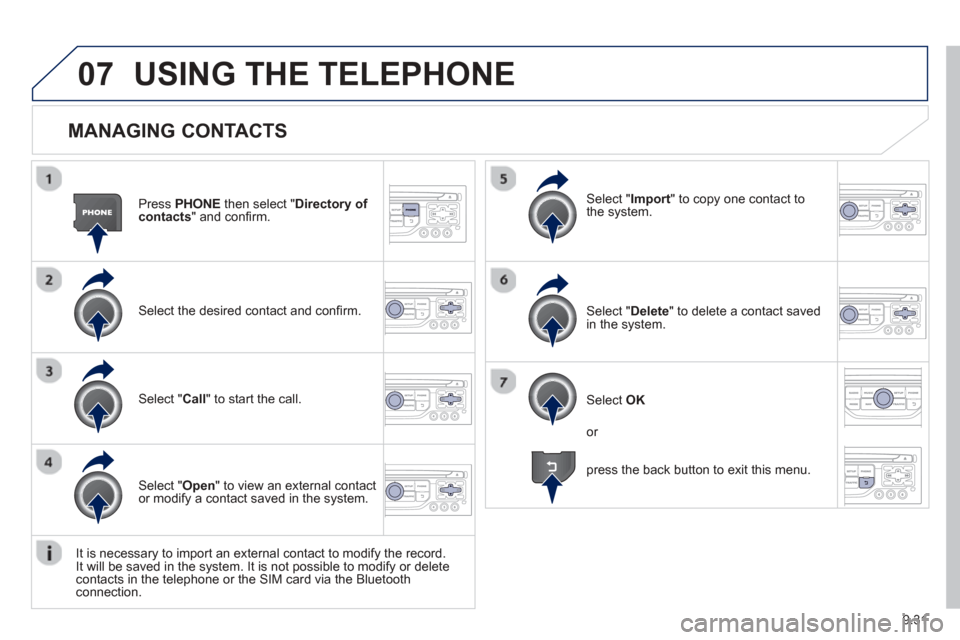
MANAGING CONTACTS
Press PHONEthen select "Directory of contacts" and confi rm.
Select the desired contact and con fi rm.
Select " Import" to copy one contact to
the system.
Select " Call" to start the call.
Select " Open " to view an external contact
or modify a contact saved in the system.
Select OK
Select " Delete" to delete a contact savedin the system.
It is necessar
y to import an external contact to modify the record.
It will be saved in the system. It is not possible to modify or delete contacts in the telephone or the SIM card via the Bluetoothconnection.
USING THE TELEPHONE
or
press the back button to exit this menu.
Page 174 of 236
9.32
07USING THE TELEPHONE
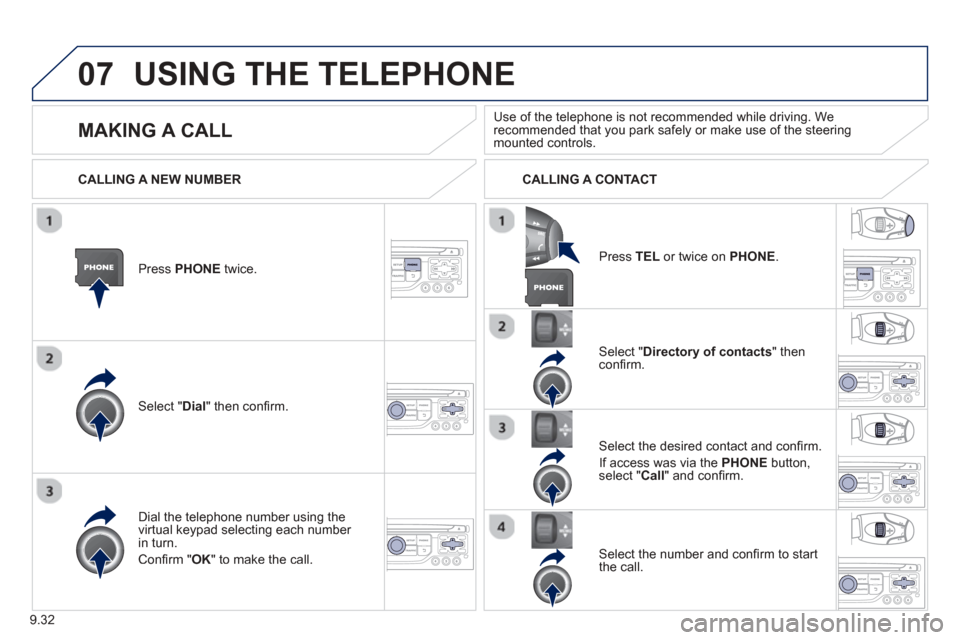
Press PHONEtwice.
Select " Dial" then confi rm.
Select " Directory of contacts" thenconfi rm.
Dial the telephone number usin
g the
virtual keypad selecting each number in turn.
Confi rm " OK " to make the call. Pr
ess TELor twice on PHONE.
CALLING A NEW NUMBER
CALLING A CONTACT
Select the desired contact and confi rm.
I
f access was via the PHONEbutton,select " Call" and confi rm.
Select the number and confi rm to start
the call.
MAKING A CALL Use of the telephone is not recommended while driving. Werecommended that you park safely or make use of the steering mounted controls.
Page 175 of 236
9.33
07USING THE TELEPHONE
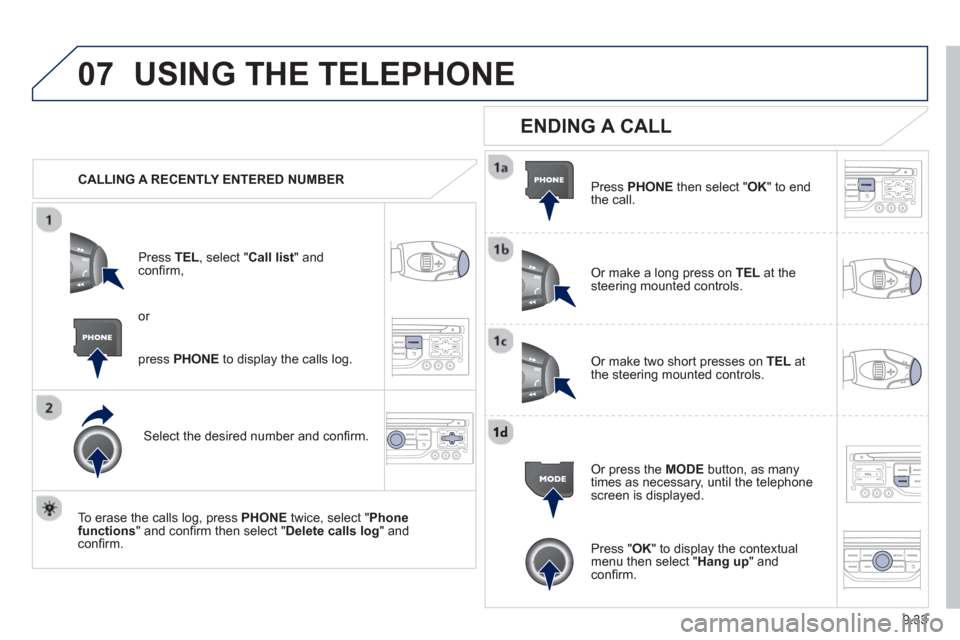
CALLING A RECENTLY ENTERED NUMBERPr
ess TEL, select "Call list" andconfi rm,
Select the desired number and confi rm.
To erase the calls lo
g, press PHONE twice, select " Phone functions " and confi rm then select " Delete calls log" andconfi rm.
ENDING A CALL
Press PHONEthen select "OK" to end
the call.
Or make a long press on TELat the
steering mounted controls.
Or make two short presses on TELat
the steering mounted controls.
Or press the MODE button, as many
times as necessary, until the telephone
screen is displayed.
press PHONE to display the calls log.
or
Press "OK" to display the contextualmenu then select " Hang up" andconfi rm.
Page 176 of 236
9.34
07USING THE TELEPHONE
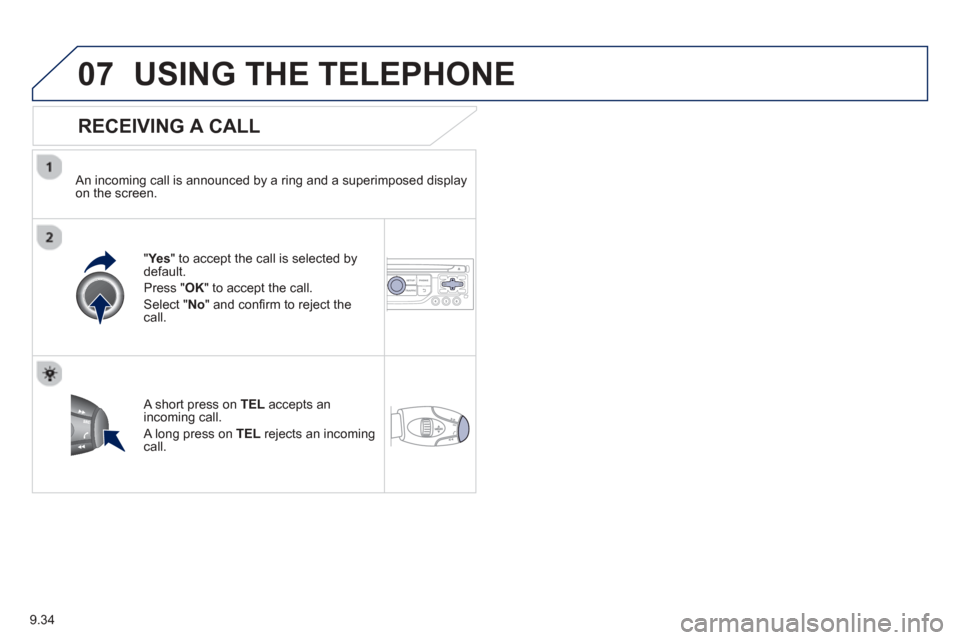
RECEIVING A CALL
An incoming call is announced by a ring and a superimposed displayon the screen.
"Yes " to accept the call is selected bydefault.
Pr
ess " OK" to accept the call.
Select " No" and confi rm to reject the call.
A short press on TELaccepts an incoming call.
A long press on TEL rejects an incomingcall.
Page 177 of 236
9.35
07
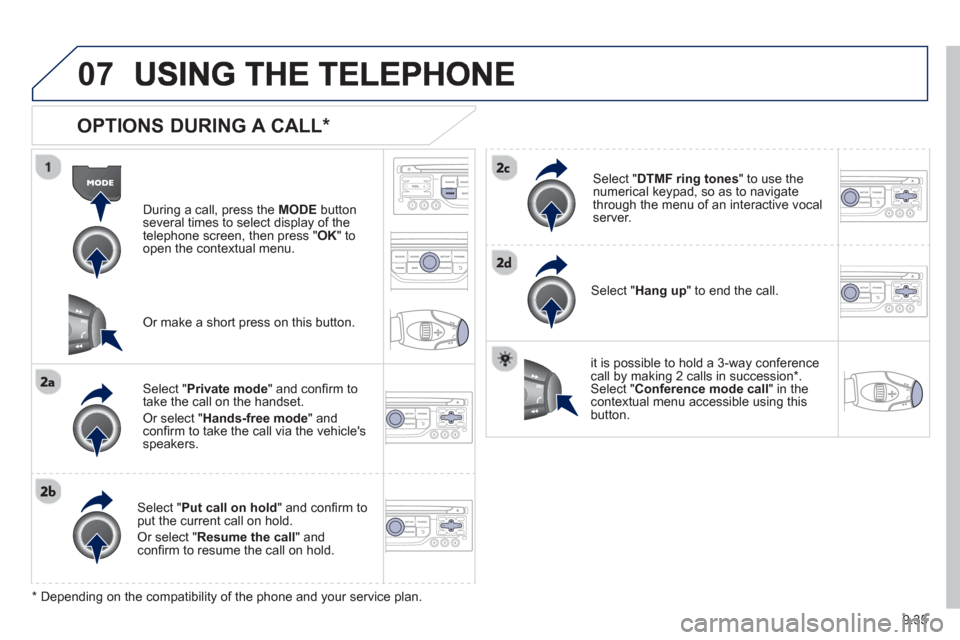
OPTIONS DURING A CALL *
During a call, press the MODE button
several times to select display of the
telephone screen, then press "
OK " to
open the contextual menu.
Select " Private mode " and confi rm totake the call on the handset.
Or select " Hands-free mode" andconfi rm to take the call via the vehicle's
speakers.
Select " Put call on hold " and confi rm to put the current call on hold.
Or select " Resume the call" andconfi rm to resume the call on hold.
Select " DTMF ring tones " to use thenumerical keypad, so as to navigate
through the menu of an interactive vocal server.
Select " Hang up " to end the call.
* Depending on the compatibility of the phone and your service plan. it is possible to hold a 3-wa
y conferencecall by making 2 calls in succession*. Select "Conferencemode call" in the contextual menu accessible using thisbutton.
Or make a short press on this button.
Page 178 of 236

9.36
07
Press PHONEtwice.
Select " List of the paired peripherals"and confi rm.
It is
possible to:
-" Connec
t" or " Disconnect
" theselected telephone,
- delete the pairin
g of the selected
telephone.
It is also possible to select all pairings.
USING THE TELEPHONE
MANAGING PAIRED TELEPHONES
CHANGING THE RING TONE
Press PHONEtwice.
Select " Phone functions " and confi rm.
Select " Ring options " and confi rm.
You can ad
just the volume and the type
of ring tone.
Select " Bluetooth functions".
Select " OK " and confi rm to save thechanges.
Page 188 of 236
9.46
09
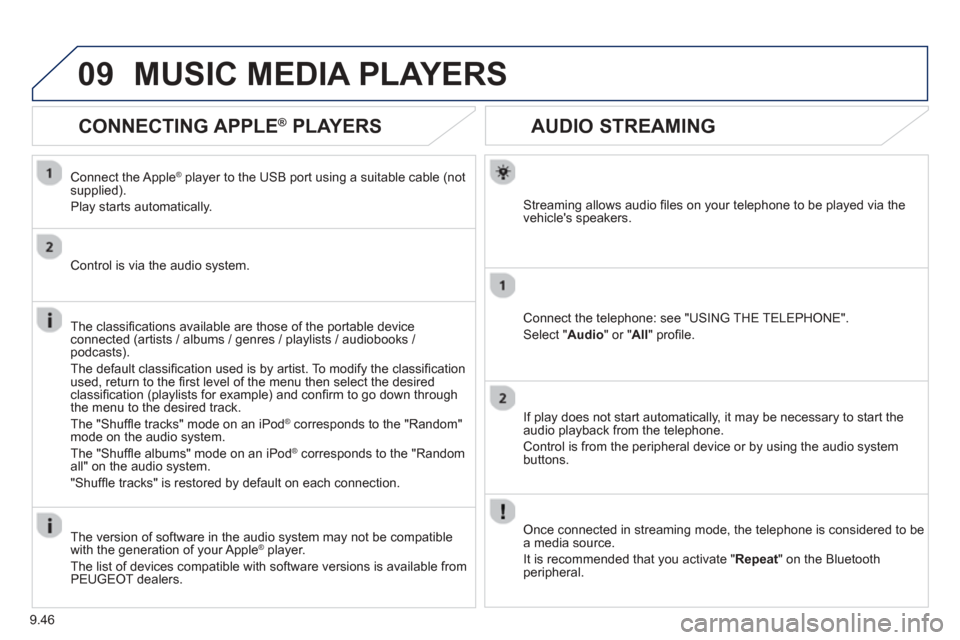
AUDIO STREAMING
Streaming allows audio fi les on your telephone to be played via the
vehicle's speakers.
Connect the telephone: see "USING THE TELEPHONE".
Select " Audio " or " All" profi le.
I
f play does not start automatically, it may be necessary to start the audio playback from the telephone.
Control is from the peripheral device or b
y using the audio system buttons.
Once connected in streaming mode, the telephone is considered to bea media source.
It is recommended that you activate "
Repeat" on the Bluetooth
peripheral.
MUSIC MEDIA PLAYERS
CONNECTING APPLE®
PLAYERS ®
Connect the Apple ®player to the USB port using a suitable cable (not
supplied).
Pla
y starts automatically.
Control is via the audio system.
The classifi cations available are those of the portable device
connected (artists / albums / genres / playlists / audiobooks / podcasts).
The de
fault classifi cation used is by artist. To modify the classifi cationused, return to the fi rst level of the menu then select the desired classifi cation (playlists for example) and confi rm to go down through
the menu to the desired track.
The "
Shuffl e tracks" mode on an iPod® corresponds to the "Random" ®
mode on the audio system.
The "
Shuffl e albums" mode on an iPod® corresponds to the "Random ®
all" on the audio system.
"
Shuffl e tracks" is restored by default on each connection.
The version of software in the audio s
ystem may not be compatible
with the generation of your Apple ®player.
The list of devices compatible with software versions is available from \
PE
UGEOT dealers.
Page 195 of 236

9.53
12 SCREEN MENU MAP
Select TMC station
Automatic TMC
Manual TMC
List of TMC stations
Display / Do not display
messages
"TRAFFIC" MENU
Geo
graphic filter
Retain all the messages
Retain the messages Around the vehicl
e
On the route
1
2
2
2
1
2
2
3
3
1
Dial
Director
y of contacts
Call
O
pen
Import
Phone MENU
1
2
2
2
1
2
2
2
2
1
2
3
3
3
2
2
2
1
1
1
3
3
3
2
3
2
2
3
List of the paired peripherals
Connec
t
Disconnect
Delete
Delete all
Contact mem. status
Phone functions
Ring options
Delete calls log
Bluetooth functions
Peripherals search
Rename radiotele
phone
Hang up
Display all phone contacts
Delete
Contacts management
New contact
Delete all contacts
Im
port all the entries
S
ynchronization options
Display telephone contacts
No s
ynchronization
Display SIM card contacts
2Cancel
2Sort by First name/Name
3Cancel
Page 199 of 236

9.57
FREQUENTLY ASKED QUESTIONS
QUESTIONANSWERSOLUTION
Certain traffi c jams
along the route are notindicated in real time.
On starting, it is several minutes before the system begins to receive the
traffi c information. Wait until the traffi
c information is being received correctly (display of the traffi c information icons on
the map).
Th
e fi lters are too restrictive. Modify the "Geographic fi lter" settings.
In certain countries, onl
y major routes (motorways...) are listed for the
traffi c information. This phenomenon is normal. The system is
dependent on the traffi c information available.
The altitude is not displayed. On starting, the initialisation of the GPS may take up to 3 minutes toreceive more than 4 satellites correctly. Wait until the system has started up completely. Check that there is a GPS coverage of at least
4 satellites (long press on the SETUP button, then select "GPS coverage").
Dependin
g on the geographical environment (tunnel...) or the weather,
the conditions of reception of the GPS signal may vary. This phenomenon is normal. The system
is dependent on the GPS signal receptionconditions.
I cannot connect myBluetooth telephone. The telephone's Bluetooth function may be switched off or the telephone
may not be visible. - Check that your telephone's Bluetoothfunction is switched on.
-
Check in the telephone settings that it is "visible to all".
The Bluetooth telephone is not compatible with the s
ystem. A list of compatible Bluetooth mobile telephones is available from the dealer network.
Th
e volume of thetelephone connected
in Bluetooth mode isinaudible. The volume depends both on the system and on the telephone. Increase the volume o
f the audio system, tomaximum if required, and increase the volume of
the telephone if necessary.
The ambient noise level has an in
fl uence on the quality of telephone communication. Reduce the ambient noise level (close the windows, reduce the booster fan speed, slow down, ...).