ad blue PEUGEOT PARTNER 2014 Owner's Manual
[x] Cancel search | Manufacturer: PEUGEOT, Model Year: 2014, Model line: PARTNER, Model: PEUGEOT PARTNER 2014Pages: 244, PDF Size: 10.39 MB
Page 184 of 244
06
10.26
Partner-2-VU_en_Chap10b_RT6-2-8_ed02-2014
USING THE TELEPHONE
Pairing a Bluetooth telephone
First connectionFor reasons of safety and because they require prolonged attention
on the part of the driver, the operations for pairing the Bluetooth
mobile telephone to the hands-free system of the audio unit must be
carried out with the vehicle stationary.
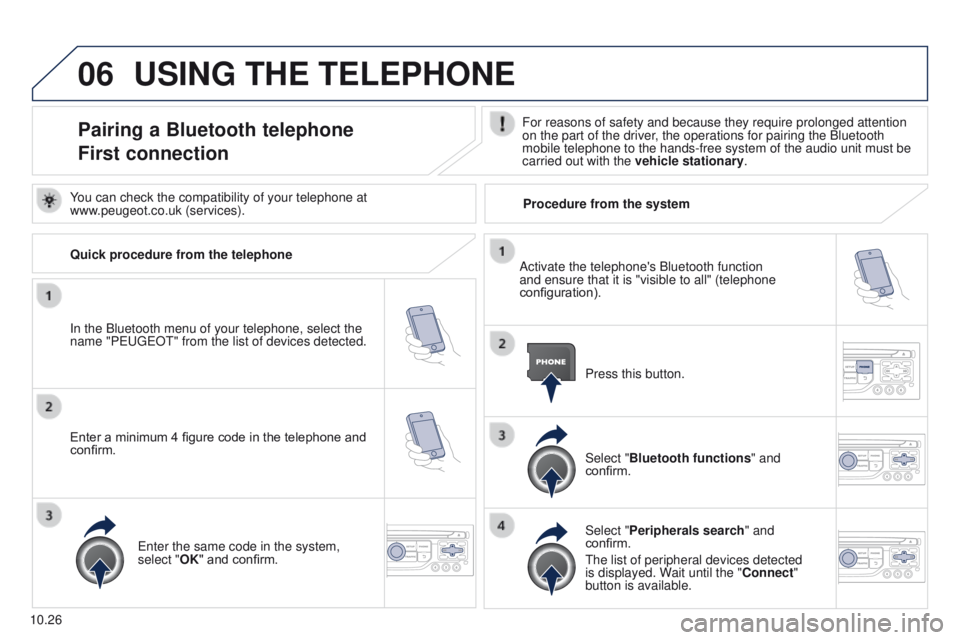
In the Bluetooth menu of your telephone, select the
name "P
EUGEOT
" from the list of devices detected. Press this button.
Select "Bluetooth functions" and
confirm.
Select "Peripherals search " and
confirm.
The list of peripheral devices detected
is displayed. Wait until the "Connect"
button is available.
You can check the compatibility of your telephone at
www.peugeot.co.uk (services).
Activate the telephone's Bluetooth function
and ensure that it is "visible to all" (telephone
configuration).
Quick procedure from the telephone
Enter a minimum 4 figure code in the telephone and
confirm.
Enter the same code in the system,
select "OK" and confirm. Procedure from the system
Page 185 of 244
06
10.27
Partner-2-VU_en_Chap10b_RT6-2-8_ed02-2014
USING THE TELEPHONE
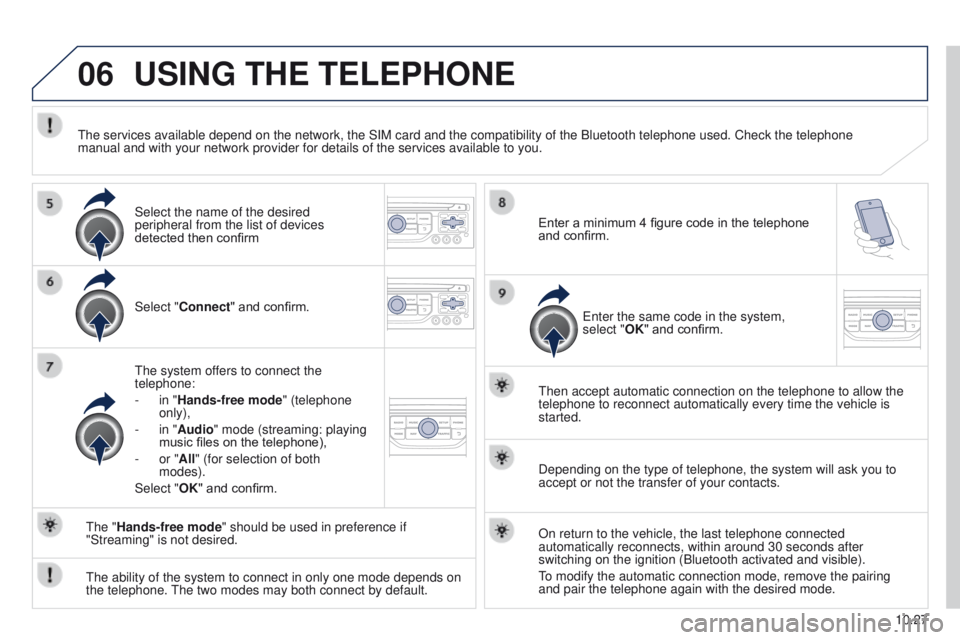
Select "Connect" and confirm.
The system offers to connect the
telephone:
-
in "
Hands-free mode" (telephone
only),
-
in "
Audio" mode (streaming: playing
music files on the telephone),
-
or "
All" (for selection of both
modes).
Select "OK" and confirm. Then accept automatic connection on the telephone to allow the
telephone to reconnect automatically every time the vehicle is
started.
The ability of the system to connect in only one mode depends on
the telephone. The two modes may both connect by default. The "Hands-free mode" should be used in preference if
"Streaming" is not desired.
The services available depend on the network, the SIM card and the compa\
tibility of the Bluetooth telephone used. Check the telephone
manual and with your network provider for details of the services availa\
ble to you.
Depending on the type of telephone, the system will ask you to
accept or not the transfer of your contacts.
On return to the vehicle, the last telephone connected
automatically reconnects, within around 30 seconds after
switching on the ignition (Bluetooth activated and visible).
To modify the automatic connection mode, remove the pairing
and pair the telephone again with the desired mode.
Enter a minimum 4 figure code in the telephone
and confirm.
Enter the same code in the system,
select "OK" and confirm.
Select the name of the desired
peripheral from the list of devices
detected then confirm
Page 187 of 244
06
10.29
Partner-2-VU_en_Chap10b_RT6-2-8_ed02-2014
Editing, importing or deleting a contact
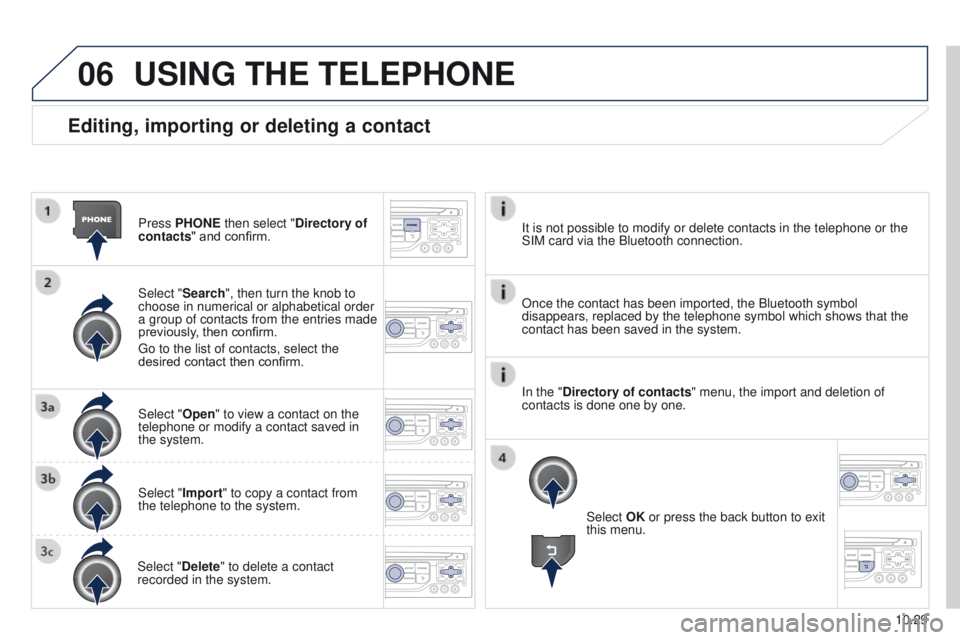
Press PHONE then select "Directory of
contacts" and confirm.
Select "Search", then turn the knob to
choose in numerical or alphabetical order
a group of contacts from the entries made
previously, then confirm.
Go to the list of contacts, select the
desired contact then confirm.
Select "Open" to view a contact on the
telephone or modify a contact saved in
the system.
Select "Import" to copy a contact from
the telephone to the system.
Select "Delete" to delete a contact
recorded in the system.
USING THE TELEPHONE
Select OK or press the back button to exit
this menu.
Once the contact has been imported, the Bluetooth symbol
disappears, replaced by the telephone symbol which shows that the
contact has been saved in the system. It is not possible to modify or delete contacts in the telephone or the \
SIM card via the Bluetooth connection.
In the "Directory of contacts" menu, the import and deletion of
contacts is done one by one.
Page 192 of 244
06
10.34
Partner-2-VU_en_Chap10b_RT6-2-8_ed02-2014
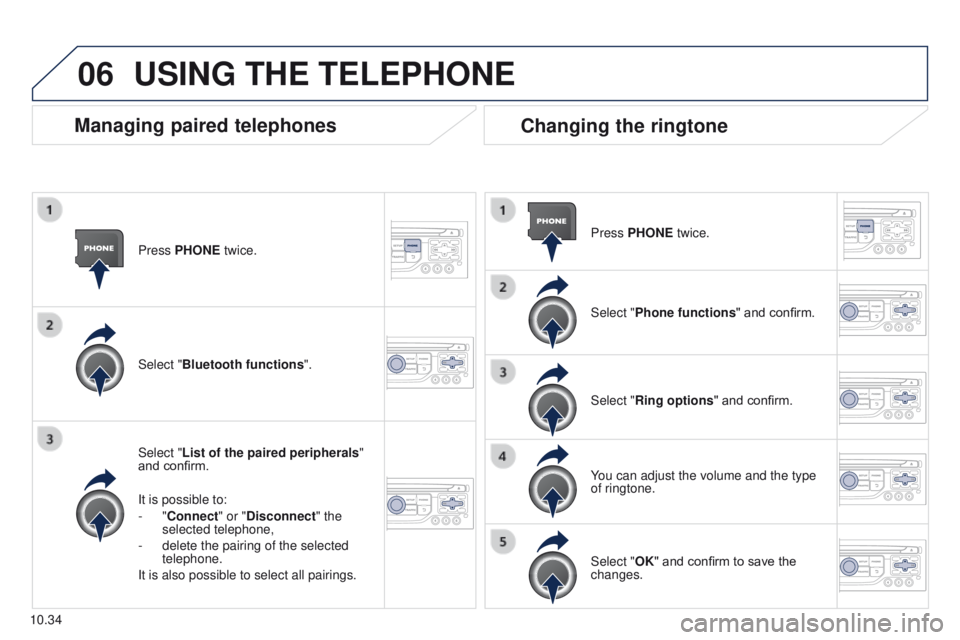
Press PHONE twice.
Select "List of the paired peripherals"
and confirm.
It is possible to:
-
"Connect" or "Disconnect" the
selected telephone,
-
delete the pairing of the selected
telephone.
It is also possible to select all pairings.
Managing paired telephones Changing the ringtone
Press PHONE twice.
Select "Phone functions" and confirm.
Select "Ring options " and confirm.
You can adjust the volume and the type
of ringtone.
Select "Bluetooth functions
".
Select "OK" and confirm to save the
changes.
USING THE TELEPHONE
Page 200 of 244
08
10.42
Partner-2-VU_en_Chap10b_RT6-2-8_ed02-2014
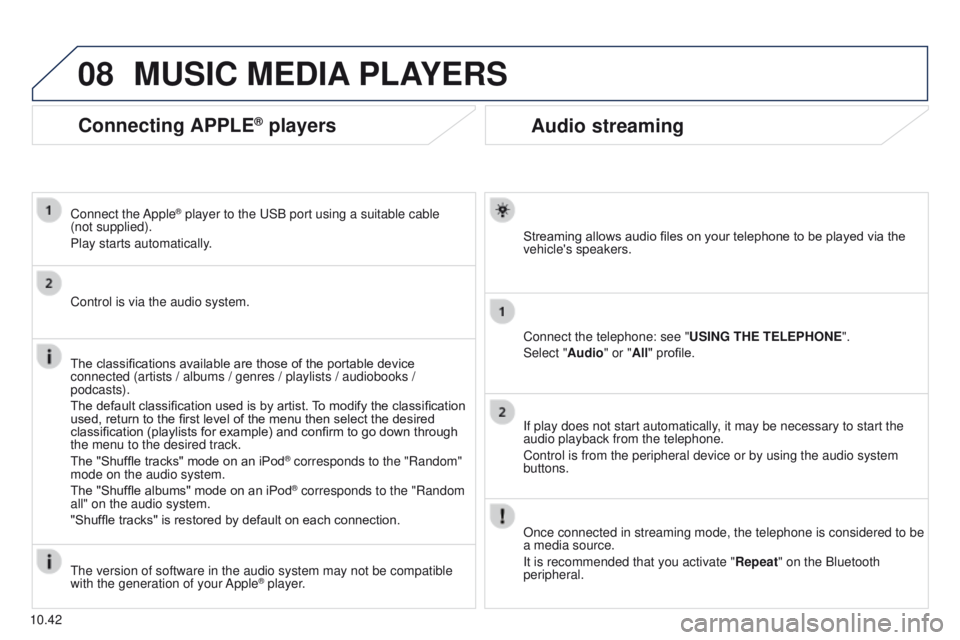
Audio streaming
Streaming allows audio files on your telephone to be played via the
vehicle's speakers.
Connect the telephone: see "USING THE TELEPHONE".
Select "Audio" or "All" profile.
If play does not start automatically, it may be necessary to start the
audio playback from the telephone.
Control is from the peripheral device or by using the audio system
buttons.
Once connected in streaming mode, the telephone is considered to be
a media source.
It is recommended that you activate "Repeat" on the Bluetooth
peripheral.
MUSIC MEDIA PLAYERS
Connecting APPLE® players
Connect the Apple® player to the USB port using a suitable cable
(not
supplied).
Play starts automatically.
Control is via the audio system.
The classifications available are those of the portable device
connected (artists / albums / genres / playlists / audiobooks /
podcasts).
The default classification used is by artist. To modify the classification
used, return to the first level of the menu then select the desired
classification (playlists for example) and confirm to go down through
the menu to the desired track.
The "Shuffle tracks" mode on an iPod
® corresponds to the "Random"
mode on the audio system.
The "Shuffle albums" mode on an iPod
® corresponds to the "Random
all" on the audio system.
"Shuffle tracks" is restored by default on each connection.
The version of software in the audio system may not be compatible
with the generation of your Apple
® player.
Page 207 of 244
12
10.49
Partner-2-VU_en_Chap10b_RT6-2-8_ed02-2014
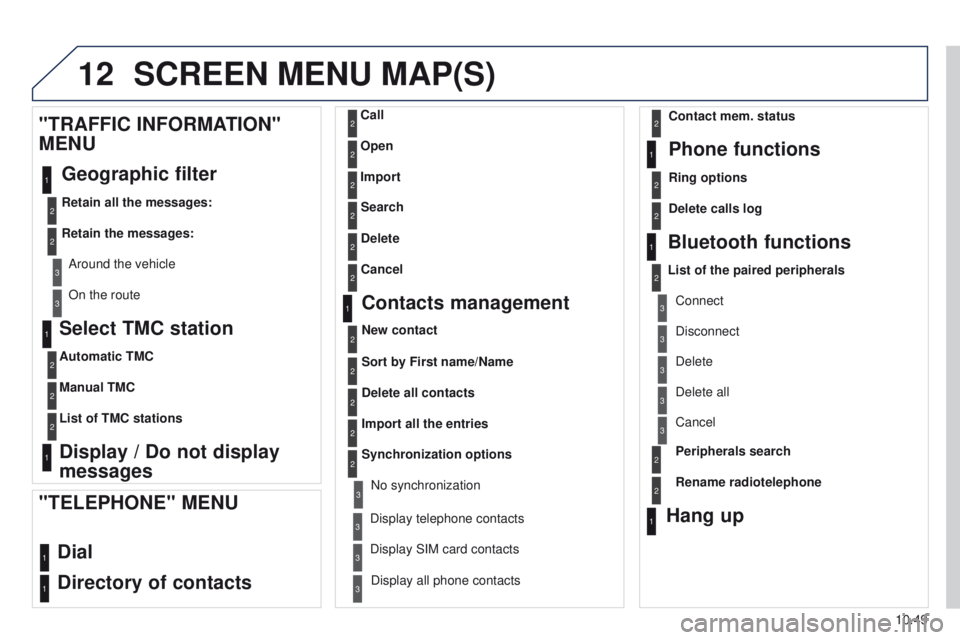
Select TMC station
Automatic TMC
Manual TMC
List of TMC stations
Display / Do not display
messages
"TRAFFIC INFORMATION"
MENU
Geographic filter
Retain all the messages:
Retain the messages:
Around the vehicle
On the route
1
2
2
2
1
2
2
3
3
1
SCREEN MENU MAP(S)
Dial
Directory of contacts
Call
Open
Import
"TELEPHONE" MENU
1
2
2
2
1
2
2
2
2
2
1
2
3
3
3
2
2
2
1
1
1
3
3
3
2
3
2
2
3
List of the paired peripherals Connect
Disconnect
Delete
Delete all
Phone functions
Ring options Contact mem. status
Delete calls log
Bluetooth functions
Peripherals search
Rename radiotelephone
Hang up
Display all phone contacts
Delete Search
Contacts management
New contact
Delete all contacts
Import all the entries
Synchronization options
Display telephone contactsNo synchronization
Display SIM card contacts
2Cancel
2Sort by First name/Name
3Cancel
Page 208 of 244
12
10.50
Partner-2-VU_en_Chap10b_RT6-2-8_ed02-2014
SCREEN MENU MAP(S)
1
1
2
1
1
2
2
2
2
2
2
2
3
3
2
2
2
1
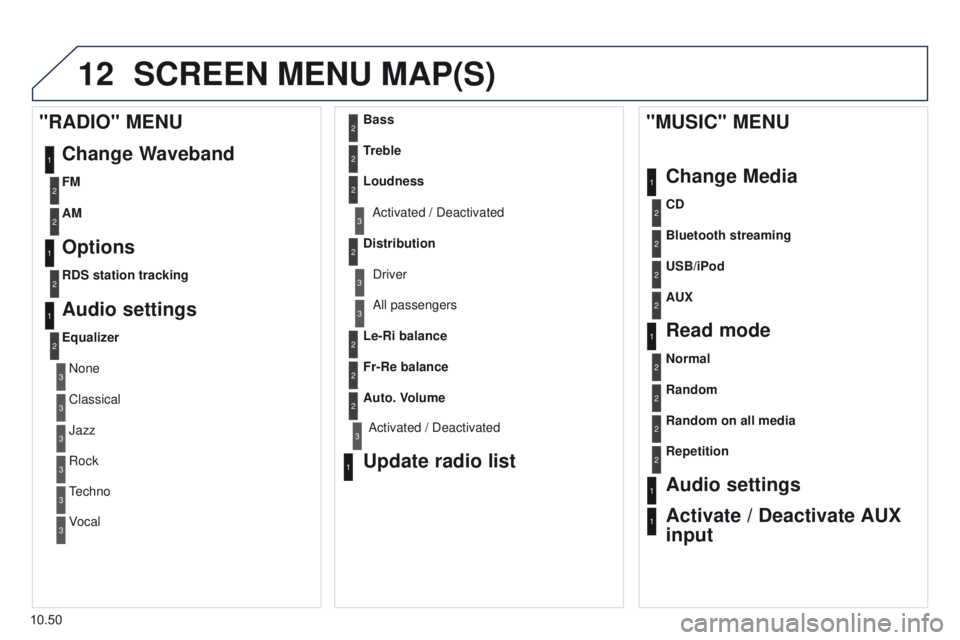
Random on all media
Repetition
Audio settings
Activate / Deactivate AUX
input
"MUSIC" MENU
Change Media
Read mode
Normal
Random
All passengers
Le-Ri balance
Fr-Re balance
Auto. Volume
Update radio list
Bass
Treble
Loudness
Distribution Driver
1
2
1
1
3
3
3
3
3
3
2Equalizer
"RADIO" MENU Change Waveband
Options
RDS station tracking
Audio settings
None
Classical
Jazz
Rock
Techno
Vocal
2
2
2
2
USB/iPod
AUX CD
Bluetooth streaming
2
2
FM
AM
3Activated / Deactivated
3Activated / Deactivated
Page 211 of 244
10.53
Partner-2-VU_en_Chap10b_RT6-2-8_ed02-2014
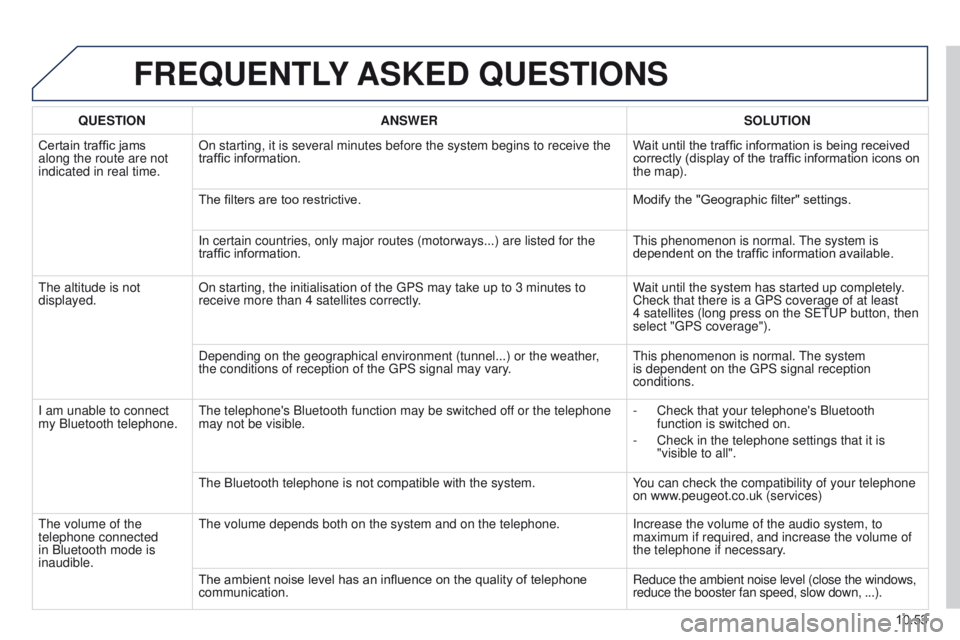
FREQUENTLY ASKED QUESTIONS
QUESTION ANSWER SOLUTION
Certain traffic jams
along the route are not
indicated in real time. On starting, it is several minutes before the system begins to receive t\
he
traffic information.
Wait until the traffic information is being received
correctly (display of the traffic information icons on
the map).
The filters are too restrictive. Modify the "Geographic filter" settings.
In certain countries, only major routes (motorways...) are listed for \
the
traffic information. This phenomenon is normal. The system is
dependent on the traffic information available.
The altitude is not
displayed. On starting, the initialisation of the GPS may take up to 3 minutes to
receive more than 4 satellites correctly. Wait until the system has started up completely.
Check that there is a GPS coverage of at least
4
satellites (long press on the SETUP button, then
select "GPS coverage").
Depending on the geographical environment (tunnel...) or the weather,
the conditions of reception of the GPS signal may vary. This phenomenon is normal. The system
is dependent on the GPS signal reception
conditions.
I am unable to connect
my Bluetooth telephone. The telephone's Bluetooth function may be switched off or the telephone
may not be visible. -
Check that your telephone's Bluetooth
function is switched on.
-
Check in the telephone settings that it is
"visible to all".
The Bluetooth telephone is not compatible with the system. Y
ou can check the compatibility of your telephone
on www.peugeot.co.uk (services)
The volume of the
telephone connected
in Bluetooth mode is
inaudible. The volume depends both on the system and on the telephone.
Increase the volume of the audio system, to
maximum if required, and increase the volume of
the telephone if necessary.
The ambient noise level has an influence on the quality of telephone
communication. Reduce the ambient noise level (close the windows,
reduce the booster fan speed, slow down, ...).
Page 212 of 244
10.54
Partner-2-VU_en_Chap10b_RT6-2-8_ed02-2014
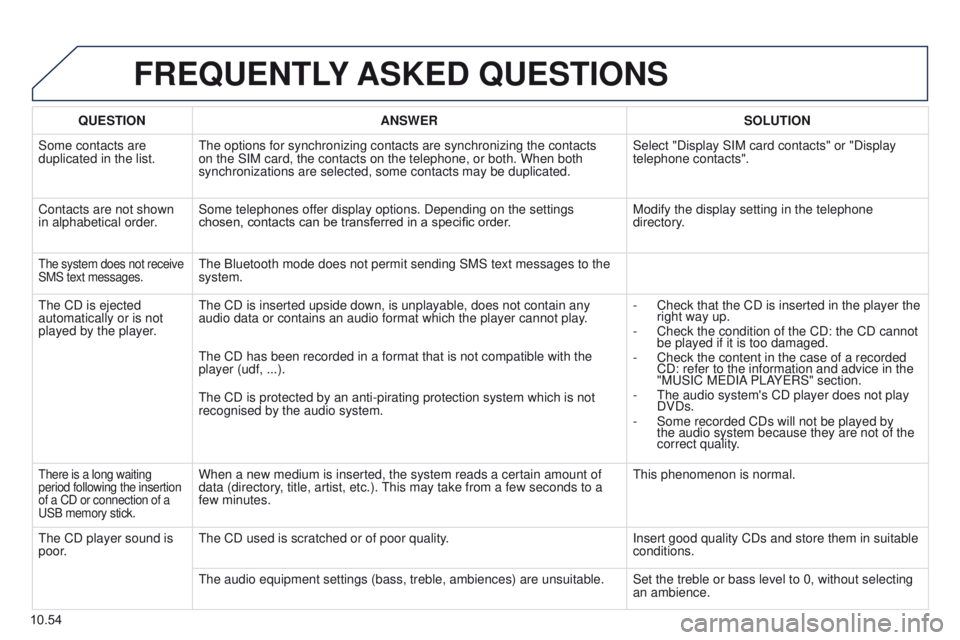
FREQUENTLY ASKED QUESTIONS
QUESTION ANSWER SOLUTION
Some contacts are
duplicated in the list. The options for synchronizing contacts are synchronizing the contacts
on the SIM card, the contacts on the telephone, or both. When both
synchronizations are selected, some contacts may be duplicated. Select "Display SIM card contacts" or "Display
telephone contacts".
Contacts are not shown
in alphabetical order. Some telephones offer display options. Depending on the settings
chosen, contacts can be transferred in a specific order. Modify the display setting in the telephone
directory.
The system does not receive
SMS text messages.The Bluetooth mode does not permit sending SMS text messages to the
system.
The CD is ejected
automatically or is not
played by the player. The CD is inserted upside down, is unplayable, does not contain any
audio data or contains an audio format which the player cannot play.
-
Check that the CD is inserted in the player the
right way up.
-
Check the condition of the CD: the CD cannot
be played if it is too damaged.
-
Check the content in the case of a recorded
CD: refer to the information and advice in the
"MUSIC MEDIA
PLAYERS" section.
-
The audio system's CD player does not play
DVDs.
-
Some recorded CDs will not be played by
the audio system because they are not of the
correct quality
.
The CD has been recorded in a format that is not compatible with the
player (udf, ...).
The CD is protected by an anti-pirating protection system which is not
recognised by the audio system.
There is a long waiting
period following the insertion
of a CD or connection of a
USB memory stick.When a new medium is inserted, the system reads a certain amount of
data (directory, title, artist, etc.). This may take from a few seconds to a
few minutes.
This phenomenon is normal.
The CD player sound is
poor. The CD used is scratched or of poor quality.
Insert good quality CDs and store them in suitable
conditions.
The audio equipment settings (bass, treble, ambiences) are unsuitable.\
Set the treble or bass level to 0, without selecting an ambience.
Page 213 of 244
10.55
Partner-2-VU_en_Chap10b_RT6-2-8_ed02-2014
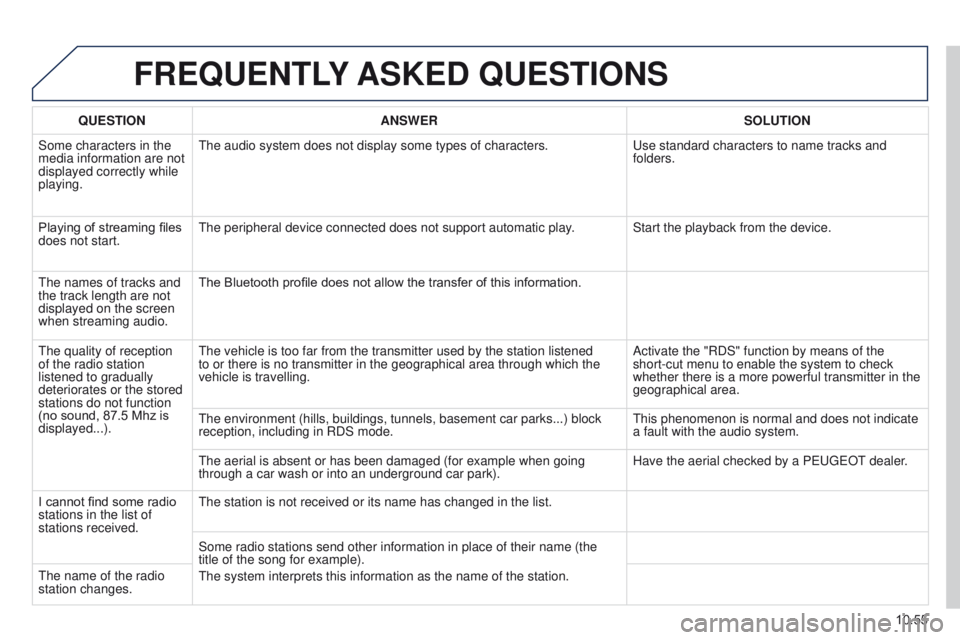
FREQUENTLY ASKED QUESTIONS
QUESTION ANSWER SOLUTION
Some characters in the
media information are not
displayed correctly while
playing. The audio system does not display some types of characters.
Use standard characters to name tracks and
folders.
Playing of streaming files
does not start. The peripheral device connected does not support automatic play. Start the playback from the device.
The names of tracks and
the track length are not
displayed on the screen
when streaming audio. The Bluetooth profile does not allow the transfer of this information.
The quality of reception
of the radio station
listened to gradually
deteriorates or the stored
stations do not function
(no sound, 87.5
Mhz is
displayed...). The vehicle is too far from the transmitter used by the station listened\
to or there is no transmitter in the geographical area through which the\
vehicle is travelling.
Activate the "RDS" function by means of the
short-cut menu to enable the system to check
whether there is a more powerful transmitter in the
geographical area.
The environment (hills, buildings, tunnels, basement car parks...) blo\
ck
reception, including in RDS mode. This phenomenon is normal and does not indicate
a fault with the audio system.
The aerial is absent or has been damaged (for example when going
through a car wash or into an underground car park). Have the aerial checked by a PEUGEOT dealer.
I cannot find some radio
stations in the list of
stations received. The station is not received or its name has changed in the list.
Some radio stations send other information in place of their name (the \
title of the song for example).
The system interprets this information as the name of the station.
The name of the radio
station changes.