Screen Peugeot Partner 2015 Repair Manual
[x] Cancel search | Manufacturer: PEUGEOT, Model Year: 2015, Model line: Partner, Model: Peugeot Partner 2015Pages: 244, PDF Size: 10.44 MB
Page 205 of 244
11
10.47
Partner-2-VU_en_Chap10b_RT6-2-8_ed02-2014
TRIP COMPUTER
Trip computer
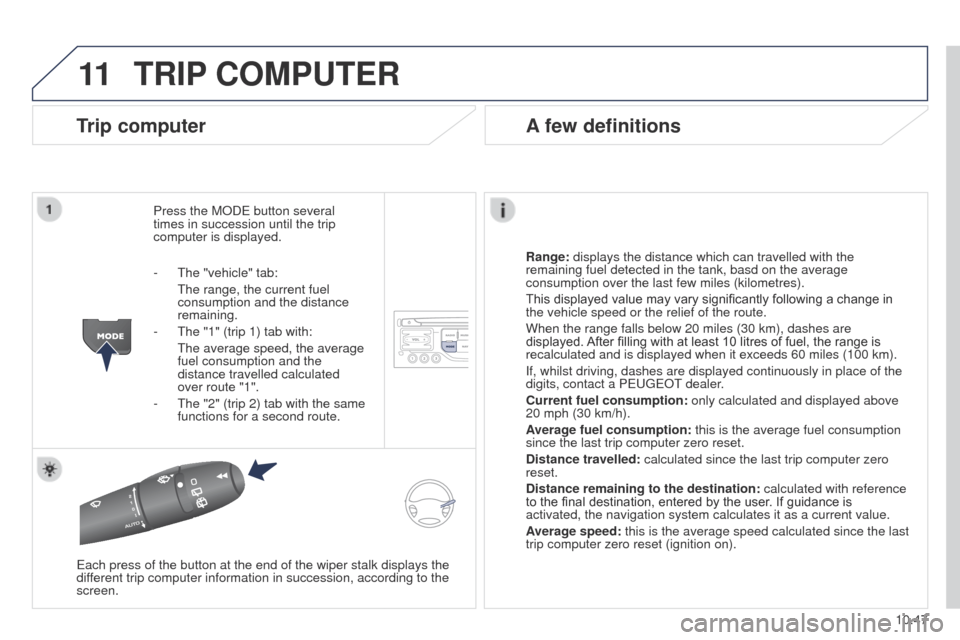
Press the MODE button several
times in succession until the trip
computer is displayed.
Range: displays the distance which can travelled with the
remaining fuel detected in the tank, basd on the average
consumption over the last few miles (kilometres).
This displayed value may vary significantly following a change in
the vehicle speed or the relief of the route.
When the range falls below 20 miles (30 km), dashes are
displayed. After filling with at least 10 litres of fuel, the range is
recalculated and is displayed when it exceeds 60 miles (100 km).
If, whilst driving, dashes are displayed continuously in place of the
digits, contact a PEUGEOT dealer.
Current fuel consumption:
only calculated and displayed above
20 mph (30 km/h).
Average fuel consumption: this is the average fuel consumption
since the last trip computer zero reset.
Distance travelled: calculated since the last trip computer zero
reset.
Distance remaining to the destination:
calculated with reference
to the final destination, entered by the user. If guidance is
activated, the navigation system calculates it as a current value.
Average speed: this is the average speed calculated since the last
trip computer zero reset (ignition on).
Each press of the button at the end of the wiper stalk displays the
different trip computer information in succession, according to the
screen.
A few definitions
- The "vehicle" tab:
The range, the current fuel
consumption and the distance
remaining.
-
The "1" (trip 1) tab with:
The average speed, the average
fuel consumption and the
distance travelled calculated
over route "1".
-
The "2" (trip 2) tab with the same
functions for a second route.
Page 206 of 244
12
10.48
Partner-2-VU_en_Chap10b_RT6-2-8_ed02-2014
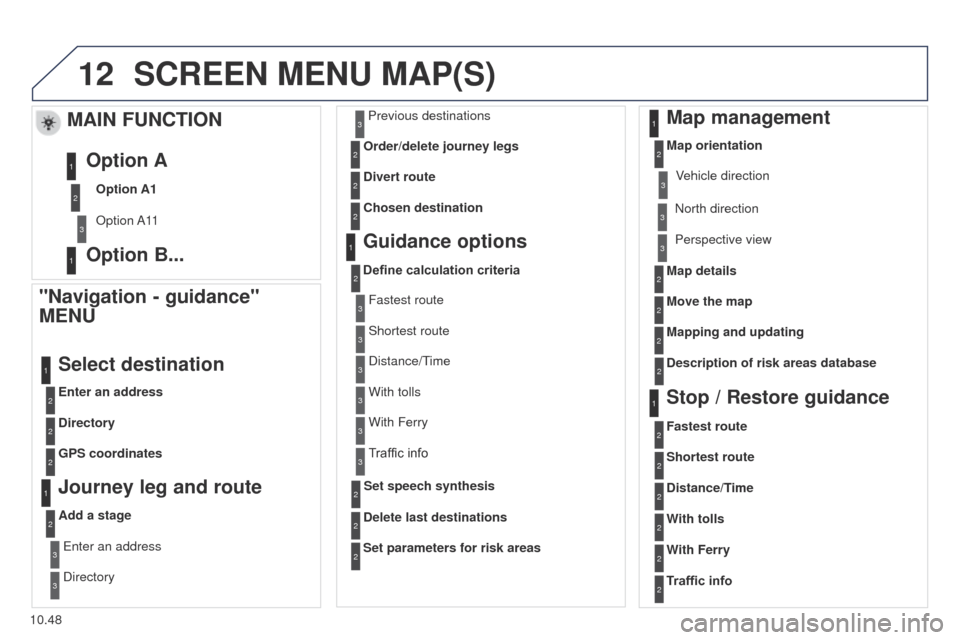
SCREEN MENU MAP(S)
"Navigation - guidance"
MENU
Enter an address
Select destination
Directory
GPS coordinates
Journey leg and route
Add a stageEnter an address
Directory Previous destinations
Order/delete journey legs
Divert route
Chosen destination
Guidance options
Define calculation criteria
Delete last destinations
Map management
Map orientation
MAIN FUNCTION
Option A1
Option A11
Option A
Option B...
Map details
Move the map
Mapping and updating
Description of risk areas database
Stop / Restore guidance
1
2
3
1
3
3
2
2
2
2
1
3
1
1
2
2
2
2
2
2
2
2
2
2
1
1
Set parameters for risk areas2
Fastest route2
Shortest route
Distance/Time
With tolls2
2
2
With Ferry2
Traffic info2
Set speech synthesis Fastest route
Shortest route
3
3
2
Distance/Time
With tolls3
3
With Ferry
Traffic info3
3
3
3
3
North direction
Vehicle direction
Perspective view
Page 207 of 244
12
10.49
Partner-2-VU_en_Chap10b_RT6-2-8_ed02-2014
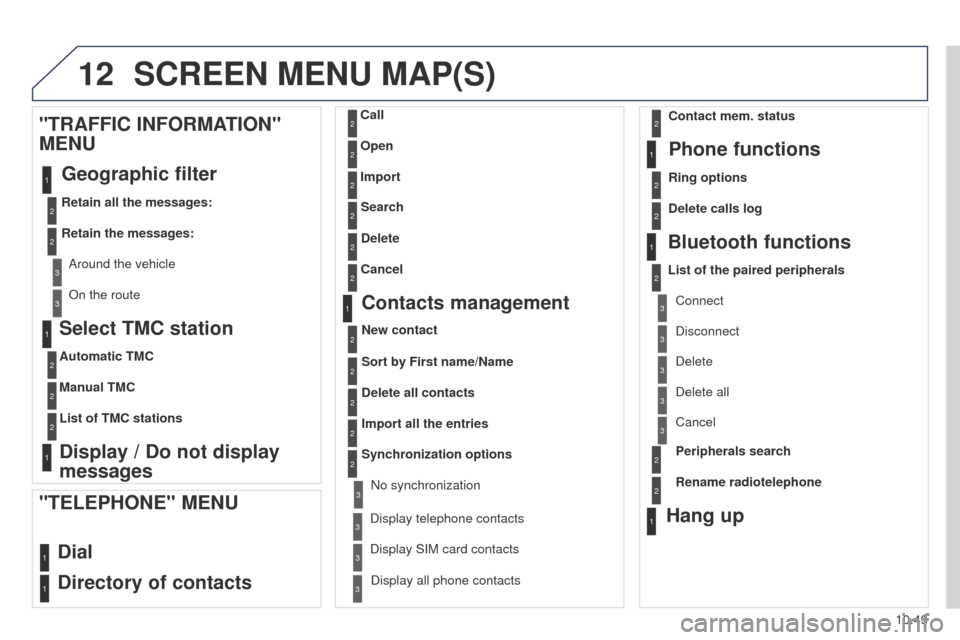
Select TMC station
Automatic TMC
Manual TMC
List of TMC stations
Display / Do not display
messages
"TRAFFIC INFORMATION"
MENU
Geographic filter
Retain all the messages:
Retain the messages:
Around the vehicle
On the route
1
2
2
2
1
2
2
3
3
1
SCREEN MENU MAP(S)
Dial
Directory of contacts
Call
Open
Import
"TELEPHONE" MENU
1
2
2
2
1
2
2
2
2
2
1
2
3
3
3
2
2
2
1
1
1
3
3
3
2
3
2
2
3
List of the paired peripherals Connect
Disconnect
Delete
Delete all
Phone functions
Ring options Contact mem. status
Delete calls log
Bluetooth functions
Peripherals search
Rename radiotelephone
Hang up
Display all phone contacts
Delete Search
Contacts management
New contact
Delete all contacts
Import all the entries
Synchronization options
Display telephone contactsNo synchronization
Display SIM card contacts
2Cancel
2Sort by First name/Name
3Cancel
Page 208 of 244
12
10.50
Partner-2-VU_en_Chap10b_RT6-2-8_ed02-2014
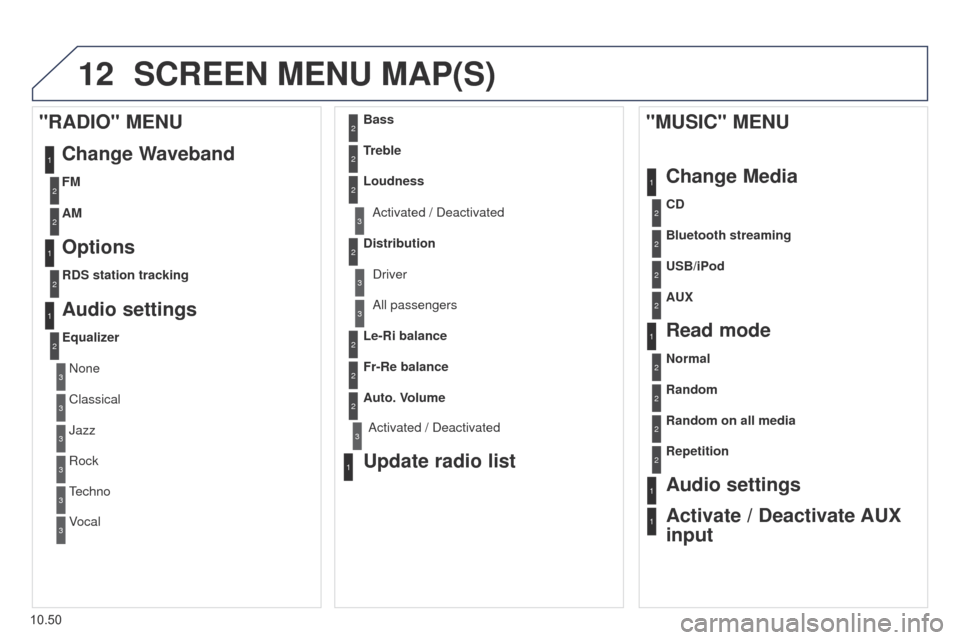
SCREEN MENU MAP(S)
1
1
2
1
1
2
2
2
2
2
2
2
3
3
2
2
2
1
Random on all media
Repetition
Audio settings
Activate / Deactivate AUX
input
"MUSIC" MENU
Change Media
Read mode
Normal
Random
All passengers
Le-Ri balance
Fr-Re balance
Auto. Volume
Update radio list
Bass
Treble
Loudness
Distribution Driver
1
2
1
1
3
3
3
3
3
3
2Equalizer
"RADIO" MENU Change Waveband
Options
RDS station tracking
Audio settings
None
Classical
Jazz
Rock
Techno
Vocal
2
2
2
2
USB/iPod
AUX CD
Bluetooth streaming
2
2
FM
AM
3Activated / Deactivated
3Activated / Deactivated
Page 209 of 244
12
10.51
Partner-2-VU_en_Chap10b_RT6-2-8_ed02-2014
2
3
3
1
4
2
2
1
4
4
2
2
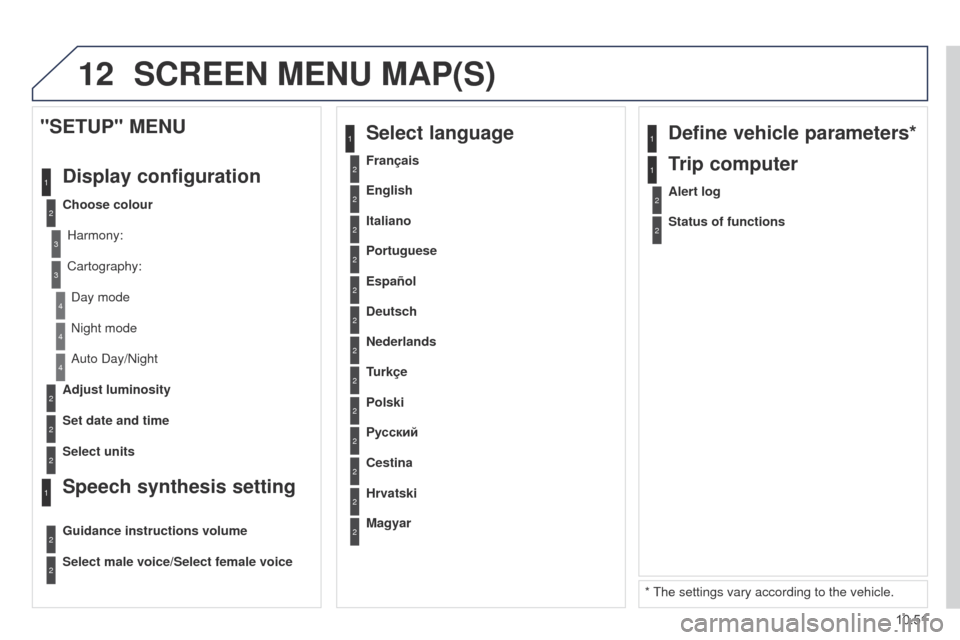
Night mode
Auto Day/Night
Adjust luminosity
Set date and time
"SETUP" MENU
Display configuration
Choose colourHarmony:
Cartography:Day mode
Speech synthesis setting
Guidance instructions volume
Select male voice/Select female voice
2Select units
1Define vehicle parameters*
* The settings vary according to the vehicle.
2Alert log
1Trip computer
2Status of functions
2Français
1Select language
2English
2Italiano
2Portuguese
2Español
2Deutsch
2Nederlands
2
2
Turkçe
Cestina
2
2
Polski
Hrvatski
2
2
Русский
Magyar
SCREEN MENU MAP(S)
Page 213 of 244
10.55
Partner-2-VU_en_Chap10b_RT6-2-8_ed02-2014
FREQUENTLY ASKED QUESTIONS
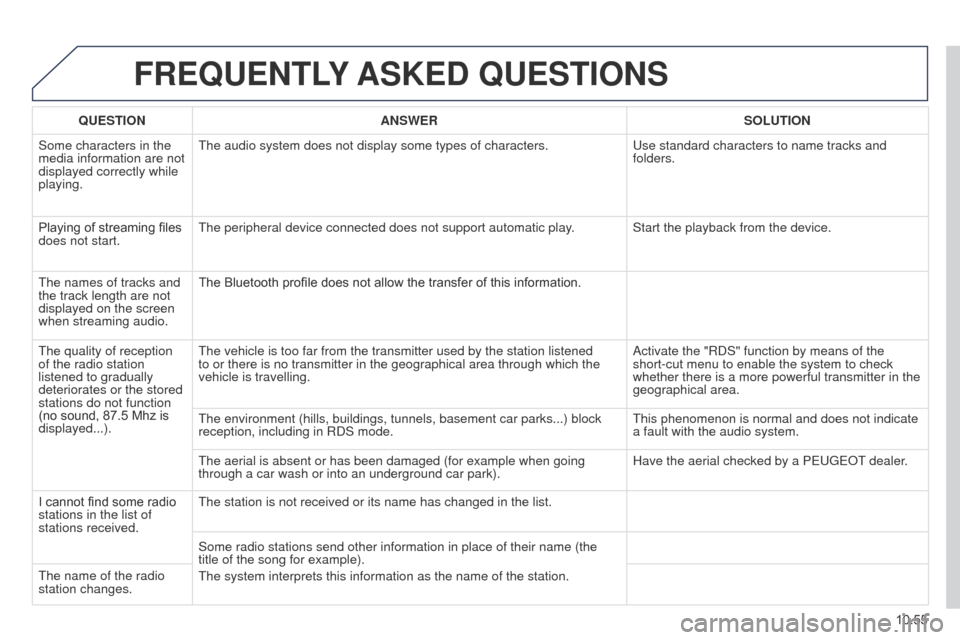
QUESTION ANSWER SOLUTION
Some characters in the
media information are not
displayed correctly while
playing. The audio system does not display some types of characters.
Use standard characters to name tracks and
folders.
Playing of streaming files
does not start. The peripheral device connected does not support automatic play. Start the playback from the device.
The names of tracks and
the track length are not
displayed on the screen
when streaming audio. The Bluetooth profile does not allow the transfer of this information.
The quality of reception
of the radio station
listened to gradually
deteriorates or the stored
stations do not function
(no sound, 87.5
Mhz is
displayed...). The vehicle is too far from the transmitter used by the station listened\
to or there is no transmitter in the geographical area through which the\
vehicle is travelling.
Activate the "RDS" function by means of the
short-cut menu to enable the system to check
whether there is a more powerful transmitter in the
geographical area.
The environment (hills, buildings, tunnels, basement car parks...) blo\
ck
reception, including in RDS mode. This phenomenon is normal and does not indicate
a fault with the audio system.
The aerial is absent or has been damaged (for example when going
through a car wash or into an underground car park). Have the aerial checked by a PEUGEOT dealer.
I cannot find some radio
stations in the list of
stations received. The station is not received or its name has changed in the list.
Some radio stations send other information in place of their name (the \
title of the song for example).
The system interprets this information as the name of the station.
The name of the radio
station changes.
Page 217 of 244
10.59
Partner-2-VU_en_Chap10c_RD45_ed02_2014
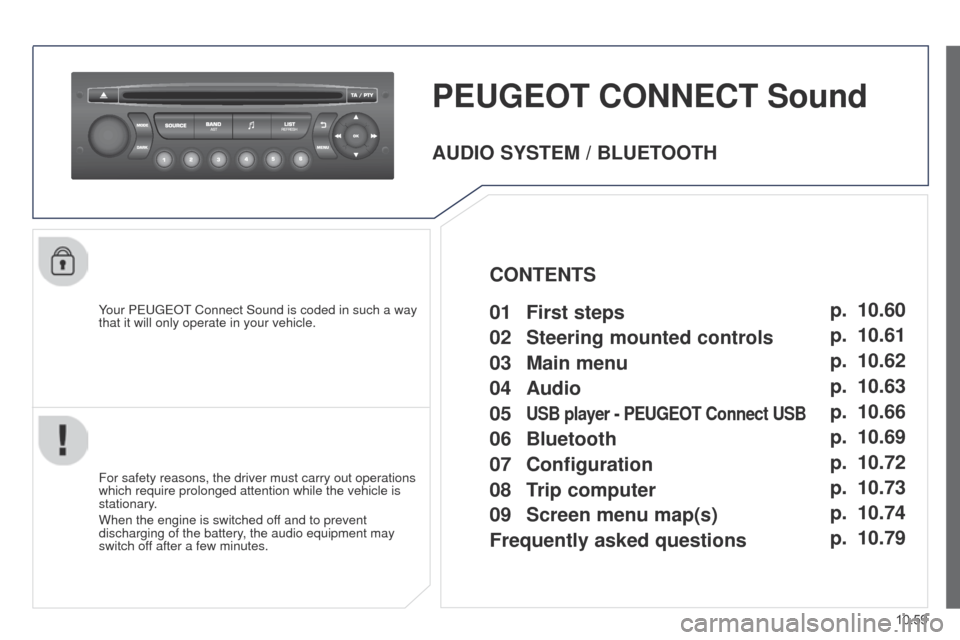
PEUGEOT CONNECT Sound
Your PEUGEOT Connect Sound is coded in such a way
that it will only operate in your vehicle.
For safety reasons, the driver must carry out operations
which require prolonged attention while the vehicle is
stationary.
When the engine is switched off and to prevent
discharging of the battery, the audio equipment may
switch off after a few minutes.
AUDIO SYSTEM / BLUETOOTH
01
First steps
02
Steering mounted
controls
03
Main
menu
04
Audio
05
USB player - PEUGEOT Connect USB
06 Bluetooth
07 Configuration
09
Screen menu map(s)
08
T
rip computer
Frequently asked questions p.
p.
p.
p.
p.
p.
p.
p. p.
p.
10.60
10.61
10.62
10.63
10.66
10.69
10.72
10.74 10.73
10.79
CONTENTS
Page 218 of 244
01
10.60
Partner-2-VU_en_Chap10c_RD45_ed02_2014
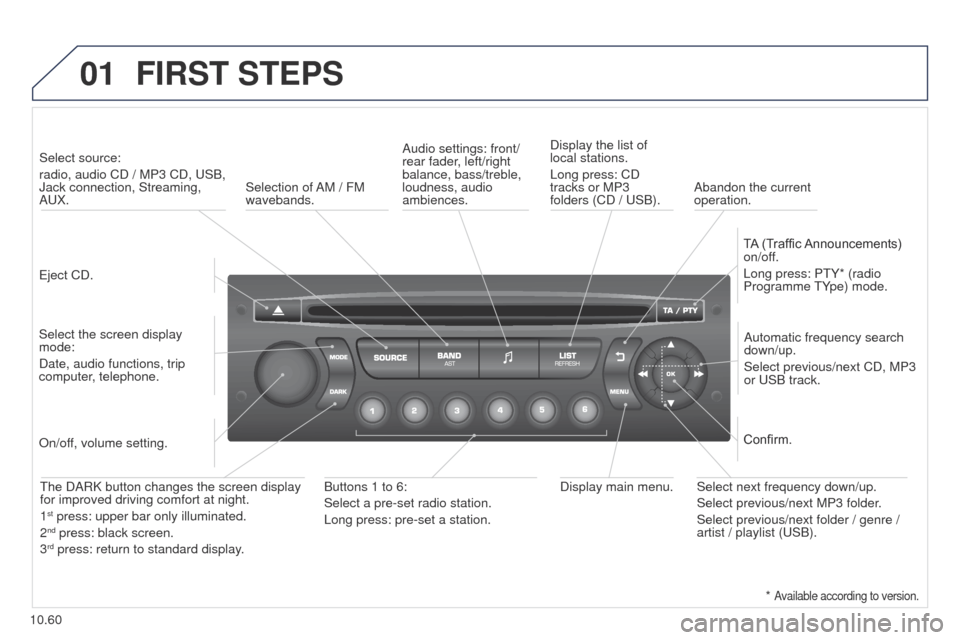
FIRST STEPS
Eject CD.Select source:
radio, audio CD / MP3 CD, USB,
Jack connection, Streaming,
AUX.
Select the screen display
mode:
Date, audio functions, trip
computer, telephone. Automatic frequency search
down/up.
Select previous/next CD, MP3
or USB track.
Audio settings: front/
rear fader, left/right
balance, bass/treble,
loudness, audio
ambiences.
Display the list of
local stations.
Long press: CD
tracks or MP3
folders (CD / USB).
TA (Traffic Announcements)
on/off.
Long press: PTY* (radio
Programme TYpe) mode.
Display main menu.
The DARK button changes the screen display
for improved driving comfort at night.
1
st press: upper bar only illuminated.
2nd press: black screen.
3rd press: return to standard display.
On/off, volume setting.
Buttons 1 to 6:
Select a pre-set radio station.
Long press: pre-set a station. Select next frequency down/up.
Select previous/next MP3 folder.
Select previous/next folder / genre /
artist / playlist (USB).Confirm.
Selection of AM / FM
wavebands.
Abandon the current
operation.
*
Available according to version.
Page 220 of 244
03
10.62
Partner-2-VU_en_Chap10c_RD45_ed02_2014
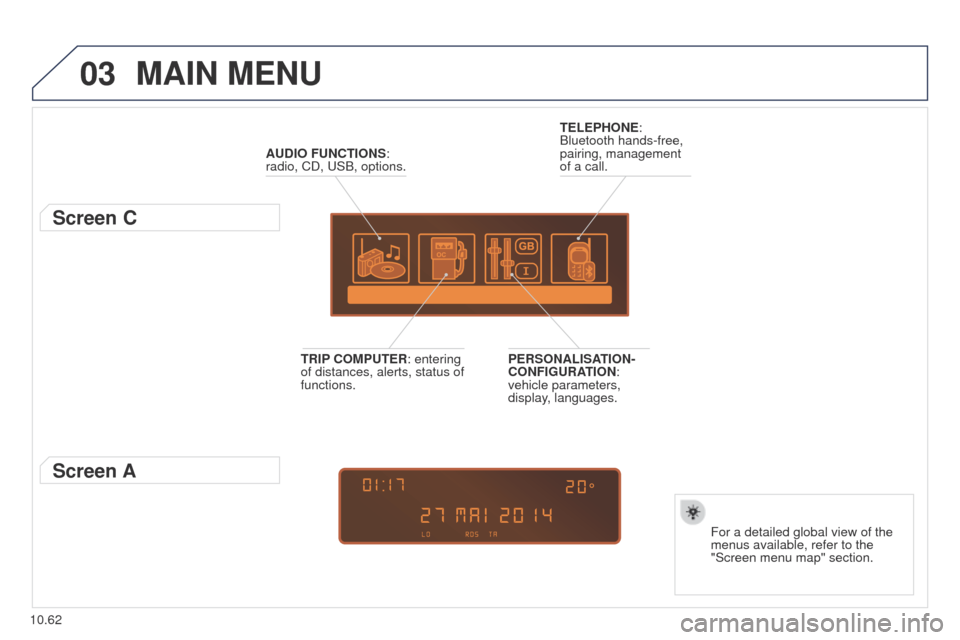
MAIN MENU
AUDIO FUNCTIONS:
radio, CD, USB, options.
Screen C
For a detailed global view of the
menus available, refer to the
"Screen menu map" section.
TELEPHONE:
Bluetooth hands-free,
pairing, management
of a call.
PERSONALISATION-
CONFIGURATION:
vehicle parameters,
display, languages.
TRIP COMPUTER: entering
of distances, alerts, status of
functions.
Screen A
Page 221 of 244
04
10.63
Partner-2-VU_en_Chap10c_RD45_ed02_2014
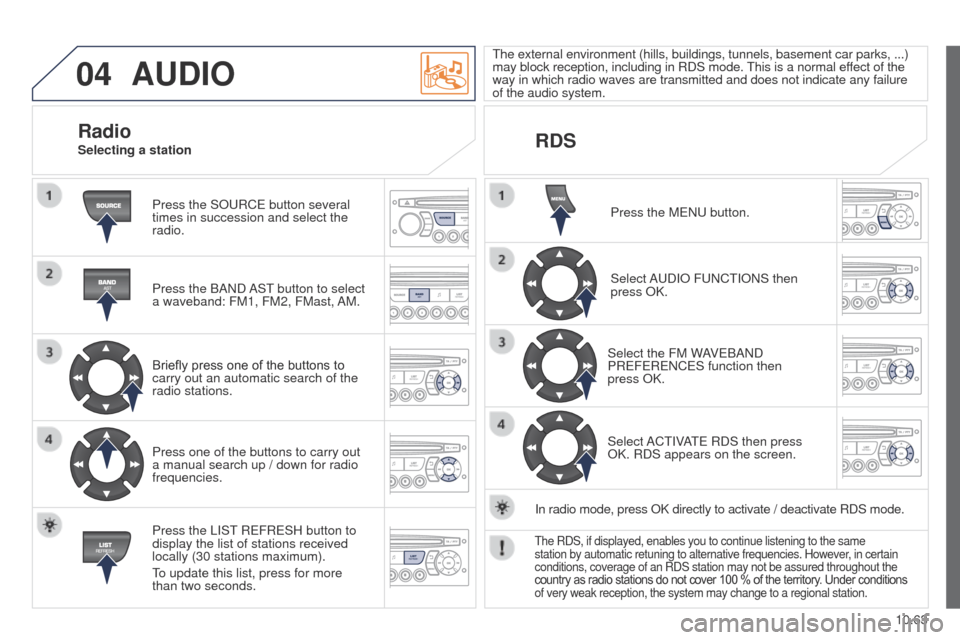
AUDIO
Press the SOURCE button several
times in succession and select the
radio.
Press the BAND AST button to select
a waveband: FM1, FM2, FMast, AM.
Briefly press one of the buttons to
carry out an automatic search of the
radio stations.
Press one of the buttons to carry out
a manual search up / down for radio
frequencies.
Press the LIST REFRESH button to
display the list of stations received
locally (30 stations maximum).
To update this list, press for more
than two seconds.The external environment (hills, buildings, tunnels, basement car parks\
, ...)
may block reception, including in RDS mode. This is a normal effect of the
way in which radio waves are transmitted and does not indicate any failu\
re
of the audio system.
RDS
RadioSelecting a station
Press the MENU button.
Select AUDIO FUNCTIONS then
press OK.
Select the FM WAVEBAND
PREFERENCES function then
press
OK.
Select ACTIVATE RDS then press
OK. RDS appears on the screen.
In radio mode, press OK directly to activate
/ deactivate RDS mode.
The RDS, if displayed, enables you to continue listening to the same
station by automatic retuning to alternative frequencies. However, in certain
conditions, coverage of an RDS station may not be assured throughout the\
country as radio stations do not cover 100 % of the territory. Under conditions
of very weak reception, the system may change to a regional station.