Settings Peugeot Partner Tepee 2017 User Guide
[x] Cancel search | Manufacturer: PEUGEOT, Model Year: 2017, Model line: Partner Tepee, Model: Peugeot Partner Tepee 2017Pages: 292, PDF Size: 10.49 MB
Page 211 of 292
209
Partner2VP_en_Chap10a_SMEGplus_ed02-2016
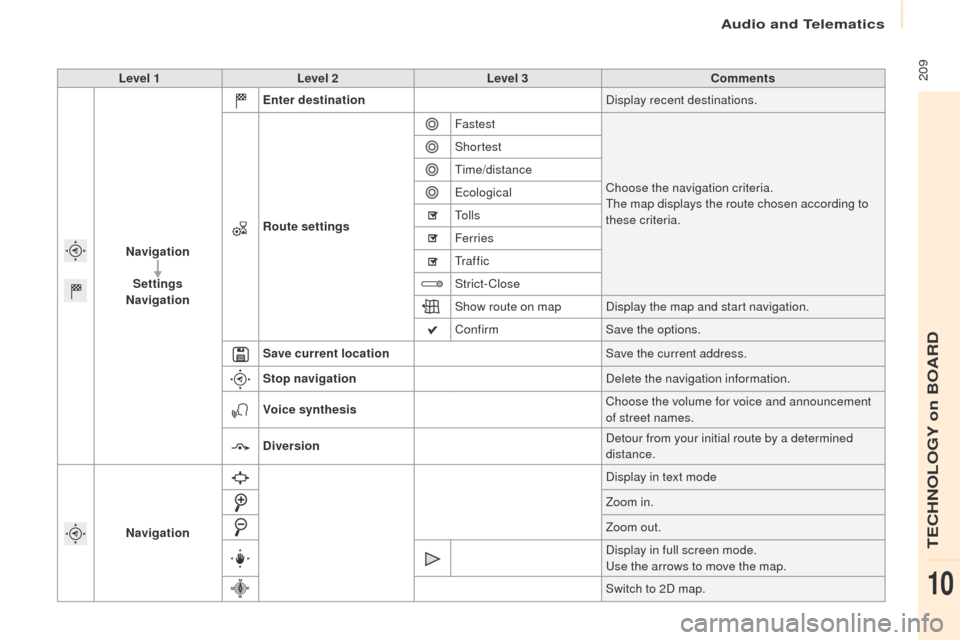
Level 1Level 2 Level 3 Comments
Navigation Settings
Navigation Enter destination
Display recent destinations.
Route settings Fastest
Choose the navigation criteria.
The map displays the route chosen according to
these criteria.
Shortest
Time/distance
Ecological
To l l s
Ferries
Tr a f f i c
Strict-Close
Show route on map
Display the map and start navigation.
Confirm Save the options.
Save current location Save the current address.
Stop navigation Delete the navigation information.
Voice synthesis Choose the volume for voice and announcement
of street names.
Diversion Detour from your initial route by a determined
distance.
Navigation Display in text mode
Zoom in.
Zoom out.
Display in full screen mode.
Use the arrows to move the map.
Switch to 2D map.
Audio and Telematics
TECHNOLOGY on BOARD
10
Page 213 of 292
2 11
Partner2VP_en_Chap10a_SMEGplus_ed02-2016
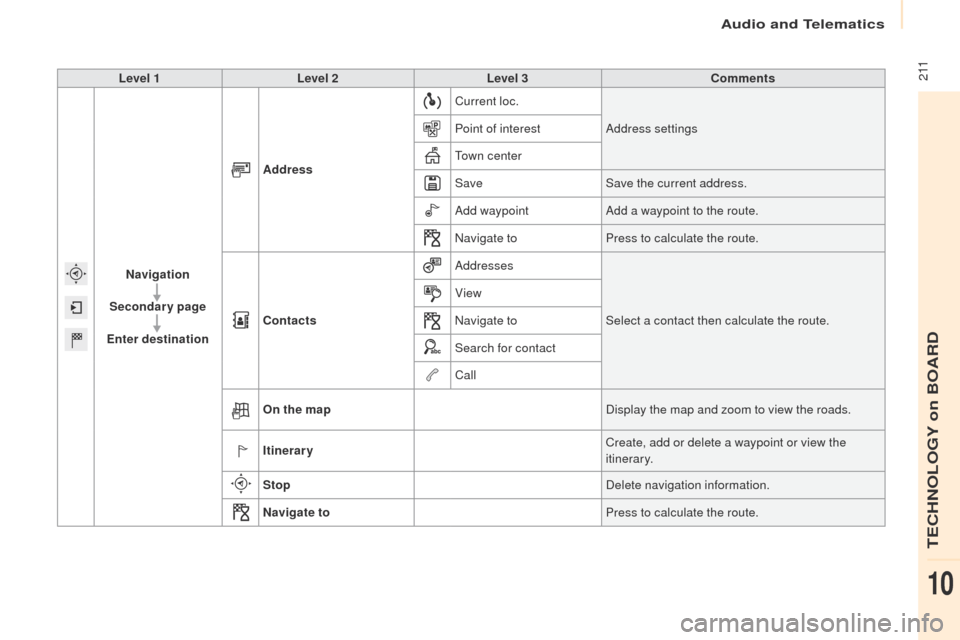
Level 1Level 2 Level 3 Comments
Navigation
Secondary page
Enter destination Address
Current loc.
Address settings
Point of interest
Town center
Save Save the current address.
Add waypoint Add a waypoint to the route.
Navigate to Press to calculate the route.
Contacts Addresses
Select a contact then calculate the route.
View
Navigate to
Search for contact
Call
On the map Display the map and zoom to view the roads.
Itinerary Create, add or delete a waypoint or view the
itinerary.
Stop Delete navigation information.
Navigate to Press to calculate the route.
Audio and Telematics
TECHNOLOGY on BOARD
10
Page 215 of 292
213
Partner2VP_en_Chap10a_SMEGplus_ed02-2016
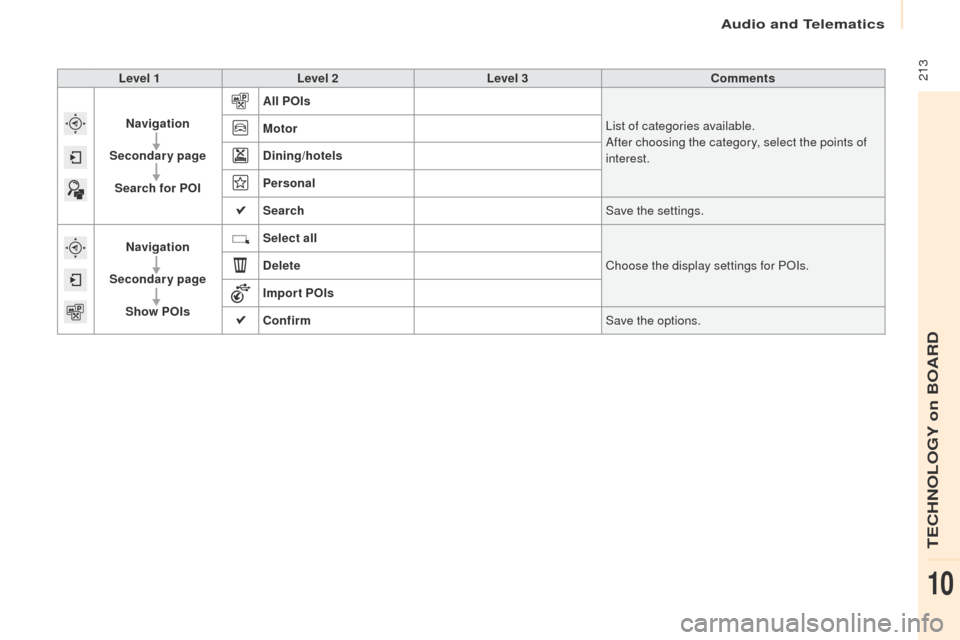
Level 1Level 2 Level 3 Comments
Navigation
Secondary page Search for POI All POIs
List of categories available.
After choosing the category, select the points of
interest.
Motor
Dining/hotels
Personal
Search
Save the settings.
Navigation
Secondary page Show POIs Select all
Choose the display settings for POIs.
Delete
Import POIs
Confirm Save the options.
Audio and Telematics
TECHNOLOGY on BOARD
10
Page 216 of 292
214
Partner2VP_en_Chap10a_SMEGplus_ed02-2016
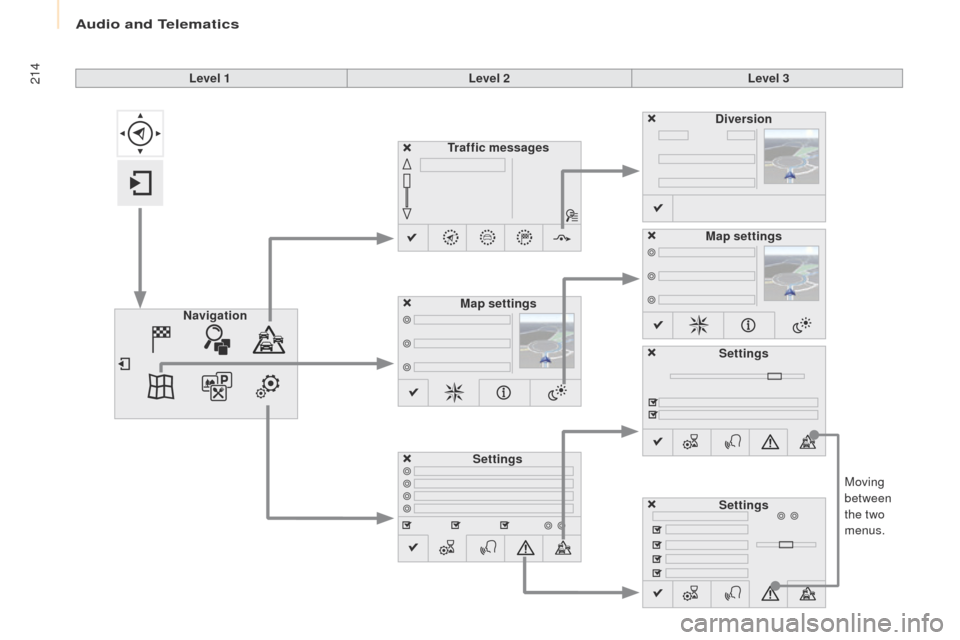
Moving
between
the two
menus.
Level 1
Level 2Level 3
Traffic messages
Settings Diversion
Map settings
Navigation Map settings
Settings
Settings
Audio and Telematics
Page 217 of 292
215
Partner2VP_en_Chap10a_SMEGplus_ed02-2016
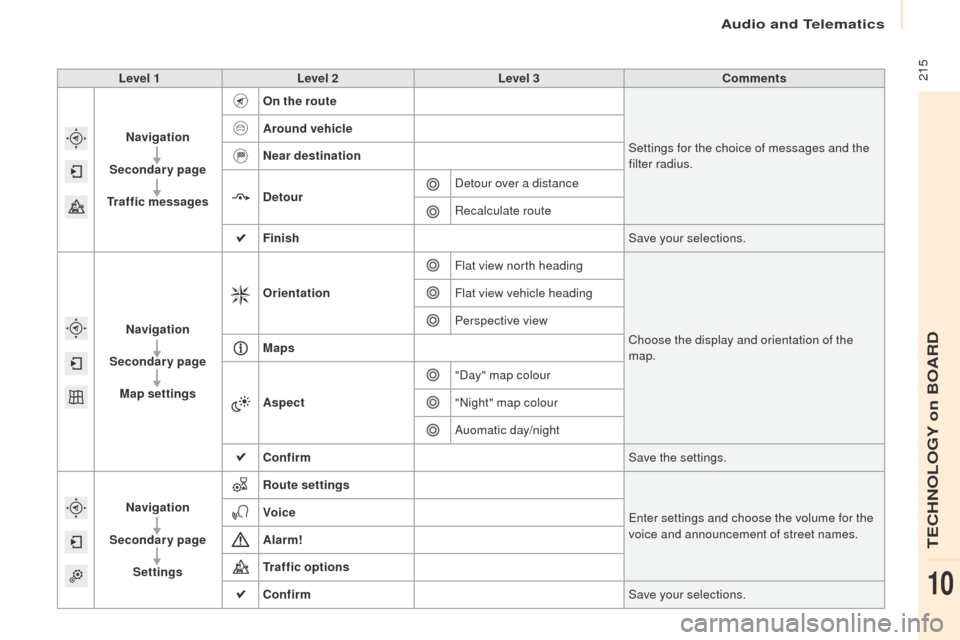
Level 1Level 2 Level 3 Comments
Navigation
Secondary page
Traffic messages On the route
Settings for the choice of messages and the
filter radius.
Around vehicle
Near destination
Detour
Detour over a distance
Recalculate route
Finish Save your selections.
Navigation
Secondary page Map settings Orientation
Flat view north heading
Choose the display and orientation of the
map.
Flat view vehicle heading
Perspective view
Maps
Aspect "Day" map colour
"Night" map colour
Auomatic day/night
Confirm Save the settings.
Navigation
Secondary page Settings Route settings
Enter settings and choose the volume for the
voice and announcement of street names.
Voice
Alarm!
Traffic options
Confirm
Save your selections.
Audio and Telematics
TECHNOLOGY on BOARD
10
Page 218 of 292
216
Partner2VP_en_Chap10a_SMEGplus_ed02-2016
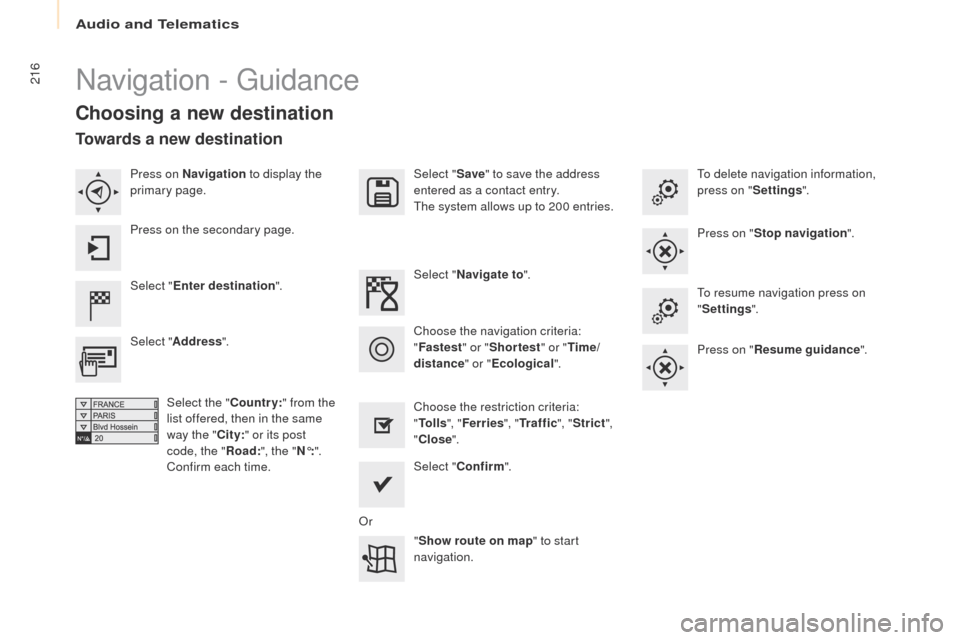
Navigation - Guidance
Choosing a new destination
Select "Enter destination ". Select "
Save" to save the address
entered as a contact entry.
The system allows up to 200 entries.
Select " Confirm ".
" Show route on map " to start
navigation.
Select "
Address ".
Select the " Country:" from the
list offered, then in the same
way the " City:" or its post
code, the " Road:", the
"N°: ".
Confirm each time. Select "
Navigate to ".
Choose the restriction criteria:
" To l l s ", "Ferries ", "Tr a f f i c ", "Strict ",
" Close ".
Choose the navigation criteria:
"
Fastest " or "Shortest " or "Time/
distance " or "Ecological". To delete navigation information,
press on "
Settings".
Press on " Stop navigation ".
To resume navigation press on
" Settings ".
Press on " Resume guidance ".
Press on Navigation
to display the
primary page.
Press on the secondary page.
Towards a new destination
Or
Audio and Telematics
Page 222 of 292
220
Partner2VP_en_Chap10a_SMEGplus_ed02-2016
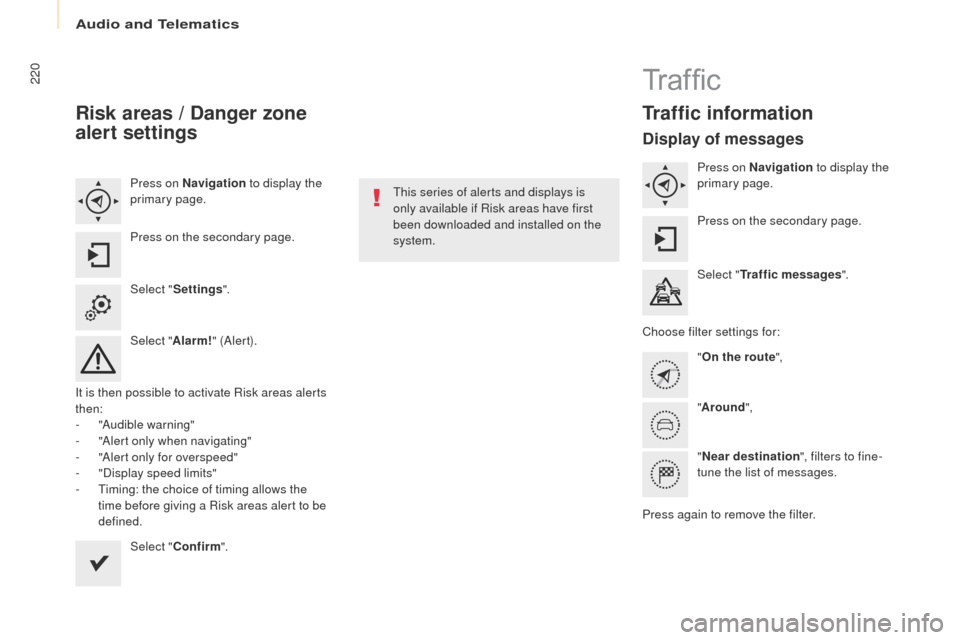
Risk areas / Danger zone
alert settings
Press on Navigation to display the
primary page.
Press on the secondary page.
Select " Settings ".
Select " Alarm!" (Aler t).
It is then possible to activate Risk areas alerts
then:
-
"
Audible warning"
-
"
Alert only when navigating"
-
"
Alert only for overspeed"
-
"
Display speed limits"
-
T
iming: the choice of timing allows the
time before giving a Risk areas alert to be
defined.
Select " Confirm ". This series of alerts and displays is
only available if Risk areas have first
been downloaded and installed on the
system.
Tr a f fi c
Traffic information
Display of messages
Press on Navigation
to display the
primary page.
Press on the secondary page.
Select " Traffic messages ".
Choose filter settings for: "On the route ",
" Around ",
" Near destination ", filters to fine-
tune the list of messages.
Press again to remove the filter.
Audio and Telematics
Page 223 of 292
221
Partner2VP_en_Chap10a_SMEGplus_ed02-2016
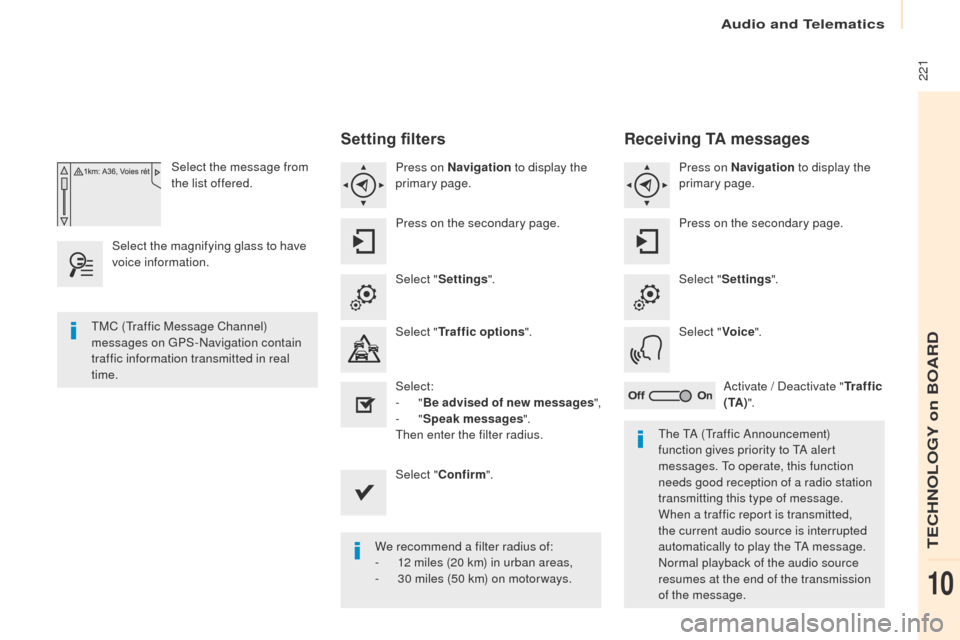
Select the message from
the list offered.
Select the magnifying glass to have
voice information.
Setting filters
Press on Navigation to display the
primary page.
Press on the secondary page.
Select " Settings ".
Select " Traffic options ".
Select:
-
"Be advised of new messages ",
-
"Speak messages ".
Then enter the filter radius.
Select " Confirm ".
We recommend a filter radius of:
-
1
2 miles (20 km) in urban areas,
-
3
0 miles (50 km) on motor ways.
TMC (Traffic Message Channel)
messages on GPS-Navigation contain
traffic information transmitted in real
time.
The TA (Traffic Announcement)
function gives priority to TA alert
messages. To operate, this function
needs good reception of a radio station
transmitting this type of message.
When a traffic report is transmitted,
the current audio source is interrupted
automatically to play the TA message.
Normal playback of the audio source
resumes at the end of the transmission
of the message.
Receiving TA messages
Press on Navigation to display the
primary page.
Press on the secondary page.
Select " Settings ".
Select " Voice".
Activate / Deactivate " Tr a f f i c
( TA ) ".
Audio and Telematics
TECHNOLOGY on BOARD
10
Page 227 of 292
225
Partner2VP_en_Chap10a_SMEGplus_ed02-2016
Level 1Level 2 Level 3 Comments
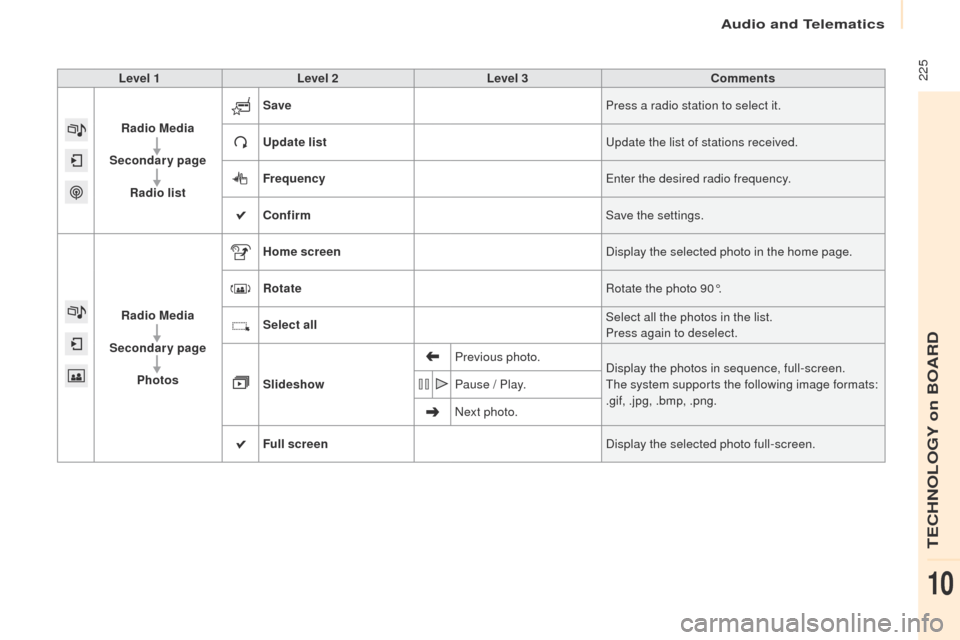
Radio Media
Secondary page Radio list Save
Press a radio station to select it.
Update list Update the list of stations received.
Frequency Enter the desired radio frequency.
Confirm Save the settings.
Radio Media
Secondary page Photos Home screen
Display the selected photo in the home page.
Rotate Rotate the photo 90°.
Select all Select all the photos in the list.
Press again to deselect.
Slideshow Previous photo.
Display the photos in sequence, full-screen.
The system supports the following image formats:
.gif, .jpg, .bmp, .png.
Pause / Play.
Next photo.
Full screen Display the selected photo full-screen.
Audio and Telematics
TECHNOLOGY on BOARD
10
Page 228 of 292
226
Partner2VP_en_Chap10a_SMEGplus_ed02-2016
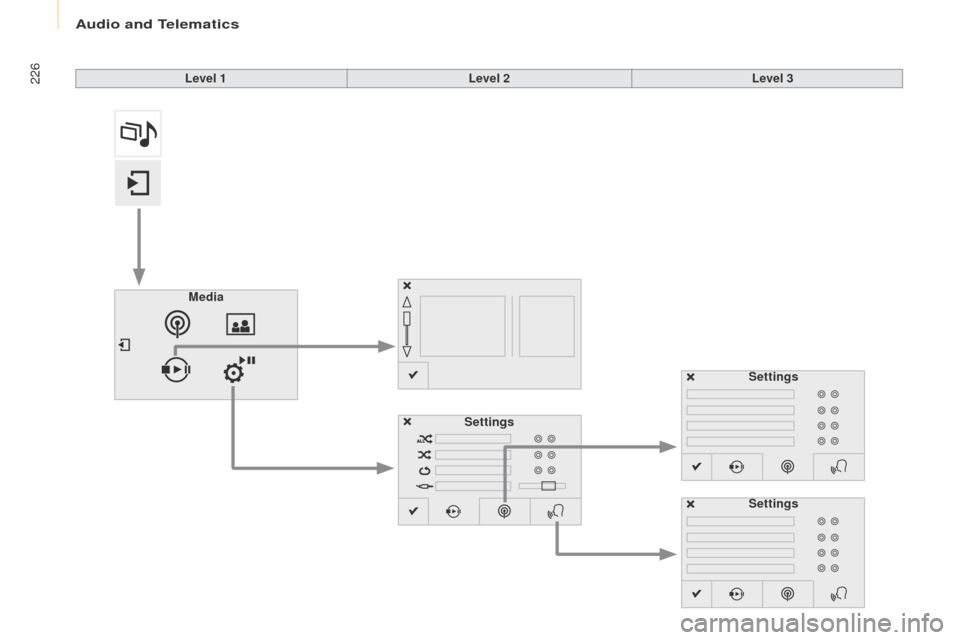
Level 1Level 2Level 3
Media Settings Settings
Settings
Audio and Telematics