steering mounted control Peugeot Partner Tepee 2017 Owner's Guide
[x] Cancel search | Manufacturer: PEUGEOT, Model Year: 2017, Model line: Partner Tepee, Model: Peugeot Partner Tepee 2017Pages: 292, PDF Size: 10.49 MB
Page 256 of 292
254
Partner2VP_en_Chap10a_SMEGplus_ed02-2016
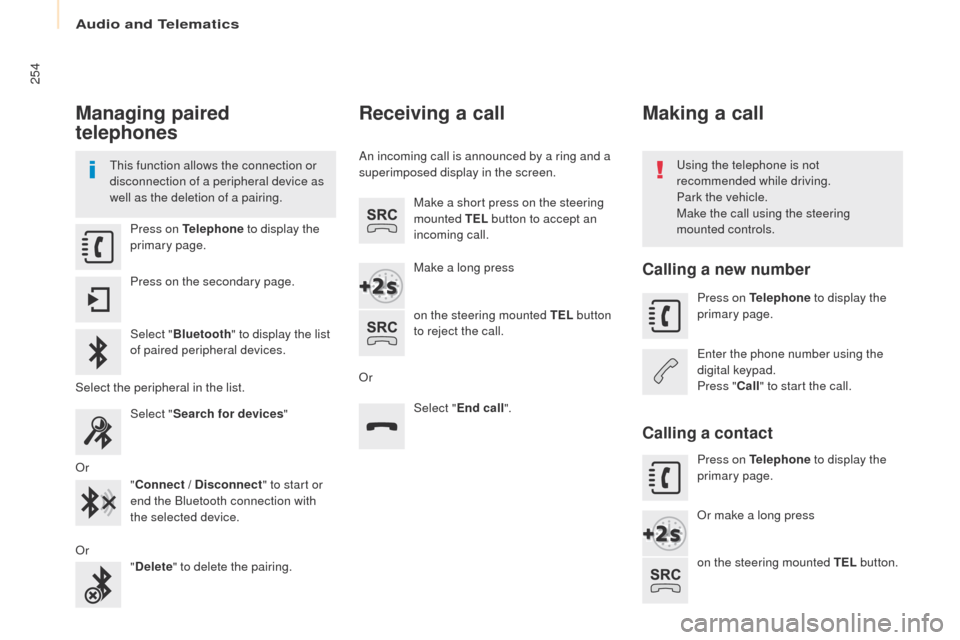
Managing paired
telephones
This function allows the connection or
disconnection of a peripheral device as
well as the deletion of a pairing.Using the telephone is not
recommended while driving.
Park the vehicle.
Make the call using the steering
mounted controls.
Press on Telephone
to display the
primary page.
Press on the secondary page.
Select " Bluetooth " to display the list
of paired peripheral devices.
Select the peripheral in the list. Select "Search for devices "
Or "Connect / Disconnect " to start or
end the Bluetooth connection with
the selected device.
Or "Delete " to delete the pairing.
Receiving a call
An incoming call is announced by a ring and a
superimposed display in the screen.
Make a short press on the steering
mounted TEL button to accept an
incoming call.
Make a long press
on the steering mounted TEL button
to reject the call.
Or Select "End call".
Making a call
Calling a new number
Press on Telephone to display the
primary page.
Enter the phone number using the
digital keypad.
Press " Call" to start the call.
Calling a contact
Press on Telephone to display the
primary page.
Or make a long press
on the steering mounted TEL button.
Audio and Telematics
Page 267 of 292
265
Partner2VP_en_Chap10b_RD45_ed02-2016
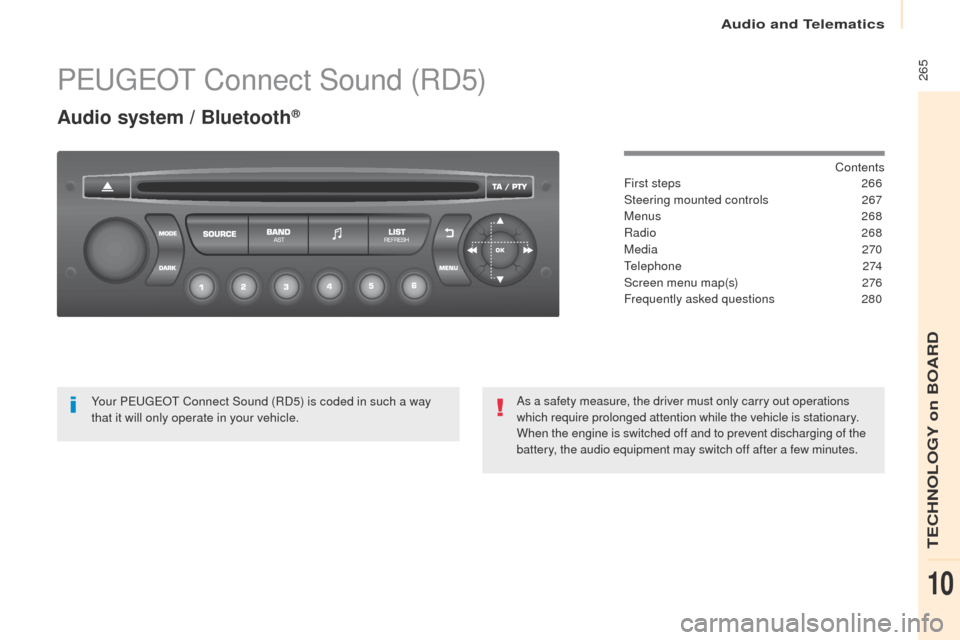
PEUGEOT Connect Sound (RD5)
Audio system / Bluetooth®
Contents
First steps
2 66
Steering mounted controls
26
7
Menus
268
Radio
268
Media
270
Telephone
274
Screen menu map(s)
2
76
Frequently asked questions
2
80
Yo u r P
E
UGEOT
C
onnect Sound (RD5) is coded in such a way
that it will only operate in your vehicle. As a safety measure, the driver must only carry out operations
which require prolonged attention while the vehicle is stationary.
When the engine is switched off and to prevent discharging of the
battery, the audio equipment may switch off after a few minutes.
Audio and Telematics
TECHNOLOGY on BOARD
10
Page 269 of 292
267
Partner2VP_en_Chap10b_RD45_ed02-2016
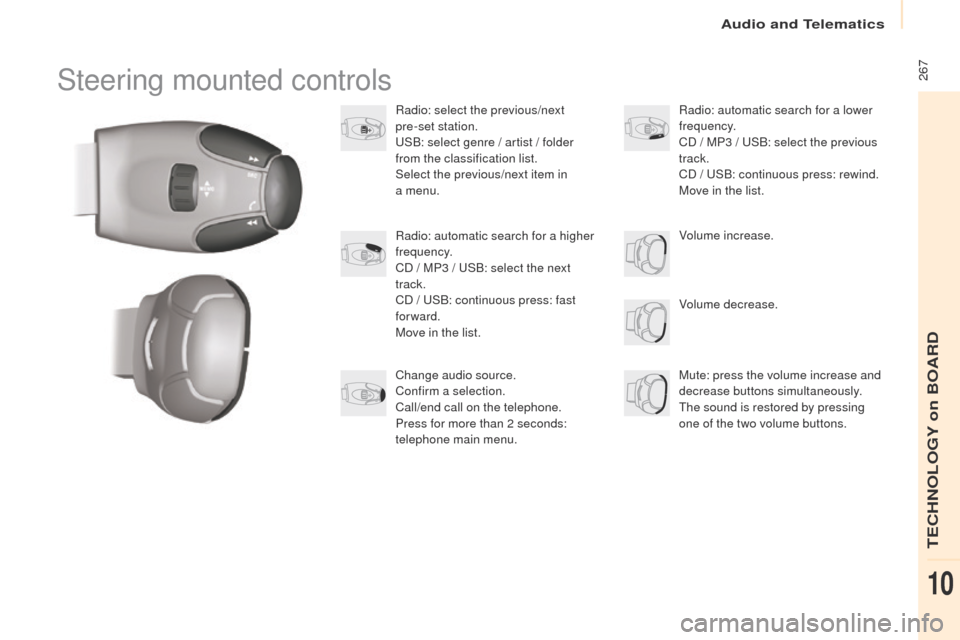
Steering mounted controls
Radio: select the previous/next
pre-set station.
USB: select genre / artist / folder
from the classification list.
Select the previous/next item in
a menu.
Volume decrease.
Radio: automatic search for a higher
frequency.
CD / MP3 / USB: select the next
track.
CD / USB: continuous press: fast
forward.
Move in the list.
Mute: press the volume increase and
decrease buttons simultaneously.
The sound is restored by pressing
one of the two volume buttons. Radio: automatic search for a lower
frequency.
CD / MP3 / USB: select the previous
track.
CD / USB: continuous press: rewind.
Move in the list.
Change audio source.
Confirm a selection.
Call/end call on the telephone.
Press for more than 2 seconds:
telephone main menu. Volume increase.
Audio and Telematics
TECHNOLOGY on BOARD
10
Page 275 of 292
273
Partner2VP_en_Chap10b_RD45_ed02-2016
Use only USB memory sticks formatted FAT32
(File Allocation Table).It is recommended that you use
genuine Apple
® USB cables for correct
operation.
*
I
n certain cases, play of the audio files must
be initiated from the keypad.
** If the telephone supports the function.
Bluetooth® audio streaming
Streaming allows music files on the telephone
to be played via the audio system.
Connect the telephone: see the " Telephone"
section.
Select in the " Bluetooth: Telephone - Audio "
menu the telephone to be connected.
The audio system connects to a newly paired
telephone automatically.
Control of tracks to be played is via the buttons
on the audio system control panel and the
steering mounted controls**. The contextual
information can be displayed in the screen. Activate the streaming source by
pressing the SOURCE
* button.
Connecting Apple® players
Connect the Apple® player to the USB port
using a suitable cable (not supplied).
Play starts automatically.
Control is via the audio system.
The classifications available are those of the
portable device connected (artists / albums /
genres / playlists / audiobooks / podcasts).
The version of software in the audio system
may not be compatible with the generation of
your Apple
® p l aye r.
To protect the system, do not use a
USB hub.
Audio and Telematics
TECHNOLOGY on BOARD
10
Page 277 of 292
275
Partner2VP_en_Chap10b_RD45_ed02-2016
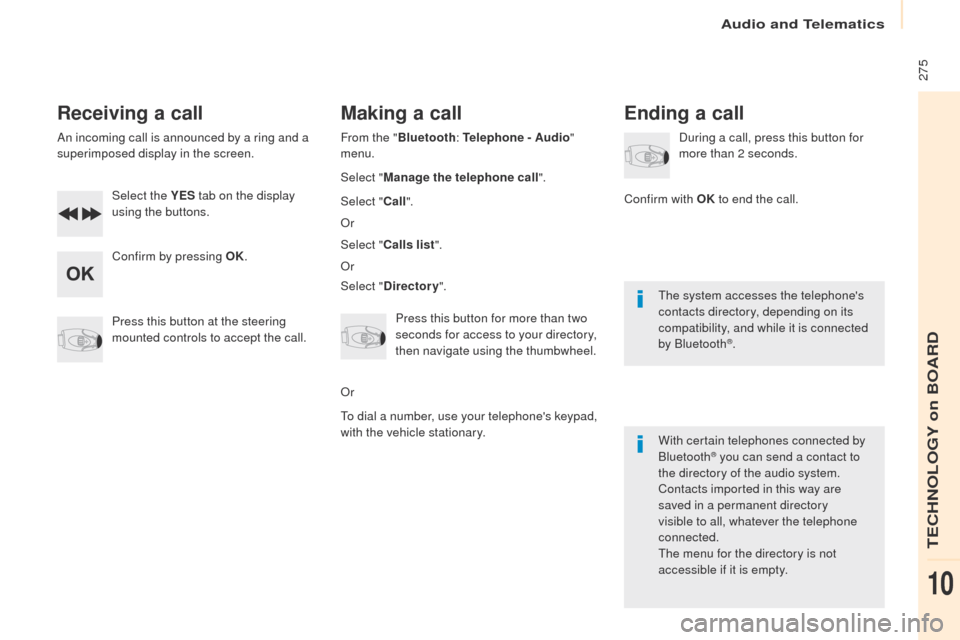
Receiving a call
An incoming call is announced by a ring and a
superimposed display in the screen.Select the YES tab on the display
using the buttons.
Confirm by pressing OK.
Press this button at the steering
mounted controls to accept the call.
Making a call
From the " Bluetooth : Telephone - Audio "
menu.
Select " Manage the telephone call".
Select " Call".
Or
Select " Calls list ".
Or
Select " Directory ".
Press this button for more than two
seconds for access to your directory,
then navigate using the thumbwheel.
Or
To dial a number, use your telephone's keypad,
with the vehicle stationary.
Ending a call
During a call, press this button for
more than 2 seconds.
Confirm with OK to end the call.
The system accesses the telephone's
contacts directory, depending on its
compatibility, and while it is connected
by Bluetooth
®.
With certain telephones connected by
Bluetooth
® you can send a contact to
the directory of the audio system.
Contacts imported in this way are
saved in a permanent directory
visible to all, whatever the telephone
connected.
The menu for the directory is not
accessible if it is empty.
Audio and Telematics
TECHNOLOGY on BOARD
10