phone Peugeot Partner Tepee 2017 Owner's Manual
[x] Cancel search | Manufacturer: PEUGEOT, Model Year: 2017, Model line: Partner Tepee, Model: Peugeot Partner Tepee 2017Pages: 292, PDF Size: 10.49 MB
Page 22 of 292
20
Partner2VP_en_Chap03_Pret-a-partir_ed02-2016
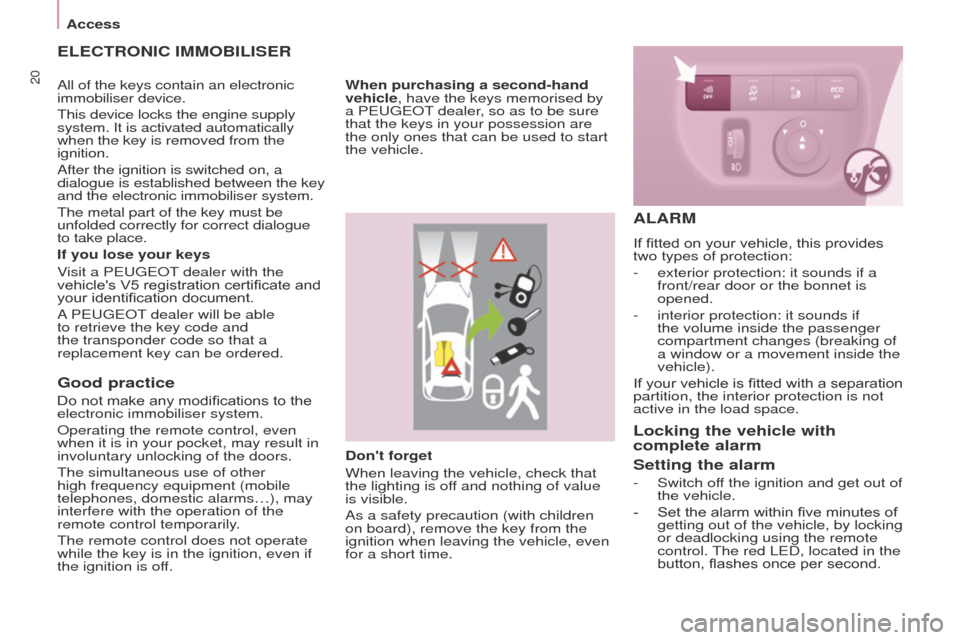
Don't forget
When leaving the vehicle, check that
the lighting is off and nothing of value
is visible.
As a safety precaution (with children
on board), remove the key from the
ignition when leaving the vehicle, even
for a short time.
Good practice
Do not make any modifications to the
electronic immobiliser system.
Operating the remote control, even
when it is in your pocket, may result in
involuntary unlocking of the doors.
The simultaneous use of other
high frequency equipment (mobile
telephones, domestic alarms…), may
interfere with the operation of the
remote control temporarily.
The remote control does not operate
while the key is in the ignition, even if
the ignition is off.
ELECTRONIC IMMOBILISER
If you lose your keys
Visit a PEUGEOT dealer with the
vehicle's V5 registration certificate and
your identification document.
A PEUGEOT dealer will be able
to retrieve the key code and
the transponder code so that a
replacement key can be ordered.When purchasing a second-hand
vehicle, have the keys memorised by
a PEUGEOT dealer, so as to be sure
that the keys in your possession are
the only ones that can be used to start
the vehicle.
ALARM
If fitted on your vehicle, this provides
two types of protection:
-
exterior protection: it sounds if a
front/rear door or the bonnet is
opened.
-
interior protection: it sounds if
the volume inside the passenger
compartment changes (breaking of
a window or a movement inside the
vehicle).
If
your vehicle is fitted with a separation
partition, the interior protection is not
active in the load space.
Locking the vehicle with
complete alarm
Setting the alarm
- Switch of f the ignition and get out of
the vehicle.
-
Set the alarm within five minutes of
getting out of the vehicle, by locking
or deadlocking using the remote
control.
The red LED, located in the
button, flashes once per second.
All of the keys contain an electronic
immobiliser device.
This device locks the engine supply
system. It is activated automatically
when the key is removed from the
ignition.
After the ignition is switched on, a
dialogue is established between the key
and the electronic immobiliser system.
The metal part of the key must be
unfolded correctly for correct dialogue
to take place.
Access
Page 107 of 292
105
Partner2VP_en_Chap04_Ergonomie_ed02-2016Partner2VP_en_Chap04_Ergonomie_ed02-2016
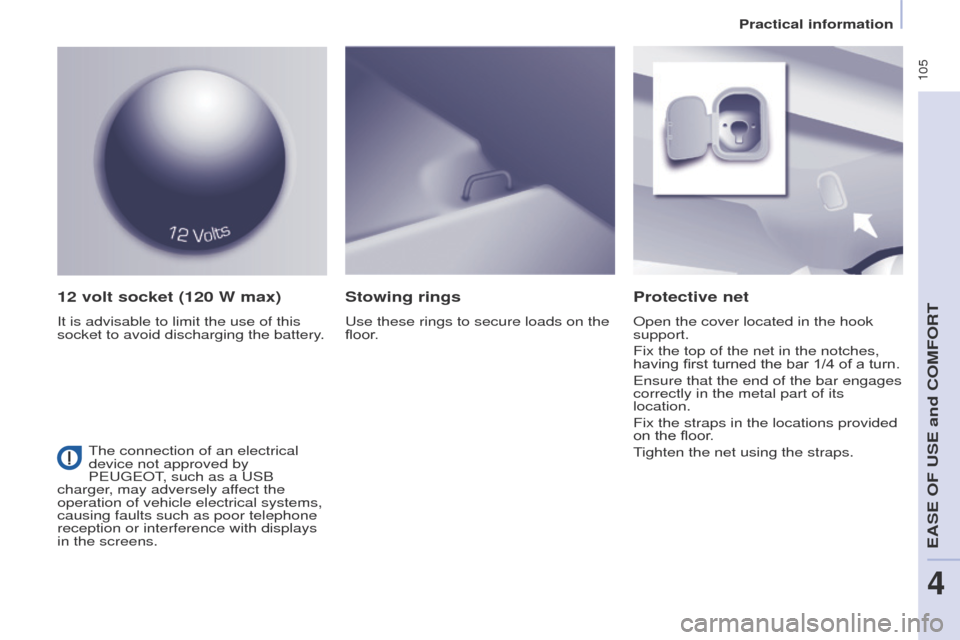
12 volt socket (120 W max)
It is advisable to limit the use of this
socket to avoid discharging the battery.
Protective net
Open the cover located in the hook
support.
Fix the top of the net in the notches,
having first turned the bar 1/4 of a turn.
Ensure that the end of the bar engages
correctly in the metal part of its
location.
Fix the straps in the locations provided
on the floor.
Tighten the net using the straps.
Stowing rings
Use these rings to secure loads on the
floor.
The connection of an electrical
device not approved by
PEUGEOT, such as a USB
charger, may adversely affect the
operation of vehicle electrical systems,
causing faults such as poor telephone
reception or interference with displays
in the screens.
EASE OF USE and COMFORT
4
Practical information
Page 190 of 292
188
Partner2VP_en_Chap08_Aide-rapide_ed02-2016Partner2VP_en_Chap08_Aide-rapide_ed02-2016
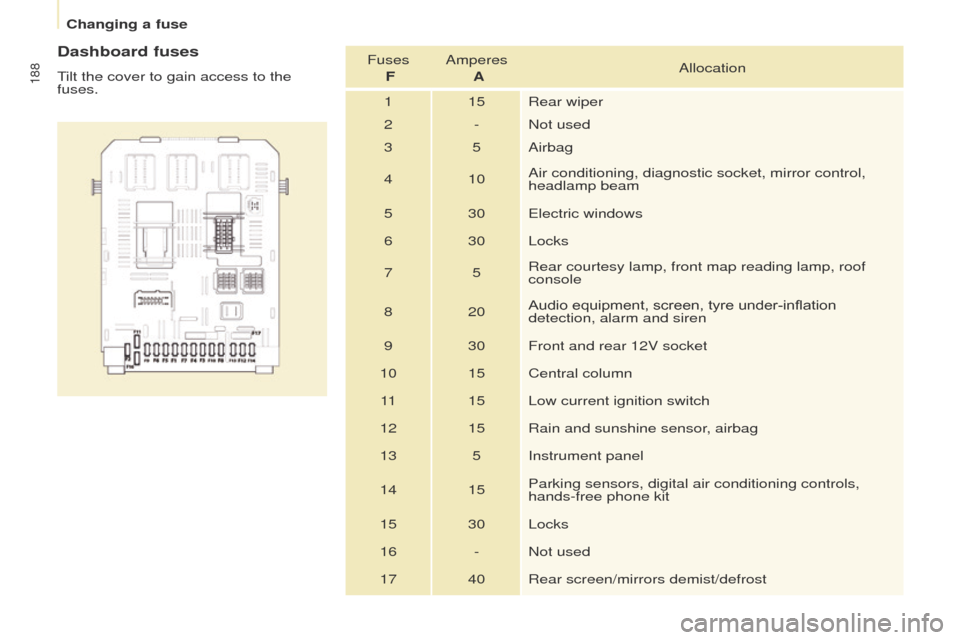
Dashboard fuses
Tilt the cover to gain access to the
fuses.Fuses
F Amperes
A Allocation
1 15 Rear wiper
2 - Not used
3 5 Airbag
4 10 Air conditioning, diagnostic socket, mirror control,
headlamp beam
5 30 Electric windows
6 30 Locks
7 5Rear courtesy lamp, front map reading lamp, roof
console
8 20 Audio equipment, screen, tyre under-inflation
detection, alarm and siren
9 30 Front and rear 12V socket
10 15 Central column 11 15 Low current ignition switch
12 15 Rain and sunshine sensor, airbag
13 5 Instrument panel
14 15 Parking sensors, digital air conditioning controls,
hands-free phone kit
15 30 Locks
16 - Not used
17 40 Rear screen/mirrors demist/defrost
Changing a fuse
Page 205 of 292
203
Partner2VP_en_Chap10a_SMEGplus_ed02-2016
7-inch touch screen
GPS satellite navigation - Multimedia audio - Bluetooth® telephone
Contents
First steps
2 04
Steering mounted controls
20
6
Menus
207
Navigation
208
Navigation - Guidance
2
16
Traffic
2
20
Radio Media
2
22
Radio
2
28
DAB (Digital Audio Broadcasting) radio
2
30
Media
2
32
Settings
234
Connected services
2
42
MirrorLink
TM 2 42
CarPlay® 246
T
elephone
2
48
Frequently asked questions
2
56
The system is protected in such a way that it will only operate in
your vehicle. As a safety measure, the driver should only carry out operations
which require prolonged attention while the vehicle is stationary.
The display of an energy economy mode message signals that
electrical systems operating are going into standby.
Refer to the energy economy mode section.
Audio and Telematics
TECHNOLOGY on BOARD
10
Page 207 of 292
205
Partner2VP_en_Chap10a_SMEGplus_ed02-2016
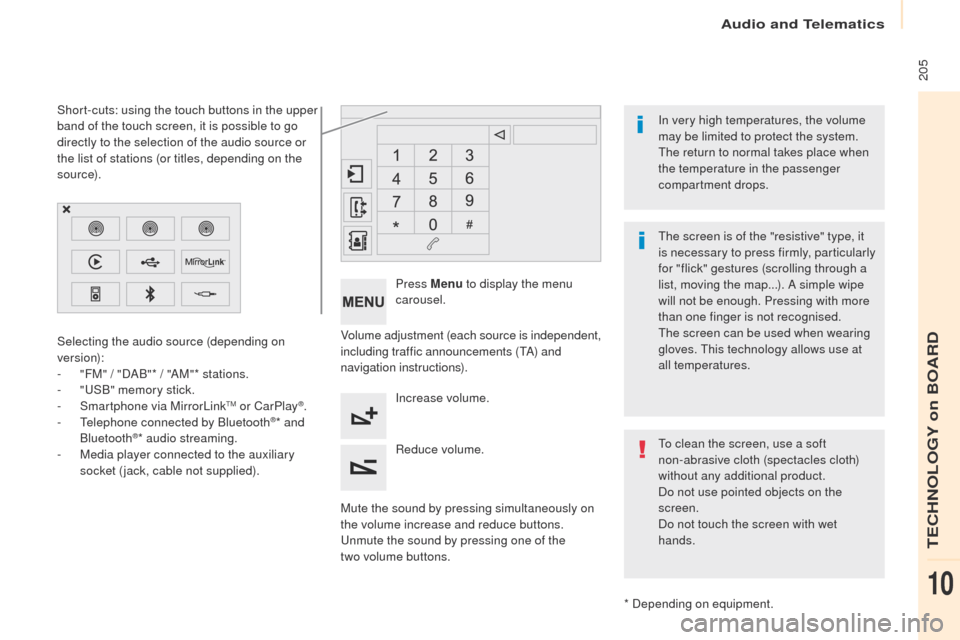
Volume adjustment (each source is independent,
including traffic announcements (TA) and
navigation instructions).
Mute the sound by pressing simultaneously on
the volume increase and reduce buttons.
Unmute the sound by pressing one of the
two
volume buttons. Press Menu
to display the menu
carousel.
Increase volume.
Reduce volume.
Selecting the audio source (depending on
version):
-
"
FM" / "DAB"* / "AM"* stations.
-
"
USB" memory stick.
-
S
martphone via MirrorLink
TM or CarPlay®.
- T
elephone connected by Bluetooth®* and
Bluetooth®* audio streaming.
-
M
edia player connected to the auxiliary
socket (jack, cable not supplied).
* Depending on equipment.
Short-cuts: using the touch buttons in the upper
band of the touch screen, it is possible to go
directly to the selection of the audio source or
the list of stations (or titles, depending on the
s o u r c e).
The screen is of the "resistive" type, it
is necessary to press firmly, particularly
for "flick" gestures (scrolling through a
list, moving the map...). A simple wipe
will not be enough. Pressing with more
than one finger is not recognised.
The screen can be used when wearing
gloves. This technology allows use at
all temperatures. In very high temperatures, the volume
may be limited to protect the system.
The return to normal takes place when
the temperature in the passenger
compartment drops.
To clean the screen, use a soft
non-abrasive cloth (spectacles cloth)
without any additional product.
Do not use pointed objects on the
screen.
Do not touch the screen with wet
hands.
Audio and Telematics
TECHNOLOGY on BOARD
10
Page 208 of 292
206
Partner2VP_en_Chap10a_SMEGplus_ed02-2016
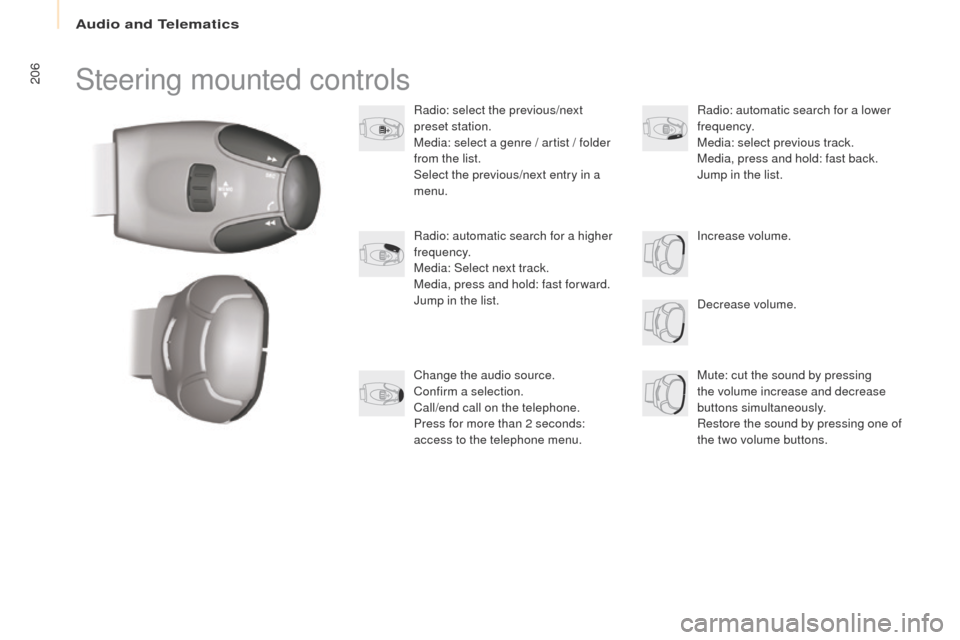
Steering mounted controls
Radio: select the previous/next
preset station.
Media: select a genre / artist / folder
from the list.
Select the previous/next entry in a
menu.Decrease volume.
Radio: automatic search for a higher
frequency.
Media: Select next track.
Media, press and hold: fast for ward.
Jump in the list.
Mute: cut the sound by pressing
the volume increase and decrease
buttons simultaneously.
Restore the sound by pressing one of
the two volume buttons. Radio: automatic search for a lower
frequency.
Media: select previous track.
Media, press and hold: fast back.
Jump in the list.
Change the audio source.
Confirm a selection.
Call/end call on the telephone.
Press for more than 2 seconds:
access to the telephone menu. Increase volume.
Audio and Telematics
Page 209 of 292

207
Partner2VP_en_Chap10a_SMEGplus_ed02-2016
Menus
Settings
Radio Media
Navigation
Driving
Connected services Telephone
Adjust the settings for sound (balance,
ambience,
...), colour schemes and the display
(language, units, date, time,
...).
Select an audio source, a radio station, display
photographs.
Enter navigation settings and choose a
destination.
Access to the trip computer.
Activate, deactivate or enter settings for certain
vehicle functions.
Operate certain applications on your
smartphone via MirrorLink
TM or CarPlay®.
Connect a telephone by Bluetooth
®.
Access to the CarPlay® function after
connection of your smartphone by USB cable.
(Depending on equipment)
(Depending on equipment)
Audio and Telematics
TECHNOLOGY on BOARD
10
Page 212 of 292
210
Partner2VP_en_Chap10a_SMEGplus_ed02-2016
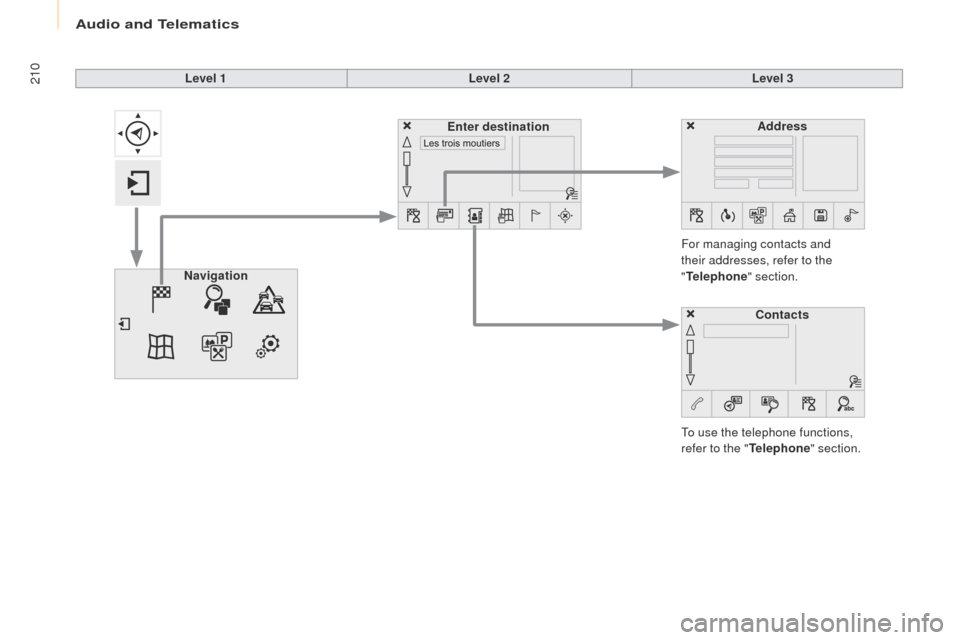
Level 1Level 2Level 3
To use the telephone functions,
refer to the " Telephone" section.
For managing contacts and
their addresses, refer to the
"
Telephone " section.
Navigation Address
Enter destination
Contacts
Audio and Telematics
Page 235 of 292
233
Partner2VP_en_Chap10a_SMEGplus_ed02-2016
It is advisable to restrict file names to
20 characters, without using special characters
(e.g. " " ?
; ù) to avoid any playing and
displaying problems.
Use only USB memory sticks formatted FAT32
(file allocation table). The system supports USB mass
storage portable players, BlackBerry
®
devices or Apple® players via USB
ports. The adaptor cable is not
supplied.
Control of the peripheral device is with
the audio system controls.
Other peripheral devices, not
recognised by the system on
connection, must be connected to the
auxiliary socket using a Jack cable (not
supplied).
It is recommended that the USB cable
for the portable device is used. To protect the system, do not use a
USB hub.
Bluetooth® audio streaming
Streaming allows audio files on your telephone
to be played through the vehicle's speakers.
Connect the telephone: see the " Telephone"
section, then " Bluetooth".
Choose the " Audio" or "All" profile.
If play does not start automatically, it may be
necessary to start the audio playback from the
telephone.
Control is from the peripheral device or by
using the audio system buttons.
Once connected in streaming mode,
the telephone is considered to be a
media source.
It is recommended that you activate
"Repeat " on the Bluetooth
® peripheral.
Connecting Apple® players
Connect the Apple® player to the USB port
using a suitable cable (not supplied).
Play starts automatically.
Control is via the audio system.
The classifications available are those
of the portable device connected
(artists / albums / genres / playlists /
audiobooks / podcasts).
The default classification used is by
artist. To modify the classification used,
return to the first level of the menu
then select the desired classification
(playlists for example) and confirm
to go down through the menu to the
desired track.
The version of software in the audio system
may not be compatible with the generation of
your Apple
® p l aye r.
Audio and Telematics
TECHNOLOGY on BOARD
10
Page 237 of 292
235
Partner2VP_en_Chap10a_SMEGplus_ed02-2016
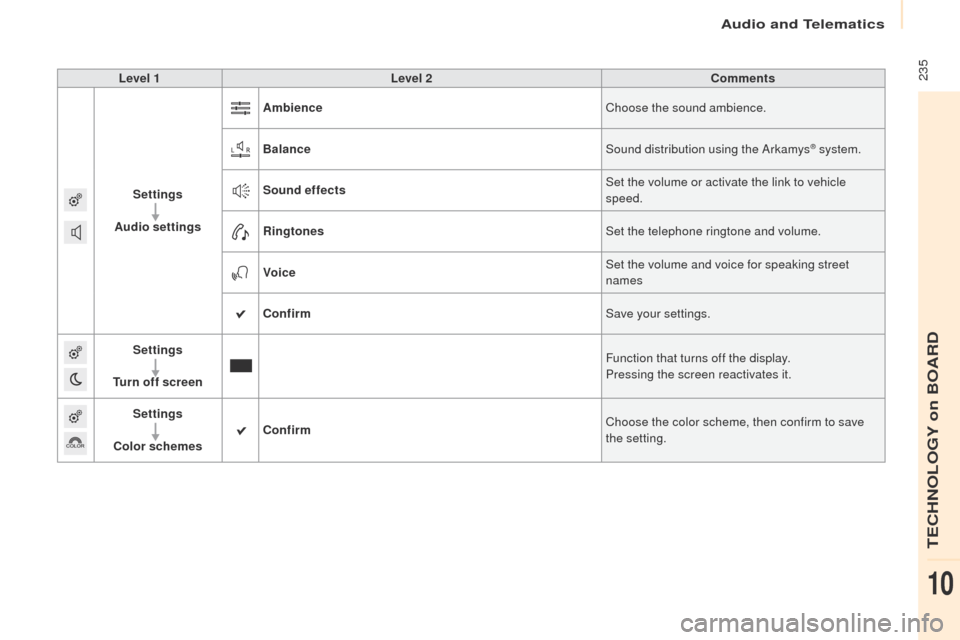
Level 1Level 2 Comments
Settings
Audio settings Ambience
Choose the sound ambience.
Balance Sound distribution using the Arkamys
® system.
Sound effects Set the volume or activate the link to vehicle
speed.
Ringtones Set the telephone ringtone and volume.
Voice Set the volume and voice for speaking street
names
Confirm Save your settings.
Settings
Turn off screen Function that turns off the display.
Pressing the screen reactivates it.
Settings
Color schemes Confirm
Choose the color scheme, then confirm to save
the setting.
Audio and Telematics
TECHNOLOGY on BOARD
10