reset PONTIAC BONNEVILLE 2003 User Guide
[x] Cancel search | Manufacturer: PONTIAC, Model Year: 2003, Model line: BONNEVILLE, Model: PONTIAC BONNEVILLE 2003Pages: 418, PDF Size: 20.24 MB
Page 178 of 418
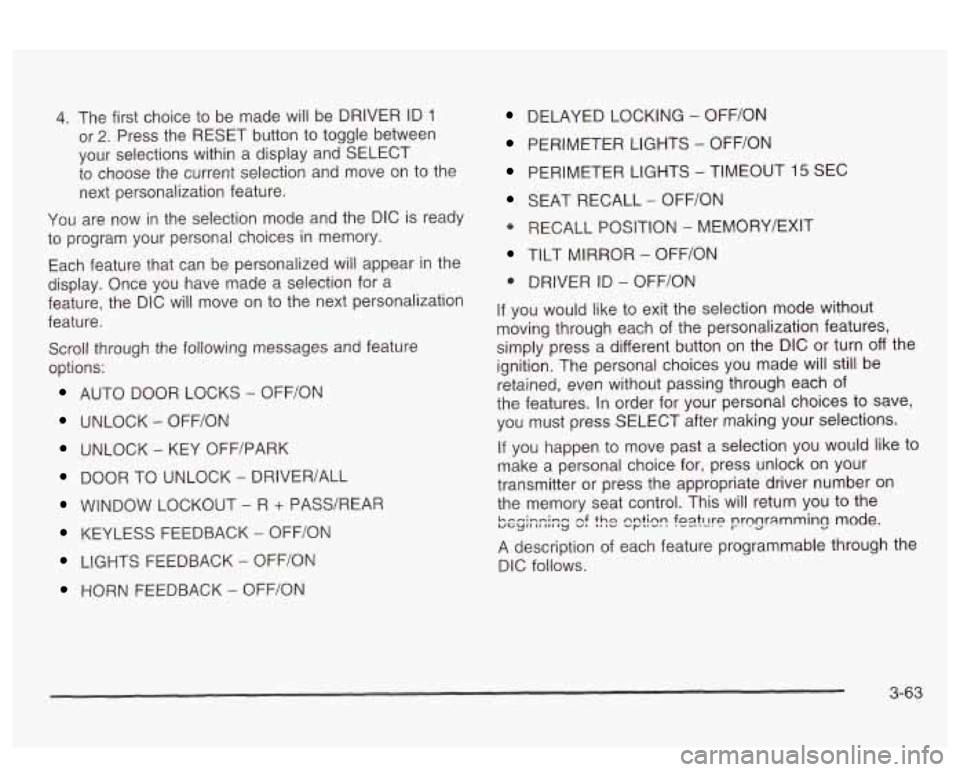
4. The first choice to be made will be DRIVER ID 1
or 2. Press the RESET button to toggle between
your selections within a display and SELECT
to choose the current selection and move on to the
next personalization feature.
You are now in the selection mode and the DIC
is ready
to program your personal choices in memory.
Each feature that can be personalized will appear in the
display. Once you have made a selection for a
feature, the DIC will move on to the next personalization
feature.
Scroll through the following messages and feature
options:
AUTO DOOR LOCKS - OFFiON
UNLOCK - OFF/ON
UNLOCK - KEY OFF/PARK
DOOR TO UNLOCK - DRIVER/ALL
WINDOW LOCKOUT - R + PASS/REAP
KEYLESS FEEDBACK - OFF/ON
LIGHTS FEEDBACK - OFF/ON
HORN FEEDBACK - OFF/ON
DELAYED LOCKING - OFF/ON
PERIMETER LIGHTS - OFF/ON
PERIMETER LIGHTS - TIMEOUT 15 SEC
SEAT RECALL - OFF/ON
* RECALL POSITION - MEMORY/EXIT
TILT MIRROR - OFF/ON
0 DRIVER ID - OFF/ON
If you would like to exit the selection mode without
moving through each of the personalization features,
simply press a different button on the DIC or turn off the
ignition. The personal choices you made will still be
retained, even without passing through each of
the features. In order for your personal choices
to save,
you must press SELECT after making your selections.
If you happen to move past a selection you would like to
make a personal choice for, press unlock on your
transmitter or press the appropriate driver number on
the memory seat control. This will return you to the
A description of each feature programmable through the
DIC follows.
k.--i-n;-m uGylIlII,,Iy nf v, thn 'I ,v nntinn ..r""' foatt1t-P .-e--. nrnnr;lmming mode. I-. -a -.
3-63
Page 179 of 418
Automatic Door Locks
The door lock modes when shifting in and out of
PARK (P), can be changed through the DIC. You can
change these modes using different selections of
the following DIC displays:
AUTO DOOR LOCKS - OFF/ON
UNLOCK - OFFfON
UNLOCK - KEY OFF/PARK
DOOR TO UNLOCK - DRIVER/ALL
If you choose OFF for AUTO DOOR LOCKS, your door
locks will operate normally with
no automatic feature.
If you choose ON for AUTO DOOR LOCKS, ON
for UNLOCK and KEY OFF, your doors will lock every
time you shift out of PARK (P), and the doors will unlock
every time you stop and turn the ignition to OFF.
If you choose ON for AUTO DOOR LOCKS, ON for
UNLOCK and PARK, your doors will lock every time you
shift out of PARK (P), and the doors will unlock every
time you stop and shift into PARK
(P).
If you choose ON for AUTO DOOR LOCKS, and OFF
for UNLOCK, your doors will lock every time you
shift out of PARK (P), and there will be no automatic
door unlock when shifting back into PARK (P).
If you choose ON for UNLOCK and DRIVER for DOOR
TO UNLOCK, only the driver’s door will automatically
unlock when shifting into PARK (P) or turning the
key to OFF.
If you choose ON for UNLOCK and ALL for DOOR TO
UNLOCK, all doors will automatically unlock when
shifting into PARK
(P) or turning the key to OFF.
To change modes do the following:
1. Move the arrow on the display between the
selections by pressing the RESET button.
2. Once you have made your selection, press the
SELECT button and your choice will be retained
in memory.
See
Programmable Automatic Door Locks on page 2- 13
for more information about this feature.
3-64
Page 180 of 418
Window Lock Out
The number of passenger windows locked out by the
window LOCK switch can be programmed through
the DIC.
If you choose R + PASS, all three passenger window
switches will be inactive when the window LOCK switch
is enabled.
If you choose REAR, only the two rear passenger
window switches will be locked out when the window
LOCK switch is enabled.
To change modes do the following:
1. Move the arrow on the display between R + PASS
and REAR by pressing the RESET button.
2. Once you have made your selection, press the
SELECT button. Your choice will be retained in
memory.
For more information on this feature, see “Window Lock
Out” under
Power Windows on page 2-20.
Security Feedback
By choosing different combinations of these selections,
you can choose the type
of transmitter activated
feedback when locking and unlocking your vehicle with
your transmitter. Each time you make a selection by
pressing the RESET button, press the SELECT button
to record your choice.
@ KEYLESS FEEDBACK - OFF/ON
LIGHTS FEEDBACK - OFF/ON
HORN FEEDBACK - OFF/ON
If you choose
ON for KEYLESS FEEDBACK you will
also need to choose LIGHTS and/or HORN FEEDBACK.
You can select the following modes:
If you choose OFF for KEYLESS FEEDBACK, you
will receive no security feedback when locking or
unlocking your vehicle.
If you choose ON for KEYLESS FEEDBACK and
ON for LIGHTS FEEDBACK, the exterior lamps
will flash twice when unlocking your venicie
and once when locking your vehicle.
3-65
Page 181 of 418
If you choose ON for KEYLESS FEEDBACK and
ON for HORN FEEDBACK, your horn will chirp
when locking and unlocking your vehicle.
If you choose ON for KEYLESS, LIGHTS and
HORN FEEDBACK, your exterior lamps will
flash twice at the first unlock button press, your
exterior lamps will flash twice and your horn
will chirp once at the second unlock button press,
and the exterior lamps will flash once and the
horn will chirp once when locking your vehicle.
For more information on this feature, see “Security
Feedback under
Remote Keyless Entry System
Operation on page
2-6.
Delayed Locking
The delayed locking feature, which delays the actual
locking of the vehicle, can be made active or inactive
through the DIC. When DELAYED LOCKING
- OFF/ON
appears on the display, use the RESET button to
toggle the arrow between OFF and
ON. When you have
made your choice, press the SELECT button to record
your selection.
Perimeter Lighting
When the button with the unlock symbol on the
transmitter is pressed, the Daytime Running Lamps
(high-beams at reduced intensity), parking lamps and
back-up lamps will turn on
if it is dark enough according
to the Twilight Sentinel@
.
You can control activation of this feature by choosing
OFF
or ON when the PERIMETER LIGHTS choice
is displayed on the DIC. Make your choice by pressing
the RESET button and record your choice by pressing
the SELECT button. You will then be prompted
to
choose a TIMEOUT period.
The PERIMETER LIGHTS TIMEOUT feature can be
changed
to the desired setting by using the RESET
button to toggle from
5 to 30 seconds. Each toggle will
increase the time by five seconds. Once the desired
timeout
is displayed, press the SELECT button to record
your choice and move on to the next personalization
feature.
For more information on this feature, see “Perimeter
Lighting” under
lnterior Lamps on page 3-16.
For more information on this feature, see Delayed
Locking
on page 2-12.
3-66
Page 182 of 418

Memory Seats
If your vehicle has this feature, the memory seat and
mirror positions will be recalled for the identified
driver when the remote keyless entry transmitter is used
to enter the vehicle.
You can program this feature to be active by choosing
ON when the SEAT RECALL choice appears, or
inactive by choosing
OFF when the SEAT RECALL
choice appears on the DIC. Make your choices
by pressing the RESET button and store them to
memory by pressing the SELECT button.
You can also program this feature
to recall your
memory seat position or the exit seat position.
Memory Position: Choose ON when the SEAT
RECALL choice appears and then choose
MEMORY when the RECALL POSITION choice
appears.
Ex!! PesW?!?: Chwse ON when the SEAT
RECALL choice appears and then choose
EXIT
when the RECALL POSITION choice appears.
The seat will move when you enter the vehicle after
unlocking it with a remote keyless entry transmitter.
This will allow for easy entry.
For more information on this feature, see
Memory Seat
and Mirrors on page 2-48.
Outside Curb View Assist Mirror
If your vehicle has this feature, the outside curb view
assist mirror, which tips the passenger mirror while the
vehicle is in REVERSE
(R), can be made active or
inactive through the DIC. When TILT MIRROR
-OFF/ON
appears on the display, use the RESET button to
toggle the arrow between
OFF and ON. When you have
made your choice, press the SELECT button to record
your selection. For more information on this feature, see
Outside Curb View Assist Mirror on page 2-39.
Driver ID
This feature displays the DRIVER ID, as identified by
the
DIC. If this feature is ON, the DRIVER ID will
be displayed every time the ignition
is turned on. If the
DRIVER ID
is OFF, the DRIVER ID can be displayed
by pressing either a button on the remote keyless entry
transmitter or a memory seat button.
3-67
Page 184 of 418
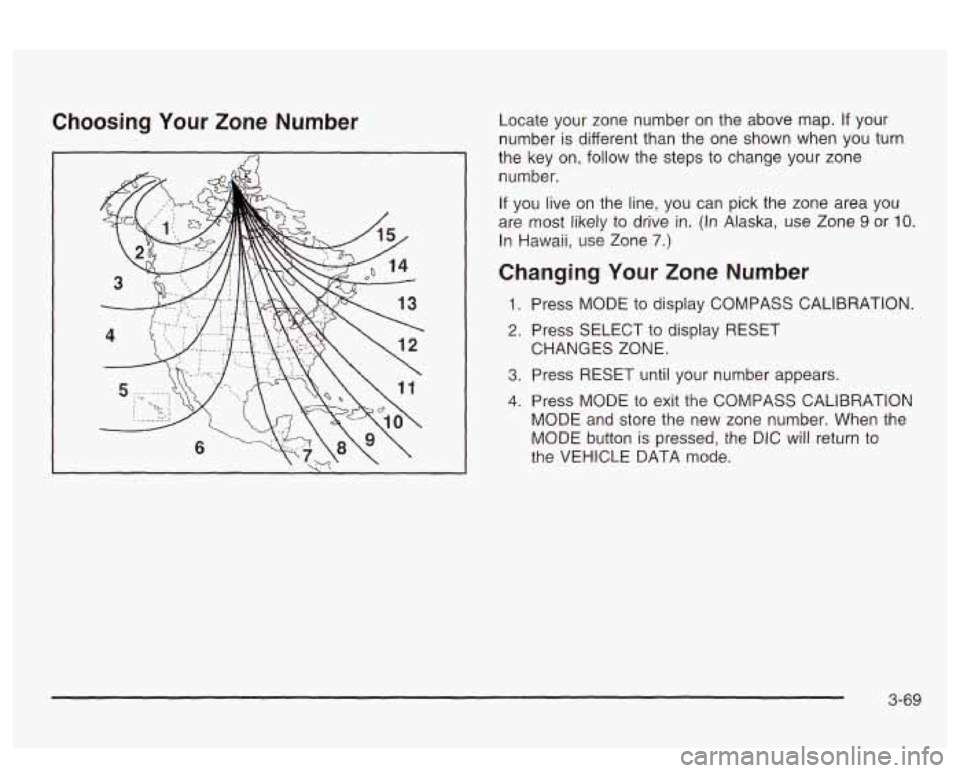
Choosing Your Zone Number Locate your zone number on the above map. If your
number
is different than the one shown when you turn
the key on,
follow the steps to change your zone
number.
If you live on the line, you can pick the zone area you
are most likely to drive
in. (In Alaska, use Zone 9 or IO.
In Hawaii, use Zone 7.)
Changing Your Zone Number
1. Press MODE to display COMPASS CALIBRATION.
2. Press SELECT to display RESET
3. Press RESET until your number appears.
4. Press MODE to exit the COMPASS CALIBRATION
MODE and store the new zone number. When the
MODE button is pressed, the DIC will return to
the VEHICLE DATA mode. CHANGES ZONE.
3-69
Page 185 of 418
Calibrating the Compass
All electronic compasses need to know the magnetic
profile of your vehicle. This is called calibration and
is done automatically by your compass. However, if you
would like
to manually calibrate the compass, the
following instructions will show you how.
Sometimes, strong magnetic fields can affect the
compass.
If the compass display does not show a
direction, and CALIBRATE COMPASS is displayed on
the DIC, try calibrating the compass as follows:
1. Drive the vehicle to an open, flat area.
2. Press MODE to display COMPASS CALIBRATION.
3. Press SELECT to display PRESS RESET TO
RECALIBRATE and then press the RESET
button.
4. The display will change to SLOWLY DRIVE IN
SMALL CIRCLES. Drive the vehicle in small
circles. Don’t drive faster than
10 mph (1 6 km/h).
5. Continue to drive in circles until the CALIBRATION
COMPLETE message is displayed on the DIC and
a direction is shown for the compass.
Compass Accuracy
Your compass may show different headings around
bridges, power lines, large metal objects and steep hills.
This is normal and
is true of compasses in general.
If you put large metal objects like golf clubs in the trunk
they could affect accuracy.
If the affect is minimal,
the compass will adapt to these objects over time.
If you use an antenna with a magnetic base, it is best to
mount it away from the center of the trunk near the
rear window.
The rear defog system can affect accuracy, and the
compass corrects for the rear defog. However,
if the rear
defog is turned on while making sharp turns, the
accuracy may be off. When you turn the rear defog off
again, the accuracy returns
to normal.
Be aware that metal objects are sometimes buried in
the ground. They can affect accuracy and you may not
know they are there. As an example, many concrete
roads have metal reinforcements inside.
Also,
if you drive with the trunk open, this could affect
accuracy and could decalibrate the compass.
Your compass should be calibrated. You will know this
when a direction
is shown and the CALIBRATE
COMPASS message is no longer displayed.
3-70
Page 188 of 418
Set the volume at the desired level. Press this button to
select MIN, MED or MAX. Each higher choice allows
for more volume compensation at faster vehicle speeds.
Then, as you drive, SCV automatically increases the
volume, as necessary, to overcome noise at any speed.
The volume level should always sound the same to
you as you drive.
If you don’t want to use SCV,
select
OFF.
RCL (Recall): Push this knob to switch the display
between the radio station frequency and the time.
Pushing this knob with the ignition off will display the
time.
For
XMTM (USA only, if your radio is equipped with
XMTM Satellite Radio Service), pressing this button while
in XMTM mode to retrieve various pieces of information
related to the current song or channel. By pressing
and releasing the RCL knob, you may retrieve
four different categories of information: Artist, Song
Title, Category or PTY, Channel Number/ Cnannei hame.
To change the default on the display, push the knob
until you see the display you want, then hold the knob
until the display flashes. The selected display will
now be the default.
Finding a Station
BAND: Press this button to switch between AM, FM,
FM2, or XMI, XM2 (USA only,
if your radio is equipped
with XMTM Satellite Radio Service). The display will
show your selection.
TUNE: Turn this knob to choose radio stations.
A SEEK v : Press the up or the down arrow to go to
the next or to the previous station and stay there.
The radio will seek only to stations that are in the
selected band and only to those with a strong signal.
SCAN v : Press and hold one of the SCAN arrows
for two seconds until SCAN appears on the display
and you hear a beep. The radio will go to a station, play
for a few seconds, then go on to the next station.
Press one of the SCAN arrows again to stop scanning.
To scan preset stations, press and hold one of the
SCAN arrows for more man Tour seconas uniii FSGAi<
and the preset number appear on the display. You
will hear a double beep. The radio will go to the first
preset station stored on your pushbuttons, play for a few
seconds, then go on to the next preset station. Press
one of the SCAN arrows again to stop scanning presets.
The radio will scan only to stations that are
in the
selected band and only to those with a strong signal.
3-73
Page 189 of 418
Setting Preset Stations
The six numbered pushbuttons let you return to your
favorite stations. You can set up to
30 stations (six AM,
six FM1 and six FM2, six XM1 and six XM2
(USA
only, if your radio is equipped with the XMTM Satellite
Radio Service), by pedorming the following steps:
1. Turn the radio on.
2. Press BAND to select AM, FMI or FM2,
3. Tune in the desired station.
4. Press EQ to select the equalization.
5. Press and hold one of the six numbered
or
XMl, XM2.
pushbuttons until you hear a beep. Whenever you
press that numbered pushbutton, the station
you set
will return and the equalization that you
selected will also be automatically selected for that
pushbutton.
6. Repeat the steps for each pushbutton.
Setting the Tone (Bassnreble)
TONE: Press and release this button until BASS, MID
or TREB appears on the display. The SELECT LED
indicator
will light to show that the tone control can be
adjusted. Turn the SELECT knob to increase or
to
decrease. If a station is weak or noisy, you may want to
decrease the treble. To
adjust all of the tone controls
to the middle position,
press and hold TONE until FLAT appears on the
display.
EQ (Equalizer): Press this button to select customized
bass, mid and treble equalization settings.
You can set up to six customized equalization settings
by performing the following steps:
1.
2.
3.
4.
5.
6. Turn
the radio on.
Use the TONE button and the SELECT knob to
create the desired equalization.
Press and hold the
EQ button for two seconds.
SELECT EQ
# will appear on the display and the
EQ symbol will flash.
Press EQ or turn the
SELECT knob to select the
desired EQ number.
Press and hold the EQ button or push the SELECT
knob
to store the equalization setting and the
number. You will hear
a beep and EQ SAVED will
appear on the display.
Repeat the steps for the other
EQ settings and
numbers.
EQ
5 has been programmed at the factory for use with
talk radio, but it can be preset
to a different tone.
3-74
Page 191 of 418
BAND (Alternate Frequency): Alternate frequency
allows the radio to switch to a stronger station with the
same programming. Press and hold
BAND for two
seconds to turn alternate frequency on. AF ON
will appear on the display. The radio may switch to
stronger stations. Press and hold BAND again for two
seconds to turn alternate frequency off. AF OFF
will appear on the display. The radio will not switch to
other stations.
This function does not apply for
XMTM.
Setting Preset PTYs (RDS Only)
The six numbered pushbuttons let you return to your
favorite program types (PTYs). These pushbuttons have
factory PTY presets.
You can set up to 12 PTYs
(six FMI and six
FM2) by performing the following steps:
1. Press BAND to select FM1 or FM2.
2. Press PROG TYPE, if it is not already on.
3. Turn the SELECT knob to select a PTY
4. Press and hold one of the six numbered
pushbuttons until you hear a beep. Whenever you
press that numbered pushbutton, the PTY you
set will return.
RDS Messages
ALERT!: Alert warns of national or local emergencies.
When an alert announcement comes on the current
radio station, ALERT! will appear on the display. You will
hear the announcement, even
if the volume is muted
or a compact disc is playing.
If the compact disc player
is playing, play will stop during the announcement.
You will not be able to turn off alert announcements.
ALERT! will not be affected by tests of the emergency
broadcast system. This feature is not supported by
all RDS stations.
INFO (Information): If the current station has a
message, INFO will appear on the display. Press this
button to see the message. The message may display
the artist and song title, call in phone numbers, etc.
If the whole message is not displayed, parts of it
will appear every three seconds. To scroll through the
message at your own speed, press the INFO button
repeatedly. A new group of words will appear on
the display with each press. Once the complete
message has been displayed, INFO will disappear from
the display until another new message is received.
The old message can be displayed by pressing
the INFO button until a new message is received or a
different station is tuned to.
5. Repeat the steps for each pushbutton.
3-76