radio PONTIAC G3 2010 Owner's Manual
[x] Cancel search | Manufacturer: PONTIAC, Model Year: 2010, Model line: G3, Model: PONTIAC G3 2010Pages: 368, PDF Size: 3.94 MB
Page 190 of 368

Using the Auxiliary Input Jack
The radio system has a 3.5 mm (1/8 in) auxiliary input
jack located on the lower right side of the faceplate.
This is not an audio output; do not plug the headphone
set into the front auxiliary input jack. An external audio
device such as an iPod, laptop computer, MP3 player,
CD changer, etc. can be connected to the 3.5 mm
(1/8 in) auxiliary input jack for use as another audio
source.
Drivers are encouraged to set up any auxiliary device
while the vehicle is in P (Park). SeeDefensive Driving
on page 5‑2for more information on driver distraction.
To use a portable audio player, connect a 3.5 mm
(1/8 in) cable to the radio's front auxiliary input jack.
When a device is connected, press the radio CD/AUX
button to begin playing audio from the device over the
vehicle speakers.
O(Power/Volume) : Turn to adjust the volume.
Additional volume adjustments may have to be made
from the portable device if the volume is too quiet or
too loud.
CD/AUX (Auxiliary) : Press to play a CD while a
portable audio device is playing. Press CD/AUX a
second time for the system to begin playing audio from
the connected portable audio player. The portable audio
device continues playing until it is turned off.
Using an MP3
MP3/WMA CD-R Disc
MP3 Format
If you burn your own MP3/WMA disc on a personal
computer:
.Make sure the MP3/WMA files are recorded on a
CD-R disc.
.Do not mix standard audio and MP3/WMA files on
one disc.
.Make sure each MP3/WMA file has a .m3u or
.wma extension, other file extensions might
not work.
.Files can be recorded with a variety of fixed or
variable bit rates. Song title, artist name, and
album are available for display by the radio when
recorded using ID3 tags version 1 and 2.
.Make sure to finalize the disc when burning an
MP3/WMA disc, using multiple sessions. It is
usually better to burn the disc all at once.
The player is able to read and play a maximum of
50 folders, five sessions, and 999 files. Long file names
and folder names can use more disc memory space
than necessary. To conserve space on the disc,
minimize the length of the file and folder names.
4-48
Page 191 of 368

An MP3/WMA CD that was recorded using no file
folders can also be played. The system can support
up to eight folders in depth, though, keep the depth of
the folders to a minimum in order to keep down the
complexity and confusion in trying to locate a particular
folder during playback. If a CD contains more than the
maximum of 50 folders, five sessions, and 999 files,
the player lets you access and navigate up to the
maximum, but all items over the maximum are ignored.
Root Directory
The root directory is treated as a folder. If the root
directory has compressed audio files, the directory is
displayed as ROOT. All files contained directly under
the root directory are accessed prior to any other
directory.
Empty Directory or Folder
If a root directory or a folder exists somewhere in the
file structure that contains only folders/subfolders and
no compressed files directly beneath them, the player
advances to the next folder in the file structure that
contains compressed audio files. The empty folder
does not display.
No Folder
When a CD contains only compressed files, the files are
located under the root folder. The next and previous
folder function does not function on a CD that was
recorded without folders or playlists. When displaying
the name of the folder the radio displays ROOT.
When a CD contains only compressed audio files, but
no folders, all files are located under the root folder.
When the radio displays the name of the folder, the
radio displays ROOT.
Order of Play
The player play will begin from the first track under the
root directory. When all tracks from the root directory
have been played, play will continue from files
according to their numerical listing. After playing the last
track from the last folder, the player will begin playing
again at the first track of the first folder or root directory.
File System and Naming
The song name in the ID3 tag is displayed. If the song
name is not present in the ID3 tag, then the radio
displays the file name without the extension (such as
MP3/WMA) instead.
Track names longer than 32 characters or four pages
are shortened. Parts of words on the last page of text
and the extension of the filename does not display.
4-49
Page 192 of 368

Playing an MP3/WMA
With the ignition in the ON/RUN position, insert a CD
partway into the slot, label side up. The player pulls the
disc in. The CD should begin playing. As each new
track starts to play, the track number, and the song
name will appear on the display. If the ignition or radio
is turned off with a CD in the player, it will stay in the
player. When a CD is in the player and the ignition is
turned on, the radio must be turned on before the CD
will start playback. When the ignition and radio are
turned on, the CD will start playing where it stopped, if it
was the last selected audio source.
The CD player can play the smaller 8 cm (3 in) single
CDs with an adapter ring. Full-size CDs and the smaller
CDs are loaded in the same manner.
Sound quality may be reduced due to CD-R quality, the
method of recording, the quality of the music that has
been recorded, and the way the CD-R has been
handled.
DIR (Directory) :Press to repeat the tracks in the
current directory. DIR displays.
Press DIR again to repeat the tracks in all of the
directories. ALL displays.
Press DIR again to turn off repeat play.
uSEEKt(Next/Previous Folder) (in MP3/WMA
Mode): Press to change the folder. If CD-R does not
have any folders, “ROOT”flashes on the display for a
short time.
[TUNE (Next Track): Press the up TUNE arrow to
go to the next track. The track number displays. The
player continues moving forward through the CD each
time TUNE is pressed.
rTUNE (Previous Track): Press the down TUNE
arrow to go to the start of the current track. The track
number displays. The player continues moving
backward through the CD each time TUNE is pressed.
INFO/DISP (Information/Display) : Press to display
additional text information related to the current
MP3/WMA song. A choice of additional information
such as: Song Title, Album Title, and Artist. Bit rate
might also display.
When information is not available, No Info displays.
Press this button for longer than two seconds to change
display mode.
SCROLL (MP3/WMA Mode Only) : Press the SOUND
button for longer than two seconds. The song title or
other available information of a song scrolls on/off.
The offset is scroll on. The scroll mode can be changed
only when the SOUND button is pressed for longer than
two seconds.
4-50
Page 193 of 368
XM Radio Messages
UPDATING :The encryption code in the receiver is
being updated, and no action is required. This process
should take no longer than 30 seconds.
NO SIGNAL : The system is functioning correctly, but
the vehicle is in a location that is blocking the XM™
signal. When the vehicle is moved into an open area,
the signal should return.
LOADING : The audio system is acquiring and
processing audio and text data. No action is needed.
This message should disappear shortly.
OFF AIR : This channel is not currently in service.
Tune in to another channel.
CH UNAVAILABLE : This previously assigned channel
is no longer assigned. Tune to another station. If this
station was one of the presets, choose another station
for that preset button.
RADIO ID : If tuned to channel 0, this message
alternates with the XM™ Radio 8 digit radio ID label.
This label is needed to activate the service.
CHECK XM TUNER : If this message does not clear
within a short period of time, the receiver could have a
fault. Consult with your dealer/retailer.
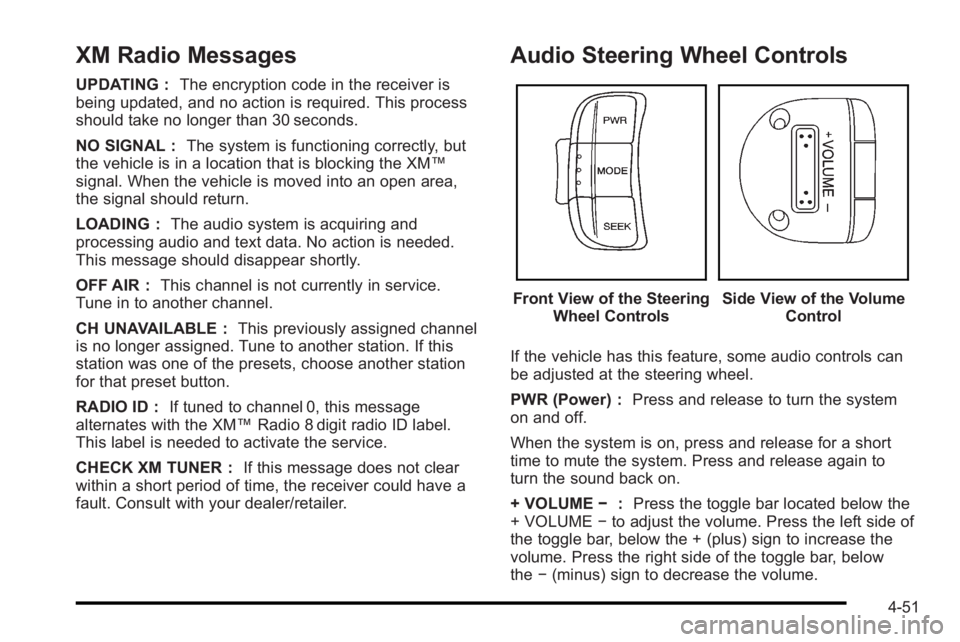
Audio Steering Wheel Controls
Front View of the Steering Wheel ControlsSide View of the Volume Control
If the vehicle has this feature, some audio controls can
be adjusted at the steering wheel.
PWR (Power) : Press and release to turn the system
on and off.
When the system is on, press and release for a short
time to mute the system. Press and release again to
turn the sound back on.
+ VOLUME −:Press the toggle bar located below the
+ VOLUME −to adjust the volume. Press the left side of
the toggle bar, below the + (plus) sign to increase the
volume. Press the right side of the toggle bar, below
the −(minus) sign to decrease the volume.
4-51
Page 194 of 368

MODE :Press and release this button multiple times
to cycle through the audio playback options that are
available on the vehicle. Options may include FM, AM,
XM, CD, and AUX.
SEEK : Press and release to go to the next preset
station.
Press and hold for a long time to go to the next AM, FM,
or XM station. The radio seeks stations only with a
strong signal that are in the selected band.
When playing a CD, press and release to go to the next
track. Press and hold to fast forward through the tracks.
Radio Reception
Frequency interference and static can occur during
normal radio reception if items such as cell phone
chargers, vehicle convenience accessories, and
external electronic devices are plugged into the
accessory power outlet. If there is interference or static,
unplug the item from the accessory power outlet.
AM
The range for most AM stations is greater than for FM,
especially at night. The longer range can cause station
frequencies to interfere with each other. For better radio
reception, most AM radio stations boost the power
levels during the day, and then reduce these levels
during the night. Static can also occur when things like
storms and power lines interfere with radio reception.
When this happens, try reducing the treble on the radio.
FM Stereo
FM signals only reach about 10 to 40 miles
(16 to 65 km). Although the radio has a built-in electronic
circuit that automatically works to reduce interference,
some static can occur, especially around tall buildings
or hills, causing the sound to fade in and out.
XM™ Satellite Radio Service
XM Satellite Radio Service gives digital radio reception
from coast-to-coast in the 48 contiguous United States,
and in Canada. Just as with FM, tall buildings or hills
can interfere with satellite radio signals, causing the
sound to fade in and out. In addition, traveling or
standing under heavy foliage, bridges, garages,
or tunnels may cause loss of the XM signal for a period
of time.
4-52
Page 195 of 368
Cellular Phone Usage
Cellular phone usage may cause interference with the
vehicle's radio. This interference may occur when
making or receiving phone calls, charging the
phone's battery, or simply having the phone on.
This interference causes an increased level of static
while listening to the radio. If static is received while
listening to the radio, unplug the cellular phone and
turn it off.
Fixed Mast Antenna (Hatchback)
Vehicles without OnStar®have a fixed mast antenna
that can withstand most car washes without being
damaged. If the mast should ever become slightly bent,
straighten it out by hand. If the mast is badly bent,
replace it.
Check occasionally to make sure the mast is still
tightened to the antenna base located on the roof of the
vehicle. If tightening is required, tighten by hand.
Backglass Antenna (Sedan)
Vehicles without OnStar®have the AM-FM antenna
integrated with the rear window defogger, located in the
rear window. Make sure that the inside surface of the
rear window is not scratched and that the lines on
the glass are not damaged. If the inside surface is
damaged, it could interfere with radio reception. Also,
for proper radio reception, the antenna connector at the
top-center of the rear window needs to be properly
attached to the post on the glass.
Notice: Using a razor blade or sharp object to clear
the inside rear window can damage the rear window
antenna and/or the rear window defogger. Repairs
would not be covered by the vehicle warranty. Do
not clear the inside rear window with sharp objects.
Notice: Do not apply aftermarket glass tinting with
metallic film. The metallic film in some tinting
materials will interfere with or distort the incoming
radio reception. Any damage caused to your
backglass antenna due to metallic tinting materials
will not be covered by the vehicle warranty.
Because this antenna is built into the rear window, there
is a reduced risk of damage caused by car washes and
vandals.
4-53
Page 196 of 368
If static is heard on the radio, when the rear window
defogger is turned on, it could mean that a defogger
grid line has been damaged. If this is true, the grid line
must be repaired.
If adding a cellular telephone to the vehicle, and the
antenna needs to be attached to the glass, make sure
that the grid lines for the AM-FM antenna are not
damaged. There is enough space between the grid
lines to attach a cellular telephone antenna without
interfering with radio reception.Multi-Band Antenna
Vehicles with OnStar®have a multi-band antenna that is
located on the roof of the vehicle. The antenna is used
for the AM/FM radio, OnStar
®and the XM™ Satellite
Radio Service System. Keep the antenna clear of
obstructions for clear reception. If the vehicle has a
sunroof, the performance of the AM/FM radio, OnStar
®,
and the XM system may be affected if the sunroof
is open.
4-54
Page 262 of 368

Jump Starting
If the vehicle's battery has run down, you may want to
use another vehicle and some jumper cables to start
your vehicle. Be sure to use the following steps to do it
safely.
{WARNING:
Batteries can hurt you. They can be dangerous
because:
.They contain acid that can burn you.
.They contain gas that can explode or ignite.
.They contain enough electricity to burn you.
If you do not follow these steps exactly, some or
all of these things can hurt you.
Notice: Ignoring these steps could result in costly
damage to the vehicle that would not be covered by
the warranty.
Trying to start the vehicle by pushing or pulling it
will not work, and it could damage the vehicle.
1. Check the other vehicle. It must have a 12-volt battery with a negative ground system. Notice:
If the other vehicle's system is not a 12-volt
system with a negative ground, both vehicles can
be damaged. Only use vehicles with 12-volt systems
with negative grounds to jump start your vehicle.
2. Get the vehicles close enough so the jumper cables can reach, but be sure the vehicles are not
touching each other. If they are, it could cause a
ground connection you do not want. You would not
be able to start your vehicle, and the bad
grounding could damage the electrical systems.
To avoid the possibility of the vehicles rolling, set
the parking brake firmly on both vehicles involved
in the jump start procedure. Put an automatic
transmission in P (Park) or a manual transmission
in N (Neutral) before setting the parking brake.
Notice: If you leave the radio or other accessories
on during the jump starting procedure, they could
be damaged. The repairs would not be covered by
the warranty. Always turn off the radio and other
accessories when jump starting the vehicle.
3. Turn off the ignition on both vehicles. Unplug unnecessary accessories plugged into the
cigarette lighter or the accessory power outlet.
Turn off the radio and all lamps that are not
needed. This will avoid sparks and help save both
batteries. And it could save the radio!
6-38
Page 282 of 368

How to Check
Use a good quality pocket-type gage to check tire
pressure. You cannot tell if your tires are properly
inflated simply by looking at them. Radial tires
may look properly inflated even when they are
under‐inflated. Check the tire's inflation pressure
when the tires are cold. Cold means your vehicle
has been sitting for at least three hours or driven
no more than 1 mile (1.6 km).
Remove the valve cap from the tire valve stem.
Press the tire gage firmly onto the valve to get a
pressure measurement. If the cold tire inflation
pressure matches the recommended pressure on
the Tire and Loading Information label, no further
adjustment is necessary. If the inflation pressure
is low, add air until you reach the recommended
amount.
If you overfill the tire, release air by pushing on
the metal stem in the center of the tire valve.
Re‐check the tire pressure with the tire gage.
Be sure to put the valve caps back on the valve
stems. They help prevent leaks by keeping out dirt
and moisture.
Tire Pressure Monitor System
The Tire Pressure Monitor System (TPMS) uses radio
and sensor technology to check tire pressure levels.
The TPMS sensors monitor the air pressure in your
vehicle's tires and transmit tire pressure readings to a
receiver located in the vehicle.
Each tire, including the spare (if provided), should be
checked monthly when cold and inflated to the inflation
pressure recommended by the vehicle manufacturer on
the vehicle placard or tire inflation pressure label. (If
your vehicle has tires of a different size than the size
indicated on the vehicle placard or tire inflation pressure
label, you should determine the proper tire inflation
pressure for those tires.)
As an added safety feature, your vehicle has been
equipped with a tire pressure monitoring system
(TPMS) that illuminates a low tire pressure telltale when
one or more of your tires is significantly under‐inflated.
Accordingly, when the low tire pressure telltale
illuminates, you should stop and check your tires as
soon as possible, and inflate them to the proper
pressure. Driving on a significantly under‐inflated tire
causes the tire to overheat and can lead to tire failure.
Under‐inflation also reduces fuel efficiency and tire
tread life, and may affect the vehicle's handling and
stopping ability.
6-58
Page 283 of 368

Please note that the TPMS is not a substitute for proper
tire maintenance, and it is the driver's responsibility to
maintain correct tire pressure, even if under‐inflation
has not reached the level to trigger illumination of the
TPMS low tire pressure telltale.
Your vehicle has also been equipped with a TPMS
malfunction indicator to indicate when the system is not
operating properly. The TPMS malfunction indicator is
combined with the low tire pressure telltale. When the
system detects a malfunction, the telltale will flash for
approximately one minute and then remain continuously
illuminated. This sequence will continue upon
subsequent vehicle start‐ups as long as the malfunction
exists.
When the malfunction indicator is illuminated, the
system may not be able to detect or signal low tire
pressure as intended. TPMS malfunctions may occur
for a variety of reasons, including the installation of
replacement or alternate tires or wheels on the vehicle
that prevent the TPMS from functioning properly.
Always check the TPMS malfunction telltale after
replacing one or more tires or wheels on your vehicle to
ensure that the replacement or alternate tires and
wheels allow the TPMS to continue to function properly.
SeeTire Pressure Monitor Operation
on page 6‑59for
additional information.
Federal Communications Commission
(FCC) and Industry and Science Canada
See Radio Frequency Statementon page 8‑17for
information regarding Part 15 of the Federal
Communications Commission (FCC) Rules and
RSS-210/211 of Industry and Science Canada.
Tire Pressure Monitor Operation
This vehicle may have a Tire Pressure Monitor System
(TPMS). The TPMS is designed to warn the driver when
a low tire pressure condition exists. If your vehicle has
this feature, the TPMS sensors are mounted onto each
tire and wheel assembly, excluding the spare tire and
wheel assembly. The TPMS sensors monitor the air
pressure in your vehicle's tires and transmit tire
pressure readings to a receiver located in the vehicle.
When a low tire pressure
condition is detected, the
TPMS illuminates the low
tire pressure warning light
on the instrument panel
cluster.
The low tire pressure warning light comes on at each
ignition cycle until the tires are inflated to the correct
inflation pressure.
6-59