ignition PONTIAC G5 2009 Service Manual
[x] Cancel search | Manufacturer: PONTIAC, Model Year: 2009, Model line: G5, Model: PONTIAC G5 2009Pages: 402, PDF Size: 2.22 MB
Page 166 of 402

LANGUAGE
This feature allows you to select the language in which
the DIC will display. When LANGUAGE appears on
the display, press and hold the reset button for at least
one second to scroll through the available settings:
ENGLISH (default):All messages will appear in
English.
FRENCH:All messages will appear in French.
SPANISH:All messages will appear in Spanish.
GERMAN:All messages will appear in German.
To select a setting and exit out of the personalization
menu mode, press the information button while the
desired setting is displayed on the DIC.
Exiting Personalization Menu
The personalization menu will be exited when any of the
following conditions occur:
A ten second time period has elapsed.
The ignition is turned off.
The end of the personalization menu list is reached.
Audio System(s)
Determine which radio the vehicle has and read the
following pages to become familiar with its features.
{CAUTION:
Taking your eyes off the road for extended periods
could cause a crash resulting in injury or death to
you or others. Do not give extended attention to
entertainment tasks while driving.
This system provides access to many audio and non
audio listings.
To minimize taking your eyes off the road while driving,
do the following while the vehicle is parked:
Become familiar with the operation and controls of
the audio system.
Set up the tone, speaker adjustments, and preset
radio stations.
For more information, seeDefensive Driving on
page 4-2.
3-52
Page 167 of 402
Notice:Contact your dealer/retailer before adding
any equipment.
Adding audio or communication equipment could
interfere with the operation of the vehicle’s engine,
radio, or other systems, and could damage them.
Follow federal rules covering mobile radio and
telephone equipment.
Notice:The chime signals related to safety belts,
parking brake, and other functions of your vehicle
operate through the radio/entertainment system.
If that equipment is replaced or additional equipment
is added to your vehicle, the chimes may not
work. Make sure that replacement or additional
equipment is compatible with your vehicle before
installing it. SeeAccessories and Modifications
on page 5-3.
The vehicle has Retained Accessory Power (RAP).
With RAP, the audio system can be played even after
the ignition is turned off. SeeRetained Accessory
Power (RAP) on page 2-23for more information.Setting the Clock
Without Date Display
AM/FM Base Radio with a Single CD
Player
To set the time:
1. Turn the ignition key to ACC/ACCESSORY or
ON/RUN. Press
Oto turn the radio on.
2. Press
Huntil the hour begins ashing on the
display. Press
Ha second time and the minute
begins ashing on the display.
3. While either the hour or the minute numbers are
ashing, turn
fto increase or decrease the time.
4. Press
Hagain until the clock display stops ashing
to set the currently displayed time; otherwise, the
ashing stops after ve seconds and the current
time displayed is automatically set.
To change the time default setting from 12 hour
to 24 hour, press the
Hbutton until 12H or 24H is
displayed. Once 12H or 24H is displayed, turn
the
fknob to the desired option to select the setting.
Press the
Hbutton again to apply the setting, or let
the screen time out.
3-53
Page 168 of 402
With Date Display
Radio with CD (MP3) and USB Port, and
Radio with Single CD (MP3) Player
To set the time and date:
1. Turn the ignition key to ACC/ACCESSORY or
ON/RUN. Press
Oto turn the radio on.
2. Press
Hand the HR, MIN, MM, DD, YYYY (hour,
minute, month, day, and year) displays.
3. Press the softkey located below any one of the tabs
that you want to change.
4. To increase the time or date do one of the following:
Press the softkey located below the selected tab.
Press¨SEEK, or\FWD.
Turnfclockwise.
5. To decrease the time or date do one of the
following:
Press©SEEK orsREV.
Turnfcounterclockwise.The date does not automatically display. To see the
date press
Hwhile the radio is on. The date with display
times out after a few seconds and goes back to the
normal radio and time display.
To change the time default setting from 12 hour to
24 hour or to change the date default setting from
month/day/year to day/month/year:
1. Press
Hand then the softkey located below the
forward arrow label. Once the time 12H and 24H,
and the date MM/DD/YYYY (month, day, and
year) and DD/MM/YYYY (day, month, and year)
displays.
2. Press the softkey located below the desired option.
3. Press
Hagain to apply the selected default, or
let the screen time out.
3-54
Page 171 of 402
Finding a Station
BAND:Press to choose between FM1, FM2, AM,
or XM™ (if equipped) on the Radio with CD (Base).
Press to choose between FM, AM, XM (if equipped)
on the Radio with CD (MP3) and USB Port or the
Radio with CD (MP3).
f(Tune):Turn to select radio stations.
©SEEK:Press to seek or scan stations with a strong
signal in the selected band.
To seek stations, press and release©SEEK to go
to the previous station and stay there.
To scan stations, press and hold©SEEK for a
few seconds until the radio beeps once. The radio
goes to a station, plays for a few seconds, then goes
to the next station. Press
©SEEK again to stop
scanning.
To scan preset stations in the selected band, press
and hold
©SEEK for four seconds until a double
beep sounds. The radio goes to a stored preset,
plays for a few seconds, then goes to the next stored
preset. Press
©SEEK again to stop scanning preset
stations.
¨SEEK:Press to seek or scan stations with a strong
signal in the selected band.
To seek stations, press and release¨SEEK to go
to the next station and stay there.
To scan stations, press and hold¨SEEK for a
few seconds until the radio beeps once. The radio
goes to a station, plays for a few seconds, then goes
to the next station. Press
¨SEEK again to stop
scanning.
To scan preset stations in the selected band, press
and hold
¨SEEK for four seconds until a double
beep sounds. The radio goes to a stored preset,
plays for a few seconds, then goes to the next stored
preset. Press
¨SEEK again to stop scanning preset
stations.
4(Information):For vehicles with the Radio with CD
(Base), press to switch the display between the radio
station frequency and the time. While the ignition is off,
press
4to display the time.
For vehicles with XM, MP3, WMA, or RDS features,
press
4to display additional text information related to the
current FM-RDS or XM station; or CD, MP3, WMA song.
Song title information will be displayed on the top line of
the display while the artist information will be displayed
on the bottom line, it the information is available during
XM, CD, MP3, or WMA playback. When information is
not available, “No Info” displays.
3-57
Page 176 of 402
XM Satellite Radio Service
XM is a satellite radio service that is based in the
48 contiguous United States and 10 Canadian provinces.
XM Satellite Radio has a wide variety of programming
and commercial-free music, coast-to-coast, and in
digital-quality sound. During your trial or when you
subscribe, you will get unlimited access to XM Radio
Online for when you are not in the vehicle. A service
fee is required to receive the XM service. For more
information, contact XM at xmradio.com or call
1-800-929-2100 in the U.S. and xmradio.ca or
call 1-877-438-9677 in Canada.
Radio Messages for XM Only
SeeXM Radio Messages on page 3-73for more
information.
Loading a CD
Insert a CD partway into the slot, label side up.
The player pulls it in and the CD begins playing.
When the CD is inserted, the CD symbol displays.
As each new track starts to play, the track number
displays.
The CD player can play the smaller 3 inch (8 cm) single
CDs with an adapter ring. Full-size CDs and the smaller
CDs are loaded in the same manner.
Ejecting a CD
Z
EJECT:Press to eject the CD. If the CD is not
removed, after several seconds, the CD automatically
pulls back into the player.
Playing a CD
If the ignition or radio is turned off with a CD in the
player it stays in the player. When the ignition or radio
is turned on, the CD starts to play where it stopped,
if it was the last selected audio source.
f(Tune):Turn to select tracks on the CD currently
playing.
©SEEK:Press to go to the start of the current track,
if more than ten seconds have played. Press and
hold or press multiple times to continue moving
backward through the tracks on the CD.
¨SEEK:Press to go to the next track. Press and
hold or press multiple times to continue moving forward
through the tracks on the CD.
sREV (Reverse):Press and hold to reverse
playback quickly within a track. Sound is heard at a
reduced volume and the elapsed time of the track
displays. Release to resume playing the track.
3-62
Page 220 of 402

Hill and Mountain Roads
Driving on steep hills or through mountains is different
than driving on at or rolling terrain. Tips for driving
in these conditions include:
Keep the vehicle serviced and in good shape.
Check all uid levels and brakes, tires, cooling
system, and transmission.
Going down steep or long hills, shift to a
lower gear.
{CAUTION:
If you do not shift down, the brakes could get so
hot that they would not work well. You would then
have poor braking or even none going down a hill.
You could crash. Shift down to let the engine
assist the brakes on a steep downhill slope.
{CAUTION:
Coasting downhill in N (Neutral) or with the ignition
off is dangerous. The brakes will have to do all the
work of slowing down and they could get so hot
that they would not work well. You would then
have poor braking or even none going down a hill.
You could crash. Always have the engine running
and the vehicle in gear when going downhill.
Stay in your own lane. Do not swing wide or cut
across the center of the road. Drive at speeds
that let you stay in your own lane.
Top of hills: Be alert — something could be in your
lane (stalled car, accident).
Pay attention to special road signs (falling rocks
area, winding roads, long grades, passing or
no-passing zones) and take appropriate action.
4-18
Page 231 of 402
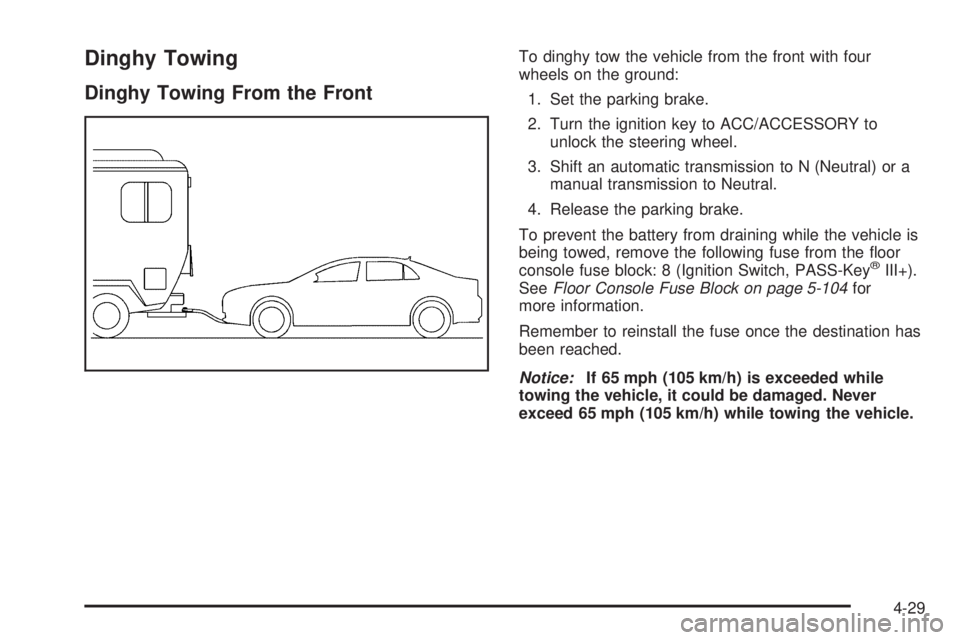
Dinghy Towing
Dinghy Towing From the Front
To dinghy tow the vehicle from the front with four
wheels on the ground:
1. Set the parking brake.
2. Turn the ignition key to ACC/ACCESSORY to
unlock the steering wheel.
3. Shift an automatic transmission to N (Neutral) or a
manual transmission to Neutral.
4. Release the parking brake.
To prevent the battery from draining while the vehicle is
being towed, remove the following fuse from the oor
console fuse block: 8 (Ignition Switch, PASS-Key
®III+).
SeeFloor Console Fuse Block on page 5-104for
more information.
Remember to reinstall the fuse once the destination has
been reached.
Notice:If 65 mph (105 km/h) is exceeded while
towing the vehicle, it could be damaged. Never
exceed 65 mph (105 km/h) while towing the vehicle.
4-29
Page 233 of 402
5. Clamp the steering wheel in a straight-ahead
position with a clamping device designed for towing.
6. Remove the key from the ignition.
7. Secure the vehicle to the dolly.
8. Release the parking brake only after the vehicle
being towed is rmly attached to the towing
vehicle.
Towing a Trailer (Automatic
Transmission)
{CAUTION:
The driver can lose control when pulling a trailer if
the correct equipment is not used or the vehicle is
not driven properly. For example, if the trailer is too
heavy, the brakes may not work well or even at all.
The driver and passengers could be seriously
CAUTION: (Continued)
CAUTION: (Continued)
injured. The vehicle may also be damaged; the
resulting repairs would not be covered by the
vehicle warranty. Pull a trailer only if all the steps
in this section have been followed. Ask your
dealer/retailer for advice and information about
towing a trailer with the vehicle.
The vehicle can tow a trailer if it is equipped with the
proper trailer towing equipment.
To identify the trailering capacity of the vehicle, read the
information in “Weight of the Trailer” that appears later in
this section.
Trailering is different than just driving the vehicle by itself.
Trailering means changes in handling, acceleration,
braking, durability and fuel economy. Successful, safe
trailering takes correct equipment, and it has to be used
properly.
The following information has many time-tested,
important trailering tips and safety rules. Many of these
are important for your safety and that of your passengers.
So please read this section carefully before pulling a
trailer.
4-31
Page 257 of 402
How to Reset the Engine Oil Life
System
The Engine Oil Life System calculates when to change
your engine oil and lter based on vehicle use. Whenever
the oil is changed, reset the system so it can calculate
when the next oil change is required. If a situation occurs
where the oil is changed prior to a CHANGE OIL SOON
message being turned on, reset the system.
After changing the engine oil, the system must be reset:
1. Turn the ignition to ON/RUN, with the engine off.
2. Press the information and reset buttons on the Driver
Information Center (DIC) at the same time to enter
the personalization menu. SeeDIC Vehicle
Personalization on page 3-47.
3. Press the information button to scroll through the
available personalization menu modes until the
DIC display shows OIL-LIFE RESET.4. Press and hold the reset button until the DIC display
shows ACKNOWLEDGED. This will tell you the
system has been reset.
5. Turn the key to LOCK/OFF.
If the CHANGE OIL SOON message comes back on
when the vehicle is started, the engine oil life system
has not reset. Repeat the reset procedure.
What to Do with Used Oil
Used engine oil contains certain elements that can be
unhealthy for your skin and could even cause cancer.
Do not let used oil stay on your skin for very long. Clean
your skin and nails with soap and water, or a good hand
cleaner. Wash or properly dispose of clothing or rags
containing used engine oil. See the manufacturer’s
warnings about the use and disposal of oil products.
Used oil can be a threat to the environment. If you
change your own oil, be sure to drain all the oil from the
lter before disposal. Never dispose of oil by putting it in
the trash, pouring it on the ground, into sewers, or into
streams or bodies of water. Recycle it by taking it to a
place that collects used oil.
5-17
Page 274 of 402
Jump Starting
If the vehicle’s battery has run down, you may want to
use another vehicle and some jumper cables to start the
vehicle. Be sure to use the following steps to do it safely.
{CAUTION:
Batteries can hurt you. They can be dangerous
because:
They contain acid that can burn you.
They contain gas that can explode or ignite.
They contain enough electricity to burn you.
If you do not follow these steps exactly, some or
all of these things can hurt you.
Notice:Ignoring these steps could result in costly
damage to the vehicle that would not be covered
by the warranty.
Trying to start the vehicle by pushing or pulling it
will not work, and it could damage the vehicle.
1. Check the other vehicle. It must have a 12-volt
battery with a negative ground system.Notice:If the other vehicle’s system is not a 12-volt
system with a negative ground, both vehicles can
be damaged. Only use vehicles with 12-volt systems
with negative grounds to jump start your vehicle.
2. Get the vehicles close enough so the jumper cables
can reach, but be sure the vehicles are not touching
each other. If they are, it could cause a ground
connection you do not want. You would not be able
to start the vehicle, and the bad grounding could
damage the electrical systems.
To avoid the possibility of the vehicles rolling, set the
parking brake rmly on both vehicles involved in the
jump start procedure. Put an automatic transmission
in P (Park) or a manual transmission in N (Neutral)
before setting the parking brake.
Notice:If you leave the radio or other accessories
on during the jump starting procedure, they could be
damaged. The repairs would not be covered by the
warranty. Always turn off the radio and other
accessories when jump starting the vehicle.
3. Turn off the ignition on both vehicles. Unplug
unnecessary accessories plugged into the cigarette
lighter or the accessory power outlet. Turn off the
radio and all lamps that are not needed. This will
avoid sparks and help save both batteries. And it
could save the radio!
5-34