buttons PONTIAC G6 2009 Owners Manual
[x] Cancel search | Manufacturer: PONTIAC, Model Year: 2009, Model line: G6, Model: PONTIAC G6 2009Pages: 410, PDF Size: 2.33 MB
Page 10 of 410

Heated Seats
On vehicles with heated
front seats, the buttons are
located on the outboard
side of the driver’s and front
passenger seats.
Press the top of the switch to turn the feature on. The
seat will heat to the high setting. The indicator light
above the switch will be lit next to the number 2.
Press the top of the switch again to go to the low heat
setting. The indicator light will be lit next to the
number 1.
Press the bottom of the switch to turn the feature off.
The heated seat feature will turn off when the ignition is
turned off.
Reclining Seatbacks
{CAUTION:
You can lose control of the vehicle if you try to
adjust a manual driver’s seat while the vehicle is
moving. The sudden movement could startle and
confuse you, or make you push a pedal when you
do not want to. Adjust the driver’s seat only when
the vehicle is not moving.
{CAUTION:
If either seatback is not locked, it could move
forward in a sudden stop or crash. That could
cause injury to the person sitting there. Always
push and pull on the seatbacks to be sure they
are locked.
Your seats have manual reclining seatbacks. The lever
used to operate them is located on the outboard side of
the seats.
1-6
Page 119 of 410

Mirrors
Manual Rearview Mirror
The vehicle may have a manual rearview mirror with the
OnStar®system.
Control buttons for the OnStar system are at the bottom
of the mirror. See your dealer/retailer for more information
on the OnStar system and how to subscribe to OnStar.
Also, seeOnStar
®System on page 2-40for more
information about the services OnStar provides.
Adjust the mirror to see clearly behind your vehicle.
Hold the mirror in the center to move it up or down and
side to side. The day/night adjustment allows you to
adjust the mirror to avoid glare from the lamps behind
you. Move the lever to the right for nighttime use and
to the left for daytime use.
Automatic Dimming Rearview Mirror
The vehicle may have an automatic dimming rearview
mirror with a compass display and/or OnStar®controls.
For more information about OnStar, seeOnStar®
System on page 2-40.
If the vehicle has OnStar, it has three control buttons
located at the bottom of the mirror. See your dealer/
retailer for more information on the system and how to
subscribe to OnStar. SeeOnStar
®System on page 2-40
for more information about the service OnStar provides.
For vehicles with OnStar:
O(On/Off):Press to turn the dimming feature on or off.
For vehicles without OnStar:
AUTO/OFF:Press AUTO/OFF to turn the dimming
feature on or off.
Automatic Dimming Mirror Operation
Automatic dimming reduces the glare of lights from
behind the vehicle. The dimming feature comes on
and the indicator light illuminates each time the vehicle
is started.
2-37
Page 124 of 410
OnStar Virtual Advisor
OnStar Virtual Advisor is a feature of OnStar
Hands-Free Calling that uses minutes to access
location-based weather, local traffic reports, and stock
quotes. Press the phone button and give a few simple
voice commands to browse through the various topics.
See the OnStar Owner’s Guide for more information.
This feature is only available in the continental U.S.
How OnStar Service Works
The OnStar system can record and transmit vehicle
information. This information is automatically sent to an
OnStar Call Center when the OnStar button is pressed,
the emergency button is pressed, or if the airbags or
AACN system deploy. This information usually includes
the vehicle’s GPS location and, in the event of a crash,
additional information regarding the crash that the vehicle
was involved in (e.g. the direction from which the vehicle
was hit). When the Virtual Advisor feature of OnStar
Hands-Free Calling is used, the vehicle also sends
OnStar the vehicle’s GPS location so they can provide
services where it is located.
OnStar service cannot work unless the vehicle is in a
place where OnStar has an agreement with a wireless
service provider for service in that area. OnStar service
also cannot work unless the vehicle is in a place wherethe wireless service provider OnStar has hired for that
area has coverage, network capacity and reception when
the service is needed, and technology that is compatible
with the OnStar service. Not all services are available
everywhere, particularly in remote or enclosed areas,
or at all times.
Location information about the vehicle is only available
if the GPS satellite signals are unobstructed and
available.
The vehicle must have a working electrical system,
including adequate battery power, for the OnStar
equipment to operate. There are other problems OnStar
cannot control that may prevent OnStar from providing
OnStar service at any particular time or place. Some
examples are damage to important parts of the vehicle
in a crash, hills, tall buildings, tunnels, weather or
wireless phone network congestion.
Your Responsibility
Increase the volume of the radio if the OnStar advisor
cannot be heard. If the light next to the OnStar buttons
is red, the system may not be functioning properly.
Press the OnStar button and request a vehicle
diagnostic. If the light appears clear (no light is
appearing), your OnStar subscription has expired and
all services have been deactivated. Press the OnStar
button to conrm that the OnStar equipment is active.
2-42
Page 142 of 410
Cruise Control
If your vehicle has cruise control, a speed of about
25 mph (40 km/h) or more can be maintained without
keeping your foot on the accelerator. This can really help
on long trips. Cruise control does not work at speeds
below 25 mph (40 km/h).
{CAUTION:
Cruise control can be dangerous where you cannot
drive safely at a steady speed. So, do not use the
cruise control on winding roads or in heavy traffic.
Cruise control can be dangerous on slippery roads.
On such roads, fast changes in tire traction can
cause excessive wheel slip, and you could lose
control. Do not use cruise control on slippery roads.
Setting Cruise Control
{CAUTION:
If you leave your cruise control on when you are not
using cruise, you might hit a button and go into
cruise when you do not want to. You could be
startled and even lose control. Keep the cruise
control switch off until you want to use cruise control.
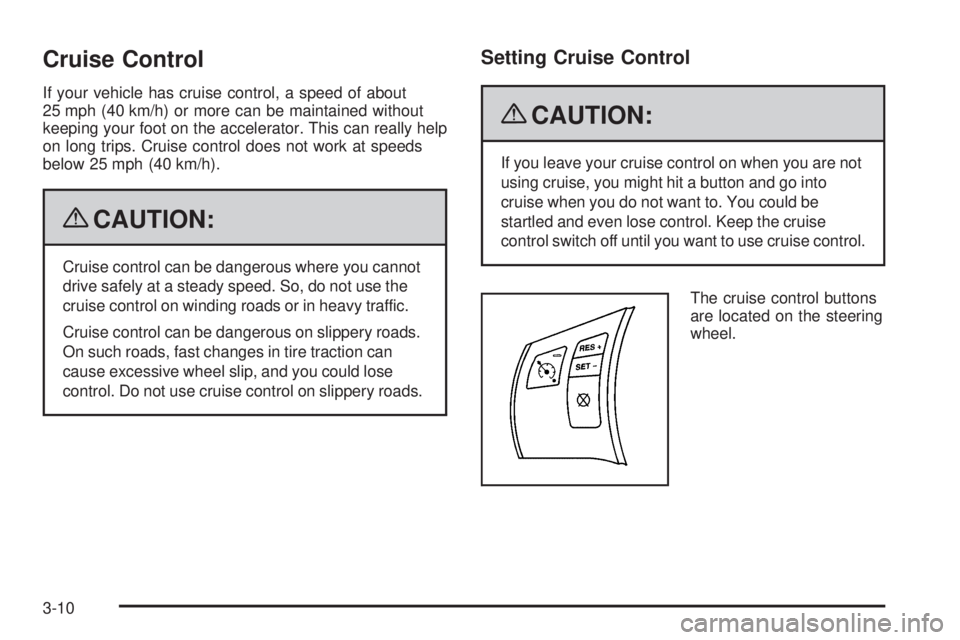
The cruise control buttons
are located on the steering
wheel.
3-10
Page 155 of 410
Rear Window Defogger
The rear window defogger uses a warming grid to
remove fog or frost from the rear window.
the rear window defogger is on. Be sure to clear as
much snow as possible from the rear window.
If driving below 50 mph (80 km/h), the rear window
defogger turns off about 15 minutes after the button is
pressed. If turned on again, the defogger only runs
for about seven and one-half minutes before turning off.
The defogger can also be turned off by turning off
the engine.
If the vehicle’s speed is maintained above 50 mph
(80 km/h), the rear window defogger remains on
once the button is pressed.
If the vehicle has the remote start feature, the rear
defogger automatically turns on if it is cold outside.
When the vehicle transitions out of the remote
start mode, the rear defogger turns off. SeeRemote
Keyless Entry (RKE) System Operation on page 2-4.Notice:Do not use anything sharp on the inside of
the rear window. If you do, you could cut or
damage the warming grid, and the repairs would not
be covered by the vehicle warranty. Do not attach
a temporary vehicle license, tape, a decal or
anything similar to the defogger grid.
Remote Vehicle Start
If the vehicle has the remote start feature, it will turn on
using the last settings selected on the climate control
before the vehicle was turned off.
The fan and air delivery knobs can be used during
remote start. The buttons will not work until the ignition
is turned on by the key.
The climate control system changes back to manual
operation when the vehicle key is turned to ON/RUN.
3-23
Page 174 of 410
Fuel Gage
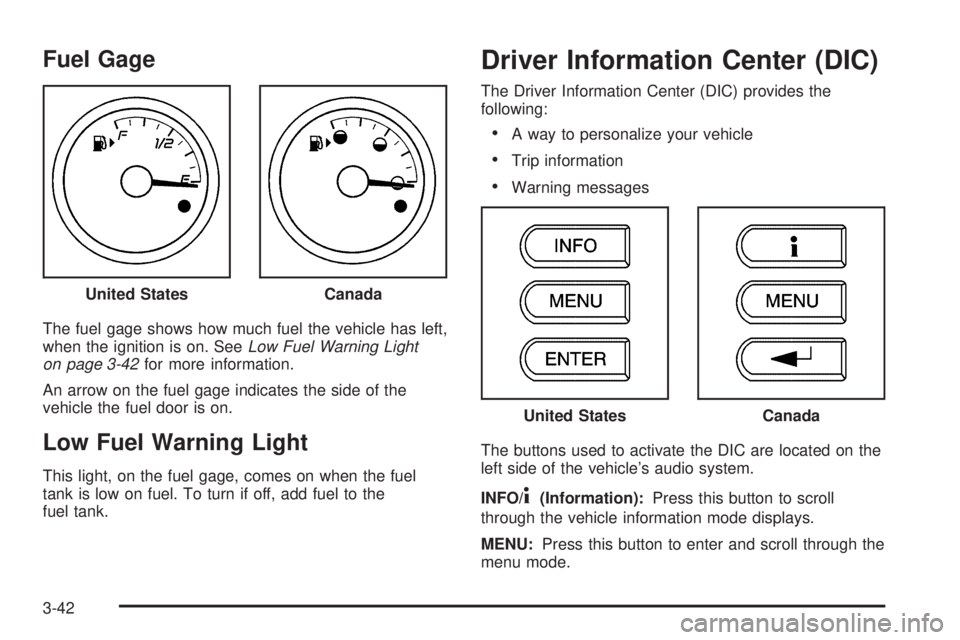
The fuel gage shows how much fuel the vehicle has left,
when the ignition is on. SeeLow Fuel Warning Light
on page 3-42for more information.
An arrow on the fuel gage indicates the side of the
vehicle the fuel door is on.
Low Fuel Warning Light
This light, on the fuel gage, comes on when the fuel
tank is low on fuel. To turn if off, add fuel to the
fuel tank.
Driver Information Center (DIC)
The Driver Information Center (DIC) provides the
following:
A way to personalize your vehicle
Trip information
Warning messages
The buttons used to activate the DIC are located on the
left side of the vehicle’s audio system.
INFO/
4(Information):Press this button to scroll
through the vehicle information mode displays.
MENU:Press this button to enter and scroll through the
menu mode. United States
Canada
United StatesCanada
3-42
Page 175 of 410
ENTER/r(Enter):Press this button to select a
menu option or to acknowledge a warning message.
The DIC messages will be read through your audio
system display.
DIC Operation and Displays
The DIC comes on when the ignition is on. If your
vehicle has the uplevel audio system, the time and
outside temperature is shown on the rst line of
the display and the DIC information is shown on the
second line of the display.
The DIC has different modes which can be accessed by
pressing the DIC buttons. The button functions are
detailed in the following section.
Information Modes
INFO/4(Information):Press this button to scroll
through the vehicle information mode displays in the
following order:
TRIP A
TRIP B
FUEL RANGE (Fuel Range Until Empty)
MPG (L/100 KM) AVG (Average Fuel Economy)
MPG (L/100 KM) INST (Instantaneous Fuel
Economy)
AV SPEED (Average Vehicle Speed)
OIL LIFE (Engine Oil Life System)
Tire Pressure
TRIP A or TRIP B:Press the information button until
TRIP A or TRIP B display. These modes show the
current distance traveled since the last reset for each
trip odometer in either miles (mi) or kilometers (km).
Both odometers can be used at the same time.
To reset the trip odometer to zero, press and hold the
enter button for a few seconds while the desired
trip odometer is displayed.
FUEL RANGE:Press the information button until FUEL
RANGE displays. This mode shows the remaining
distance you can drive without refueling in either miles
(mi) or kilometers (km). It is based on fuel economy
and the fuel remaining in the tank.
When the fuel level is low, FUEL RANGE LOW displays.
The fuel economy data used to determine fuel range
is an average of recent driving conditions. As your
driving conditions change, this data is gradually updated.
The FUEL RANGE mode cannot be reset.
3-43
Page 178 of 410
DIC Warnings and Messages
These messages appear if there is a problem detected
in one of your vehicle’s systems.
A message clears when the vehicle’s condition is no
longer present. To acknowledge a message and clear it
from the display, press and hold any of the DIC buttons.
If the condition is still present, the warning message
comes back on the next time the vehicle is turned
off and back on. With most messages, a warning chime
sounds when the message displays. Your vehicle
may have other warning messages.
AUTO (Automatic) LIGHTS OFF
This message displays if the automatic headlamp
system is disabled with the headlamp switch.
AUTO (Automatic) LIGHTS ON
This message displays if the automatic headlamp
system is enabled with the headlamp switch.
BRAKE FLUID
This message displays, while the ignition is on, when
the brake uid level is low. The brake system warning
light on the instrument panel cluster also comes on.
SeeBrake System Warning Light on page 3-34for more
information. Have the brake system serviced by your
dealer/retailer as soon as possible.
CHANGE OIL SOON
This message displays when the life of the engine oil
has expired and it should be changed.
When this message is acknowledged and cleared from
the display, the engine oil life system must still be
reset separately. SeeEngine Oil Life System on
page 5-24,Engine Oil on page 5-21, andScheduled
Maintenance on page 6-4for more information.
CHECK CARGO TOP
If your vehicle has a retractable hardtop, this message
displays if the cargo cover is not in place when operating
the retractable hardtop. Open the trunk and make sure
the cargo cover is secure and no objects are in contact
with the cover. SeeTrunk on page 2-12,Lowering the
Retractable Hardtop on page 2-44, andRaising the
Retractable Hardtop on page 2-47for more information.
CHECK GAS CAP
This message displays if the fuel cap has not been fully
tightened. Recheck the fuel cap to make sure that it
is on properly. A few driving trips with the cap properly
installed should turn the message off.
3-46
Page 183 of 410
LOCK HORN:If your vehicle has Remote Keyless
Entry (RKE), this option which allows the vehicle’s horn
to chirp every time the lock button on the RKE
transmitter is pressed, can be enabled or disabled.
When LOCK HORN appears on the display, press the
enter button to move between ON and OFF (default).
When you have made your choice, press the MENU
button to record your selection.
UNLOCK HORN:If your vehicle has Remote Keyless
Entry (RKE), this option which allows the vehicle’s
horn to chirp every time the unlock button on the
RKE transmitter is pressed, can be enabled or disabled.
When UNLOCK HORN appears on the display, press
the enter button to move between ON and OFF (default).
When you have made your choice, press the MENU
button to record your selection.
LIGHT FLASH:If your vehicle has Remote Keyless
Entry (RKE), this option which allows the vehicle’s
exterior perimeter lighting to ash every time the lock,
unlock, or trunk release buttons on the RKE transmitter
are pressed, can be enabled or disabled. When
LIGHT FLASH appears on the display, press the enter
button to move between OFF and ON (default).
When you have made your choice, press the MENU
button to record your selection.DELAY LOCK:The delayed locking option, which
delays the actual locking of the vehicle, can be enabled
or disabled. When DELAY LOCK appears on the
display, press the enter button to move between OFF
and ON (default). When you have made your choice,
press the MENU button to record your selection.
AUTO UNLK (Unlock):The automatic door unlocking
option, which allows the vehicle to automatically
unlock certain doors can be enabled or disabled.
When AUTO UNLK appears on the display, press the
enter button to move between ALL (default), DRIVER,
or NONE. When you have made your choice, press
the MENU button to record your selection. See
Programmable Automatic Door Unlock on page 2-10
for more information.
UNLK (Unlock):This screen displays only if DRIVER
or ALL is selected for the AUTO UNLK option.
This option determines when the automatic door
unlocking will occur, when either the key is turned to
OFF or the vehicle is shifted into P (Park). When UNLK
appears on the display, press the enter button to
move between KEY OFF and SHIFT TO P (Park)
(default). When you have made your choice,
press the MENU button to record your selection.
SeeProgrammable Automatic Door Unlock on
page 2-10for more information.
3-51
Page 188 of 410

AUTOu(Automatic Volume):With automatic
volume, the audio system adjusts automatically to make
up for road and wind noise as you drive.
Set the volume at the desired level. Press this button to
select LOW, MEDIUM, or HIGH. AUTO VOL LOW,
AUTO VOL MEDIUM, or AUTO VOL HIGH displays.
Each higher setting allows for more volume
compensation at faster vehicle speeds. While driving,
automatic volume increases the volume as necessary,
to overcome noise at any speed. The volume level
should always sound the same while driving. AUTO VOL
NONE displays if the radio cannot determine the
vehicle speed or if the engine is not running. To turn
automatic volume off, press this button until AUTO VOL
OFF displays.
Finding a Station
BAND:Press to switch between FM1, FM2, AM, or
XM1 or XM2. The display shows the selection.
ADJ (Adjust):Turn to select radio stations.
xSEEKw:Press to go to the next or to the previous
station and stay there.
To scan stations, press and hold either arrow for
two seconds until a beep sounds. The radio goes to a
station, plays for a few seconds, then goes to the
next station. Press either arrow again to stop scanning.To scan preset stations, press and hold either arrow
for more than four seconds until two beeps sound.
The radio goes to the rst preset station stored on the
pushbuttons, plays for a few seconds, then goes to
the next preset station. Press either arrow again to stop
scanning presets.
The radio only seeks and scans stations with a strong
signal that are in the selected band.
Setting Preset Stations
Up to 30 stations (six FM1, six FM2, and six AM, six XM1
and six XM2), can be programmed on the six numbered
pushbuttons. To program presets:
1. Turn the radio on.
2. Press BAND to select FM1, FM2, AM,
or XM1 or XM2.
3. Tune in the desired station.
4. Press AUTO TONE to select the equalization.
5. Press and hold one of the six numbered
pushbuttons until a beep sounds. When that
numbered pushbutton is pressed, the station that
was set, returns and the equalization that was
selected is stored for that pushbutton.
6. Repeat the steps for each pushbutton.
3-56