wheel PONTIAC SOLSTICE 2006 Owner's Manual
[x] Cancel search | Manufacturer: PONTIAC, Model Year: 2006, Model line: SOLSTICE, Model: PONTIAC SOLSTICE 2006Pages: 328, PDF Size: 1.92 MB
Page 122 of 328

Driver Information Center (DIC)
Your vehicle may have a Driver Information Center
(DIC). The DIC display gives you the status of many of
your vehicle’s systems. The DIC is also used to
display driver personalization menu modes and
warning/status messages. All messages will appear in
the DIC display, located at the bottom of the tachometer
on the instrument panel cluster.
The DIC buttons are
located on the left side of
the steering wheel.
q(Information):Press this button to scroll through
the vehicle information mode displays.
r(Reset):Press this button to reset some vehicle
information mode displays, select a personalization
menu mode setting, or acknowledge a warning
message.Press and hold the information and reset buttons at the
same time for several seconds, then release the
buttons to enter the personalization menu. SeeDIC
Vehicle Personalization on page 3-40for more
information.
DIC Operation and Displays
The DIC comes on when the ignition is on. The DIC has
different modes which can be accessed by pressing
the DIC buttons. The button functions are detailed in the
following.
Information Modes
q
(Information):Press this button to scroll through
the following vehicle information modes:
Odometer
Press the information button until the odometer is
displayed. This mode shows the total distance the
vehicle has been driven in either miles (mi) or
kilometers (km).
To change the DIC display to English or metric units,
see “UNITS” underDIC Vehicle Personalization on
page 3-40.
3-36
Page 131 of 328

LANGUAGE
This feature allows you to select the language in which
the DIC will display. Press the reset button to scroll
through the available settings:
ENGLISH (default):The DIC will display all information
in English.
FRENCH:The DIC will display all information in
French.
SPANISH:The DIC will display all information in
Spanish.
GERMAN:The DIC will display all information in
German.
Choose one of the available settings and press the
information button to select it and exit out of the
personalization menu mode.
Exiting Personalization Menu
The personalization menu will be exited when any of the
following conditions occur:
A ten second time period has elapsed.
The ignition is turned off.
The end of the personalization menu list is reached.
Audio System(s)
Driving without distraction is a necessity for a safer
driving experience. SeeDefensive Driving on page 4-2.
By taking a few moments to read this manual and
get familiar with your vehicle’s audio system, you can
use it with less effort, as well as take advantage of
its features. While your vehicle is parked, set up your
audio system by presetting your favorite radio stations,
setting the tone and adjusting the speakers. Then,
when driving conditions permit, you can tune to your
favorite stations using the presets and steering
wheel controls (if equipped).
You also need to educate yourself about the importance
of avoiding distractions while you are driving.
While your vehicle is parked:
Familiarize yourself with all of its controls.
Familiarize yourself with its operation.
Set up your audio system by presetting your
favorite stations, setting the tone and adjusting the
speakers. Then, when driving conditions permit,
you can tune to your favorite stations using
the presets and steering wheel controls
(if equipped).
3-45
Page 132 of 328
This radio system is intended to:
Keep drivers’ eyes on the road and hands on the
wheel.
Minimize the number of steps required to perform
a task.
Create a common interface in how drivers interact
with the system.
Lock-out the use of systems that create
unnecessary and excessive attention demands on
the driver.
Notice:Before adding any sound equipment to
your vehicle, such as an audio system, CD player,
CB radio, mobile telephone, or two-way radio, make
sure that it can be added by checking with your
dealer. Also, check federal rules covering mobile
radio and telephone units. If sound equipment can
be added, it is very important to do it properly.
Added sound equipment may interfere with
the operation of your vehicle’s engine, radio, or
other systems, and even damage them. Your
vehicle’s systems may interfere with the operation
of sound equipment that has been added.Notice:The chime signals related to seat belts,
parking brake, and other functions of your vehicle
operate through the GM radio/entertainment system.
If that equipment is replaced or additional
equipment is added to your vehicle, the chimes may
not work. Make sure that replacement or additional
equipment is compatible with your vehicle before
installing it. SeeAccessories and Modifications on
page 5-3.
Figure out which audio system is in your vehicle, nd
out what your audio system can do, and how to operate
all of its controls.
Your vehicle has a feature called Retained Accessory
Power (RAP). With RAP, the audio system can be
played even after the ignition is turned off. SeeRetained
Accessory Power (RAP) on page 2-19for more
information.
Your vehicle may have a navigation radio system.
The navigation system has built-in features intended to
minimize driver distraction. However, GM recognizes
the need to help educate drivers themselves about the
importance of minimizing their own distraction while
they are driving. Technology alone, no matter how
advanced, can never replace the driver’s own judgment.
Some tips to help you reduce distractions while
driving are contained in the Navigation System Manual.
For information on how to use this system, see the
“Navigation System” manual.
3-46
Page 141 of 328

Storing a Radio Station as a Favorite
Drivers are encouraged to set up their radio station
favorites while the vehicle is parked. Tune to your
favorite stations using the presets, favorites button, and
steering wheel controls (if equipped). SeeDefensive
Driving on page 4-2.
FAV (Favorites):A maximum of 36 stations can be
programmed as favorites using the six pushbuttons
positioned below the radio station frequency labels and
by using the radio favorites page button (FAV button).
Press the FAV button to go through up to six pages of
favorites, each having six favorite stations available per
page. Each page of favorites can contain any
combination of AM, FM, or XM™ (if equipped) stations.
To store a station as a favorite, perform the following
steps:
1. Tune to the desired radio station.
2. Press the FAV button to display the page where
you want the station stored.
3. Press and hold one of the six pushbuttons until you
hear a beep. Whenever that pushbutton is pressed
and released, the station that was set will return.
4. Repeat the steps for each pushbutton radio station
you want stored as a favorite.The number of favorites pages can be setup using the
MENU button. To setup the number of favorites
pages, perform the following steps:
1. Press the MENU button to display the radio
setup menu.
2. Press the pushbutton located below the
FAV 1-6 label.
3. Select the desired number of favorites pages by
pressing the pushbutton located below the
displayed page numbers.
4. Press the FAV button, or let the menu time out, to
return to the original main radio screen showing the
radio station frequency labels and to begin the
process of programming your favorites for the
chosen amount of numbered pages.
3-55
Page 155 of 328
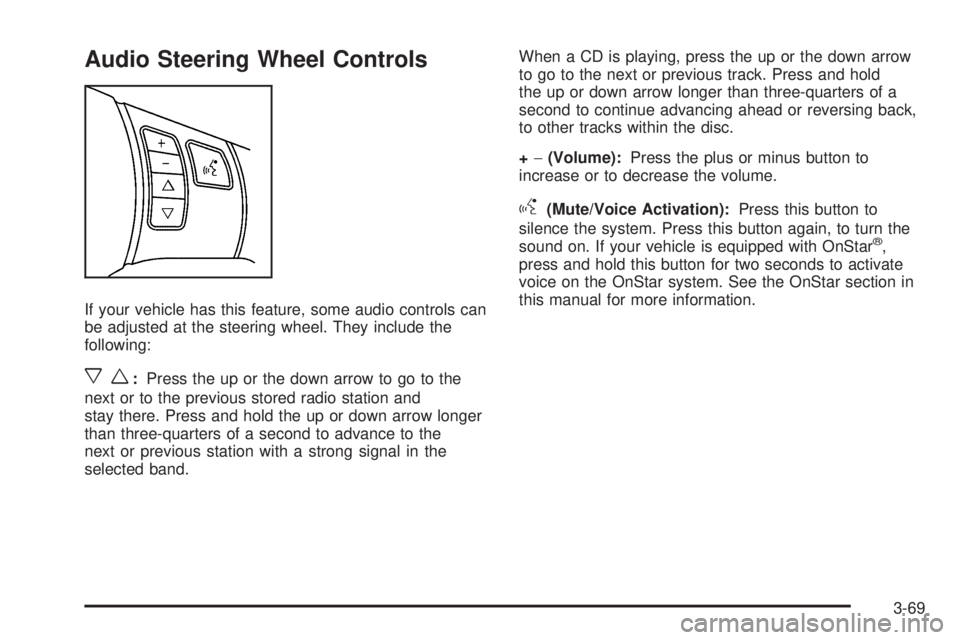
Audio Steering Wheel Controls
If your vehicle has this feature, some audio controls can
be adjusted at the steering wheel. They include the
following:
xw:Press the up or the down arrow to go to the
next or to the previous stored radio station and
stay there. Press and hold the up or down arrow longer
than three-quarters of a second to advance to the
next or previous station with a strong signal in the
selected band.When a CD is playing, press the up or the down arrow
to go to the next or previous track. Press and hold
the up or down arrow longer than three-quarters of a
second to continue advancing ahead or reversing back,
to other tracks within the disc.
+−(Volume):Press the plus or minus button to
increase or to decrease the volume.
g(Mute/Voice Activation):Press this button to
silence the system. Press this button again, to turn the
sound on. If your vehicle is equipped with OnStar
®,
press and hold this button for two seconds to activate
voice on the OnStar system. See the OnStar section in
this manual for more information.
3-69
Page 165 of 328

Anti-Lock Brake System (ABS)
Your vehicle may have anti-lock brakes. ABS is an
advanced electronic braking system that will help
prevent a braking skid.
If your vehicle has anti-lock
brakes, this warning light
on the instrument panel will
come on briey when
you start your vehicle.
When you start your engine, or when you begin to drive
away, your anti-lock brake system will check itself.
You may hear a momentary motor or clicking noise while
this test is going on, and you may even notice that
your brake pedal moves or pulses a little. This is normal.Let us say the road is wet and you are driving safely.
Suddenly, an animal jumps out in front of you. You slam
on the brakes and continue braking. Here is what
happens with ABS:
A computer senses that wheels are slowing down. If
one of the wheels is about to stop rolling, the computer
will separately work the brakes at each wheel.
4-7
Page 166 of 328
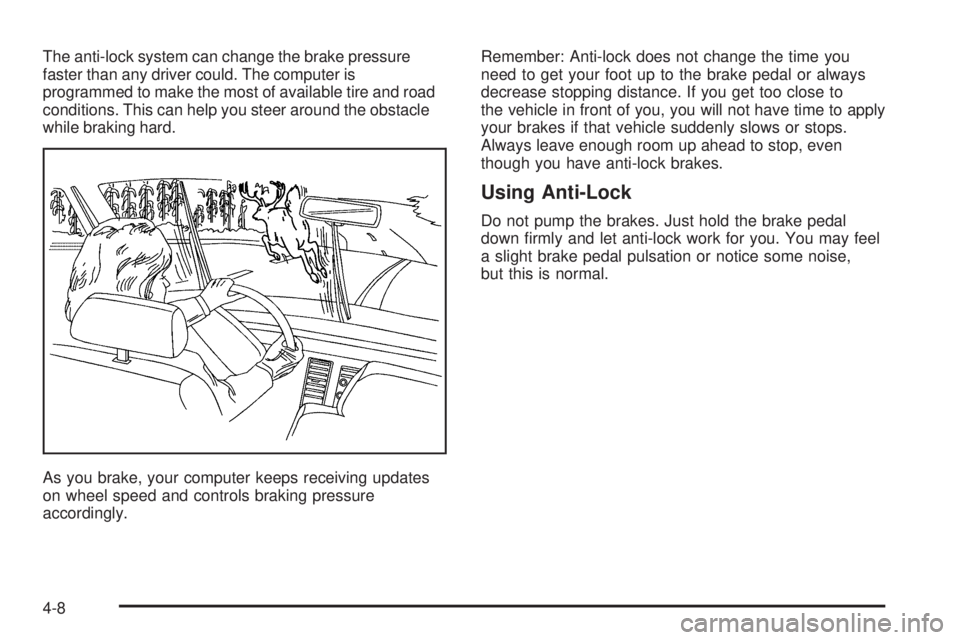
The anti-lock system can change the brake pressure
faster than any driver could. The computer is
programmed to make the most of available tire and road
conditions. This can help you steer around the obstacle
while braking hard.
As you brake, your computer keeps receiving updates
on wheel speed and controls braking pressure
accordingly.Remember: Anti-lock does not change the time you
need to get your foot up to the brake pedal or always
decrease stopping distance. If you get too close to
the vehicle in front of you, you will not have time to apply
your brakes if that vehicle suddenly slows or stops.
Always leave enough room up ahead to stop, even
though you have anti-lock brakes.
Using Anti-Lock
Do not pump the brakes. Just hold the brake pedal
down rmly and let anti-lock work for you. You may feel
a slight brake pedal pulsation or notice some noise,
but this is normal.
4-8
Page 167 of 328

Braking in Emergencies
At some time, nearly every driver gets into a situation
that requires hard braking.
If you have anti-lock brakes, you can steer and brake at
the same time. However, if you do not have anti-lock
brakes, your rst reaction — to hit the brake pedal hard
and hold it down — may be the wrong thing to do.
Your wheels can stop rolling. Once they do, the vehicle
cannot respond to your steering. Momentum will
carry it in whatever direction it was headed when the
wheels stopped rolling. That could be off the road, into
the very thing you were trying to avoid, or into traffic.
If you do not have anti-lock brakes, use a “squeeze”
braking technique. This will give you maximum braking
while maintaining steering control. You can do this by
pushing on the brake pedal with steadily increasing
pressure.In an emergency, you will probably want to squeeze the
brakes hard without locking the wheels. If you hear or
feel the wheels sliding, ease off the brake pedal.
This will help you retain steering control. If you do have
anti-lock brakes, it is different. SeeAnti-Lock Brake
System (ABS) on page 4-7.
In many emergencies, steering can help you more than
even the very best braking.
Limited-Slip Rear Axle
Your vehicle may have this feature. A limited-slip rear
axle can give you additional traction on snow, mud, ice,
sand or gravel. It works like a standard axle most of
the time, but when one of the rear wheels has no
traction and the other does, this feature will allow the
wheel with traction to move the vehicle.
4-9
Page 168 of 328
Steering
Power Steering
If you lose power steering assist because the engine
stops or the system is not functioning, you can steer but
it will take much more effort.
Steering Tips
It is important to take curves at a reasonable speed.
A lot of the “driver lost control” accidents mentioned on
the news happen on curves.
Here is why:
Experienced driver or beginner, each of us is subject to
the same laws of physics when driving on curves.
The traction of the tires against the road surface makes
it possible for the vehicle to change its path when
you turn the front wheels. If there is no traction, inertia
will keep the vehicle going in the same direction. If
you have ever tried to steer a vehicle on wet ice, you
will understand this.
The traction you can get in a curve depends on the
condition of your tires and the road surface, the angle at
which the curve is banked, and your speed. While
you are in a curve, speed is the one factor you
can control.Suppose you are steering through a sharp curve.
Then you suddenly apply the brakes. Both control
systems — steering and braking — have to do their work
where the tires meet the road. Unless you have
four-wheel anti-lock brakes, adding the hard braking can
demand too much of those places. You can lose control.
The same thing can happen if you are steering through a
sharp curve and you suddenly accelerate. Those
two control systems — steering and acceleration — can
overwhelm those places where the tires meet the road
and make you lose control.
What should you do if this ever happens? Ease up on the
brake or accelerator pedal, steer the vehicle the way you
want it to go, and slow down.
Speed limit signs near curves warn that you should adjust
your speed. Of course, the posted speeds are based on
good weather and road conditions. Under less favorable
conditions you will want to go slower.
If you need to reduce your speed as you approach a
curve, do it before you enter the curve, while your front
wheels are straight ahead.
Try to adjust your speed so you can “drive” through the
curve. Maintain a reasonable, steady speed. Wait to
accelerate until you are out of the curve, and then
accelerate gently into the straightaway.
Adding non-GM accessories can affect your vehicle’s
performance. SeeAccessories and Modications on
page 5-3.
4-10
Page 169 of 328

Steering in Emergencies
There are times when steering can be more effective
than braking. For example, you come over a hill and nd
a truck stopped in your lane, or a car suddenly pulls
out from nowhere, or a child darts out from between
parked cars and stops right in front of you. You
can avoid these problems by braking — if you can stop
in time. But sometimes you cannot; there is not room.
That is the time for evasive action — steering around the
problem.
Your vehicle can perform very well in emergencies like
these. First apply your brakes — but, unless you
have anti-lock, not enough to lock your wheels.
SeeBraking on page 4-6. It is better to remove as much
speed as you can from a possible collision. Then
steer around the problem, to the left or right depending
on the space available.An emergency like this requires close attention and a
quick decision. If you are holding the steering wheel at
the recommended 9 and 3 o’clock positions, you
can turn it a full 180 degrees very quickly without
removing either hand. But you have to act fast, steer
quickly, and just as quickly straighten the wheel
once you have avoided the object.
The fact that such emergency situations are always
possible is a good reason to practice defensive driving
at all times and wear safety belts properly.
4-11