change time PONTIAC TORRENT 2008 User Guide
[x] Cancel search | Manufacturer: PONTIAC, Model Year: 2008, Model line: TORRENT, Model: PONTIAC TORRENT 2008Pages: 434, PDF Size: 2.51 MB
Page 188 of 434
DELAY LOCK
This feature allows you to select whether or not the
locking of the vehicle’s doors and liftgate will be delayed.
When locking the doors and liftgate with the power door
lock switch and a door or the liftgate is open, this feature
will delay locking the doors and liftgate until ve seconds
after the last door is closed. You will hear three chimes to
signal that the delayed locking feature is in use. The key
must be out of the ignition for this feature to work. You
can temporarily override delayed locking by pressing the
power door lock switch twice or the lock button on the
RKE transmitter twice. SeeDelayed Locking on
page 2-12for more information.
Press the vehicle information button until DELAY LOCK
appears on the DIC display. Press the set/reset button
to access the settings for this feature. Then press the
vehicle information button to scroll through the following
settings:
LOCK DELAY OFF:There will be no delayed locking
of the vehicle’s doors.
LOCK DELAY ON (default):The doors will not lock
until ve seconds after the last door or the liftgate is
closed.
NO CHANGE:No change will be made to this feature.
The current setting will remain.
To select a setting, press the set/reset button while the
desired setting is displayed on the DIC.
EXIT LIGHTNG (Lighting)
This feature allows you to select the amount of time you
want the exterior lamps to remain on when it is dark
enough outside. This happens after the key is turned
from ON/RUN to LOCK/OFF.
Press the vehicle information button until EXIT
LIGHTNG (Lighting) appears on the DIC display.
Press the set/reset button to access the settings for this
feature. Then press the vehicle information button to
scroll through the following settings:
OFF:The exterior lamps will not turn on.
30 SECONDS (default):The exterior lamps will stay on
for 30 seconds.
1 MINUTE:The exterior lamps will stay on for
one minute.
2 MINUTES:The exterior lamps will stay on for
two minutes.
NO CHANGE:No change will be made to this feature.
The current setting will remain.
To select a setting, press the set/reset button while the
desired setting is displayed on the DIC.
3-64
Page 193 of 434
With Date Display
Single CD (MP3) or a Single CD
and DVD (MP3) Player
These radios have aH(clock) button for setting the
time and date.
To set the time and date, follow these instructions:
1. Turn the radio on.
2. Press the
Hbutton and the HR, MIN, MM, DD,
YYYY (hour, minute, month, day, and year)
displays.
3. Press the pushbutton located under any one of
the labels that you want to change. Every time
the pushbutton is pressed again, the time or
the date if selected, increases by one.
Another way to increase the time or date, is to
press the right SEEK arrow or
\FWD (forward)
button.
To decrease, press the left SEEK arrow
or
sREV (reverse) button. You can also turn
the
f(tune) knob, located on the upper right side
of the radio, to adjust the selected setting.The date does not automatically display. To see the
date press the
H(clock) button while the radio is
on. The date with display times out after a few seconds
and goes back to the normal radio and time display.
To change the time default setting from 12 hour to
24 hour, press the
Hbutton and then the pushbutton
located under the forward arrow label. Once the
time 12H and 24H are displayed, press the pushbutton
located under the desired option to select the default.
Press the
Hbutton again to apply the selected default,
or let the screen time out.
Radio with Six-Disc CD (MP3)
This type of radio has a MENU button instead of
the
Hbutton to set the time and date.
To set the time and date, follow these instructions:
1. Turn the ignition key to ACC/ACCESSORY
or ON/RUN. Press the
Oknob, located in
the center of the radio, to turn the radio on.
2. Press the MENU button. Once the clock option is
displayed.
3. Press the pushbutton located under that label.
The HR, MIN, MM, DD, YYYY displays.
3-69
Page 194 of 434
4. Press the pushbutton located under any one of
the labels that you want to change. Every time the
pushbutton is pressed again, the time or the date if
selected, increases by one.
Another way to increase the time or date,
is to press the right
¨SEEK arrow
or
\FWD button.
To decrease the time or date, press the
left
©SEEK arrow orsREV button, or turn
the
fknob, located on the upper right side of the
radio.
The date does not automatically display. To see the
date press the MENU button and then the
Hbutton
while the radio is on. The date with display times
out after a few seconds and goes back to the normal
radio and time display.To change the time default setting from 12 hour to
24 hour or to change the date default setting from
month/day/year to day/month/year, follow these
instructions:
1. Press the
Hbutton and then the pushbutton
located under the forward arrow label. Once the time
12H and 24H, and the date MM/DD/YYYY (month,
day, and year) and DD/MM/YYYY (day, month, and
year) displays.
2. Press the pushbutton located under the desired
option.
3. Press the
Hor MENU button again to apply the
selected default, or let the screen time out.
3-70
Page 209 of 434
O(Power):Press to turn the radio on or off. Turn
clockwise or counterclockwise to increase or decrease
the volume. Press and hold for more than two seconds
turns off the entire radio and Rear Seat Entertainment
(RSE) system and starts the parental control feature
which prevents the rear seat occupant from operating
the Rear Seat Audio (RSA) system or remote control.
A lock symbol appears next to the clock display.
The parental control feature remains on until a
subsequent press and hold of the power button is
performed (more than two seconds), or until the
driver turns the ignition off and exits the vehicle.
f(Tune):Turn to change tracks on a CD or DVD, to
manually tune a radio station, or to change clock or date
settings, while in the clock or date setting mode. See
the information given earlier in this section specic to the
radio, CD, and the DVD. Also, seeSetting the Time
on page 3-68, for setting the clock and date.
©SEEK (Previous Track/Chapter):Press to return
to the start of the current track or chapter. Press again to
go to the previous track or chapter. This button might
not work when the DVD is playing the copyright
information or the previews.SEEK
¨(Next Track/Chapter):Press this button to
go to the next track or chapter. This button might
not work when the DVD is playing the copyright
information or the previews.
sREV (Fast Reverse):Press to fast reverse the
CD or DVD, ve times the normal speed. The radio
displays the elapsed time while in fast reverse. To stop
fast reversing, press again. This button might not work
when the DVD is playing the copyright information or the
previews.
\FWD (Fast Forward):Press to fast forward the
CD or DVD. The radio displays the elapsed time and
fast forwards ve times the normal speed. To stop fast
forwarding, press again. This button might not work when
the DVD is playing the copyright information or the
previews.
Z(Eject):Press to eject a CD or DVD. If a CD or
DVD is ejected, but not removed, the player automatically
pulls it back in after 15 seconds.
If loading and reading of a CD cannot be completed, such
as unknown format, etc., and the disc fails to eject, press
and hold for more than ve seconds to force the disc
to eject.
3-85
Page 227 of 434
The foam ear pads attached to the headphones can
become worn or damaged if they are not handled or
stored properly. If the foam ear pads do become
damaged or worn out, the pads can be replaced
separately from the headphone set. It is not necessary
to replace the complete headphone set. The headphone
replacement foam ear pads can be ordered in pairs.
See your dealer/retailer for more information.
Battery Replacement
To change the batteries on the headphones, do the
following:
1. Turn the screw to loosen the battery door located
on the left side of the headphones. Slide the
battery door open.
2. Replace the two batteries in the compartment.
Make sure that they are installed correctly, using
the diagram on the inside of the battery
compartment.
3. Replace the battery door and tighten the door
screw.
If the headphones are to be stored for a long period of
time, remove the batteries and keep them in a cool,
dry place.
Audio/Video (A/V) Jacks
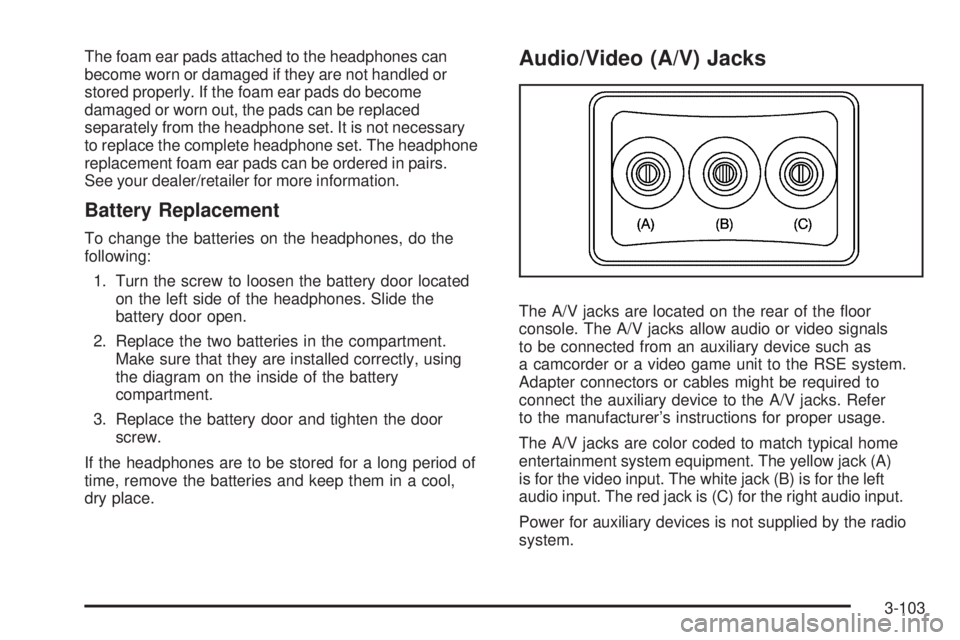
The A/V jacks are located on the rear of the oor
console. The A/V jacks allow audio or video signals
to be connected from an auxiliary device such as
a camcorder or a video game unit to the RSE system.
Adapter connectors or cables might be required to
connect the auxiliary device to the A/V jacks. Refer
to the manufacturer’s instructions for proper usage.
The A/V jacks are color coded to match typical home
entertainment system equipment. The yellow jack (A)
is for the video input. The white jack (B) is for the left
audio input. The red jack is (C) for the right audio input.
Power for auxiliary devices is not supplied by the radio
system.
3-103
Page 232 of 434
\(Clear):Press this button within three seconds after
inputting a numeric selection, to clear all numeric inputs.
}10 (Double Digit Entries):Press this button
to select chapter or track numbers greater than 9.
Press this button before inputting the number.
If the remote control becomes lost or damaged, a
new universal remote control can be purchased. If this
happens, make sure the universal remote control uses a
code set of Toshiba
®.
Battery Replacement
To change the remote control batteries, do the following:
1. Slide the rear cover back on the remote control.
2. Replace the two batteries in the compartment.
Make sure that they are installed correctly,
using the diagram on the inside of the battery
compartment.
3. Replace the battery cover.
If the remote control is to be stored for a long period of
time, remove the batteries and keep them in a cool,
dry place.
Problem Recommended Action
No power. The ignition might not be
turned ON/RUN or in
ACC/ACCESSORY.
The picture does not
ll the screen. There
are black borders on
the top and bottom or on
both sides or it looks
stretched out.Check the display mode
settings in the setup menu
by pressing the display
menu button on the remote
control.
In auxiliary mode, the
picture moves or scrolls.Check the auxiliary input
connections at both
devices.
The remote control does
not work.Check to make sure there
is no obstruction between
the remote control and
the transmitter window.
Check the batteries to
make sure they are
not dead or installed
incorrectly.
After stopping the player, I
push Play but sometimes
the DVD starts where I left
off and sometimes at the
beginning.If the stop button was
pressed one time, the
DVD player resumes
playing where the DVD
was stopped. If the stop
button was pressed two
times the DVD player
begins to play from the
beginning of the DVD.
3-108
Page 241 of 434
Antilock Brake System (ABS)
Your vehicle has the Antilock Brake System (ABS), an
advanced electronic braking system that will help
prevent a braking skid.
When you start the engine and begin to drive away,
ABS will check itself. You might hear a momentary
motor or clicking noise while this test is going on, and
you might even notice that the brake pedal moves
a little. This is normal.
If there is a problem with
ABS, this warning light will
stay on. SeeAntilock
Brake System Warning
Light on page 3-34.Let us say the road is wet and you are driving safely.
Suddenly, an animal jumps out in front of you. You slam
on the brakes and continue braking. Here is what
happens with ABS:
A computer senses that wheels are slowing down. If
one of the wheels is about to stop rolling, the computer
will separately work the brakes at each wheel.
ABS can change the brake pressure faster than any
driver could. The computer is programmed to make the
most of available tire and road conditions. This can
help you steer around the obstacle while braking hard.
As you brake, the computer keeps receiving updates on
wheel speed and controls braking pressure accordingly.
Remember: ABS does not change the time you need to
get your foot up to the brake pedal or always decrease
stopping distance. If you get too close to the vehicle
in front of you, you will not have time to apply the
brakes if that vehicle suddenly slows or stops. Always
leave enough room up ahead to stop, even though
you have ABS.
Using ABS
Do not pump the brakes. Just hold the brake pedal
down rmly and let antilock work for you. You might hear
the antilock pump or motor operate, and feel the
brake pedal pulsate, but this is normal.
4-5
Page 268 of 434
Towing a Trailer
{CAUTION:
If you do not use the correct equipment and
drive properly, you can lose control when you
pull a trailer. For example, if the trailer is too
heavy, the brakes may not work well — or even
at all. You and your passengers could be
seriously injured. You may also damage your
vehicle; the resulting repairs would not be
covered by your warranty. Pull a trailer only if
you have followed all the steps in this section.
Ask your dealer/retailer for advice and
information about towing a trailer with your
vehicle.Notice:Pulling a trailer improperly can damage
your vehicle and result in costly repairs that would
not be covered by your warranty. Always follow
the instructions in this section and check with your
dealer/retailer for more information about towing
a trailer with your vehicle.
To identify the trailering capacity of your vehicle, you
should read the information in “Weight of the Trailer” that
appears later in this section. Trailering is different
than just driving your vehicle by itself. Trailering means
changes in handling, acceleration, braking, durability,
and fuel economy. Successful, safe trailering takes
correct equipment, and it has to be used properly.
That is the reason for this section. In it are many
time-tested, important trailering tips and safety rules.
Many of these are important for your safety and that of
your passengers. So please read this section carefully
before you pull a trailer.
4-32
Page 294 of 434
Look for this information on the oil container, and use
only those oils that are identied as meeting GM
Standard GM6094M and have the starburst symbol on
the front of the oil container.
Notice:Use only engine oil identied as meeting
GM Standard GM6094M and showing the American
Petroleum Institute Certied For Gasoline Engines
starburst symbol. Failure to use the recommended
oil can result in engine damage not covered by
your warranty.
Engine Oil Additives
Do not add anything to the oil. The recommended oils
with the starburst symbol that meet GM Standard
GM6094M are all you need for good performance and
engine protection.
Engine Oil Life System
When to Change Engine Oil
Your vehicle has a computer system that lets you know
when to change the engine oil and lter. This is based on
engine revolutions and engine temperature, and not on
mileage. Based on driving conditions, the mileage at
which an oil change will be indicated can vary
considerably. For the oil life system to work properly, you
must reset the system every time the oil is changed.When the system has calculated that oil life has been
diminished, it will indicate that an oil change is
necessary. A change engine oil light and a CHANGE
ENGINE OIL SOON message will come on. Change the
oil as soon as possible within the next 600 miles
(1 000 km). It is possible that, if you are driving under
the best conditions, the oil life system might not indicate
that an oil change is necessary for over a year.
However, the engine oil and lter must be changed at
least once a year and at this time the system must
be reset. Your dealer/retailer has trained service people
who will perform this work using genuine parts and
reset the system. It is also important to check the oil
regularly and keep it at the proper level.
If the system is ever reset accidentally, you must
change the oil at 3,000 miles (5 000 km) since the last
oil change. Remember to reset the oil life system
whenever the oil is changed.
5-18
Page 295 of 434
How to Reset the Engine Oil Life
System
The Engine Oil Life System calculates when to change
the engine oil and lter based on vehicle use.
Whenever the oil is changed, reset the system so it can
calculate when the next oil change is required. If a
situation occurs where you change the oil prior
to a change engine oil light or CHANGE ENGINE OIL
SOON message being turned on, reset the system.
1. Turn the ignition key to ON/RUN with the engine off.
2. Fully press and release the accelerator pedal
three times within ve seconds.
The change engine oil light will ash while the
system is resetting.
3. When the light stops ashing, turn the key to
LOCK/OFF.
If the light or message comes back on and stays on
when you start your vehicle, the engine oil life system
has not reset. Repeat the procedure.
What to Do with Used Oil
Used engine oil contains certain elements that can be
unhealthy for your skin and could even cause cancer.
Do not let used oil stay on your skin for very long. Clean
your skin and nails with soap and water, or a good
hand cleaner. Wash or properly dispose of clothing or
rags containing used engine oil. See the manufacturer’s
warnings about the use and disposal of oil products.
Used oil can be a threat to the environment. If you
change your own oil, be sure to drain all the oil from the
lter before disposal. Never dispose of oil by putting it
in the trash, pouring it on the ground, into sewers, or into
streams or bodies of water. Instead, recycle it by
taking it to a place that collects used oil. If you have a
problem properly disposing of used oil, ask your
dealer/retailer, a service station, or a local recycling
center for help.
5-19