display PONTIAC TORRENT 2008 Manual PDF
[x] Cancel search | Manufacturer: PONTIAC, Model Year: 2008, Model line: TORRENT, Model: PONTIAC TORRENT 2008Pages: 434, PDF Size: 2.51 MB
Page 230 of 434
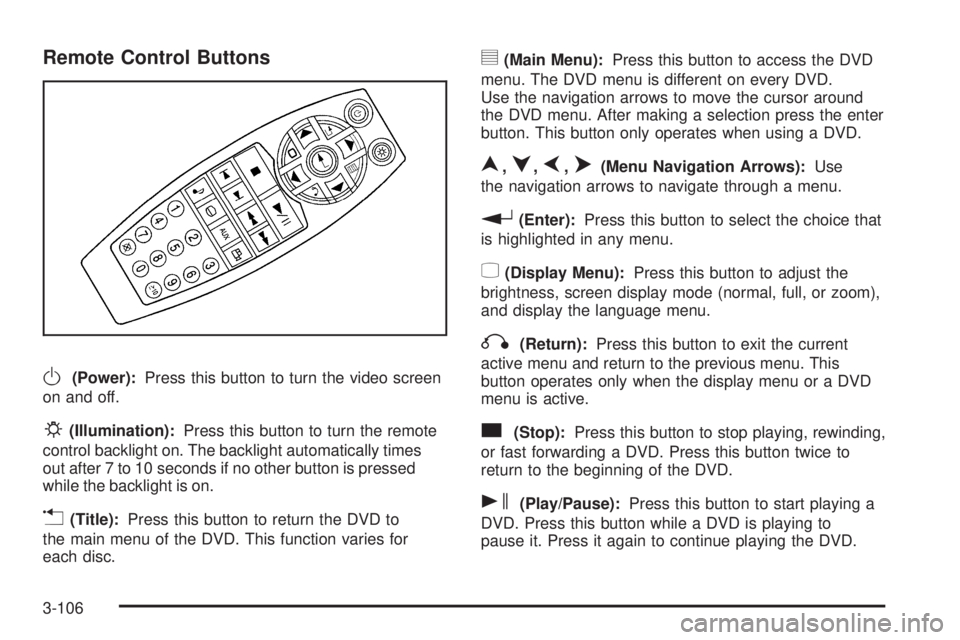
Remote Control Buttons
O(Power):Press this button to turn the video screen
on and off.
P(Illumination):Press this button to turn the remote
control backlight on. The backlight automatically times
out after 7 to 10 seconds if no other button is pressed
while the backlight is on.
v(Title):Press this button to return the DVD to
the main menu of the DVD. This function varies for
each disc.
y(Main Menu):Press this button to access the DVD
menu. The DVD menu is different on every DVD.
Use the navigation arrows to move the cursor around
the DVD menu. After making a selection press the enter
button. This button only operates when using a DVD.
n,q,p,o(Menu Navigation Arrows):Use
the navigation arrows to navigate through a menu.
r(Enter):Press this button to select the choice that
is highlighted in any menu.
z(Display Menu):Press this button to adjust the
brightness, screen display mode (normal, full, or zoom),
and display the language menu.
q(Return):Press this button to exit the current
active menu and return to the previous menu. This
button operates only when the display menu or a DVD
menu is active.
c(Stop):Press this button to stop playing, rewinding,
or fast forwarding a DVD. Press this button twice to
return to the beginning of the DVD.
s(Play/Pause):Press this button to start playing a
DVD. Press this button while a DVD is playing to
pause it. Press it again to continue playing the DVD.
3-106
Page 232 of 434
\(Clear):Press this button within three seconds after
inputting a numeric selection, to clear all numeric inputs.
}10 (Double Digit Entries):Press this button
to select chapter or track numbers greater than 9.
Press this button before inputting the number.
If the remote control becomes lost or damaged, a
new universal remote control can be purchased. If this
happens, make sure the universal remote control uses a
code set of Toshiba
®.
Battery Replacement
To change the remote control batteries, do the following:
1. Slide the rear cover back on the remote control.
2. Replace the two batteries in the compartment.
Make sure that they are installed correctly,
using the diagram on the inside of the battery
compartment.
3. Replace the battery cover.
If the remote control is to be stored for a long period of
time, remove the batteries and keep them in a cool,
dry place.
Problem Recommended Action
No power. The ignition might not be
turned ON/RUN or in
ACC/ACCESSORY.
The picture does not
ll the screen. There
are black borders on
the top and bottom or on
both sides or it looks
stretched out.Check the display mode
settings in the setup menu
by pressing the display
menu button on the remote
control.
In auxiliary mode, the
picture moves or scrolls.Check the auxiliary input
connections at both
devices.
The remote control does
not work.Check to make sure there
is no obstruction between
the remote control and
the transmitter window.
Check the batteries to
make sure they are
not dead or installed
incorrectly.
After stopping the player, I
push Play but sometimes
the DVD starts where I left
off and sometimes at the
beginning.If the stop button was
pressed one time, the
DVD player resumes
playing where the DVD
was stopped. If the stop
button was pressed two
times the DVD player
begins to play from the
beginning of the DVD.
3-108
Page 233 of 434
The auxiliary source is
running but there is no
picture or sound.Check that the RSE video
screen is in the auxiliary
source mode.
Check the auxiliary input
connections at both
devices.
Sometimes the wireless
headphone audio cuts out
or buzzes.Check for obstructions,
low batteries, reception
range, and interference
from cellular telephone
towers or by using your
cellular telephone in
the vehicle.
Check that the
headphones are on
correctly using the L (left)
and R (right) on the
headphones.
I lost the remote and/or the
headphones.See your dealer/retailer for
assistance.
The DVD is playing, but
there is no picture or
sound.Check that the RSE video
screen is sourced to the
DVD player.DVD Display Error Messages
The DVD display error message depends on which
radio you have. The video screen can display one of
the following:
Disc Load/Eject Error:This message displays when
there are disc load or eject problems.
Disc Format Error:This message displays, if the disc
is inserted with the disc label wrong side up, or if
the disc is damaged.
Disc Region Error:This message displays, if the disc
is not from a correct region.
No Disc Inserted:This message displays, if no disc is
present when the
Zbutton is pressed on the radio.
DVD Distortion
Video distortion may occur when operating cellular
phones, scanners, CB radios, Global Position Systems
(GPS)*, two-way radios, mobile fax, or walkie talkies.
It may be necessary to turn off the DVD player
when operating one of these devices in or near
the vehicle.
*Excludes the OnStar
®System.
3-109
Page 234 of 434
Cleaning the RSE Overhead Console
When cleaning the RSE overhead console surface,
use only a clean cloth dampened with clean water.
Cleaning the Video Screen
When cleaning the video screen, use only a clean cloth
dampened with clean water. Use care when directly
touching or cleaning the screen, as damage can result.
Theft-Deterrent Feature
THEFTLOCK®is designed to discourage theft of your
vehicle’s radio. It works by using a secret code to disable
all radio functions when battery power is removed and the
radio is placed in a different vehicle. This feature requires
no user input to be activated. The radio is automatically
armed when it is put into the vehicle for the rst time.
If THEFTLOCK is activated, the radio does not operate
if stolen. The radio displays LOCKED. If this occurs,
the radio needs to be returned to your dealer/retailer.
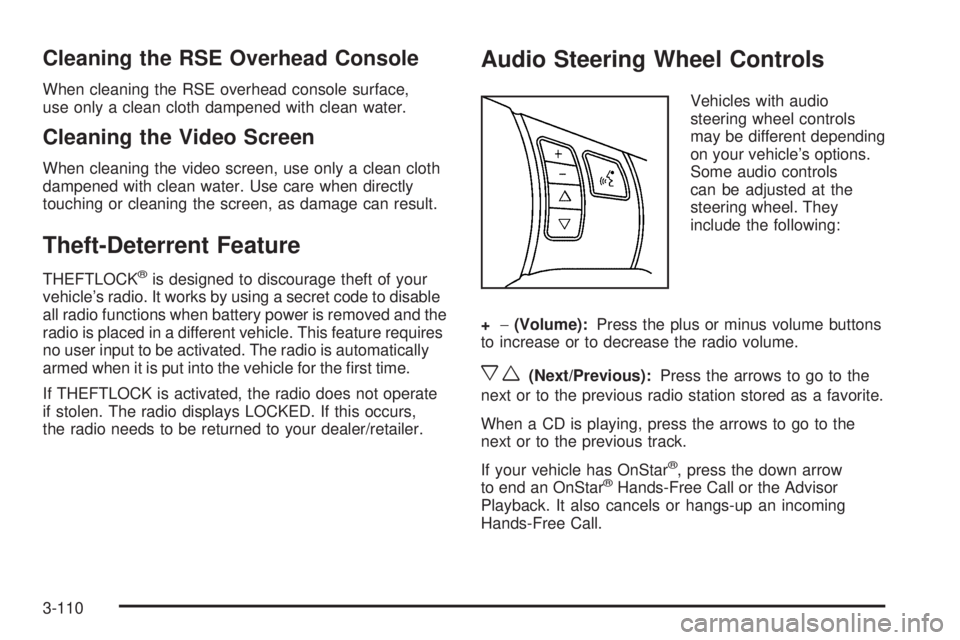
Audio Steering Wheel Controls
Vehicles with audio
steering wheel controls
may be different depending
on your vehicle’s options.
Some audio controls
can be adjusted at the
steering wheel. They
include the following:
+−(Volume):Press the plus or minus volume buttons
to increase or to decrease the radio volume.
xw(Next/Previous):Press the arrows to go to the
next or to the previous radio station stored as a favorite.
When a CD is playing, press the arrows to go to the
next or to the previous track.
If your vehicle has OnStar
®, press the down arrow
to end an OnStar®Hands-Free Call or the Advisor
Playback. It also cancels or hangs-up an incoming
Hands-Free Call.
3-110
Page 236 of 434
FM Stereo
FM stereo gives the best sound, but FM signals only
reach about 10 to 40 miles (16 to 65 km). Tall buildings
or hills can interfere with FM signals, causing the
sound to fade in and out.
XM™ Satellite Radio Service
XM™ Satellite Radio Service gives digital radio
reception from coast-to-coast in the 48 contiguous
United States, and in Canada. Just as with FM,
tall buildings or hills can interfere with satellite radio
signals, causing the sound to fade in and out. In
addition, traveling or standing under heavy foliage,
bridges, garages, or through tunnels could cause loss
of the XM signal for a period of time. The radio may
display NO XM SIGNAL to indicate interference.
Multi-Band Antenna
The multi-band antenna is located on the roof of your
vehicle. This type of antenna is used with the AM/FM
radio, as well as OnStar
®and the XM™ Satellite Radio
Service System, if your vehicle has these features. Keep
this antenna clear of snow and ice build up for clear radio
reception. If your vehicle has a sunroof, the performance
of the radio system may be affected if the sunroof is
open. Loading items onto the roof of your vehicle can
interfere with the performance of the radio system and,
if your vehicle has this feature, OnStar
®. Make sure the
multi-band antenna is not obstructed.
3-112
Page 243 of 434
The traction control system automatically comes on
whenever the vehicle is started. To limit wheel spin,
especially in slippery road conditions, you should always
leave the system on. But you can turn the traction control
system off if you ever need to. You should turn the
system off if your vehicle ever gets stuck in sand, mud,
ice, or snow and rocking the vehicle is required. See
Rocking Your Vehicle to Get It Out on page 4-22.
The traction control system
can be turned off by
pressing the traction
control button, located next
to the gear shift lever.
When the traction control system is turned off, the
traction control warning light on the instrument panel
cluster comes on and TRACTION CONTROL OFF
briey displays.The traction control system can be activated again by
pressing the traction control button. While the traction
control system is activated, the traction control system
warning light on the instrument panel cluster comes
on and TRACTION CONTROL ON briey displays.
If the system is limiting wheel spin when you press the
button, the traction control off light appears on the
instrument panel cluster. The system will not turn off
until there is no longer a current need to limit wheel spin.
Turn the system back on by pressing the button
again. If the light does not come on, traction control
might not be working and your vehicle should be
serviced by a dealer/retailer.
Adding non-dealer/non-retailer accessories can affect
your vehicle’s performance. SeeAccessories and
Modifications on page 5-3for more information.
StabiliTrak®System
Your vehicle has this feature. The StabiliTrak®system
is an advanced computer controlled system that
helps the driver maintain directional control of the
vehicle in difficult driving conditions. This is
accomplished by selectively applying any one of the
vehicle’s brakes and reducing engine power. The
StabiliTrak
®system comes on automatically whenever
you start your vehicle.
4-7
Page 244 of 434
The STABILITRAK NOT READY message may be
displayed in the DIC and the traction control system and
StabiliTrak
®warning light on the instrument panel
cluster will be on after rst driving the vehicle and
exceeding 30 mph 48 (km/h) for 30 seconds. The
StabiliTrak
®system is off until the light has turned off.
This could take up to 15 minutes. SeeDIC Warnings
and Messages on page 3-52for more information.
The traction control system and StabiliTrak
®warning
light on the instrument panel cluster will ash when the
system is operating. You may also feel or hear the
system working. This is normal. This light may
also come on after extended heavy braking indicating
the brakes have become too hot to limit wheel spin.
StabiliTrak
®can be turned off using the traction control
button. To disable StabiliTrak®, press and hold the
traction control button for ve seconds. StabiliTrak®can
be activated again by pressing the traction control button.
The SERVICE STABILITRAK message will be displayed
and the traction control system and StabiliTrak
®warning
light on the instrument panel cluster will come on if there
is a problem with the system. When this light and the
SERVICE STABILITRAK message are on, the system is
not operational. Adjust your driving accordingly.
All-Wheel Drive (AWD) System
If your vehicle has all-wheel drive (AWD), the AWD
system operates automatically without any action
required by the driver. If the front drive wheels begin to
slip, the rear wheels will automatically begin to drive
the vehicle as required. Torque is also applied to
the rear wheels during launches. There may be a slight
engagement noise during hard use but this is normal.
This light is located on the
instrument panel cluster.
This light and the SERVICE ALL WHEEL DRIVE
message in the DIC will come on and stay on to indicate
there may be a problem with the drive system and
service is required.
SeeService All-Wheel Drive Light on page 3-42and
DIC Warnings and Messages on page 3-52for
more information.
4-8
Page 301 of 434
Adding Coolant
If you need more coolant, add the proper DEX-COOL®
coolant mixture at the surge tank, but only when the
engine is cool.
{CAUTION:
You can be burned if you spill coolant on hot
engine parts. Coolant contains ethylene glycol,
and it will burn if the engine parts are hot
enough. Do not spill coolant on a hot engine.
When replacing the pressure cap, make sure it is
hand-tight and fully seated.
Engine Overheating
You will nd a coolant temperature gage on your
vehicle’s instrument panel. SeeEngine Coolant
Temperature Gage on page 3-35. There are several
different types of engine overheating messages that may
be displayed in the Driver Information Center (DIC).
SeeDIC Warnings and Messages on page 3-52.
If Steam Is Coming From Your Engine
{CAUTION:
Steam from an overheated engine can burn you
badly, even if you just open the hood. Stay away
from the engine if you see or hear steam coming
from it. Turn it off and get everyone away from
the vehicle until it cools down. Wait until there
is no sign of steam or coolant before you open
the hood.
If you keep driving when the vehicles engine is
overheated, the liquids in it can catch re. You
or others could be badly burned. Stop your
engine if it overheats, and get out of the vehicle
until the engine is cool.
SeeOverheated Engine Protection Operating
Mode on page 5-26for information on driving to
a safe place in an emergency.
Notice:If your engine catches re because you keep
driving with no coolant, your vehicle can be badly
damaged. The costly repairs would not be covered by
your warranty. SeeOverheated Engine Protection
Operating Mode on page 5-26for information on
driving to a safe place in an emergency.
5-25
Page 340 of 434
At the same time a message to check the pressure in a
specic tire appears on the Driver Information Center
(DIC) display. The low tire pressure warning light
and the DIC warning message come on at each ignition
cycle until the tires are inated to the correct ination
pressure. Using the DIC, tire pressure levels can
be viewed by the driver. For additional information and
details about the DIC operation and displays see
DIC Operation and Displays on page 3-45andDIC
Warnings and Messages on page 3-52.
The low tire pressure warning light may come on in cool
weather when the vehicle is rst started, and then
turn off as you start to drive. This could be an early
indicator that the air pressure in the tire(s) are getting
low and need to be inated to the proper pressure.A Tire and Loading Information label, attached to your
vehicle, shows the size of your vehicle’s original
equipment tires and the correct ination pressure for your
vehicle’s tires when they are cold. SeeLoading Your
Vehicle on page 4-22, for an example of the Tire and
Loading Information label and its location on your vehicle.
Also seeInflation - Tire Pressure on page 5-59.
Your vehicle’s TPMS can warn you about a low tire
pressure condition but it does not replace normal
tire maintenance. SeeTire Inspection and Rotation on
page 5-67andTires on page 5-52.
Notice:Liquid tire sealants could damage the Tire
Pressure Monitor System (TPMS) sensors. Sensor
damage caused by using a tire sealant is not covered
by your warranty. Do not use liquid tire sealants.
5-64
Page 341 of 434
TPMS Malfunction Light and Message
The TPMS will not function properly if one or more of the
TPMS sensors are missing or inoperable. When the
system detects a malfunction, the low tire warning light
ashes for about one minute and then stays on for
the remainder of the ignition cycle. A DIC warning
message is also displayed. The low tire warning light
and DIC warning message come on at each ignition
cycle until the problem is corrected. Some of the
conditions that can cause the malfunction light and DIC
message to come on are:
One of the road tires has been replaced with the
spare tire. The spare tire does not have a TPMS
sensor. The TPMS malfunction light and DIC
message should go off once you re-install the road
tire containing the TPMS sensor.
The TPMS sensor matching process was started
but not completed or not completed successfully
after rotating the vehicle’s tires. The DIC message
and TPMS malfunction light should go off once
the TPMS sensor matching process is performed
successfully. See “TPMS Sensor Matching Process”
later in this section.
One or more TPMS sensors are missing or
damaged. The DIC message and the TPMS
malfunction light should go off when the TPMS
sensors are installed and the sensor matching
process is performed successfully. See your
dealer/retailer for service.
Replacement tires or wheels do not match your
vehicle’s original equipment tires or wheels.
Tires and wheels other than those recommended
for your vehicle could prevent the TPMS from
functioning properly. SeeBuying New Tires on
page 5-70.
Operating electronic devices or being near facilities
using radio wave frequencies similar to the TPMS
could cause the TPMS sensors to malfunction.
If the TPMS is not functioning it cannot detect or signal
a low tire condition. See your dealer/retailer for
service if the TPMS malfunction light and DIC message
comes on and stays on.
5-65