phone PONTIAC VIBE 2007 Owners Manual
[x] Cancel search | Manufacturer: PONTIAC, Model Year: 2007, Model line: VIBE, Model: PONTIAC VIBE 2007Pages: 432, PDF Size: 2.54 MB
Page 81 of 432
Adding Equipment to Your
Airbag-Equipped Vehicle
Q:Is there anything I might add to the front
or sides of the vehicle that could keep the
airbags from working properly?
A:Yes. If you add things that change your
vehicle’s frame, bumper system, height,
front end or side sheet metal, they may keep
the airbag system from working properly.
Also, the airbag system may not work properly
if you relocate any of the airbag sensors. If
you have any questions about this, you should
contact Customer Assistance before you
modify your vehicle. The phone numbers and
addresses for Customer Assistance are in
Step Two of the Customer Satisfaction
Procedure in this manual. SeeCustomer
Satisfaction Procedure on page 400.
Q:Because I have a disability, I have to get
my vehicle modied. How can I nd out
whether this will affect my airbag system?
A:Changing or moving any parts of the
front seats, safety belts, the airbag sensing
and diagnostic module, steering wheel,
instrument panel, ceiling headliner, ceiling and
pillar garnish trim, roof-mounted airbag
modules, or airbag wiring can affect the
operation of the airbag system. If you have
questions, call Customer Assistance. The
phone numbers and addresses for Customer
Assistance are in Step Two of the Customer
Satisfaction Procedure in this manual.
SeeCustomer Satisfaction Procedure on
page 400.
81
Page 125 of 432
Available Services included with Directions
& Connections®Plan
All Safe and Sound Plan Services
Driving Directions - Advisor delivered or
OnStar®Turn-by-Turn Navigation (If equipped)
RideAssist
Information and Convenience Services
OnStar®Hands-Free Calling
OnStar®Hands-Free Calling allows eligible
OnStar®subscribers to make and receive calls
using voice commands. Hands-Free Calling is fully
integrated into the vehicle, and can be used
with OnStar
®Pre-Paid Minute Packages.
Hands-Free Calling may also be linked to a
Verizon Wireless service plan in the U.S. or a Bell
Mobility service plan in Canada, depending on
eligibility. To nd out more, refer to the OnStar
®
Owner’s Guide in the vehicle’s glove box, visit
www.onstar.com or www.onstar.ca, or speak with
an OnStar
®advisor by pressing the OnStar®
button or calling 1-888-4-ONSTAR
(1-888-466-7827).
OnStar®Virtual Advisor
OnStar®Virtual Advisor is a feature of OnStar®
Hands-Free Calling that uses your minutes
to access location-based weather, local traffic
reports, and stock quotes. By pressing the phone
button and giving a few simple voice commands,
you can browse through the various topics.
See the OnStar
®Owner’s Guide for more
information. (Only available in the
continental U.S.)
OnStar®Steering Wheel Controls
Your vehicle may be equipped with a Talk/Mute
button that can be used to interact with OnStar®
Hands-Free Calling.
On some vehicles, you may have to hold the
button for a few seconds and give the command
“ONSTAR” in order to activate the OnStar
®
Hands-Free Calling feature.
On some vehicles, the mute button can be used to
dial numbers into voicemail systems, or to dial
phone extensions. See the OnStar
®Owner’s
Guide for more information.
125
Page 126 of 432
How OnStar®Service Works
In order to provide you with OnStar®services,
your vehicle’s OnStar®system has the capability
of recording and transmitting vehicle information.
This information is automatically sent to an
OnStar
®Call Center at the time of an OnStar®
button press, Emergency button press or if
your airbags or AACN system deploys. The vehicle
information usually includes your GPS location
and, in the event of a crash, additional information
regarding the accident that your vehicle has
been involved in (e.g. the direction from which
your vehicle was hit). When you use the Virtual
Advisor feature of OnStar
®Hands-Free Calling,
your vehicle also sends OnStar®your GPS
location so that we can provide you with
location-based services.
OnStar
®service cannot work unless your vehicle
is in a place where OnStar®has an agreement
with a wireless service provider for service in that
area. OnStar
®service also cannot work unless
you are in a place where the wireless service
provider OnStar
®has hired for that area
has coverage, network capacity and reception
when the service is needed, and technology that
is compatible with the OnStar
®service.Not all services are available everywhere,
particularly in remote or enclosed areas, or
at all times.
OnStar
®service that involves location information
about your vehicle cannot work unless GPS
satellite signals are unobstructed and available in
that place as well.
Your vehicle must have a working electrical
system (including adequate battery power) for the
OnStar
®equipment to operate. There are other
problems OnStar®cannot control that may prevent
OnStar®from providing OnStar®service to you
at any particular time or place. Some examples are
damage to important parts of your vehicle in an
accident, hills, tall buildings, tunnels, weather
or wireless phone network congestion.
Your Responsibility
You may need to increase the volume of your
radio to hear the OnStar®advisor. If the light next
to the OnStar®buttons is red, this means that
your system is not functioning properly and should
be checked by a dealer. If the light appears
clear (no light is appearing), your OnStar
®
subscription has expired. You can always press
the blue OnStar®button to conrm that your
OnStar®equipment is active.
126
Page 152 of 432
It is not recommended to use the cigarette lighter
to plug in auxiliary electrical equipment. Use
the accessory power outlet for phones and other
electrical equipment. SeeAccessory Power
Outlet(s) on page 150orPower Outlet 115 Volt
Alternating Current on page 151.
Notice:Holding a cigarette lighter in while it
is heating does not let the lighter back
away from the heating element when it is hot.
Damage from overheating can occur to the
lighter or heating element, or a fuse could be
blown. Do not hold a cigarette lighter in while it
is heating.
Your vehicle may have a removable ashtray that
sits in your front cupholder in the center console
storage area.Climate Controls
Climate Control System
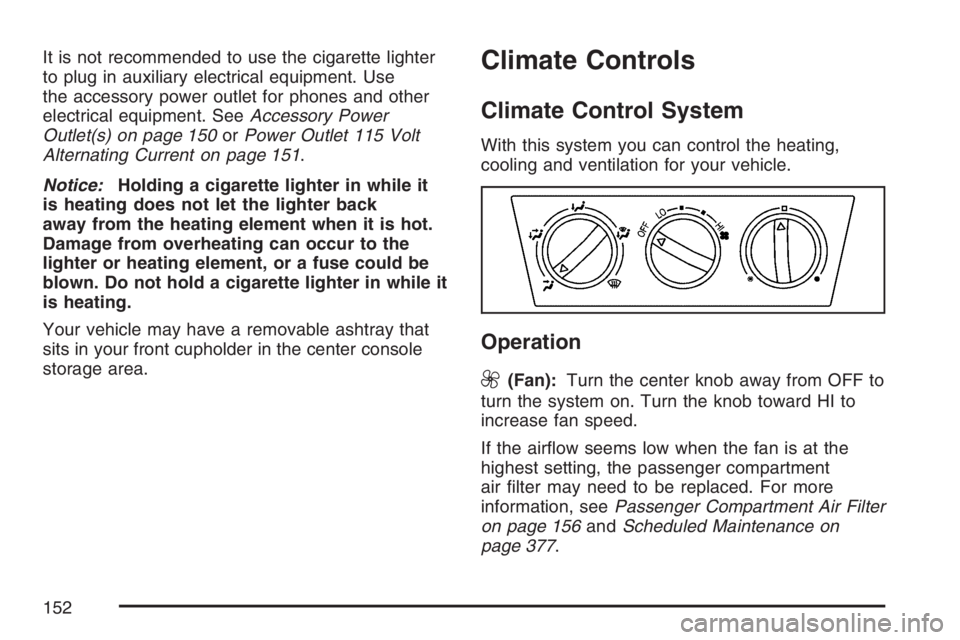
With this system you can control the heating,
cooling and ventilation for your vehicle.
Operation
9
(Fan):Turn the center knob away from OFF to
turn the system on. Turn the knob toward HI to
increase fan speed.
If the airow seems low when the fan is at the
highest setting, the passenger compartment
air lter may need to be replaced. For more
information, seePassenger Compartment Air Filter
on page 156andScheduled Maintenance on
page 377.
152
Page 178 of 432
Keeping your mind on the drive is important for
safe driving. Here are some ways in which you can
help avoid distraction while driving.
While your vehicle is parked:
Familiarize yourself with all of its controls.
Familiarize yourself with its operation.
Set up your audio system by presetting your
favorite radio stations, setting the tone, and
adjusting the speakers. Then, when driving
conditions permit, you can tune to your favorite
radio stations using the presets and steering
wheel controls if the vehicle has them.
Notice:Before adding any sound equipment to
your vehicle, such as an audio system, CD
player, CB radio, mobile telephone, or two-way
radio, make sure that it can be added by
checking with your dealer. Also, check federal
rules covering mobile radio and telephone
units. If sound equipment can be added, it is
very important to do it properly. Added sound
equipment can interfere with the operation of
your vehicle’s engine, radio, or other systems,
and even damage them. Your vehicle’s systems
can interfere with the operation of sound
equipment that has been added.
Setting the Time
The radio might have a button marked with an
H or HR to represent hours and an M or MIN to
represent minutes.
Press and hold the hour button until the correct
hour displays. AM appears for morning hours.
Press and hold the minute button until the correct
minute displays. The time can be set with the
ignition on or off.
To synchronize the time with an FM station
broadcasting Radio Data System (RDS)
information, press and hold the hour and minute
buttons at the same time until UPDATED displays.
If the time is not available from the station, NO
UPDATE displays.
RDS time is broadcast once a minute. After tuning
to an RDS broadcast station, it could take a
few minutes for the time to update.
178
Page 184 of 432
Setting Preset PTYs (RDS Only)
These pushbuttons have factory PTY presets. Up
to 12 PTYs (six FM1 and six FM2), can be
programmed on the six numbered pushbuttons, by
performing the following steps:
1. Press BAND to select FM1 or FM2.
2. Press PROG TYPE to activate program type
select mode. The PTY symbol displays.
3. Turn the SELECT knob to select a PTY.
4. Press and hold one of the six numbered
pushbuttons until a beep sounds. When
that numbered pushbutton is pressed, the PTY
that was set returns, if program type select
mode is on.
5. Repeat the steps for each pushbutton.
RDS Messages
ALERT!:Alert warns of local or national
emergencies. When an alert announcement
comes on the current radio station, ALERT!
displays. You will hear the announcement, even if
the volume is low or a CD is playing. If a CD is
playing, play stops during the announcement. Alert
announcements cannot be turned off.
ALERT! is not affected by tests of the emergency
broadcast system. This feature is not supported
by all RDS stations.
INFO (Information):If the current station has a
message, INFO displays. Press this button to
see the message. The message can display the
artist, song title, call in phone numbers, etc.
If the entire message is not displayed, parts of the
message displays every three seconds. To
scroll through the message, press and release the
INFO button. A new group of words displays
after every press of the button. Once the complete
message displays, INFO disappears from the
display until another new message is received.
The last message can be displayed by pressing
the INFO button. The last message is shown until
a new message is received or you tune to a
different station.
184
Page 193 of 432
Setting Preset PTYs (RDS Only)
These pushbuttons have factory PTY presets. Up
to 12 PTYs (six FM1 and six FM2), can be
programmed on the six numbered pushbuttons, by
performing the following steps:
1. Press BAND to select FM1 or FM2.
2. Press PROG TYPE to activate program type
select mode. The PTY symbol displays.
3. Turn the SELECT knob to select a PTY.
4. Press and hold one of the six numbered
pushbuttons until a beep sounds. When
that numbered pushbutton is pressed, the PTY
that was set, returns, if program type select
mode is activated.
5. Repeat the steps for each pushbutton.
RDS Messages
ALERT!:Alert warns of local or national
emergencies. When an alert announcement
comes on the current radio station, ALERT!
displays. You will hear the announcement, even if
the volume is low or a CD is playing. If a CD is
playing, play stops during the announcement. Alert
announcements cannot be turned off.
ALERT! is not affected by tests of the emergency
broadcast system. This feature is not supported
by all RDS stations.
INFO (Information):If the current station has a
message, INFO displays. Press this button to
see the message. The message can display the
artist, song title, call in phone numbers, etc.
If the entire message is not displayed, parts of the
message displays every three seconds. To
scroll through the message, press and release the
INFO button. A new group of words display
after every press of this button. Once the complete
message has displayed, the information symbol
disappears from the display until another new
message is received. The last message can be
displayed by pressing the INFO button. The
last message is shown until a new message is
received or you tune to a different station.
193
Page 203 of 432
RDS Messages
ALERT!:Alert warns of local or national
emergencies. When an alert announcement
comes on the current radio station, ALERT!
displays. You will hear the announcement, even if
the volume is low or a CD is playing. If a CD is
playing, play stops during the announcement. Alert
announcements cannot be turned off.
ALERT! is not affected by tests of the emergency
broadcast system. This feature is not supported
by all RDS stations.
INFO (Information):If the current station has a
message, INFO displays. Press this button to
see the message. The message can display the
artist, song title, call in phone numbers, etc.
If the entire message is not displayed, parts of the
message displays every three seconds. To
scroll through the message, press and release the
INFO button. A new group of words display
after every press of this button. Once the complete
message displays, INFO disappears from the
display until another new message is received.
The last message can be displayed by pressing
the INFO button. The last message is shown until
a new message is received or you tune to a
different station.TRAF (Traffic):If TRAF displays, the tuned
station broadcasts traffic announcements.
To receive the traffic announcement from the
tuned station, press this button. Brackets
are displayed around TRAF and when a traffic
announcement broadcasts on the tuned radio
station, you will hear it.
If the station does not broadcast traffic
announcements, press the TRAF button and the
radio seeks to a station that does. When a station
that broadcasts traffic announcements is found,
the radio stops seeking and brackets are displayed
around TRAF. If no station is found that broadcast
traffic announcements, NO TRAFFIC displays.
If the brackets are on the display and TRAF is not,
press the TRAF button to remove the brackets
or use the TUNE knob or the SEEK arrows to go
to a station that supports traffic announcements.
If no station is found that broadcasts traffic
announcements, NO TRAFFIC displays.
The radio plays the traffic announcements if the
volume is low. The radio interrupts the play
of a CD if the last tuned station broadcasts traffic
announcements and the brackets display.
203
Page 218 of 432
Radio Reception
Frequency interference and static during normal
radio reception can occur if items such as
cellphone chargers, vehicle convenience
accessories, and external electronic devices are
plugged into the accessory power outlet. If there is
interference or static, unplug the item from the
accessory power outlet.
AM
The range for most AM stations is greater than for
FM, especially at night. The longer range can cause
station frequencies to interfere with each other. For
better radio reception, most AM radio stations boost
the power levels during the day, and then reduce
these levels during the night. Static can also occur
when things like storms and power lines interfere
with radio reception. When this happens, try
reducing the treble on your radio.
FM Stereo
FM stereo gives the best sound, but FM signals
reach about 10 to 40 miles (16 to 65 km). Tall
buildings or hills can interfere with FM signals,
causing the sound to fade in and out.
XM™ Satellite Radio Service
XM™ Satellite Radio Service gives digital radio
reception from coast-to-coast in the 48 contiguous
United States, and in Canada. Just as with FM,
tall buildings or hills can interfere with satellite
radio signals, causing the sound to fade in and out.
In addition, traveling or standing under heavy
foliage, bridges, garages, or tunnels can cause
loss of the XM™ signal for a period of time.
The radio could display NO XM SIGNAL to indicate
interference.
218
Page 240 of 432
The heavier the rain, the harder it is to see. Even
if your windshield wiper blades are in good
shape, a heavy rain can make it harder to see
road signs and traffic signals, pavement markings,
the edge of the road, and even people walking.
It is wise to keep your windshield wiping equipment
in good shape and keep your windshield washer
uid reservoir lled with washer uid. Replace your
windshield wiper inserts when they show signs
of streaking or missing areas on the windshield, or
when strips of rubber start to separate from the
inserts.
{CAUTION:
Wet brakes can cause accidents. They
may not work as well in a quick stop and
may cause pulling to one side. You could
lose control of the vehicle.
After driving through a large puddle of
water or a car wash, apply the brake pedal
lightly until the brakes work normally.Driving too fast through large water puddles or
even going through some car washes can cause
problems, too. The water may affect your
brakes. Try to avoid puddles. But if you cannot, try
to slow down before you hit them.
Hydroplaning
Hydroplaning is dangerous. So much water can
build up under your tires that they can actually ride
on the water. This can happen if the road is wet
enough and you are going fast enough. When your
vehicle is hydroplaning, it has little or no contact
with the road.
Hydroplaning does not happen often. But it can if
your tires do not have much tread or if the
pressure in one or more is low. It can happen if a
lot of water is standing on the road. If you can
see reections from trees, telephone poles,
or other vehicles, and raindrops dimple the water’s
surface, there could be hydroplaning.
Hydroplaning usually happens at higher speeds.
There just is not a hard and fast rule about
hydroplaning. The best advice is to slow down
when it is raining.
240