touch screen Ram 1500 2018 Repair Manual
[x] Cancel search | Manufacturer: RAM, Model Year: 2018, Model line: 1500, Model: Ram 1500 2018Pages: 700, PDF Size: 8.86 MB
Page 640 of 700
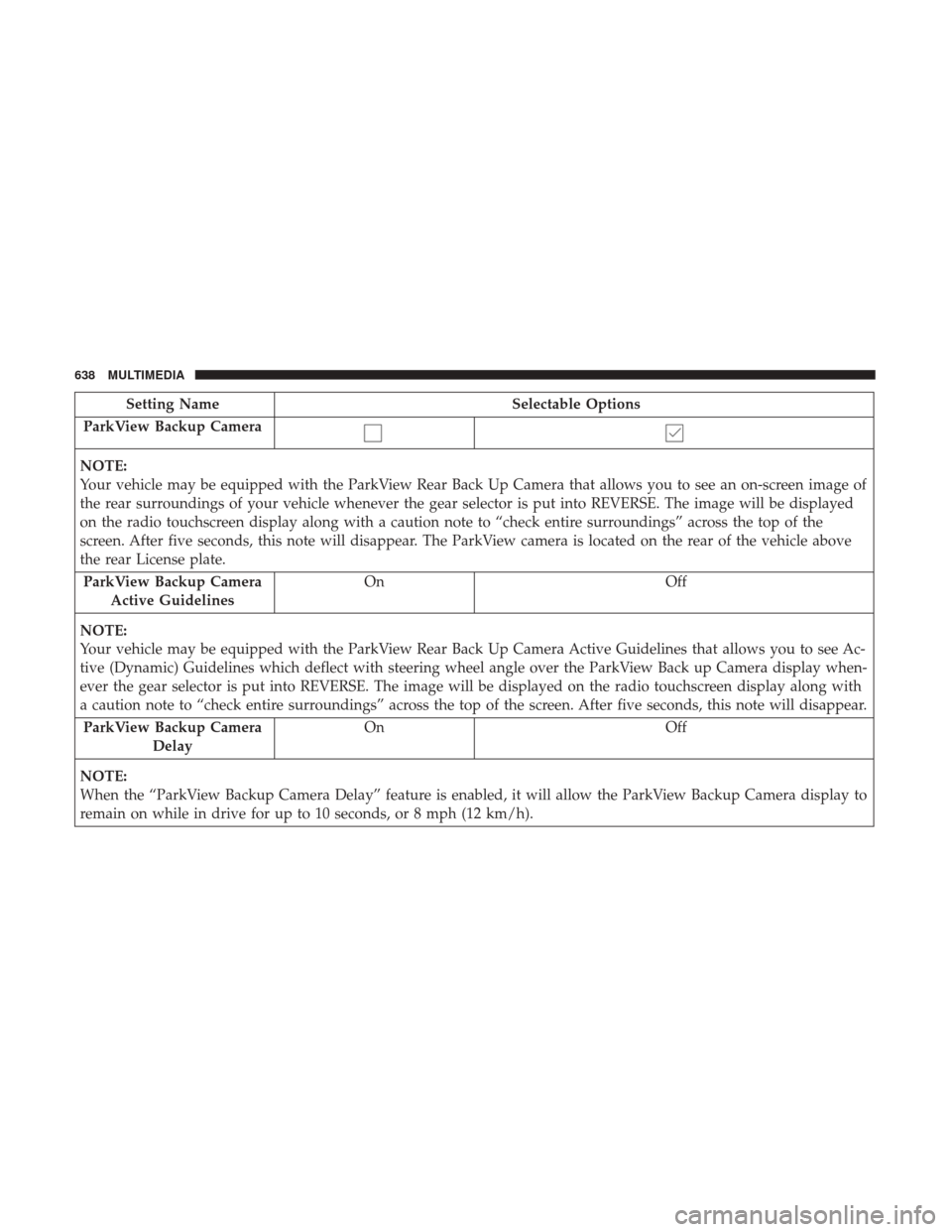
Setting NameSelectable Options
ParkView Backup Camera
NOTE:
Your vehicle may be equipped with the ParkView Rear Back Up Camera that allows you to see an on-screen image of
the rear surroundings of your vehicle whenever the gear selector is put into REVERSE. The image will be displayed
on the radio touchscreen display along with a caution note to “check entire surroundings” across the top of the
screen. After five seconds, this note will disappear. The ParkView camera is located on the rear of the vehicle above
the rear License plate. ParkView Backup Camera Active Guidelines On
Off
NOTE:
Your vehicle may be equipped with the ParkView Rear Back Up Camera Active Guidelines that allows you to see Ac-
tive (Dynamic) Guidelines which deflect with steering wheel angle over the ParkView Back up Camera display when-
ever the gear selector is put into REVERSE. The image will be displayed on the radio touchscreen display along with
a caution note to “check entire surroundings” across the top of the screen. After five seconds, this note will disappear. ParkView Backup Camera Delay On
Off
NOTE:
When the “ParkView Backup Camera Delay” feature is enabled, it will allow the ParkView Backup Camera display to
remain on while in drive for up to 10 seconds, or 8 mph (12 km/h).
638 MULTIMEDIA
Page 642 of 700
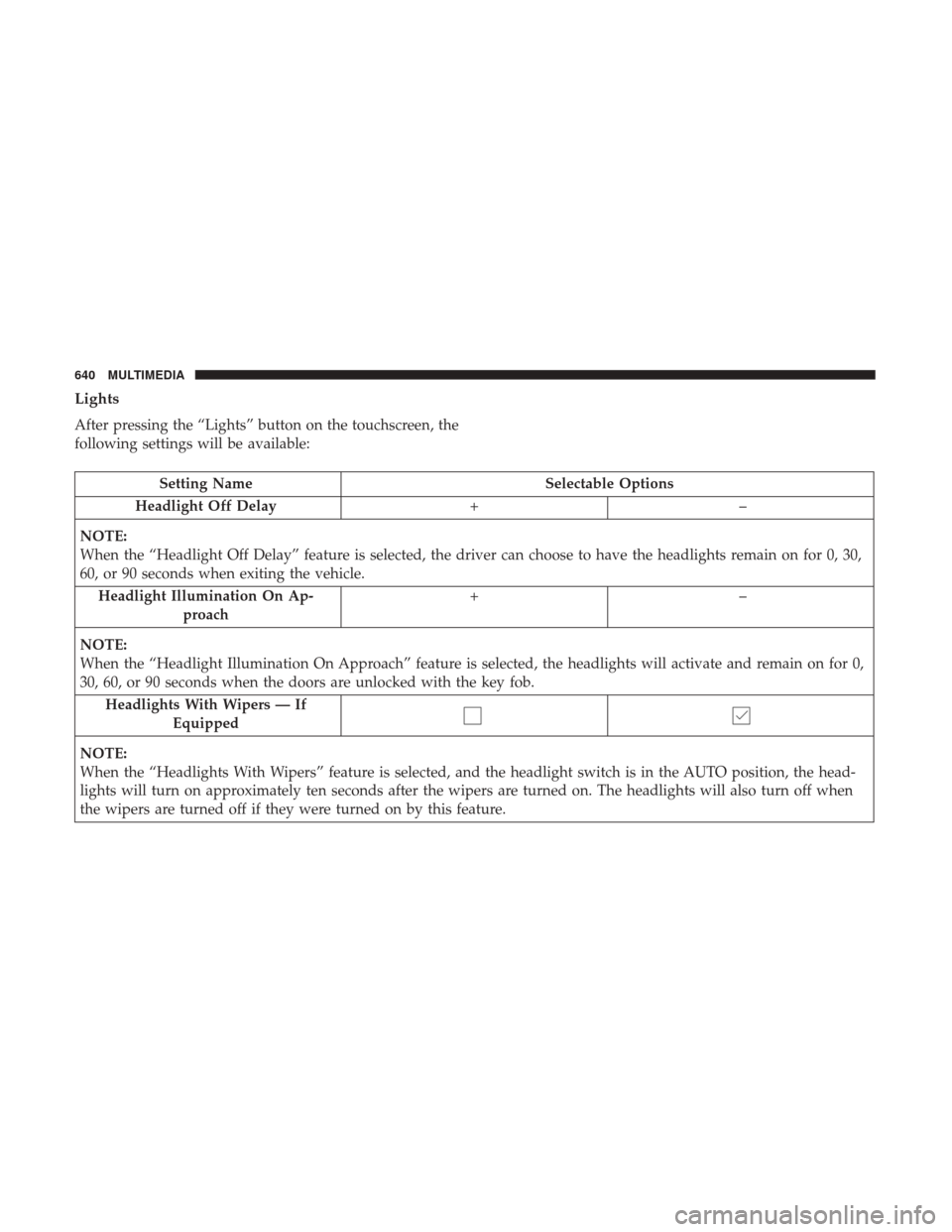
Lights
After pressing the “Lights” button on the touchscreen, the
following settings will be available:
Setting NameSelectable Options
Headlight Off Delay +–
NOTE:
When the “Headlight Off Delay” feature is selected, the driver can choose to have the headlights remain on for 0, 30,
60, or 90 seconds when exiting the vehicle. Headlight Illumination On Ap- proach +–
NOTE:
When the “Headlight Illumination On Approach” feature is selected, the headlights will activate and remain on for 0,
30, 60, or 90 seconds when the doors are unlocked with the key fob. Headlights With Wipers — If Equipped
NOTE:
When the “Headlights With Wipers” feature is selected, and the headlight switch is in the AUTO position, the head-
lights will turn on approximately ten seconds after the wipers are turned on. The headlights will also turn off when
the wipers are turned off if they were turned on by this feature.
640 MULTIMEDIA
Page 643 of 700
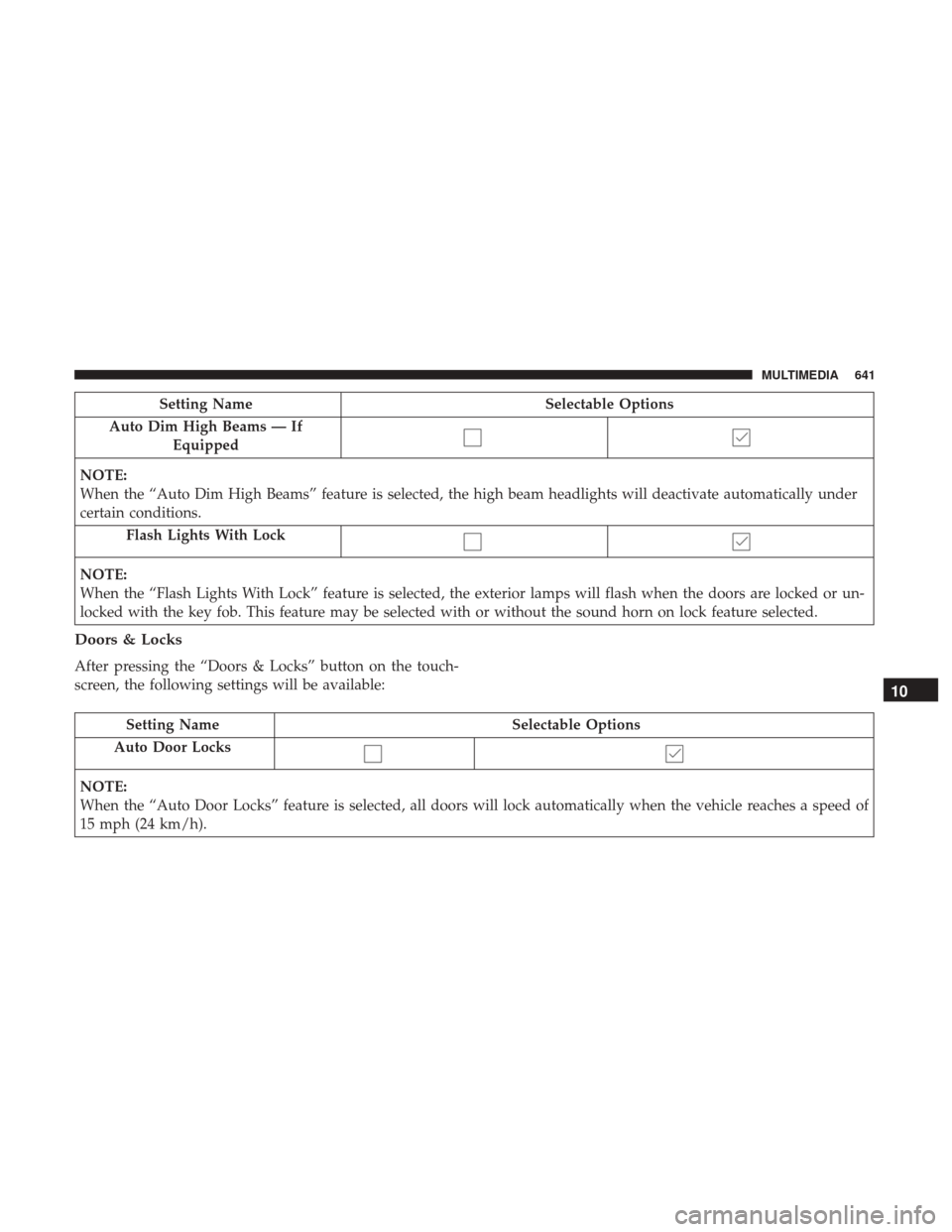
Setting NameSelectable Options
Auto Dim High Beams — If Equipped
NOTE:
When the “Auto Dim High Beams” feature is selected, the high beam headlights will deactivate automatically under
certain conditions.
Flash Lights With Lock
NOTE:
When the “Flash Lights With Lock” feature is selected, the exterior lamps will flash when the doors are locked or un-
locked with the key fob. This feature may be selected with or without the sound horn on lock feature selected.
Doors & Locks
After pressing the “Doors & Locks” button on the touch-
screen, the following settings will be available:
Setting Name Selectable Options
Auto Door Locks
NOTE:
When the “Auto Door Locks” feature is selected, all doors will lock automatically when the vehicle reaches a speed of
15 mph (24 km/h).
10
MULTIMEDIA 641
Page 646 of 700
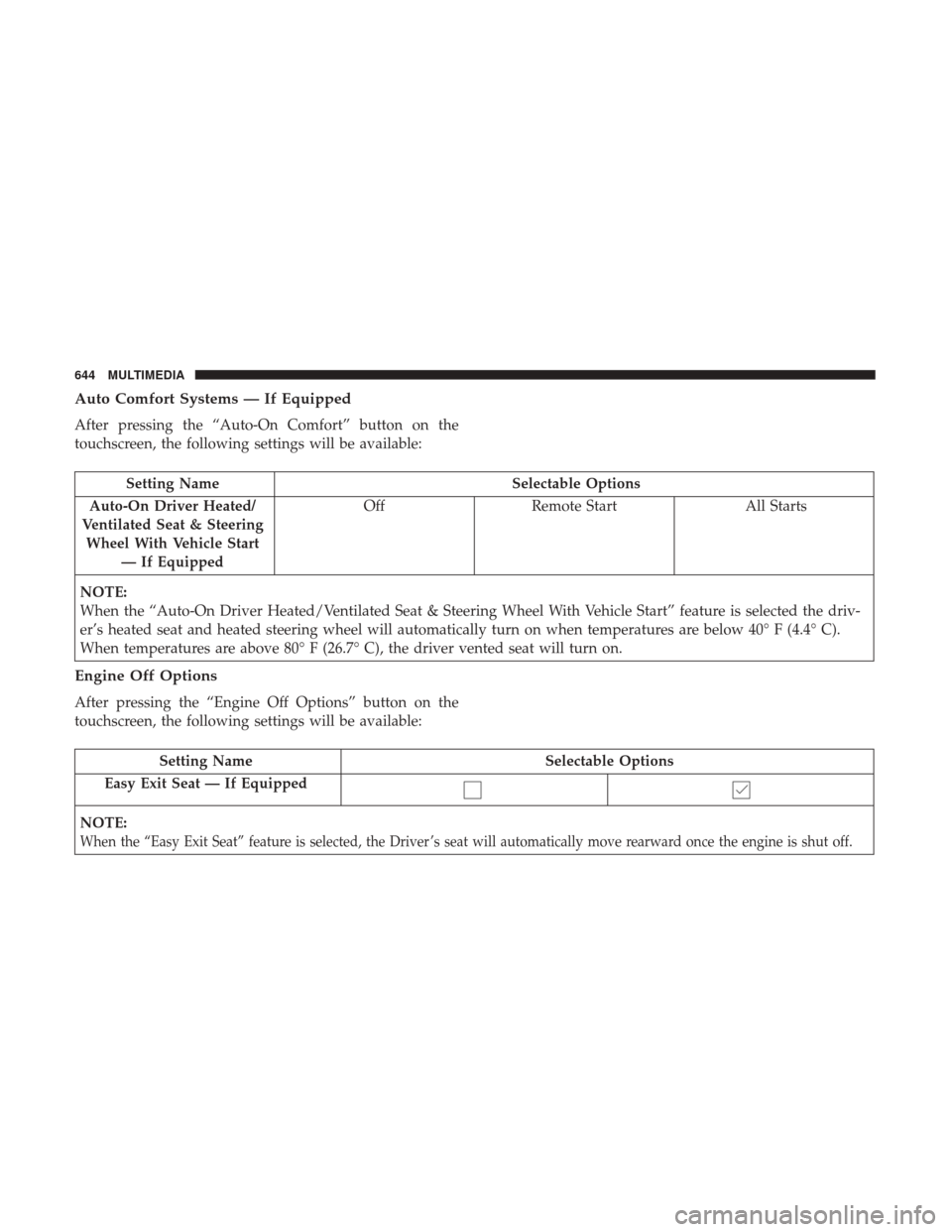
Auto Comfort Systems — If Equipped
After pressing the “Auto-On Comfort” button on the
touchscreen, the following settings will be available:
Setting NameSelectable Options
Auto-On Driver Heated/
Ventilated Seat & Steering Wheel With Vehicle Start — If Equipped Off
Remote Start All Starts
NOTE:
When the “Auto-On Driver Heated/Ventilated Seat & Steering Wheel With Vehicle Start” feature is selected the driv-
er’s heated seat and heated steering wheel will automatically turn on when temperatures are below 40° F (4.4° C).
When temperatures are above 80° F (26.7° C), the driver vented seat will turn on.
Engine Off Options
After pressing the “Engine Off Options” button on the
touchscreen, the following settings will be available:
Setting Name Selectable Options
Easy Exit Seat — If Equipped
NOTE:
When the “Easy Exit Seat” feature is selected, the Driver ’s seat will automatically move rearward once the engine is shut off.
644 MULTIMEDIA
Page 647 of 700
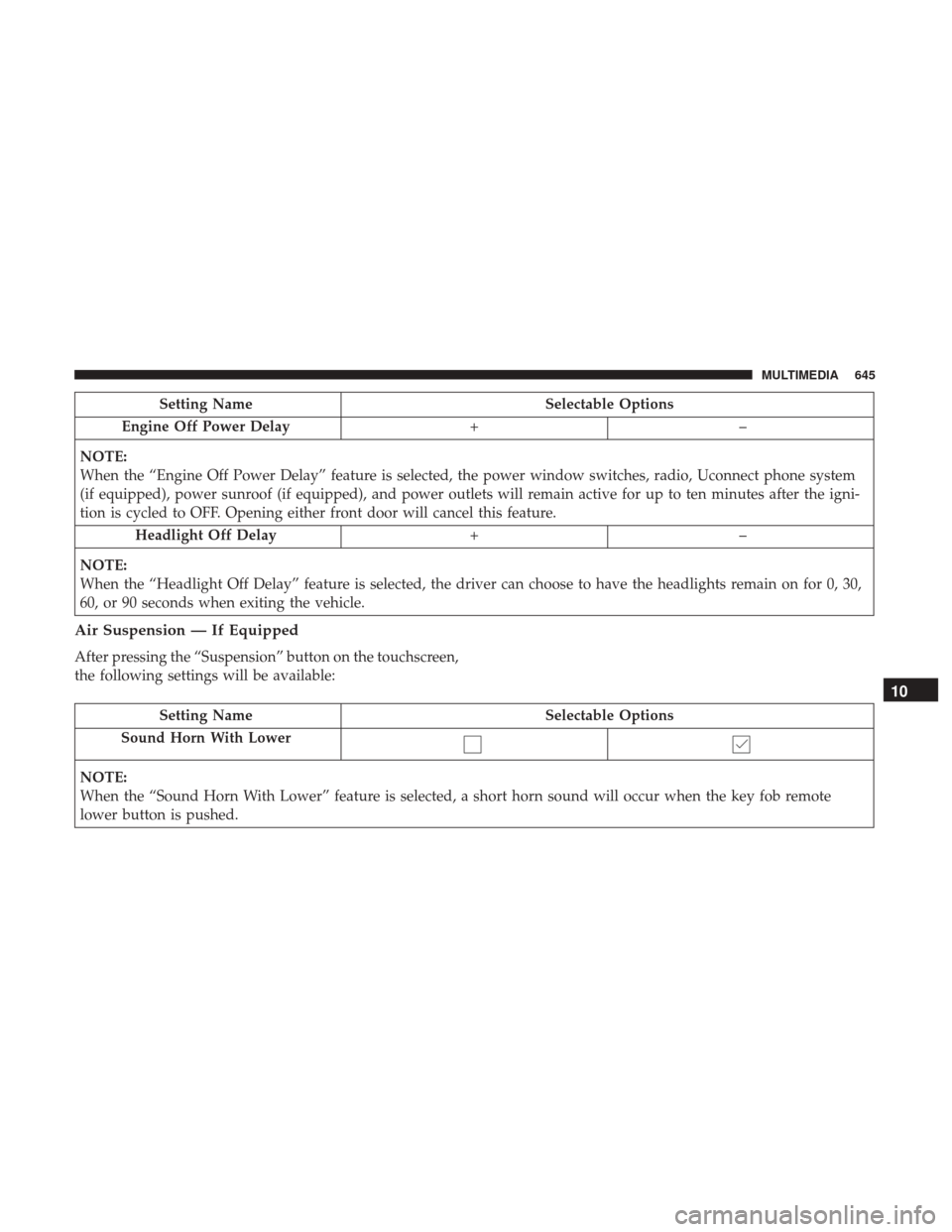
Setting NameSelectable Options
Engine Off Power Delay +–
NOTE:
When the “Engine Off Power Delay” feature is selected, the power window switches, radio, Uconnect phone system
(if equipped), power sunroof (if equipped), and power outlets will remain active for up to ten minutes after the igni-
tion is cycled to OFF. Opening either front door will cancel this feature. Headlight Off Delay +–
NOTE:
When the “Headlight Off Delay” feature is selected, the driver can choose to have the headlights remain on for 0, 30,
60, or 90 seconds when exiting the vehicle.
Air Suspension — If Equipped
After pressing the “Suspension” button on the touchscreen,
the following settings will be available:
Setting Name Selectable Options
Sound Horn With Lower
NOTE:
When the “Sound Horn With Lower” feature is selected, a short horn sound will occur when the key fob remote
lower button is pushed.
10
MULTIMEDIA 645
Page 649 of 700
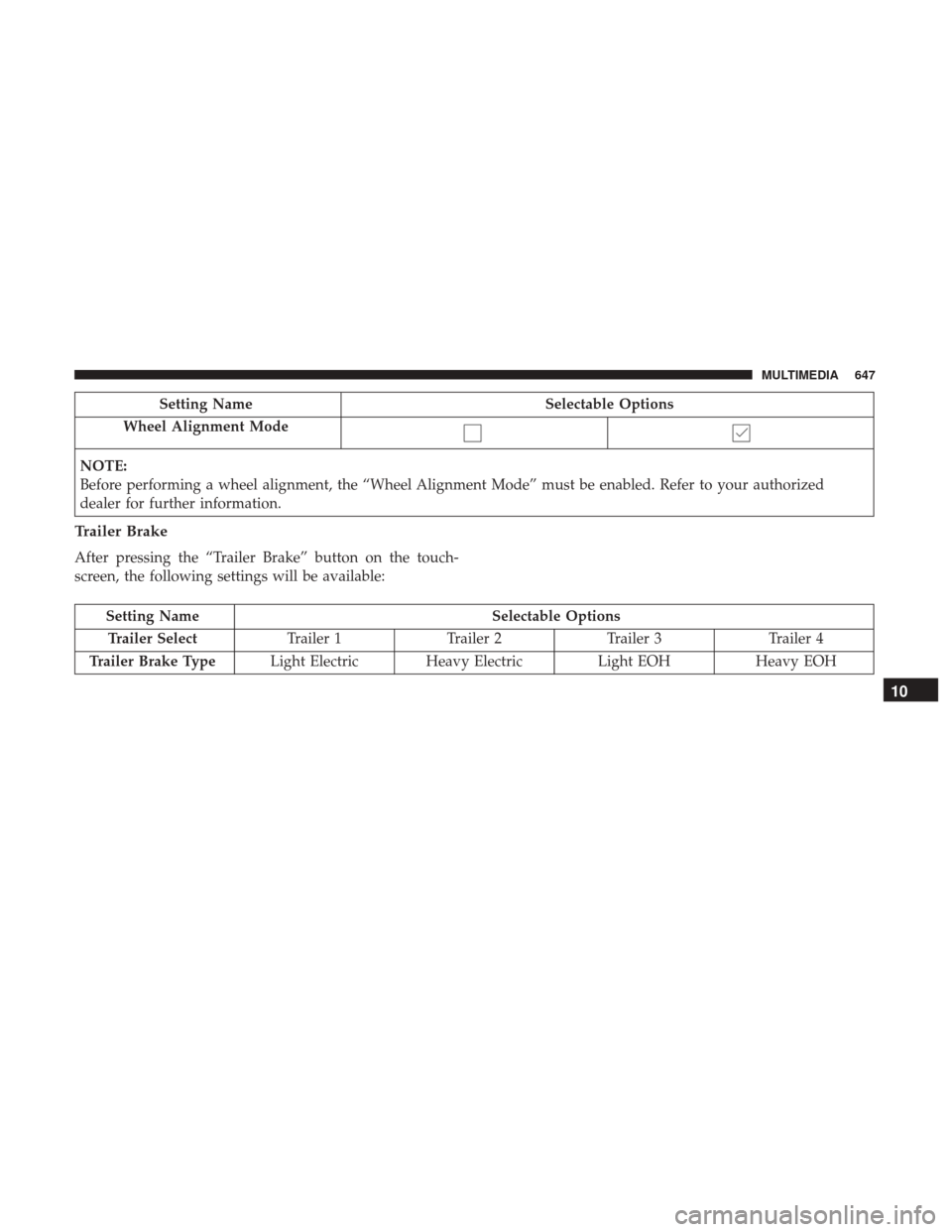
Setting NameSelectable Options
Wheel Alignment Mode
NOTE:
Before performing a wheel alignment, the “Wheel Alignment Mode” must be enabled. Refer to your authorized
dealer for further information.
Trailer Brake
After pressing the “Trailer Brake” button on the touch-
screen, the following settings will be available:
Setting Name Selectable Options
Trailer Select Trailer 1Trailer 2Trailer 3 Trailer 4
Trailer Brake Type Light Electric Heavy Electric Light EOHHeavy EOH
10
MULTIMEDIA 647
Page 650 of 700
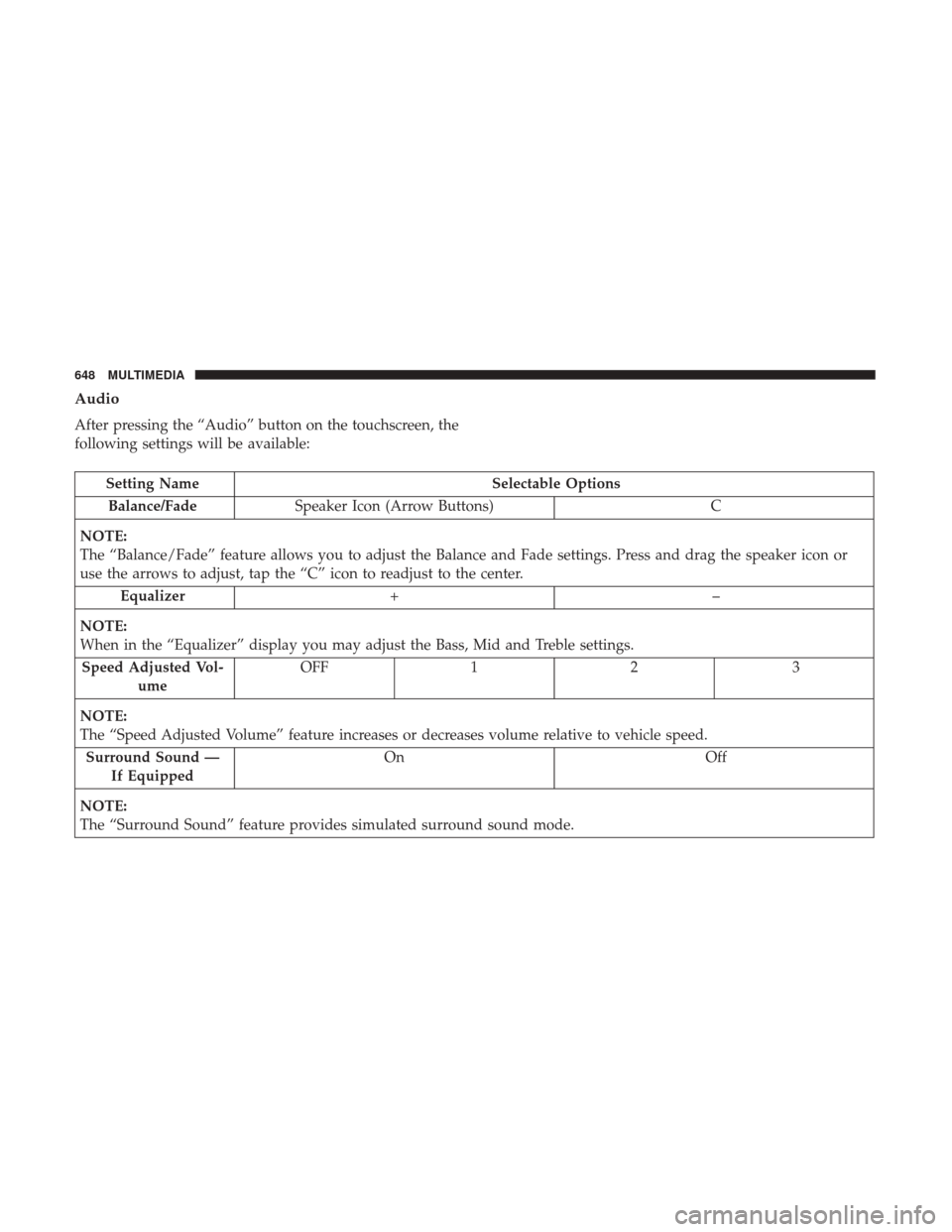
Audio
After pressing the “Audio” button on the touchscreen, the
following settings will be available:
Setting NameSelectable Options
Balance/Fade Speaker Icon (Arrow Buttons) C
NOTE:
The “Balance/Fade” feature allows you to adjust the Balance and Fade settings. Press and drag the speaker icon or
use the arrows to adjust, tap the “C” icon to readjust to the center. Equalizer +–
NOTE:
When in the “Equalizer” display you may adjust the Bass, Mid and Treble settings. Speed Adjusted Vol- ume OFF
12 3
NOTE:
The “Speed Adjusted Volume” feature increases or decreases volume relative to vehicle speed. Surround Sound — If Equipped On
Off
NOTE:
The “Surround Sound” feature provides simulated surround sound mode.
648 MULTIMEDIA
Page 651 of 700
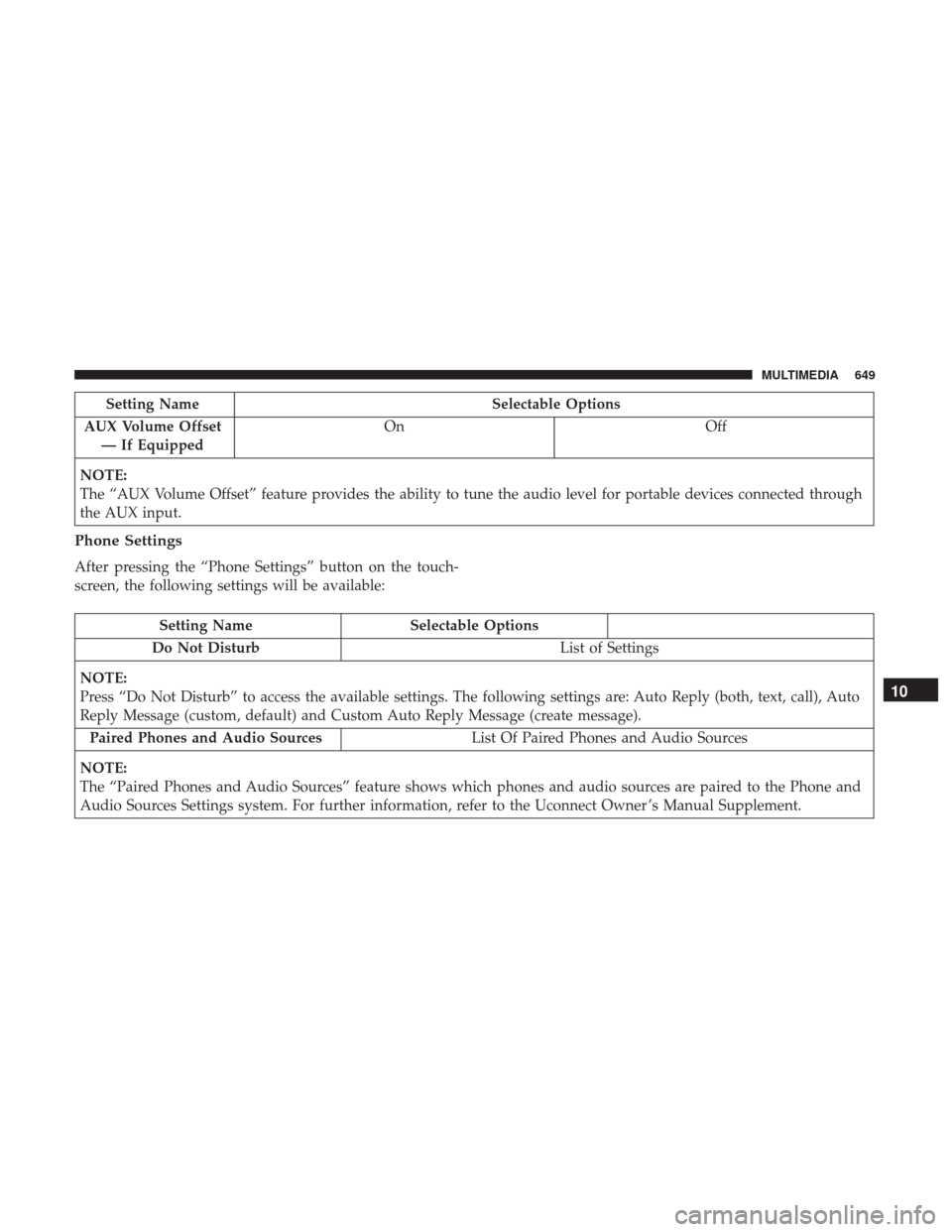
Setting NameSelectable Options
AUX Volume Offset — If Equipped On
Off
NOTE:
The “AUX Volume Offset” feature provides the ability to tune the audio level for portable devices connected through
the AUX input.
Phone Settings
After pressing the “Phone Settings” button on the touch-
screen, the following settings will be available:
Setting Name Selectable Options
Do Not Disturb List of Settings
NOTE:
Press “Do Not Disturb” to access the available settings. The following settings are: Auto Reply (both, text, call), Auto
Reply Message (custom, default) and Custom Auto Reply Message (create message). Paired Phones and Audio Sources List Of Paired Phones and Audio Sources
NOTE:
The “Paired Phones and Audio Sources” feature shows which phones and audio sources are paired to the Phone and
Audio Sources Settings system. For further information, refer to the Uconnect Owner ’s Manual Supplement.
10
MULTIMEDIA 649
Page 652 of 700
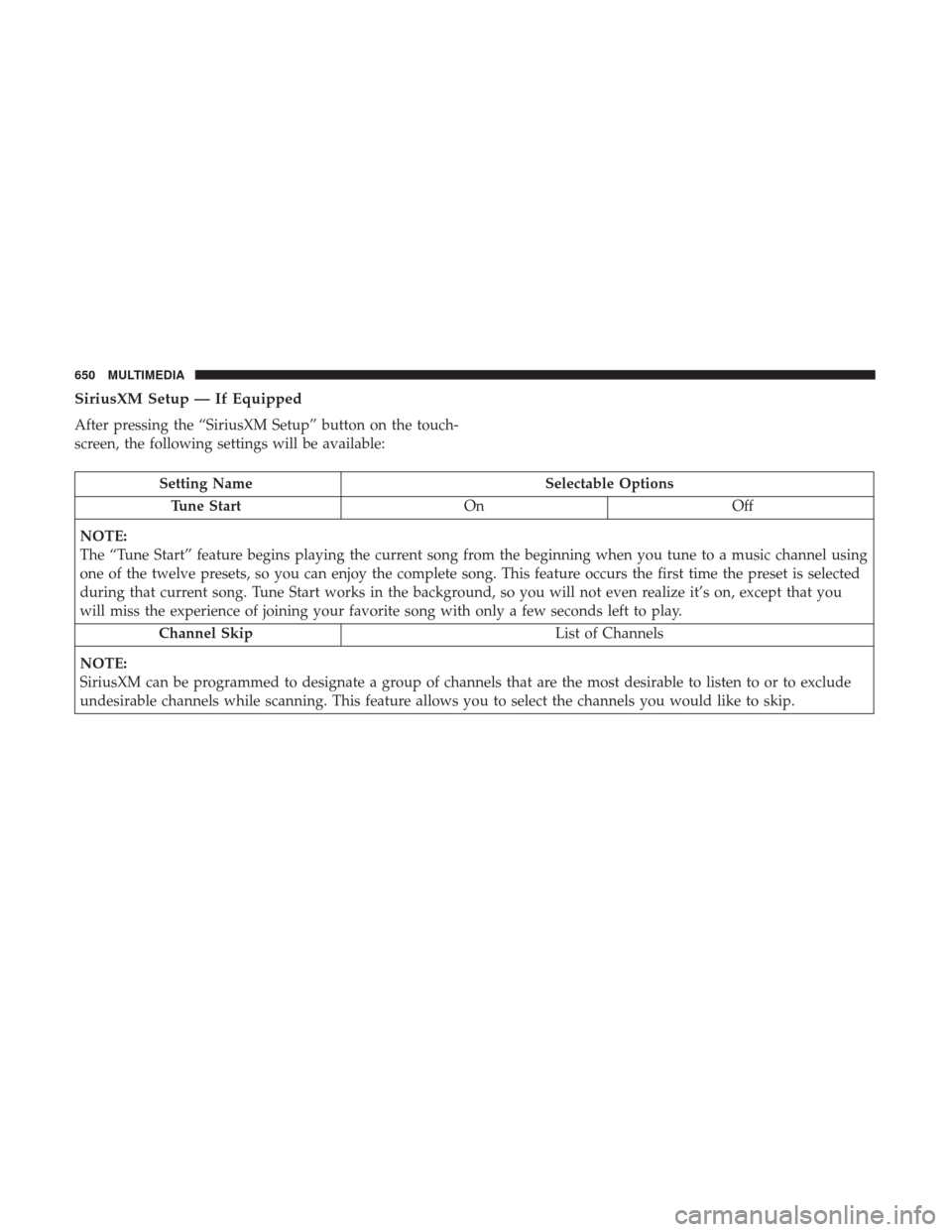
SiriusXM Setup — If Equipped
After pressing the “SiriusXM Setup” button on the touch-
screen, the following settings will be available:
Setting NameSelectable Options
Tune Start OnOff
NOTE:
The “Tune Start” feature begins playing the current song from the beginning when you tune to a music channel using
one of the twelve presets, so you can enjoy the complete song. This feature occurs the first time the preset is selected
during that current song. Tune Start works in the background, so you will not even realize it’s on, except that you
will miss the experience of joining your favorite song with only a few seconds left to play. Channel Skip List of Channels
NOTE:
SiriusXM can be programmed to designate a group of channels that are the most desirable to listen to or to exclude
undesirable channels while scanning. This feature allows you to select the channels you would like to skip.
650 MULTIMEDIA
Page 653 of 700
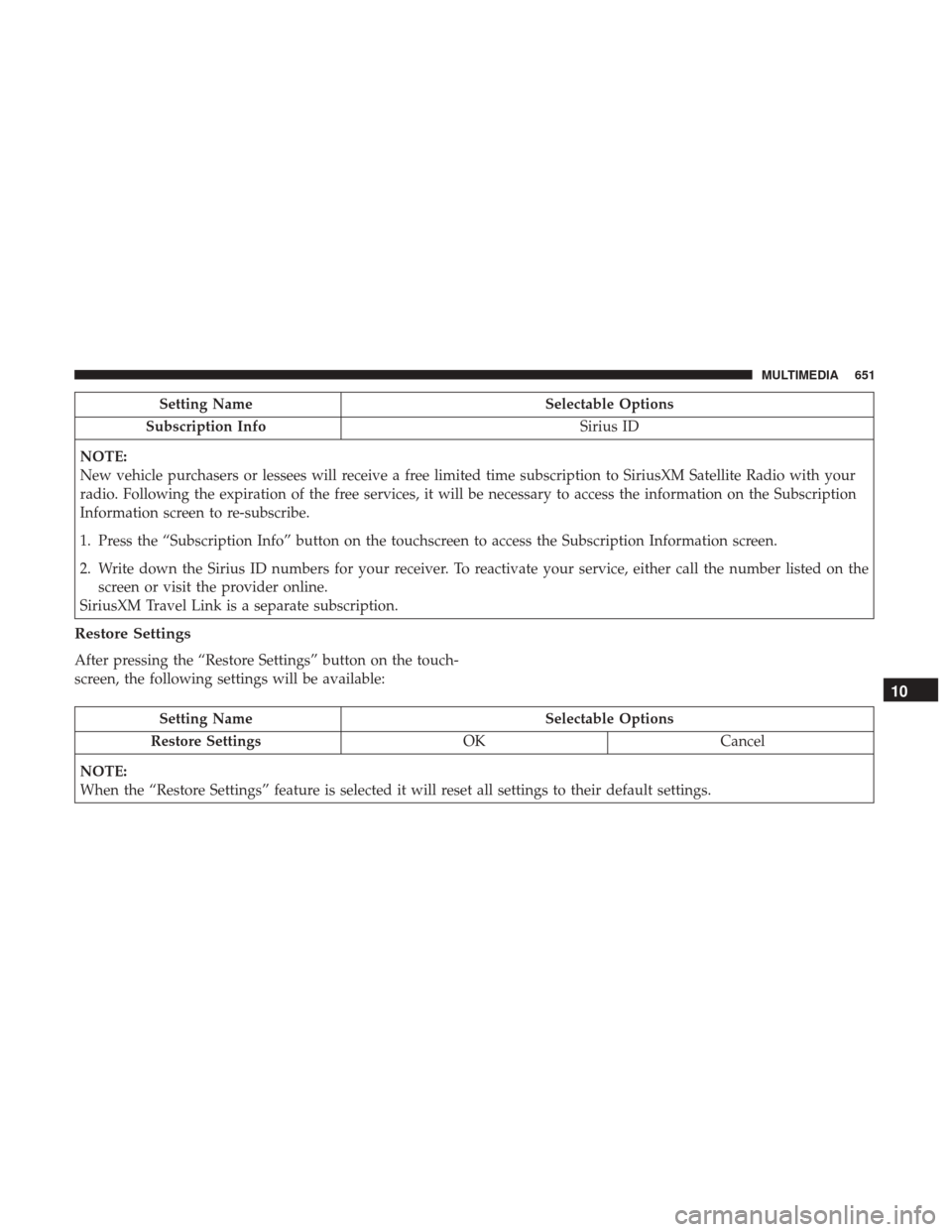
Setting NameSelectable Options
Subscription Info Sirius ID
NOTE:
New vehicle purchasers or lessees will receive a free limited time subscription to SiriusXM Satellite Radio with your
radio. Following the expiration of the free services, it will be necessary to access the information on the Subscription
Information screen to re-subscribe.
1. Press the “Subscription Info” button on the touchscreen to access the Subscription Information screen.
2. Write down the Sirius ID numbers for your receiver. To reactivate your service, either call the number listed on the screen or visit the provider online.
SiriusXM Travel Link is a separate subscription.
Restore Settings
After pressing the “Restore Settings” button on the touch-
screen, the following settings will be available:
Setting Name Selectable Options
Restore Settings OKCancel
NOTE:
When the “Restore Settings” feature is selected it will reset all settings to their default settings.
10
MULTIMEDIA 651