I connect Ram 1500 2019 Owner's Manual
[x] Cancel search | Manufacturer: RAM, Model Year: 2019, Model line: 1500, Model: Ram 1500 2019Pages: 698, PDF Size: 9.04 MB
Page 663 of 698
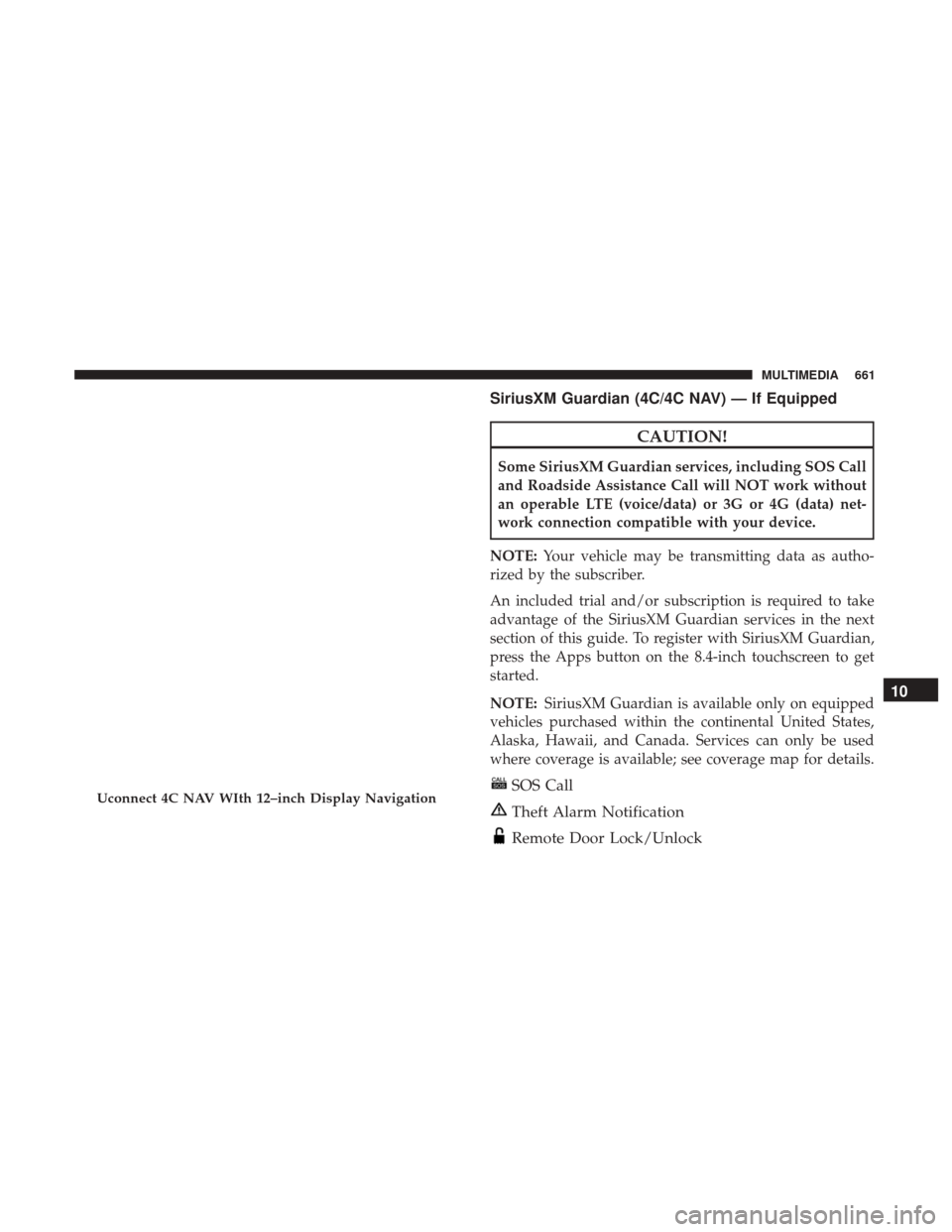
SiriusXM Guardian (4C/4C NAV) — If Equipped
CAUTION!
Some SiriusXM Guardian services, including SOS Call
and Roadside Assistance Call will NOT work without
an operable LTE (voice/data) or 3G or 4G (data) net-
work connection compatible with your device.
NOTE: Your vehicle may be transmitting data as autho-
rized by the subscriber.
An included trial and/or subscription is required to take
advantage of the SiriusXM Guardian services in the next
section of this guide. To register with SiriusXM Guardian,
press the Apps button on the 8.4-inch touchscreen to get
started.
NOTE: SiriusXM Guardian is available only on equipped
vehicles purchased within the continental United States,
Alaska, Hawaii, and Canada. Services can only be used
where coverage is available; see coverage map for details.
SOS Call
Theft Alarm Notification
Remote Door Lock/Unlock
Uconnect 4C NAV WIth 12–inch Display Navigation
10
MULTIMEDIA 661
Page 665 of 698
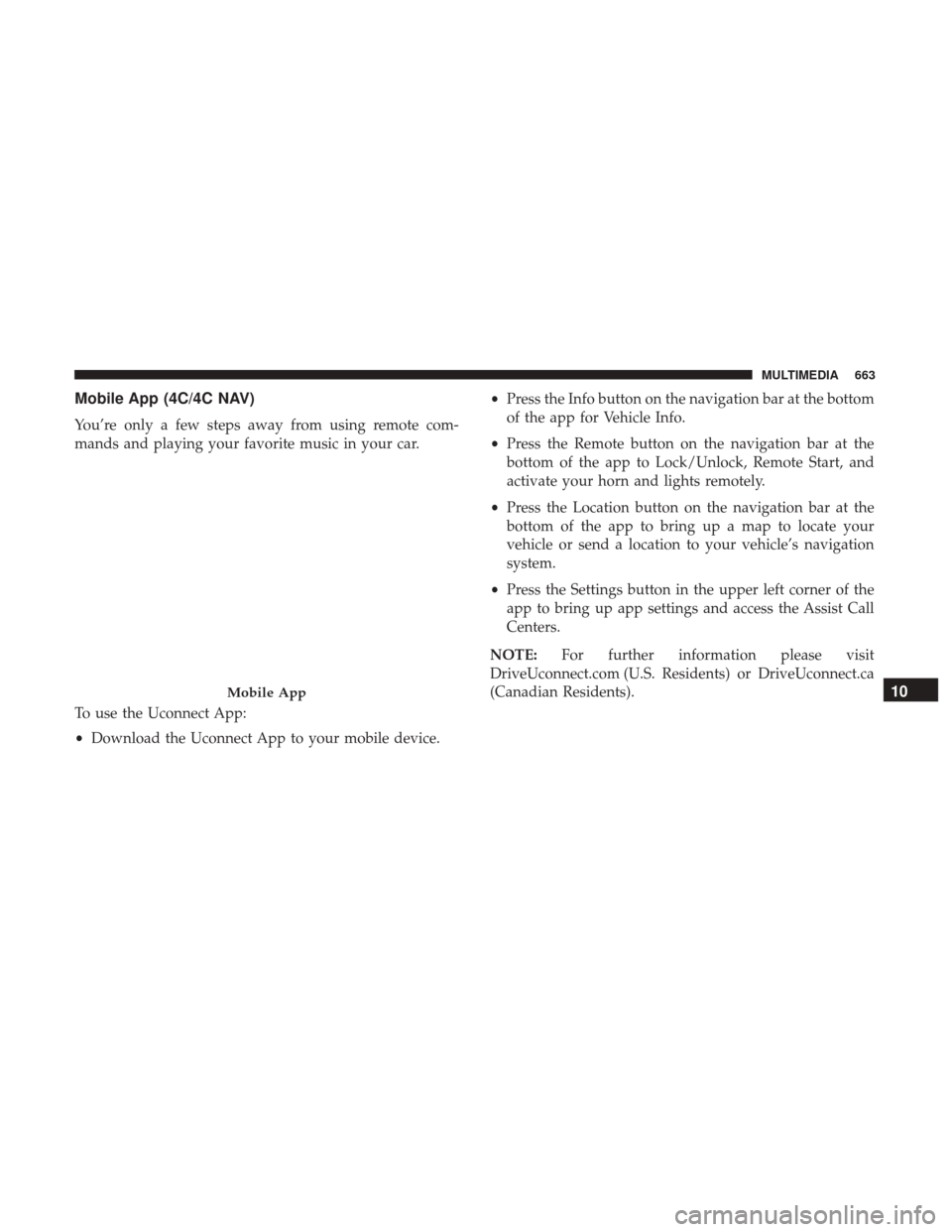
Mobile App (4C/4C NAV)
You’re only a few steps away from using remote com-
mands and playing your favorite music in your car.
To use the Uconnect App:
•Download the Uconnect App to your mobile device. •
Press the Info button on the navigation bar at the bottom
of the app for Vehicle Info.
• Press the Remote button on the navigation bar at the
bottom of the app to Lock/Unlock, Remote Start, and
activate your horn and lights remotely.
• Press the Location button on the navigation bar at the
bottom of the app to bring up a map to locate your
vehicle or send a location to your vehicle’s navigation
system.
• Press the Settings button in the upper left corner of the
app to bring up app settings and access the Assist Call
Centers.
NOTE: For further information please visit
DriveUconnect.com (U.S. Residents) or DriveUconnect.ca
(Canadian Residents).
Mobile App10
MULTIMEDIA 663
Page 666 of 698
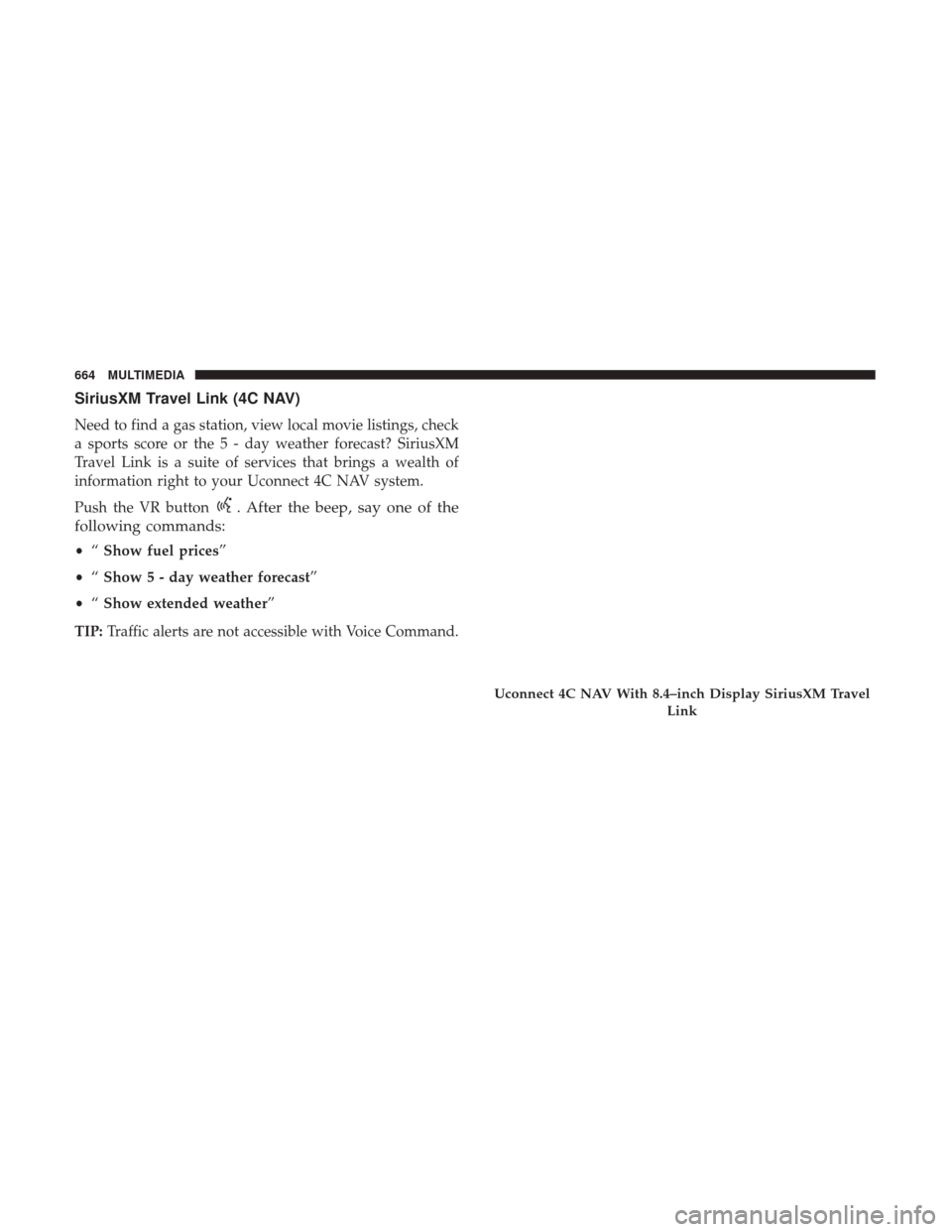
SiriusXM Travel Link (4C NAV)
Need to find a gas station, view local movie listings, check
a sports score or the 5 - day weather forecast? SiriusXM
Travel Link is a suite of services that brings a wealth of
information right to your Uconnect 4C NAV system.
Push the VR button
. After the beep, say one of the
following commands:
• “Show fuel prices”
• “Show 5 - day weather forecast”
• “Show extended weather”
TIP: Traffic alerts are not accessible with Voice Command.
Uconnect 4C NAV With 8.4–inch Display SiriusXM Travel
Link
664 MULTIMEDIA
Page 667 of 698
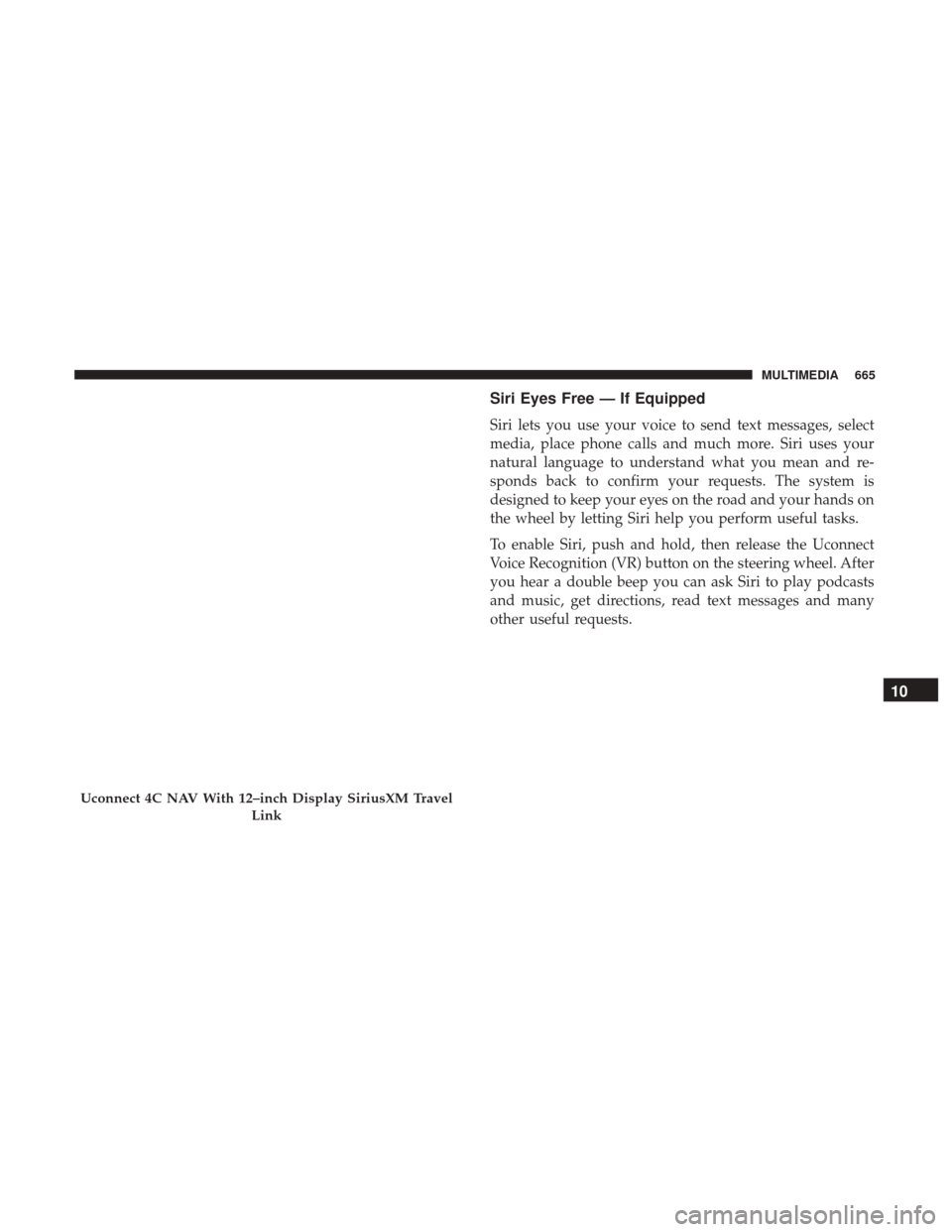
Siri Eyes Free — If Equipped
Siri lets you use your voice to send text messages, select
media, place phone calls and much more. Siri uses your
natural language to understand what you mean and re-
sponds back to confirm your requests. The system is
designed to keep your eyes on the road and your hands on
the wheel by letting Siri help you perform useful tasks.
To enable Siri, push and hold, then release the Uconnect
Voice Recognition (VR) button on the steering wheel. After
you hear a double beep you can ask Siri to play podcasts
and music, get directions, read text messages and many
other useful requests.
Uconnect 4C NAV With 12–inch Display SiriusXM TravelLink
10
MULTIMEDIA 665
Page 668 of 698
Uconnect 4C/4C NAV With 8.4–inch Siri Eyes FreeAvailable
Uconnect 4C NAV With 12–inch Siri Eyes Free Available
666 MULTIMEDIA
Page 669 of 698
Using Do Not Disturb
With Do Not Disturb, you can disable notifications from
incoming calls and texts, allowing you to keep your eyes
on the road and hands on the wheel. For your convenience,
there is a counter display to keep track of your missed calls
and text messages while you were using Do Not Disturb.
Do Not Disturb can automatically reply with a text mes-
sage, a call or both, when declining an incoming call and
send it to voicemail.
Automatic reply messages can be:
•“I am driving right now, I will get back to you shortly.”
• Create a custom auto reply message up to 160 characters.
While in Do Not Disturb, Conference Call can be selected
so you can still place a second call without being inter-
rupted by incoming calls.
NOTE:
• Only the beginning of your custom message will be seen
on the touchscreen.
• Reply with text message is not compatible with iPhones.
• Auto reply with text message is only available on
phones that supporting Bluetooth MAP.
Android Auto — If Equipped
NOTE: Feature availability depends on your carrier and
mobile phone manufacturer. Some Android Auto features
may or may not be available in every region and/or
language.
Android Auto allows you to use your voice to interact with
Android’s best-in-class speech technology through your
vehicle’s voice recognition system, and use your smart-
phone’s data plan to project your Android powered smart-
phone and a number of its apps onto your Uconnect
touchscreen. Connect your Android 5.0 (Lollipop), or
higher, to one of the media USB ports, using the factory-
provided USB cable, and press the new Android Auto icon
that replaces your “Phone” icon on the main menu bar to
begin Android Auto. Push and hold the VR button on the
steering wheel, or press and hold the “Microphone” icon
within Android Auto, to activate Android’s VR, which
recognizes natural voice commands, to use a list of your
smartphone’s features:
• Maps
• Music
10
MULTIMEDIA 667
Page 670 of 698
•Phone
• Text Messages
• Additional Apps
Refer to your Uconnect Owner ’s Manual Supplement for
further information.
Uconnect 4/4C/4C NAV With 8.4–inch Display AndroidAutoUconnect 4C NAV With 12–inch Display Android Auto
668 MULTIMEDIA
Page 671 of 698
NOTE:Requires compatible smartphone running
Android™ 5.0 Lollipop or higher and download app on
Google Play. Android, Android Auto, and Google Play are
trademarks of Google Inc.
Apple CarPlay — If Equipped
NOTE: Feature availability depends on your carrier and
mobile phone manufacturer. Some Apple CarPlay features
may or may not be available in every region and/or
language.
Apple CarPlay allows you to use your voice to interact
with Siri through your vehicle’s voice recognition system,
and use your smartphone’s data plan to project your
iPhone and a number of its apps onto your Uconnect
touchscreen. Connect your iPhone 5, or higher, to one of
the media USB ports, using the factory-provided Lightning
cable, and press the new CarPlay icon that replaces your
“Phone” icon on the main menu bar to begin Apple
CarPlay. Press and hold the VR button on the steering
wheel, or press and hold the “Home” button within Apple
CarPlay, to activate Siri, which recognizes natural voice
commands to use a list of your iPhone’s features:
• Phone
• Music •
Messages
• Maps
• Additional Apps
Uconnect 4/4C/4C NAV With 8.4–inch Display Apple
CarPlay
10
MULTIMEDIA 669
Page 672 of 698
Refer to your Uconnect Owner ’s Manual Supplement for
further information.NOTE:
Requires compatible iPhone. See dealer for phone
compatibility. Data plan rates apply. Vehicle user interface
is a product of Apple®. Apple CarPlay is a trademark of
Apple Inc. iPhone is a trademark of Apple Inc., registered
in the US and other countries. Apple terms of use and
privacy statements apply.
General Information
The following regulatory statement applies to all Radio
Frequency (RF) devices equipped in this vehicle:
This device complies with Part 15 of the FCC Rules and
with Industry Canada license-exempt RSS standard(s).
Operation is subject to the following two conditions:
1. This device may not cause harmful interference, and
2. This device must accept any interference received, in- cluding interference that may cause undesired opera-
tion.
NOTE: Changes or modifications not expressly approved
by the party responsible for compliance could void the
user ’s authority to operate the equipment.
Uconnect 4C NAV With 12–inch Display Apple CarPlay
670 MULTIMEDIA
Page 673 of 698
Additional Information
© 2018 FCA US LLC. All rights reserved. Mopar and
Uconnect are registered trademarks and Mopar Owner
Connect is a trademark of FCA US LLC. Android is a
trademark of Google Inc. SiriusXM and all related marks
and logos are trademarks of SiriusXM Radio Inc.
Uconnect System Support:
•U.S. residents visit DriveUconnect.com or call: 1-877-
855-8400 (24 hours a day 7 days a week)
• Canadian residents visit DriveUconnect.ca or call: 1-800-
465-2001 (English) or 1-800-387-9983 (French)
SiriusXM Guardian services support:
• U.S. residents visit www.siriusxm.com/guardian or call:
1-844-796-4827
• Canadian residents visit www.siriusxm.ca/guardian or
call: 1-877-324-9091
CD/DVD DISC MAINTENANCE
To keep a CD/DVD in good condition, take the following
precautions:
1. Handle the disc by its edge; avoid touching the surface.
2. If the disc is stained, clean the surface with a soft cloth, wiping from center to edge.
3. Do not apply paper or tape to the disc; avoid scratching the disc.
4. Do not use solvents such as benzene, thinner, cleaners, or anti-static sprays.
5. Store the disc in its case after playing.
6. Do not expose the disc to direct sunlight.
7. Do not store the disc where temperatures may become too high.
NOTE: If you experience difficulty in playing a particular
disc, it may be damaged (e.g., scratched, reflective coating
removed, a hair, moisture or dew on the disc), oversized, or
have protection encoding. Try a known good disc before
considering disc player service.
10
MULTIMEDIA 671