steering wheel Ram 1500 2019 Repair Manual
[x] Cancel search | Manufacturer: RAM, Model Year: 2019, Model line: 1500, Model: Ram 1500 2019Pages: 698, PDF Size: 9.04 MB
Page 584 of 698
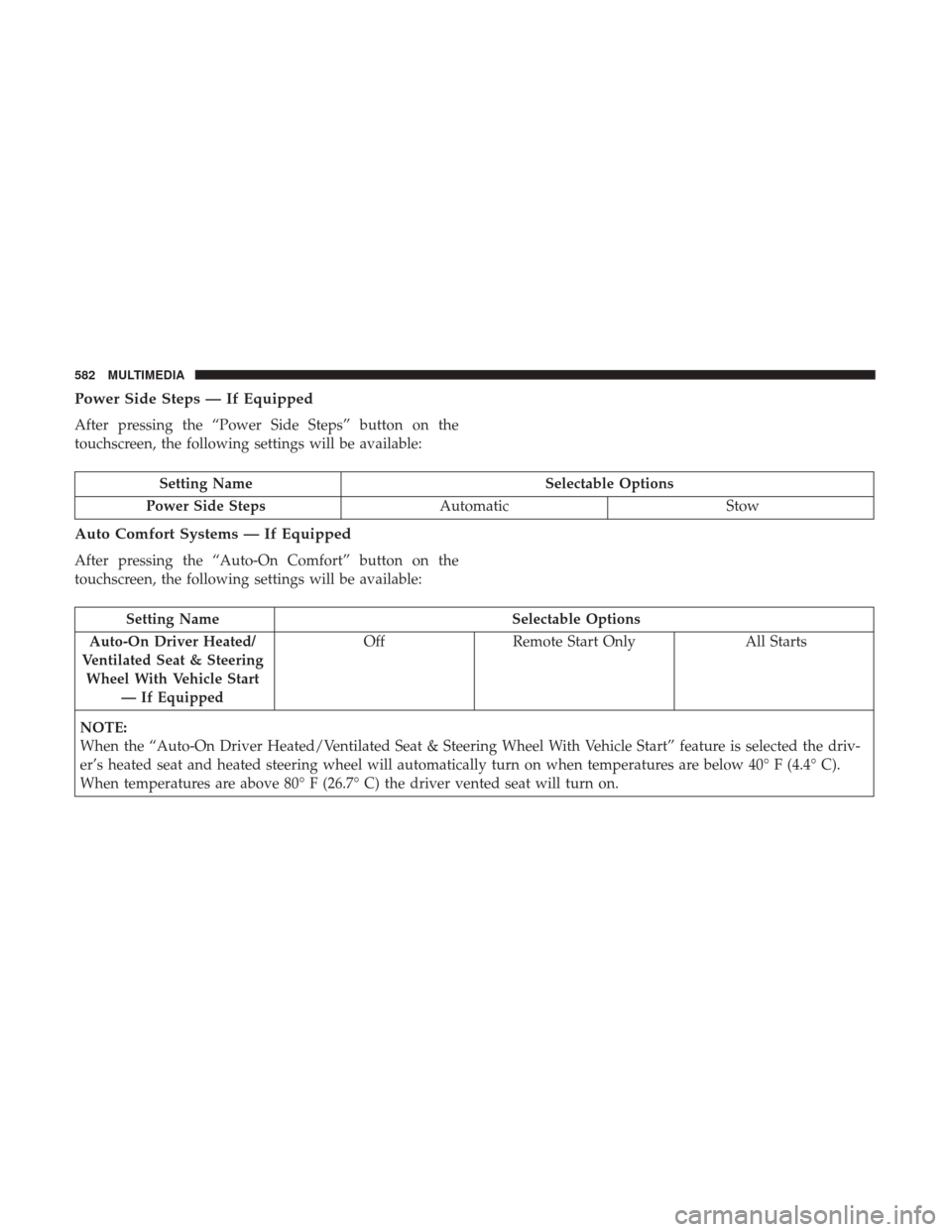
Power Side Steps — If Equipped
After pressing the “Power Side Steps” button on the
touchscreen, the following settings will be available:
Setting NameSelectable Options
Power Side Steps AutomaticStow
Auto Comfort Systems — If Equipped
After pressing the “Auto-On Comfort” button on the
touchscreen, the following settings will be available:
Setting Name Selectable Options
Auto-On Driver Heated/
Ventilated Seat & Steering Wheel With Vehicle Start — If Equipped Off
Remote Start Only All Starts
NOTE:
When the “Auto-On Driver Heated/Ventilated Seat & Steering Wheel With Vehicle Start” feature is selected the driv-
er’s heated seat and heated steering wheel will automatically turn on when temperatures are below 40° F (4.4° C).
When temperatures are above 80° F (26.7° C) the driver vented seat will turn on.
582 MULTIMEDIA
Page 600 of 698
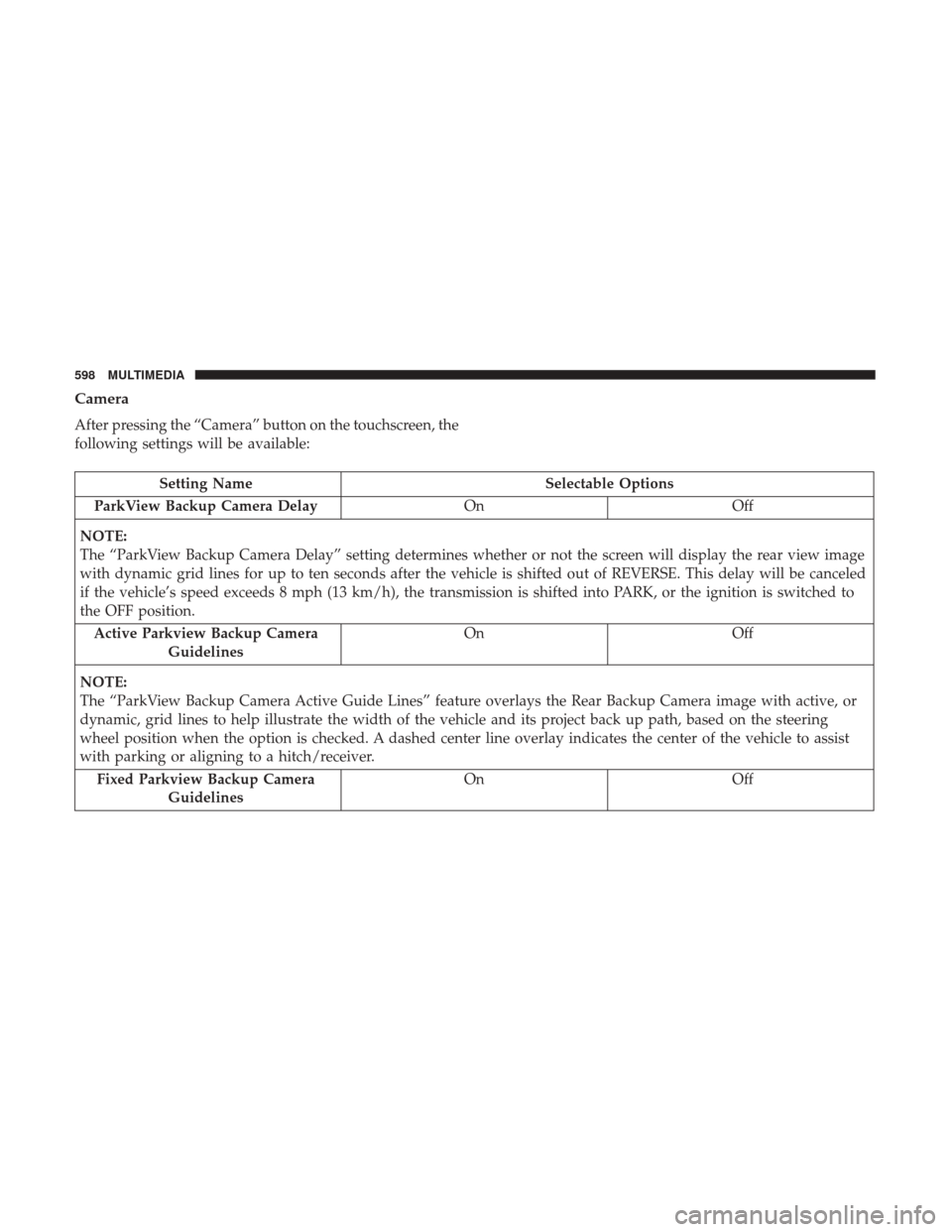
Camera
After pressing the “Camera” button on the touchscreen, the
following settings will be available:
Setting NameSelectable Options
ParkView Backup Camera Delay OnOff
NOTE:
The “ParkView Backup Camera Delay” setting determines whether or not the screen will display the rear view image
with dynamic grid lines for up to ten seconds after the vehicle is shifted out of REVERSE. This delay will be canceled
if the vehicle’s speed exceeds 8 mph (13 km/h), the transmission is shifted into PARK, or the ignition is switched to
the OFF position. Active Parkview Backup Camera Guidelines On
Off
NOTE:
The “ParkView Backup Camera Active Guide Lines” feature overlays the Rear Backup Camera image with active, or
dynamic, grid lines to help illustrate the width of the vehicle and its project back up path, based on the steering
wheel position when the option is checked. A dashed center line overlay indicates the center of the vehicle to assist
with parking or aligning to a hitch/receiver. Fixed Parkview Backup Camera Guidelines On
Off
598 MULTIMEDIA
Page 601 of 698
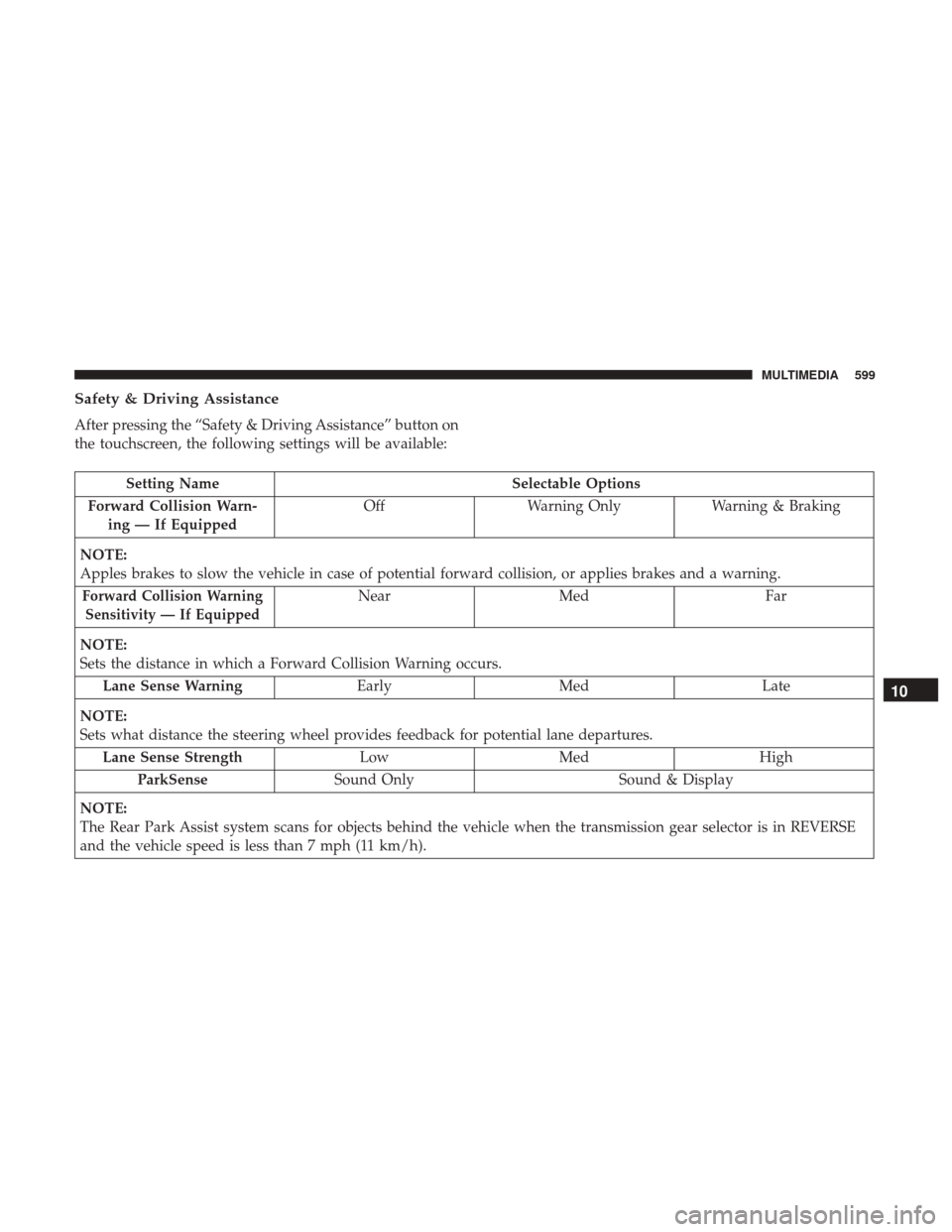
Safety & Driving Assistance
After pressing the “Safety & Driving Assistance” button on
the touchscreen, the following settings will be available:
Setting NameSelectable Options
Forward Collision Warn- ing — If Equipped Off
Warning Only Warning & Braking
NOTE:
Apples brakes to slow the vehicle in case of potential forward collision, or applies brakes and a warning.
Forward Collision Warning Sensitivity — If EquippedNear Med Far
NOTE:
Sets the distance in which a Forward Collision Warning occurs. Lane Sense Warning EarlyMed Late
NOTE:
Sets what distance the steering wheel provides feedback for potential lane departures. Lane Sense Strength LowMed High
ParkSense Sound Only Sound & Display
NOTE:
The Rear Park Assist system scans for objects behind the vehicle when the transmission gear selector is in REVERSE
and the vehicle speed is less than 7 mph (11 km/h).
10
MULTIMEDIA 599
Page 609 of 698
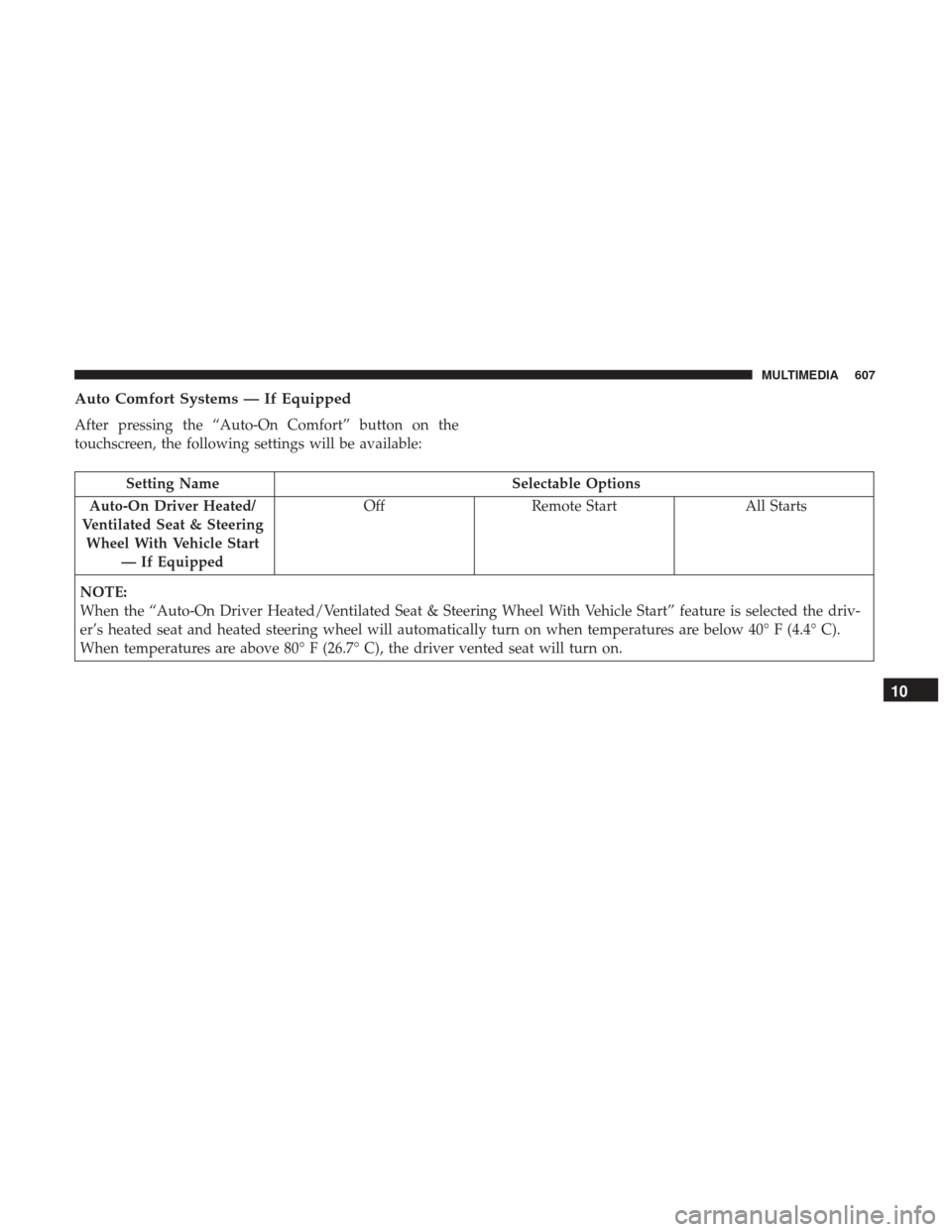
Auto Comfort Systems — If Equipped
After pressing the “Auto-On Comfort” button on the
touchscreen, the following settings will be available:
Setting NameSelectable Options
Auto-On Driver Heated/
Ventilated Seat & Steering Wheel With Vehicle Start — If Equipped Off
Remote Start All Starts
NOTE:
When the “Auto-On Driver Heated/Ventilated Seat & Steering Wheel With Vehicle Start” feature is selected the driv-
er’s heated seat and heated steering wheel will automatically turn on when temperatures are below 40° F (4.4° C).
When temperatures are above 80° F (26.7° C), the driver vented seat will turn on.
10
MULTIMEDIA 607
Page 624 of 698
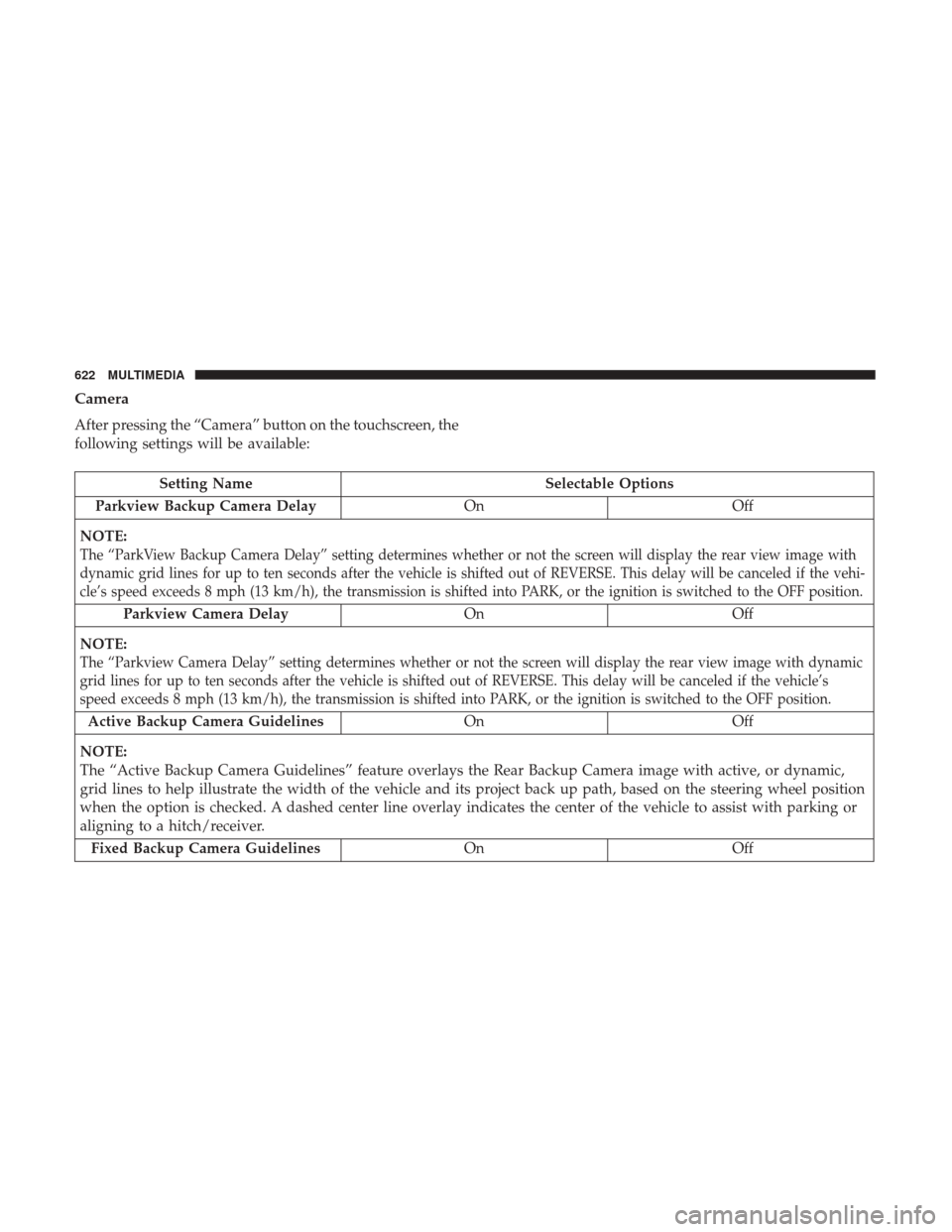
Camera
After pressing the “Camera” button on the touchscreen, the
following settings will be available:
Setting NameSelectable Options
Parkview Backup Camera Delay OnOff
NOTE:
The “ParkView Backup Camera Delay” setting determines whether or not the screen will display the rear view image with
dynamic grid lines for up to ten seconds after the vehicle is shifted out of REVERSE. This delay will be canceled if the vehi-
cle’s speed exceeds 8 mph (13 km/h), the transmission is shifted into PARK, or the ignition is switched to the OFF position.
Parkview Camera Delay On Off
NOTE:
The “Parkview Camera Delay” setting determines whether or not the screen will display the rear view image with dynamic
grid lines for up to ten seconds after the vehicle is shifted out of REVERSE. This delay will be canceled if the vehicle’s
speed exceeds 8 mph (13 km/h), the transmission is shifted into PARK, or the ignition is switched to the OFF position.
Active Backup Camera Guidelines On Off
NOTE:
The “Active Backup Camera Guidelines” feature overlays the Rear Backup Camera image with active, or dynamic,
grid lines to help illustrate the width of the vehicle and its project back up path, based on the steering wheel position
when the option is checked. A dashed center line overlay indicates the center of the vehicle to assist with parking or
aligning to a hitch/receiver. Fixed Backup Camera Guidelines OnOff
622 MULTIMEDIA
Page 625 of 698
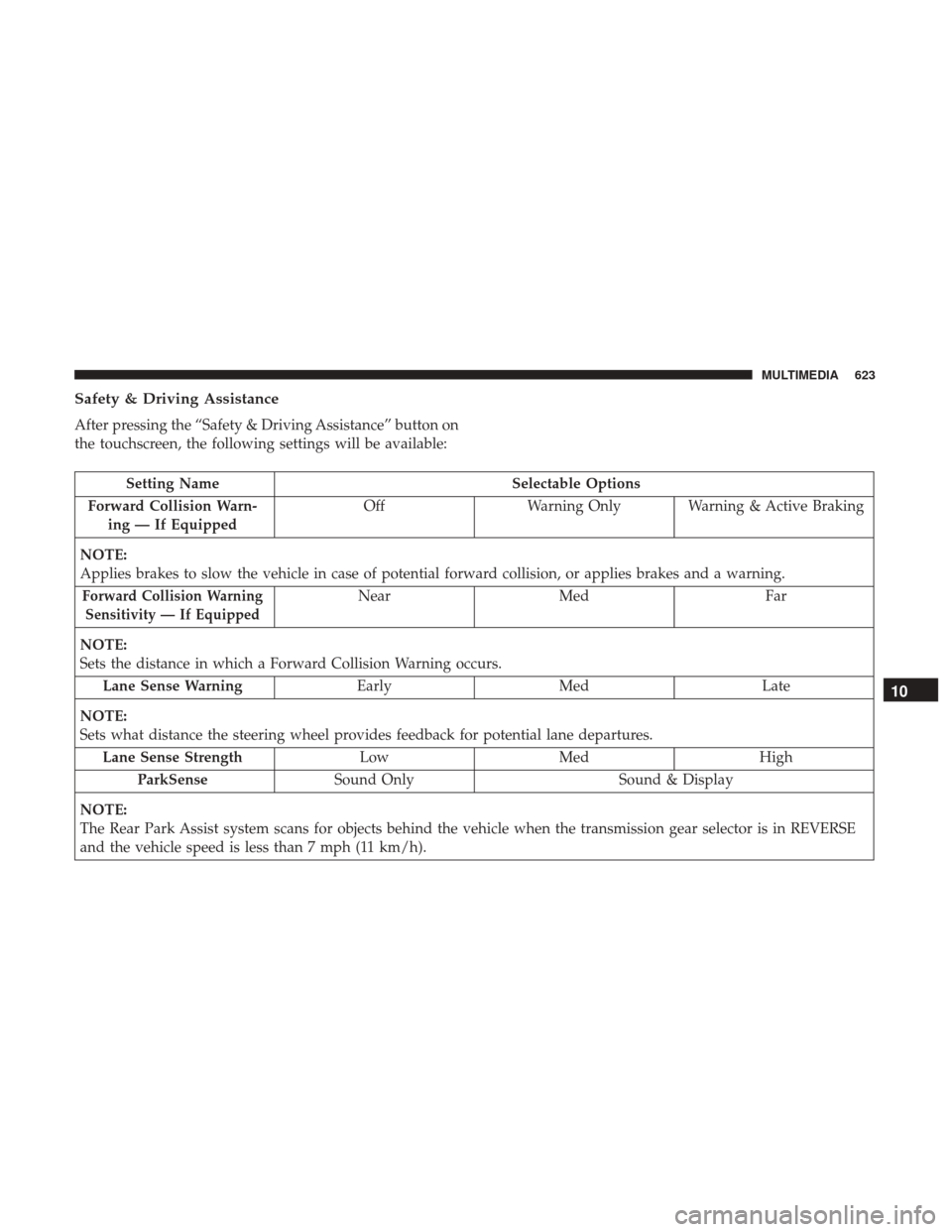
Safety & Driving Assistance
After pressing the “Safety & Driving Assistance” button on
the touchscreen, the following settings will be available:
Setting NameSelectable Options
Forward Collision Warn- ing — If Equipped Off
Warning Only Warning & Active Braking
NOTE:
Applies brakes to slow the vehicle in case of potential forward collision, or applies brakes and a warning.
Forward Collision Warning Sensitivity — If EquippedNear Med Far
NOTE:
Sets the distance in which a Forward Collision Warning occurs. Lane Sense Warning EarlyMed Late
NOTE:
Sets what distance the steering wheel provides feedback for potential lane departures. Lane Sense Strength LowMed High
ParkSense Sound Only Sound & Display
NOTE:
The Rear Park Assist system scans for objects behind the vehicle when the transmission gear selector is in REVERSE
and the vehicle speed is less than 7 mph (11 km/h).
10
MULTIMEDIA 623
Page 630 of 698

Setting NameSelectable Options
Steering Directed Lights OnOff
NOTE:
When the “Steering Directed Lights” feature is selected, the headlights turn with the direction of the steering wheel.
Doors & Locks
After pressing the “Doors & Locks” button on the touch-
screen, the following settings will be available:
Setting Name Selectable Options
Auto Door Locks OnOff
Auto Unlock On Exit OnOff
NOTE:
When the “Auto Unlock On Exit” feature is selected, all doors unlock when the vehicle is stopped and the transmis-
sion is in the PARK or NEUTRAL position and the driver’s door is opened. Flash Lights With Lock OnOff
NOTE:
When the “Flash Lights With Lock” feature is selected, the front and rear turn signals flash when the doors are locked
or unlocked with the key fob. This feature may be selected with or without the “Sound Horn With Lock” feature se-
lected. Sound Horn With Remote Start OnOff
1st Press Of Key Fob Unlocks Driver DoorAll Doors
628 MULTIMEDIA
Page 632 of 698
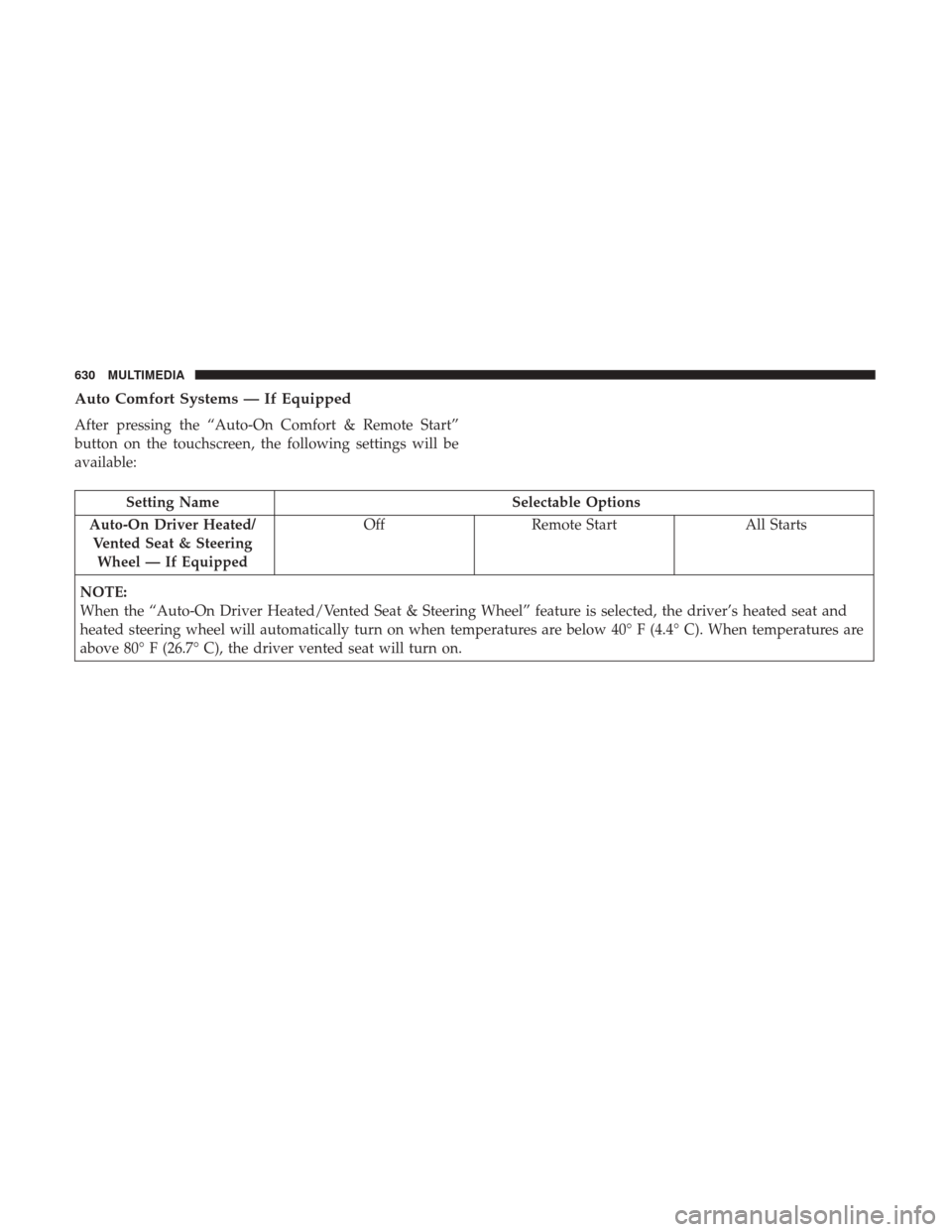
Auto Comfort Systems — If Equipped
After pressing the “Auto-On Comfort & Remote Start”
button on the touchscreen, the following settings will be
available:
Setting NameSelectable Options
Auto-On Driver Heated/ Vented Seat & Steering Wheel — If Equipped Off
Remote Start All Starts
NOTE:
When the “Auto-On Driver Heated/Vented Seat & Steering Wheel” feature is selected, the driver’s heated seat and
heated steering wheel will automatically turn on when temperatures are below 40° F (4.4° C). When temperatures are
above 80° F (26.7° C), the driver vented seat will turn on.
630 MULTIMEDIA
Page 643 of 698
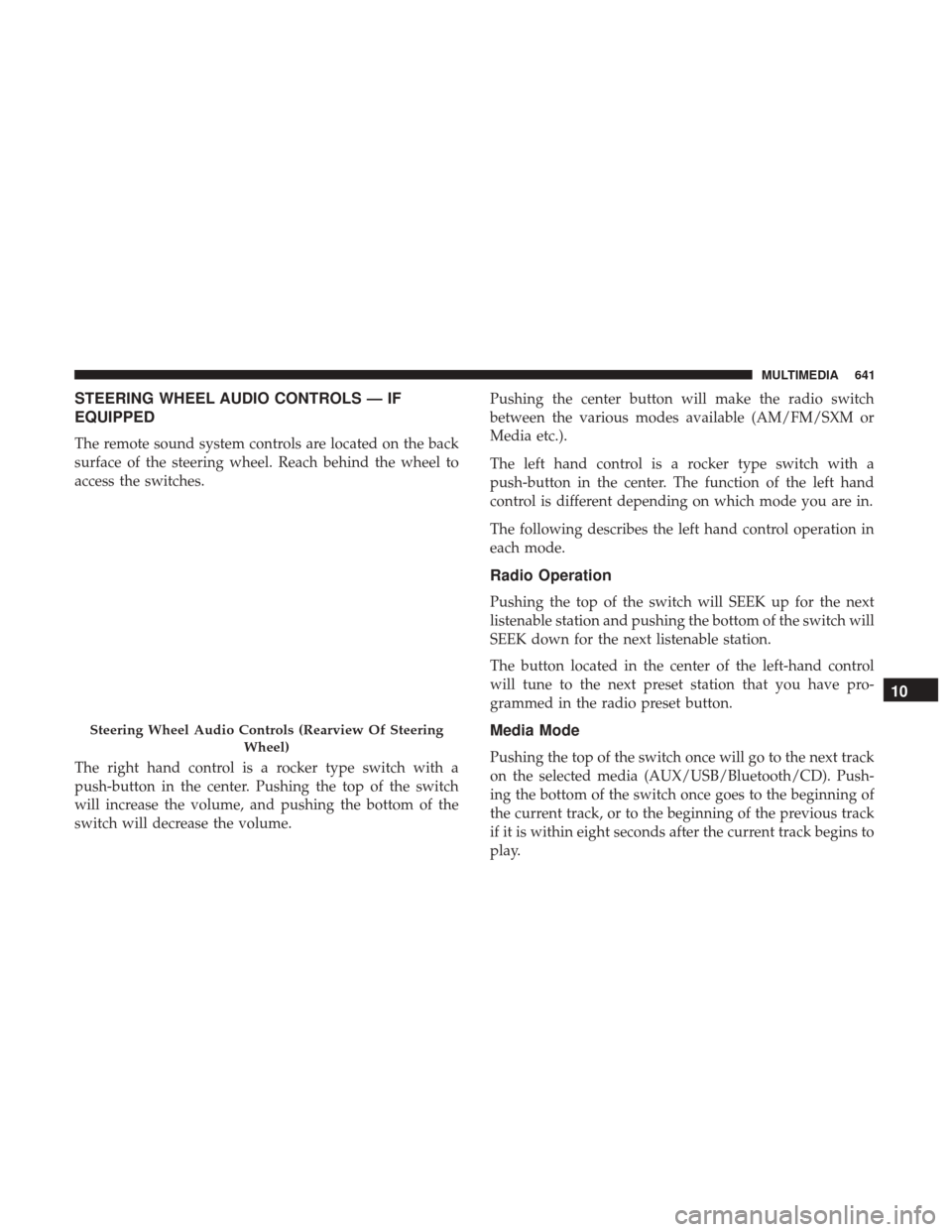
STEERING WHEEL AUDIO CONTROLS — IF
EQUIPPED
The remote sound system controls are located on the back
surface of the steering wheel. Reach behind the wheel to
access the switches.
The right hand control is a rocker type switch with a
push-button in the center. Pushing the top of the switch
will increase the volume, and pushing the bottom of the
switch will decrease the volume.Pushing the center button will make the radio switch
between the various modes available (AM/FM/SXM or
Media etc.).
The left hand control is a rocker type switch with a
push-button in the center. The function of the left hand
control is different depending on which mode you are in.
The following describes the left hand control operation in
each mode.
Radio Operation
Pushing the top of the switch will SEEK up for the next
listenable station and pushing the bottom of the switch will
SEEK down for the next listenable station.
The button located in the center of the left-hand control
will tune to the next preset station that you have pro-
grammed in the radio preset button.
Media Mode
Pushing the top of the switch once will go to the next track
on the selected media (AUX/USB/Bluetooth/CD). Push-
ing the bottom of the switch once goes to the beginning of
the current track, or to the beginning of the previous track
if it is within eight seconds after the current track begins to
play.
Steering Wheel Audio Controls (Rearview Of Steering
Wheel)
10
MULTIMEDIA 641
Page 650 of 698
VOICE COMMANDS
Introducing Uconnect
Start using Uconnect Voice Recognition with these helpful
quick tips. It provides the key Voice Commands and tips
you need to know to control your Uconnect system.
If you see the NAV icon on the bottom bar, or in the Apps
menus, of your touchscreen, you have the Uconnect 4C
NAV With 8.4–inch Display or the Uconnect 4C NAV With
12–inch Display system. If not, you have a Uconnect 4C
With 8.4–inch Display system.
Get Started
All you need to control your Uconnect system with your
voice are the buttons on your steering wheel.
1. Visit UconnectPhone.com to check mobile device andfeature compatibility and to find phone pairing instruc-
tions. 2. Reduce background noise. Wind noise and passenger
conversations are examples of noise that may impact
recognition.
3. Speak clearly at a normal pace and volume while facing straight ahead. The microphone is located in the head-
liner and aimed at the driver.
4. Each time you give a Voice Command, you must first push either the VR or Phone button, wait until afterthe
beep, then say your Voice Command.
5. You can interrupt the help message or system prompts by pushing the VR or Phone button and saying a Voice
Command from current category.
648 MULTIMEDIA