turn signal RAM 1500 2021 User Guide
[x] Cancel search | Manufacturer: RAM, Model Year: 2021, Model line: 1500, Model: RAM 1500 2021Pages: 496, PDF Size: 20.89 MB
Page 138 of 496
136GETTING TO KNOW YOUR INSTRUMENT PANEL
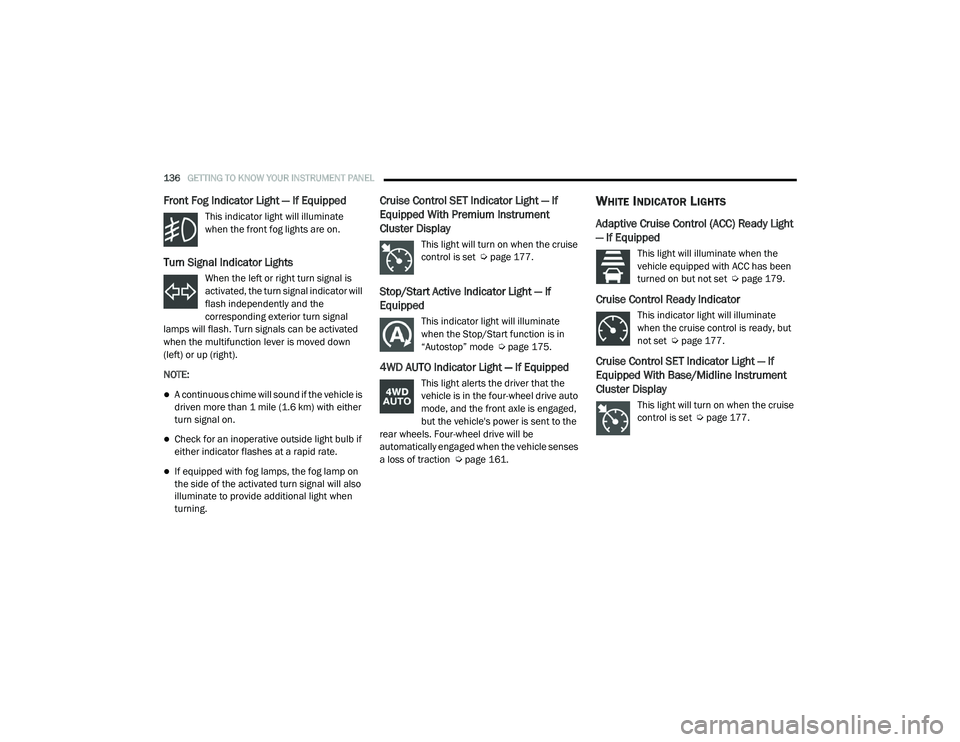
Front Fog Indicator Light — If Equipped
This indicator light will illuminate
when the front fog lights are on.
Turn Signal Indicator Lights
When the left or right turn signal is
activated, the turn signal indicator will
flash independently and the
corresponding exterior turn signal
lamps will flash. Turn signals can be activated
when the multifunction lever is moved down
(left) or up (right).
NOTE:
A continuous chime will sound if the vehicle is
driven more than 1 mile (1.6 km) with either
turn signal on.
Check for an inoperative outside light bulb if
either indicator flashes at a rapid rate.
If equipped with fog lamps, the fog lamp on
the side of the activated turn signal will also
illuminate to provide additional light when
turning.
Cruise Control SET Indicator Light — If
Equipped With Premium Instrument
Cluster Display
This light will turn on when the cruise
control is set Ú page 177.
Stop/Start Active Indicator Light — If
Equipped
This indicator light will illuminate
when the Stop/Start function is in
“Autostop” mode Ú page 175.
4WD AUTO Indicator Light — If Equipped
This light alerts the driver that the
vehicle is in the four-wheel drive auto
mode, and the front axle is engaged,
but the vehicle's power is sent to the
rear wheels. Four-wheel drive will be
automatically engaged when the vehicle senses
a loss of traction Ú page 161.
WHITE INDICATOR LIGHTS
Adaptive Cruise Control (ACC) Ready Light
— If Equipped
This light will illuminate when the
vehicle equipped with ACC has been
turned on but not set Ú page 179.
Cruise Control Ready Indicator
This indicator light will illuminate
when the cruise control is ready, but
not set Úpage 177.
Cruise Control SET Indicator Light — If
Equipped With Base/Midline Instrument
Cluster Display
This light will turn on when the cruise
control is set Ú page 177.
21_DT_OM_EN_USC_t.book Page 136
Page 187 of 496
STARTING AND OPERATING185
The maximum braking applied by ACC is limited;
however, the driver can always apply the brakes
manually, if necessary.
NOTE:
The brake lights will illuminate whenever the
ACC system applies the brakes.
A Proximity Warning will alert the driver if ACC
predicts that its maximum braking level is not
sufficient to maintain the set distance. If this
occurs, a visual alert “BRAKE” will flash in the
instrument cluster display and a chime will
sound while ACC continues to apply its
maximum braking capacity.
NOTE:
The “BRAKE!” Screen in the instrument cluster
display is a warning for the driver to take action
and does not necessarily mean that the
Forward Collision Warning system is applying
the brakes autonomously.
Overtake Aid
When driving with Adaptive Cruise Control (ACC)
engaged, and following a vehicle, the system
will provide an additional acceleration up to the
ACC set speed to assist in passing the vehicle. This additional acceleration is triggered when
the driver utilizes the left turn signal and will
only be active when passing on the left hand
side.
ACC Operation At Stop
If the ACC system brings your vehicle to a
standstill while following the vehicle in front,
your vehicle will resume motion without any
diver intervention if the vehicle in front starts
moving within two seconds.
If the vehicle in front does not start moving
within two seconds of your vehicle coming to a
standstill, the driver will either have to push the
RES (resume) button, or apply the accelerator
pedal to reengage the ACC to the existing set
speed.
NOTE:
After the ACC system holds your vehicle at a
standstill for approximately three consecutive
minutes, the parking brake will be activated,
and the ACC system will be cancelled.
While ACC is holding your vehicle at a standstill,
if the driver seat belt is unbuckled or the driver
door is opened, the parking brake will be
activated, and the ACC system will be cancelled.
Display Warnings And Maintenance
“Wipe Front Radar Sensor In Front Of Vehicle”
Warning
The “ACC/FCW Unavailable Wipe Front Radar
Sensor” warning will display and also a chime
will indicate when conditions temporarily limit
system performance.
This most often occurs at times of poor visibility,
such as in snow or heavy rain. The ACC system
may also become temporarily blinded due to
obstructions, such as mud, dirt or ice. In these
cases, the instrument cluster display will display
“ACC/FCW Unavailable Wipe Front Radar
Sensor” and the system will deactivate.
The “ACC/FCW Unavailable Wipe Front Radar
Sensor” message can sometimes be displayed
while driving in highly reflective areas (i.e. ice
WARNING!
When the ACC system is resumed, the driver
must ensure that there are no pedestrians,
vehicles or objects in the path of the vehicle.
Failure to follow these warnings can result in
a collision and death or serious personal
injury.
4
21_DT_OM_EN_USC_t.book Page 185
Page 199 of 496
STARTING AND OPERATING197
NOTE:
If the vehicle is driven above approximately
15 mph (25 km/h), the instrument cluster
display will instruct the driver to slow down. If
the vehicle is driven above approximately
18 mph (30 km/h), the system will cancel. The
driver must then reactivate the system by
pushing the ParkSense Active Park Assist
switch.
When pushed, the LED on the ParkSense Active
Park Assist switch will blink momentarily, and
then the LED will turn off if any of the above
conditions are not present.
PARALLEL/PERPENDICULAR PARKING
S
PACE ASSISTANCE OPERATION
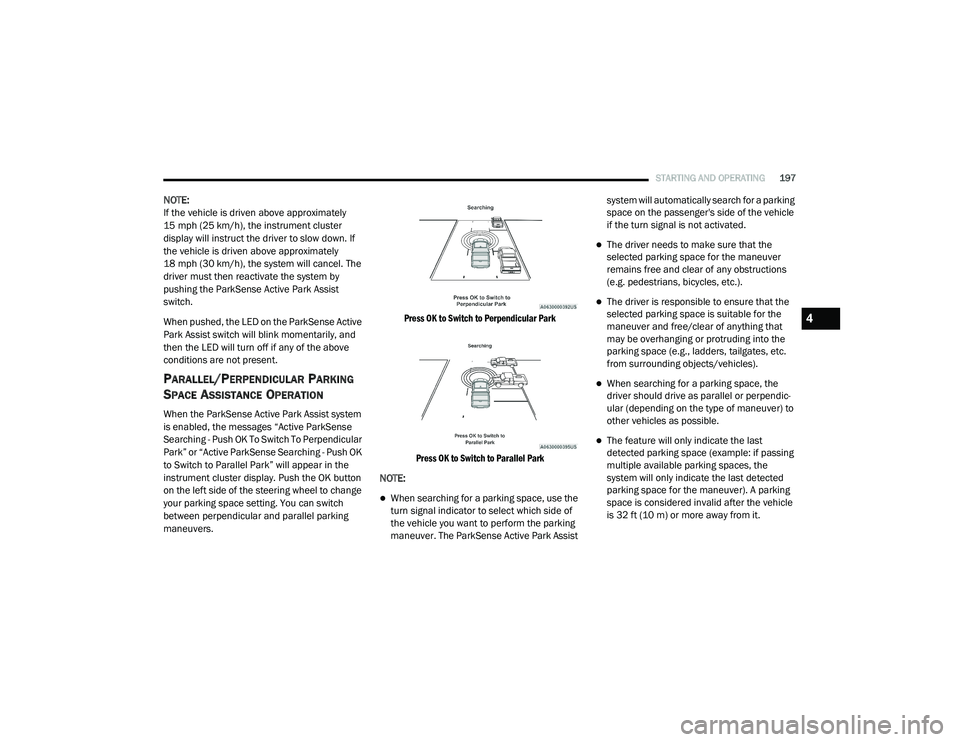
When the ParkSense Active Park Assist system
is enabled, the messages “Active ParkSense
Searching - Push OK To Switch To Perpendicular
Park” or “Active ParkSense Searching - Push OK
to Switch to Parallel Park” will appear in the
instrument cluster display. Push the OK button
on the left side of the steering wheel to change
your parking space setting. You can switch
between perpendicular and parallel parking
maneuvers.
Press OK to Switch to Perpendicular Park
Press OK to Switch to Parallel Park
NOTE:
When searching for a parking space, use the
turn signal indicator to select which side of
the vehicle you want to perform the parking
maneuver. The ParkSense Active Park Assist system will automatically search for a parking
space on the passenger's side of the vehicle
if the turn signal is not activated.
The driver needs to make sure that the
selected parking space for the maneuver
remains free and clear of any obstructions
(e.g. pedestrians, bicycles, etc.).
The driver is responsible to ensure that the
selected parking space is suitable for the
maneuver and free/clear of anything that
may be overhanging or protruding into the
parking space (e.g., ladders, tailgates, etc.
from surrounding objects/vehicles).
When searching for a parking space, the
driver should drive as parallel or perpendic
-
ular (depending on the type of maneuver) to
other vehicles as possible.
The feature will only indicate the last
detected parking space (example: if passing
multiple available parking spaces, the
system will only indicate the last detected
parking space for the maneuver). A parking
space is considered invalid after the vehicle
is 32 ft (10 m) or more away from it.
4
21_DT_OM_EN_USC_t.book Page 197
Page 201 of 496

STARTING AND OPERATING199
The system will cancel the maneuver if the
vehicle speed exceeds 5 mph (7 km/h)
during active steering guidance into the
parking space. The system will provide a
warning to the driver at 3 mph (5 km/h) that
tells them to slow down. The driver is then
responsible for completing the maneuver if
the system is canceled.
If the system is canceled during the
maneuver for any reason, the driver must
take control of the vehicle.
LANESENSE — IF EQUIPPED
LANESENSE OPERATION
The LaneSense system is operational at speeds
above 37 mph (60 km/h) and below 112 mph
(180 km/h). The LaneSense system uses a
forward looking camera to detect lane markings
and measure vehicle position within the lane
boundaries. When both lane markings are detected and the
driver drifts out of the lane (no turn signal
applied), the LaneSense system provides a
haptic warning in the form of torque applied to
the steering wheel, as well as a visual warning
in the instrument cluster display, to prompt the
driver to remain within the lane boundaries.
The driver may manually override the haptic
warning by applying force into the steering
wheel at any time.
When only a single lane marking is detected
and the driver drifts across the lane marking (no
turn signal applied), the LaneSense system
provides a visual warning through the
instrument cluster display to prompt the driver
to remain within the lane.
When only a single lane marking is detected, a
haptic or a torque warning will not be provided.
NOTE:
When operating conditions have been met, the
LaneSense system will monitor if the driver’s
hands are on the steering wheel and provide an
audible and visual warning to the driver if
removed. The system will cancel if the driver
does not return their hands to the wheel.
WARNING!
Drivers must be careful when performing
parallel or perpendicular parking maneuvers
even when using the ParkSense Active Park
Assist system. Always check carefully behind
and in front of your vehicle, look behind and
in front of you, and be sure to check for
pedestrians, animals, other vehicles,
obstructions, and blind spots before backing
up and moving forward. You are responsible
for safety and must continue to pay attention
to your surroundings. Failure to do so can
result in serious injury or death.
CAUTION!
The ParkSense Active Park Assist system is
only a parking aid and it is unable to recog
-
nize every obstacle, including small obsta -
cles. Parking curbs might be temporarily
detected or not detected at all. Obstacles
located above or below the sensors will not
be detected when they are in close prox -
imity.
The vehicle must be driven slowly when
using the ParkSense Active Park Assist
system in order to be able to stop in time
when an obstacle is detected. It is recom -
mended that the driver looks over his/her
shoulder when using the ParkSense Active
Park Assist system.4
21_DT_OM_EN_USC_t.book Page 199
Page 204 of 496
202STARTING AND OPERATING
CHANGING LANESENSE STATUS
The LaneSense system has settings to adjust
the intensity of the torque warning and the
warning zone sensitivity (Early/Medium/Late)
that you can configure through the Uconnect
system Úpage 237.
NOTE:
When enabled the system operates above
37 mph (60 km/h) and below 112 mph (180 km/h).
The warnings are disabled with use of the
turn signal.
The system will not apply torque to the
steering wheel whenever a safety system
engages (Anti-Lock Brakes, Traction Control
System, Electronic Stability Control, Forward
Collision Warning, etc.).
PARKVIEW REAR BACK UP CAMERA
The ParkView Rear Back Up Camera allows you
to see an on-screen image of the rear
surroundings of your vehicle whenever the gear
selector is put into REVERSE. The image will be
displayed on the Navigation/Multimedia radio
display screen along with a caution note to “Check Entire Surroundings” across the top of
the screen. After five seconds this note will
disappear. The ParkView Camera is located in
the center of the tailgate handle.
Manual Activation Of The Rear View
Camera:
1. Press the "Controls" button located on the bottom of the Uconnect display.
2. Press the "Back Up Camera" icon to turn the Rear View Camera system on.
NOTE:
The ParkView Rear Back Up Camera has
programmable modes of operation that may be
selected through the Uconnect system
Ú page 237.
When the vehicle is shifted out of REVERSE
(with camera delay turned off), the rear camera
mode is exited and the previous screen
appears. When the vehicle is shifted out of
REVERSE (with camera delay turned on), the
camera image will continue to be displayed for
up to 10 seconds after shifting out of REVERSE
unless the following conditions occur: The
vehicle speed exceeds 8 mph (13 km/h), the vehicle is shifted into PARK, the vehicle’s
ignition is placed in the OFF position, or the user
presses image defeat “X” to exit out of the
camera video display.
Whenever the Rear View Camera image is
activated through the "Back Up Camera" button
in the Controls menu, and the vehicle speed is
greater than, or equal to, 8 mph (13 km/h), a
display timer for the image is initiated. The
image will continue to be displayed until the
display timer exceeds 10 seconds.
NOTE:
If the vehicle speed remains below 8 mph
(13 km/h), the Rear View Camera image will
be displayed continuously until deactivated
via the touchscreen button "X", the transmis -
sion is shifted into PARK, or the ignition is
placed in the OFF position.
The touchscreen button "X" to disable display
of the camera image is made available ONLY
when the vehicle is not in REVERSE.
When enabled, active guidelines are overlaid on
the image to illustrate the width of the vehicle
and its projected back up path based on the
steering wheel position. A dashed center line
overlay indicates the center of the vehicle to
21_DT_OM_EN_USC_t.book Page 202
Page 227 of 496

STARTING AND OPERATING225
Display Messages
The trailer brake control interacts with the
instrument cluster display. Display messages,
along with a single chime, will be displayed
when a malfunction is determined in the trailer
connection, trailer brake control, or on the
trailer Úpage 114. NOTE:
An aftermarket controller may be available
for use with trailers with air or elec
-
tric-over-hydraulic trailer brake systems. To
determine the type of brakes on your trailer
and the availability of controllers, check with
your trailer manufacturer or dealer.
Removal of the ITBM will cause errors and it
may cause damage to the electrical system
and electronic modules of the vehicle. See
your authorized dealer if an aftermarket
module is to be installed.
Towing Requirements — Trailer Lights And
Wiring
Whenever you pull a trailer, regardless of the
trailer size, stoplights and turn signals on the
trailer are required for motoring safety.
The Trailer Tow Package may include a four-pin
and seven-pin wiring harness. Use a factory
approved trailer harness and connector.
NOTE:
Do not cut or splice wiring into the vehicle’s
wiring harness. The electrical connections are all complete to
the vehicle but you must connect the harness to
a trailer connector. Refer to the following
illustrations.
NOTE:
Disconnect trailer wiring connector from the
vehicle before launching a boat (or any other
device plugged into vehicle’s electrical
connect) into water.
Be sure to reconnect once clear from water
area.
Four-Pin Connector
WARNING!
Connecting a trailer that is not compatible
with the ITBM system may result in reduced
or complete loss of trailer braking. There may
be a increase in stopping distance or trailer
instability which could result in personal
injury.
CAUTION!
Connecting a trailer that is not compatible
with the ITBM system may result in reduced
or complete loss of trailer braking. There may
be a increase in stopping distance or trailer
instability which could result in damage to
your vehicle, trailer, or other property.
1 — Ground
2 — Park
3 — Left Stop/Turn
4 — Right Stop/Turn
4
21_DT_OM_EN_USC_t.book Page 225
Page 228 of 496

226STARTING AND OPERATING
Seven-Pin Connector
Trailer Light Check
This feature will run the trailer lights through a
sequence to check the trailer light function. It is
available in the Instrument Cluster under the
Trailer Tow menu Ú page 118.
When activated the feature will enable all of the
exterior lights sequentially for up to two minutes
for time to walk around and verify functionality. The following exterior lights will remain on for
the entirety of the sequence:
Park/Running Lamps
Side Marker Lamps (if equipped)
License Lamp
Signature Lamp (if equipped)
Low Beams
Fog Lamps (if equipped)
Daytime Running Lamps
During this time the following lights will
sequence, each activating for three seconds:
1. Brake and CHMSL (third brake light)
2. Left turn signal
3. Right turn signal
4. Reverse Lamps
5. High Beam
This light check sequence will continue for a
total of two minutes. The sequence will only activate if the following
conditions are met:
Vehicle is equipped with the Trailer Tow
Package
Vehicle is in PARK
Vehicle is not in motion
Ignition in ACC or RUN
Remote start is inactive
Brakes are not applied
Left turn signal is not applied
Right turn signal not applied
Hazard switch is not applied
The sequence will cancel if any of the following
conditions occur:
Brakes are applied
Vehicle is shifted from PARK
Vehicle is no longer stationary
Left turn signal activated from stalk
Right turn signal is activated from stalk
1 — Battery
2 — Backup Lamps
3 — Right Stop/Turn
4 — Electric Brakes
5 — Ground
6 — Left Stop/Turn
7 — Running Lamps
21_DT_OM_EN_USC_t.book Page 226
Page 244 of 496
242MULTIMEDIA
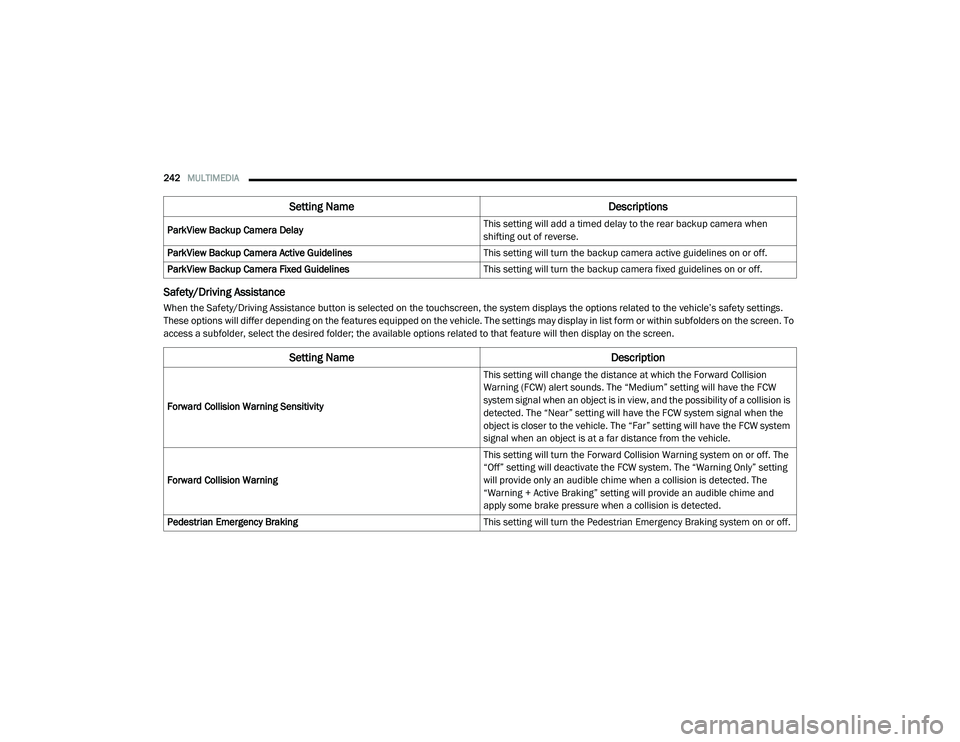
Safety/Driving Assistance
When the Safety/Driving Assistance button is selected on the touchscreen, the system displays the options related to the vehicle’s safety settings.
These options will differ depending on the features equipped on the vehicle. The settings may display in list form or within subfolders on the screen. To
access a subfolder, select the desired folder; the available options related to that feature will then display on the screen.ParkView Backup Camera Delay
This setting will add a timed delay to the rear backup camera when
shifting out of reverse.
ParkView Backup Camera Active Guidelines This setting will turn the backup camera active guidelines on or off.
ParkView Backup Camera Fixed Guidelines This setting will turn the backup camera fixed guidelines on or off.
Setting NameDescriptions
Setting Name Description
Forward Collision Warning Sensitivity This setting will change the distance at which the Forward Collision
Warning (FCW) alert sounds. The “Medium” setting will have the FCW
system signal when an object is in view, and the possibility of a collision is
detected. The “Near” setting will have the FCW system signal when the
object is closer to the vehicle. The “Far” setting will have the FCW system
signal when an object is at a far distance from the vehicle.
Forward Collision Warning This setting will turn the Forward Collision Warning system on or off. The
“Off” setting will deactivate the FCW system. The “Warning Only” setting
will provide only an audible chime when a collision is detected. The
“Warning + Active Braking” setting will provide an audible chime and
apply some brake pressure when a collision is detected.
Pedestrian Emergency Braking This setting will turn the Pedestrian Emergency Braking system on or off.
21_DT_OM_EN_USC_t.book Page 242
Page 271 of 496

MULTIMEDIA269
AUX Mode
Overview
Auxiliary Mode (AUX) is entered by inserting an
AUX device using a cable with a 3.5 mm audio
jack into the AUX port or pushing the Media
button on the faceplate and then selecting the
Source button and then the AUX button.
To insert an Auxiliary device, gently insert the
Auxiliary device cable into the AUX Port. If you
insert an Auxiliary device with the ignition and
the radio on, the unit will switch to AUX Mode
and begin to play.
Controlling The Auxiliary Device
The control of the Auxiliary device (e.g.,
selecting playlists, play, fast forward, etc.)
cannot be provided by the radio; use the device
controls instead. Adjust the volume with the
Volume button, Volume/Mute rotary knob, or
the On/Off rotary knob, or with the volume of
the attached device.
NOTE:
The radio unit is acting as the amplifier for audio
output from the Auxiliary device. Therefore, if
the volume control on the Auxiliary device is set
too low, there will be insufficient audio signal for
the radio unit to play the music on the device. Seek Up
/ Seek Down
In USB Mode, press the Seek Up button on the
touchscreen for the next selection on the USB
device. Press and release the Seek Down
button on the touchscreen to return to the
beginning of the current selection, or to return
to the beginning of the previous selection if the
USB device is within the first three seconds of
the current selection.
In Bluetooth® Mode, press and release the
Seek Up button on the touchscreen for the next
selection on the Bluetooth® device. Press and
release the Seek Down button on the
touchscreen to return to the beginning of the
current selection, or return to the beginning of
the previous selection if the Bluetooth® device
is within the first second of the current
selection.
Browse
In USB Mode, press the Browse button on the
touchscreen to display the browse window. In
USB Mode, the left side of the browse window
displays a list of ways you can browse through
the contents of the USB device. If supported by
the device, you can browse by Folder, Artist,
Playlist, Album, Song, etc. Press the desired button on the touchscreen on the left side of the
screen. The center of the browse window shows
items and its sub-functions, which can be
scrolled through by pressing the Up and Down
buttons to the right. The Tune/Scroll knob can
also be used to scroll.
On the Uconnect 3 With 5-inch Display, rotate
the Browse button on the touchscreen to scroll
through and select a desired track on the
device. Press the Exit button on the
touchscreen if you wish to cancel the Browse
function.
Media Mode
In USB Mode, press the Media button on the
touchscreen to select the desired audio source:
USB.
In Bluetooth® Mode, press the Media button on
the touchscreen to select the desired audio
source: Bluetooth®.
In AUX Mode, press the Media button on the
touchscreen to select the desired audio source:
AUX.
5
21_DT_OM_EN_USC_t.book Page 269
Page 274 of 496

272MULTIMEDIA
without wires or a docking station. Ensure you
phone is turned on with Bluetooth® active and
has been paired to the Uconnect system. Up to
10 mobile phones or audio devices are allowed
to be linked to the system. Only one linked (or
paired) mobile phone and one audio device can
be used with the system at a time.
Phone Button
The Phone button on your steering wheel is
used to get into the Phone Mode and make
calls, show recent, incoming or outgoing calls,
view phonebook, etc. When you press the
button you will hear a BEEP. The BEEP is your
signal to give a command.
Voice Command Button
The Voice Command button on your steering
wheel is only used for “barge in” and when you
are already in a call or want to make another
call.
The button on your steering wheel is also used
to access the Voice Commands for the
Uconnect Voice Command features if your
vehicle is equipped.Phone Operation
Operation
Voice commands can be used to operate the
Uconnect Phone and to navigate its menu
structure. Voice commands are required after
most Uconnect Phone prompts. There are two
general methods for how Voice Command
works:
1. Say compound commands like “Call John
Smith mobile”.
2. Say the individual commands and allow the system to guide you to complete the task.
You will be prompted for a specific command
and then guided through the available options.
Prior to giving a voice command, one must
wait for the beep, which follows the “Listen”
prompt or another prompt.
For certain operations, compound
commands can be used. For example,
instead of saying “Call” and then “John
Smith” and then “mobile”, the following
compound command can be said: “Call John
Smith mobile.”
For each feature explanation in this section,
only the compound command form of the
voice command is given. You can also break
the commands into parts and say each part
of the command when you are asked for it.
For example, you can use the compound
command form voice command “Search for
John Smith,” or you can break the compound
command form into two voice commands:
“Search Contacts” and when asked, “John
Smith.” Please remember, the Uconnect
Phone works best when you talk in a normal
conversational tone, as if speaking to
someone sitting a few feet/meters away from
you.
Natural Speech
Your Uconnect Phone Voice system uses a
Natural Language Voice Recognition (VR)
engine.
Natural speech allows the user to speak
commands in phrases or complete sentences.
The system filters out certain non-word
utterances and sounds such as “ah” and “eh.”
The system handles fill-in words such as “I
would like to”.
21_DT_OM_EN_USC_t.book Page 272