ignition RAM 1500 2022 Owners Manual
[x] Cancel search | Manufacturer: RAM, Model Year: 2022, Model line: 1500, Model: RAM 1500 2022Pages: 496, PDF Size: 18.03 MB
Page 272 of 496

270MULTIMEDIA
MEDIA MODE
Operating Media Mode
Uconnect 3 With 5-inch Display Operating Media Mode
Media Mode is entered by pushing the MEDIA
button located on the faceplate.
Audio Source Selection
Once in Media Mode, press the Source or Source
Select button on the touchscreen and the desired
mode button on the touchscreen. USB, AUX, and
Bluetooth® are the Media sources available.
When available, you can select the Browse button
on the touchscreen to be given these options:
Now Playing
Artists
Albums
Genres
Songs
Playlists
Folders
For the Uconnect 3 With 5-inch Display, Media
Mode is entered by pushing the MEDIA button
located on the faceplate.
Types of Media Modes
USB MODE
Overview
USB Mode is entered by inserting a USB device into
the USB port, or by pushing the MEDIA button on
the faceplate and then selecting the USB button. On the Uconnect 3 With 5-inch Display, if you insert
a USB device with the ignition in ON/RUN, the unit
will switch to USB Mode and begin to play. The
display will show the track number and index time
in minutes and seconds. Play will begin at the start
of track 1.
BLUETOOTH® MODE
Overview
Bluetooth® Streaming Audio or Bluetooth® Mode
is entered by pairing a Bluetooth® device,
containing music, to the Uconnect system.
Before proceeding, the Bluetooth® device must be
paired to the Uconnect Phone to communicate
with the Uconnect system.
On the Uconnect 3 With 5-inch Display, push the
MEDIA button located on the faceplate. Once in
Media Mode, press the Source button on the
touchscreen and select the Bluetooth® button
Ú
page 272.
To access Bluetooth® Mode, press the Bluetooth®
button on the left side of the touchscreen or under
the Source Select/Select Source button (if
equipped).
1 — Seek Down
2 — Browse
3 — Source
4 — Pause/Play
5 — Info
6 — More Options
7 — Seek Up
22_DT_OM_EN_USC_t.book Page 270
Page 273 of 496

MULTIMEDIA271
AUX MODE
Overview
Auxiliary Mode (AUX) is entered by inserting an AUX
device using a cable with a 3.5 mm audio jack into
the AUX port, or by pushing the MEDIA button on
the faceplate, selecting the Source button and
then the AUX button.
To insert an Auxiliary device, gently insert the
Auxiliary device cable into the AUX port. If you
insert an Auxiliary device with the ignition and the
radio on, the unit will switch to AUX Mode and
begin to play.
Controlling The Auxiliary Device
The control of the Auxiliary device (e.g., selecting
playlists, play, fast forward, etc.) cannot be
provided by the radio; use the device controls
instead. Adjust the volume with the Volume button,
Volume/Mute rotary knob, or the On/Off rotary
knob, or with the volume of the attached device.
NOTE:The radio unit is acting as the amplifier for audio
output from the Auxiliary device. Therefore, if the
volume control on the Auxiliary device is set too
low, there will be insufficient audio signal for the
radio unit to play the music on the device. Seek Up
/Seek Down
In USB Mode, press the Seek Up button on the
touchscreen for the next selection on the USB
device. Press and release the Seek Down button
on the touchscreen to return to the beginning of
the current selection, or to return to the beginning
of the previous selection if the USB device is within
the first three seconds of the current selection.
In Bluetooth® Mode, press and release the Seek
Up button on the touchscreen for the next
selection on the Bluetooth® device. Press and
release the Seek Down button on the touchscreen
to return to the beginning of the current selection,
or return to the beginning of the previous selection
if the Bluetooth® device is within the first second
of the current selection.
Browse
In USB Mode, press the Browse button on the
touchscreen to display the browse window. In USB
Mode, the left side of the browse window displays
a list of ways you can browse through the contents
of the USB device. If supported by the device, you
can browse by Folder, Artist, Playlist, Album, Song,
etc. Press the desired button on the touchscreen
on the left side of the screen. The center of the
browse window shows items and their
sub-functions, which can be scrolled through by
pressing the Up and Down buttons to the right. The
TUNE/SCROLL knob can also be used to scroll. On the Uconnect 3 With 5-inch Display, select the
Browse button on the touchscreen to scroll
through and select a desired track on the device.
Press the Exit button on the touchscreen if you
wish to cancel the Browse function.
Media Mode
In USB Mode, press the Media button on the
touchscreen to select the desired audio source:
USB.
In Bluetooth® Mode, press the Media button on
the touchscreen to select the desired audio
source: Bluetooth®.
In AUX Mode, press the Media button on the
touchscreen to select the desired audio source:
AUX.
Repeat
In USB Mode, press the Repeat button on the
touchscreen to toggle the repeat functionality. The
Repeat button on the touchscreen is highlighted
when active. The Radio will continue to play the
current track, repeatedly, as long as the repeat is
active. Press the Repeat button again to enter
Repeat All. The radio will continue to play all the
current tracks, repeatedly, as long as the repeat
function is active. To cancel Repeat, press the
Repeat button a third time.
5
22_DT_OM_EN_USC_t.book Page 271
Page 277 of 496

MULTIMEDIA275
Uconnect 3 With 5-inch Display
NOTE:
You must have Bluetooth® enabled on your
phone to complete this procedure.
The vehicle must be in PARK or at a standstill.
Follow the steps below to pair your phone:
1. Place the ignition in the ACC or ON/RUN position.
2. Press the Phone button.
NOTE:
If there are no phones currently connected
with the system, a pop-up will appear asking
if you would like to pair a mobile phone.
This pop-up only appears when the user
enters Phone Mode and no other device(s)
have previously been paired. If the system
has a phone previously paired, even if no
phone is currently connected with the
system, this pop-up will not appear.
3. Select “Yes” to begin the pairing process.
4. Search for available devices on your Bluetooth®-enabled mobile phone.
Press the Settings button on your mobile
phone.
Select “Bluetooth®” and ensure it is
enabled. Once enabled, the mobile phone
will begin to search for Bluetooth® connec -
tions.
NOTE:During the pairing procedure, you may receive a
pop-up on your touchscreen asking you to make
sure the PIN on the touchscreen matches the PIN
from the pop-up on your mobile phone.
5. If “No” is selected, and you still would like to pair a mobile phone, press the Phone Pairing
or Settings button from the Uconnect Phone
main screen.
Press the Paired Phones button or the Add
Device button.
Search for available devices on your Blue -
tooth®-enabled mobile phone (see below).
When prompted on the phone, select
“Uconnect” and accept the connection
request.
6. Uconnect Phone will display an in-progress screen while the system is connecting.
7. When your mobile phone finds the Uconnect system, select “Uconnect.”
8. When prompted on the mobile phone, accept the connection request from Uconnect.
9. When the pairing process has successfully completed, the system will prompt you to
choose whether or not this is your favorite
phone. Selecting “Yes” will make this phone
the highest priority. This phone will take
precedence over other paired phones within
range and will connect to the Uconnect system
automatically when entering the vehicle. Only
one mobile phone and/or one Bluetooth®
audio device can be connected to the
Uconnect system at a time. If “No” is selected,
simply select “Uconnect” from the mobile
phone/audio device Bluetooth® screen, and
the Uconnect system will reconnect to the
Bluetooth® device.
5
22_DT_OM_EN_USC_t.book Page 275
Page 282 of 496
280MULTIMEDIA
MAKING A SECOND CALL WHILE CURRENT
CALL IS IN PROGRESS
You can place a call on hold by pressing the Hold
button on the Phone main screen, then dial a
number from the keypad (if supported by your
mobile phone), recent calls, SMS Inbox or from the
phonebooks.
TOGGLING BETWEEN CALLS
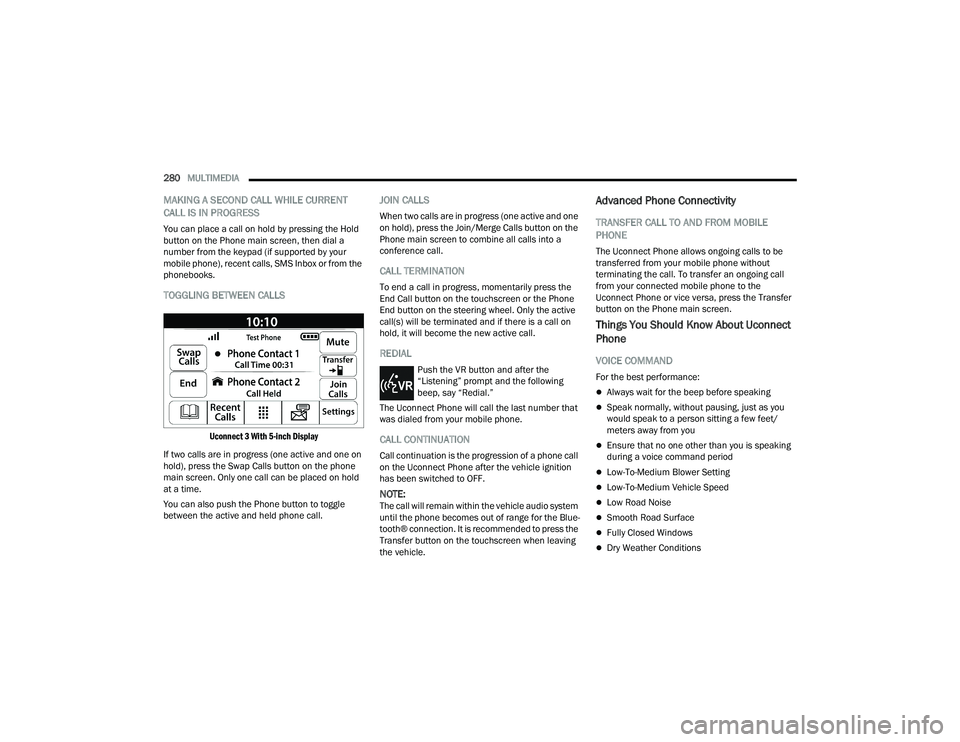
Uconnect 3 With 5-inch Display
If two calls are in progress (one active and one on
hold), press the Swap Calls button on the phone
main screen. Only one call can be placed on hold
at a time.
You can also push the Phone button to toggle
between the active and held phone call.
JOIN CALLS
When two calls are in progress (one active and one
on hold), press the Join/Merge Calls button on the
Phone main screen to combine all calls into a
conference call.
CALL TERMINATION
To end a call in progress, momentarily press the
End Call button on the touchscreen or the Phone
End button on the steering wheel. Only the active
call(s) will be terminated and if there is a call on
hold, it will become the new active call.
REDIAL
Push the VR button and after the
“Listening” prompt and the following
beep, say “Redial.”
The Uconnect Phone will call the last number that
was dialed from your mobile phone.
CALL CONTINUATION
Call continuation is the progression of a phone call
on the Uconnect Phone after the vehicle ignition
has been switched to OFF.
NOTE:The call will remain within the vehicle audio system
until the phone becomes out of range for the Blue -
tooth® connection. It is recommended to press the
Transfer button on the touchscreen when leaving
the vehicle.
Advanced Phone Connectivity
TRANSFER CALL TO AND FROM MOBILE
PHONE
The Uconnect Phone allows ongoing calls to be
transferred from your mobile phone without
terminating the call. To transfer an ongoing call
from your connected mobile phone to the
Uconnect Phone or vice versa, press the Transfer
button on the Phone main screen.
Things You Should Know About Uconnect
Phone
VOICE COMMAND
For the best performance:
Always wait for the beep before speaking
Speak normally, without pausing, just as you
would speak to a person sitting a few feet/
meters away from you
Ensure that no one other than you is speaking
during a voice command period
Low-To-Medium Blower Setting
Low-To-Medium Vehicle Speed
Low Road Noise
Smooth Road Surface
Fully Closed Windows
Dry Weather Conditions
22_DT_OM_EN_USC_t.book Page 280
Page 284 of 496
282MULTIMEDIA
NOTE:Only use the numbering listed in the provided
table. Otherwise, the system will not transpose the
message.
Did You Know: Your mobile phone must have the
full implementation of the Message Access Profile
(MAP) to take advantage of this feature. For details
about MAP, visit
UconnectPhone.com. Apple® iPhone® iOS 5 or later supports reading
incoming
text messages only. For further
information on how to enable this feature on your
Apple® iPhone®, refer to your iPhone® “User
Manual”.
Did You Know: Voice Text Reply is not compatible
with iPhone®, but if your vehicle is equipped with
Siri® Eyes Free, you can use your voice to send a
text message.
Siri® Eyes Free — If Equipped
When used with your Apple® iPhone® connected
to your vehicle via Bluetooth®, Siri lets you use
your voice to send text messages, select media,
place phone calls and much more. Siri uses your
natural language to understand what you mean
and responds back to confirm your requests. The
system is designed to keep your eyes on the road
and your hands on the wheel by letting Siri help you
perform useful tasks.
To enable Siri, push and hold, then release the
Uconnect Voice Recognition (VR) button on the
steering wheel. After you hear a double beep, you
can ask Siri to play podcasts and music, get
directions, read text messages, and many other
useful requests.
BLUETOOTH® COMMUNICATION LINK
Mobile phones may lose connection to the
Uconnect Phone. When this happens, the
connection can generally be re-established by
restarting the mobile phone. Your mobile phone is
recommended to remain in Bluetooth® ON mode.
POWER-UP
After switching the ignition key from OFF to either
the ON/RUN or ACC position, or after a language
change, you must wait at least 15 seconds prior to
using the system Ú page 480.
CONNECTED VEHICLE SERVICES —
IF EQUIPPED
IS MY VEHICLE CONNECTED?
If equipped, vehicles with an ASSIST and an SOS
button are connected vehicles. These buttons will
be located on either the rearview mirror or
overhead console, depending on the vehicle. If
these buttons are present in your vehicle, you have
a connected radio and can take advantage of the
many connected vehicle features.
For further information about the ASSIST and SOS
buttons Úpage 372.
PRE-DEFINED VOICE TEXT REPLY
RESPONSES
Yes. Stuck in
traffic. See you later.
No. Start without
me. I’ll be late.
Okay. Where are
you? I will be 5
25, 30, 45,
60> minutes late.
Call me.
Are you there
yet?
I’ll call you later. I need
directions. See you in 5
minutes.
I’m on my way.
Can’t talk right
now.
I’m lost. Thanks.
22_DT_OM_EN_USC_t.book Page 282
Page 289 of 496
MULTIMEDIA287
(Continued)
2. Once a connection between the vehicle and a
SiriusXM Guardian™ Customer Care agent is
made, the agent will stay on the line with you.
NOTE:Calls between the vehicle occupants and the
SiriusXM Guardian™ Customer Care center may be
recorded or monitored for quality assurance
purposes. Through your enrollment in and use of
the SiriusXM Guardian™ connected services, you
consent to being recorded.
SOS Call System Limitations
Vehicles that have been purchased in the US and
that travel into Mexico and Canada may have
limited services. In particular, responses to SOS
calls or other emergency services may be
unavailable or very limited. Vehicles purchased
outside the United States and Canada are unable
to receive SiriusXM Guardian™ connected
services.
If the SOS Call system detects a malfunction, any
of the following may occur at the time the
malfunction is detected:
The light will continuously be illuminated red.
The screen will display the following message
“Vehicle phone requires service. Please contact
your dealer.”
An in-vehicle audio message will state “Vehicle
phone requires service. Please contact your
dealer.”
Even if the SOS Call system is fully functional,
factors beyond FCA US LLC’s control may prevent
or stop SOS Call system operation. These include,
but are not limited to, the following factors:
The ignition key is in OFF position.
The vehicle’s electrical systems are not intact.
The vehicle battery loses power or becomes
disconnected during a vehicle crash.
The SOS Call system software and/or hardware
is damaged during a vehicle crash.
LTE (voice/data) or 3G or 4G (data) coverage
and/or GPS signals are unavailable or
obstructed.
Network congestion.
Weather conditions.
Buildings, structures, geographic terrain, or
tunnels.
If your vehicle loses battery power for any reason
(including during or after an accident), the SOS Call
system, among other vehicle systems, will not
operate. Requirements
This feature is available only on vehicles sold in
the US or Canada.
Vehicle must be properly equipped with the Siri
-
usXM Guardian™ system. Vehicle must be regis -
tered with SiriusXM Guardian™ and have an
active subscription that includes the applicable
feature.
Vehicle must have an operable LTE (voice/data)
or 3G or 4G (data) network connection compat -
ible with your device.
Vehicle must be powered in the ON/RUN or ACC
(Accessory) position with a properly functioning
electrical system.
WARNING!
Never place anything on or near the vehicle’s
LTE (voice/data) or 3G or 4G (data) and GPS
antennas. You could prevent LTE (voice/data)
or 4G (data) and GPS signal reception, which
can prevent your vehicle from placing an
emergency call.
5
22_DT_OM_EN_USC_t.book Page 287
Page 292 of 496
290MULTIMEDIA
3. On your dashboard, you will see remote commands. Press the desired icon to activate
that feature.
4. You will then be asked to enter your SiriusXM Guardian™ Security PIN (this is the same
four-digit code established when you activated
your SiriusXM Guardian™ system). Please
enter your SiriusXM Guardian™ Security PIN.
5. A message will appear on the screen to let you know if the command was received by your
vehicle.
Contacting SiriusXM Guardian™ Customer Care
(for example, in case of an accidental lock-out):
1. Contact SiriusXM Guardian™ Customer Care if you are unable to lock your vehicle through
the Mobile App or your key fob.
2. For security purposes, the SiriusXM Guardian™ Customer Care agent will verify
your identity by asking for your four-digit
SiriusXM Guardian™ Security PIN.
3. After providing your SiriusXM Guardian™ Security PIN, you can ask them to perform a
remote command.
NOTE:Anyone with access to your PIN may request
Remote Door Lock/Unlock. It is your responsibility
to protect your PIN appropriately.
Remote Door Lock/Unlock
Description
The Remote Door Lock/Unlock feature provides
you the ability to lock or unlock the door on your
vehicle without the keys and from virtually any
distance.
Working Vehicle Conditions
The vehicle must in PARK or at a standstill.
The vehicle must be in an open area with cell
tower reception.
Your mobile device must have a cellular or Wi-Fi
connection.
Requirements
Vehicle must be properly equipped with Siri -
usXM Guardian™.
Vehicle must have an operable LTE (voice/data)
or 3G or 4G (data) network connection. If using
the Mobile App to command your vehicle, your
device must be compatible and be connected to
an operable LTE (voice/data) or 3G or 4G (data)
network connection.
Vehicle must be registered with SiriusXM
Guardian™ and have an active subscription that
includes the applicable feature.
An ignition cycle is required for some remote
commands, such as Remote Vehicle Start and
Remote Door Lock/Unlock if following a Remote
Horn & Lights activation.
Your Remote Door Lock/Unlock request will not
be processed if the vehicle is in motion, the igni -
tion key is on or during an emergency call.
NOTE:All other remote services should be performed via
your Owner’s Site or through the Mobile App on
your compatible device.
Remote Vehicle Start
Description
The Remote Vehicle Start feature provides you with
the ability to start the engine on your vehicle
without the keys and from virtually any distance.
Once started, the preset climate controls in your
vehicle can warm up or cool down the interior.
You can also send a command to turn off an
engine that has been started using Remote Vehicle
Start. After 15 minutes, if you have not entered
your vehicle with the key, the engine will shut off
automatically.
This remote function requires your vehicle to be
equipped with a factory-installed Remote Start
system.
You can set up push notifications every time a
command is sent to activate or cancel Remote
Start.
22_DT_OM_EN_USC_t.book Page 290
Page 295 of 496
MULTIMEDIA293
Vehicle Finder
Description
The Vehicle Finder feature allows you to find the
location of your vehicle.
You can also sound the horn and flash the lights to
make finding your vehicle even easier.
How It Works
Select the Vehicle Finder function within the
Mobile App and select the Location tab at the
bottom of the App. Then, press the Vehicle icon to
find your vehicle.
Requirements
Vehicle must be properly equipped with the
Uconnect system.
Vehicle must have an operable LTE (voice/data)
or 3G or 4G (data) network connection compat -
ible with your device.
Vehicle must have an active subscription that
includes the applicable feature.
Vehicle ignition must have been turned on
within 14 days.
4G Wi-Fi Hotspot — If Equipped
Description
4G Wi-Fi Hotspot is an in-vehicle service that
connects your device to an LTE (voice/data) or 4G
(data) network that is ready to go wherever you are. After you've made your purchase, turn on your
device’s Wi-Fi and connect your devices.
Enables all your passengers to be simultane
-
ously connected to the web.
Connect several devices at one time.
Any Wi-Fi-enabled device — such as a laptop or
any other portable-enabled media — can
connect over your private in-vehicle network.
A high-speed, secured connection lets anyone
on your private network access the Web — great
for working and relaxing.
Create A 4G Wi-Fi Hotspot For Use In Your Vehicle How It Works
The 4G Wi-Fi Hotspot feature provides
the vehicle passengers with an internet
access hotspot in the vehicle, using the radio as an
access point. The hotspot will allow Wi-Fi-enabled
in-vehicle devices (such as a laptop or any other portable-enabled media device) to wirelessly
connect to the internet. Uconnect offers a
complimentary 3-month trial period that includes
1GB of total data. The trial can be activated any
time within the first year of new vehicle ownership.
Use one of these three ways to purchase a
subscription to the 4G Wi-Fi Hotspot:
1. From your vehicle’s touchscreen, select the
4G Wi-Fi Hotspot App, and press the How To
Purchase button and follow the instructions.
2. Log onto your Owner’s Site and click the link to the AT&T portal to get set up.
3. For existing Connected Car customers: Push
the ASSIST button to be routed to an AT&T
Customer Care agent who will assist you.
Once the 4G Wi-Fi Hotspot is purchased, you can
change its name and the password by selecting the
Wi-Fi Hotspot App and pressing the Setup Wi-Fi
Hotspot button. You can also view the connected
devices from the app screen by pressing the View
Connected Devices button.
NOTE:A SiriusXM Guardian™ subscription is not required
in order to purchase and use the 4G Wi-Fi Hotspot.
WARNING!
The driver should NEVER use the 4G Wi-Fi
Hotspot while driving the vehicle as doing so
may result in an accident involving serious injury
or death.
5
22_DT_OM_EN_USC_t.book Page 293
Page 314 of 496

312 (Continued)
SAFETY
SAFETY FEATURES
ANTI-LOCK BRAKE SYSTEM (ABS)
The ABS provides increased vehicle stability and
brake performance under most braking conditions.
The system automatically prevents wheel lock and
enhances vehicle control during braking.
The ABS performs a self-check cycle to ensure that
the ABS is working properly each time the vehicle
is started and driven. During this self-check, you
may hear a slight clicking sound as well as some
related motor noises.
The ABS is activated during braking when the
system detects one or more wheels are beginning
to lock. Road conditions such as ice, snow, gravel,
bumps, railroad tracks, loose debris, or panic stops
may increase the likelihood of ABS activation(s).
You also may experience the following normal
characteristics when the ABS activates:
ABS motor noise or clicking sounds (you may
continue to hear for a short time after the stop)
Brake pedal pulsations
A slight drop of the brake pedal at the end of the
stopThe ABS is designed to function with the Original
Equipment Manufacturer (OEM) tires. Modification
may result in degraded ABS performance.
Anti-Lock Brake System (ABS) Warning
Light
The yellow ABS Warning Light will turn on when the
ignition is placed in the ON/RUN mode and may
stay on for as long as four seconds.
If the ABS Warning Light remains on or comes on
while driving, it indicates that the anti-lock portion
of the brake system is not functioning and that
service is required. However, the conventional
brake system will continue to operate normally if
the ABS Warning Light is on.
WARNING!
The ABS contains sophisticated electronic
equipment that may be susceptible to interfer
-
ence caused by improperly installed or high
output radio transmitting equipment. This
interference can cause possible loss of
anti-lock braking capability. Installation of
such equipment should be performed by qual -
ified professionals.
Pumping of the Anti-Lock Brakes will diminish
their effectiveness and may lead to a collision.
Pumping makes the stopping distance longer.
Just press firmly on your brake pedal when you
need to slow down or stop.
The ABS cannot prevent the natural laws of
physics from acting on the vehicle, nor can it
increase braking or steering efficiency beyond
that afforded by the condition of the vehicle
brakes and tires or the traction afforded.
The ABS cannot prevent collisions, including
those resulting from excessive speed in turns,
following another vehicle too closely, or hydro -
planing.
The capabilities of an ABS equipped vehicle
must never be exploited in a reckless or
dangerous manner that could jeopardize the
user’s safety or the safety of others.
WARNING!
22_DT_OM_EN_USC_t.book Page 312
Page 315 of 496

SAFETY313
If the ABS Warning Light is on, the brake system
should be serviced as soon as possible to restore
the benefits of anti-lock brakes. If the ABS Warning
Light does not come on when the ignition is placed
in the ON/RUN mode, have the light repaired as
soon as possible.
ELECTRONIC BRAKE CONTROL (EBC)
S
YSTEM
Your vehicle is equipped with an advanced
Electronic Brake Control (EBC) system. This system
includes Anti-Lock Brake System (ABS), Brake
Assist System (BAS), Electronic Brake Force
Distribution (EBD), Electronic Roll Mitigation
(ERM), Electronic Stability Control (ESC), Hill Start
Assist (HSA), and Traction Control System (TCS).
These systems work together to enhance both
vehicle stability and control in various driving
conditions.
Your vehicle may also be equipped with Trailer
Sway Control (TSC) and Hill Descent Control (HDC).
Brake Assist System (BAS)
The BAS is designed to optimize the vehicle’s
braking capability during emergency braking
maneuvers. The system detects an emergency
braking situation by sensing the rate and amount
of brake application, and then applies optimum
pressure to the brakes. This can help reduce
braking distances. The BAS complements the
Anti-Lock Brake System (ABS). Applying the brakes
very quickly results in the best BAS assistance. To
receive the benefit of the system, you must apply
continuous braking pressure during the stopping
sequence (do not “pump” the brakes). Do not
reduce brake pedal pressure unless braking is no
longer desired. Once the brake pedal is released,
the BAS is deactivated.
Brake System Warning Light
The red Brake System Warning Light will turn on
when the ignition is placed in the ON/RUN mode
and may stay on for as long as four seconds.
If the Brake System Warning Light remains on or
comes on while driving, it indicates that the brake
system is not functioning properly and that
immediate service is required. If the Brake System
Warning Light does not come on when the ignition
is placed in the ON/RUN mode, have the light
repaired as soon as possible.
Electronic Brake Force Distribution (EBD)
EBD manages the distribution of the braking
torque between the front and rear axles by limiting
braking pressure to the rear axle. This is done to
prevent overslip of the rear wheels to avoid vehicle
instability, and to prevent the rear axle from
entering the Anti-Lock Brake System (ABS) before
the front axle.
WARNING!
The Brake Assist System (BAS) cannot prevent
the natural laws of physics from acting on the
vehicle, nor can it increase the traction afforded
by prevailing road conditions. BAS cannot
prevent collisions, including those resulting from
excessive speed in turns, driving on very slippery
surfaces, or hydroplaning. The capabilities of a
BAS-equipped vehicle must never be exploited in
a reckless or dangerous manner, which could
jeopardize the user's safety or the safety of
others.
6
22_DT_OM_EN_USC_t.book Page 313