torque RAM 1500 2022 User Guide
[x] Cancel search | Manufacturer: RAM, Model Year: 2022, Model line: 1500, Model: RAM 1500 2022Pages: 496, PDF Size: 18.03 MB
Page 234 of 496
232STARTING AND OPERATING
OFF-ROAD DRIVING TIPS
Care should be taken when attempting to climb
steep hills or driving diagonally across a hill or
slope. If natural obstacles force you to travel
diagonally up or down a hill, choose a mild angle
and keep as little side tilt as possible. Keep the
vehicle moving and make turns slowly and
cautiously.
If you must back down a hill, back straight down
using REVERSE gear. Never back down in
NEUTRAL or diagonally across the hill.
When driving over sand, mud, and other soft
terrain, shift to low gear and drive steadily. Apply
the accelerator slowly to avoid spinning the
wheels.
Do not reduce the tire pressures for this type of
driving.
After Driving Off-Road
Off-road operation puts more stress on your
vehicle than does most on-road driving. After going
off-road, it is always a good idea to check for
damage. That way you can get any problems taken
care of right away and have your vehicle ready
when you need it.
Completely inspect the underbody of your
vehicle. Check tires, body structure, steering,
suspension, and exhaust system for damage.
Inspect the radiator for mud and debris and
clean as required.
Check threaded fasteners for looseness, partic -
ularly on the chassis, drivetrain components,
steering, and suspension. Retighten them, if
required, and torque to the values specified in
the Service Manual.
Check for accumulations of plants or brush.
These things could be a fire hazard. They might
hide damage to fuel lines, brake hoses, axle
pinion seals, and propeller shafts.
After extended operation in mud, sand, water, or
similar dirty conditions, have the radiator, fan,
brake rotors, wheels, brake linings, and axle
yokes inspected and cleaned as soon as
possible.
If you experience unusual vibration after driving
in mud, slush or similar conditions, check the
wheels for impacted material. Impacted mate -
rial can cause a wheel imbalance and freeing
the wheels of it will correct the situation.
WARNING!
Abrasive material in any part of the brakes may
cause excessive wear or unpredictable braking.
You might not have full braking power when you
need it to prevent a collision. If you have been
operating your vehicle in dirty conditions, get
your brakes checked and cleaned as necessary.
22_DT_OM_EN_USC_t.book Page 232
Page 238 of 496

236MULTIMEDIA
My Profile
When the My Profile button is pressed on the touchscreen, the system displays options related to the vehicle’s profiles.
NOTE:Depending on the vehicle’s options, feature settings may vary.
Setting Name Description
Language This setting will change the language of the Uconnect system and Instrument
Cluster Display. The available languages are English, Français, and Español.
Display Mode This setting will adjust the display for the radio to “Auto” or “Manual”.
“Manual” allows for more customization with the radio display.
Display Brightness Headlights On This setting will allow you to set the brightness when the headlights are on. To
access this setting, Display Mode must be set to “Manual”. The “+” setting will
increase the brightness; the “-” will decrease the brightness.
Display Brightness Headlights Off This setting will allow you to set the brightness when the headlights are off. To
access this setting, Display Mode must be set to “Manual”. The “+” setting will
increase the brightness; the “-” will decrease the brightness.
Set Theme This setting will allow you to change the display theme.
Units This setting will allow you to change the units to “US”, “Metric”, or “Custom”.
The available options within Custom are “Speed” (MPH or km/h), “Distance”
(mi or km), “Fuel Consumption” (MPG [US], MPG [UK], L/100 km, or km/L),
“Pressure” (psi, kPa, or bar), “Temperature” (°C or °F), Power” (HP [US], Gal
HP [UK], or kW), and “Torque” (lb-ft or Nm) units of measurement
independently.
Touchscreen Beep This setting will allow you to turn the touchscreen beep on or off.
Show Main Category Bar Labels This setting will allow the main category bar labels to be shown on or off.
22_DT_OM_EN_USC_t.book Page 236
Page 242 of 496

240MULTIMEDIA
Display Brightness With Headlights OFF/Brightness This setting will allow you to set the brightness when the headlights are off. To
access this setting, Display Mode must be set to Manual. The “+” setting will
increase the brightness; the “-” will decrease the brightness.
Set Theme This setting will allow you to change the display theme.
Units This setting will allow you to change the units. The available options are
“Speed” (MPH or km/h), “Distance” (mi or km), “Fuel Consumption” (MPG
[US], MPG [UK], L/100 km, or km/L), “Pressure” (psi, kPa, or bar),
“Temperature” (°C or °F), Power” (HP [US], Gal HP [UK], or kW), and “Torque”
(lb-ft or Nm) units of measurement independently.
Touchscreen Beep This setting will allow you to turn the touchscreen beep on or off.
Control Screen Timeout This setting allows you to set the Control Screen to turn off automatically after
five seconds or stay open until manually closed.
Navigation Next Turn Pop-ups Displayed in Cluster This setting will display navigation prompts in the Instrument Cluster Display.
Phone Pop-ups Displayed In Cluster This setting will display smartphone notifications and messages in the
Instrument Cluster Display.
Fuel Saver Display This setting will enable fuel saver mode in the Instrument Cluster Display.
Ready To Drive Pop-ups This setting will enable the Ready To Drive Pop-ups in the Instrument Cluster
Display.
Setting Name
Description
22_DT_OM_EN_USC_t.book Page 240
Page 307 of 496

MULTIMEDIA305
Battery Voltage
Shows actual battery voltage.
Intake Air Temp
Shows actual intake air temperature.
If a gauge is selected, the Gauge Detail View Page
will appear on the screen. This page shows gauge
values for the previous two minutes on the
selected gauge.
Pressing the Left or Right Arrow will cycle through
the details for each of the gauges. Pressing the
minimize button beside the graph will return to the
Gauge menu.
G-FORCE
When G-Force is selected, the following features
will be available:
Vehicle Speed
Measures the current speed of the vehicle in
either mph or km/h, starting at zero with no
maximum value.
Front G-Force
Measures the peak braking force on the front of
the vehicle.
Right G-Force
Measures the peak force on the right side of the
vehicle.
Left G-Force
Measures the peak force on the left side of the
vehicle.
Rear G-Force
Measures the peak acceleration force on the
rear of the vehicle.
NOTE:Front, Right, Left, and Rear G-Forces are all peak
values. These readings can be reset by clearing
peak G-Force on the instrument cluster.
The friction circle display shows instantaneous
G-Force as a highlight and previous G-Force as
dots within the circle. The system records previous
G-Force for three minutes. If there are multiple
samples at a given point, the color of the dot will
darken from blue to red. Vectors more frequent will
show in red; infrequent vectors will show in blue.
Pitch & Roll
The G-Force page displays the vehicle’s current
pitch (angle up and down) and roll (angle side to
side) in degrees. The pitch and roll gauges provide
a visualization of the current vehicle angle.
DYNAMOMETER (DYNO)/ENGINE
Dynamometer (Dyno)
The system will start drawing graphs for Power and
Torque (top chart) and Engine Speed (bottom
chart). The graph will fill from the left side of the
x-axis and fill to the right side of the x-axis (based
on History time selected). Once the right side of the
page is reached, the graph will scroll with the right
side always being the most recent recorded
sample.
The following options can be selected:
Pressing the STOP button will freeze the graph.
Selecting “Play” will clear the graph and restart
the process.
Press the + or – button to change the history of
the graph. The selectable options are “30”,
“60”, “90”, “120” seconds. The graph will
expand or constrict depending on the setting
selected.
Select the “Gear” display setting to turn the
graph gear markers on or off.
NOTE:The Gear On/Off feature will only display if your
vehicle is equipped with an Automatic Trans -
mission.
5
22_DT_OM_EN_USC_t.book Page 305
Page 308 of 496

306MULTIMEDIA
Engine
Press the Left and Right Arrow buttons on the
bottom of the touchscreen to cycle between the
Dyno and Engine pages.
When selected, this screen displays the following
values:
Vehicle Speed: Shows the actual vehicle speed.
Engine Power: Shows the instantaneous power.
Engine Torque : Shows the instantaneous
torque.
Boost Pressure : Shows the actual engine boost
pressure.
Gear : Shows the current (or pending) operating
gear of the vehicle.
VEHICLE DYNAMICS
The Vehicle Dynamics page displays information
concerning the vehicle’s drivetrain.
Steering Angle — If Equipped
Steering Angle utilizes the steering angle sensor to
calculate the degree of the steering relative to zero
(straight ahead) reference angle. The zero degree
reference angle measurement indicates the actual
front tire steering angle. Transfer Case
This feature will be active when the vehicle is in
4WD HIGH, 4WD AUTO, Neutral, or 4WD LOW.
NOTE:A lock symbol will only be present on the Transfer
Case button when the vehicle is in 4WD LOW.
Rear Axle Locker
This feature will allow you to lock and unlock the
rear axle. To change the status, push the AXLE
LOCK button.
OFF-ROAD PAGES — IF EQUIPPED
Your vehicle may be equipped with Off-Road Pages
which display vehicle information related to the
drivetrain, transfer case, and coolant/oil gauges.
To access Off-Road Pages, press the Vehicle
button on the touchscreen, select the Off-Road
Pages tab, and then select the Off-Road button on
the main screen. Off-Road Pages can also be
accessed through the app drawer.
Off-Road Button
22_DT_OM_EN_USC_t.book Page 306
Page 315 of 496

SAFETY313
If the ABS Warning Light is on, the brake system
should be serviced as soon as possible to restore
the benefits of anti-lock brakes. If the ABS Warning
Light does not come on when the ignition is placed
in the ON/RUN mode, have the light repaired as
soon as possible.
ELECTRONIC BRAKE CONTROL (EBC)
S
YSTEM
Your vehicle is equipped with an advanced
Electronic Brake Control (EBC) system. This system
includes Anti-Lock Brake System (ABS), Brake
Assist System (BAS), Electronic Brake Force
Distribution (EBD), Electronic Roll Mitigation
(ERM), Electronic Stability Control (ESC), Hill Start
Assist (HSA), and Traction Control System (TCS).
These systems work together to enhance both
vehicle stability and control in various driving
conditions.
Your vehicle may also be equipped with Trailer
Sway Control (TSC) and Hill Descent Control (HDC).
Brake Assist System (BAS)
The BAS is designed to optimize the vehicle’s
braking capability during emergency braking
maneuvers. The system detects an emergency
braking situation by sensing the rate and amount
of brake application, and then applies optimum
pressure to the brakes. This can help reduce
braking distances. The BAS complements the
Anti-Lock Brake System (ABS). Applying the brakes
very quickly results in the best BAS assistance. To
receive the benefit of the system, you must apply
continuous braking pressure during the stopping
sequence (do not “pump” the brakes). Do not
reduce brake pedal pressure unless braking is no
longer desired. Once the brake pedal is released,
the BAS is deactivated.
Brake System Warning Light
The red Brake System Warning Light will turn on
when the ignition is placed in the ON/RUN mode
and may stay on for as long as four seconds.
If the Brake System Warning Light remains on or
comes on while driving, it indicates that the brake
system is not functioning properly and that
immediate service is required. If the Brake System
Warning Light does not come on when the ignition
is placed in the ON/RUN mode, have the light
repaired as soon as possible.
Electronic Brake Force Distribution (EBD)
EBD manages the distribution of the braking
torque between the front and rear axles by limiting
braking pressure to the rear axle. This is done to
prevent overslip of the rear wheels to avoid vehicle
instability, and to prevent the rear axle from
entering the Anti-Lock Brake System (ABS) before
the front axle.
WARNING!
The Brake Assist System (BAS) cannot prevent
the natural laws of physics from acting on the
vehicle, nor can it increase the traction afforded
by prevailing road conditions. BAS cannot
prevent collisions, including those resulting from
excessive speed in turns, driving on very slippery
surfaces, or hydroplaning. The capabilities of a
BAS-equipped vehicle must never be exploited in
a reckless or dangerous manner, which could
jeopardize the user's safety or the safety of
others.
6
22_DT_OM_EN_USC_t.book Page 313
Page 318 of 496

316SAFETY
ESC Activation/Malfunction Indicator Light
And ESC OFF Indicator Light
The ESC Activation/Malfunction Indicator
Light in the instrument cluster will come
on when the ignition is placed in the ON/
RUN mode. It should go out with the
engine running. If the ESC Activation/Malfunction
Indicator Light comes on continuously with the
engine running, a malfunction has been detected
in the ESC system. If this light remains on after several ignition cycles, and the vehicle has been
driven several miles (kilometers) at speeds greater
than 30 mph (48 km/h), see an authorized dealer
as soon as possible to have the problem
diagnosed and corrected.
The ESC Activation/Malfunction Indicator Light
starts to flash as soon as the tires lose traction and
the ESC system becomes active. The ESC
Activation/Malfunction Indicator Light also flashes
when TCS is active. If the ESC Activation/
Malfunction Indicator Light begins to flash during
acceleration, ease up on the accelerator and apply
as little throttle as possible. Be sure to adapt your
speed and driving to the prevailing road conditions.
The ESC OFF Indicator Light indicates
that the Electronic Stability Control (ESC)
is in a reduced mode.
NOTE:
The ESC Activation/Malfunction Indicator Light
and the ESC OFF Indicator Light come on
momentarily each time the ignition is placed in
the ON/RUN mode.
Each time the ignition is placed in the ON/RUN
mode, the ESC system will be on even if it was
turned off previously.
The ESC system will make buzzing or clicking
sounds when it is active. This is normal; the
sounds will stop when ESC becomes inactive
following the maneuver that caused the ESC
activation.
Hill Descent Control (HDC) — If Equipped
HDC is intended for low speed off-road driving
while in 4WD Low. HDC maintains vehicle speed
while descending hills during various driving
situations. HDC controls vehicle speed by actively
controlling the brakes.
HDC Has Three States:
1. Off (feature is not enabled and will not activate).
2. Enabled (feature is enabled and ready but activation conditions are not met, or driver is
actively overriding with brake or throttle
application).
3. Active (feature is enabled and actively controlling vehicle speed).
WARNING!
In the ESC “Full Off” mode, the engine torque
reduction and stability features are disabled.
Therefore, enhanced vehicle stability offered
by the ESC system is unavailable. In an emer -
gency evasive maneuver, the ESC system will
not engage to assist in maintaining stability.
ESC “Full Off” mode is intended for
off-highway or off-road use only.
The Electronic Stability Control (ESC) cannot
prevent the natural laws of physics from
acting on the vehicle, nor can it increase the
traction afforded by prevailing road condi -
tions. ESC cannot prevent all accidents,
including those resulting from excessive
speed in turns, driving on very slippery
surfaces, or hydroplaning. ESC also cannot
prevent collisions.
22_DT_OM_EN_USC_t.book Page 316
Page 321 of 496

SAFETY319
Rain Brake Support (RBS)
RBS may improve braking performance in wet
conditions. It will periodically apply a small amount
of brake pressure to remove any water buildup on
the front brake rotors. It functions when the
windshield wipers are in LO or HI speed. When Rain
Brake Support is active, there is no notification to
the driver and no driver interaction is required.
Ready Alert Braking (RAB)
RAB may reduce the time required to reach full
braking during emergency braking situations. It
anticipates when an emergency braking situation
may occur by monitoring how fast the throttle is
released by the driver. The Electronic Brake
Control system will prepare the brake system for a
panic stop.
Traction Control System (TCS)
The TCS monitors the amount of wheel spin of
each of the driven wheels. If wheel spin is
detected, the TCS may apply brake pressure to the
spinning wheel(s) and/or reduce engine power to
provide enhanced acceleration and stability. A
feature of the TCS, Brake Limited Differential (BLD)
functions similarly to a limited slip differential and
controls the wheel spin across a driven axle. If one
wheel on a driven axle is spinning faster than the
other, the system will apply the brake of the spinning wheel. This will allow more engine torque
to be applied to the wheel that is not spinning. BLD
may remain enabled even if TCS and Electronic
Stability Control (ESC) are in reduced modes.
Trailer Sway Control (TSC)
TSC uses sensors in the vehicle to recognize an
excessively swaying trailer and will take the
appropriate actions to attempt to stop the sway.
NOTE:TSC cannot stop all trailers from swaying. Always
use caution when towing a trailer and follow the
trailer tongue weight recommendations
Ú
page 212.
When TSC is functioning, the ESC Activation/
Malfunction Indicator Light will flash, the engine
power may be reduced and you may feel the
brakes being applied to individual wheels to
attempt to stop the trailer from swaying. TSC is
disabled when the ESC system is in the “Partial
Off” or “Full Off” modes.
AUXILIARY DRIVING SYSTEMS
BLIND SPOT MONITORING (BSM) —
I
F EQUIPPED
BSM uses two radar sensors, located inside the
taillights, to detect highway licensable vehicles
(automobiles, trucks, motorcycles, etc.) that enter
the blind spot zones from the rear/front/side of
the vehicle.
Rear Detection Zones
When the vehicle is started, the BSM Warning Light
will momentarily illuminate in both outside
rearview mirrors to let the driver know that the
system is operational. The BSM system sensors
operate when the vehicle is in any forward gear
and enters standby mode when the vehicle is in
PARK.
WARNING!
If TSC activates while driving, slow the vehicle
down, stop at the nearest safe location, and
adjust the trailer load to eliminate trailer sway.
6
22_DT_OM_EN_USC_t.book Page 319
Page 371 of 496

SAFETY369
(Continued)
(Continued)
PERIODIC SAFETY CHECKS YOU SHOULD
M
AKE OUTSIDE THE VEHICLE
Tires
Examine tires for excessive tread wear and uneven
wear patterns. Check for stones, nails, glass, or
other objects lodged in the tread or sidewall.
Inspect the tread for cuts and cracks. Inspect
sidewalls for cuts, cracks, and bulges. Check the
lug nut/bolt torque for tightness. Check the tires
(including spare) for proper cold inflation pressure.
WARNING!
An improperly attached, damaged, folded, or
stacked floor mat, or damaged floor mat
fasteners may cause your floor mat to interfere
with the accelerator, brake, or clutch pedals and
cause a loss of vehicle control. To prevent
SERIOUS INJURY or DEATH:
ALWAYS securely attach your floor
mat using the floor mat fasteners.
DO NOT install your floor mat upside
down or turn your floor mat over.
Lightly pull to confirm mat is secured using the
floor mat fasteners on a regular basis.
ALWAYS REMOVE THE EXISTING
FLOOR MAT FROM THE VEHICLE
before installing any other floor mat.
NEVER install or stack an additional
floor mat on top of an existing floor mat.
ONLY install floor mats designed to fit your
vehicle. NEVER install a floor mat that cannot
be properly attached and secured to your
vehicle. If a floor mat needs to be replaced,
only use a FCA approved floor mat for the
specific make, model, and year of your
vehicle.
ONLY use the driver’s side floor mat on the
driver’s side floor area. To check for interfer -
ence, with the vehicle properly parked with the
engine off, fully depress the accelerator, the
brake, and the clutch pedal (if present) to
check for interference. If your floor mat inter -
feres with the operation of any pedal, or is not
secure to the floor, remove the floor mat from
the vehicle and place the floor mat in your
trunk.
ONLY use the passenger’s side floor mat on
the passenger’s side floor area.
ALWAYS make sure objects cannot fall or slide
into the driver’s side floor area when the
vehicle is moving. Objects can become
trapped under accelerator, brake, or clutch
pedals and could cause a loss of vehicle
control.
NEVER place any objects under the floor mat
(e.g., towels, keys, etc.). These objects could
change the position of the floor mat and may
cause interference with the accelerator,
brake, or clutch pedals.
WARNING!
If the vehicle carpet has been removed and
re-installed, always properly attach carpet to
the floor and check the floor mat fasteners are
secure to the vehicle carpet. Fully depress
each pedal to check for interference with the
accelerator, brake, or clutch pedals then
re-install the floor mats.
It is recommended to only use mild soap and
water to clean your floor mats. After cleaning,
always check your floor mat has been properly
installed and is secured to your vehicle using
the floor mat fasteners by lightly pulling mat.
WARNING!
6
22_DT_OM_EN_USC_t.book Page 369
Page 384 of 496
382IN CASE OF EMERGENCY
7. Lower the vehicle to the ground and finish tightening the lug nuts. Push down on the
wrench handle for increased leverage. Tighten
the lug nuts in a star pattern until each lug nut
has been tightened twice Ú page 466. If in
doubt about the correct tightness, have them
checked with a torque wrench by an
authorized dealer or at a service station.
8. If your vehicle is equipped with a wheel center cap, install the cap and remove the wheel
blocks. Do not install chrome or aluminum
wheel center caps on the spare wheel. This
may result in cap damage.
9. Lower the jack to its fully closed position. Stow the replaced tire, and secure the jack and tools
in the proper location.
10. Adjust the tire pressure when possible.
TO STOW THE FLAT OR SPARE
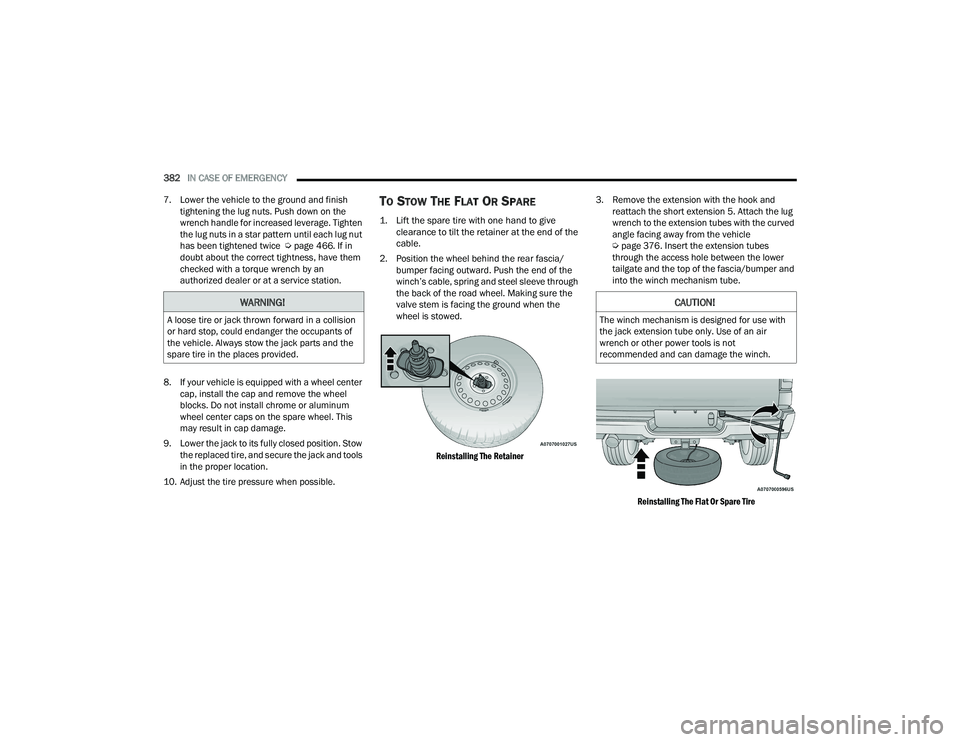
1. Lift the spare tire with one hand to give clearance to tilt the retainer at the end of the
cable.
2. Position the wheel behind the rear fascia/ bumper facing outward. Push the end of the
winch’s cable, spring and steel sleeve through
the back of the road wheel. Making sure the
valve stem is facing the ground when the
wheel is stowed.
Reinstalling The Retainer
3. Remove the extension with the hook and
reattach the short extension 5. Attach the lug
wrench to the extension tubes with the curved
angle facing away from the vehicle
Úpage 376. Insert the extension tubes
through the access hole between the lower
tailgate and the top of the fascia/bumper and
into the winch mechanism tube.
Reinstalling The Flat Or Spare Tire
WARNING!
A loose tire or jack thrown forward in a collision
or hard stop, could endanger the occupants of
the vehicle. Always stow the jack parts and the
spare tire in the places provided.
CAUTION!
The winch mechanism is designed for use with
the jack extension tube only. Use of an air
wrench or other power tools is not
recommended and can damage the winch.
22_DT_OM_EN_USC_t.book Page 382