ad blue RAM 1500 2022 Owner's Manual
[x] Cancel search | Manufacturer: RAM, Model Year: 2022, Model line: 1500, Model: RAM 1500 2022Pages: 496, PDF Size: 18.03 MB
Page 284 of 496
282MULTIMEDIA
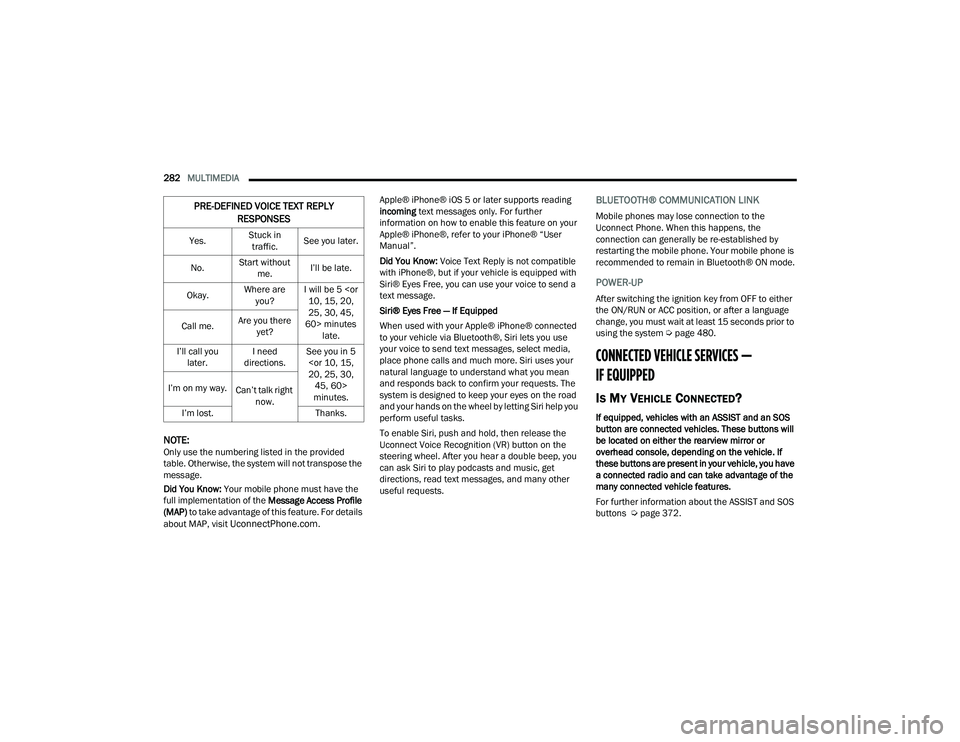
NOTE:Only use the numbering listed in the provided
table. Otherwise, the system will not transpose the
message.
Did You Know: Your mobile phone must have the
full implementation of the Message Access Profile
(MAP) to take advantage of this feature. For details
about MAP, visit
UconnectPhone.com. Apple® iPhone® iOS 5 or later supports reading
incoming
text messages only. For further
information on how to enable this feature on your
Apple® iPhone®, refer to your iPhone® “User
Manual”.
Did You Know: Voice Text Reply is not compatible
with iPhone®, but if your vehicle is equipped with
Siri® Eyes Free, you can use your voice to send a
text message.
Siri® Eyes Free — If Equipped
When used with your Apple® iPhone® connected
to your vehicle via Bluetooth®, Siri lets you use
your voice to send text messages, select media,
place phone calls and much more. Siri uses your
natural language to understand what you mean
and responds back to confirm your requests. The
system is designed to keep your eyes on the road
and your hands on the wheel by letting Siri help you
perform useful tasks.
To enable Siri, push and hold, then release the
Uconnect Voice Recognition (VR) button on the
steering wheel. After you hear a double beep, you
can ask Siri to play podcasts and music, get
directions, read text messages, and many other
useful requests.
BLUETOOTH® COMMUNICATION LINK
Mobile phones may lose connection to the
Uconnect Phone. When this happens, the
connection can generally be re-established by
restarting the mobile phone. Your mobile phone is
recommended to remain in Bluetooth® ON mode.
POWER-UP
After switching the ignition key from OFF to either
the ON/RUN or ACC position, or after a language
change, you must wait at least 15 seconds prior to
using the system Ú page 480.
CONNECTED VEHICLE SERVICES —
IF EQUIPPED
IS MY VEHICLE CONNECTED?
If equipped, vehicles with an ASSIST and an SOS
button are connected vehicles. These buttons will
be located on either the rearview mirror or
overhead console, depending on the vehicle. If
these buttons are present in your vehicle, you have
a connected radio and can take advantage of the
many connected vehicle features.
For further information about the ASSIST and SOS
buttons Úpage 372.
PRE-DEFINED VOICE TEXT REPLY
RESPONSES
Yes. Stuck in
traffic. See you later.
No. Start without
me. I’ll be late.
Okay. Where are
you? I will be 5
25, 30, 45,
60> minutes late.
Call me.
Are you there
yet?
I’ll call you later. I need
directions. See you in 5
minutes.
I’m on my way.
Can’t talk right
now.
I’m lost. Thanks.
22_DT_OM_EN_USC_t.book Page 282
Page 288 of 496
286MULTIMEDIA
Editing Your Notifications
Notifications are an important element of your
SiriusXM Guardian™ account. For example, any
time you use your remote services (such as
Remote Door Unlock), you can elect to receive a
text message, push notification, and/or E-mail to
notify you of the event. To set up the notifications,
please follow these instructions.
1. Log on to your Owner’s Account at
https://
www.mopar.com/en-us.html (US Residents)
and select “Dashboard”, or www.mopar.ca
(Canadian Residents), select “My Vehicle”
and then “Dashboard”.
2. Click the Edit/Edit Profile button.
3. Once there, select “SiriusXM Guardian™” where you can edit Notification Preferences.
4. You can enter a mobile phone and/or email address to notify you, and you can customize
the types of messages.
USING SIRIUSXM GUARDIAN™
SOS Call — If Equipped
Access To Emergency Services At The Push Of A
Button
SiriusXM Guardian™ In-Vehicle Assistance
Features
With SiriusXM Guardian™, your vehicle has
onboard assistance features located on the
rearview mirror or overhead console designed to
enhance your driving experience if you should ever
need assistance or support.
Description
SOS Call offers a convenient way to get in contact
with a SiriusXM Guardian™ Customer Care agent
in the event of an emergency. When the
connection between the vehicle and the live agent
is made, your vehicle will automatically transmit
location information. In the event of a minor
collision, medical or any other emergency, press
the SOS button to be connected to a call center
agent who can send emergency assistance to your
vehicle’s location.NOTE:Certain SiriusXM Guardian™ connected services
are dependent on an operational Uconnect
system, cellular network availability that is
compatible with the device in your vehicle, and
GPS network availability. Not all features of
SiriusXM Guardian™ are available everywhere at
all times, particularly in remote or enclosed areas.
How It Works
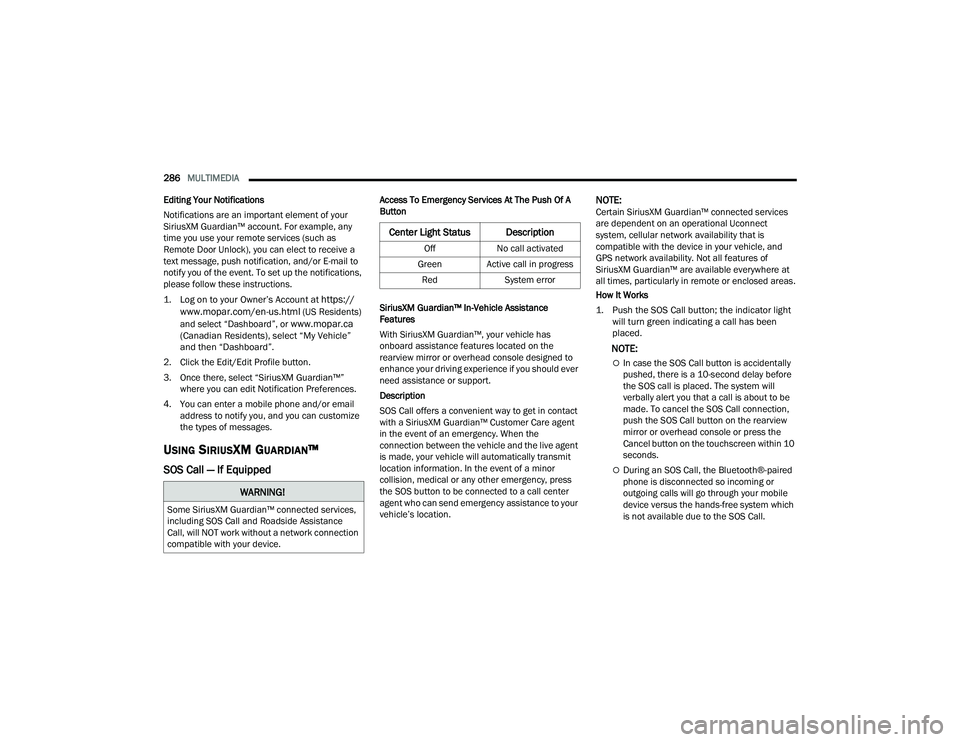
1. Push the SOS Call button; the indicator light will turn green indicating a call has been
placed.
NOTE:
In case the SOS Call button is accidentally
pushed, there is a 10-second delay before
the SOS call is placed. The system will
verbally alert you that a call is about to be
made. To cancel the SOS Call connection,
push the SOS Call button on the rearview
mirror or overhead console or press the
Cancel button on the touchscreen within 10
seconds.
During an SOS Call, the Bluetooth®-paired
phone is disconnected so incoming or
outgoing calls will go through your mobile
device versus the hands-free system which
is not available due to the SOS Call.
WARNING!
Some SiriusXM Guardian™ connected services,
including SOS Call and Roadside Assistance
Call, will NOT work without a network connection
compatible with your device.
Center Light Status Description
Off No call activated
Green Active call in progress Red System error
22_DT_OM_EN_USC_t.book Page 286
Page 293 of 496
MULTIMEDIA291
Working Vehicle Conditions
The vehicle must be off or in ACC mode.
The vehicle has been started with the key fob
within the last 14 days.
The vehicle must be in PARK or at a standstill.
The vehicle’s security system has been armed
and not triggered since the last vehicle start.
The doors, hood, and trunk/liftgate are closed.
The vehicle’s check engine light must be off.
The vehicle must have at least a quarter tank of
fuel, along with oil and battery power.
The vehicle’s hazard lights must be off.
If equipped, the vehicle must have an automatic
transmission.
The vehicle must be in an open area with cell
tower reception.
Your mobile device must have a cellular or Wi-Fi
connection.
If the Panic button has been pressed, the
vehicle must be started at least once after
alarming the system.
NOTE:The SiriusXM Guardian™ Customer Care agents
are not authorized for Remote Vehicle Start
services. Contact the Uconnect Care Team for
assistance.
Remote Horn & Lights
Description
It is easy to locate a vehicle in a dark, crowded or
noisy parking area by activating the horn and
lights. It may also help if you need to draw attention
to your vehicle for any reason.
If you want, you can set up push notifications every
time a command is sent to turn on the horn and
lights.
Working Vehicle Conditions
The vehicle must in PARK or at a standstill.
The vehicle must be in an open area with cell
tower reception.
Your mobile device must have a cellular or Wi-Fi
connection.
NOTE:The Remote Horn & Lights feature is designed to
be loud and get noticed. Please keep in mind the
surroundings when using this feature. You are
responsible for compliance with local laws, rules
and ordinances in the location of your vehicle
when using Remote Horn & Lights.
Assist — If Equipped
Description
Vehicles equipped with the SiriusXM Guardian™
connected services feature may contain an ASSIST
button in the vehicle. Once your SiriusXM
Guardian™ connected services have been
activated, the ASSIST button can connect you
directly to a Customer Care call center (if
equipped). You will be directed to one of the four
services below:
Roadside Assistance — If you get a flat tire or
need a tow, you’ll be connected to someone
who can help anytime.
Connected Services — Contact the SiriusXM
Guardian™ Customer Care call center to acti -
vate your services, renew after your trial has
expired, for in-vehicle support for your SiriusXM
Guardian™ connected services, or help
answering any general questions surrounding
your connected services.
Uconnect Care — In-vehicle support for all
non-connected Uconnect system features, such
as radio and Bluetooth® connections.
Vehicle Care — Total support for your vehicle.
5
22_DT_OM_EN_USC_t.book Page 291
Page 298 of 496
296MULTIMEDIA
Google Assistant — If Equipped
With the Google Assistant, you can get help and
keep tabs on your car. Google Assistant is available
across your devices, including Android™ phones,
iPhone® devices, or voice-activated speakers, like
Google Home. If you need assistance, ask Google
for help, or for a complete list of commands by
saying: “Hey Google, ask
with my car.”
Here are a few examples of commands:
“Hey Google, ask
“Hey Google, ask
“Hey Google, ask
Chrysler Drive, Auburn Hills, Michigan to my
“Hey Google, ask
fuel level of my
To link your Uconnect account with Google
Assistant, follow these steps:
1. Download and install the Google Assistant app on your smart phone from the App
Store® or Google Play.
2. After installation, log in to the Google Assistant app with your Gmail ID. Verify your account by
pressing the icon in the upper right-hand
corner. 3. Press the Discover button in the bottom left
corner of the screen. Enter the vehicle brand
name.
4. A prompt will appear to link your Uconnect account. Press “Link Uconnect to Google”.
5. Press “Sign In” and enter the email address and password you created when you activated
SiriusXM Guardian™. There will be additional
settings to confirm on the following screen.
6. Lastly, press “Authorize” to complete the linking process.
Now, you can ask Google Assistant to help you:
Remotely start the engine, or cancel a remote
start
Send a destination to your vehicle’s built-in
Uconnect Navigation system
Monitor vehicle vitals, such as tire pressure, fuel
level and oil life
And more!
Family Drive Alerts — If Equipped
Description
Family Drive Alerts help promote safer driving and
give you peace of mind when your loved ones are
out on the road. You can set boundary limits,
monitor driving speed, and pinpoint your vehicle’s
location any time, any place. Use the Mobile App to
set alerts:
Boundary Alert
Receive a notification the moment your vehicle
is driven either out of or into a geographic
boundary that you set.
Curfew Alert
Receive a notification when your car is being
driven outside of the curfew time.
Speed Alert
Receive a notification whenever your car
exceeds a speed limit you set.
Valet Alert
Receive a notification if and when your vehicle is
driven outside a quarter-mile radius of a valet
drop-off zone.
SmartWatch Integration — If Equipped
Description
SmartWatch Integration puts the Mobile App right
on your Apple® Watch or Android™ Wear. To get
started, follow these steps:
1. Download the Mobile App from the App Store® or Google Play.
2. Log onto the app from your smartphone using the username and password you created when
you first set up your account.
3. Make sure your watch and smartphone are connected through Bluetooth®.
22_DT_OM_EN_USC_t.book Page 296
Page 307 of 496

MULTIMEDIA305
Battery Voltage
Shows actual battery voltage.
Intake Air Temp
Shows actual intake air temperature.
If a gauge is selected, the Gauge Detail View Page
will appear on the screen. This page shows gauge
values for the previous two minutes on the
selected gauge.
Pressing the Left or Right Arrow will cycle through
the details for each of the gauges. Pressing the
minimize button beside the graph will return to the
Gauge menu.
G-FORCE
When G-Force is selected, the following features
will be available:
Vehicle Speed
Measures the current speed of the vehicle in
either mph or km/h, starting at zero with no
maximum value.
Front G-Force
Measures the peak braking force on the front of
the vehicle.
Right G-Force
Measures the peak force on the right side of the
vehicle.
Left G-Force
Measures the peak force on the left side of the
vehicle.
Rear G-Force
Measures the peak acceleration force on the
rear of the vehicle.
NOTE:Front, Right, Left, and Rear G-Forces are all peak
values. These readings can be reset by clearing
peak G-Force on the instrument cluster.
The friction circle display shows instantaneous
G-Force as a highlight and previous G-Force as
dots within the circle. The system records previous
G-Force for three minutes. If there are multiple
samples at a given point, the color of the dot will
darken from blue to red. Vectors more frequent will
show in red; infrequent vectors will show in blue.
Pitch & Roll
The G-Force page displays the vehicle’s current
pitch (angle up and down) and roll (angle side to
side) in degrees. The pitch and roll gauges provide
a visualization of the current vehicle angle.
DYNAMOMETER (DYNO)/ENGINE
Dynamometer (Dyno)
The system will start drawing graphs for Power and
Torque (top chart) and Engine Speed (bottom
chart). The graph will fill from the left side of the
x-axis and fill to the right side of the x-axis (based
on History time selected). Once the right side of the
page is reached, the graph will scroll with the right
side always being the most recent recorded
sample.
The following options can be selected:
Pressing the STOP button will freeze the graph.
Selecting “Play” will clear the graph and restart
the process.
Press the + or – button to change the history of
the graph. The selectable options are “30”,
“60”, “90”, “120” seconds. The graph will
expand or constrict depending on the setting
selected.
Select the “Gear” display setting to turn the
graph gear markers on or off.
NOTE:The Gear On/Off feature will only display if your
vehicle is equipped with an Automatic Trans -
mission.
5
22_DT_OM_EN_USC_t.book Page 305
Page 432 of 496

430SERVICING AND MAINTENANCE
F05 ––Spare
F06 –10 Amp Red OUTPUT TO UPFITTER PDC *
F07 ––Spare
F08 20 Amp Blue –Trailer Tow Backup
F09 –20 Amp Yellow Trailer Stop / Turn Lamp Left
F10 –20 Amp Yellow Trailer Stop / Turn Lamp Right
F11 –15 Amp Blue ID/CLEARANCE LIGHTS *
F12 20 Amp Blue –Trailer Tow Park Lamp
F13 ––Spare
F14 –10 Amp Red AC Clutch
F15 –5 Amp Tan Intelligent Battery Sensor (IBS)
F16 ––Spare *
F17 –20 Amp Yellow Air Suspension
F18 –15 Amp Blue AGS / Rear Axle Cooling Valve / Active Air Dam
F19 ––Spare
F20 –20 Amp Yellow Adjustable Pedals *
F21 30 Amp Pink –Power Side Step *
F22 50 Amp Red –Air Module *
F23 ––Spare
F24 –20 Amp Yellow TCM SBW
Cavity Cartridge Fuse Micro Fuse Description
* If Equipped
22_DT_OM_EN_USC_t.book Page 430
Page 433 of 496
SERVICING AND MAINTENANCE431
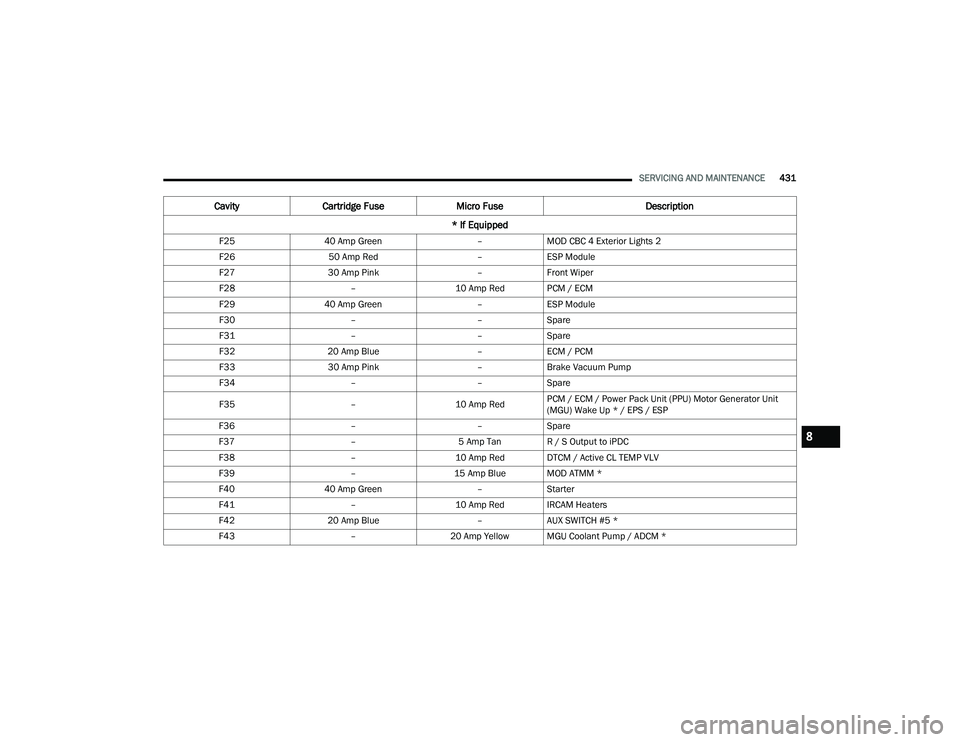
F25 40 Amp Green –MOD CBC 4 Exterior Lights 2
F26 50 Amp Red –ESP Module
F27 30 Amp Pink –Front Wiper
F28 –10 Amp Red PCM / ECM
F29 40 Amp Green –ESP Module
F30 ––Spare
F31 ––Spare
F32 20 Amp Blue –ECM / PCM
F33 30 Amp Pink –Brake Vacuum Pump
F34 ––Spare
F35 –10 Amp RedPCM / ECM / Power Pack Unit (PPU) Motor Generator Unit
(MGU) Wake Up * / EPS / ESP
F36 ––Spare
F37 –5 Amp Tan R / S Output to iPDC
F38 –10 Amp Red DTCM / Active CL TEMP VLV
F39 –15 Amp Blue MOD ATMM *
F40 40 Amp Green –Starter
F41 –10 Amp Red IRCAM Heaters
F42 20 Amp Blue –AUX SWITCH #5 *
F43 –20 Amp Yellow MGU Coolant Pump / ADCM *
Cavity Cartridge Fuse Micro Fuse Description
* If Equipped
8
22_DT_OM_EN_USC_t.book Page 431
Page 434 of 496

432SERVICING AND MAINTENANCE
F44 –10 Amp Red Trailer Camera *
F45 –10 Amp Red ADCM *
F46 30 Amp Pink –Fuel Heater *
F47 30 Amp Pink –Rear Defroster
F48 ––Spare
F49 30 Amp Pink –Htr Ctrl *
F50 20 Amp Blue –AUX SWITCH #6 *
F51 25 Amp White –FUEL PUMP MOTOR #1 *
F52 ––Spare
F53 –10 Amp Red Supply / Purging Pump *
F54 –15 Amp Blue PCM *
10 Amp Red Vapor Blocking Valve *
F55 –15 Amp Blue RT HID Headlamp
F56 ––Spare
F57 –20 Amp Yellow Horn
F58 25 Amp White –FUEL PUMP MOTOR #2 *
F59 –25 Amp Clear Injectors / IGN Coil / Glow Plug Module *
F60 –20 Amp Yellow ECM / PCM / ACT Short Running Valve / LTR Coolant Pump *
F61 –15 Amp Blue LT HID Headlamp
CavityCartridge Fuse Micro Fuse Description
* If Equipped
22_DT_OM_EN_USC_t.book Page 432
Page 435 of 496

SERVICING AND MAINTENANCE433
Internal Power Distribution Center
The Power Distribution Center is located under the
driver’s side instrument panel. This center
contains cartridge fuses, micro fuses, relays, and
circuit breakers.
Fuse Cover Panel
See below steps for accessing fuses:
1. Locate and remove the two screws from the
lower portion of the fuse panel cover.
Fuse Panel Screws Location
2. After removing the screws, gently pull both the
left and right side of the fuse panel cover to
release the fastener clips.
Interior Fuse Box Location
3. Reverse the procedure to reinstall the fuse panel cover.
F62
60 Amp Blue
–Glow Plug *
40 Amp Green LTR Coolant Pump *
F63 20 Amp Blue –NOx Sensor *
F64 –10 Amp Red PM Sensor *
CavityCartridge Fuse Micro Fuse Description
* If Equipped
8
22_DT_OM_EN_USC_t.book Page 433
Page 436 of 496

434SERVICING AND MAINTENANCE
Internal Fuse Chart
Cavity Cartridge Fuse Micro Fuse Description
* If Equipped
F01 30 Amp Pink –Trailer Tow Receptacle
F02 ––Spare
F03 –20 Amp Yellow Module Seat Heater Front (Pass)
F04 ––Spare
F05 –20 Amp Yellow Module PPU Cooling Fan *
F06 ––Spare
F07 40 Amp Green –Mod CBC 3 PWR Locks
F08 ––Spare
F09 ––Spare
F10 40 Amp Green –HVAC Blower Motor
F11 –5 Amp TanOutput to Under-hood Power Distribution Center (UPDC) Run
Coil
F12 –25 Amp Clear Mod Audio Amplifier / Active Noise Cancellation
F13 –20 Amp Yellow Mod Seat Heater Front (Driver)
F14 –15 Amp Blue Mod Seat Heater Front (Steering Wheel)
F15 ––Spare
F16 ––Spare
F17 –20 Amp Yellow LT Spot Lamp *
F18 30 Amp Pink –Motor Sunshade Sunroof
22_DT_OM_EN_USC_t.book Page 434