light RAM 1500 2023 Owners Manual
[x] Cancel search | Manufacturer: RAM, Model Year: 2023, Model line: 1500, Model: RAM 1500 2023Pages: 416, PDF Size: 20.59 MB
Page 195 of 416
MULTIMEDIA193
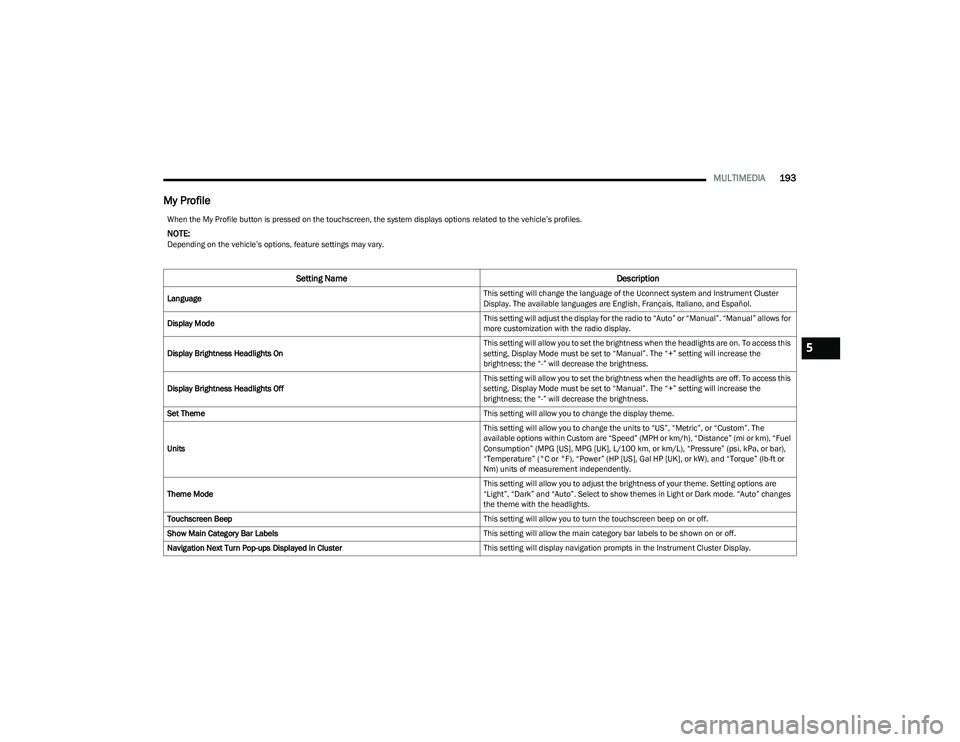
My Profile
When the My Profile button is pressed on the touchscreen, the system displays options related to the vehicle’s profiles.
NOTE:Depending on the vehicle’s options, feature settings may vary.
Setting Name Description
Language This setting will change the language of the Uconnect system and Instrument Cluster
Display. The available languages are English, Français, Italiano, and Español.
Display Mode This setting will adjust the display for the radio to “Auto” or “Manual”. “Manual” allows for
more customization with the radio display.
Display Brightness Headlights On This setting will allow you to set the brightness when the headlights are on. To access this
setting, Display Mode must be set to “Manual”. The “+” setting will increase the
brightness; the “-” will decrease the brightness.
Display Brightness Headlights Off This setting will allow you to set the brightness when the headlights are off. To access this
setting, Display Mode must be set to “Manual”. The “+” setting will increase the
brightness; the “-” will decrease the brightness.
Set Theme This setting will allow you to change the display theme.
Units This setting will allow you to change the units to “US”, “Metric”, or “Custom”. The
available options within Custom are “Speed” (MPH or km/h), “Distance” (mi or km), “Fuel
Consumption” (MPG [US], MPG [UK], L/100 km, or km/L), “Pressure” (psi, kPa, or bar),
“Temperature” (°C or °F), “Power” (HP [US], Gal HP [UK], or kW), and “Torque” (lb-ft or
Nm) units of measurement independently.
Theme Mode This setting will allow you to adjust the brightness of your theme. Setting options are
“Light”, “Dark” and “Auto”. Select to show themes in Light or Dark mode. “Auto” changes
the theme with the headlights.
Touchscreen Beep This setting will allow you to turn the touchscreen beep on or off.
Show Main Category Bar Labels This setting will allow the main category bar labels to be shown on or off.
Navigation Next Turn Pop-ups Displayed in Cluster This setting will display navigation prompts in the Instrument Cluster Display.
5
23_DT_OM_EN_USC_t.book Page 193
Page 198 of 416

196MULTIMEDIA
Display
When the Display button is pressed on the touchscreen, the system will display the options related to the theme (if equipped), brightness, and color of the touchscreen. The available
settings are:
NOTE:Depending on the vehicle’s options, feature settings may vary.
Setting Name Description
Language This setting will change the language of the Uconnect system and Instrument Cluster
Display. The available languages are English, Français, Italiano, and Español.
Display Mode This setting will allow you to set the brightness manually or have the system set
it automatically. The “Auto” setting has the system automatically adjust the
display brightness. The “Manual” setting will allow the user to adjust the brightness
of the display.
Display Brightness With Headlights ON/Brightness This setting will allow you to set the brightness when the headlights are on. To access this
setting, Display Mode must be set to Manual. The “+” setting will increase the brightness;
the “-” will decrease the brightness.
Display Brightness With Headlights OFF/Brightness This setting will allow you to set the brightness when the headlights are off. To access this
setting, Display Mode must be set to Manual. The “+” setting will increase the brightness;
the “-” will decrease the brightness.
Set Theme This setting will allow you to change the display theme.
Units This setting will allow you to change the units. The available options are “Speed” (MPH or
km/h), “Distance” (mi or km), “Fuel Consumption” (MPG [US], MPG [UK], L/100 km, or
km/L), “Pressure” (psi, kPa, or bar), “Temperature” (°C or °F), “Power” (HP [US], Gal HP
[UK], or kW), and “Torque” (lb-ft or Nm) units of measurement independently.
Theme Mode This setting will allow you to adjust the brightness of your theme. Setting options are
“Light”, “Dark” and “Auto”. Select to show themes in Light or Dark mode. “Auto” changes
the theme with the headlights.
Touchscreen Beep This setting will allow you to turn the touchscreen beep on or off.
23_DT_OM_EN_USC_t.book Page 196
Page 200 of 416
198MULTIMEDIA
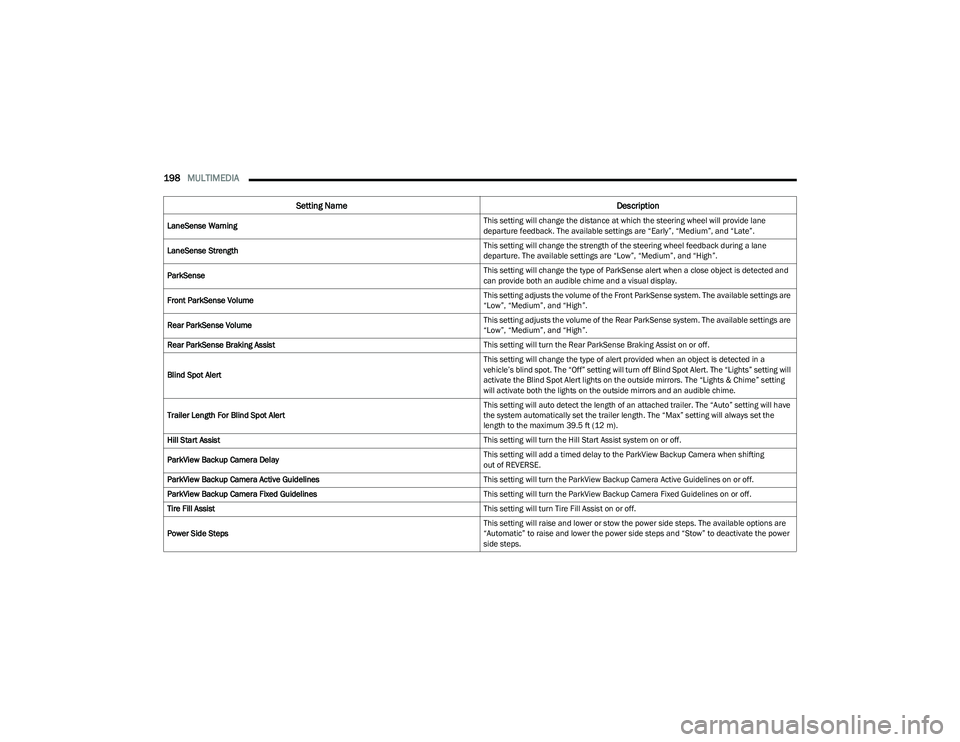
LaneSense Warning This setting will change the distance at which the steering wheel will provide lane
departure feedback. The available settings are “Early”, “Medium”, and “Late”.
LaneSense Strength This setting will change the strength of the steering wheel feedback during a lane
departure. The available settings are “Low”, “Medium”, and “High”.
ParkSense This setting will change the type of ParkSense alert when a close object is detected and
can provide both an audible chime and a visual display.
Front ParkSense Volume This setting adjusts the volume of the Front ParkSense system. The available settings are
“Low”, “Medium”, and “High”.
Rear ParkSense Volume This setting adjusts the volume of the Rear ParkSense system. The available settings are
“Low”, “Medium”, and “High”.
Rear ParkSense Braking Assist This setting will turn the Rear ParkSense Braking Assist on or off.
Blind Spot Alert This setting will change the type of alert provided when an object is detected in a
vehicle’s blind spot. The “Off” setting will turn off Blind Spot Alert. The “Lights” setting will
activate the Blind Spot Alert lights on the outside mirrors. The “Lights & Chime” setting
will activate both the lights on the outside mirrors and an audible chime.
Trailer Length For Blind Spot Alert This setting will auto detect the length of an attached trailer. The “Auto” setting will have
the system automatically set the trailer length. The “Max” setting will always set the
length to the maximum 39.5 ft (12 m).
Hill Start Assist This setting will turn the Hill Start Assist system on or off.
ParkView Backup Camera Delay This setting will add a timed delay to the ParkView Backup Camera when shifting
out of REVERSE.
ParkView Backup Camera Active Guidelines This setting will turn the ParkView Backup Camera Active Guidelines on or off.
ParkView Backup Camera Fixed Guidelines This setting will turn the ParkView Backup Camera Fixed Guidelines on or off.
Tire Fill Assist This setting will turn Tire Fill Assist on or off.
Power Side Steps This setting will raise and lower or stow the power side steps. The available options are
“Automatic” to raise and lower the power side steps and “Stow” to deactivate the power
side steps.
Setting Name
Description
23_DT_OM_EN_USC_t.book Page 198
Page 204 of 416
202MULTIMEDIA
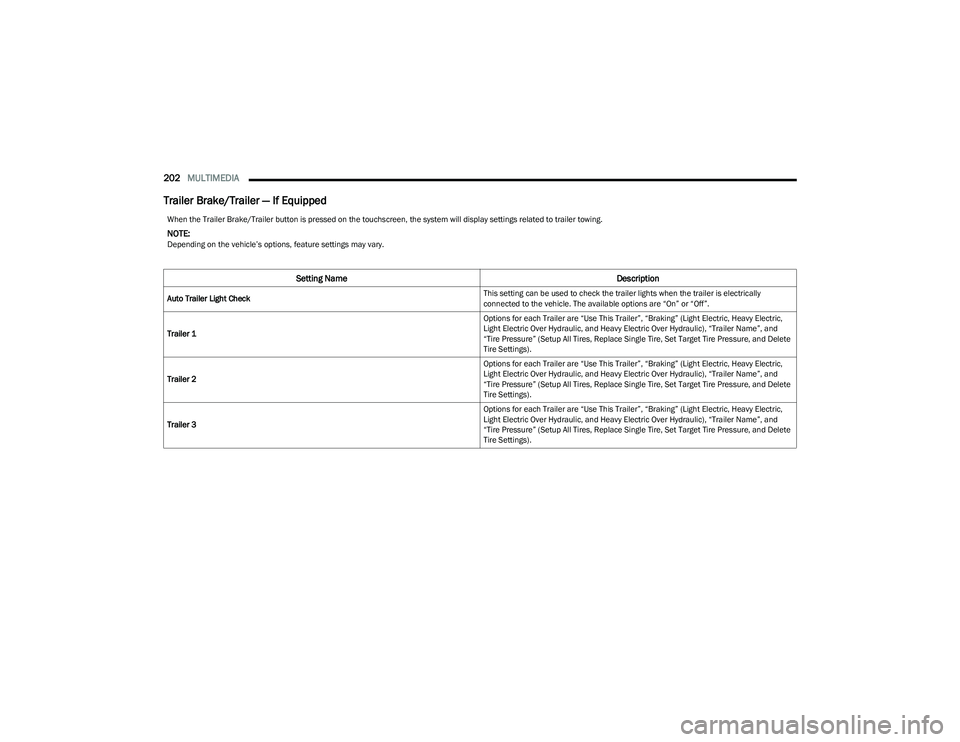
Trailer Brake/Trailer — If Equipped
When the Trailer Brake/Trailer button is pressed on the touchscreen, the system will display settings related to trailer towing.
NOTE:Depending on the vehicle’s options, feature settings may vary.
Setting Name Description
Auto Trailer Light Check This setting can be used to check the trailer lights when the trailer is electrically
connected to the vehicle. The available options are “On” or “Off”.
Trailer 1 Options for each Trailer are “Use This Trailer”, “Braking” (Light Electric, Heavy Electric,
Light Electric Over Hydraulic, and Heavy Electric Over Hydraulic), “Trailer Name”, and
“Tire Pressure” (Setup All Tires, Replace Single Tire, Set Target Tire Pressure, and Delete
Tire Settings).
Trailer 2 Options for each Trailer are “Use This Trailer”, “Braking” (Light Electric, Heavy Electric,
Light Electric Over Hydraulic, and Heavy Electric Over Hydraulic), “Trailer Name”, and
“Tire Pressure” (Setup All Tires, Replace Single Tire, Set Target Tire Pressure, and Delete
Tire Settings).
Trailer 3 Options for each Trailer are “Use This Trailer”, “Braking” (Light Electric, Heavy Electric,
Light Electric Over Hydraulic, and Heavy Electric Over Hydraulic), “Trailer Name”, and
“Tire Pressure” (Setup All Tires, Replace Single Tire, Set Target Tire Pressure, and Delete
Tire Settings).
23_DT_OM_EN_USC_t.book Page 202
Page 205 of 416
MULTIMEDIA203
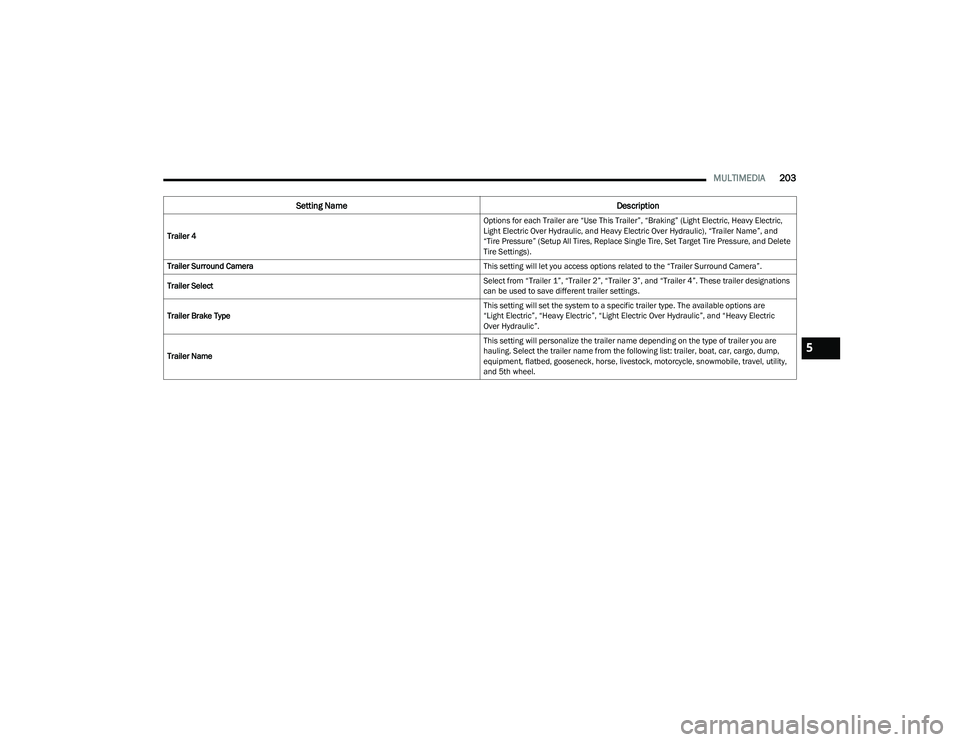
Trailer 4 Options for each Trailer are “Use This Trailer”, “Braking” (Light Electric, Heavy Electric,
Light Electric Over Hydraulic, and Heavy Electric Over Hydraulic), “Trailer Name”, and
“Tire Pressure” (Setup All Tires, Replace Single Tire, Set Target Tire Pressure, and Delete
Tire Settings).
Trailer Surround Camera This setting will let you access options related to the “Trailer Surround Camera”.
Trailer Select Select from “Trailer 1”, “Trailer 2”, “Trailer 3”, and “Trailer 4”. These trailer designations
can be used to save different trailer settings.
Trailer Brake Type This setting will set the system to a specific trailer type. The available options are
“Light Electric”, “Heavy Electric”, “Light Electric Over Hydraulic”, and “Heavy Electric
Over Hydraulic”.
Trailer Name This setting will personalize the trailer name depending on the type of trailer you are
hauling. Select the trailer name from the following list: trailer, boat, car, cargo, dump,
equipment, flatbed, gooseneck, horse, livestock, motorcycle, snowmobile, travel, utility,
and 5th wheel.
Setting Name
Description
5
23_DT_OM_EN_USC_t.book Page 203
Page 207 of 416
MULTIMEDIA205
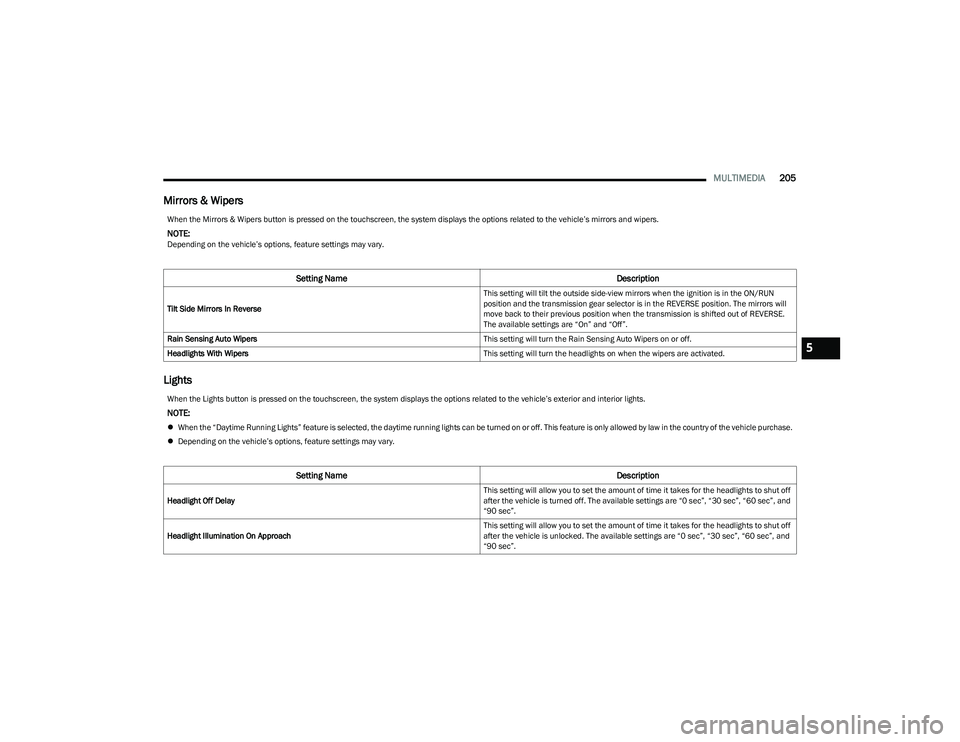
Mirrors & Wipers
Lights
When the Mirrors & Wipers button is pressed on the touchscreen, the system displays the options related to the vehicle’s mirrors and wipers.
NOTE:Depending on the vehicle’s options, feature settings may vary.
Setting Name Description
Tilt Side Mirrors In Reverse This setting will tilt the outside side-view mirrors when the ignition is in the ON/RUN
position and the transmission gear selector is in the REVERSE position. The mirrors will
move back to their previous position when the transmission is shifted out of REVERSE.
The available settings are “On” and “Off”.
Rain Sensing Auto Wipers This setting will turn the Rain Sensing Auto Wipers on or off.
Headlights With Wipers This setting will turn the headlights on when the wipers are activated.
When the Lights button is pressed on the touchscreen, the system displays the options related to the vehicle’s exterior and interior lights.
NOTE:
When the “Daytime Running Lights” feature is selected, the daytime running lights can be turned on or off. This feature is only allowed by law in the country of the vehicle purchase.
Depending on the vehicle’s options, feature settings may vary.
Setting Name Description
Headlight Off Delay This setting will allow you to set the amount of time it takes for the headlights to shut off
after the vehicle is turned off. The available settings are “0 sec”, “30 sec”, “60 sec”, and
“90 sec”.
Headlight Illumination On Approach This setting will allow you to set the amount of time it takes for the headlights to shut off
after the vehicle is unlocked. The available settings are “0 sec”, “30 sec”, “60 sec”, and
“90 sec”.
5
23_DT_OM_EN_USC_t.book Page 205
Page 208 of 416
206MULTIMEDIA
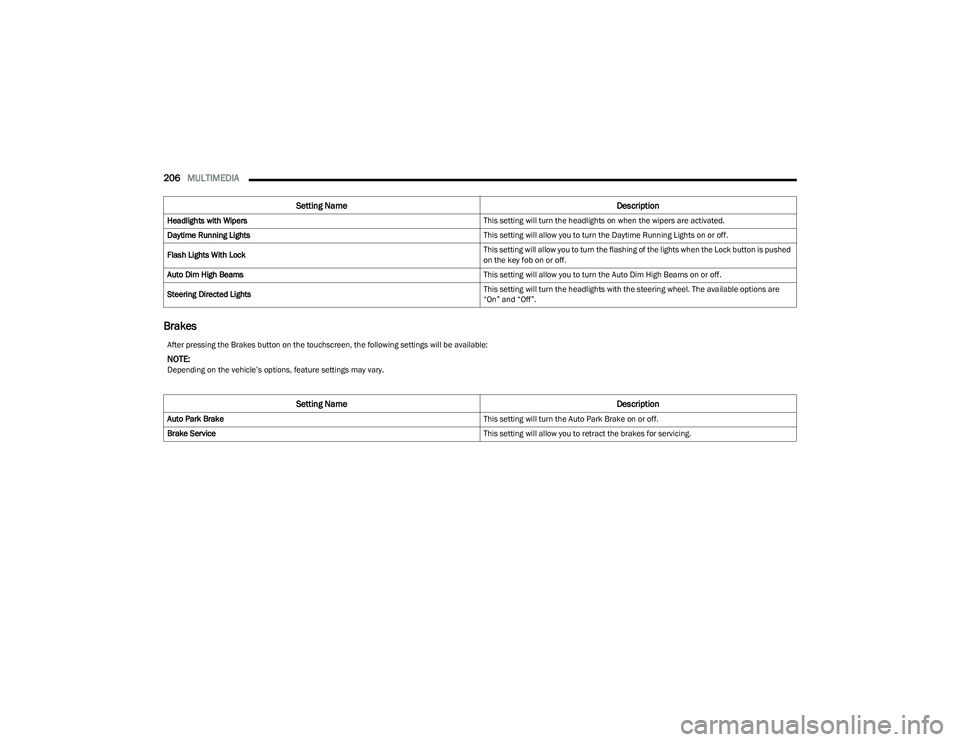
Brakes
Headlights with Wipers This setting will turn the headlights on when the wipers are activated.
Daytime Running Lights This setting will allow you to turn the Daytime Running Lights on or off.
Flash Lights With Lock This setting will allow you to turn the flashing of the lights when the Lock button is pushed
on the key fob on or off.
Auto Dim High Beams This setting will allow you to turn the Auto Dim High Beams on or off.
Steering Directed Lights This setting will turn the headlights with the steering wheel. The available options are
“On” and “Off”.
Setting Name
Description
After pressing the Brakes button on the touchscreen, the following settings will be available:
NOTE:Depending on the vehicle’s options, feature settings may vary.
Setting NameDescription
Auto Park Brake This setting will turn the Auto Park Brake on or off.
Brake Service This setting will allow you to retract the brakes for servicing.
23_DT_OM_EN_USC_t.book Page 206
Page 209 of 416
MULTIMEDIA207
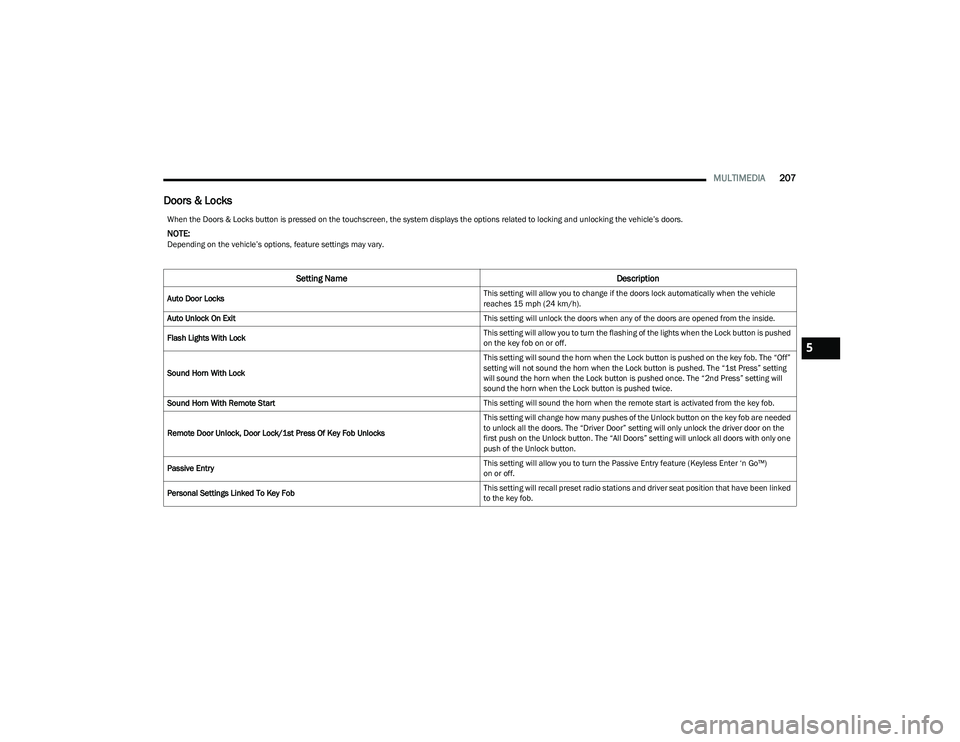
Doors & Locks
When the Doors & Locks button is pressed on the touchscreen, the system displays the options related to locking and unlocking the vehicle’s doors.
NOTE:Depending on the vehicle’s options, feature settings may vary.
Setting Name Description
Auto Door Locks This setting will allow you to change if the doors lock automatically when the vehicle
reaches 15 mph (24 km/h).
Auto Unlock On Exit This setting will unlock the doors when any of the doors are opened from the inside.
Flash Lights With Lock This setting will allow you to turn the flashing of the lights when the Lock button is pushed
on the key fob on or off.
Sound Horn With Lock This setting will sound the horn when the Lock button is pushed on the key fob. The “Off”
setting will not sound the horn when the Lock button is pushed. The “1st Press” setting
will sound the horn when the Lock button is pushed once. The “2nd Press” setting will
sound the horn when the Lock button is pushed twice.
Sound Horn With Remote Start This setting will sound the horn when the remote start is activated from the key fob.
Remote Door Unlock, Door Lock/1st Press Of Key Fob Unlocks This setting will change how many pushes of the Unlock button on the key fob are needed
to unlock all the doors. The “Driver Door” setting will only unlock the driver door on the
first push on the Unlock button. The “All Doors” setting will unlock all doors with only one
push of the Unlock button.
Passive Entry This setting will allow you to turn the Passive Entry feature (Keyless Enter ‘n Go™)
on or off.
Personal Settings Linked To Key Fob This setting will recall preset radio stations and driver seat position that have been linked
to the key fob.
5
23_DT_OM_EN_USC_t.book Page 207
Page 211 of 416
MULTIMEDIA209
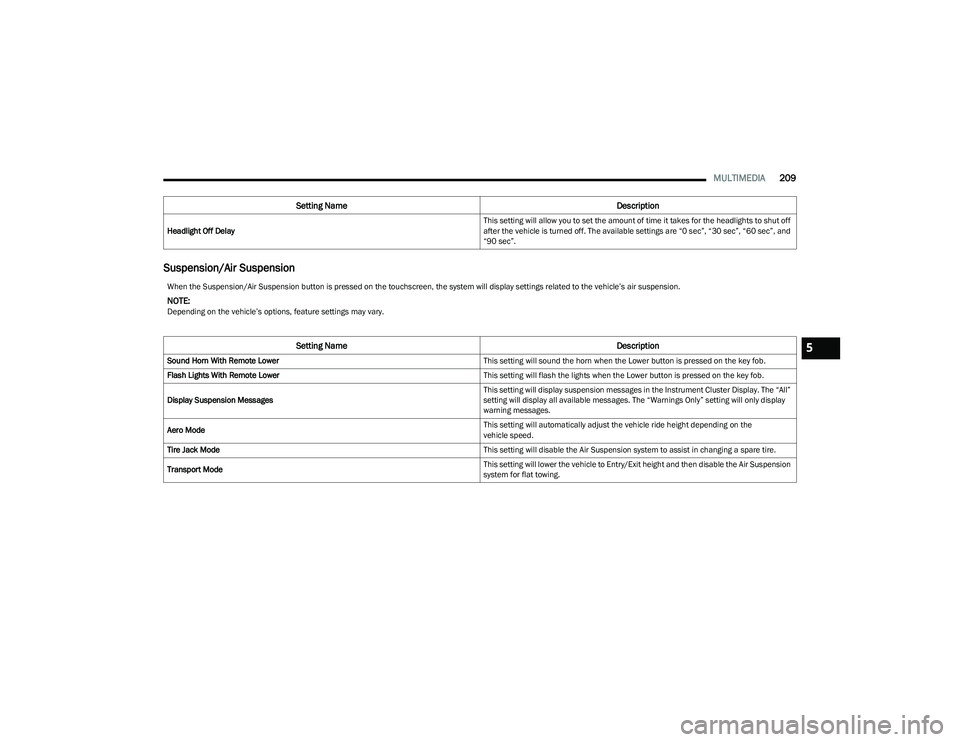
Suspension/Air Suspension
Headlight Off Delay This setting will allow you to set the amount of time it takes for the headlights to shut off
after the vehicle is turned off. The available settings are “0 sec”, “30 sec”, “60 sec”, and
“90 sec”.
Setting Name
Description
When the Suspension/Air Suspension button is pressed on the touchscreen, the system will display settings related to the vehicle’s air suspension.
NOTE:Depending on the vehicle’s options, feature settings may vary.
Setting NameDescription
Sound Horn With Remote Lower This setting will sound the horn when the Lower button is pressed on the key fob.
Flash Lights With Remote Lower This setting will flash the lights when the Lower button is pressed on the key fob.
Display Suspension Messages This setting will display suspension messages in the Instrument Cluster Display. The “All”
setting will display all available messages. The “Warnings Only” setting will only display
warning messages.
Aero Mode This setting will automatically adjust the vehicle ride height depending on the
vehicle speed.
Tire Jack Mode This setting will disable the Air Suspension system to assist in changing a spare tire.
Transport Mode This setting will lower the vehicle to Entry/Exit height and then disable the Air Suspension
system for flat towing.5
23_DT_OM_EN_USC_t.book Page 209
Page 218 of 416
216MULTIMEDIA
NOTE:Uconnect screen images are for illustration purposes only and may not reflect exact software for your vehicle.
Feature Description
Radio/MediaPress/Push the Radio button or Media button to enter Radio Mode/Media Mode and
access the radio functions and external audio sources Úpage 218.
Phone Press/Push the Phone button to enter Phone Mode and access the hands-free phone
system
Úpage 228.
Settings Press/Push the Settings button to access the Uconnect Settings
Úpage 191.
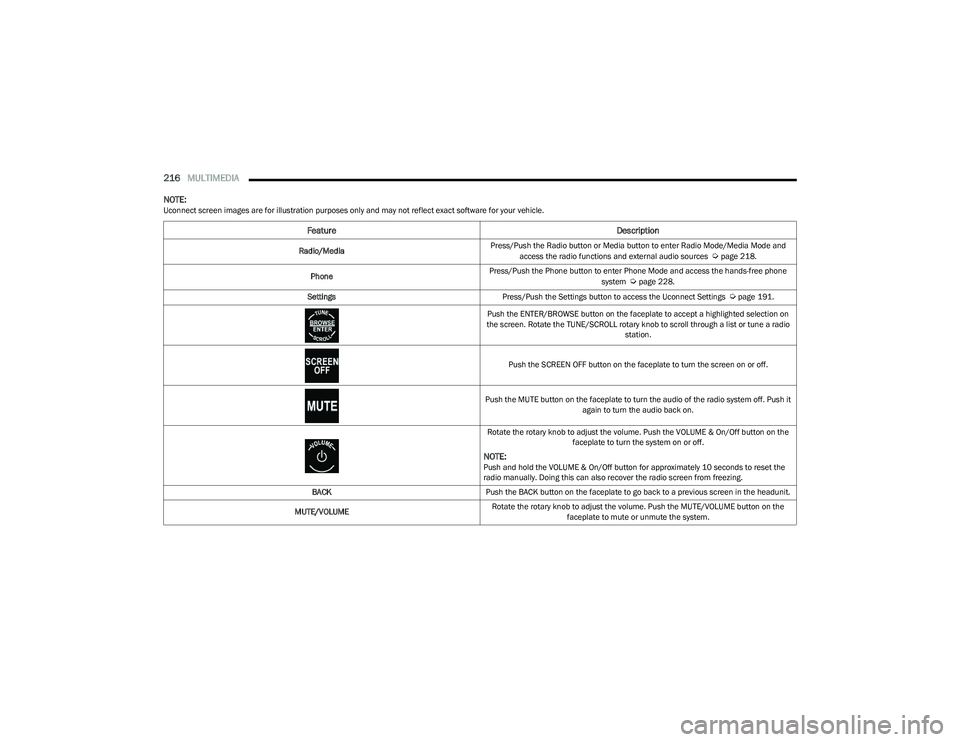
Push the ENTER/BROWSE button on the faceplate to accept a highlighted selection on
the screen. Rotate the TUNE/SCROLL rotary knob to scroll through a list or tune a radio station.
Push the SCREEN OFF button on the faceplate to turn the screen on or off.
Push the MUTE button on the faceplate to turn the audio of the radio system off. Push it again to turn the audio back on.
Rotate the rotary knob to adjust the volume. Push the VOLUME & On/Off button on the faceplate to turn the system on or off.
NOTE:Push and hold the VOLUME & On/Off button for approximately 10 seconds to reset the
radio manually. Doing this can also recover the radio screen from freezing.
BACK Push the BACK button on the faceplate to go back to a previous screen in the headunit.
MUTE/VOLUME Rotate the rotary knob to adjust the volume. Push the MUTE/VOLUME button on the
faceplate to mute or unmute the system.
23_DT_OM_EN_USC_t.book Page 216