key fob RAM 1500 2023 Owner's Guide
[x] Cancel search | Manufacturer: RAM, Model Year: 2023, Model line: 1500, Model: RAM 1500 2023Pages: 416, PDF Size: 20.59 MB
Page 137 of 416
STARTING AND OPERATING135
The vehicle will return to NRH from Aero Mode if the
vehicle speed remains between 30 mph (48 km/h)
and 35 mph (56 km/h) for greater than 20 seconds or
if the vehicle speed falls below 30 mph (48 km/h).
NOTE:
Automatic Aero mode will be disabled if a trailer is
detected to prevent shifting loads.
Speed thresholds for raising/lowering the vehicle
automatically at higher speeds only apply if
Automatic Aero Mode is enabled in your Uconnect
Radio settings.
To enter Aero Height manually push the height selector
switch down once from NRH at any vehicle speed. To
return to NRH push the height selector switch up once
while vehicle speed is less than 56 mph (90 km/h).
NOTE:Automatic Aero Mode may be disabled through vehicle
settings in the instrument cluster display Úpage 98 or
through your Uconnect Radio (if equipped) Úpage 191.
Entry/Exit Height (Lowers the vehicle approximately
2 inches [51 mm]) – This position lowers the vehicle
for easier passenger entry and exit as well as lowering
the vehicle for easier loading and unloading of cargo.
To enter Entry/Exit Mode, push the height selector
switch down once from the NRH while the vehicle
speed is below 33 mph (53 km/h). Once the vehicle
speed goes below 15 mph (24 km/h) the vehicle
height will begin to lower. If the vehicle speed remains
between 15 mph (24 km/h) and 25 mph (40 km/h) for
greater than 60 seconds, or the vehicle speed exceeds
25 mph (40 km/h) the Entry/Exit change will be canceled. To return to Normal Height Mode, push the height
selector switch up once while in Entry/Exit or drive the
vehicle over 15 mph (24 km/h).
NOTE:Entry/Exit Height may be achieved using the Remote
Lowering feature on your key fob for easier entry/loading
Úpage 16.
The system requires that the ignition be in the ON/RUN
position or the engine running for all user requested
changes. When lowering the vehicle, all of the doors must
be closed. If a door is opened at any time while the vehicle
is lowering, the change will not be completed until the
open door(s) is closed.
This system uses a lifting and lowering pattern which
keeps the headlights from incorrectly shining into
oncoming traffic. When raising the vehicle, the rear of the
vehicle will move up first and then the front. When
lowering the vehicle, the front will move down first and
then the rear.
After the engine is turned off, it may be noticed that the air
suspension system operates briefly; this is normal. The
system is correcting the position of the vehicle to ensure a
proper appearance.
To assist with changing a spare tire, the air suspension
system has a feature which allows the automatic leveling
to be disabled
Úpage 98. Default Ride Height:
Select Aero Height or Normal Ride Height as the default
for all vehicle speeds and operation. This is the
selected height that the suspension will level for speed
changes (e.g. raising from Entry/Exit Height at speed,
lowering from Off-Road Height at speed, etc.).
Default ride height can be changed by manually
adjusting the Air Suspension switch to Normal Ride
Height or Aero Ride Height and staying in the selected
height for 2.5 seconds. It will be stored as the default
ride height and the height will be maintained until a
new default ride height is selected.
NOTE:If equipped with a touchscreen radio, all enabling/
disabling of air suspension features must be done through
the radio
Úpage 191.
AIR SUSPENSION MODES
The air suspension system has multiple modes to protect
the system in unique situations. The engine should be
running to change between Air Suspension Modes.
CAUTION!
When in Entry/Exit Height, be aware of your
surroundings, you may not have the clearance required
for certain areas and vehicle damage may occur.
WARNING!
The air suspension system uses a high pressure
volume of air to operate the system. To avoid personal
injury or damage to the system, see an authorized
dealer for service.
4
23_DT_OM_EN_USC_t.book Page 135
Page 185 of 416
STARTING AND OPERATING183
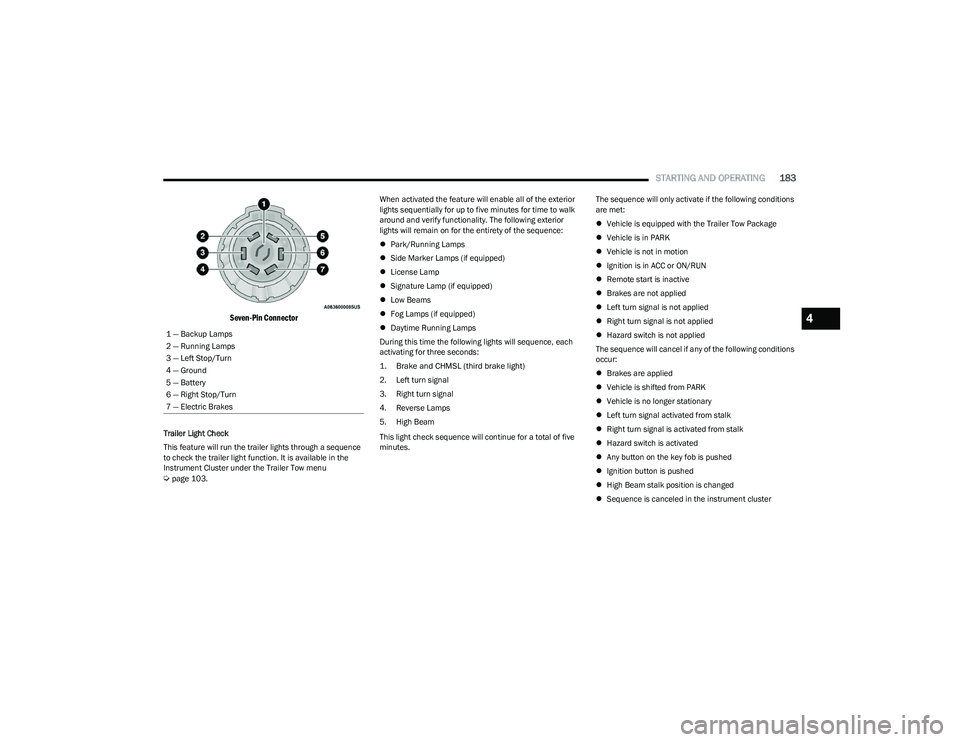
Seven-Pin Connector
Trailer Light Check
This feature will run the trailer lights through a sequence
to check the trailer light function. It is available in the
Instrument Cluster under the Trailer Tow menu
Úpage 103. When activated the feature will enable all of the exterior
lights sequentially for up to five minutes for time to walk
around and verify functionality. The following exterior
lights will remain on for the entirety of the sequence:
Park/Running Lamps
Side Marker Lamps (if equipped)
License Lamp
Signature Lamp (if equipped)
Low Beams
Fog Lamps (if equipped)
Daytime Running Lamps
During this time the following lights will sequence, each
activating for three seconds:
1. Brake and CHMSL (third brake light)
2. Left turn signal
3. Right turn signal
4. Reverse Lamps
5. High Beam
This light check sequence will continue for a total of five
minutes. The sequence will only activate if the following conditions
are met:
Vehicle is equipped with the Trailer Tow Package
Vehicle is in PARK
Vehicle is not in motion
Ignition is in ACC or ON/RUN
Remote start is inactive
Brakes are not applied
Left turn signal is not applied
Right turn signal is not applied
Hazard switch is not applied
The sequence will cancel if any of the following conditions
occur:
Brakes are applied
Vehicle is shifted from PARK
Vehicle is no longer stationary
Left turn signal activated from stalk
Right turn signal is activated from stalk
Hazard switch is activated
Any button on the key fob is pushed
Ignition button is pushed
High Beam stalk position is changed
Sequence is canceled in the instrument cluster
1 — Backup Lamps
2 — Running Lamps
3 — Left Stop/Turn
4 — Ground
5 — Battery
6 — Right Stop/Turn
7 — Electric Brakes
4
23_DT_OM_EN_USC_t.book Page 183
Page 208 of 416
206MULTIMEDIA
Brakes
Headlights with Wipers This setting will turn the headlights on when the wipers are activated.
Daytime Running Lights This setting will allow you to turn the Daytime Running Lights on or off.
Flash Lights With Lock This setting will allow you to turn the flashing of the lights when the Lock button is pushed
on the key fob on or off.
Auto Dim High Beams This setting will allow you to turn the Auto Dim High Beams on or off.
Steering Directed Lights This setting will turn the headlights with the steering wheel. The available options are
“On” and “Off”.
Setting Name
Description
After pressing the Brakes button on the touchscreen, the following settings will be available:
NOTE:Depending on the vehicle’s options, feature settings may vary.
Setting NameDescription
Auto Park Brake This setting will turn the Auto Park Brake on or off.
Brake Service This setting will allow you to retract the brakes for servicing.
23_DT_OM_EN_USC_t.book Page 206
Page 209 of 416
MULTIMEDIA207
Doors & Locks
When the Doors & Locks button is pressed on the touchscreen, the system displays the options related to locking and unlocking the vehicle’s doors.
NOTE:Depending on the vehicle’s options, feature settings may vary.
Setting Name Description
Auto Door Locks This setting will allow you to change if the doors lock automatically when the vehicle
reaches 15 mph (24 km/h).
Auto Unlock On Exit This setting will unlock the doors when any of the doors are opened from the inside.
Flash Lights With Lock This setting will allow you to turn the flashing of the lights when the Lock button is pushed
on the key fob on or off.
Sound Horn With Lock This setting will sound the horn when the Lock button is pushed on the key fob. The “Off”
setting will not sound the horn when the Lock button is pushed. The “1st Press” setting
will sound the horn when the Lock button is pushed once. The “2nd Press” setting will
sound the horn when the Lock button is pushed twice.
Sound Horn With Remote Start This setting will sound the horn when the remote start is activated from the key fob.
Remote Door Unlock, Door Lock/1st Press Of Key Fob Unlocks This setting will change how many pushes of the Unlock button on the key fob are needed
to unlock all the doors. The “Driver Door” setting will only unlock the driver door on the
first push on the Unlock button. The “All Doors” setting will unlock all doors with only one
push of the Unlock button.
Passive Entry This setting will allow you to turn the Passive Entry feature (Keyless Enter ‘n Go™)
on or off.
Personal Settings Linked To Key Fob This setting will recall preset radio stations and driver seat position that have been linked
to the key fob.
5
23_DT_OM_EN_USC_t.book Page 207
Page 211 of 416
MULTIMEDIA209
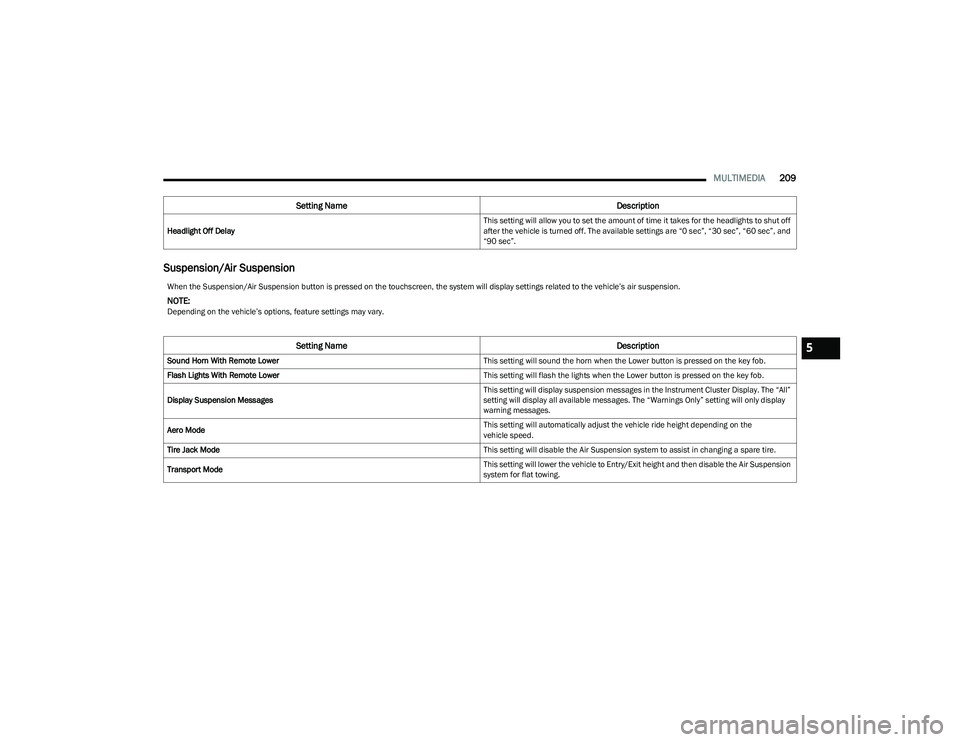
Suspension/Air Suspension
Headlight Off Delay This setting will allow you to set the amount of time it takes for the headlights to shut off
after the vehicle is turned off. The available settings are “0 sec”, “30 sec”, “60 sec”, and
“90 sec”.
Setting Name
Description
When the Suspension/Air Suspension button is pressed on the touchscreen, the system will display settings related to the vehicle’s air suspension.
NOTE:Depending on the vehicle’s options, feature settings may vary.
Setting NameDescription
Sound Horn With Remote Lower This setting will sound the horn when the Lower button is pressed on the key fob.
Flash Lights With Remote Lower This setting will flash the lights when the Lower button is pressed on the key fob.
Display Suspension Messages This setting will display suspension messages in the Instrument Cluster Display. The “All”
setting will display all available messages. The “Warnings Only” setting will only display
warning messages.
Aero Mode This setting will automatically adjust the vehicle ride height depending on the
vehicle speed.
Tire Jack Mode This setting will disable the Air Suspension system to assist in changing a spare tire.
Transport Mode This setting will lower the vehicle to Entry/Exit height and then disable the Air Suspension
system for flat towing.5
23_DT_OM_EN_USC_t.book Page 209
Page 244 of 416

242MULTIMEDIA
Remote Commands
On the Remote Commands screen, you have access to
several vehicle features that can be controlled remotely
from your mobile device. These features include locking/
unlocking, remote starting, and activating the horn and
lights of the vehicle.
Remote Commands lets you send a request to your
vehicle in one of three ways:
Anywhere using your mobile device and Vehicle
Branded App
From your computer on the Owner’s Site (not available
on all functions)
Contacting SiriusXM Guardian™ Customer Care (not
available on all functions) Using A Remote Command Through Your Mobile Device
And The Vehicle Branded App
1. Press the desired Remote Command icon on your
mobile device.
2. A pop-up screen will appear asking for your SiriusXM Guardian™ Security PIN (this is the same four-digit
code established when you activated your SiriusXM
Guardian™ connected services). Enter the SiriusXM
Guardian™ Security PIN on the keypad.
3. It may take 30 seconds or more for the command to go through to your vehicle.
4. A message will let you know if the command was received by your vehicle.
Using A Remote Command Through Your Owner’s Site
1. Log on to your Owner’s Site using the username and password you used when activating your SiriusXM
Guardian™ connected services in your vehicle.
NOTE:If you forgot your username or password, links are
provided on the website to help you retrieve them.
2. If you have more than one vehicle registered into your Owner’s Site, select the vehicle you want to send the
command to by clicking on its image along the top.
3. On your dashboard, you will see remote commands. Press the desired icon to activate that feature.
4. You will then be asked to enter your SiriusXM Guardian™ Security PIN (this is the same four-digit
code established when you activated your SiriusXM
Guardian™ connected services). Please enter your
SiriusXM Guardian™ Security PIN. 5. A message will appear on the screen to let you know
if the command was received by your vehicle.
Contacting SiriusXM Guardian™ Customer Care (for
example, in case of an accidental lock-out):
1. Contact SiriusXM Guardian™ Customer Care if you are unable to lock your vehicle through the Vehicle
Branded App or your key fob.
2. For security purposes, the SiriusXM Guardian™ Customer Care agent will verify your identity by asking
for your four-digit SiriusXM Guardian™ Security PIN.
3. After providing your SiriusXM Guardian™ Security PIN, you can ask them to perform a remote
command.
NOTE:Anyone with access to your PIN may request Remote Door
Lock/Unlock. It is your responsibility to protect your PIN
appropriately.
Remote Door Lock/Unlock
Description
The Remote Door Lock/Unlock feature provides you the
ability to lock or unlock the door on your vehicle without
the keys and from virtually any distance.
Working Vehicle Conditions
The vehicle must in PARK or at a standstill.
The vehicle must be in an open area with cell tower
reception.
Your mobile device must have a cellular or Wi-Fi
connection.
Lock
Press this button to lock
your vehicle.
Vehicle Start Press this button to start
your vehicle.
Horn & Lights Press this button to sound
the horn and activate your lights.
Unlock Press this button to unlock
your vehicle.
Cancel Vehicle Start Press this button to cancel
remote start.
23_DT_OM_EN_USC_t.book Page 242
Page 245 of 416

MULTIMEDIA243
Requirements
Vehicle must be properly equipped with SiriusXM
Guardian™.
Vehicle must have an operable LTE (voice/data) or 4G
(data) network connection. If using the Vehicle
Branded App to command your vehicle, your device
must be compatible and be connected to an operable
LTE (voice/data) or 4G (data) network connection.
Vehicle must be registered with SiriusXM Guardian™
and have an active subscription that includes the appli -
cable feature.
An ignition cycle is required for some remote
commands, such as Remote Vehicle Start and Remote
Door Lock/Unlock if following a Remote Horn & Lights
activation.
Your Remote Door Lock/Unlock request will not be
processed if the vehicle is in motion, the ignition key is
on or during an emergency call.
NOTE:All other remote services should be performed via your
Owner’s Site or through the Vehicle Branded App on your
compatible device.
Remote Vehicle Start
Description
The Remote Vehicle Start feature provides you with the
ability to start the engine on your vehicle without the keys
and from virtually any distance. Once started, the preset
climate controls in your vehicle can warm up or cool down
the interior. You can also send a command to turn off an engine that
has been started using Remote Vehicle Start. After
15 minutes, if you have not entered your vehicle with the
key, the engine will shut off automatically.
This remote function requires your vehicle to be equipped
with a factory-installed Remote Start system.
You can set up push notifications every time a command
is sent to activate or cancel Remote Start.
Working Vehicle Conditions
The vehicle must be off or in ACC mode.
The vehicle has been started with the key fob within the
last 14 days.
The vehicle must be in PARK or at a standstill.
The vehicle’s security system has been armed and not
triggered since the last vehicle start.
The doors, hood, and trunk/liftgate are closed.
The vehicle’s check engine light must be off.
The vehicle must have at least a quarter tank of fuel,
along with oil and battery power.
The vehicle’s hazard lights must be off.
If equipped, the vehicle must have an automatic trans -
mission.
The vehicle must be in an open area with cell tower
reception.
Your mobile device must have a cellular or Wi-Fi
connection.
If the Panic button has been pressed, the vehicle must
be started at least once after alarming the system.
NOTE:The SiriusXM Guardian™ Customer Care agents are not
authorized for Remote Vehicle Start services. Contact the
Uconnect Care Team for assistance.
Remote Horn & Lights
Description
It is easy to locate a vehicle in a dark, crowded or noisy
parking area by activating the horn and lights. It may also
help if you need to draw attention to your vehicle for any
reason.
If you want, you can set up push notifications every time a
command is sent to turn on the horn and lights.
Working Vehicle Conditions
The vehicle must in PARK or at a standstill.
The vehicle must be in an open area with cell tower
reception.
Your mobile device must have a cellular or Wi-Fi
connection.
NOTE:The Remote Horn & Lights feature is designed to be loud
and get noticed. Please keep in mind the surroundings
when using this feature. You are responsible for
compliance with local laws, rules and ordinances in the
location of your vehicle when using Remote Horn & Lights.
5
23_DT_OM_EN_USC_t.book Page 243
Page 251 of 416

MULTIMEDIA249
CONNECTED SERVICES REMOTE DOOR
L
OCK/UNLOCK FAQS
1.
How long does it take to unlock or lock the door?
Depending on various conditions, it can take up to
three minutes or more for the request to get to your
vehicle.
2. Which is faster, my key fob or the Vehicle Branded
App? Your key fob will lock/unlock the door more
quickly, however its range is limited and your Vehicle
Branded App comes in handy for these and other
situations.
3. Will my vehicle be safe if I lose my device? People
sometimes lose their mobile devices, which is why
security measures have been engineered into the
Vehicle Branded App. Asking for your username,
password and SiriusXM Guardian™ Security PIN are
required for the activation of Remote services
through your mobile device. It is your responsibility to
protect your passwords and PINs.
4. Why can’t all mobile devices use the Vehicle Branded
App? The Vehicle Branded App is compatible with
most devices with the Apple® and Android™
operating systems. The capabilities of these devices
allow us to remotely command your vehicle. Other
operating systems may be supported in the future. 5.
Why is the Vehicle Branded App running slow? The
Vehicle Branded App relies on a mobile network
connection from your device to send commands to
your vehicle which must have an operable LTE (voice/
data), 4G (data), or 5G (data) network connection. If
either your device or your vehicle is in an area with
below average coverage, it may take longer to log in
and send commands.
CONNECTED SERVICES ROADSIDE
A
SSISTANCE FAQS
1.
What is the phone number for roadside assistance
call? The phone number is:
US: 1-800-521-2779
Canada: 1-800-363-4869
2. If I am subscribed to SiriusXM Guardian™, does it
cover towing or other expenses incurred by using
roadside assistance? No, however your new vehicle
may include Roadside Assistance Call services.
CONNECTED SERVICES SEND & GO
FAQ
S — IF EQUIPPED
1.
How long does it take to send the route and
destination to my vehicle?
Depending on various
conditions, it can take up to three minutes for the
request to get through to your vehicle.
2. Can I cancel a route I sent to my vehicle? Yes, once
you enter your vehicle, and start the engine, the
pop-up message stating that you have a new route
will appear. There is an exit button on the pop-up that
will cancel the route if selected. 3.
Can I select a different route than the most recent
one I sent to my vehicle? Yes, once you enter the
vehicle, and start the engine, the pop-up message
offers a “Locations” option. Once “Locations” is
selected, you can choose from a list of recently sent
destinations.
CONNECTED SERVICES VEHICLE FINDER
FAQ
S
1.
Can someone else locate my vehicle?
Your vehicle
may be located by anyone who has your PIN and
access to your account. It is your responsibility to
guard your PIN accordingly. See the Uconnect and
SiriusXM Guardian™ terms of service for more
information.
2. How long does it take to sound my horn and flash the
lights? Depending on various conditions, it can take
three minutes or more for the request to get through
to your vehicle.
3. How do I turn off the horn and lights after I turn them
on? If you are close enough to the vehicle, you can
use the key fob to turn off the horn and lights by
pushing the red Panic button.
5
23_DT_OM_EN_USC_t.book Page 249
Page 252 of 416
250MULTIMEDIA
CONNECTED SERVICES STOLEN VEHICLE
A
SSISTANCE FAQS — IF EQUIPPED
1.
Can someone locate my vehicle?
To enhance your
privacy, and the privacy of others using your vehicle,
a stolen vehicle police report is required for you to
activate this service. You must involve local law
enforcement to have SiriusXM Guardian™ locate
your vehicle. We may also locate the vehicle for
other law enforcement or government agencies,
subject to a valid court order telling SiriusXM
Guardian™ to do so. We will also provide the service
for FCA entities to locate a vehicle that you have
purchased through them.
2. How will I know if my vehicle is recovered? After you
provide the SiriusXM Guardian™ Customer Care
agent with the stolen vehicle report, the agent will
work together with law enforcement to try to locate
your vehicle. If your vehicle is recovered, you will be
contacted by law enforcement.
3. Can SiriusXM Guardian™ lower my insurance rates?
Some insurance providers offer lower rates on
vehicles equipped with systems that can deter auto
theft. When shopping for insurance, be sure to inform
the insurance provider of your SiriusXM Guardian™
connected services subscription to find out if the
insurance provider can offer you a lower rate.
NOTE:Neither FCA nor SiriusXM® are insurance companies, and
SiriusXM Guardian™ is not an insurance product. You are
responsible for obtaining insurance coverage for your
vehicle and yourself.
CONNECTED SERVICES REMOTE VEHICLE
S
TART FAQS
1.
How long does it take to remotely start my vehicle?
Depending on various conditions, it can take three
minutes or more for the request to get through to
your vehicle.
2. Which is faster, my key fob or the Vehicle Branded
App? Your key fob will remote start your vehicle more
quickly. However its range is limited. For example,
when you are leaving the stadium after the game, you
can use the Vehicle Branded App to remote start your
vehicle and have the inside of your vehicle
comfortable by the time you get to it.
3. Will my vehicle be safe if I lose my wireless device?
People sometimes lose their wireless devices, which
is why security measures have been engineered into
the Vehicle Branded App. Asking for your username,
password and SiriusXM Guardian™ Security PIN help
to ensure that nobody can start your vehicle if they
happen to find your device.
4. Can someone drive off with my vehicle using the App?
No. Driving your vehicle still requires the keys to be in
the vehicle. The Remote Start feature simply starts
the engine to warm up or cool down the interior
before you arrive.
5. Can I stop a vehicle that is being driven with the
cancel Remote Vehicle Start command? No. If the
vehicle is in motion, the cancel Remote Vehicle Start
button will not stop the vehicle. 6.
Why can’t all mobile devices use the Vehicle Branded
App? The Vehicle Branded App has been designed to
work on most devices with the Apple® and Android™
operating systems. The capabilities of these devices
allow us to remotely command your vehicle. Other
operating systems may be supported in the future.
CONNECTED SERVICES REMOTE HORN
& L
IGHTS FAQS
1.
How long does it take to sound my horn and flash the
lights?
Depending on various conditions, it can take
three minutes or more for the request to get through
to your vehicle.
2. Which is faster, my key fob or the Vehicle Branded
App? Your key fob will sound the horn and flash the
lights quicker; however, its range is limited.
3. How do I turn off the horn and lights after I turn them
on? If you are close enough to the vehicle, you can
use the key fob to turn off the horn and lights by
pressing the red Panic button. Otherwise, Remote
Horn & Lights will continue for a maximum of three
minutes.
4. Why can’t all mobile devices use the Vehicle Branded
App? The Vehicle Branded App has been designed to
work on most devices with the Apple® and Android™
operating systems. The capabilities of these devices
allow us to remotely command your vehicle. Other
operating systems may be supported in the future.
23_DT_OM_EN_USC_t.book Page 250
Page 265 of 416
SAFETY263
REAR SEAT REMINDER ALERT (RSRA)
RSRA alerts of the possible presence of an object,
passenger, or pet in the rear seats through a visual and
auditory notification. When the system is activated, it
displays the message “Check Rear Seat” on the
instrument cluster display and sounds an auditory alert
upon the driver placing the ignition in the OFF position to
exit the vehicle. The system will activate automatically if a
rear door is opened within 10 minutes of the ignition being
placed in the ON/RUN position. RSRA should be used as a
reminder to check the rear seats, it does not directly
detect objects, passengers, or pets and is only activated
when the previous conditions are met.
To enable or disable RSRA, see
Úpage 191.
ELECTRONIC BRAKE CONTROL (EBC)
S
YSTEM
Your vehicle is equipped with an advanced Electronic
Brake Control (EBC) system. This system includes
Anti-Lock Brake System (ABS), Brake Assist System (BAS),
Electronic Brake Force Distribution (EBD), Electronic Roll
Mitigation (ERM), Electronic Stability Control (ESC), Hill
Start Assist (HSA), and Traction Control System (TCS).
These systems work together to enhance both vehicle
stability and control in various driving conditions.
Your vehicle may also be equipped with Trailer Sway
Control (TSC) and Hill Descent Control (HDC).
Brake Assist System (BAS)
The BAS is designed to optimize the vehicle’s braking
capability during emergency braking maneuvers. The
system detects an emergency braking situation by sensing
the rate and amount of brake application, and then
applies optimum pressure to the brakes. This can help
reduce braking distances. The BAS complements the
Anti-Lock Brake System (ABS). Applying the brakes very
quickly results in the best BAS assistance. To receive the
benefit of the system, you must apply continuous braking
pressure during the stopping sequence (do not “pump”
the brakes). Do not reduce brake pedal pressure unless
braking is no longer desired. Once the brake pedal is
released, the BAS is deactivated.
Brake System Warning Light
The red Brake System Warning Light will turn on when the
ignition is placed in the ON/RUN mode and may stay on for
as long as four seconds.
If the Brake System Warning Light remains on or comes on
while driving, it indicates that the brake system is not
functioning properly and that immediate service is
required. If the Brake System Warning Light does not
come on when the ignition is placed in the ON/RUN mode,
have the light repaired as soon as possible.
Electronic Brake Force Distribution (EBD)
EBD manages the distribution of the braking torque
between the front and rear axles by limiting braking
pressure to the rear axle. This is done to prevent overslip
of the rear wheels to avoid vehicle instability, and to
prevent the rear axle from entering the Anti-Lock Brake
System (ABS) before the front axle.
WARNING!
Before exiting a vehicle, always come to a complete
stop, then shift the automatic transmission into
PARK and apply the parking brake.
Always make sure the keyless ignition node is in the
OFF position, key fob is removed from the vehicle
and vehicle is locked.
Never leave children alone in a vehicle, or with
access to an unlocked vehicle. Leaving children in a
vehicle unattended is dangerous for a number of
reasons. A child or others could be seriously or fatally
injured. Children should be warned not to touch the
parking brake, brake pedal or the gear selector.
Do not leave children or animals inside parked vehi -
cles in hot weather. Interior heat buildup may cause
serious injury or death.
WARNING!
The Brake Assist System (BAS) cannot prevent the
natural laws of physics from acting on the vehicle, nor
can it increase the traction afforded by prevailing road
conditions. BAS cannot prevent collisions, including
those resulting from excessive speed in turns, driving
on very slippery surfaces, or hydroplaning. The
capabilities of a BAS-equipped vehicle must never be
exploited in a reckless or dangerous manner, which
could jeopardize the user's safety or the safety of
others.
6
23_DT_OM_EN_USC_t.book Page 263