wheel RAM 1500 2023 Workshop Manual
[x] Cancel search | Manufacturer: RAM, Model Year: 2023, Model line: 1500, Model: RAM 1500 2023Pages: 416, PDF Size: 20.59 MB
Page 164 of 416
162STARTING AND OPERATING
Left Lane Departure — Only Left Lane Detected
When the LaneSense system is on, the LaneSense Tell -
tale is solid white when only the left lane marking
has been detected and the system is ready to provide
visual warnings in the instrument cluster display if an
unintentional lane departure occurs on the left side.
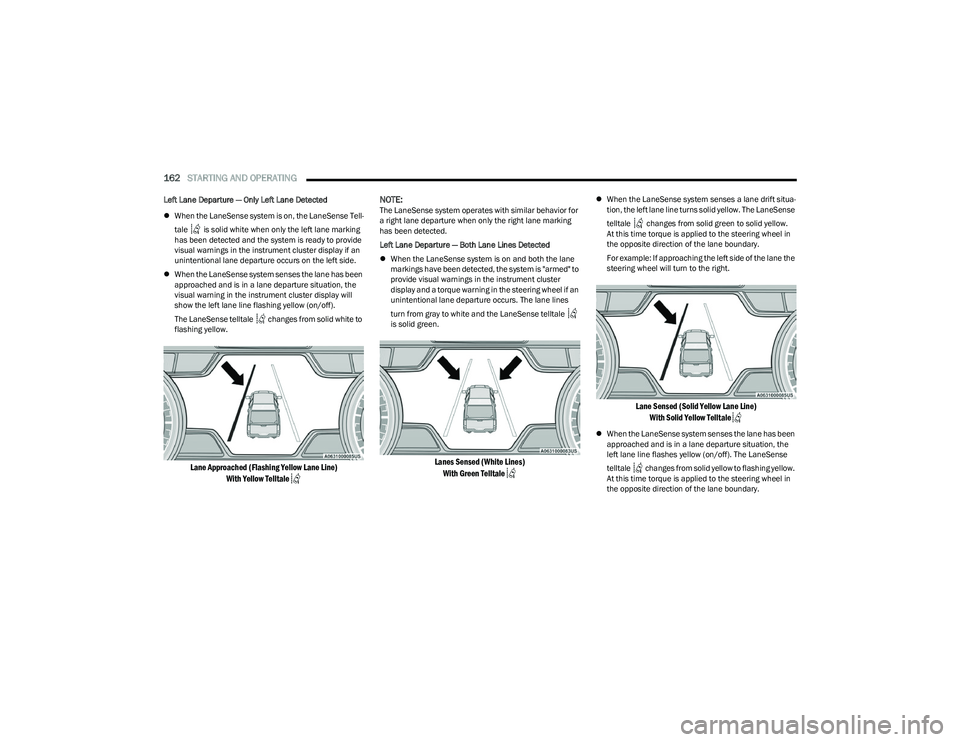
When the LaneSense system senses the lane has been
approached and is in a lane departure situation, the
visual warning in the instrument cluster display will
show the left lane line flashing yellow (on/off).
The LaneSense telltale changes from solid white to
flashing yellow.
Lane Approached (Flashing Yellow Lane Line)
With Yellow Telltale
NOTE:
The LaneSense system operates with similar behavior for
a right lane departure when only the right lane marking
has been detected.
Left Lane Departure — Both Lane Lines Detected
When the LaneSense system is on and both the lane
markings have been detected, the system is "armed" to
provide visual warnings in the instrument cluster
display and a torque warning in the steering wheel if an
unintentional lane departure occurs. The lane lines
turn from gray to white and the LaneSense telltale
is solid green.
Lanes Sensed (White Lines)
With Green Telltale
When the LaneSense system senses a lane drift situa -
tion, the left lane line turns solid yellow. The LaneSense
telltale changes from solid green to solid yellow.
At this time torque is applied to the steering wheel in
the opposite direction of the lane boundary.
For example: If approaching the left side of the lane the
steering wheel will turn to the right.
Lane Sensed (Solid Yellow Lane Line)
With Solid Yellow Telltale
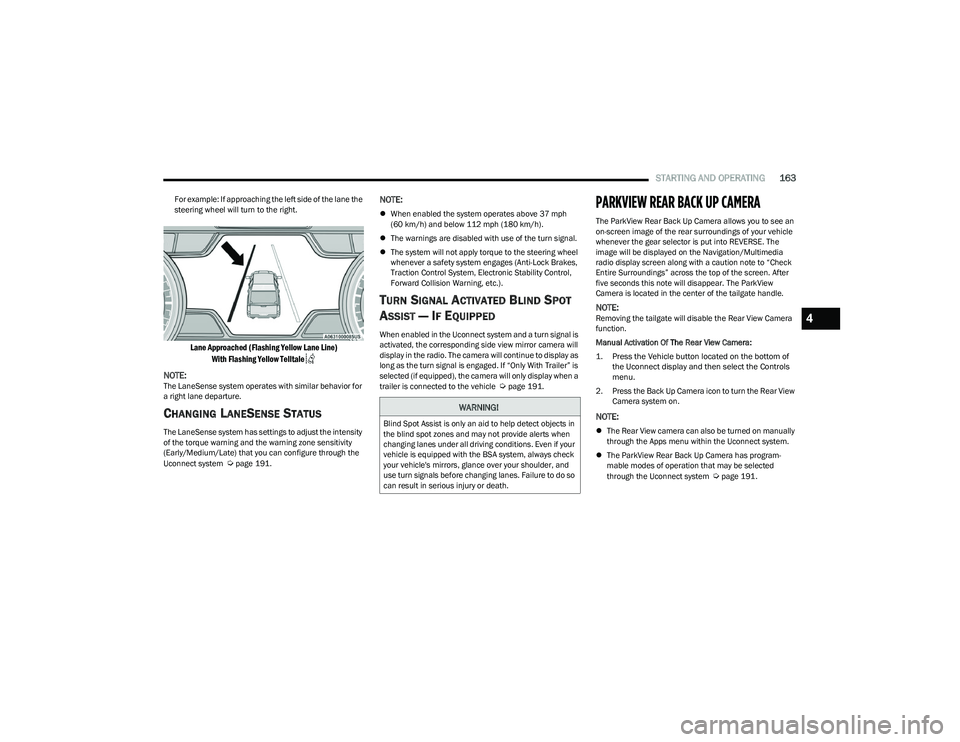
When the LaneSense system senses the lane has been
approached and is in a lane departure situation, the
left lane line flashes yellow (on/off). The LaneSense
telltale changes from solid yellow to flashing yellow.
At this time torque is applied to the steering wheel in
the opposite direction of the lane boundary.
23_DT_OM_EN_USC_t.book Page 162
Page 165 of 416
STARTING AND OPERATING163
For example: If approaching the left side of the lane the
steering wheel will turn to the right.
Lane Approached (Flashing Yellow Lane Line)
With Flashing Yellow Telltale
NOTE:
The LaneSense system operates with similar behavior for
a right lane departure.
CHANGING LANESENSE STATUS
The LaneSense system has settings to adjust the intensity
of the torque warning and the warning zone sensitivity
(Early/Medium/Late) that you can configure through the
Uconnect system
Úpage 191.
NOTE:
When enabled the system operates above 37 mph
(60 km/h) and below 112 mph (180 km/h).
The warnings are disabled with use of the turn signal.
The system will not apply torque to the steering wheel
whenever a safety system engages (Anti-Lock Brakes,
Traction Control System, Electronic Stability Control,
Forward Collision Warning, etc.).
TURN SIGNAL ACTIVATED BLIND SPOT
A
SSIST — IF EQUIPPED
When enabled in the Uconnect system and a turn signal is
activated, the corresponding side view mirror camera will
display in the radio. The camera will continue to display as
long as the turn signal is engaged. If “Only With Trailer” is
selected (if equipped), the camera will only display when a
trailer is connected to the vehicle
Úpage 191.
PARKVIEW REAR BACK UP CAMERA
The ParkView Rear Back Up Camera allows you to see an
on-screen image of the rear surroundings of your vehicle
whenever the gear selector is put into REVERSE. The
image will be displayed on the Navigation/Multimedia
radio display screen along with a caution note to “Check
Entire Surroundings” across the top of the screen. After
five seconds this note will disappear. The ParkView
Camera is located in the center of the tailgate handle.
NOTE:Removing the tailgate will disable the Rear View Camera
function.
Manual Activation Of The Rear View Camera:
1. Press the Vehicle button located on the bottom of
the Uconnect display and then select the Controls
menu.
2. Press the Back Up Camera icon to turn the Rear View Camera system on.
NOTE:
The Rear View camera can also be turned on manually
through the Apps menu within the Uconnect system.
The ParkView Rear Back Up Camera has program -
mable modes of operation that may be selected
through the Uconnect system
Úpage 191.
WARNING!
Blind Spot Assist is only an aid to help detect objects in
the blind spot zones and may not provide alerts when
changing lanes under all driving conditions. Even if your
vehicle is equipped with the BSA system, always check
your vehicle's mirrors, glance over your shoulder, and
use turn signals before changing lanes. Failure to do so
can result in serious injury or death.
4
23_DT_OM_EN_USC_t.book Page 163
Page 166 of 416
164STARTING AND OPERATING
When the vehicle is shifted out of REVERSE with camera
delay turned off, the rear camera mode is exited and the
previous screen appears. When the vehicle is shifted out
of REVERSE with camera delay turned on, the camera
image will continue to be displayed for up to 10 seconds
after shifting out of REVERSE unless the following
conditions occur: The vehicle speed exceeds 8 mph
(13 km/h), the vehicle is shifted into PARK, the vehicle’s
ignition is placed in the OFF position, or the user presses
the touchscreen X button to exit out of the camera video
display.
Whenever the Rear View Camera image is activated
through the Back Up Camera button in the Controls menu,
and the vehicle speed is greater than, or equal to, 8 mph
(13 km/h), a display timer for the image is initiated.
The image will continue to be displayed until the display
timer exceeds 10 seconds.
NOTE:
If the vehicle speed remains below 8 mph (13 km/h),
the Rear View Camera image will be displayed continu -
ously until deactivated via the touchscreen X button,
the transmission is shifted into PARK, or the ignition is
placed in the OFF position.
The touchscreen X button to disable the camera image
is made available ONLY when the vehicle is not in
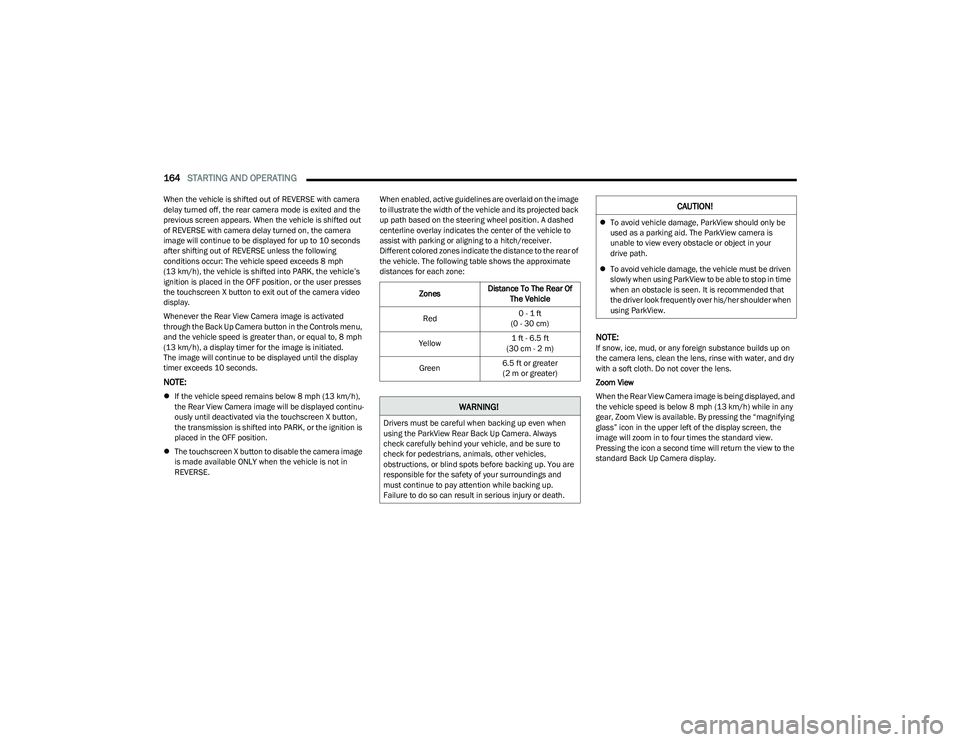
REVERSE. When enabled, active guidelines are overlaid on the image
to illustrate the width of the vehicle and its projected back
up path based on the steering wheel position. A dashed
centerline overlay indicates the center of the vehicle to
assist with parking or aligning to a hitch/receiver.
Different colored zones indicate the distance to the rear of
the vehicle. The following table shows the approximate
distances for each zone:
NOTE:If snow, ice, mud, or any foreign substance builds up on
the camera lens, clean the lens, rinse with water, and dry
with a soft cloth. Do not cover the lens.
Zoom View
When the Rear View Camera image is being displayed, and
the vehicle speed is below 8 mph (13 km/h) while in any
gear, Zoom View is available. By pressing the “magnifying
glass” icon in the upper left of the display screen, the
image will zoom in to four times the standard view.
Pressing the icon a second time will return the view to the
standard Back Up Camera display.
Zones
Distance To The Rear Of
The Vehicle
Red 0 - 1 ft
(0 - 30 cm)
Yellow 1 ft - 6.5 ft
(30 cm - 2 m)
Green 6.5 ft or greater
(2 m or greater)
WARNING!
Drivers must be careful when backing up even when
using the ParkView Rear Back Up Camera. Always
check carefully behind your vehicle, and be sure to
check for pedestrians, animals, other vehicles,
obstructions, or blind spots before backing up. You are
responsible for the safety of your surroundings and
must continue to pay attention while backing up.
Failure to do so can result in serious injury or death.
CAUTION!
To avoid vehicle damage, ParkView should only be
used as a parking aid. The ParkView camera is
unable to view every obstacle or object in your
drive path.
To avoid vehicle damage, the vehicle must be driven
slowly when using ParkView to be able to stop in time
when an obstacle is seen. It is recommended that
the driver look frequently over his/her shoulder when
using ParkView.
23_DT_OM_EN_USC_t.book Page 164
Page 167 of 416
STARTING AND OPERATING165
When Zoom View is selected while the vehicle is in
REVERSE, then shifted to DRIVE, the camera delay view
will display the standard Back Up Camera view. If the
vehicle is then returned to REVERSE gear from DRIVE, the
Zoom View selection will automatically resume.
NOTE:The Zoom View button and AUX button (if equipped) will
not be available when the vehicle is shifted into REVERSE
and the Trailer Reverse Steering Control (TRSC) feature
(if equipped) is activated.
Shifting to NEUTRAL from any gear will maintain the
selected view (Zoom or Standard) as long as the vehicle is
below 8 mph (13 km/h).
If the vehicle is in PARK, Zoom View is available until the
gear selector is placed in DRIVE or REVERSE and speeds
are at or above 8 mph (13 km/h).
NOTE:
If the vehicle is in DRIVE, NEUTRAL, or REVERSE, and
speed is greater than or equal to 8 mph (13 km/h),
Zoom View is unavailable and the icon will appear grey.
While in Zoom View, the guidelines will not be visible.
For information on Auxiliary Cameras (if equipped), see
Úpage 170.
SURROUND VIEW CAMERA SYSTEM —
IF EQUIPPED
The Surround View Camera system allows you to see an
on-screen image of the surroundings and the Top View of
your vehicle. This occurs whenever the gear selector is in
REVERSE or when enabled through the Uconnect system.
The Top View of the vehicle will also show if any doors are
open. The image will be displayed on the touchscreen
along with a caution note “Check Entire Surroundings”.
After five seconds, this note will disappear. The Surround
View Camera system is comprised of four cameras located
in the front grille, rear tailgate and side mirrors.
NOTE:
Removing the tailgate will disable the Rear View
Camera function.
The Surround View Camera system has programmable
settings that may be selected through the Uconnect
system
Úpage 191.
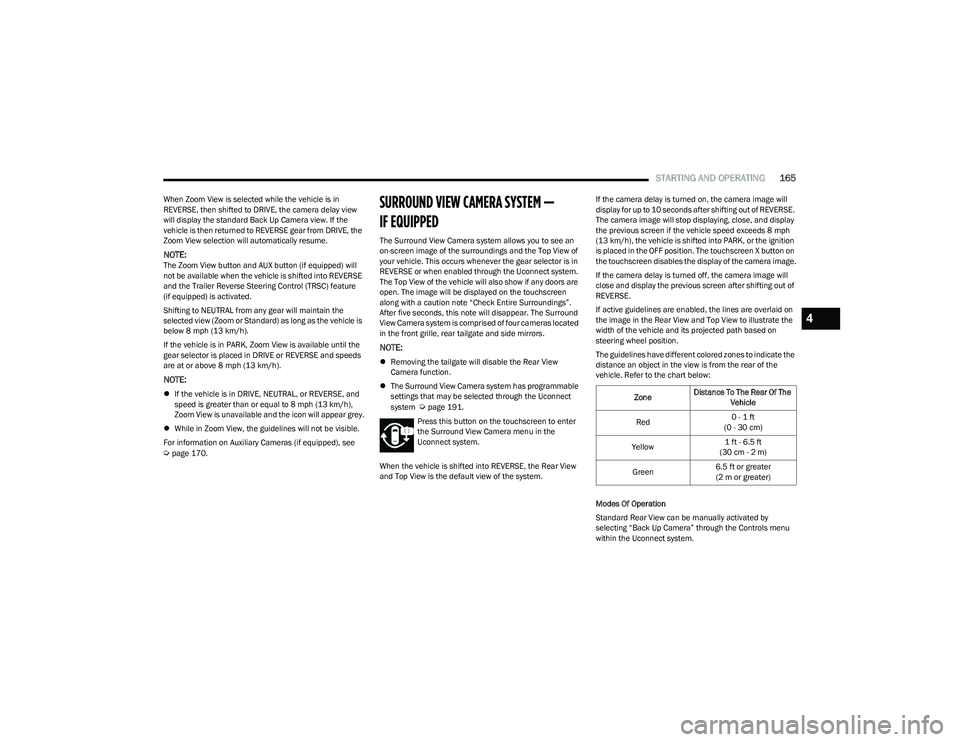
Press this button on the touchscreen to enter
the Surround View Camera menu in the
Uconnect system.
When the vehicle is shifted into REVERSE, the Rear View
and Top View is the default view of the system. If the camera delay is turned on, the camera image will
display for up to 10 seconds after shifting out of REVERSE.
The camera image will stop displaying, close, and display
the previous screen if the vehicle speed exceeds 8 mph
(13 km/h), the vehicle is shifted into PARK, or the ignition
is placed in the OFF position. The touchscreen X button on
the touchscreen disables the display of the camera image.
If the camera delay is turned off, the camera image will
close and display the previous screen after shifting out of
REVERSE.
If active guidelines are enabled, the lines are overlaid on
the image in the Rear View and Top View to illustrate the
width of the vehicle and its projected path based on
steering wheel position.
The guidelines have different colored zones to indicate the
distance an object in the view is from the rear of the
vehicle. Refer to the chart below:
Modes Of Operation
Standard Rear View can be manually activated by
selecting “Back Up Camera” through the Controls menu
within the Uconnect system.Zone
Distance To The Rear Of The
Vehicle
Red 0 - 1 ft
(0 - 30 cm)
Yellow 1 ft - 6.5 ft
(30 cm - 2 m)
Green 6.5 ft or greater
(2 m or greater)
4
23_DT_OM_EN_USC_t.book Page 165
Page 174 of 416
172STARTING AND OPERATING
VEHICLE LOADING
GROSS VEHICLE WEIGHT RATING
(GVWR)
The GVWR is the total permissible weight of your vehicle
including driver, passengers, vehicle, options and cargo.
The label also specifies maximum capacities of front and
rear Gross Axle Weight Rating (GAWR). Total load must be
limited so GVWR and front and rear GAWR are not
exceeded.
PAYLOAD
The payload of a vehicle is defined as the allowable load
weight a truck can carry, including the weight of the driver,
all passengers, options and cargo.
GROSS AXLE WEIGHT RATING (GAWR)
The GAWR is the maximum permissible load on the front
and rear axles. The load must be distributed in the cargo
area so that the GAWR of each axle is not exceeded.
Each axle GAWR is determined by the components in the
system with the lowest load carrying capacity (axle,
springs, tires or wheels). Heavier axles, or suspension
components sometimes specified by purchasers for
increased durability, do not necessarily increase the
vehicle's GVWR.
TIRE SIZE
The tire size on the Vehicle Certification Label represents
the actual tire size on your vehicle. Replacement tires
must be equal to the load capacity of this tire size.
RIM SIZE
This is the rim size that is appropriate for the tire size
listed.
INFLATION PRESSURE
This is the cold tire inflation pressure for your vehicle for
all loading conditions up to full Gross Axle Weight Rating
(GAWR).
CURB WEIGHT
The curb weight of a vehicle is defined as the total weight
of the vehicle with all fluids, including vehicle fuel, at full
capacity conditions, and with no occupants or cargo
loaded into the vehicle. The front and rear curb weight
values are determined by weighing your vehicle on a
commercial scale before any occupants or cargo are
added.
LOADING
The actual total weight and the weight of the front and rear
of your vehicle at the ground can best be determined by
weighing it when it is loaded and ready for operation. The entire vehicle should first be weighed on a commercial
scale to ensure that the Gross Vehicle Weight Rating
(GVWR) has not been exceeded. The weight on the front
and rear of the vehicle should then be determined
separately to be sure that the load is properly distributed
over the front and rear axle. Weighing the vehicle may
show that the Gross Axle Weight Rating (GAWR) of either
the front or rear axles has been exceeded but the total
load is within the specified GVWR. If so, weight must be
shifted from front to rear or rear to front as appropriate
until the specified weight limitations are met. Store the
heavier items down low and be sure that the weight is
distributed equally. Stow all loose items securely before
driving.
Improper weight distributions can have an adverse effect
on the way your vehicle steers and handles and the way
the brakes operate.
WARNING!
Do not load your vehicle any heavier than the GVWR or
the maximum front and rear GAWR. If you do, parts on
your vehicle can break, or it can change the way your
vehicle handles. This could cause you to lose control.
Overloading can shorten the life of your vehicle.
23_DT_OM_EN_USC_t.book Page 172
Page 175 of 416

STARTING AND OPERATING173
TRAILER TOWING
In this section you will find safety tips and information on
limits to the type of towing you can reasonably do with your
vehicle. Before towing a trailer, carefully review this
information to tow your load as efficiently and safely as
possible.
To maintain the New Vehicle Limited Warranty coverage,
follow the requirements and recommendations in this
manual concerning vehicles used for trailer towing.
COMMON TOWING DEFINITIONS
The following trailer towing related definitions will assist
you in understanding the following information:
Gross Vehicle Weight Rating (GVWR)
The GVWR is the total allowable weight of your vehicle.
This includes driver, passengers, cargo and tongue
weight. The total load must be limited so that you do not
exceed the GVWR
Úpage 172.
Gross Trailer Weight (GTW)
The GTW is the weight of the trailer plus the weight of all
cargo, consumables and equipment (permanent or
temporary) loaded in or on the trailer in its “loaded and
ready for operation” condition.
The recommended way to measure GTW is to put your fully
loaded trailer on a vehicle scale. The entire weight of the
trailer must be supported by the scale.
Gross Combination Weight Rating (GCWR)
The GCWR is the total allowable weight of your vehicle and
trailer when weighed in combination.
Gross Axle Weight Rating (GAWR)
The GAWR is the maximum capacity of the front and rear
axles. Distribute the load over the front and rear axles
evenly. Make sure that you do not exceed either front or
rear GAWR
Úpage 172.
Tongue Weight (TW)
The TW is the downward force exerted on the hitch ball by
the trailer. You must consider this as part of the load on
your vehicle.
Trailer Frontal Area
The frontal area is the maximum height multiplied by the
maximum width of the front of a trailer.
Trailer Sway Control (TSC)
The TSC can be a mechanical telescoping link that can be
installed between the hitch receiver and the trailer tongue
that typically provides adjustable friction associated with
the telescoping motion to dampen any unwanted trailer
swaying motions while traveling.
The electronic TSC (If equipped) recognizes a swaying
trailer and automatically applies individual wheel brakes
and/or reduces engine power to attempt to eliminate the
trailer sway.
Weight-Carrying Hitch
A weight-carrying hitch supports the trailer tongue weight,
just as if it were luggage located at a hitch ball or some
other connecting point of the vehicle. These kinds of
hitches are commonly used to tow small and medium
sized trailers.
WARNING!
If the gross trailer weight is 5,000 lb (2,267 kg) or
more, it is recommended to use a weight-distributing
hitch to ensure stable handling of your vehicle. If you
use a standard weight-carrying hitch, you could lose
control of your vehicle and cause a collision.
WARNING!
It is important that you do not exceed the maximum
front or rear GAWR. A dangerous driving condition can
result if either rating is exceeded. You could lose control
of the vehicle and have a collision.
4
23_DT_OM_EN_USC_t.book Page 173
Page 177 of 416
STARTING AND OPERATING175
RECOMMENDED DISTRIBUTION HITCH
ADJUSTMENT
Towing With Air Suspension — If Equipped
1. Verify that the vehicle is at the normal ride height.
NOTE:The vehicle must remain in the engine run position with all
doors closed while attaching a trailer for proper leveling of
the air suspension system.
2. Position the truck to be ready to connect to the trailer
(do not connect the trailer).
3. Enable tire jack mode through the instrument cluster or touchscreen radio settings. Tire jack mode will be
canceled and the procedure must be restarted if the
vehicle is driven at speeds above 5 mph (8 km/h).
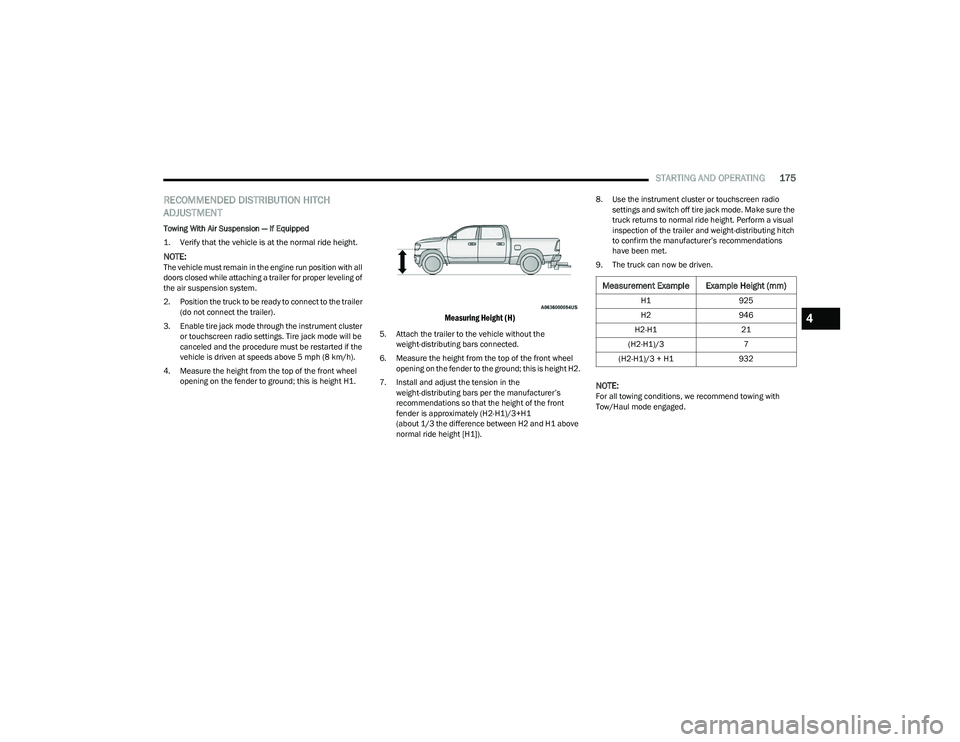
4. Measure the height from the top of the front wheel opening on the fender to ground; this is height H1.
Measuring Height (H)
5. Attach the trailer to the vehicle without the weight-distributing bars connected.
6. Measure the height from the top of the front wheel opening on the fender to the ground; this is height H2.
7. Install and adjust the tension in the weight-distributing bars per the manufacturer’s
recommendations so that the height of the front
fender is approximately (H2-H1)/3+H1
(about 1/3 the difference between H2 and H1 above
normal ride height [H1]). 8. Use the instrument cluster or touchscreen radio
settings and switch off tire jack mode. Make sure the
truck returns to normal ride height. Perform a visual
inspection of the trailer and weight-distributing hitch
to confirm the manufacturer’s recommendations
have been met.
9. The truck can now be driven.
NOTE:For all towing conditions, we recommend towing with
Tow/Haul mode engaged.
Measurement Example Example Height (mm)
H1 925
H2 946
H2-H1 21
(H2-H1)/3 7
(H2-H1)/3 + H1 932
4
23_DT_OM_EN_USC_t.book Page 175
Page 180 of 416
178STARTING AND OPERATING
Using TRSC
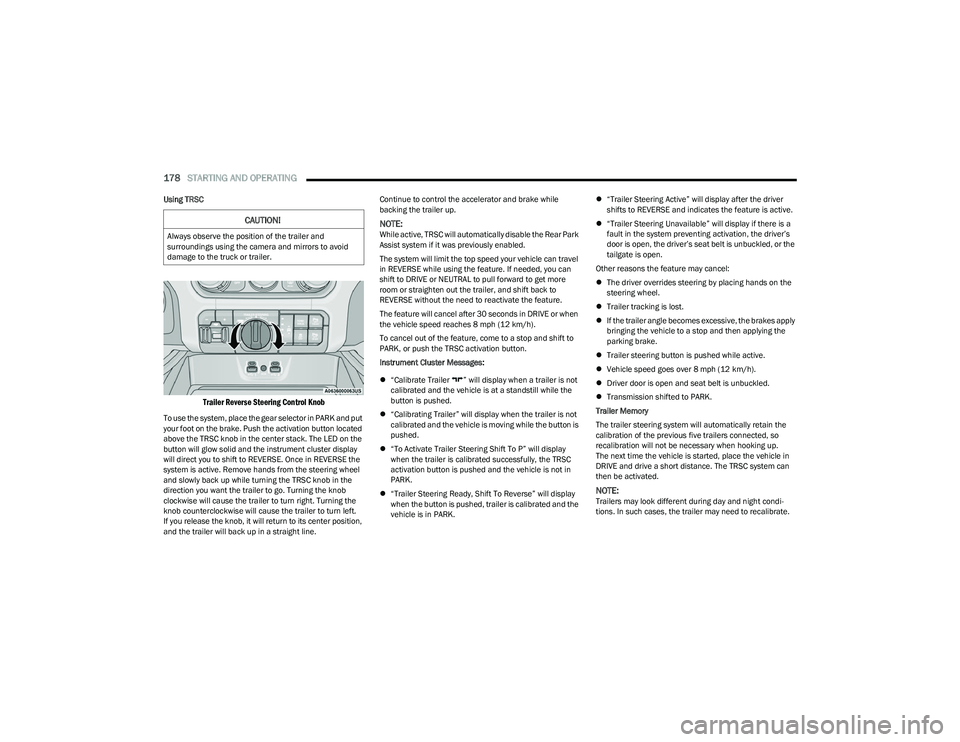
Trailer Reverse Steering Control Knob
To use the system, place the gear selector in PARK and put
your foot on the brake. Push the activation button located
above the TRSC knob in the center stack. The LED on the
button will glow solid and the instrument cluster display
will direct you to shift to REVERSE. Once in REVERSE the
system is active. Remove hands from the steering wheel
and slowly back up while turning the TRSC knob in the
direction you want the trailer to go. Turning the knob
clockwise will cause the trailer to turn right. Turning the
knob counterclockwise will cause the trailer to turn left.
If you release the knob, it will return to its center position,
and the trailer will back up in a straight line. Continue to control the accelerator and brake while
backing the trailer up.
NOTE:While active, TRSC will automatically disable the Rear Park
Assist system if it was previously enabled.
The system will limit the top speed your vehicle can travel
in REVERSE while using the feature. If needed, you can
shift to DRIVE or NEUTRAL to pull forward to get more
room or straighten out the trailer, and shift back to
REVERSE without the need to reactivate the feature.
The feature will cancel after 30 seconds in DRIVE or when
the vehicle speed reaches 8 mph (12 km/h).
To cancel out of the feature, come to a stop and shift to
PARK, or push the TRSC activation button.
Instrument Cluster Messages:
“Calibrate Trailer ” will display when a trailer is not
calibrated and the vehicle is at a standstill while the
button is pushed.
“Calibrating Trailer” will display when the trailer is not
calibrated and the vehicle is moving while the button is
pushed.
“To Activate Trailer Steering Shift To P” will display
when the trailer is calibrated successfully, the TRSC
activation button is pushed and the vehicle is not in
PARK.
“Trailer Steering Ready, Shift To Reverse” will display
when the button is pushed, trailer is calibrated and the
vehicle is in PARK.
“Trailer Steering Active” will display after the driver
shifts to REVERSE and indicates the feature is active.
“Trailer Steering Unavailable” will display if there is a
fault in the system preventing activation, the driver’s
door is open, the driver’s seat belt is unbuckled, or the
tailgate is open.
Other reasons the feature may cancel:
The driver overrides steering by placing hands on the
steering wheel.
Trailer tracking is lost.
If the trailer angle becomes excessive, the brakes apply
bringing the vehicle to a stop and then applying the
parking brake.
Trailer steering button is pushed while active.
Vehicle speed goes over 8 mph (12 km/h).
Driver door is open and seat belt is unbuckled.
Transmission shifted to PARK.
Trailer Memory
The trailer steering system will automatically retain the
calibration of the previous five trailers connected, so
recalibration will not be necessary when hooking up.
The next time the vehicle is started, place the vehicle in
DRIVE and drive a short distance. The TRSC system can
then be activated.
NOTE:Trailers may look different during day and night condi -
tions. In such cases, the trailer may need to recalibrate.
CAUTION!
Always observe the position of the trailer and
surroundings using the camera and mirrors to avoid
damage to the truck or trailer.
23_DT_OM_EN_USC_t.book Page 178
Page 181 of 416

STARTING AND OPERATING179
(Continued)
Some trailers (such as boat trailers) will need to
recalibrate while loaded and unloaded.
NOTE:
The system may not detect a trailer in low light condi -
tions. In sunny conditions, the performance may be
degraded as shadows pass over the trailer.
The driver is always responsible for safe operation of
truck and trailer.
The driver is always in control of the truck as well as the
trailer and is responsible for controlling the throttle and
brakes.
The system may not function when the camera lens is
blocked, blurred (covered with water, snow, ice, dirt,
etc) and will not work unless the tailgate is upright and
fully latched.
TOWING REQUIREMENTS
To promote proper break-in of your new vehicle drivetrain
components, the following guidelines are recommended. Perform the maintenance listed in the Scheduled
Servicing section for the proper maintenance intervals
Úpage 333. When towing a trailer, never exceed the
GAWR or GCWR ratings.
Towing Requirements — Tires
Do not attempt to tow a trailer while using a compact
spare tire.
Do not drive more than 50 mph (80 km/h) when towing
while using a full size spare tire.
Proper tire inflation pressures are essential to the safe
and satisfactory operation of your vehicle.
Check the trailer tires for proper tire inflation pressures
before trailer usage.
Check for signs of tire wear or visible tire damage
before towing a trailer.
Replacing tires with a higher load carrying capacity will
not increase the vehicle's GVWR and GAWR limits.
For further information
Úpage 370.
CAUTION!
Do not tow a trailer at all during the first 500 miles
(805 km) the new vehicle is driven. The engine, axle
or other parts could be damaged.
Then, during the first 500 miles (805 km) that a
trailer is towed, do not drive over 50 mph (80 km/h)
and do not make starts at full throttle. This helps the
engine and other parts of the vehicle wear in at the
heavier loads.
WARNING!
Make certain that the load is secured in the trailer
and will not shift during travel. When trailering cargo
that is not fully secured, dynamic load shifts can
occur that may be difficult for the driver to control.
You could lose control of your vehicle and have a
collision.
When hauling cargo or towing a trailer, do not over -
load your vehicle or trailer. Overloading can cause a
loss of control, poor performance or damage to
brakes, axle, engine, transmission, steering, suspen -
sion, chassis structure or tires.
Safety chains must always be used between your
vehicle and trailer. Always connect the chains to the
hook retainers of the vehicle hitch. Cross the chains
under the trailer tongue and allow enough slack for
turning corners.
Vehicles with trailers should not be parked on a
grade. When parking, apply the parking brake on the
tow vehicle. Put the tow vehicle transmission in
PARK. For four-wheel drive vehicles, make sure the
transfer case is not in NEUTRAL. Always, block or
"chock" the trailer wheels.
GCWR must not be exceeded.
Total weight must be distributed between the tow
vehicle and the trailer such that the following four
ratings are not exceeded :
GVWR
GTW
GAWR
Tongue weight rating for the trailer hitch utilized
WARNING!
4
23_DT_OM_EN_USC_t.book Page 179
Page 183 of 416
STARTING AND OPERATING181
Trailer Brake Status Indicator Light
This light indicates the trailer electrical connection status.
If no electrical connection is detected after the ignition is
turned on, pushing the GAIN adjustment button or sliding
the manual brake control lever will display the GAIN
setting for 10 seconds and the Trailer Brake Status
Indicator Light will not be displayed.
If a fault is detected in the trailer wiring or the Integrated
Trailer Brake Module (ITBM), the Trailer Brake Status
Indicator Light will flash.
Adjusting GAIN
NOTE:This should only be performed in a traffic free environment
at speeds of approximately 20–25 mph (30–40 km/h).
1. Make sure the trailer brakes are in good working
condition, functioning normally and properly
adjusted. See your trailer dealer if necessary.
2. Hook up the trailer and make the electrical connections according to the trailer manufacturer's
instructions.
3. When a trailer is plugged in with electric or EOH brakes, the trailer connected message should appear
in the instrument cluster display (if the connection is
not recognized by the ITBM, braking functions will not
be available), the GAIN setting will illuminate and the
correct type of trailer must be selected from the
instrument cluster display options.
4. Push the UP or DOWN button on the steering wheel until “TRAILER TOW” appears on the screen.
5. Push the RIGHT arrow on the steering wheel to enter “TRAILER TOW”. 6. Push the UP or DOWN buttons until the Trailer Brake
Type appears on the screen.
7. Push the RIGHT arrow and then push the UP or DOWN buttons until the proper Trailer Brake Type appears
on the screen.
8. In a traffic-free environment, tow the trailer on a dry, level surface at a speed of 20–25 mph
(30–40 km/h) and squeeze the manual brake
control lever completely.
9. If the trailer wheels lockup (indicated by squealing tires), reduce the GAIN setting; if the trailer wheels
turn freely, increase the GAIN setting.
Repeat steps 8 and 9 until the GAIN setting is at a point
just below trailer wheel lockup. If towing a heavier trailer,
trailer wheel lockup may not be attainable even with the
maximum GAIN setting of 10.
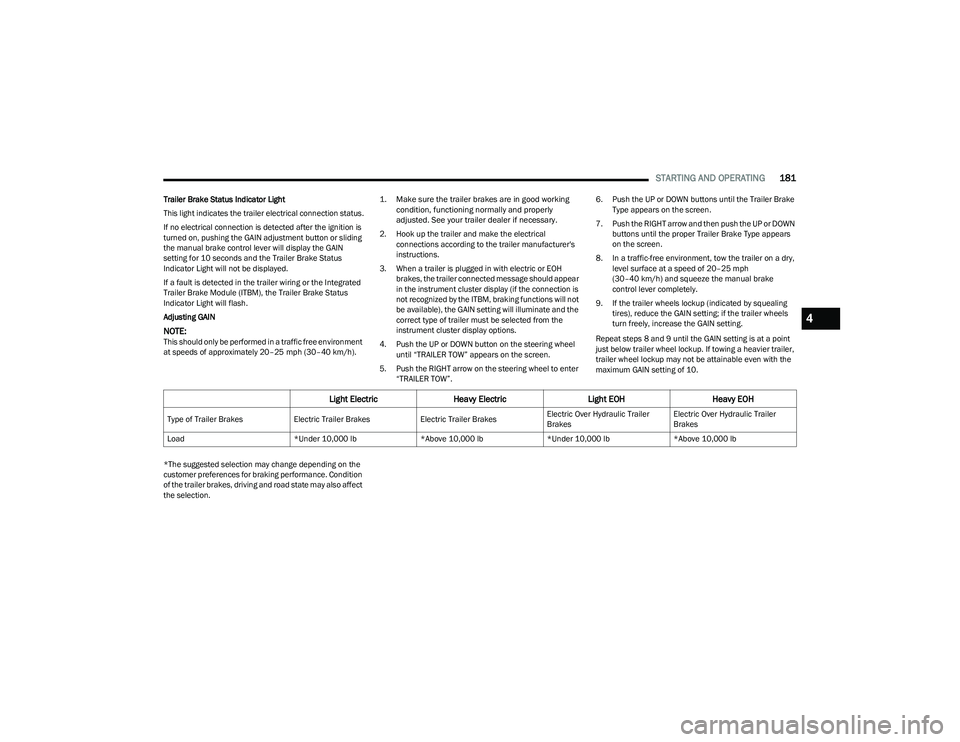
*The suggested selection may change depending on the
customer preferences for braking performance. Condition
of the trailer brakes, driving and road state may also affect
the selection.
Light Electric Heavy Electric Light EOHHeavy EOH
Type of Trailer Brakes Electric Trailer BrakesElectric Trailer BrakesElectric Over Hydraulic Trailer
BrakesElectric Over Hydraulic Trailer
Brakes
Load *Under 10,000 lb*Above 10,000 lb*Under 10,000 lb*Above 10,000 lb
4
23_DT_OM_EN_USC_t.book Page 181