ignition RAM 1500 2023 Manual PDF
[x] Cancel search | Manufacturer: RAM, Model Year: 2023, Model line: 1500, Model: RAM 1500 2023Pages: 416, PDF Size: 20.59 MB
Page 188 of 416

186STARTING AND OPERATING
RECREATIONAL TOWING (BEHIND MOTORHOME)
TOWING THIS VEHICLE BEHIND ANOTHER VEHICLE
NOTE:
When towing your vehicle, always follow applicable
state and provincial laws. Contact state and provincial
Highway Safety offices for additional details.
Vehicles equipped with Active-Level Four Corner Air
Suspension must be placed in Transport mode before
tying them down (from the body) on a trailer or flatbed
truck
Úpage 134. If the vehicle cannot be placed in
Transport mode (for example, engine will not run),
tie-downs must be fastened to the axles (not to the
body). Failure to follow these instructions may cause
fault codes to be set and/or cause loss of proper
tie-down tension.
RECREATIONAL TOWING — TWO-WHEEL
D
RIVE MODELS
DO NOT flat tow this vehicle. Damage to the drivetrain will
result.
Recreational towing (for two-wheel drive models) is
allowed ONLY if the rear wheels are OFF the ground.
This may be accomplished using a tow dolly or vehicle
trailer. If using a tow dolly, follow this procedure:
NOTE:If vehicle is equipped with air suspension, ensure the
vehicle is set to Normal Ride Height.
1. Properly secure the dolly to the tow vehicle, following the dolly manufacturer's instructions.
2. Drive the rear wheels onto the tow dolly. 3. Apply the parking brake. Place the transmission
in PARK.
4. Properly secure the rear wheels to the dolly, following the dolly manufacturer's instructions.
5. Turn the ignition OFF.
6. Install a suitable clamping device, designed for towing, to secure the front wheels in the straight
position.
Towing Condition Wheels OFF The Ground Two-Wheel Drive Models Four-Wheel Drive Models
Flat TowNONENOT ALLOWED See Instructions
Transmission in PARK
Transfer case in N (Neutral)
Tow in forward direction
Dolly Tow Front
NOT ALLOWED NOT ALLOWED
Rear OK NOT ALLOWED
On Trailer ALLOK OK
CAUTION!
Towing with the rear wheels on the ground will cause
severe transmission damage. Damage from improper
towing is not covered under the New Vehicle Limited
Warranty.
23_DT_OM_EN_USC_t.book Page 186
Page 190 of 416

188STARTING AND OPERATING
5. Release the parking brake.
6. Shift the transmission into REVERSE.
7. Release the brake pedal for five seconds and ensure
that there is no vehicle movement.
8. Repeat steps 6 and 7 with the transmission in DRIVE.
9. Shift the transmission to NEUTRAL. Apply the parking brake. Turn off the engine. For vehicles with Keyless
Enter ‘n Go™, push and hold the ENGINE START/
STOP button until the engine shuts off. The
transmission will automatically select PARK when the
engine is turned off.
10. Turn the ignition off.
11. Attach the vehicle to the tow vehicle using a suitable tow bar.
12. Turn the ignition to the ON/RUN mode, but do not start the engine.
13. Release the parking brake.
14. Turn the ignition OFF.NOTE:
Steps 2 and 3 are requirements that must be met
before pushing the N (Neutral) button, and must
continue to be met until the shift has been completed.
If any of these requirements are not met before
pushing the N (Neutral) button or are no longer met
during the shift, the N (Neutral) indicator light will flash
continuously until all requirements are met or until the
N (Neutral) button is released.
The ignition must be in the ON/RUN mode for a shift to
take place and for the position indicator lights to be
operable. If the ignition is not in the ON/RUN mode, the
shift will not take place and no position indicator lights
will be on or flashing.
A flashing N (Neutral) position indicator light indicates
that shift requirements have not been met.
If the vehicle is equipped with air suspension, the
engine should be started and left running for a
minimum of 60 seconds (with all the doors closed) at
least once every 24 hours. This process allows the air
suspension to adjust the vehicle’s ride height to
compensate for temperature effects.
Shifting Out Of N (Neutral)
Use the following procedure to prepare your vehicle for
normal usage:
1. Bring the vehicle to a complete stop, leaving it
connected to the tow vehicle.
2. Press and hold the brake pedal.
3. Start the engine. Apply the parking brake. Shift the transmission into NEUTRAL.
4. Using a ballpoint pen or similar object, push and hold the recessed transfer case N (Neutral) button
(at the center of the transfer case switches).
5. When the N (Neutral) indicator light turns off, release the N (Neutral) button.
6. Turn the engine off. The transmission will automat -
ically select PARK when the engine is turned off.
7. Release the brake pedal.
23_DT_OM_EN_USC_t.book Page 188
Page 191 of 416

STARTING AND OPERATING189
8. Disconnect vehicle from the tow vehicle.
9. Press and hold the brake pedal.
10. Start the engine.
11. Release the parking brake.
12. Shift the transmission into DRIVE, release the brake
pedal, and check that the vehicle operates normally.
NOTE:
Steps 3 and 4 are requirements that must be met
before pushing the button to shift out of N (Neutral),
and must continue to be met until the shift has been
completed. If any of these requirements are not met
before pushing the button or are no longer met during
the shift, the N (Neutral) indicator light will flash contin -
uously until all requirements are met or until the button
is released.
The ignition must be in the ON/RUN mode for a shift to
take place and for the position indicator lights to be
operable. If the ignition is not in the ON/RUN mode, the
shift will not take place and no position indicator lights
will be on or flashing.
A flashing N (Neutral) position indicator light indicates
that shift requirements have not been met.
DRIVING TIPS
DRIVING ON SLIPPERY SURFACES
Acceleration
Rapid acceleration on snow covered, wet, or other slippery
surfaces may cause the driving wheels to pull erratically to
the right or left. This phenomenon occurs when there is a
difference in the surface traction under the rear (driving)
wheels.
DRIVING THROUGH WATER
Driving through water more than a few inches/
centimeters deep will require extra caution to ensure
safety and prevent damage to your vehicle.
Flowing/Rising Water
Shallow Standing Water
Although your vehicle is capable of driving through shallow
standing water, consider the following Cautions and
Warnings before doing so.
WARNING!
Rapid acceleration on slippery surfaces is dangerous.
Unequal traction can cause sudden pulling of the rear
wheels. You could lose control of the vehicle and
possibly have a collision. Accelerate slowly and
carefully whenever there is likely to be poor traction
(ice, snow, wet, mud, loose sand, etc.).
WARNING!
Do not drive on or across a road or path where water is
flowing and/or rising (as in storm run-off). Flowing water
can wear away the road or path's surface and cause
your vehicle to sink into deeper water. Furthermore,
flowing and/or rising water can carry your vehicle away
swiftly. Failure to follow this warning may result in
injuries that are serious or fatal to you, your
passengers, and others around you.
WARNING!
Driving through standing water limits your vehicle’s
traction capabilities. Do not exceed 5 mph (8 km/h)
when driving through standing water.
Driving through standing water limits your vehicle’s
braking capabilities, which increases stopping
distances. Therefore, after driving through standing
water, drive slowly and lightly press on the brake
pedal several times to dry the brakes.
Failure to follow these warnings may result in injuries
that are serious or fatal to you, your passengers, and
others around you.
4
23_DT_OM_EN_USC_t.book Page 189
Page 196 of 416
194MULTIMEDIA
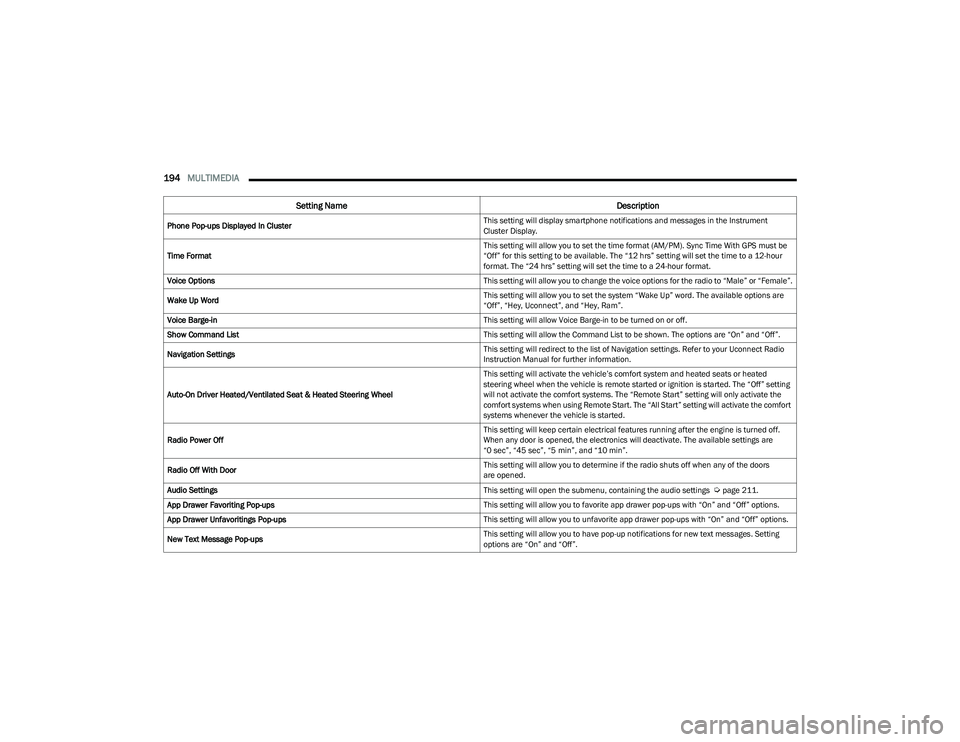
Phone Pop-ups Displayed In Cluster This setting will display smartphone notifications and messages in the Instrument
Cluster Display.
Time Format This setting will allow you to set the time format (AM/PM). Sync Time With GPS must be
“Off” for this setting to be available. The “12 hrs” setting will set the time to a 12-hour
format. The “24 hrs” setting will set the time to a 24-hour format.
Voice Options This setting will allow you to change the voice options for the radio to “Male” or “Female”.
Wake Up Word This setting will allow you to set the system “Wake Up” word. The available options are
“Off”, “Hey, Uconnect”, and “Hey, Ram”.
Voice Barge-in This setting will allow Voice Barge-in to be turned on or off.
Show Command List This setting will allow the Command List to be shown. The options are “On” and “Off”.
Navigation Settings This setting will redirect to the list of Navigation settings. Refer to your Uconnect Radio
Instruction Manual for further information.
Auto-On Driver Heated/Ventilated Seat & Heated Steering Wheel This setting will activate the vehicle’s comfort system and heated seats or heated
steering wheel when the vehicle is remote started or ignition is started. The “Off” setting
will not activate the comfort systems. The “Remote Start” setting will only activate the
comfort systems when using Remote Start. The “All Start” setting will activate the comfort
systems whenever the vehicle is started.
Radio Power Off This setting will keep certain electrical features running after the engine is turned off.
When any door is opened, the electronics will deactivate. The available settings are
“0 sec”, “45 sec”, “5 min”, and “10 min”.
Radio Off With Door This setting will allow you to determine if the radio shuts off when any of the doors
are opened.
Audio Settings This setting will open the submenu, containing the audio settings
Úpage 211.
App Drawer Favoriting Pop-ups This setting will allow you to favorite app drawer pop-ups with “On” and “Off” options.
App Drawer Unfavoritings Pop-ups This setting will allow you to unfavorite app drawer pop-ups with “On” and “Off” options.
New Text Message Pop-ups This setting will allow you to have pop-up notifications for new text messages. Setting
options are “On” and “Off”.
Setting Name
Description
23_DT_OM_EN_USC_t.book Page 194
Page 207 of 416
MULTIMEDIA205
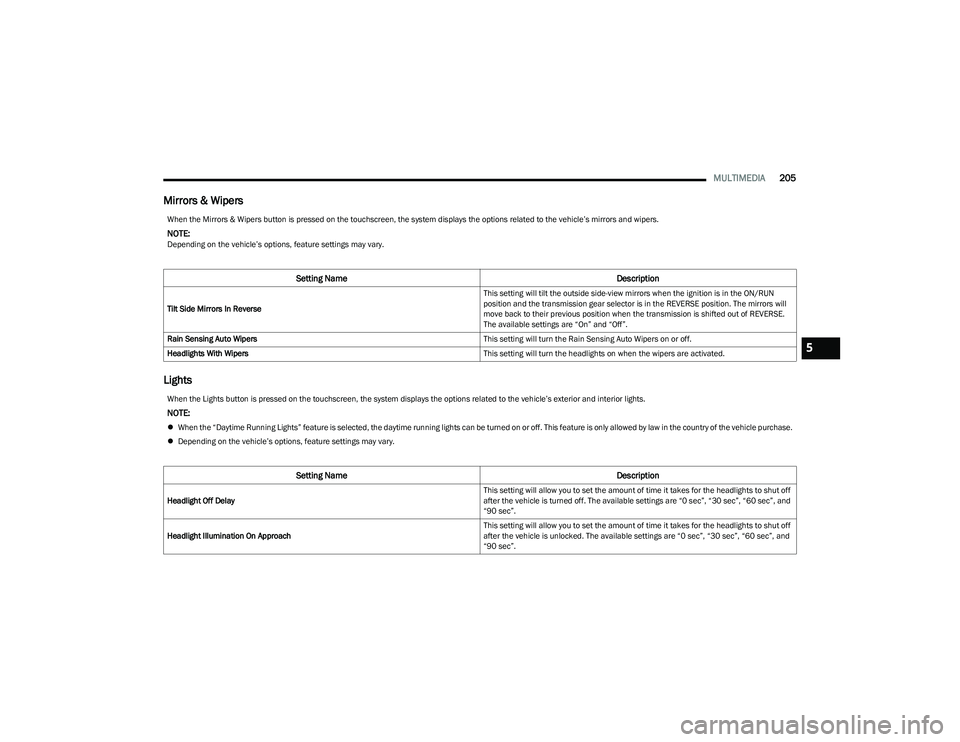
Mirrors & Wipers
Lights
When the Mirrors & Wipers button is pressed on the touchscreen, the system displays the options related to the vehicle’s mirrors and wipers.
NOTE:Depending on the vehicle’s options, feature settings may vary.
Setting Name Description
Tilt Side Mirrors In Reverse This setting will tilt the outside side-view mirrors when the ignition is in the ON/RUN
position and the transmission gear selector is in the REVERSE position. The mirrors will
move back to their previous position when the transmission is shifted out of REVERSE.
The available settings are “On” and “Off”.
Rain Sensing Auto Wipers This setting will turn the Rain Sensing Auto Wipers on or off.
Headlights With Wipers This setting will turn the headlights on when the wipers are activated.
When the Lights button is pressed on the touchscreen, the system displays the options related to the vehicle’s exterior and interior lights.
NOTE:
When the “Daytime Running Lights” feature is selected, the daytime running lights can be turned on or off. This feature is only allowed by law in the country of the vehicle purchase.
Depending on the vehicle’s options, feature settings may vary.
Setting Name Description
Headlight Off Delay This setting will allow you to set the amount of time it takes for the headlights to shut off
after the vehicle is turned off. The available settings are “0 sec”, “30 sec”, “60 sec”, and
“90 sec”.
Headlight Illumination On Approach This setting will allow you to set the amount of time it takes for the headlights to shut off
after the vehicle is unlocked. The available settings are “0 sec”, “30 sec”, “60 sec”, and
“90 sec”.
5
23_DT_OM_EN_USC_t.book Page 205
Page 210 of 416

208MULTIMEDIA
Seats & Comfort/Auto-On Comfort Systems
Key Off Options/Engine Off Options
When Seats & Comfort/Auto-On Comfort Systems button is pressed on the touchscreen, the system displays the options related to the vehicle’s comfort systems when remote start
has been activated or the vehicle has been started.
NOTE:Depending on the vehicle’s options, feature settings may vary.
Setting Name Description
Auto-On Driver Heated/Ventilated Seat & Heated Steering Wheel With Vehicle Start This setting will activate the vehicle’s comfort systems and heated seats or heated
steering wheel when the vehicle is remote started or ignition is started. The “Off” setting
will not activate the comfort systems. The “Remote Start” setting will only activate the
comfort systems when using Remote Start. The “All Start” setting will activate the comfort
systems whenever the vehicle is started.
Easy Exit Seats This setting will automatically move the driver seat rearward when the engine is shut off.
The available settings are “On” and “Off”.
When the Key Off Options/Engine Off Options button is pressed on the touchscreen, the system displays the options related to vehicle shutoff. These settings will only activate when
the ignition is set to OFF.
NOTE:Depending on the vehicle’s options, feature settings may vary.
Setting Name
Description
Easy Exit Seat This setting adjusts the seats to make exiting the vehicle easier.
Key Off Power Delay/Engine Off Power Delay This setting will keep certain electrical features running after the engine is turned off.
When any door is opened, the electronics will deactivate. The available settings are
“0 sec”, “45 sec”, “5 min”, and “10 min”.
23_DT_OM_EN_USC_t.book Page 208
Page 212 of 416
210MULTIMEDIA
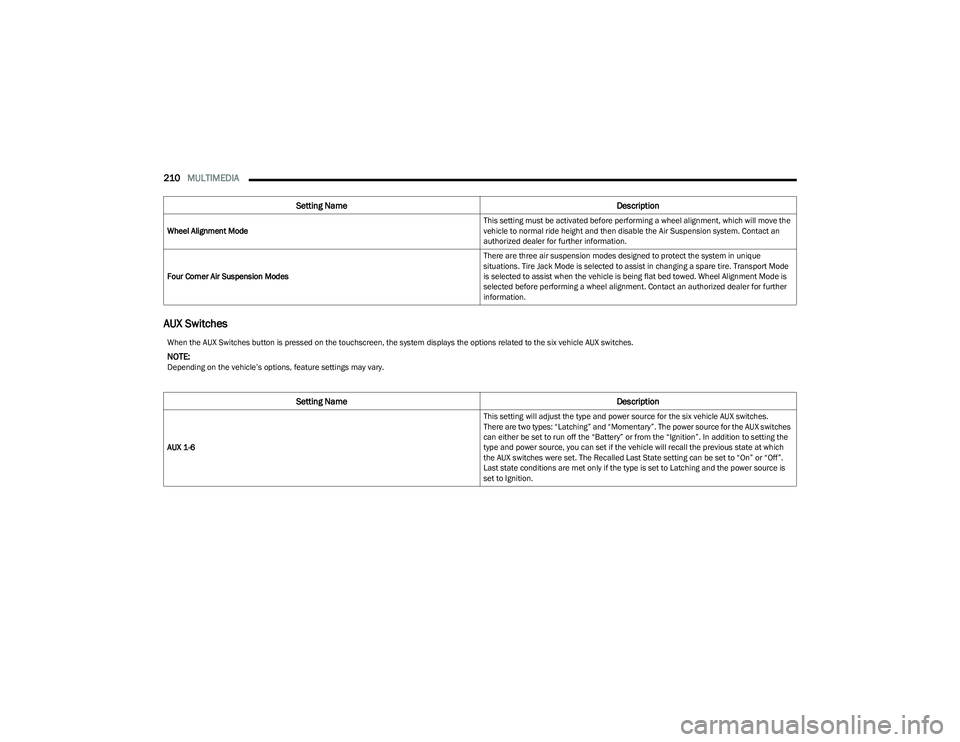
AUX Switches
Wheel Alignment Mode This setting must be activated before performing a wheel alignment, which will move the
vehicle to normal ride height and then disable the Air Suspension system. Contact an
authorized dealer for further information.
Four Corner Air Suspension Modes There are three air suspension modes designed to protect the system in unique
situations. Tire Jack Mode is selected to assist in changing a spare tire. Transport Mode
is selected to assist when the vehicle is being flat bed towed. Wheel Alignment Mode is
selected before performing a wheel alignment. Contact an authorized dealer for further
information.
Setting Name
Description
When the AUX Switches button is pressed on the touchscreen, the system displays the options related to the six vehicle AUX switches.
NOTE:Depending on the vehicle’s options, feature settings may vary.
Setting NameDescription
AUX 1-6 This setting will adjust the type and power source for the six vehicle AUX switches.
There are two types: “Latching” and “Momentary”. The power source for the AUX switches
can either be set to run off the “Battery” or from the “Ignition”. In addition to setting the
type and power source, you can set if the vehicle will recall the previous state at which
the AUX switches were set. The Recalled Last State setting can be set to “On” or “Off”.
Last state conditions are met only if the type is set to Latching and the power source is
set to Ignition.
23_DT_OM_EN_USC_t.book Page 210
Page 228 of 416
226MULTIMEDIA
MEDIA MODE
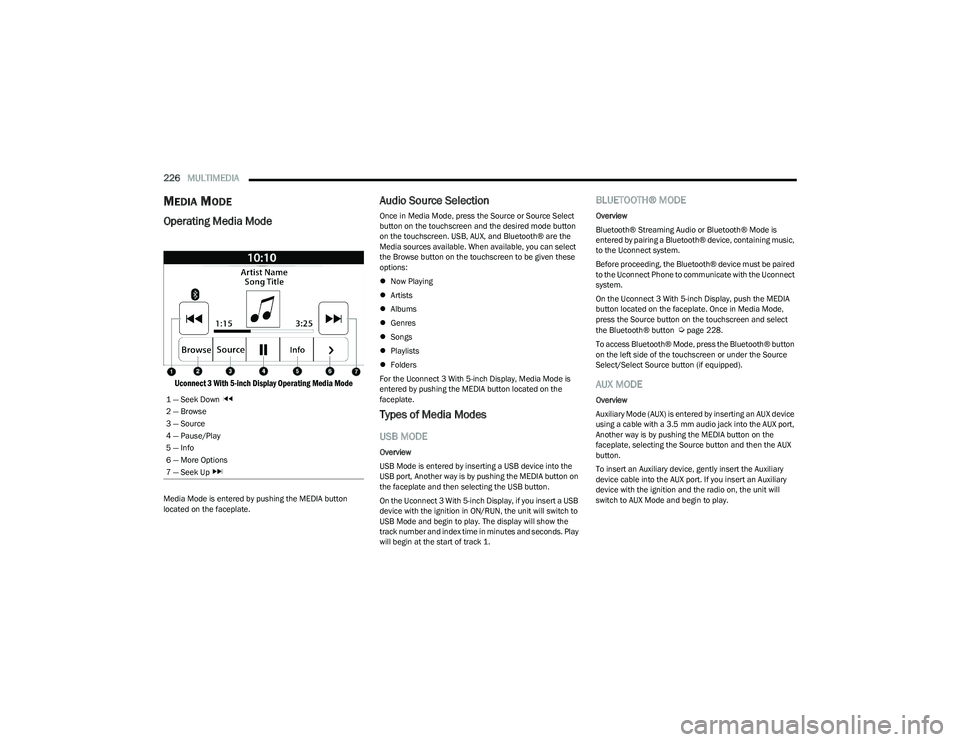
Operating Media Mode
Uconnect 3 With 5-inch Display Operating Media Mode
Media Mode is entered by pushing the MEDIA button
located on the faceplate.
Audio Source Selection
Once in Media Mode, press the Source or Source Select
button on the touchscreen and the desired mode button
on the touchscreen. USB, AUX, and Bluetooth® are the
Media sources available. When available, you can select
the Browse button on the touchscreen to be given these
options:
Now Playing
Artists
Albums
Genres
Songs
Playlists
Folders
For the Uconnect 3 With 5-inch Display, Media Mode is
entered by pushing the MEDIA button located on the
faceplate.
Types of Media Modes
USB MODE
Overview
USB Mode is entered by inserting a USB device into the
USB port, Another way is by pushing the MEDIA button on
the faceplate and then selecting the USB button.
On the Uconnect 3 With 5-inch Display, if you insert a USB
device with the ignition in ON/RUN, the unit will switch to
USB Mode and begin to play. The display will show the
track number and index time in minutes and seconds. Play
will begin at the start of track 1.
BLUETOOTH® MODE
Overview
Bluetooth® Streaming Audio or Bluetooth® Mode is
entered by pairing a Bluetooth® device, containing music,
to the Uconnect system.
Before proceeding, the Bluetooth® device must be paired
to the Uconnect Phone to communicate with the Uconnect
system.
On the Uconnect 3 With 5-inch Display, push the MEDIA
button located on the faceplate. Once in Media Mode,
press the Source button on the touchscreen and select
the Bluetooth® button
Úpage 228.
To access Bluetooth® Mode, press the Bluetooth® button
on the left side of the touchscreen or under the Source
Select/Select Source button (if equipped).
AUX MODE
Overview
Auxiliary Mode (AUX) is entered by inserting an AUX device
using a cable with a 3.5 mm audio jack into the AUX port,
Another way is by pushing the MEDIA button on the
faceplate, selecting the Source button and then the AUX
button.
To insert an Auxiliary device, gently insert the Auxiliary
device cable into the AUX port. If you insert an Auxiliary
device with the ignition and the radio on, the unit will
switch to AUX Mode and begin to play.
1 — Seek Down
2 — Browse
3 — Source
4 — Pause/Play
5 — Info
6 — More Options
7 — Seek Up
23_DT_OM_EN_USC_t.book Page 226
Page 232 of 416
230MULTIMEDIA
HELP COMMAND
If you need assistance at any prompt, or if you want to
know your options at any prompt, say “Help” following the
beep.
To activate the Uconnect Phone from idle, simply push the
Phone button (if active) on your steering wheel and say a
command or say “Help”. All Phone sessions begin with a
push of the VR button or the Phone button.
CANCEL COMMAND
At any prompt, after the beep, you can say “Cancel” and
you will be returned to the main menu.
You can also push the VR button or Phone button on your
steering wheel when the system is listening for a
command and be returned to the main or previous menu.
PAIR (LINK) UCONNECT PHONE TO A MOBILE
PHONE
Use this QR code to access your digital
experience.
To begin using your Uconnect Phone,
you must pair your compatible
Bluetooth®-enabled mobile phone.
Mobile phone pairing is the process of
establishing a wireless connection
between a cellular phone and the
Uconnect system.
To complete the pairing process, you will need to
reference your mobile phone’s manual. Please visit
UconnectPhone.com for complete mobile phone
compatibility information.
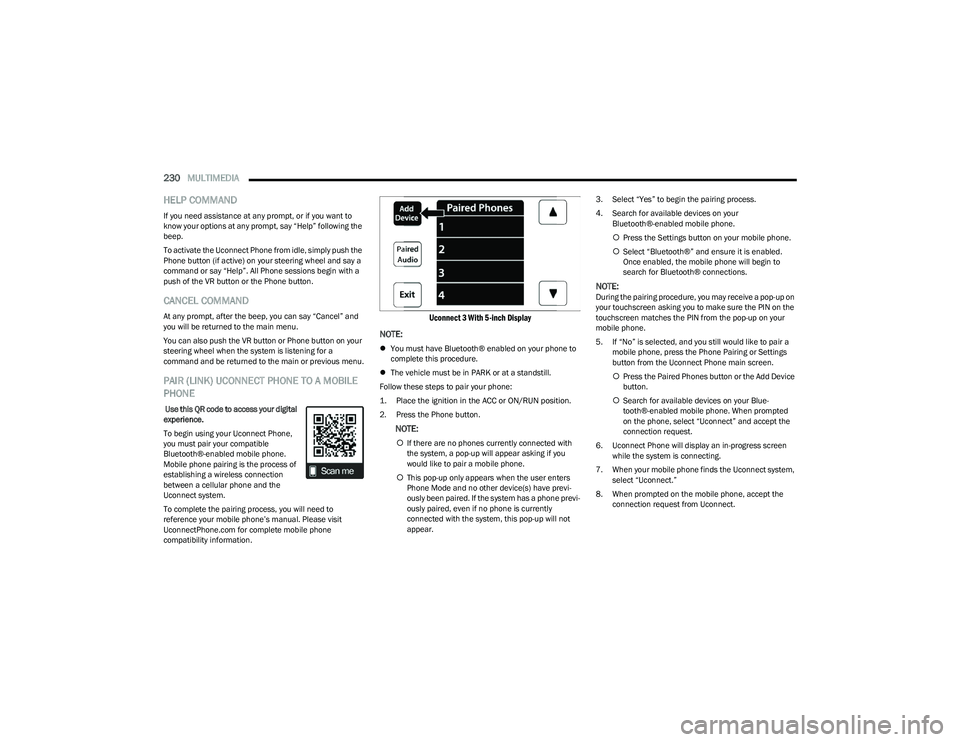
Uconnect 3 With 5-inch Display
NOTE:
You must have Bluetooth® enabled on your phone to
complete this procedure.
The vehicle must be in PARK or at a standstill.
Follow these steps to pair your phone:
1. Place the ignition in the ACC or ON/RUN position.
2. Press the Phone button.
NOTE:
If there are no phones currently connected with
the system, a pop-up will appear asking if you
would like to pair a mobile phone.
This pop-up only appears when the user enters
Phone Mode and no other device(s) have previ -
ously been paired. If the system has a phone previ -
ously paired, even if no phone is currently
connected with the system, this pop-up will not
appear. 3. Select “Yes” to begin the pairing process.
4. Search for available devices on your
Bluetooth®-enabled mobile phone.
Press the Settings button on your mobile phone.
Select “Bluetooth®” and ensure it is enabled.
Once enabled, the mobile phone will begin to
search for Bluetooth® connections.
NOTE:During the pairing procedure, you may receive a pop-up on
your touchscreen asking you to make sure the PIN on the
touchscreen matches the PIN from the pop-up on your
mobile phone.
5. If “No” is selected, and you still would like to pair a
mobile phone, press the Phone Pairing or Settings
button from the Uconnect Phone main screen.
Press the Paired Phones button or the Add Device
button.
Search for available devices on your Blue -
tooth®-enabled mobile phone. When prompted
on the phone, select “Uconnect” and accept the
connection request.
6. Uconnect Phone will display an in-progress screen while the system is connecting.
7. When your mobile phone finds the Uconnect system, select “Uconnect.”
8. When prompted on the mobile phone, accept the connection request from Uconnect.
23_DT_OM_EN_USC_t.book Page 230
Page 236 of 416
234MULTIMEDIA
DO NOT DISTURB
With Do Not Disturb, you can disable notifications from
incoming calls and texts, allowing you to keep your eyes on
the road and hands on the wheel. For your convenience,
there is a counter display to keep track of your missed
calls and text messages while Do Not Disturb is active.
Do Not Disturb can automatically reply with a text
message, a call, or both when declining an incoming call
and send it to voicemail.
Automatic reply messages can be:
“I am driving right now, I will get back to you shortly”.
Create a custom auto reply message up to 160 charac -
ters.
NOTE:Only the first 25 characters can be seen on the touch -
screen while typing a custom message.
While in Do Not Disturb, “Conference Call” can be selected
so you can still place a second call without being
interrupted by incoming calls.
NOTE:
Reply with text message is not compatible with
iPhone® devices.
Auto reply with text message is only available on
phones that support Bluetooth® Message Access
Profile (MAP).
PLACE/RETRIEVE A CALL FROM HOLD
During an active call, press the Hold or Call On Hold button
on the Phone main screen.
MAKING A SECOND CALL WHILE CURRENT
CALL IS IN PROGRESS
You can place a call on hold by pressing the Hold button
on the Phone main screen, then dial a number from the
keypad (if supported by your mobile phone), recent calls,
SMS Inbox or from the phonebooks.
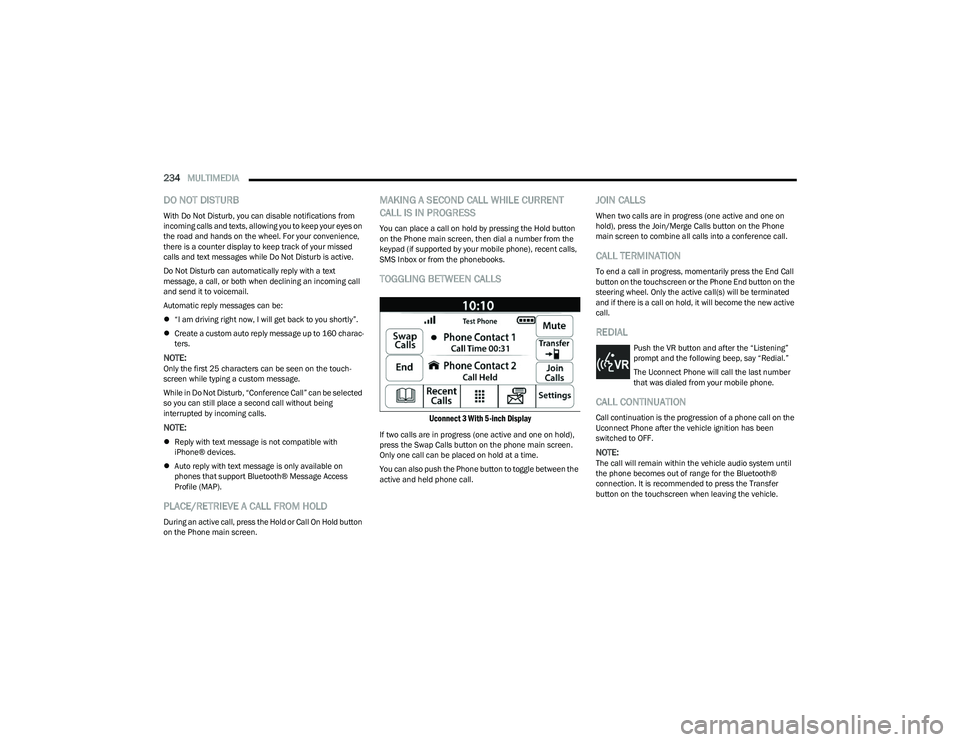
TOGGLING BETWEEN CALLS
Uconnect 3 With 5-inch Display
If two calls are in progress (one active and one on hold),
press the Swap Calls button on the phone main screen.
Only one call can be placed on hold at a time.
You can also push the Phone button to toggle between the
active and held phone call.
JOIN CALLS
When two calls are in progress (one active and one on
hold), press the Join/Merge Calls button on the Phone
main screen to combine all calls into a conference call.
CALL TERMINATION
To end a call in progress, momentarily press the End Call
button on the touchscreen or the Phone End button on the
steering wheel. Only the active call(s) will be terminated
and if there is a call on hold, it will become the new active
call.
REDIAL
Push the VR button and after the “Listening”
prompt and the following beep, say “Redial.”
The Uconnect Phone will call the last number
that was dialed from your mobile phone.
CALL CONTINUATION
Call continuation is the progression of a phone call on the
Uconnect Phone after the vehicle ignition has been
switched to OFF.
NOTE:The call will remain within the vehicle audio system until
the phone becomes out of range for the Bluetooth®
connection. It is recommended to press the Transfer
button on the touchscreen when leaving the vehicle.
23_DT_OM_EN_USC_t.book Page 234