USB Ram 3500 2019 User Guide
[x] Cancel search | Manufacturer: RAM, Model Year: 2019, Model line: 3500, Model: Ram 3500 2019Pages: 696, PDF Size: 13.89 MB
Page 644 of 696
642 MULTIMEDIA
STEERING WHEEL AUDIO CONTROLS — IF
EQUIPPED
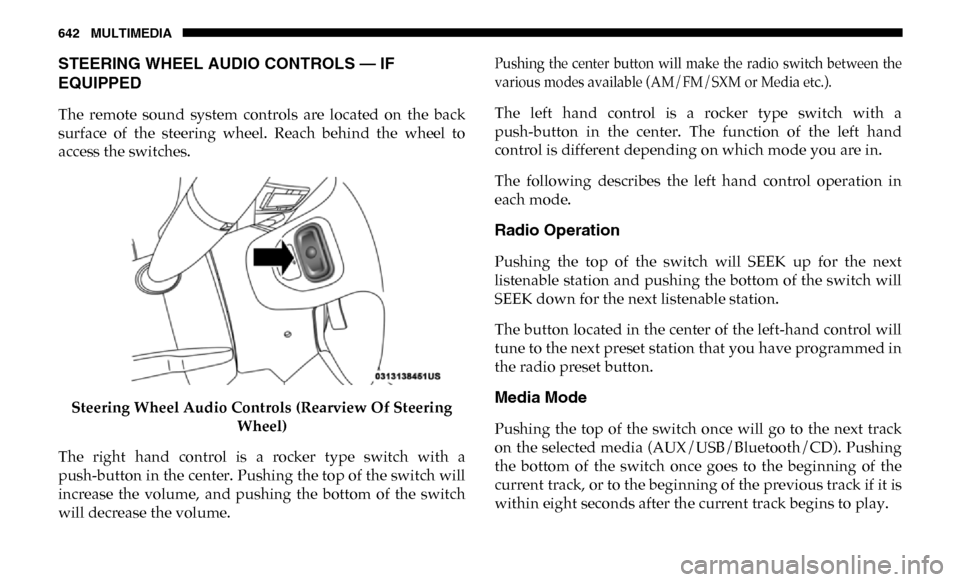
The remote sound system controls are located on the back
surface of the steering wheel. Reach behind the wheel to
access the switches.Steering Wheel Audio Controls (Rearview Of Steering Wheel)
The right hand control is a rocker type switch with a
push-button in the center. Pushing the top of the switch will
increase the volume, and pushing the bottom of the switch
will decrease the volume.
Pushing the center button will make the radio switch between the
various modes available (AM/FM/SXM or Media etc.).
The left hand control is a rocker type switch with a
push-button in the center. The function of the left hand
control is different depending on which mode you are in.
The following describes the left hand control operation in
each mode.
Radio Operation
Pushing the top of the switch will SEEK up for the next
listenable station and pushing the bottom of the switch will
SEEK down for the next listenable station.
The button located in the center of the left-hand control will
tune to the next preset station that you have programmed in
the radio preset button.
Media Mode
Pushing the top of the switch once will go to the next track
on the selected media (AUX/USB/Bluetooth/CD). Pushing
the bottom of the switch once goes to the beginning of the
current track, or to the beginning of the previous track if it is
within eight seconds after the current track begins to play.
Page 645 of 696
MULTIMEDIA 643
IPOD/USB/MP3 CONTROL — IF EQUIPPED
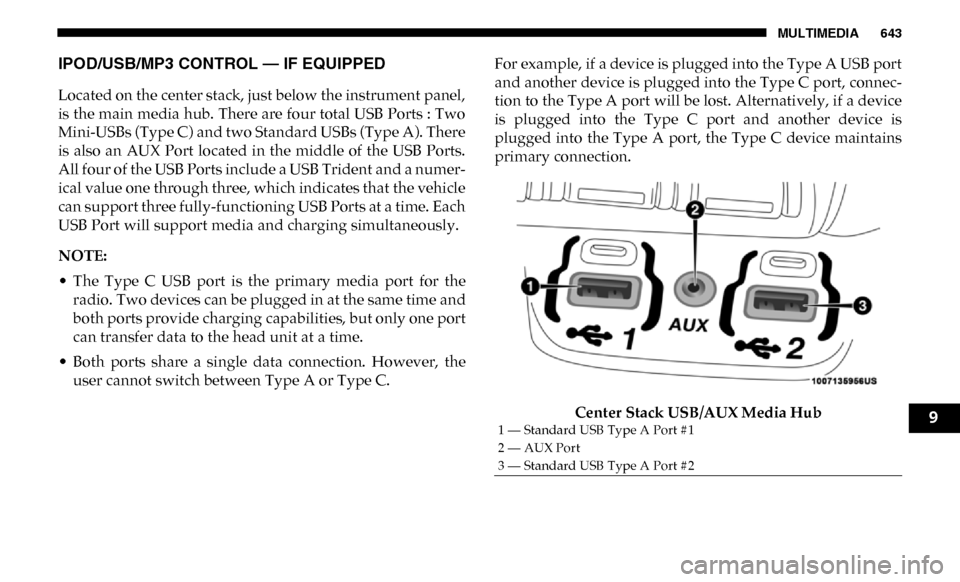
Located on the center stack, just below the instrument panel,
is the main media hub. There are four total USB Ports : Two
Mini-USBs (Type C) and two Standard USBs (Type A). There
is also an AUX Port located in the middle of the USB Ports.
All four of the USB Ports include a USB Trident and a numer-
ical value one through three, which indicates that the vehicle
can support three fully-functioning USB Ports at a time. Each
USB Port will support media and charging simultaneously.
NOTE:
• The Type C USB port is the primary media port for the radio. Two devices can be plugged in at the same time and
both ports provide charging capabilities, but only one port
can transfer data to the head unit at a time.
• Both ports share a single data connection. However, the user cannot switch between Type A or Type C. For example, if a device is plugged into the Type A USB port
and another device is plugged into the Type C port, connec
-
tion to the Type A port will be lost. Alternatively, if a device
is plugged into the Type C port and another device is
plugged into the Type A port, the Type C device maintains
primary connection.
Center Stack USB/AUX Media Hub
1 — Standard USB Type A Port #1
2 — AUX Port
3 — Standard USB Type A Port #29
Page 646 of 696
644 MULTIMEDIA
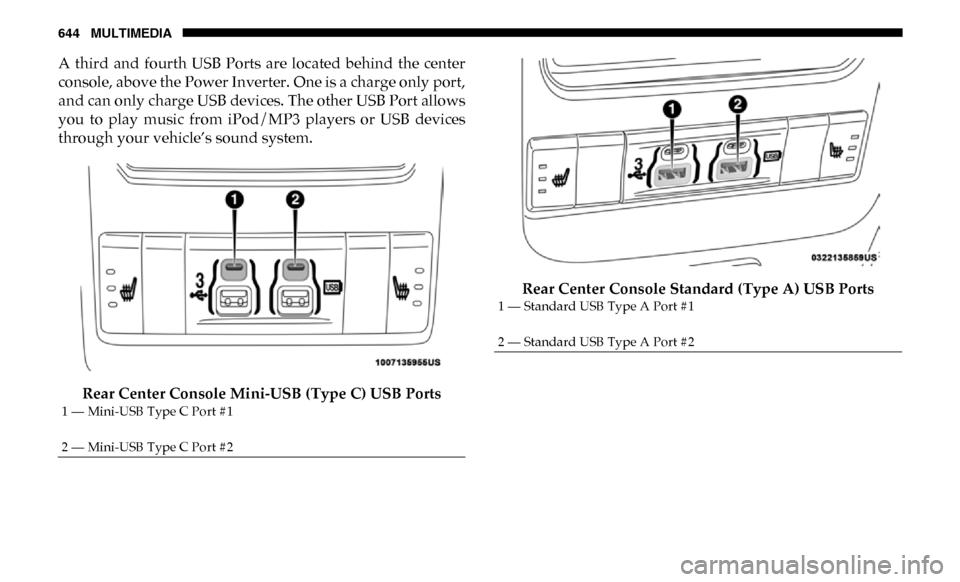
A third and fourth USB Ports are located behind the center
console, above the Power Inverter. One is a charge only port,
and can only charge USB devices. The other USB Port allows
you to play music from iPod/MP3 players or USB devices
through your vehicle’s sound system.Rear Center Console Mini-USB (Type C) USB Ports Rear Center Console Standard (Type A) USB Ports
1 — Mini-USB Type C Port #1
2 — Mini-USB Type C Port #2
1 — Standard USB Type A Port #1
2 — Standard USB Type A Port #2
Page 647 of 696
MULTIMEDIA 645
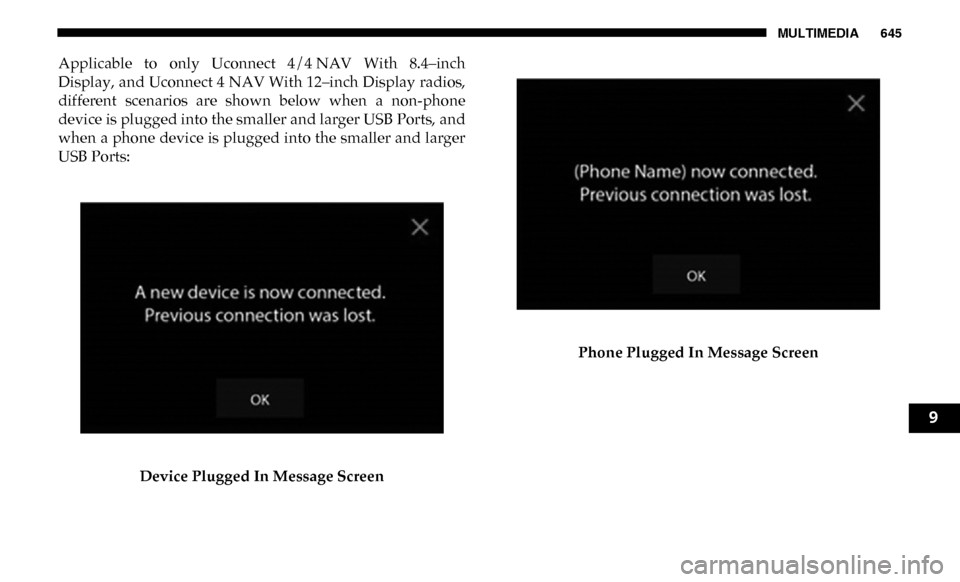
Applicable to only Uconnect 4/4 NAV With 8.4–inch
Display, and Uconnect 4 NAV With 12–inch Display radios,
different scenarios are shown below when a non-phone
device is plugged into the smaller and larger USB Ports, and
when a phone device is plugged into the smaller and larger
USB Ports:Device Plugged In Message Screen Phone Plugged In Message Screen
9
Page 648 of 696
646 MULTIMEDIA
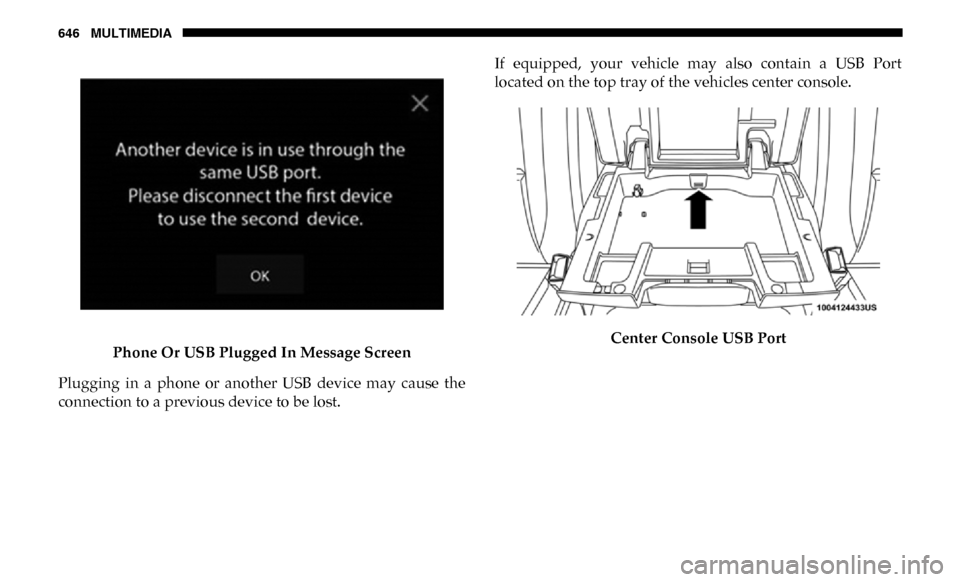
Phone Or USB Plugged In Message Screen
Plugging in a phone or another USB device may cause the
connection to a previous device to be lost. If equipped, your vehicle may also contain a USB Port
located on the top tray of the vehicles center console.
Center Console USB Port
Page 649 of 696
MULTIMEDIA 647
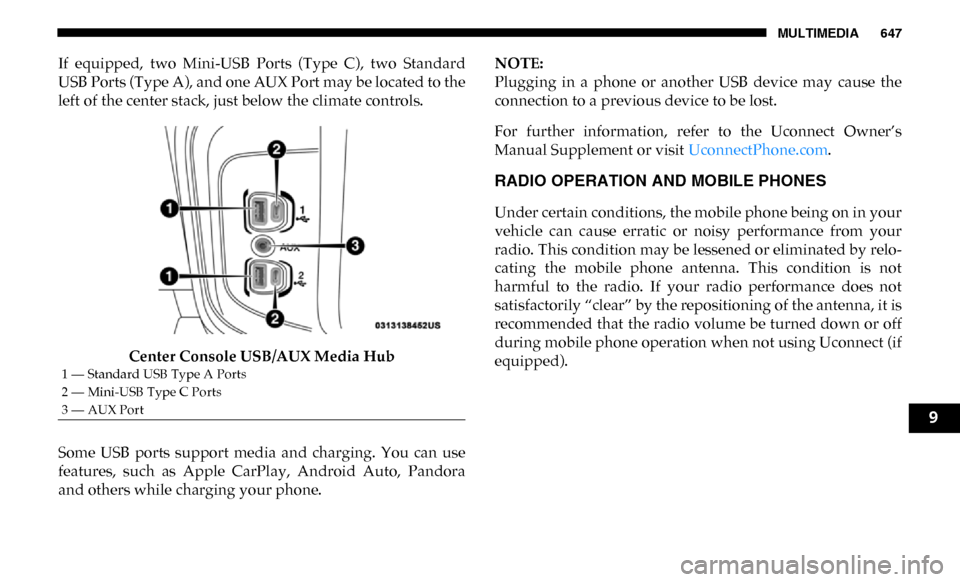
If equipped, two Mini-USB Ports (Type C), two Standard
USB Ports (Type A), and one AUX Port may be located to the
left of the center stack, just below the climate controls.Center Console USB/AUX Media Hub
Some USB ports support media and charging. You can use
features, such as Apple CarPlay, Android Auto, Pandora
and others while charging your phone. NOTE:
Plugging in a phone or another USB device may cause the
connection to a previous device to be lost.
For further information, refer to the Uconnect Owner’s
Manual Supplement or visit
UconnectPhone.com.
RADIO OPERATION AND MOBILE PHONES
Under certain conditions, the mobile phone being on in your
vehicle can cause erratic or noisy performance from your
radio. This condition may be lessened or eliminated by relo -
cating the mobile phone antenna. This condition is not
harmful to the radio. If your radio performance does not
satisfactorily “clear” by the repositioning of the antenna, it is
recommended that the radio volume be turned down or off
during mobile phone operation when not using Uconnect (if
equipped).
1 — Standard USB Type A Ports
2 — Mini-USB Type C Ports
3 — AUX Port
9
Page 656 of 696
654 MULTIMEDIA
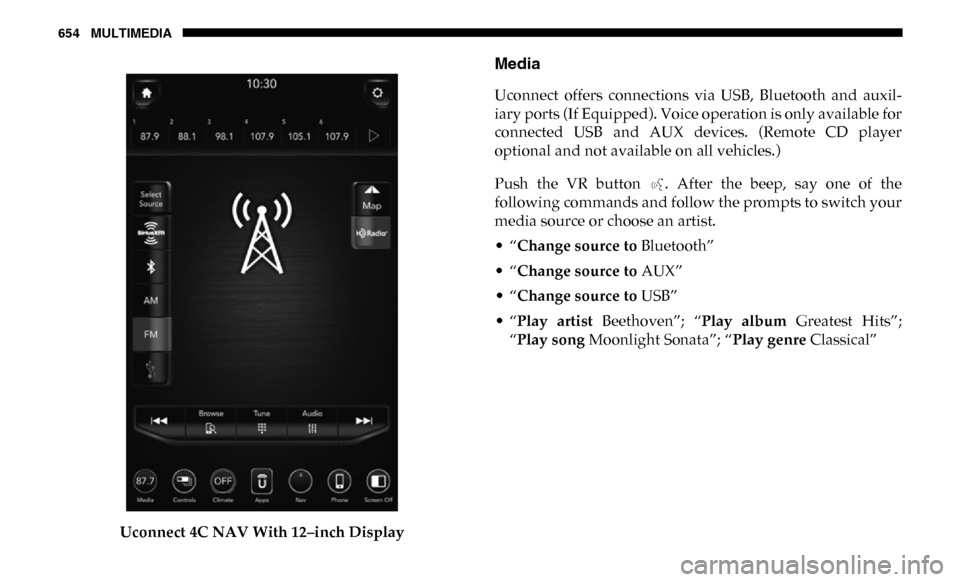
Uconnect 4C NAV With 12–inch Display
Media
Uconnect offers connections via USB, Bluetooth and auxil-
iary ports (If Equipped). Voice operation is only available for
connected USB and AUX devices. (Remote CD player
optional and not available on all vehicles.)
Push the VR button . After the beep, say one of the
following commands and follow the prompts to switch your
media source or choose an artist.
• “Change source to Bluetooth”
• “Change source to AUX”
• “Change source to USB”
• “Play artist Beethoven”; “ Play album Greatest Hits”;
“Play song Moonlight Sonata”; “ Play genre Classical”
Page 657 of 696

MULTIMEDIA 655
TIP:
Press the Browse button on the touchscreen to see all of the
music on your USB device. Your Voice Command must
match exactly how the artist, album, song and genre infor -
mation is displayed.
Uconnect 3 Media Uconnect 4/4C/4C NAV With 8.4–inch Display
9
Page 670 of 696

668 MULTIMEDIA
Using Do Not Disturb
With Do Not Disturb, you can disable notifications from
incoming calls and texts, allowing you to keep your eyes on
the road and hands on the wheel. For your convenience,
there is a counter display to keep track of your missed calls
and text messages while you were using Do Not Disturb.
Do Not Disturb can automatically reply with a text message,
a call, or both, when declining an incoming call and send it
to voicemail.
Automatic reply messages can be:
• “I am driving right now, I will get back to you shortly.”
• Create a custom auto reply message up to 160 characters.
While in Do Not Disturb, Conference Call can be selected so
you can still place a second call without being interrupted by
incoming calls.
NOTE:
• Only the beginning of your custom message will be seenon the touchscreen.
• Reply with text message is not compatible with iPhones.
• Auto reply with text message is only available on phones that support Bluetooth MAP.
Android Auto — If Equipped
NOTE:
Feature availability depends on your carrier and mobile
phone manufacturer. Some Android Auto features may or
may not be available in every region and/or language.
Android Auto allows you to use your voice to interact with
Android’s best-in-class speech technology through your vehicle’s
voice recognition system, and use your smartphone’s data plan to
project your Android powered smartphone and a number of its
apps onto your Uconnect touchscreen. Connect your Android 5.0
(Lollipop), or higher, to one of the media USB ports, using the
factory-provided USB cable, and press the new Android Auto icon
that replaces your “Phone” icon on the main menu bar to begin
Android Auto. Push and hold the VR button on the steering wheel,
or press and hold the “Microphone” icon within Android Auto, to
activate Android’s VR, which recognizes natural voice commands,
to use a list of your smartphone’s features:
• Maps
• Music
• Phone
• Text Messages
• Additional Apps
Page 672 of 696

670 MULTIMEDIA
Refer to your Uconnect Owner’s Manual Supplement for
further information.
NOTE:
Requires compatible smartphone running Android 5.0
Lollipop or higher and download app on Google Play.
Android, Android Auto, and Google Play are trademarks of
Google Inc.
Apple CarPlay — If Equipped
NOTE:
Feature availability depends on your carrier and mobile
phone manufacturer. Some Apple CarPlay features may or
may not be available in every region and/or language.
Apple CarPlay allows you to use your voice to interact with
Siri through your vehicle’s voice recognition system, and use
your smartphone’s data plan to project your iPhone and a
number of its apps onto your Uconnect touchscreen. Connect
your iPhone 5, or higher, to one of the media USB ports,
using the factory-provided Lightning cable, and press the
new CarPlay icon that replaces your “Phone” icon on the
main menu bar to begin Apple CarPlay. Press and hold the
VR button on the steering wheel, or press and hold the
“Home” button within Apple CarPlay, to activate Siri, whichrecognizes natural voice commands to use a list of your
iPhone’s features:
• Phone
• Music
• Messages
• Maps
• Additional Apps
Uconnect 4/4C/4C NAV With 8.4–inch Display Apple CarPlay