trailer Ram 3500 Chassis Cab 2016 User Guide
[x] Cancel search | Manufacturer: RAM, Model Year: 2016, Model line: 3500 Chassis Cab, Model: Ram 3500 Chassis Cab 2016Pages: 669, PDF Size: 4.78 MB
Page 276 of 669
•Trans. Hot Stop Safely Shift to Park Wait to Cool
• Transmission Cool Ready to Drive
• Trailer Brake Disconnected
• Service Transmission
• Service Shifter
• Engage Park Brake to Prevent Rolling
• Transmission Too cold Idle with Engine On
• Washer Fluid Low
• Autostop Duration – If Equipped
The Reconfigurable Telltales section is divided into the
white telltales area on the right, yellow telltales in the
middle, and red telltales on the left.EVIC Selectable Menu Items
Push and release the UPorDOWN arrow buttons until
the desired Selectable Menu item is highlighted in the
EVIC.
Speedometer Menu Item
Push and release the UPorDOWN arrow button until
the speedometer menu item is highlighted in the EVIC.
Push and release the RIGHTarrow button to cycle the
display between MPH and km/h.
Vehicle Info Menu Item
Push and release the UPorDOWN arrow button(s) until
the Vehicle Info menu item is highlighted in the EVIC.
Push and release the RIGHTarrow button to enter the
submenus items of Vehicle Info. follow the directional
prompts to access or reset any of the following Vehicle
Info submenu items:
• Tire Pressure
274 UNDERSTANDING YOUR INSTRUMENT PANEL
Page 278 of 669

•Elapsed Time
Push and hold RIGHTarrow button to reset all informa-
tion.
Trip B
Push and release UPorDOWN arrow button until the
Trip B menu item is highlighted in the EVIC. The Trip B
information will display the following:
• Distance
• Average MPG
• Elapsed Time
Push and hold the RIGHTarrow button to reset all the
information.
Trailer Tow Menu Item
Push and release the UPorDOWN arrow button until
the Trailer Tow menu item is highlighted. Push and release the
RIGHTarrow button and the next screen will
display the following trailer trip information:
• Trip (trailer specific) Distance: Push and hold the
RIGHT arrow button to reset the distance.
• Trailer Brake
• Output
• Type
• Gain
EVIC Messages
• Front Seatbelts Unbuckled
• Driver Seatbelt Unbuckled
• Passenger Seatbelt Unbuckled
• Service Airbag System
• Traction Control Off
276 UNDERSTANDING YOUR INSTRUMENT PANEL
Page 281 of 669

•Trailer Brake Disconnected
• Service Transmission
• Service Shifter
• Engage Park Brake to Prevent Rolling
• Transmission Too cold Idle with Engine On
• Washer Fluid Low
• Autostop Duration – If Equipped
The Reconfigurable Telltales section is divided into the
white telltales area on the right, yellow telltales in the
middle, and red telltales on the left.
Screen Setup Menu Item
Push and release the UPorDOWN arrow button until
the Screen Setup menu item is highlighted in the EVIC.
Push and release the RIGHTarrow button to enter the
Screen Setup submenu. The Screen Setup feature allows you to change what information is displayed in the
instrument cluster as well as the location that information
is displayed.
Vehicle Settings Menu Item
Personal Settings allows the driver to set and recall
features when the transmission is in PARK.
Push and release the UP and DOWN button until Set-
tings displays in the EVIC.
Follow the prompts to display and set any of the follow-
ing Vehicle Settings.
NOTE:
Your vehicle may or may not be equipped with
all the following settings.
• If equipped with a base radio (Non-Touchscreen)
Vehicle Settings will be included in the EVIC.
• If equipped with a Touchscreen radio, the Vehicle
Settings will be included in the radio head unit.4
UNDERSTANDING YOUR INSTRUMENT PANEL 279
Page 285 of 669
Setting NamesSetting Names
Abbreviated (Left Submenu Layer) Sub-Menus (Right Submenu Layer)
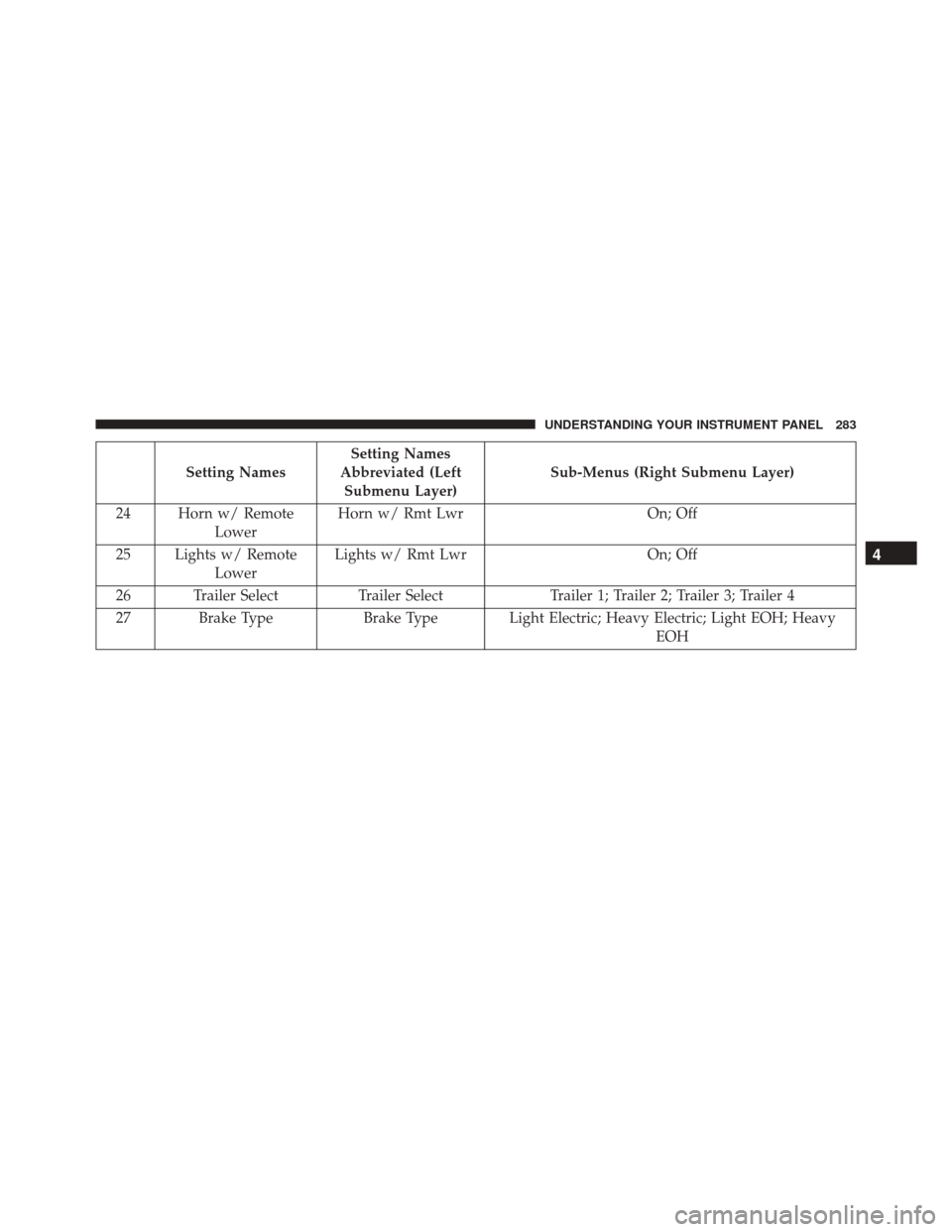
24 Horn w/ Remote Lower Horn w/ Rmt Lwr
On; Off
25 Lights w/ Remote Lower Lights w/ Rmt Lwr
On; Off
26 Trailer Select Trailer SelectTrailer 1; Trailer 2; Trailer 3; Trailer 4
27 Brake Type Brake Type Light Electric; Heavy Electric; Light EOH; Heavy
EOH
4
UNDERSTANDING YOUR INSTRUMENT PANEL 283
Page 286 of 669
Setting NamesSetting Names
Abbreviated (Left Submenu Layer) Sub-Menus (Right Submenu Layer)
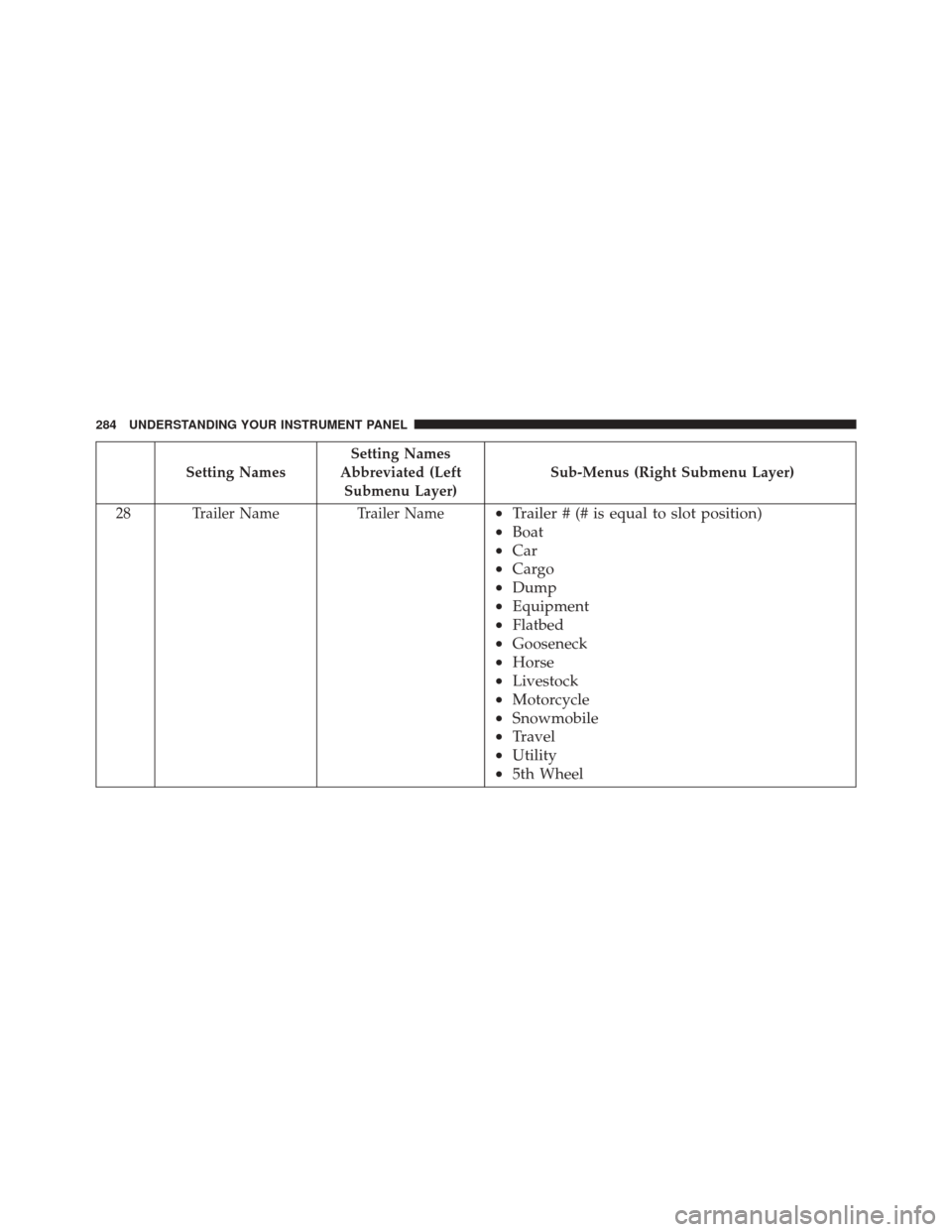
28 Trailer Name Trailer Name
•Trailer # (# is equal to slot position)
• Boat
• Car
• Cargo
• Dump
• Equipment
• Flatbed
• Gooseneck
• Horse
• Livestock
• Motorcycle
• Snowmobile
• Travel
• Utility
• 5th Wheel
284 UNDERSTANDING YOUR INSTRUMENT PANEL
Page 288 of 669

The DID Menu items consists of the following:
•Digital Speedometer
• Vehicle Info
• Fuel Economy Info
• Trip A
• Trip B
• Stop/Start Info (If Equipped)
• Trailer Tow
• Audio
• Stored Messages
• Screen Setup
• Vehicle Settings (Not Equipped with a Uconnect 5.0 &
8.4 radio) Vehicle Information (Customer Information Features)
The system allows the driver to select information by
pushing the following buttons mounted on the steering
wheel:
DID Controls
286 UNDERSTANDING YOUR INSTRUMENT PANEL
Page 290 of 669
Driver Information Display (DID) Displays
The DID displays are located in the center portion of the
cluster and consists of eight sections:1. Main Screen — The inner ring of the display will
illuminate in grey under normal conditions, yellow for
non critical warnings, red for critical warnings, and
white for on demand information.
2. Audio / Phone Information and Sub-menu Informa- tion — Whenever there are sub-menus available, the
position within the sub-menus is shown here.
3. Selectable Information (Compass, Temp, Range to Empty, Trip A, Trip B, Average MPG, Trailer Trip
(distance only), Trailer Brake Gain, Time)
4. Telltales/Indicators
5. Shift Lever Status (PRNDL)
6. Selectable Menu Icons
7. 4WD Status
8. Selectable Gauge 2 (Trans Temp, Oil Temp, Oil Life, Trailer Brake, Current MPG)
288 UNDERSTANDING YOUR INSTRUMENT PANEL
Page 291 of 669
9. Selectable Gauge 1 (Trans Temp, Oil Temp, Oil Life,Trailer Brake, Current MPG)
The main display area will normally display the main
menu or the screens of a selected feature of the main
menu. The main display area also displays “pop up”
messages that consist of approximately 60 possible warn-
ing or information messages. These pop up messages fall
into several categories:
• Five Second Stored Messages
When the appropriate conditions occur, this type of
message takes control of the main display area for five
seconds and then returns to the previous screen. Most of
the messages of this type are then stored (as long as the
condition that activated it remains active) and can be
reviewed from the “Messages” main menu item. As long
as there is a stored message, an “i” will be displayed in
the DID’s compass/outside temp line. Examples of this
message type are “Right Front Turn Signal Lamp Out”
and “Low Tire Pressure.” •
Unstored Messages
This message type is displayed indefinitely or until the
condition that activated the message is cleared. Examples
of this message type are “Turn Signal On” (if a turn signal
is left on) and “Lights On” (if driver leaves the vehicle).
• Unstored Messages Until RUN
These messages deal primarily with the Remote Start
feature. This message type is displayed until the ignition
is in the RUN state. Examples of this message type are
“Remote Start Aborted - Door Ajar” and “Press Brake
Pedal and Push Button to Start.”
• Five Second Unstored Messages
When the appropriate conditions occur, this type of
message takes control of the main display area for five
seconds and then returns to the previous screen. An
example of this message type is “Automatic High Beams
On.”
4
UNDERSTANDING YOUR INSTRUMENT PANEL 289
Page 295 of 669
•Remote Start Disabled Start to Reset
• Service Airbag System
• Service Airbag Warning Light
• Driver Seatbelt Unbuckled
• Passenger Seatbelt Unbuckled
• Front Seatbelts Unbuckled
• Door Open
• Doors Open
• Gear Not Available
• Shift Not Allowed
• Shift to Neutral then Drive or Reverse
• Automatic Unavailable Use Autostick Service Req.
• Transmission Getting Hot Press Brake •
Trans. Hot Stop Safely Shift to Park Wait to Cool
• Transmission Cool Ready to Drive
• Trailer Brake Disconnected
• Service Transmission
• Service Shifter
• Engage Park Brake to Prevent Rolling
• Transmission Too cold Idle with Engine On
• Washer Fluid Low
• Autostop Duration – If Equipped
The Reconfigurable Telltales section is divided into the
white telltales area on the right, yellow telltales in the
middle, and red telltales on the left.
4
UNDERSTANDING YOUR INSTRUMENT PANEL 293
Page 299 of 669
Trailer Tow
Push and release theUPorDOWN arrow
button until the Trailer Tow icon is highlighted.
Push and release the RIGHTarrow button and
the next screen will display the following
trailer trip information:
• Trailer Trip
• Trailer Brake
Audio
Push and release the UPorDOWN arrow
button until the Audio display icon is high-
lighted in the DID. Push and release the
RIGHT arrow button to display the active
source.
Stored Messages
Push and release the UParrow button until the
Messages display icon is highlighted in the
DID. This feature shows the number of stored
warning messages. Pushing the RIGHTarrow
button will allow you to see what the stored messages
are.
Screen Setup
Push and release the UPorDOWN arrow
button until the Screen Setup display icon is
highlighted in the DID. Push and release the
RIGHT arrow button to enter the Screen Setup
submenu. The Screen Setup feature allows you to change
what information is displayed in the instrument cluster
as well as the location that information is displayed.
4
UNDERSTANDING YOUR INSTRUMENT PANEL 297