instrument cluster Ram 3500 Chassis Cab 2016 Owner's Guide
[x] Cancel search | Manufacturer: RAM, Model Year: 2016, Model line: 3500 Chassis Cab, Model: Ram 3500 Chassis Cab 2016Pages: 669, PDF Size: 4.78 MB
Page 268 of 669

ELECTRONIC VEHICLE INFORMATION CENTER
(EVIC)
The Electronic Vehicle Information Center (EVIC) fea-
tures a driver-interactive display that is located in the
instrument cluster.The EVIC Menu items consists of the following:
•
Speedometer
• Vehicle Info
• Fuel Economy Info
• Trip A
• Trip B
• Stop/Start Info (If Equipped)
• Trailer Tow
• Messages
• Screen Setup
• Vehicle Settings (Not Equipped with a Uconnect 5.0 &
8.4 radio)
Electronic Vehicle Information Center (EVIC)
266 UNDERSTANDING YOUR INSTRUMENT PANEL
Page 271 of 669
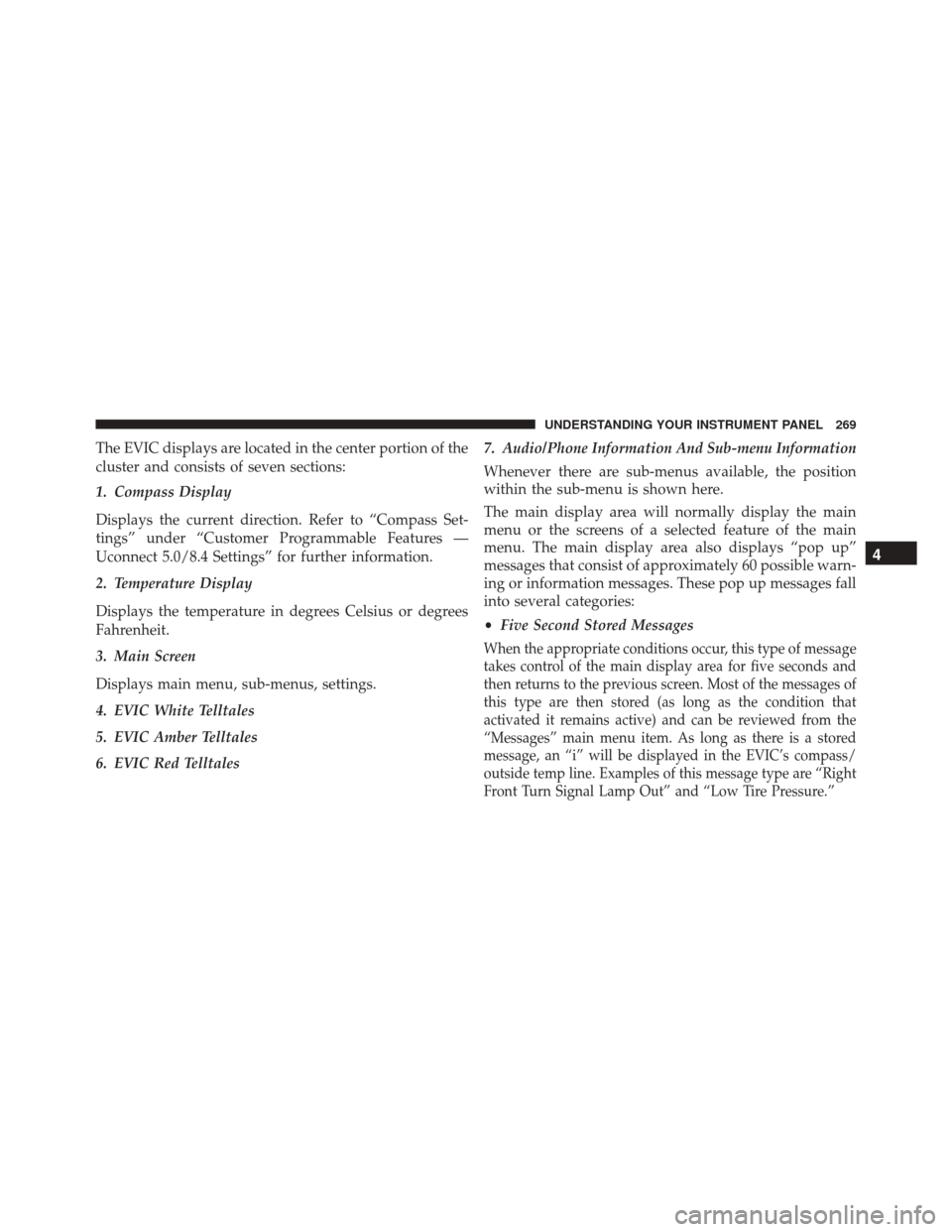
The EVIC displays are located in the center portion of the
cluster and consists of seven sections:
1. Compass Display
Displays the current direction. Refer to “Compass Set-
tings” under “Customer Programmable Features —
Uconnect 5.0/8.4 Settings” for further information.
2. Temperature Display
Displays the temperature in degrees Celsius or degrees
Fahrenheit.
3. Main Screen
Displays main menu, sub-menus, settings.
4. EVIC White Telltales
5. EVIC Amber Telltales
6. EVIC Red Telltales7. Audio/Phone Information And Sub-menu Information
Whenever there are sub-menus available, the position
within the sub-menu is shown here.
The main display area will normally display the main
menu or the screens of a selected feature of the main
menu. The main display area also displays “pop up”
messages that consist of approximately 60 possible warn-
ing or information messages. These pop up messages fall
into several categories:
•
Five Second Stored Messages
When the appropriate conditions occur, this type of message
takes control of the main display area for five seconds and
then returns to the previous screen. Most of the messages of
this type are then stored (as long as the condition that
activated it remains active) and can be reviewed from the
“Messages” main menu item. As long as there is a stored
message, an “i” will be displayed in the EVIC’s compass/
outside temp line. Examples of this message type are “Right
Front Turn Signal Lamp Out” and “Low Tire Pressure.”
4
UNDERSTANDING YOUR INSTRUMENT PANEL 269
Page 281 of 669

•Trailer Brake Disconnected
• Service Transmission
• Service Shifter
• Engage Park Brake to Prevent Rolling
• Transmission Too cold Idle with Engine On
• Washer Fluid Low
• Autostop Duration – If Equipped
The Reconfigurable Telltales section is divided into the
white telltales area on the right, yellow telltales in the
middle, and red telltales on the left.
Screen Setup Menu Item
Push and release the UPorDOWN arrow button until
the Screen Setup menu item is highlighted in the EVIC.
Push and release the RIGHTarrow button to enter the
Screen Setup submenu. The Screen Setup feature allows you to change what information is displayed in the
instrument cluster as well as the location that information
is displayed.
Vehicle Settings Menu Item
Personal Settings allows the driver to set and recall
features when the transmission is in PARK.
Push and release the UP and DOWN button until Set-
tings displays in the EVIC.
Follow the prompts to display and set any of the follow-
ing Vehicle Settings.
NOTE:
Your vehicle may or may not be equipped with
all the following settings.
• If equipped with a base radio (Non-Touchscreen)
Vehicle Settings will be included in the EVIC.
• If equipped with a Touchscreen radio, the Vehicle
Settings will be included in the radio head unit.4
UNDERSTANDING YOUR INSTRUMENT PANEL 279
Page 287 of 669
Setting NamesSetting Names
Abbreviated (Left Submenu Layer) Sub-Menus (Right Submenu Layer)
29 Compass Variance Compass Var 1-15 increments of 1
30 Calibrate Compass Compass Cal Cancel; Calibrate
Turn Menu OFF
Push and release the RIGHT arrow button to exit the
main menu.
Push and release any EVIC control button to enter the
EVIC main menu again.
DRIVER INFORMATION DISPLAY (DID)
The Driver Information Display (DID) features a driver-
interactive display that is located in the instrument
cluster.
Driver Information Display (DID)
4
UNDERSTANDING YOUR INSTRUMENT PANEL 285
Page 290 of 669
Driver Information Display (DID) Displays
The DID displays are located in the center portion of the
cluster and consists of eight sections:1. Main Screen — The inner ring of the display will
illuminate in grey under normal conditions, yellow for
non critical warnings, red for critical warnings, and
white for on demand information.
2. Audio / Phone Information and Sub-menu Informa- tion — Whenever there are sub-menus available, the
position within the sub-menus is shown here.
3. Selectable Information (Compass, Temp, Range to Empty, Trip A, Trip B, Average MPG, Trailer Trip
(distance only), Trailer Brake Gain, Time)
4. Telltales/Indicators
5. Shift Lever Status (PRNDL)
6. Selectable Menu Icons
7. 4WD Status
8. Selectable Gauge 2 (Trans Temp, Oil Temp, Oil Life, Trailer Brake, Current MPG)
288 UNDERSTANDING YOUR INSTRUMENT PANEL
Page 299 of 669
Trailer Tow
Push and release theUPorDOWN arrow
button until the Trailer Tow icon is highlighted.
Push and release the RIGHTarrow button and
the next screen will display the following
trailer trip information:
• Trailer Trip
• Trailer Brake
Audio
Push and release the UPorDOWN arrow
button until the Audio display icon is high-
lighted in the DID. Push and release the
RIGHT arrow button to display the active
source.
Stored Messages
Push and release the UParrow button until the
Messages display icon is highlighted in the
DID. This feature shows the number of stored
warning messages. Pushing the RIGHTarrow
button will allow you to see what the stored messages
are.
Screen Setup
Push and release the UPorDOWN arrow
button until the Screen Setup display icon is
highlighted in the DID. Push and release the
RIGHT arrow button to enter the Screen Setup
submenu. The Screen Setup feature allows you to change
what information is displayed in the instrument cluster
as well as the location that information is displayed.
4
UNDERSTANDING YOUR INSTRUMENT PANEL 297
Page 327 of 669
•Set Theme
This feature will allow you to choose a background
theme for the display screen. The theme will change the
background color, highlight color, and button color of the
display screen. Press the “Set Theme” button on the
touchscreen and select one of the pre-configured themes
available.
• Set Language
When in this display, you may select one of multiple
languages (English / Français / Español) for all display
nomenclature, including the trip functions and the navi-
gation system (if equipped). Press the Set Language
button on the touchscreen, then press the desired lan-
guage button on the touchscreen until a check-mark
appears next to the language, showing that setting has
been selected. •
Touchscreen Beep
When in this display, you may turn on or shut off the
sound heard when a touchscreen button (button on the
touchscreen) is pressed. Press the “Touchscreen Beep”
button on the touchscreen until a check-mark appears
next to the setting, showing that setting has been se-
lected.
• Navigation Turn-By-Turn In Cluster — If Equipped
When this feature is selected, the turn-by-turn directions
will appear in the display as the vehicle approaches a
designated turn within a programmed route. To make
your selection, press the “Navigation Turn-By-Turn In
Cluster” button on the touchscreen, until a check-mark
appears next to the setting, showing that setting has been
selected.
4
UNDERSTANDING YOUR INSTRUMENT PANEL 325
Page 406 of 669

NOTE:If a malfunction occurs, the system will trap the
Key Fob in the ignition switch to warn you that this
safety feature is inoperable. The engine can be started
and stopped but the Key Fob cannot be removed until
you obtain service.
Brake/Transmission Shift Interlock System
This vehicle is equipped with a Brake Transmission Shift
Interlock system (BTSI) that holds the shift lever in PARK
unless the brakes are applied. To shift the transmission
out of PARK, the ignition must be turned to the ON/
RUN position (engine running or not) and the brake
pedal must be pressed.
Six–Speed Automatic Transmission — If
Equipped
Chassis Cab models (with automatic transmission) may
use either the AS66RC transmission (which is equipped with a Power Take-Off (PTO) access cover on the side of
the transmission case), or the 66RFE transmission (which
has no PTO access cover).
The transmission gear position display (located in the
instrument cluster) indicates the transmission gear range.
The shift lever is mounted on the right side of the steering
column. You must press the brake pedal to move the shift
lever out of PARK (refer to “Brake/Transmission Shift
Interlock System” in this section). To drive, move the shift
lever from PARK or NEUTRAL to the DRIVE position.
Pull the shift lever toward you when shifting into RE-
VERSE or PARK, or when shifting out of PARK.
The electronically-controlled transmission provides a
precise shift schedule. The transmission electronics are
self-calibrating; therefore, the first few shifts on a new
vehicle may be somewhat abrupt. This is a normal
condition, and precision shifts will develop within a few
hundred miles (kilometers).
404 STARTING AND OPERATING
Page 414 of 669

If the transmission cannot be reset, authorized dealer
service is required.
Electronic Range Select (ERS) Operation
The Electronic Range Select (ERS) shift control allows the
driver to limit the highest available gear when the
transmission is in DRIVE. For example, if you set the
transmission gear limit to 4 (fourth gear), the transmis-
sion will not shift above fourth gear, but will shift
through the lower gears normally.
You can switch between DRIVE and ERS mode at any
vehicle speed. When the shift lever is in the DRIVE
position, the transmission will operate automatically,
shifting between all available gears. Tapping the ERS (-)
switch will activate ERS mode, display the current gear in
the instrument cluster, and set that gear as the top
available gear. Once in ERS mode, tapping (-) or (+) will
change the top available gear.To exit ERS mode, simply push and hold the ERS (+)
switch until the gear limit display disappears from the
instrument cluster.
Column Shift Lever
412 STARTING AND OPERATING
Page 416 of 669

When To Use TOW/HAUL Mode
When driving in hilly areas, towing a trailer, carrying a
heavy load, etc., and frequent transmission shifting oc-
curs, push the TOW/HAUL switch to activate TOW/
HAUL mode. This will improve performance and reduce
the potential for transmission overheating or failure due
to excessive shifting. When operating in TOW/HAUL
mode, transmission upshifts are delayed, and the trans-
mission will automatically downshift (for engine brak-
ing) when the throttle is closed and/or during steady
braking maneuvers.The “TOW/HAUL Indicator Light” will illuminate in the
instrument cluster to indicate that TOW/HAUL mode
has been activated. Pushing the switch a second time
restores normal operation. Normal operation is always
the default at engine start-up. If TOW/HAUL mode is
desired, the switch must be pushed each time the engine
is started.
TOW/HAUL Switch
414 STARTING AND OPERATING