phone Ram 3500 Chassis Cab 2020 Owner's Guide
[x] Cancel search | Manufacturer: RAM, Model Year: 2020, Model line: 3500 Chassis Cab, Model: Ram 3500 Chassis Cab 2020Pages: 516, PDF Size: 29.24 MB
Page 466 of 516
464MULTIMEDIA
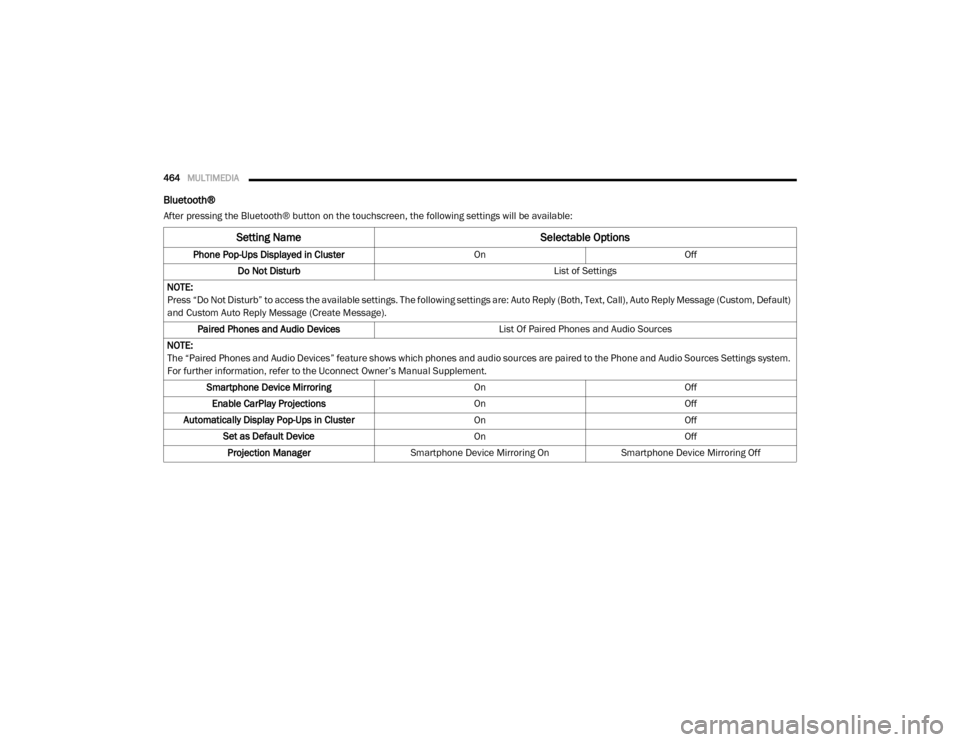
Bluetooth®
After pressing the Bluetooth® button on the touchscreen, the following settings will be available:
Setting Name Selectable Options
Phone Pop-Ups Displayed in Cluster OnOff
Do Not Disturb List of Settings
NOTE:
Press “Do Not Disturb” to access the available settings. The following settings are: Auto Reply (Both, Text, Call), Auto Reply Message (Custom, Default)
and Custom Auto Reply Message (Create Message). Paired Phones and Audio Devices List Of Paired Phones and Audio Sources
NOTE:
The “Paired Phones and Audio Devices” feature shows which phones and audio sources are paired to the Phone and Audio Sources Settings system.
For further information, refer to the Uconnect Owner’s Manual Supplement. Smartphone Device Mirroring OnOff
Enable CarPlay Projections OnOff
Automatically Display Pop-Ups in Cluster OnOff
Set as Default Device OnOff
Projection Manager Smartphone Device Mirroring On Smartphone Device Mirroring Off
2020_RAM_CHASSIS_CAB_OM_USA=GUID-6C67832B-7839-4CCF-BEFC-CDF988F949EA=1=en=.book Page 464
Page 469 of 516
MULTIMEDIA467
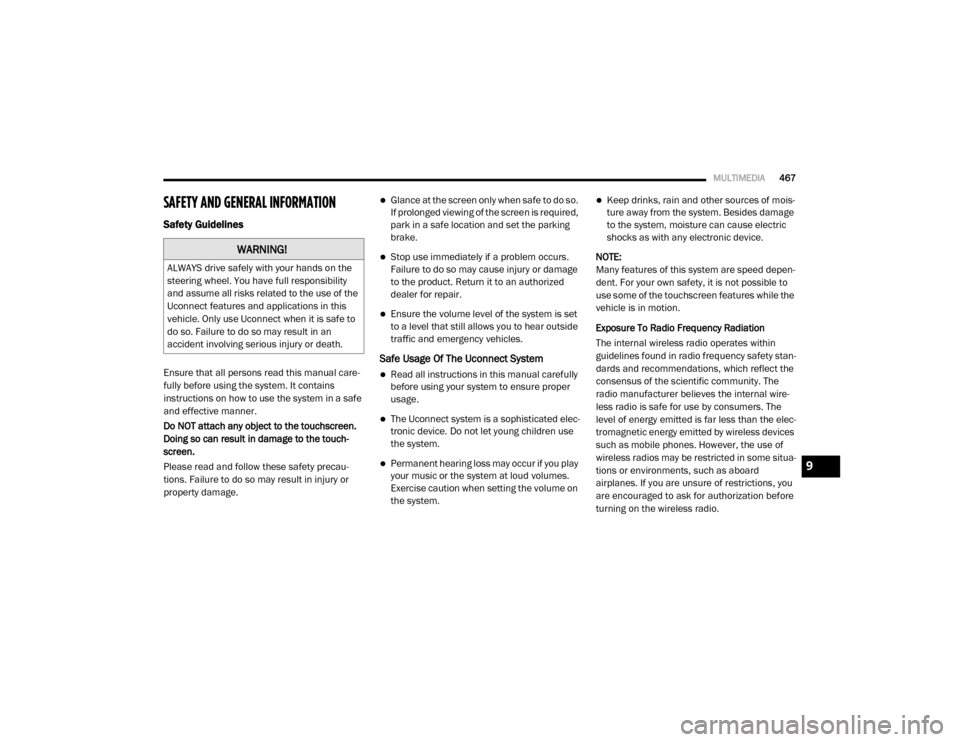
SAFETY AND GENERAL INFORMATION
Safety Guidelines
Ensure that all persons read this manual care -
fully before using the system. It contains
instructions on how to use the system in a safe
and effective manner.
Do NOT attach any object to the touchscreen.
Doing so can result in damage to the touch -
screen.
Please read and follow these safety precau -
tions. Failure to do so may result in injury or
property damage.
Glance at the screen only when safe to do so.
If prolonged viewing of the screen is required,
park in a safe location and set the parking
brake.
Stop use immediately if a problem occurs.
Failure to do so may cause injury or damage
to the product. Return it to an authorized
dealer for repair.
Ensure the volume level of the system is set
to a level that still allows you to hear outside
traffic and emergency vehicles.
Safe Usage Of The Uconnect System
Read all instructions in this manual carefully
before using your system to ensure proper
usage.
The Uconnect system is a sophisticated elec -
tronic device. Do not let young children use
the system.
Permanent hearing loss may occur if you play
your music or the system at loud volumes.
Exercise caution when setting the volume on
the system.
Keep drinks, rain and other sources of mois -
ture away from the system. Besides damage
to the system, moisture can cause electric
shocks as with any electronic device.
NOTE:
Many features of this system are speed depen -
dent. For your own safety, it is not possible to
use some of the touchscreen features while the
vehicle is in motion.
Exposure To Radio Frequency Radiation
The internal wireless radio operates within
guidelines found in radio frequency safety stan -
dards and recommendations, which reflect the
consensus of the scientific community. The
radio manufacturer believes the internal wire -
less radio is safe for use by consumers. The
level of energy emitted is far less than the elec -
tromagnetic energy emitted by wireless devices
such as mobile phones. However, the use of
wireless radios may be restricted in some situa-
tions or environments, such as aboard
airplanes. If you are unsure of restrictions, you
are encouraged to ask for authorization before
turning on the wireless radio.
WARNING!
ALWAYS drive safely with your hands on the
steering wheel. You have full responsibility
and assume all risks related to the use of the
Uconnect features and applications in this
vehicle. Only use Uconnect when it is safe to
do so. Failure to do so may result in an
accident involving serious injury or death.
9
2020_RAM_CHASSIS_CAB_OM_USA=GUID-6C67832B-7839-4CCF-BEFC-CDF988F949EA=1=en=.book Page 467
Page 470 of 516
468MULTIMEDIA
Care And Maintenance
Touchscreen
Do not press the touchscreen with any hard
or sharp objects (pen, USB stick, jewelry,
etc.), which could scratch the touchscreen
surface!
Do not spray any liquid or caustic chemicals
directly on the screen! Use a clean and dry
microfiber lens cleaning cloth in order to
clean the touchscreen.
If necessary, use a lint-free cloth dampened
with a cleaning solution, such as isopropyl
alcohol or an isopropyl alcohol and water
solution ratio of 50:50. Be sure to follow the
solvent manufacturer's precautions and
directions.
UCONNECT 3 WITH 5-INCH DISPLAY
Introduction
Uconnect 3 With 5-inch Display
1 — RADIO
Push the RADIO button on the faceplate to enter
Radio Mode. The different tuner modes; FM/
AM/SXM (if equipped), can be selected by
pressing the corresponding buttons on the
touchscreen in Radio Mode.
2 — COMPASS
Push the COMPASS button on the faceplate to
display the current direction of the vehicle.
3 — SETTINGS
Push the SETTINGS button on the faceplate to
display the customer programmable features. 4 — MORE
Push the MORE button on the faceplate to
access additional options.
5 — ENTER/BROWSE & TUNE/SCROLL
Push the ENTER/BROWSE button to accept a
highlighted selection on the screen. Rotate the
TUNE/SCROLL rotary knob to scroll through a
list or tune to a radio station.
6 — SCREEN OFF
Push the SCREEN OFF button to turn the touch
-
screen off. To turn the touchscreen back on,
press the screen.
7 — MUTE
Push the MUTE button to turn off the audio of
the radio system. Press it again to turn the
audio back on.
8 — VOLUME/POWER
Rotate the rotary knob to adjust the Volume.
Push the VOLUME/POWER button to turn the
system ON or OFF.
9 — PHONE
Push the PHONE button on the faceplate to
access the Uconnect Phone feature.
2020_RAM_CHASSIS_CAB_OM_USA=GUID-6C67832B-7839-4CCF-BEFC-CDF988F949EA=1=en=.book Page 468
Page 474 of 516
472MULTIMEDIA
Media Mode
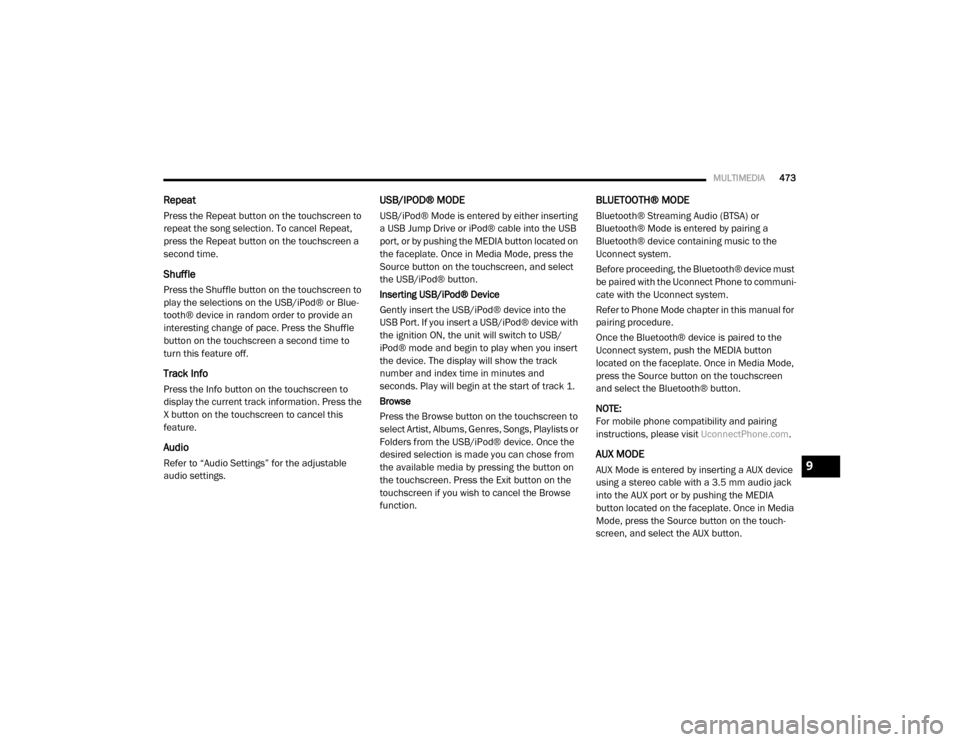
Operating Media Mode
Media Mode
Media Mode is entered by pushing the MEDIA
button located on the faceplate.
Audio Source Selection
Once in Media Mode, press the Source button
on the touchscreen and the desired mode
button on the touchscreen. Disc (if equipped),
USB, SD Card (if equipped), AUX and Blue-
tooth® (if equipped), are the Media sources
available. When available, you can select the
Browse button on the touchscreen to be given
these options:
Now Playing
Artists
Albums
Genres
Songs
Playlists
Folders
You can press the Source, Pause/Play, or the
Info button on the touchscreen for artist infor -
mation on the current song playing.
Seek Up/Seek Down Functions
Seek Up /Seek Down
Press and release the Seek Up button on the
touchscreen for the next selection. Press and
release the Seek Down button on the touch -
screen to return to the beginning of the current
selection, or return to the beginning of the
previous selection if the track is within the first
few seconds of the current selection.
Fast Seek Up
Press and hold the Seek Up button on the
touchscreen and the desired mode will begin to
fast forward through the current track until the
button on the touchscreen is released.
Fast Seek Down
Press and hold the Seek Down button on the
touchscreen and the desired mode will begin to
rewind through the current track until the
button on the touchscreen is released.
Track Selection (Browse)
Rotate the Browse button on the touchscreen to
scroll through and select a desired track on the
iPod®, MP3 player, phone, or USB. Press the
Exit button on the touchscreen if you wish to
cancel the Browse function.
1 — Seek Down
2 — Seek Up
3 — Additional Functions
4 — Info
5 — Pause/Play
6 — Source
7 — Browse
2020_RAM_CHASSIS_CAB_OM_USA=GUID-6C67832B-7839-4CCF-BEFC-CDF988F949EA=1=en=.book Page 472
Page 475 of 516
MULTIMEDIA473
Repeat
Press the Repeat button on the touchscreen to
repeat the song selection. To cancel Repeat,
press the Repeat button on the touchscreen a
second time.
Shuffle
Press the Shuffle button on the touchscreen to
play the selections on the USB/iPod® or Blue -
tooth® device in random order to provide an
interesting change of pace. Press the Shuffle
button on the touchscreen a second time to
turn this feature off.
Track Info
Press the Info button on the touchscreen to
display the current track information. Press the
X button on the touchscreen to cancel this
feature.
Audio
Refer to “Audio Settings” for the adjustable
audio settings.
USB/IPOD® MODE
USB/iPod® Mode is entered by either inserting
a USB Jump Drive or iPod® cable into the USB
port, or by pushing the MEDIA button located on
the faceplate. Once in Media Mode, press the
Source button on the touchscreen, and select
the USB/iPod® button.
Inserting USB/iPod® Device
Gently insert the USB/iPod® device into the
USB Port. If you insert a USB/iPod® device with
the ignition ON, the unit will switch to USB/
iPod® mode and begin to play when you insert
the device. The display will show the track
number and index time in minutes and
seconds. Play will begin at the start of track 1.
Browse
Press the Browse button on the touchscreen to
select Artist, Albums, Genres, Songs, Playlists or
Folders from the USB/iPod® device. Once the
desired selection is made you can chose from
the available media by pressing the button on
the touchscreen. Press the Exit button on the
touchscreen if you wish to cancel the Browse
function.
BLUETOOTH® MODE
Bluetooth® Streaming Audio (BTSA) or
Bluetooth® Mode is entered by pairing a
Bluetooth® device containing music to the
Uconnect system.
Before proceeding, the Bluetooth® device must
be paired with the Uconnect Phone to communi -
cate with the Uconnect system.
Refer to Phone Mode chapter in this manual for
pairing procedure.
Once the Bluetooth® device is paired to the
Uconnect system, push the MEDIA button
located on the faceplate. Once in Media Mode,
press the Source button on the touchscreen
and select the Bluetooth® button.
NOTE:
For mobile phone compatibility and pairing
instructions, please visit UconnectPhone.com.
AUX MODE
AUX Mode is entered by inserting a AUX device
using a stereo cable with a 3.5 mm audio jack
into the AUX port or by pushing the MEDIA
button located on the faceplate. Once in Media
Mode, press the Source button on the touch -
screen, and select the AUX button.9
2020_RAM_CHASSIS_CAB_OM_USA=GUID-6C67832B-7839-4CCF-BEFC-CDF988F949EA=1=en=.book Page 473
Page 476 of 516
474MULTIMEDIA
Inserting Auxiliary Device
Gently insert the Auxiliary device cable into the
AUX Port. If you insert an Auxiliary device with
the ignition on, the unit will switch to AUX mode
and begin to play when you insert the device
cable.
Controlling The Auxiliary Device
The control of the Auxiliary device (e.g.,
selecting playlists, play, fast forward, etc.)
cannot be provided by the radio; use the device
controls instead. Adjust the volume with the
VOLUME rotary knob or with the volume of the
attached device.
The radio unit is acting as the amplifier for audio
output from the Auxiliary device. Therefore, if
the volume control on the Auxiliary device is set
too low, there will be insufficient audio signal for
the radio unit to play the music on the device.Phone Mode
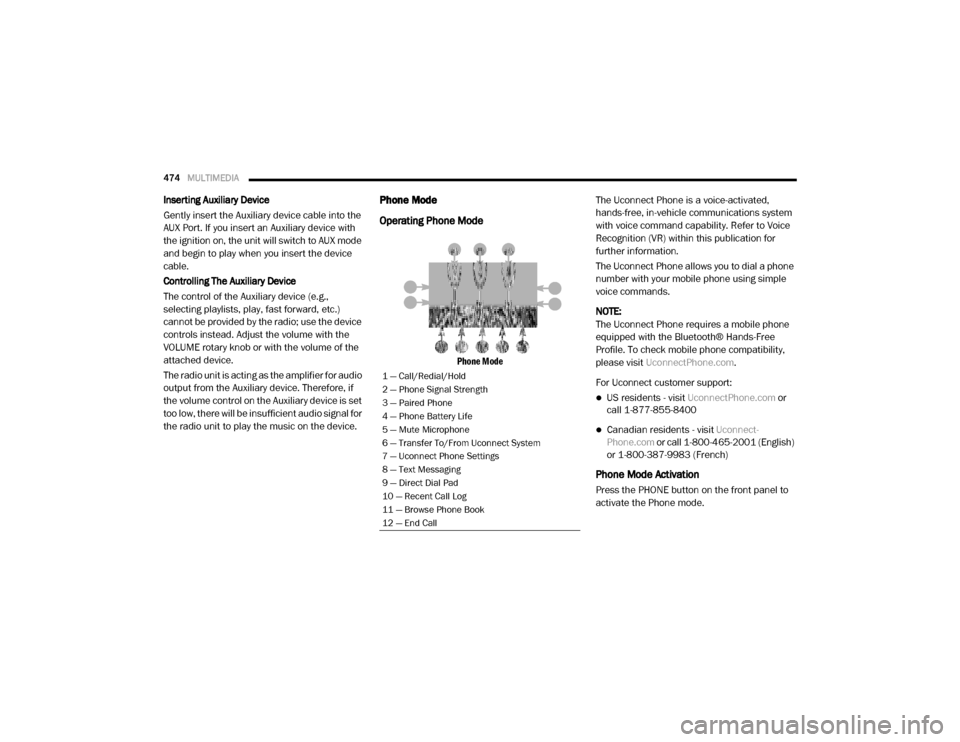
Operating Phone Mode
Phone Mode
The Uconnect Phone is a voice-activated,
hands-free, in-vehicle communications system
with voice command capability. Refer to Voice
Recognition (VR) within this publication for
further information.
The Uconnect Phone allows you to dial a phone
number with your mobile phone using simple
voice commands.
NOTE:
The Uconnect Phone requires a mobile phone
equipped with the Bluetooth® Hands-Free
Profile. To check mobile phone compatibility,
please visit
UconnectPhone.com .
For Uconnect customer support:
US residents - visit UconnectPhone.com or
call 1-877-855-8400
Canadian residents - visit Uconnect-
Phone.com or call 1-800-465-2001 (English)
or 1-800-387-9983 (French)
Phone Mode Activation
Press the PHONE button on the front panel to
activate the Phone mode.
1 — Call/Redial/Hold
2 — Phone Signal Strength
3 — Paired Phone
4 — Phone Battery Life
5 — Mute Microphone
6 — Transfer To/From Uconnect System
7 — Uconnect Phone Settings
8 — Text Messaging
9 — Direct Dial Pad
10 — Recent Call Log
11 — Browse Phone Book
12 — End Call
2020_RAM_CHASSIS_CAB_OM_USA=GUID-6C67832B-7839-4CCF-BEFC-CDF988F949EA=1=en=.book Page 474
Page 477 of 516
MULTIMEDIA475
Main Functions
The buttons on the display can be used to:
Compose phone numbers using the graphic
keypad on the display.
Display and call the contacts in the mobile
phone phonebook.
Display and call contacts from the Recent
Calls menu.
Pair up to 10 phones/audio devices to make
access and connection easier and quicker.
Transfer calls from the system to the mobile
phone and vice versa.
Deactivate the microphone audio for privacy.
The mobile phone audio is transmitted through
the vehicle’s audio system. The system auto -
matically mutes the radio when the Phone func -
tion is used.
Connecting/Disconnecting A Mobile Phone
Or Bluetooth® Device
Pairing A Phone
To begin using your Uconnect Phone, you must
pair your compatible Bluetooth®-enabled
mobile phone. Mobile phone pairing is the
process of establishing a wireless connection
between a cellular phone and the Uconnect
system.
To complete the pairing process, you need to
reference your mobile phone Owner's Manual.
Please visit UconnectPhone.com for complete
mobile phone compatibility information. NOTE:
You must have Bluetooth® enabled on your
phone to complete this procedure.
The vehicle must be in PARK.
1. Place the ignition in the ACC or ON/RUN position.
2. Push the PHONE button on the faceplate.
If there are no phones currently connected with the system, a pop-up
appears asking if you would like to pair a
mobile phone.
3. Select “Yes” to begin the pairing process.
9
2020_RAM_CHASSIS_CAB_OM_USA=GUID-6C67832B-7839-4CCF-BEFC-CDF988F949EA=1=en=.book Page 475
Page 478 of 516
476MULTIMEDIA
4. Search for available devices on your Blue -
tooth®-enabled mobile phone.
Press the Settings button on your mobile phone.
Select “Bluetooth®” and ensure it is enabled. Once enabled, the mobile
phone will begin to search for Bluetooth®
connections.
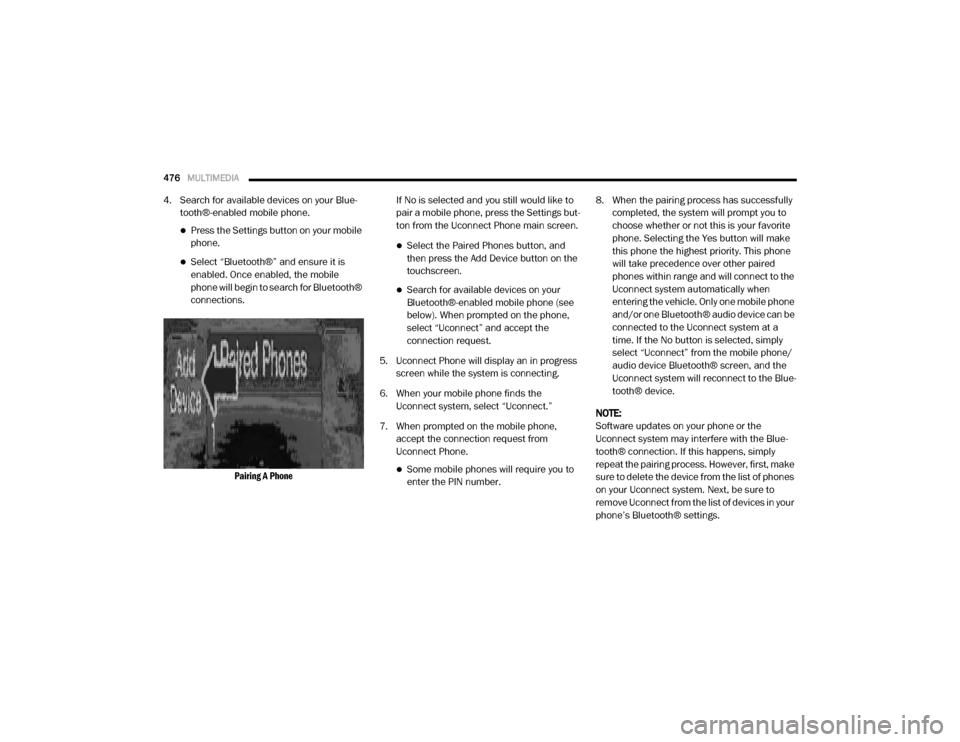
Pairing A Phone
If No is selected and you still would like to
pair a mobile phone, press the Settings but
-
ton from the Uconnect Phone main screen.
Select the Paired Phones button, and then press the Add Device button on the
touchscreen.
Search for available devices on your Bluetooth®-enabled mobile phone (see
below). When prompted on the phone,
select “Uconnect” and accept the
connection request.
5. Uconnect Phone will display an in progress screen while the system is connecting.
6. When your mobile phone finds the Uconnect system, select “Uconnect.”
7. When prompted on the mobile phone, accept the connection request from
Uconnect Phone.
Some mobile phones will require you to enter the PIN number. 8. When the pairing process has successfully
completed, the system will prompt you to
choose whether or not this is your favorite
phone. Selecting the Yes button will make
this phone the highest priority. This phone
will take precedence over other paired
phones within range and will connect to the
Uconnect system automatically when
entering the vehicle. Only one mobile phone
and/or one Bluetooth® audio device can be
connected to the Uconnect system at a
time. If the No button is selected, simply
select “Uconnect” from the mobile phone/
audio device Bluetooth® screen, and the
Uconnect system will reconnect to the Blue -
tooth® device.
NOTE:
Software updates on your phone or the
Uconnect system may interfere with the Blue -
tooth® connection. If this happens, simply
repeat the pairing process. However, first, make
sure to delete the device from the list of phones
on your Uconnect system. Next, be sure to
remove Uconnect from the list of devices in your
phone’s Bluetooth® settings.
2020_RAM_CHASSIS_CAB_OM_USA=GUID-6C67832B-7839-4CCF-BEFC-CDF988F949EA=1=en=.book Page 476
Page 479 of 516
MULTIMEDIA477
Storing Names/Numbers in The Mobile Phone
Before pairing your mobile phone, you must
make sure you have stored the names you want
to contact in the phonebook on your mobile
phone, so you can call them using the vehicle's
hands-free system.
If your phonebook does not contain any names,
enter new names for the most frequently used
numbers.
For further details, consult your mobile phone
owner's handbook.
NOTE:
The names in the phonebook which do not
contain phone numbers or where both fields
(name and surname) are empty will not be
displayed.
Connection
The system connects automatically to the
paired mobile phone with the highest priority.
To choose a specific mobile phone or Blue -
tooth® audio device, proceed as follows:
1. Access the Settings menu.
2. Select the Phone/Bluetooth® button. 3. Select the Paired Phones or Paired Audio
list using the corresponding button on the
display.
4. Select the specific device (mobile phone or Bluetooth® device).
5. Press the Connect button.
6. During the connection stage, a screen is displayed showing the progress of the oper -
ation.
7. The device connected is highlighted in the list.
Disconnection
To disconnect a specific mobile phone or Blue -
tooth® audio device, proceed as follows:
1. Access the Settings menu.
2. Select the Phone/Bluetooth® button.
3. Select the Paired Phones or Paired Audio list using the corresponding button on the
display.
4. Select the specific device (mobile phone or Bluetooth® device).
5. Press the Disconnect button.Deletion Of A Mobile Phone Or A Bluetooth®
Audio Device
To delete a mobile phone or Bluetooth® audio
device from a list, proceed as follows:
1. Access the Settings menu.
2. Select the Phone/Bluetooth® button.
3. Select the Paired Phones or Paired Audio list using the corresponding button on the
display.
4. Select the device (mobile phone or Blue -
tooth® device).
5. Press the Delete Device button.
6. A confirmation screen will appear on the display:
Press the Yes button to delete the device.
Press the No button to cancel the opera -
tion.
9
2020_RAM_CHASSIS_CAB_OM_USA=GUID-6C67832B-7839-4CCF-BEFC-CDF988F949EA=1=en=.book Page 477
Page 480 of 516
478MULTIMEDIA
Setting A Mobile Phone Or A Bluetooth®
Audio Device As A Favorite
To set a mobile phone or Bluetooth® audio
device as a favorite, proceed as follows:
1. Access the Settings menu.
2. Select the Phone/Bluetooth® button.
3. Select the Paired Phones or Paired Audio
list using the corresponding button on the
display.
4. Select the specific device (mobile phone or Bluetooth® device).
5. Press the Make Favorite button.
6. The device selected is moved to the top of the list.
Downloading A Phonebook From Your Mobile
Phone
If equipped and specifically supported by your
phone, Uconnect Phone asks you if you want to
download names (text names) and number
entries from your mobile phone’s phonebook.
Specific Bluetooth®-enabled phones with
Phonebook Access Profile may support this
feature. See UconnectPhone.com for supported
phones. If equipped and specifically supported by your
phone, Uconnect Phone asks you if you want to
download names (text names) and number
entries from your mobile phone’s phonebook.
Specific Bluetooth®-enabled phones with
Phonebook Access Profile may support this
feature.
NOTE:
If supported, the download and update
begins as soon as the Bluetooth® wireless
phone connection is made to the Uconnect
Phone. For example, after you start the
vehicle. You may be asked for permission to
initiate the phonebook download.
A maximum of 2,000 contact names with six
numbers per contact will be downloaded and
updated every time a phone is connected to
the Uconnect Phone.
Depending on the maximum number of
entries downloaded, there may be a short
delay before the latest downloaded names
can be used. Until then, if available, the previ
-
ously downloaded phonebook is available for
use.
Only the phonebook of the currently
connected mobile phone is accessible.
Only the mobile phone’s phonebook is down -
loaded. SIM card phonebook is not part of
the mobile phonebook.
This downloaded phonebook cannot be
edited or deleted on the Uconnect Phone.
These can only be edited on the mobile
phone. The changes are transferred and
updated to Uconnect Phone on the next
phone connection.
Deletion Of Phone Data (Phonebook And
Recent Calls)
Select "Delete Phone Data" on the display to
delete the list of recent calls and the phonebook
copy.
2020_RAM_CHASSIS_CAB_OM_USA=GUID-6C67832B-7839-4CCF-BEFC-CDF988F949EA=1=en=.book Page 478