reset Ram 4500 Chassis Cab 2019 User Guide
[x] Cancel search | Manufacturer: RAM, Model Year: 2019, Model line: 4500 Chassis Cab, Model: Ram 4500 Chassis Cab 2019Pages: 607, PDF Size: 10.72 MB
Page 134 of 607

132 GETTING TO KNOW YOUR INSTRUMENT PANEL
Vehicle Info
Push and release the up or down arrow button until the
Vehicle Info menu item is highlighted in the instrument
cluster display. Push and release the right arrow button to
enter the submenus items of Vehicle Info. Follow the direc -
tional prompts to access or reset any of the following Vehicle
Info submenu items:
• Tire Pressure
• Coolant Temperature — If Equipped
• Transmission Temperature — If Equipped
• Oil Temperature — If Equipped
• Oil Pressure
• Exhaust Brake — If Equipped
• Turbo Boost — If Equipped
• Diesel Particulate Filter — If Equipped
• Oil Life
• Fuel Filter Life — If Equipped
• Battery Voltage
• Gauge Summary — If Equipped
• Engine Hours Driver Assist — If Equipped
The Driver Assist menu displays the status of the ACC
system.
Push and release the
up or down arrow button until the
Driver Assist menu is displayed in the instrument cluster
display.
Adaptive Cruise Control (ACC) Feature
The instrument cluster display displays the current ACC
system settings. The information displayed depends on ACC
system status.
Push the Adaptive Cruise Control (ACC) on/off button
(located on the steering wheel) until one of the following
displays in the instrument cluster display:
Adaptive Cruise Control Off
When ACC is deactivated, the display will read “Adaptive
Cruise Control Off.”
Adaptive Cruise Control Ready
When ACC is activated but the vehicle speed setting has not
been selected, the display will read “Adaptive Cruise
Control Ready.”
Page 135 of 607

GETTING TO KNOW YOUR INSTRUMENT PANEL 133
Push the SET + or the SET- button (located on the steering
wheel) and the following will display in the instrument
cluster display:
ACC SET
When ACC is set, the set speed will display in the instrument
cluster.
The ACC screen may display once again if any ACC activity
occurs, which may include any of the following:
• Distance Setting Change
• System Cancel
• Driver Override
• System Off
• ACC Proximity Warning
• ACC Unavailable Warning
For further information, refer to “Adaptive Cruise Control
(ACC) — If Equipped” in “Starting And Operating.”Fuel Economy
Push and release the
up or down arrow button until the Fuel
Economy menu item is highlighted in the instrument cluster
display. Push and Hold the right arrow button to reset
Average Fuel Economy.
• Current Fuel Economy Gauge
• Average Fuel Economy Value
• Range To Empty
• Fuel Tank Levels — If Equipped
Trip A/Trip B
Push and release the up or down arrow button until the Trip
menu item is highlighted in the instrument cluster display.
Push and release the right arrow button to enter the
submenus of Trip A and Trip B. The Trip A or Trip B infor -
mation will display the following:
• Distance
• Average Fuel Economy
• Elapsed Time
Push and hold right arrow button to reset all information.
3
Page 136 of 607

134 GETTING TO KNOW YOUR INSTRUMENT PANEL
Trailer Tow
Push and release the up or down arrow button until the
Trailer Tow menu item is highlighted in the instrument
cluster display. Push and release the right arrow button and
the next screen will display the following trailer trip infor -
mation:
• Trip (trailer specific) Distance: Push and hold the right
arrow button to reset the distance.
• Trailer Brake • Output
• Type
• Gain
• Trailer Tire Pressure — If Equipped
Audio
Push and release the up or down arrow button until the
Audio Menu icon/title is highlighted in the instrument
cluster display. This menu will display the audio source
information, including the Song name, Artist name, and
audio source with an accompanying graphic. Phone Call Status
When a call is incoming, a Phone Call Status pop-up will
display on the screen. The pop-up will remain until the
phone is answered or ignored.
NOTE:
The call status will temporarily replace the previous media
source information displayed on the screen. When the
pop-up is no longer displayed, the display will return to the
last used screen.
Stored Messages
Push and release the
up or down arrow button until the
Messages Menu item is highlighted. This feature shows the
number of stored warning messages. Push and release the
right or left arrow buttons to cycle through stored messages.
Screen Setup Menu Item
Push and release the up or down arrow button until the
Screen Setup menu item is highlighted in the instrument
cluster display. Push and release the right arrow button to
enter the Screen Setup submenu. The Screen Setup feature
allows you to change what information is displayed in the
instrument cluster as well as the location that information is
displayed.
Page 143 of 607

GETTING TO KNOW YOUR INSTRUMENT PANEL 141
Commercial Settings Commercial• Aux Switches
• Power Take-Off
• PIN Setup
NOTE:
If the vehicle’s PIN is forgotten or not known, see an authorized
dealer to have the PIN reset.
Trailer Select Trailer Select Trailer 1; Trailer 2; Trailer 3; Trailer 4
Brake Type Brake Type Light Electric; Heavy Electric; Light EOH; Heavy EOH
Setting Names
Setting Names
Abbreviated (Left Submenu Layer) Sub-Menus (Right Submenu Layer)3
Page 145 of 607

GETTING TO KNOW YOUR INSTRUMENT PANEL 143
Commercial Settings — If Equipped
Commercial Settings allows the driver to set and recall addi-
tional features when the transmission is in PARK.
Push and release the up and down button until Commercial
Settings displays in the instrument cluster display.
Follow the prompts to enter the required PIN and enter the
Commercial Settings submenu.
NOTE:
If your vehicle is equipped with a touchscreen radio,
“Commercial Settings” will replace “Vehicle Settings” in the
instrument cluster display. The Commercial Settings menu
will only include the settings below. For information on
vehicle settings in vehicles equipped with touchscreen
radios, refer to “Uconnect Settings” in “Multimedia”. Commercial Settings allows you to access the following
features:
• PTO — If Equipped
• Remote Ignition
• Idle Control
• Backup Alarm
• Commercial ParkSense — If Equipped
• Aux Switches
• PIN Setup
NOTE:
If the vehicle’s PIN is forgotten or not known, see an autho
-
rized dealer to have the PIN reset.
Compass Variance Compass Var
1-15 increments of 1
Calibrate Compass Compass Cal Cancel; Calibrate
Fuel Saver Display Fuel Saver On; Off
Setting Names
Setting Names
Abbreviated (Left Submenu Layer) Sub-Menus (Right Submenu Layer)3
Page 187 of 607

SAFETY 185
When Tire Fill Alert Mode is entered, the tire pressure
display screen will be displayed in the instrument cluster.
Operation:
• The horn will chirp to let the user know when to stopfilling the tire, when it reaches recommended pressure.
• The horn will chirp three times if the tire is over filled and will continue to chirp every five seconds if the user
continues to inflate the tire.
• The horn will chirp once again when enough air is let out to reach proper inflation level.
• The horn will also chirp three times if the tire is then under-inflated and will continue to chirp every five
seconds if the user continues to deflate the tire.
Selectable Tire Fill Alert (STFA)
The Selectable Tire Fill Alert (STFA) system is an optional
feature that is included as part of the normal Tire Fill Alert
system. The system is designed to allow the customer to
select a pressure to inflate or deflate the vehicle's front and
rear axle tires to and to provide feedback to the customer
while inflating or deflating the vehicle's tires.
In the Selectable Tire Fill Alert customer settings menu in the
radio, the customer will be able to select a pressure setting for both the front and rear axle tire pressures by scrolling
through a pressure range from XX to 15 psi in 1 psi incre
-
ments for each axle setting. XX = the vehicle’s cold placard
pressure values for the front and rear axles as shown on the
vehicle placard pressure label.
The customer may also store the pressure values chosen for
each axle in the radio as a preset pressure. The customer will
be allowed to store up to two sets of preset values in the radio
for the front and rear axle pressure values.
Once the customer selects the tire pressures for the front and
rear axles that they want to inflate or deflate to, they can
begin inflating or deflating one tire at a time.
NOTE:
The STFA system will only support inflating or deflating one
tire at a time.
The system will be activated when the TPM receiver module
detects a change in tire pressure. The ignition must be in the
RUN mode, with the transmission in PARK (P).
The hazard lamps will come on to confirm the vehicle is in
Tire Fill Alert mode.
When Tire Fill Alert Mode is entered, the tire pressure
display screen will be displayed in the instrument cluster.
4
Page 214 of 607

212 SAFETY
Enhanced Accident Response System
In the event of an impact, if the communication network
remains intact, and the power remains intact, depending on
the nature of the event, the ORC will determine whether to
have the Enhanced Accident Response System perform the
following functions:
• Cut off fuel to the engine (If Equipped)
• Cut off battery power to the electric motor (If Equipped)
• Flash hazard lights as long as the battery has power
• Turn on the interior lights, which remain on as long as thebattery has power or for 15 minutes from the intervention
of the Enhanced Accident Response System.
• Unlock the power door locks.
Your vehicle may also be designed to perform any of these
other functions in response to the Enhanced Accident
Response System:
• Turn off the Fuel Filter Heater, Turn off the HVAC Blower Motor, Close the HVAC Circulation Door • Cut off battery power to the:
• Engine
• Electric Motor (if equipped)
• Electric power steering
• Brake booster
• Electric park brake
• Automatic transmission gear selector
• Horn
• Front wiper
• Headlamp washer pump
NOTE:
After an accident, remember to cycle the ignition to the STOP
(OFF/LOCK) position and remove the key from the ignition
switch to avoid draining the battery. Carefully check the
vehicle for fuel leaks in the engine compartment and on the
ground near the engine compartment and fuel tank before
resetting the system and starting the engine. If there are no
fuel leaks or damage to the vehicle electrical devices (e.g.
headlights) after an accident, reset the system by following
the procedure described below. If you have any doubt,
contact an authorized dealer.
Page 215 of 607
SAFETY 213
(Continued)
Enhanced Accident Response System Reset Procedure
In order to reset the Enhanced Accident Response System
functions after an event, the ignition switch must be changed
from ignition START or ON/RUN to ignition OFF. Carefully
check the vehicle for fuel leaks in the engine compartment
and on the ground near the engine compartment and fuel
tank before resetting the system and starting the engine.
Maintaining Your Air Bag System Event Data Recorder (EDR)
This vehicle is equipped with an event data recorder (EDR).
The main purpose of an EDR is to record, in certain crash or
near crash-like situations, such as an air bag deployment or
hitting a road obstacle, data that will assist in understanding
how a vehicle’s systems performed. The EDR is designed to
record data related to vehicle dynamics and safety systems
WARNING!
• Modifications to any part of the air bag system could cause it to fail when you need it. You could be injured
if the air bag system is not there to protect you. Do not
modify the components or wiring, including adding
any kind of badges or stickers to the steering wheel hub
trim cover or the upper passenger side of the instru -
ment panel. Do not modify the front bumper, vehicle
body structure, or add aftermarket side steps or
running boards.
• It is dangerous to try to repair any part of the air bag system yourself. Be sure to tell anyone who works on
your vehicle that it has an air bag system.
• Do not attempt to modify any part of your air bagsystem. The air bag may inflate accidentally or may not
function properly if modifications are made. Take your
vehicle to an authorized dealer for any air bag system
service. If your seat, including your trim cover and
cushion, needs to be serviced in any way (including
removal or loosening/tightening of seat attachment
bolts), take the vehicle to an authorized dealer. Only
manufacturer approved seat accessories may be used. If
it is necessary to modify the air bag system for persons
with disabilities, contact an authorized dealer.
WARNING! (Continued)
4
Page 263 of 607

STARTING AND OPERATING 261
NOTE:
Use caution when operating a heavily loaded vehicle at low
speeds (such as towing a trailer up a steep grade, or in
stop-and-go traffic) during hot weather. In these conditions,
torque converter slip can impose a significant additional heat
load on the cooling system. Downshifting the transmission
to the lowest possible gear (when climbing a grade), or
shifting to NEUTRAL (when stopped in heavy traffic) can
help to reduce this excess heat generation.
During cold temperatures, transmission operation may be
modified depending on engine and transmission tempera-
ture as well as vehicle speed. This feature improves warm up
time of the engine and transmission to achieve maximum
efficiency. Engagement of the torque converter clutch is
inhibited until the transmission fluid is warm (refer to the
“Note” under “Torque Converter Clutch” in this section).
On trucks with AS66RC transmission, fifth and sixth gears
may be inhibited briefly on cold starts below 41°F (5°C), and
during very cold temperatures (-4°F [-20°C] or below), oper -
ation may briefly be limited to third gear only. During this
condition, the ability of the vehicle to accelerate under
heavily loaded conditions may be reduced. In all cases,
normal operation will resume once the transmission
temperature has risen to a suitable level. Transmission Limp Home Mode
Transmission function is monitored electronically for
abnormal conditions. If a condition is detected that could
result in transmission damage, Transmission Limp Home
Mode is activated. In this mode, the transmission remains in
third gear regardless of which forward gear is selected. If an
AS66RC equipped truck enters Limp Home Mode at
highway speeds, it will initially engage fifth gear, until the
vehicle slows to a speed where third gear can be engaged.
PARK, REVERSE, and NEUTRAL will continue to operate.
The Malfunction Indicator Light (MIL) may be illuminated.
Limp Home Mode allows the vehicle to be driven to an
authorized dealer for service without damaging the trans
-
mission.
In the event of a momentary problem, the transmission can
be reset to regain all forward gears by performing the
following steps:
1. Stop the vehicle.
2. Shift the transmission into PARK.
3. Turn the ignition OFF.
4. Wait approximately 10 seconds.
5
Page 264 of 607
262 STARTING AND OPERATING
5. Restart the engine.
6. Shift into the desired gear range. If the problem is nolonger detected, the transmission will return to normal
operation.
NOTE:
Even if the transmission can be reset, we recommend that
you visit your authorized dealer at your earliest possible
convenience. Your authorized dealer has diagnostic equip -
ment to assess the condition of your transmission.
If the transmission cannot be reset, authorized dealer service
is required.
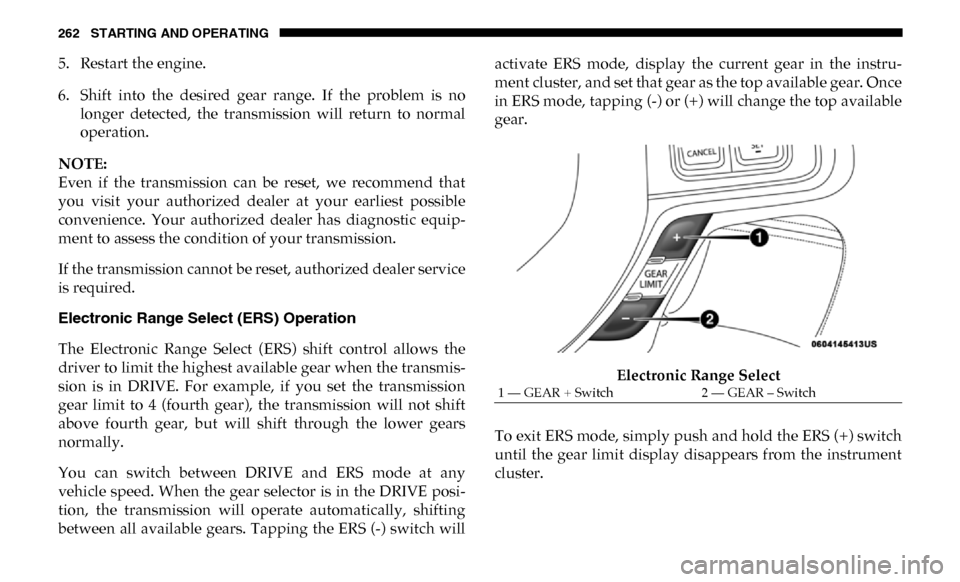
Electronic Range Select (ERS) Operation
The Electronic Range Select (ERS) shift control allows the
driver to limit the highest available gear when the transmis -
sion is in DRIVE. For example, if you set the transmission
gear limit to 4 (fourth gear), the transmission will not shift
above fourth gear, but will shift through the lower gears
normally.
You can switch between DRIVE and ERS mode at any
vehicle speed. When the gear selector is in the DRIVE posi -
tion, the transmission will operate automatically, shifting
between all available gears. Tapping the ERS (-) switch will activate ERS mode, display the current gear in the instru-
ment cluster, and set that gear as the top available gear. Once
in ERS mode, tapping (-) or (+) will change the top available
gear.
Electronic Range Select
To exit ERS mode, simply push and hold the ERS (+) switch
until the gear limit display disappears from the instrument
cluster.
1 — GEAR + Switch 2 — GEAR – Switch