trailer Ram 5500 Chassis Cab 2017 User Guide
[x] Cancel search | Manufacturer: RAM, Model Year: 2017, Model line: 5500 Chassis Cab, Model: Ram 5500 Chassis Cab 2017Pages: 534, PDF Size: 4.74 MB
Page 225 of 534
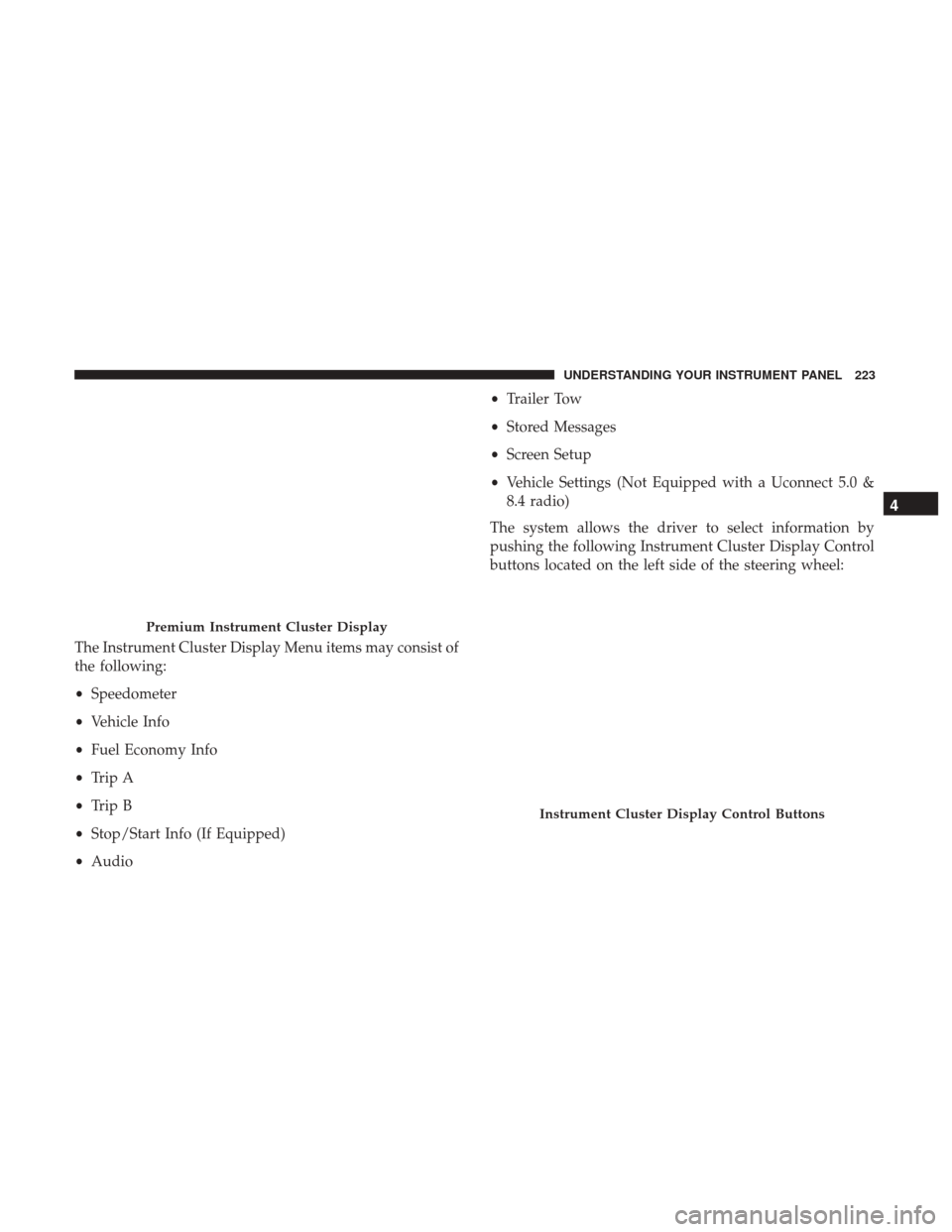
The Instrument Cluster Display Menu items may consist of
the following:
•Speedometer
• Vehicle Info
• Fuel Economy Info
• Trip A
• Trip B
• Stop/Start Info (If Equipped)
• Audio •
Trailer Tow
• Stored Messages
• Screen Setup
• Vehicle Settings (Not Equipped with a Uconnect 5.0 &
8.4 radio)
The system allows the driver to select information by
pushing the following Instrument Cluster Display Control
buttons located on the left side of the steering wheel:
Premium Instrument Cluster Display
Instrument Cluster Display Control Buttons
4
UNDERSTANDING YOUR INSTRUMENT PANEL 223
Page 227 of 534
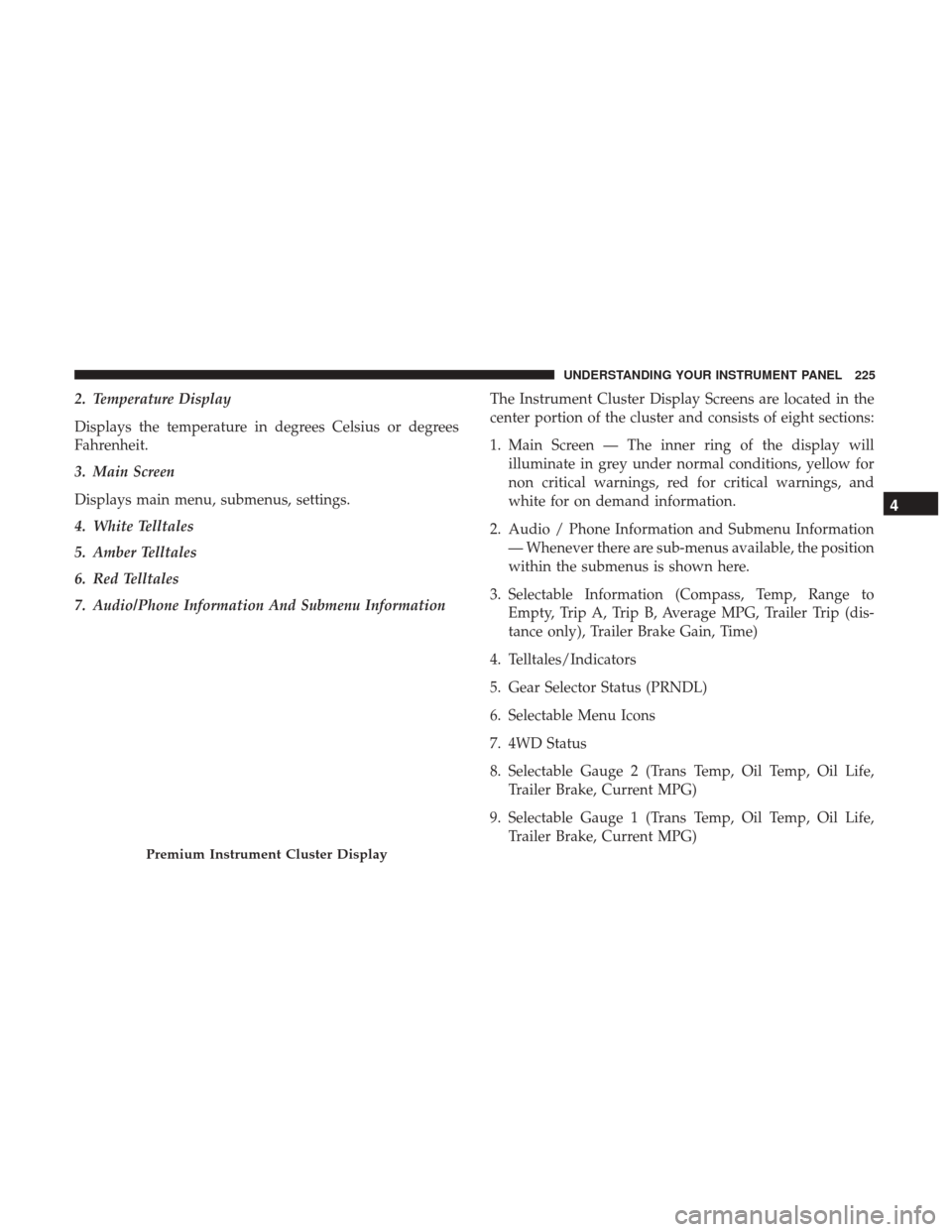
2. Temperature Display
Displays the temperature in degrees Celsius or degrees
Fahrenheit.
3. Main Screen
Displays main menu, submenus, settings.
4. White Telltales
5. Amber Telltales
6. Red Telltales
7. Audio/Phone Information And Submenu InformationThe Instrument Cluster Display Screens are located in the
center portion of the cluster and consists of eight sections:
1. Main Screen — The inner ring of the display will
illuminate in grey under normal conditions, yellow for
non critical warnings, red for critical warnings, and
white for on demand information.
2. Audio / Phone Information and Submenu Information — Whenever there are sub-menus available, the position
within the submenus is shown here.
3. Selectable Information (Compass, Temp, Range to Empty, Trip A, Trip B, Average MPG, Trailer Trip (dis-
tance only), Trailer Brake Gain, Time)
4. Telltales/Indicators
5. Gear Selector Status (PRNDL)
6. Selectable Menu Icons
7. 4WD Status
8. Selectable Gauge 2 (Trans Temp, Oil Temp, Oil Life, Trailer Brake, Current MPG)
9. Selectable Gauge 1 (Trans Temp, Oil Temp, Oil Life, Trailer Brake, Current MPG)
Premium Instrument Cluster Display
4
UNDERSTANDING YOUR INSTRUMENT PANEL 225
Page 231 of 534

Trip A/Trip B
Push and release theUPorDOWNarrow button
until the Trip menu item is highlighted in the Instru-
ment Cluster Display. Push and release the RIGHT
arrow button to enter the submenus of Trip A and
Trip B. The Trip A or Trip B information will display the
following:
• Distance
• Average MPG
• Elapsed Time
Push and hold RIGHT
arrow button to reset all
information.
Trailer Tow
Push and release the UPorDOWNarrow button
until the Trailer Tow menu item is highlighted in the
Instrument Cluster Display. Push and release the
RIGHT
arrow button and the next screen will dis-
play the following trailer trip information:
• Trip (trailer specific) Distance: Push and hold the
RIGHT
arrow button to reset the distance.
• Trailer Brake
• Output
• Type
• Gain
Audio
Push and release the UPorDOWNarrow button
until the Audio display icon is highlighted in the
Instrument Cluster Display. Push and release the
RIGHT
arrow button to display the active source.
Stored Messages
Push and release the UPorDOWNar-
row button until the Messages Menu item is
highlighted. This feature shows the number of
stored warning messages. Pushing the RIGHT
arrow button will allow you to see what the stored
messages are.
When no messages are present, main menu icon will be a
closed envelope.
4
UNDERSTANDING YOUR INSTRUMENT PANEL 229
Page 234 of 534
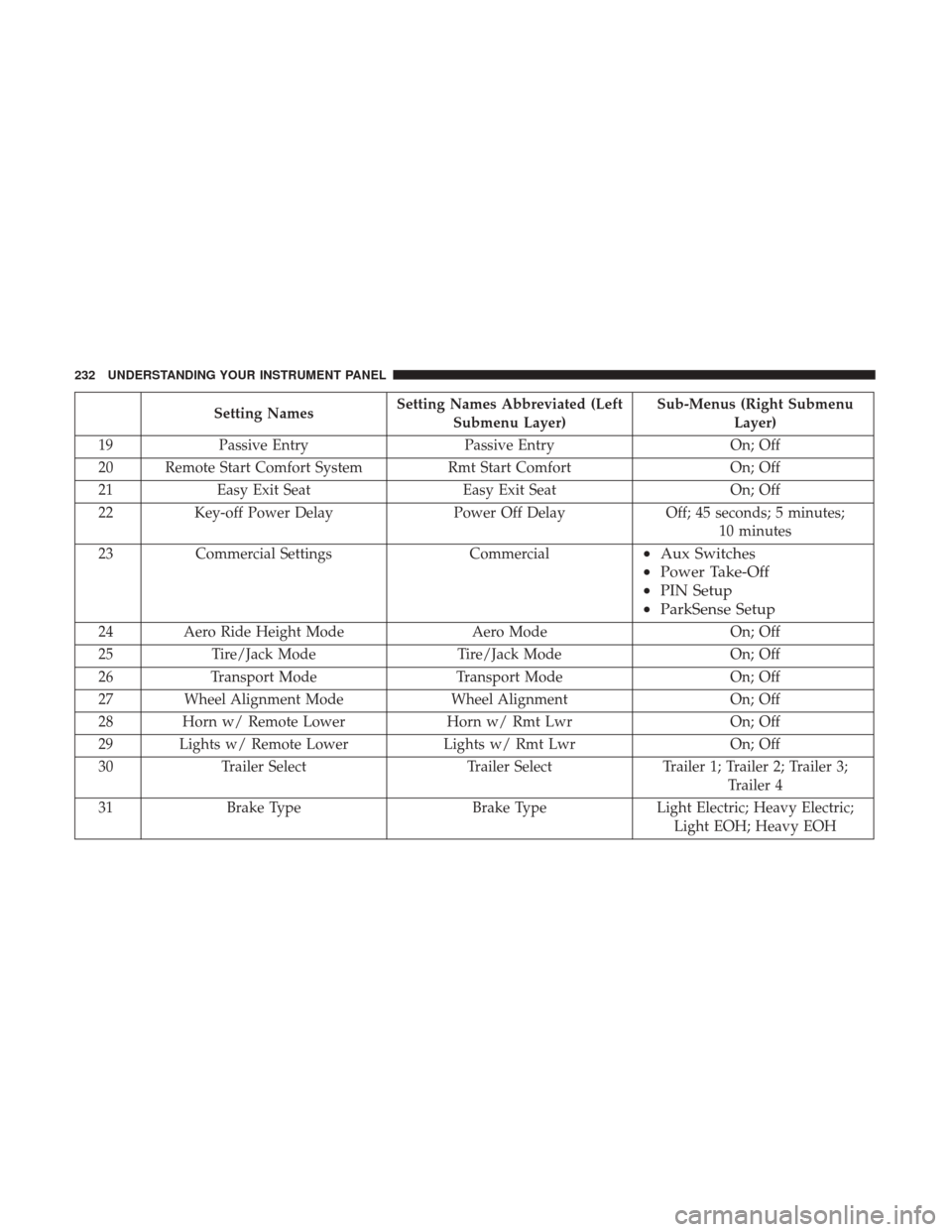
Setting NamesSetting Names Abbreviated (Left
Submenu Layer) Sub-Menus (Right Submenu
Layer)
19 Passive Entry Passive Entry On; Off
20 Remote Start Comfort System Rmt Start ComfortOn; Off
21 Easy Exit Seat Easy Exit Seat On; Off
22 Key-off Power Delay Power Off DelayOff; 45 seconds; 5 minutes;
10 minutes
23 Commercial Settings Commercial
•Aux Switches
• Power Take-Off
• PIN Setup
• ParkSense Setup
24 Aero Ride Height Mode Aero ModeOn; Off
25 Tire/Jack Mode Tire/Jack Mode On; Off
26 Transport Mode Transport Mode On; Off
27 Wheel Alignment Mode Wheel AlignmentOn; Off
28 Horn w/ Remote Lower Horn w/ Rmt LwrOn; Off
29 Lights w/ Remote Lower Lights w/ Rmt LwrOn; Off
30 Trailer Select Trailer SelectTrailer 1; Trailer 2; Trailer 3;
Trailer 4
31 Brake Type Brake TypeLight Electric; Heavy Electric;
Light EOH; Heavy EOH
232 UNDERSTANDING YOUR INSTRUMENT PANEL
Page 235 of 534

Setting NamesSetting Names Abbreviated (Left
Submenu Layer) Sub-Menus (Right Submenu
Layer)
32 Trailer Name Trailer Name
•Trailer # (# is equal to slot
position)
• Boat
• Car
• Cargo
• Dump
• Equipment
• Flatbed
• Gooseneck
• Horse
• Ta g
• Motorcycle
• Snowmobile
• Travel
• Utility
• 5th Wheel
33 Compass Variance Compass Var1-15 increments of 1
34 Calibrate Compass Compass CalCancel; Calibrate
4
UNDERSTANDING YOUR INSTRUMENT PANEL 233
Page 237 of 534
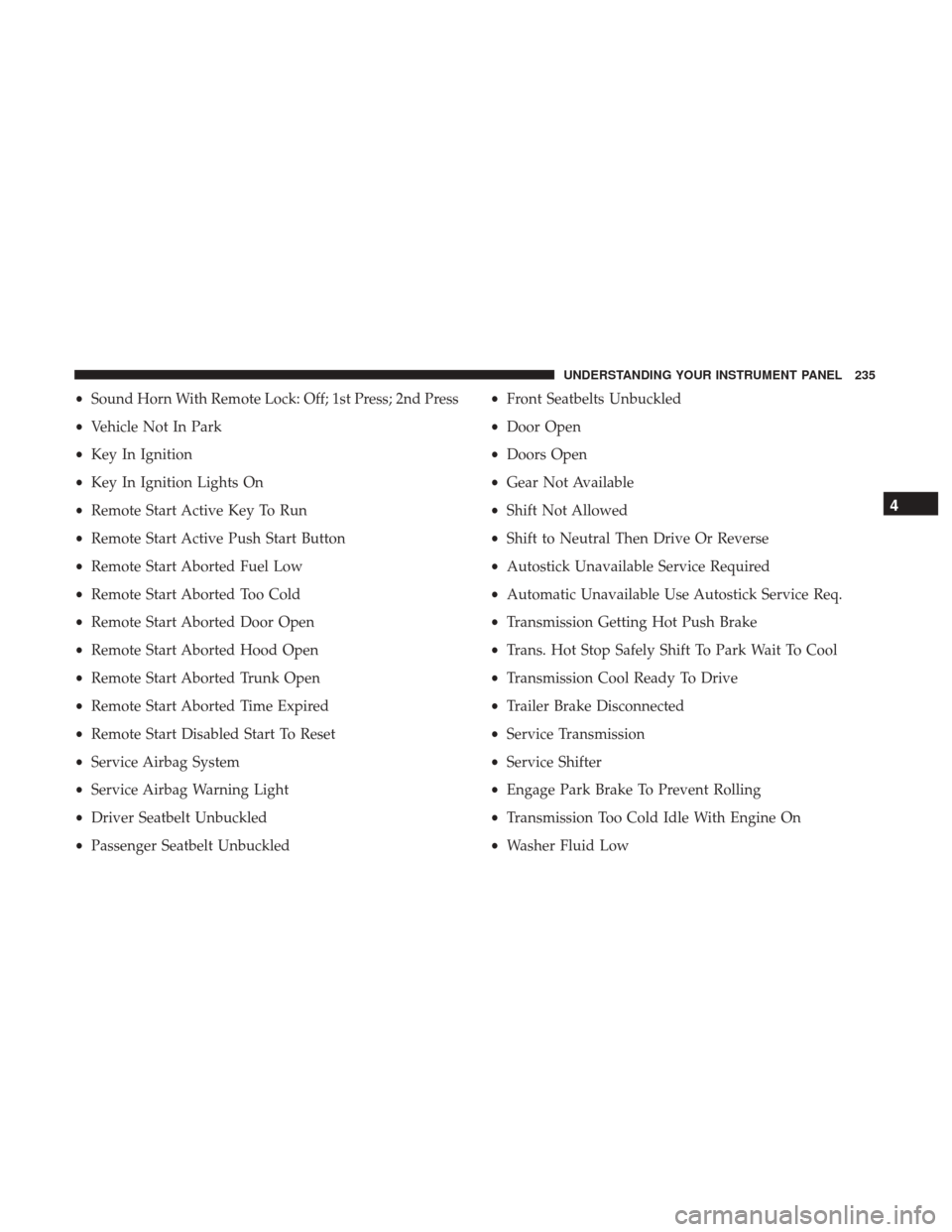
•Sound Horn With Remote Lock: Off; 1st Press; 2nd Press
• Vehicle Not In Park
• Key In Ignition
• Key In Ignition Lights On
• Remote Start Active Key To Run
• Remote Start Active Push Start Button
• Remote Start Aborted Fuel Low
• Remote Start Aborted Too Cold
• Remote Start Aborted Door Open
• Remote Start Aborted Hood Open
• Remote Start Aborted Trunk Open
• Remote Start Aborted Time Expired
• Remote Start Disabled Start To Reset
• Service Airbag System
• Service Airbag Warning Light
• Driver Seatbelt Unbuckled
• Passenger Seatbelt Unbuckled •
Front Seatbelts Unbuckled
• Door Open
• Doors Open
• Gear Not Available
• Shift Not Allowed
• Shift to Neutral Then Drive Or Reverse
• Autostick Unavailable Service Required
• Automatic Unavailable Use Autostick Service Req.
• Transmission Getting Hot Push Brake
• Trans. Hot Stop Safely Shift To Park Wait To Cool
• Transmission Cool Ready To Drive
• Trailer Brake Disconnected
• Service Transmission
• Service Shifter
• Engage Park Brake To Prevent Rolling
• Transmission Too Cold Idle With Engine On
• Washer Fluid Low
4
UNDERSTANDING YOUR INSTRUMENT PANEL 235
Page 243 of 534
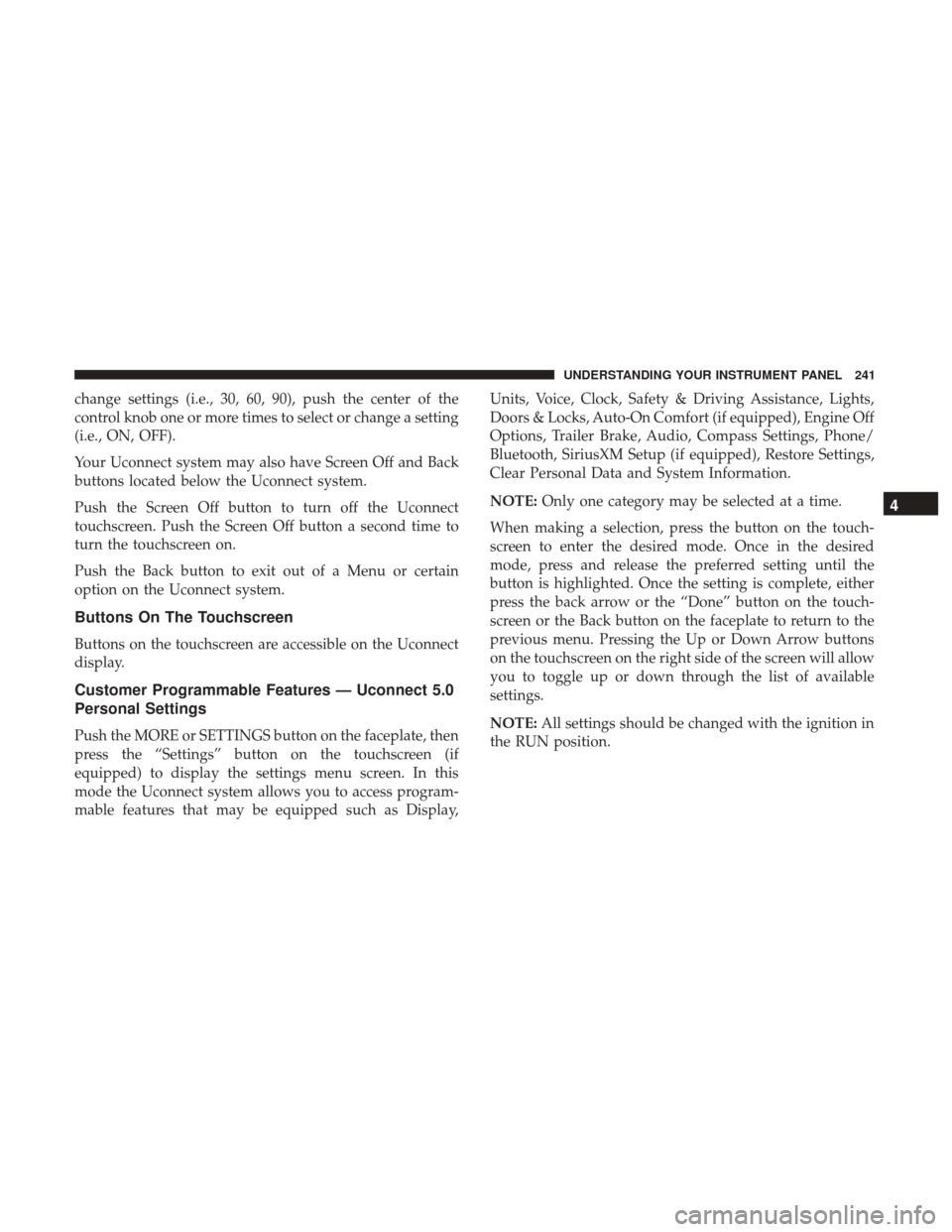
change settings (i.e., 30, 60, 90), push the center of the
control knob one or more times to select or change a setting
(i.e., ON, OFF).
Your Uconnect system may also have Screen Off and Back
buttons located below the Uconnect system.
Push the Screen Off button to turn off the Uconnect
touchscreen. Push the Screen Off button a second time to
turn the touchscreen on.
Push the Back button to exit out of a Menu or certain
option on the Uconnect system.
Buttons On The Touchscreen
Buttons on the touchscreen are accessible on the Uconnect
display.
Customer Programmable Features — Uconnect 5.0
Personal Settings
Push the MORE or SETTINGS button on the faceplate, then
press the “Settings” button on the touchscreen (if
equipped) to display the settings menu screen. In this
mode the Uconnect system allows you to access program-
mable features that may be equipped such as Display,Units, Voice, Clock, Safety & Driving Assistance, Lights,
Doors & Locks, Auto-On Comfort (if equipped), Engine Off
Options, Trailer Brake, Audio, Compass Settings, Phone/
Bluetooth, SiriusXM Setup (if equipped), Restore Settings,
Clear Personal Data and System Information.
NOTE:
Only one category may be selected at a time.
When making a selection, press the button on the touch-
screen to enter the desired mode. Once in the desired
mode, press and release the preferred setting until the
button is highlighted. Once the setting is complete, either
press the back arrow or the “Done” button on the touch-
screen or the Back button on the faceplate to return to the
previous menu. Pressing the Up or Down Arrow buttons
on the touchscreen on the right side of the screen will allow
you to toggle up or down through the list of available
settings.
NOTE: All settings should be changed with the ignition in
the RUN position.
4
UNDERSTANDING YOUR INSTRUMENT PANEL 241
Page 252 of 534

Trailer Brake
After pressing the “Trailer Brake” button on the touch-
screen, the following settings will be available:
Setting NameSelectable Options
Trailer Select Trailer 1Trailer 2Trailer 3 Trailer 4
Trailer Brake Type Light Electric Heavy Electric Light EOHHeavy EOH
Audio
After pressing the “Audio” button on the touchscreen, the
following settings will be available:
Setting Name Selectable Options
Balance/Fade Speaker Icon (Arrow Buttons) C
NOTE: The “Balance/Fade” feature allows you to adjust the Balance and Fade settings. Press and drag the speaker
icon or use the arrows to adjust, tap the “C” icon to readjust to the center.
Equalizer +–
NOTE: When in the “Equalizer” display you may adjust the Bass, Mid and Treble settings.
Speed Adjusted Vol- ume Off
12 3
NOTE: The “Speed Adjusted Volume” feature increases or decreases volume relative to vehicle speed.
250 UNDERSTANDING YOUR INSTRUMENT PANEL
Page 258 of 534
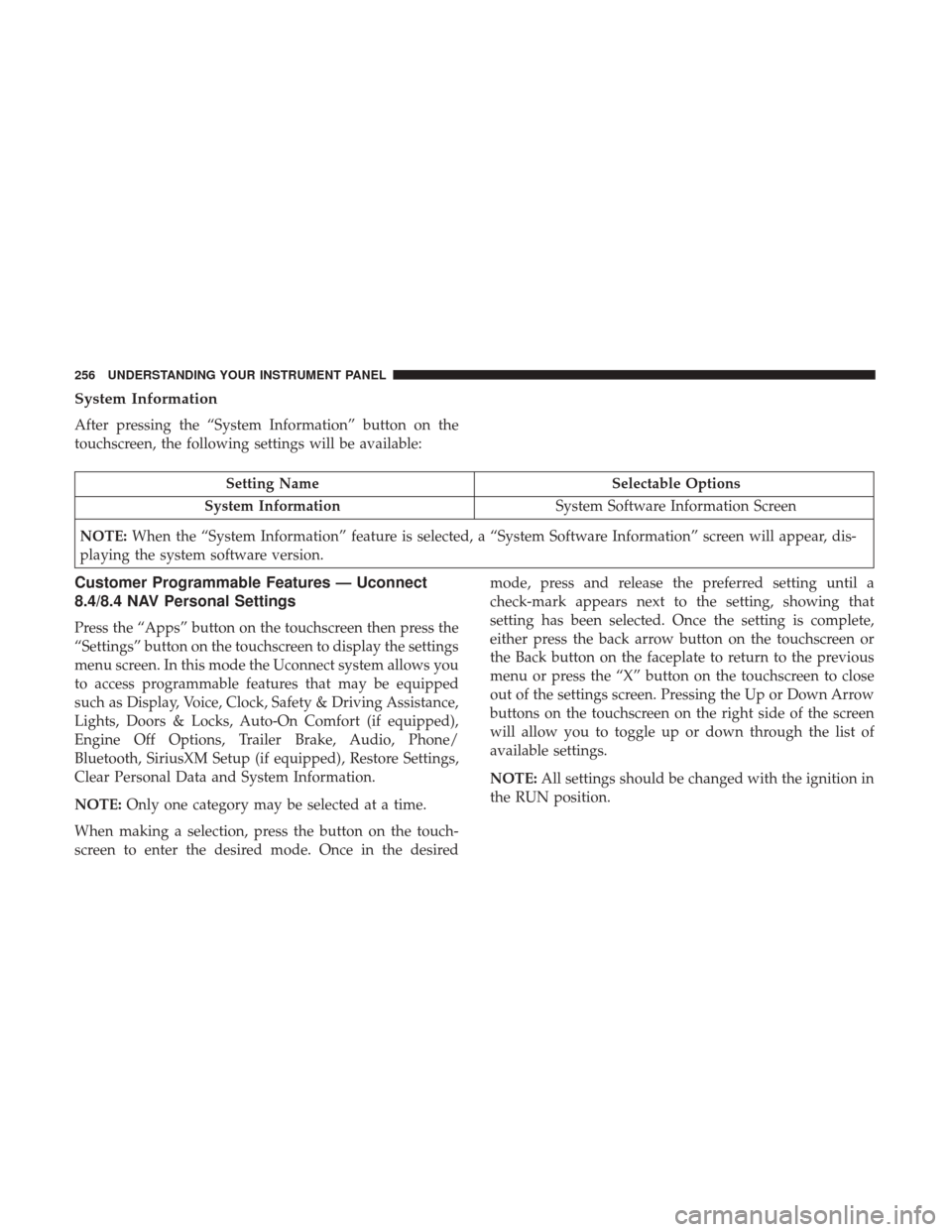
System Information
After pressing the “System Information” button on the
touchscreen, the following settings will be available:
Setting NameSelectable Options
System Information System Software Information Screen
NOTE: When the “System Information” feature is selected, a “System Software Information” screen will appear, dis-
playing the system software version.
Customer Programmable Features — Uconnect
8.4/8.4 NAV Personal Settings
Press the “Apps” button on the touchscreen then press the
“Settings” button on the touchscreen to display the settings
menu screen. In this mode the Uconnect system allows you
to access programmable features that may be equipped
such as Display, Voice, Clock, Safety & Driving Assistance,
Lights, Doors & Locks, Auto-On Comfort (if equipped),
Engine Off Options, Trailer Brake, Audio, Phone/
Bluetooth, SiriusXM Setup (if equipped), Restore Settings,
Clear Personal Data and System Information.
NOTE: Only one category may be selected at a time.
When making a selection, press the button on the touch-
screen to enter the desired mode. Once in the desired mode, press and release the preferred setting until a
check-mark appears next to the setting, showing that
setting has been selected. Once the setting is complete,
either press the back arrow button on the touchscreen or
the Back button on the faceplate to return to the previous
menu or press the “X” button on the touchscreen to close
out of the settings screen. Pressing the Up or Down Arrow
buttons on the touchscreen on the right side of the screen
will allow you to toggle up or down through the list of
available settings.
NOTE:
All settings should be changed with the ignition in
the RUN position.
256 UNDERSTANDING YOUR INSTRUMENT PANEL
Page 269 of 534
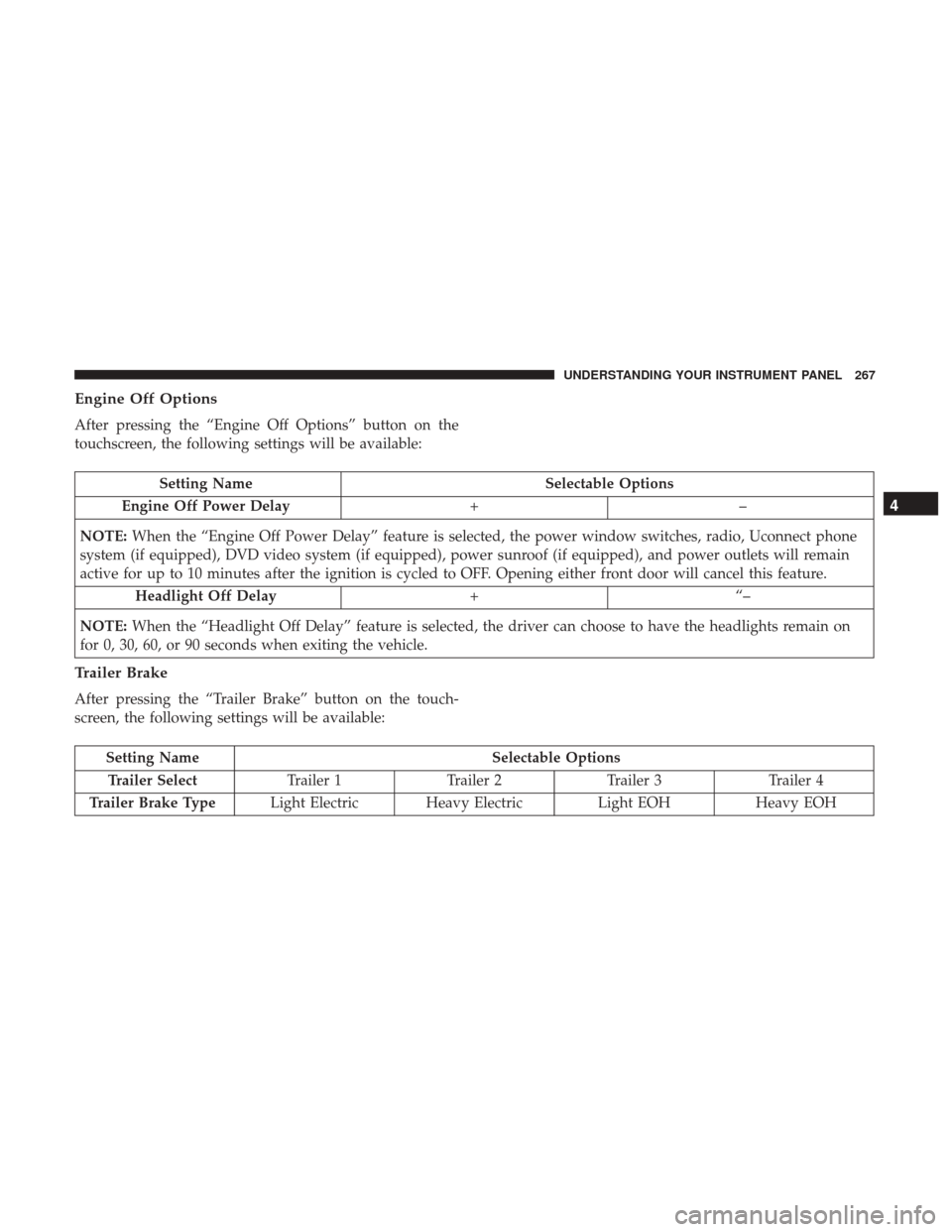
Engine Off Options
After pressing the “Engine Off Options” button on the
touchscreen, the following settings will be available:
Setting NameSelectable Options
Engine Off Power Delay +–
NOTE: When the “Engine Off Power Delay” feature is selected, the power window switches, radio, Uconnect phone
system (if equipped), DVD video system (if equipped), power sunroof (if equipped), and power outlets will remain
active for up to 10 minutes after the ignition is cycled to OFF. Opening either front door will cancel this feature.
Headlight Off Delay +“–
NOTE: When the “Headlight Off Delay” feature is selected, the driver can choose to have the headlights remain on
for 0, 30, 60, or 90 seconds when exiting the vehicle.
Trailer Brake
After pressing the “Trailer Brake” button on the touch-
screen, the following settings will be available:
Setting Name Selectable Options
Trailer Select Trailer 1Trailer 2Trailer 3 Trailer 4
Trailer Brake Type Light Electric Heavy Electric Light EOHHeavy EOH
4
UNDERSTANDING YOUR INSTRUMENT PANEL 267