ignition Ram 5500 Chassis Cab 2017 Repair Manual
[x] Cancel search | Manufacturer: RAM, Model Year: 2017, Model line: 5500 Chassis Cab, Model: Ram 5500 Chassis Cab 2017Pages: 534, PDF Size: 4.74 MB
Page 212 of 534

Electronic Stability Control (ESC) Indicator Light — If Equipped
Yellow TelltaleLight What It Means
Electronic Stability Control (ESC) Indicator Light — If Equipped
The “ESC Indicator Light” in the instrument cluster will come on when the ignition is placed in
the ON/RUN position, and when ESC is activated. It should go out with the engine running. If
the “ESC Indicator Light” comes on continuously with the engine running, a malfunction has
been detected in the ESC system. If this light remains on after several ignition cycles, and the ve-
hicle has been driven several miles (kilometers) at speeds greater than 30 MPH (48 km/h), see
your authorized dealer as soon as possible to have the problem diagnosed and corrected.
•
The “ESC Off Indicator Light” and the “ESC Indicator Light” come on momentarily each
time the ignition is placed in the ON/RUN position.
• Each time the ignition is turned to ON/RUN, the ESC system will be ON, even if it was
turned off previously.
• The ESC system will make buzzing or clicking sounds when it is active. This is normal; the
sounds will stop when ESC becomes inactive.
• This light will come on when the vehicle is in an ESC event.
210 UNDERSTANDING YOUR INSTRUMENT PANEL
Page 216 of 534
Low Fuel Indicator Light
Yellow TelltaleLight What It Means
Low Fuel Indicator Light
When the fuel level reaches approximately 3.0 gal (11.0 L) this light will turn on, and remain on
until fuel is added.
Anti-Lock Brake (ABS) Indicator Light
Yellow Telltale
Light What It Means
Anti-Lock Brake (ABS) Indicator Light
After the ignition is turned on, the Anti-Lock Brake System (ABS) light illuminates to indicate
function check at vehicle startup. If the light remains on after startup or comes on and stays on at
road speeds, it may indicate that the ABS has detected a malfunction or has become inoperative.
The system reverts to standard non-anti-lock brakes.
If both the Brake Warning Light and the ABS Warning Light are on, see an authorized dealer im-
mediately. Refer to “Anti-Lock Brake System” in “Starting And Operating” for further informa-
tion.
214 UNDERSTANDING YOUR INSTRUMENT PANEL
Page 224 of 534
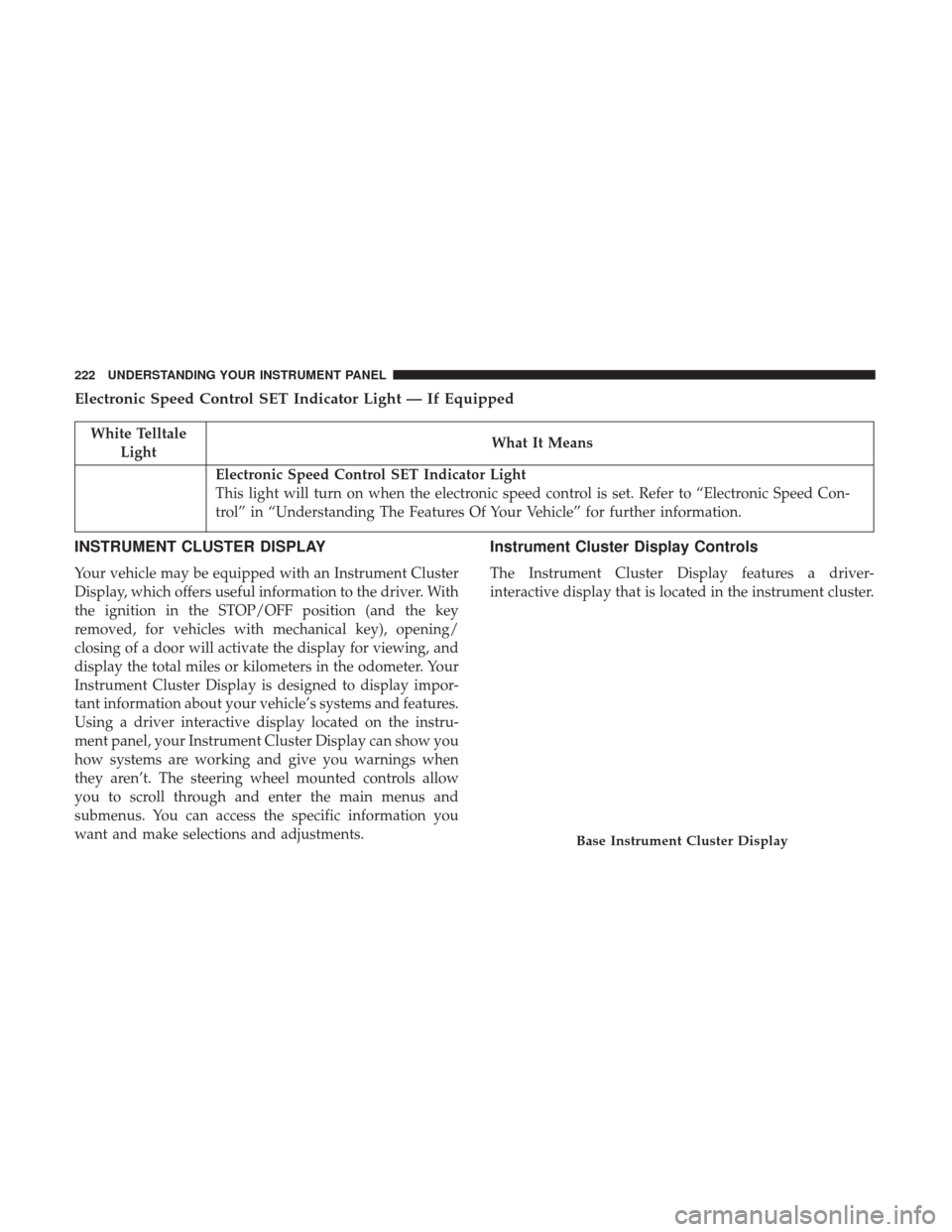
Electronic Speed Control SET Indicator Light — If Equipped
White TelltaleLight What It Means
Electronic Speed Control SET Indicator Light
This light will turn on when the electronic speed control is set. Refer to “Electronic Speed Con-
trol” in “Understanding The Features Of Your Vehicle” for further information.
INSTRUMENT CLUSTER DISPLAY
Your vehicle may be equipped with an Instrument Cluster
Display, which offers useful information to the driver. With
the ignition in the STOP/OFF position (and the key
removed, for vehicles with mechanical key), opening/
closing of a door will activate the display for viewing, and
display the total miles or kilometers in the odometer. Your
Instrument Cluster Display is designed to display impor-
tant information about your vehicle’s systems and features.
Using a driver interactive display located on the instru-
ment panel, your Instrument Cluster Display can show you
how systems are working and give you warnings when
they aren’t. The steering wheel mounted controls allow
you to scroll through and enter the main menus and
submenus. You can access the specific information you
want and make selections and adjustments.
Instrument Cluster Display Controls
The Instrument Cluster Display features a driver-
interactive display that is located in the instrument cluster.
Base Instrument Cluster Display
222 UNDERSTANDING YOUR INSTRUMENT PANEL
Page 228 of 534
The Instrument Cluster Display area will normally display
the main menu or the screens of a selected feature of the
main menu. The main display area also displays “pop up”
messages that consist of approximately 60 possible warn-
ing or information messages. These pop up messages fall
into several categories:
•Five Second Stored Messages
When the appropriate conditions occur, this type of mes-
sage takes control of the main display area for five seconds
and then returns to the previous screen. Most of the
messages of this type are then stored (as long as the
condition that activated it remains active) and can be
reviewed from the “Messages” main menu item. As long as
there is a stored message, an “i” will be displayed in the
Instrument Cluster Display’s compass/outside temp line.
Examples of this message type are “Right Front Turn Signal
Lamp Out” and “Low Tire Pressure.”
• Unstored Messages
This message type is displayed indefinitely or until the
condition that activated the message is cleared. Examples
of this message type are “Turn Signal On” (if a turn signal
is left on) and “Lights On” (if driver leaves the vehicle). •
Unstored Messages Until RUN
These messages deal primarily with the Remote Start
feature. This message type is displayed until the ignition is
in the RUN state. Examples of this message type are
“Remote Start Aborted - Door Ajar” and “Press Brake
Pedal and Push Button to Start.”
• Five Second Unstored Messages
When the appropriate conditions occur, this type of mes-
sage takes control of the main display area for five seconds
and then returns to the previous screen. An example of this
message type is “Automatic High Beams On.”
Oil Life Reset
Your vehicle is equipped with an engine oil change indi-
cator system. The “Oil Change Required” message will
display in the Instrument Cluster Display after a single
chime has sounded, to indicate the next scheduled oil
change interval. The engine oil change indicator system is
duty cycle based, which means the engine oil change
interval may fluctuate, dependent upon your personal
driving style.
NOTE: Use the steering wheel Instrument Cluster Display
controls for the following procedure(s).
226 UNDERSTANDING YOUR INSTRUMENT PANEL
Page 229 of 534
Vehicles Equipped With Passive Entry
1. Without pushing the brake pedal, push the ENGINESTART/STOP button and place the ignition to the
ON/RUN position (do not start the engine).
2. Push and release the DOWN
arrow button to scroll
downward through the main menu to “Vehicle Info.”
3. Push and release the RIGHTarrow button to access
the ”Vehicle Info” screen, then scroll up or down to
select “Oil Life.”
4. Push and hold the RIGHTarrow button to select
“Reset”.
5. Push and release the DOWNarrow button to select
“Yes,” then push and release the RIGHT
arrow
button to select reset of the Oil Life to 100%.
6. Push and release the UParrow button to exit the
Instrument Cluster Display screen.
Vehicles Not Equipped With Passive Entry
1. Without pushing the brake pedal, cycle the ignition to the ON/RUN position (do not start the engine).
2. Push and release the DOWN
arrow button to scroll
downward through the main menu to “Vehicle Info.”
3. Push and release the RIGHTarrow button to access
the “Vehicle Info” screen then scroll up or down to
select “Oil Life.”
4. Push and hold the RIGHTarrow button to select
“YES” by pushing the RIGHT
arrow then push
and release the RIGHT
arrow button to select
reset of the Oil Life to 100%.
5. Push and release the UParrow button to exit the
Instrument Cluster Display screen.
NOTE: If the indicator message illuminates when you start
the vehicle, the Oil Life indicator system did not reset. If
necessary, repeat this procedure.
Instrument Cluster Display Selectable Menu Items
Push and release the UPorDOWNarrow button
until the desired Selectable Menu icon is highlighted in
the Instrument Cluster Display.
Speedometer
Push and release the UPorDOWNarrow button
until the speedometer menu item is highlighted in the
Instrument Cluster Display. Push and release the
RIGHT
arrow button to cycle the display between
MPH and km/h. 4
UNDERSTANDING YOUR INSTRUMENT PANEL 227
Page 237 of 534
•Sound Horn With Remote Lock: Off; 1st Press; 2nd Press
• Vehicle Not In Park
• Key In Ignition
• Key In Ignition Lights On
• Remote Start Active Key To Run
• Remote Start Active Push Start Button
• Remote Start Aborted Fuel Low
• Remote Start Aborted Too Cold
• Remote Start Aborted Door Open
• Remote Start Aborted Hood Open
• Remote Start Aborted Trunk Open
• Remote Start Aborted Time Expired
• Remote Start Disabled Start To Reset
• Service Airbag System
• Service Airbag Warning Light
• Driver Seatbelt Unbuckled
• Passenger Seatbelt Unbuckled •
Front Seatbelts Unbuckled
• Door Open
• Doors Open
• Gear Not Available
• Shift Not Allowed
• Shift to Neutral Then Drive Or Reverse
• Autostick Unavailable Service Required
• Automatic Unavailable Use Autostick Service Req.
• Transmission Getting Hot Push Brake
• Trans. Hot Stop Safely Shift To Park Wait To Cool
• Transmission Cool Ready To Drive
• Trailer Brake Disconnected
• Service Transmission
• Service Shifter
• Engage Park Brake To Prevent Rolling
• Transmission Too Cold Idle With Engine On
• Washer Fluid Low
4
UNDERSTANDING YOUR INSTRUMENT PANEL 235
Page 239 of 534

Loss of the battery charge may indicate one or more of the
following conditions:
•The charging system cannot deliver enough electrical
power to the vehicle system because the electrical loads
are larger than the capability of charging system. The
charging system is still functioning properly.
• Turning on all possible vehicle electrical loads (e.g.
HVAC to max settings, exterior and interior lights,
overloaded power outlets +12V, 115V AC, USB ports)
during certain driving conditions (city driving, towing,
frequent stopping).
• Installing options like additional lights, upfitter electri-
cal accessories, audio systems, alarms and similar de-
vices.
• Unusual driving cycles (short trips separated by long
parking periods).
• The vehicle was parked for an extended period of time
(weeks, months).
• The battery was recently replaced and was not charged
completely.
• The battery was discharged by an electrical load left on
when the vehicle was parked. •
The battery was used for an extended period with the
engine not running to supply radio, lights, chargers,
+12V portable appliances like vacuum cleaners, game
consoles and similar devices.
What to do when an electrical load reduction action
message is present (“Battery Saver On” or “Battery Saver
Mode”)
During a trip:
• Reduce power to unnecessary loads if possible:
– Turn off redundant lights (interior or exterior)
– Check what may be plugged in to power outlets +12V, 115V AC, USB ports
– Check HVAC settings (blower, temperature)
– Check the audio settings (volume)
After a trip:
• Check if any aftermarket equipment was installed (ad-
ditional lights, upfitter electrical accessories, audio sys-
tems, alarms) and review specifications if any (load and
Ignition Off Draw currents).
• Evaluate the latest driving cycles (distance, driving time
and parking time).
4
UNDERSTANDING YOUR INSTRUMENT PANEL 237
Page 243 of 534
change settings (i.e., 30, 60, 90), push the center of the
control knob one or more times to select or change a setting
(i.e., ON, OFF).
Your Uconnect system may also have Screen Off and Back
buttons located below the Uconnect system.
Push the Screen Off button to turn off the Uconnect
touchscreen. Push the Screen Off button a second time to
turn the touchscreen on.
Push the Back button to exit out of a Menu or certain
option on the Uconnect system.
Buttons On The Touchscreen
Buttons on the touchscreen are accessible on the Uconnect
display.
Customer Programmable Features — Uconnect 5.0
Personal Settings
Push the MORE or SETTINGS button on the faceplate, then
press the “Settings” button on the touchscreen (if
equipped) to display the settings menu screen. In this
mode the Uconnect system allows you to access program-
mable features that may be equipped such as Display,Units, Voice, Clock, Safety & Driving Assistance, Lights,
Doors & Locks, Auto-On Comfort (if equipped), Engine Off
Options, Trailer Brake, Audio, Compass Settings, Phone/
Bluetooth, SiriusXM Setup (if equipped), Restore Settings,
Clear Personal Data and System Information.
NOTE:
Only one category may be selected at a time.
When making a selection, press the button on the touch-
screen to enter the desired mode. Once in the desired
mode, press and release the preferred setting until the
button is highlighted. Once the setting is complete, either
press the back arrow or the “Done” button on the touch-
screen or the Back button on the faceplate to return to the
previous menu. Pressing the Up or Down Arrow buttons
on the touchscreen on the right side of the screen will allow
you to toggle up or down through the list of available
settings.
NOTE: All settings should be changed with the ignition in
the RUN position.
4
UNDERSTANDING YOUR INSTRUMENT PANEL 241
Page 246 of 534

Safety/Assistance
After pressing the “Safety/Assistance” button on the
touchscreen, the following settings will be available:
Setting NameSelectable Options
ParkSense — If Equipped Sound Only Sounds and Display
NOTE: The ParkSense system will scan for objects behind the vehicle when the transmission gear selector is in RE-
VERSE and the vehicle speed is less than 11 mph (18 km/h). It will provide an alert (audible and/or visual) to indi-
cate the proximity to other objects.
Front ParkSense Chime Volume Low
Med High
Rear ParkSense Chime
Volume — If Equipped Low Med High
Tilt Mirrors In Reverse — If Equipped
NOTE: When the “Tilt Mirrors In Reverse” feature is selected, the exterior side-view mirrors will tilt downward when
the ignition is in the RUN position and the transmission gear selector is in the REVERSE position. The mirrors will
move back to their previous position when the transmission is shifted out of REVERSE.
244 UNDERSTANDING YOUR INSTRUMENT PANEL
Page 247 of 534
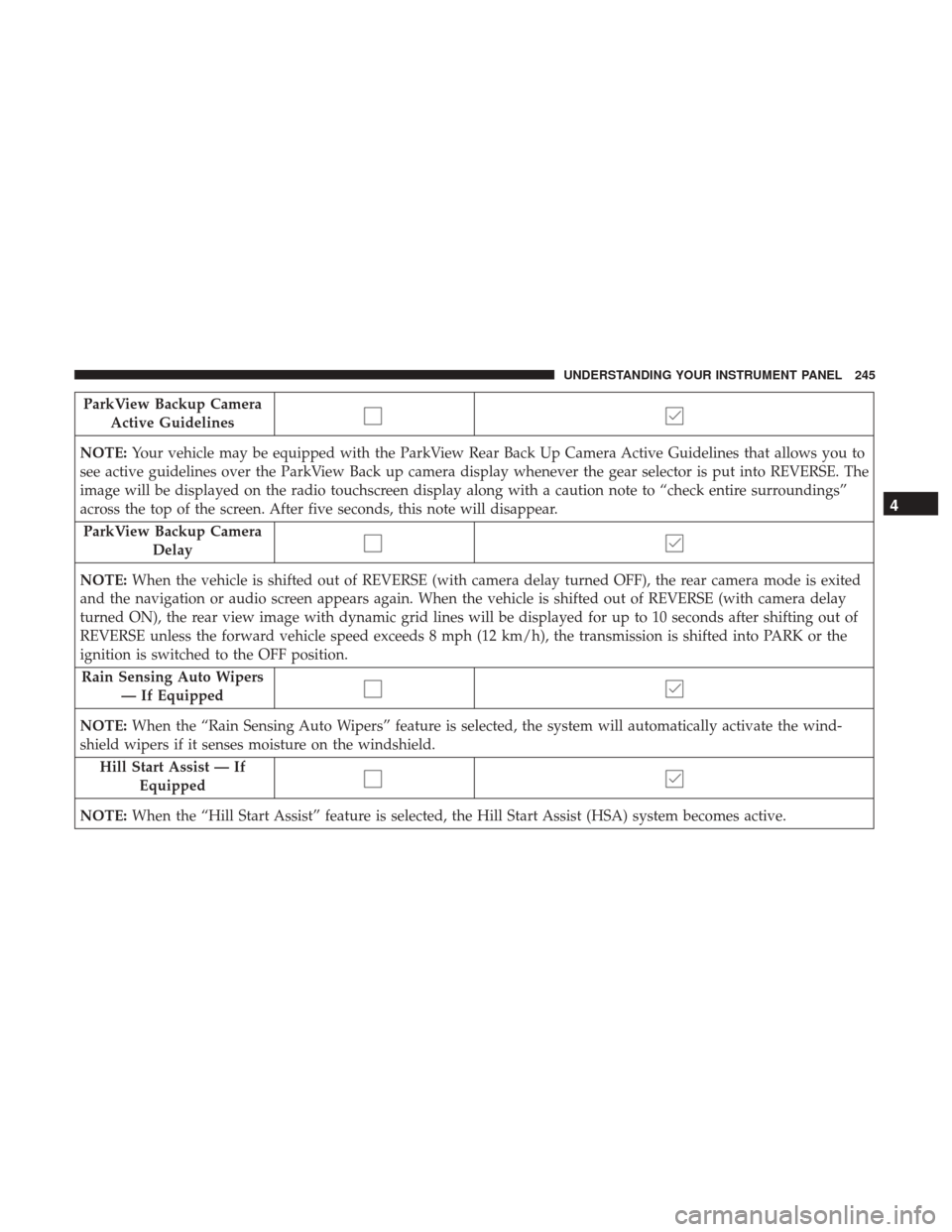
ParkView Backup CameraActive Guidelines
NOTE: Your vehicle may be equipped with the ParkView Rear Back Up Camera Active Guidelines that allows you to
see active guidelines over the ParkView Back up camera display whenever the gear selector is put into REVERSE. The
image will be displayed on the radio touchscreen display along with a caution note to “check entire surroundings”
across the top of the screen. After five seconds, this note will disappear.
ParkView Backup Camera Delay
NOTE: When the vehicle is shifted out of REVERSE (with camera delay turned OFF), the rear camera mode is exited
and the navigation or audio screen appears again. When the vehicle is shifted out of REVERSE (with camera delay
turned ON), the rear view image with dynamic grid lines will be displayed for up to 10 seconds after shifting out of
REVERSE unless the forward vehicle speed exceeds 8 mph (12 km/h), the transmission is shifted into PARK or the
ignition is switched to the OFF position.
Rain Sensing Auto Wipers — If Equipped
NOTE: When the “Rain Sensing Auto Wipers” feature is selected, the system will automatically activate the wind-
shield wipers if it senses moisture on the windshield.
Hill Start Assist — If Equipped
NOTE: When the “Hill Start Assist” feature is selected, the Hill Start Assist (HSA) system becomes active.
4
UNDERSTANDING YOUR INSTRUMENT PANEL 245